Grok Imagine is xAI’s advanced video generation model for creating short, dynamic videos from 1 to 15 seconds long using a text prompt or an image.
The model delivers fast generation, realistic motion physics, and high-quality audio, producing lifelike, cinematic videos.
- 🎛 Navigation
- 💥 Step-by-Step Guide to Using Grok Imagine «Text to Video»
- 💥 Step-by-Step Guide to Using Grok Imagine «Image to Video»
- 💥 Step-by-Step Guide to Using Grok Imagine «Generation with Voice»
- 💥 Step-by-Step Guide to Using Grok Imagine «Video to Video»
- 💥 Additional Features of Grok Imagine
🎛 Navigation
🏠 Main Menu > 🎬 Video > 🤖 Grok Imagine
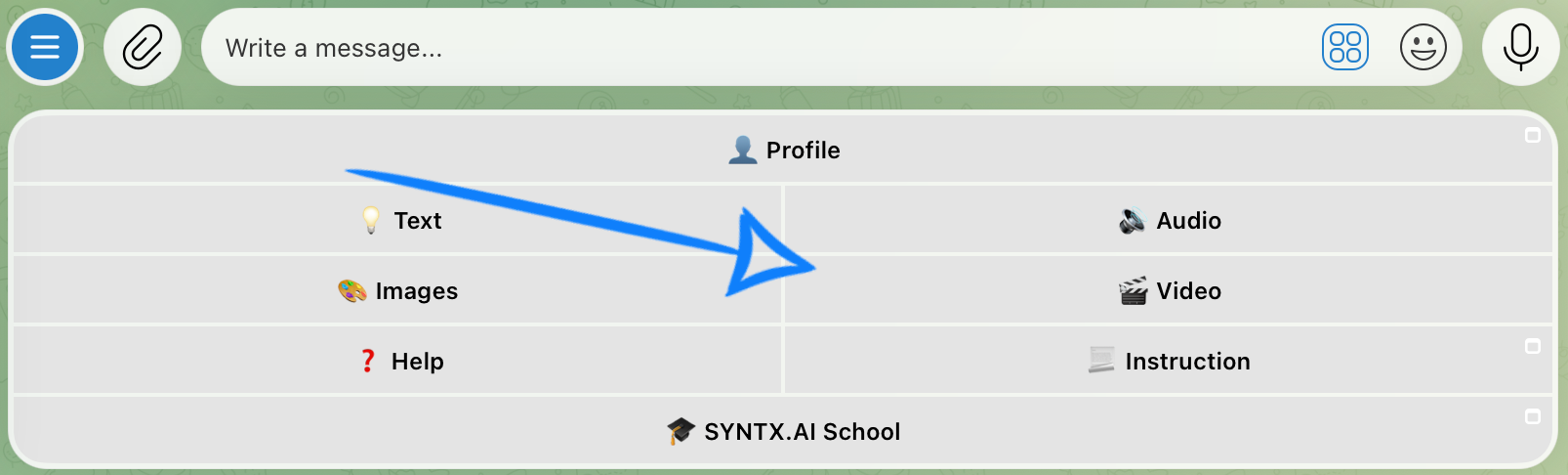
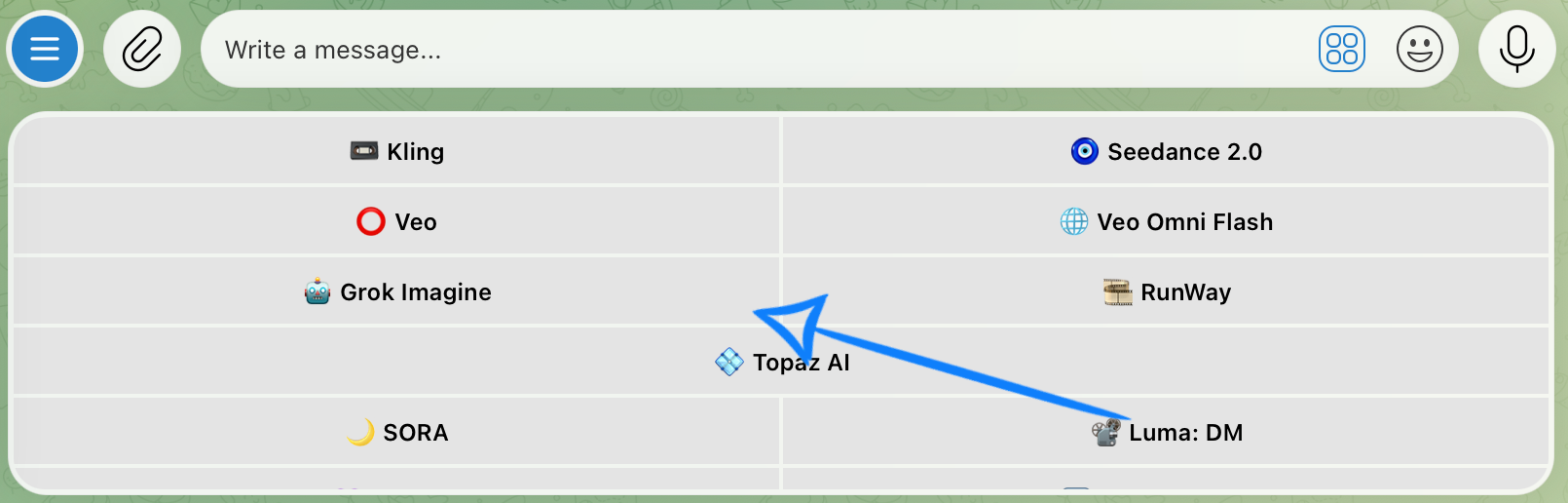
💥 Step-by-Step Guide to Using Grok Imagine «Text to Video»
Before generating a video from a text prompt, you need to configure the model settings correctly.
Model Settings
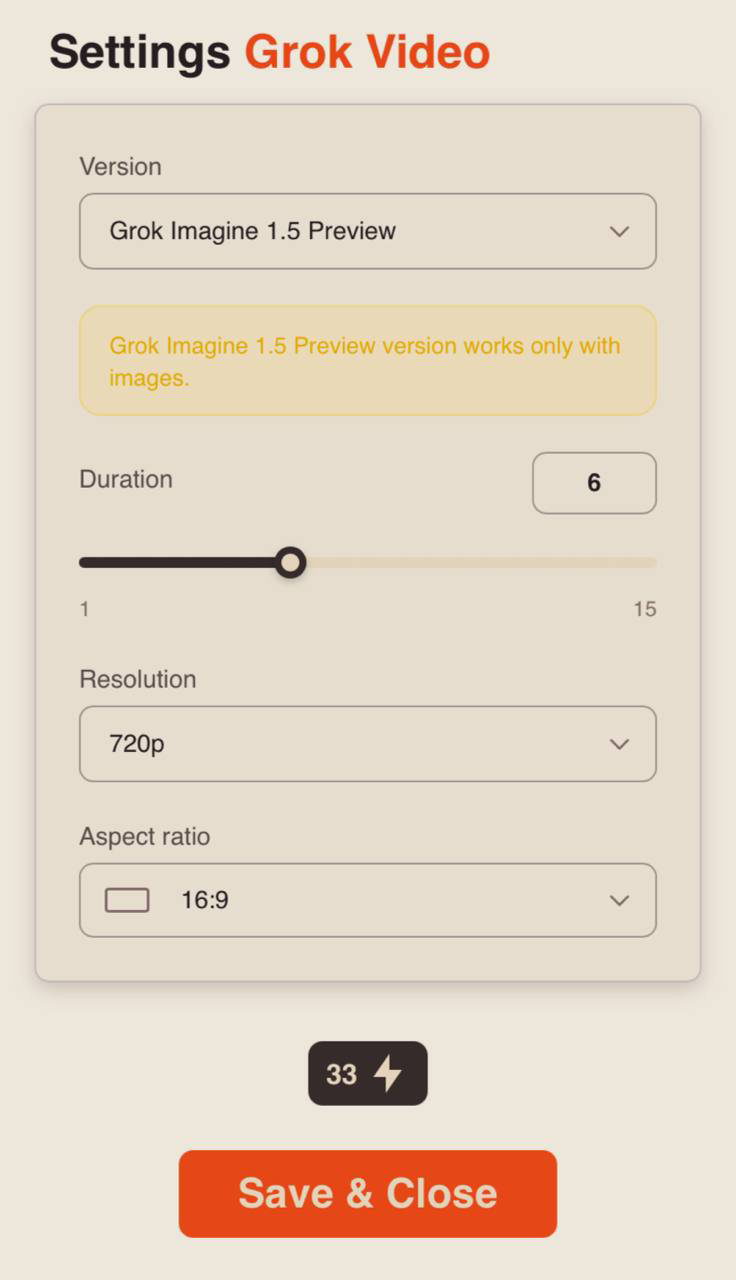
Version
You can choose between two versions: Grok Imagine 1.0 and Grok Imagine 1.5 Preview.
Grok Imagine 1.0 - is xAI’s advanced video generation model for creating short videos from a text prompt or an image. It offers fast generation, realistic motion physics, high-quality audio, and excellent understanding of complex scenes.
Grok Imagine 1.5 Preview - is the latest version of Grok Imagine, featuring improved prompt understanding, smoother animation, and more realistic motion physics. It also supports the Video to Video mode, allowing you to edit existing videos using text prompts.
❣️ Grok Imagine 1.5 Preview works only with images. If you are generating a video using only a text prompt, you must select Grok Imagine 1.0.
Duration
When using Grok Imagine 1.0, you can choose between two video lengths: 6 seconds or 10 seconds.
When using Grok Imagine 1.5 Preview, you can select a duration from 1 to 15 seconds, depending on your needs.
Resolution
You can choose between two resolutions: 480p or 720p.
• 480p
The basic video resolution. It is ideal for viewing on smaller mobile device screens and helps save bandwidth. Videos may appear slightly less sharp, and fine details may not be as clearly visible.
• 720p
A medium video resolution that provides a good balance between video quality and file size. This format is a popular standard for online video platforms, including YouTube, and delivers a clear image that is comfortable to watch on most modern devices and medium-sized screens.
Aspect Ratio
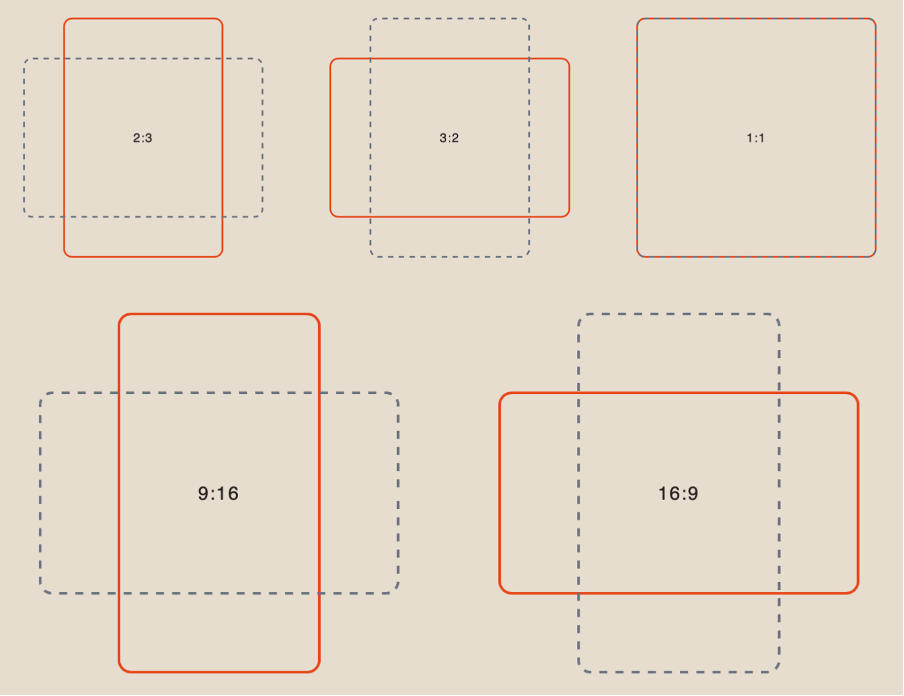
When using Grok Imagine 1.0, you can choose from five different aspect ratios.
Creating a Text Prompt
High-quality video generation starts with a well-structured prompt - it helps the model accurately understand your idea and produce the desired result.
In your prompt, clearly describe the outcome you would like to see in the final video.
A good prompt structure should include:
- Main Subject and Action: specify who or what appears in the scene and describe what the subject is doing.
- Environment and Time of Day: describe the location and lighting conditions (daytime, sunset, night, etc.) to establish the atmosphere of the scene.
- Style and Mood: indicate the desired visual style (realistic, cinematic, anime, etc.) and the overall mood or emotional tone of the video.
Example:
“A young woman wearing a light linen summer dress slowly walks along the seashore. The golden light of the setting sun softly illuminates her face and silhouette, while a gentle sea breeze moves her hair and dress. She calmly brushes her hair back and briefly looks into the camera with a soft, natural smile. A sandy beach, warm orange-pink sunset, and gentle waves create a feeling of peace and freedom. The atmosphere is that of a warm summer evening in a cinematic photorealistic style, featuring detailed fabric and skin textures, soft natural lighting, warm color tones, and smooth camera movement.”
Result
💥 Step-by-Step Guide to Using Grok Imagine «Image to Video»
Before generating a video from a reference image, you need to configure the model settings correctly.
Model Settings
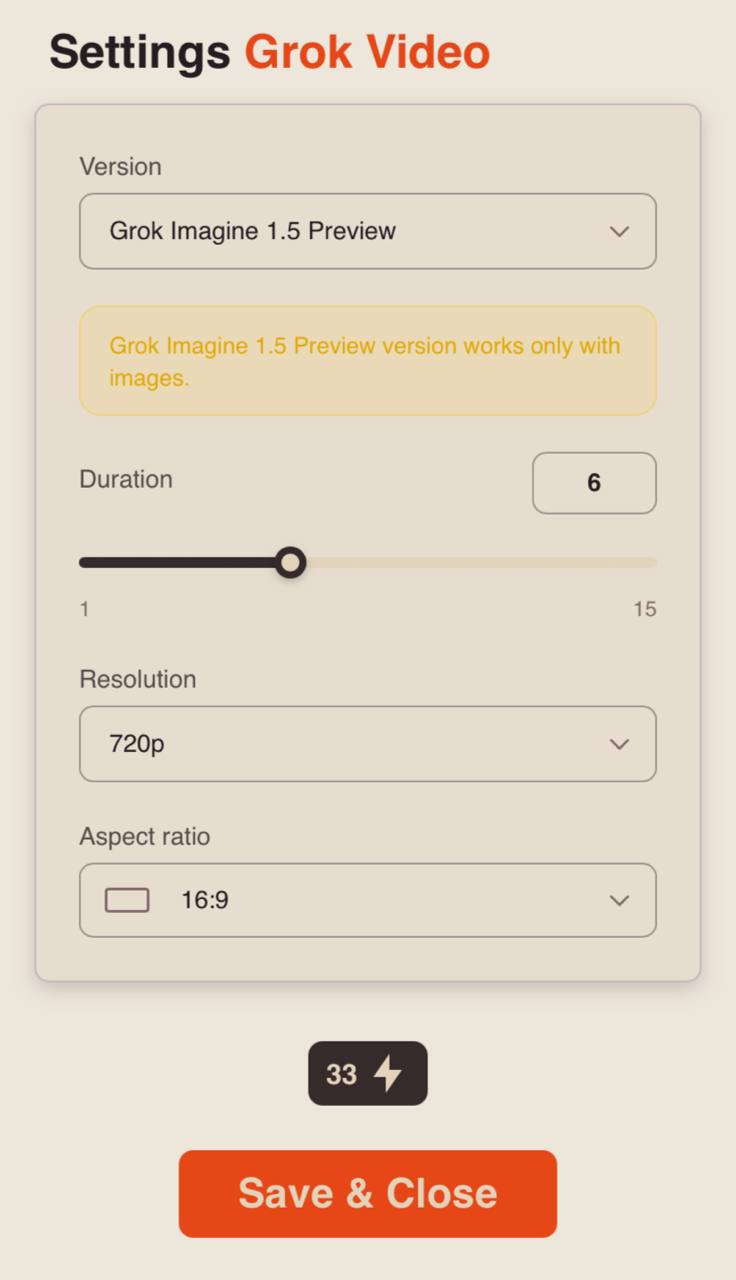
Version
You can choose between two versions: Grok Imagine 1.0 and Grok Imagine 1.5 Preview.
Grok Imagine 1.0 - is xAI’s advanced video generation model for creating short videos from a text prompt or an image. It offers fast generation, realistic motion physics, high-quality audio, and excellent understanding of complex scenes.
Grok Imagine 1.5 Preview - is the latest version of Grok Imagine, featuring improved prompt understanding, smoother animation, and more realistic motion physics. It also supports the Video to Video mode, allowing you to edit existing videos using text prompts.
Duration
When using Grok Imagine 1.0, you can choose between two video lengths: 6 seconds or 10 seconds.
When using Grok Imagine 1.5 Preview, you can select a duration from 1 to 15 seconds, depending on your needs.
Resolution
You can choose between two resolutions: 480p or 720p.
• 480p
The basic video resolution. It is ideal for viewing on smaller mobile device screens and helps save bandwidth. Videos may appear slightly less sharp, and fine details may not be as clearly visible.
• 720p
A medium video resolution that provides a good balance between video quality and file size. This format is a popular standard for online video platforms, including YouTube, and delivers a clear image that is comfortable to watch on most modern devices and medium-sized screens.
Aspect Ratio
When using Grok Imagine 1.0, the aspect ratio selected in the settings is not applied. The generated video will automatically use the aspect ratio of the uploaded image.
When using Grok Imagine 1.5 Preview, you can choose from seven different aspect ratios.
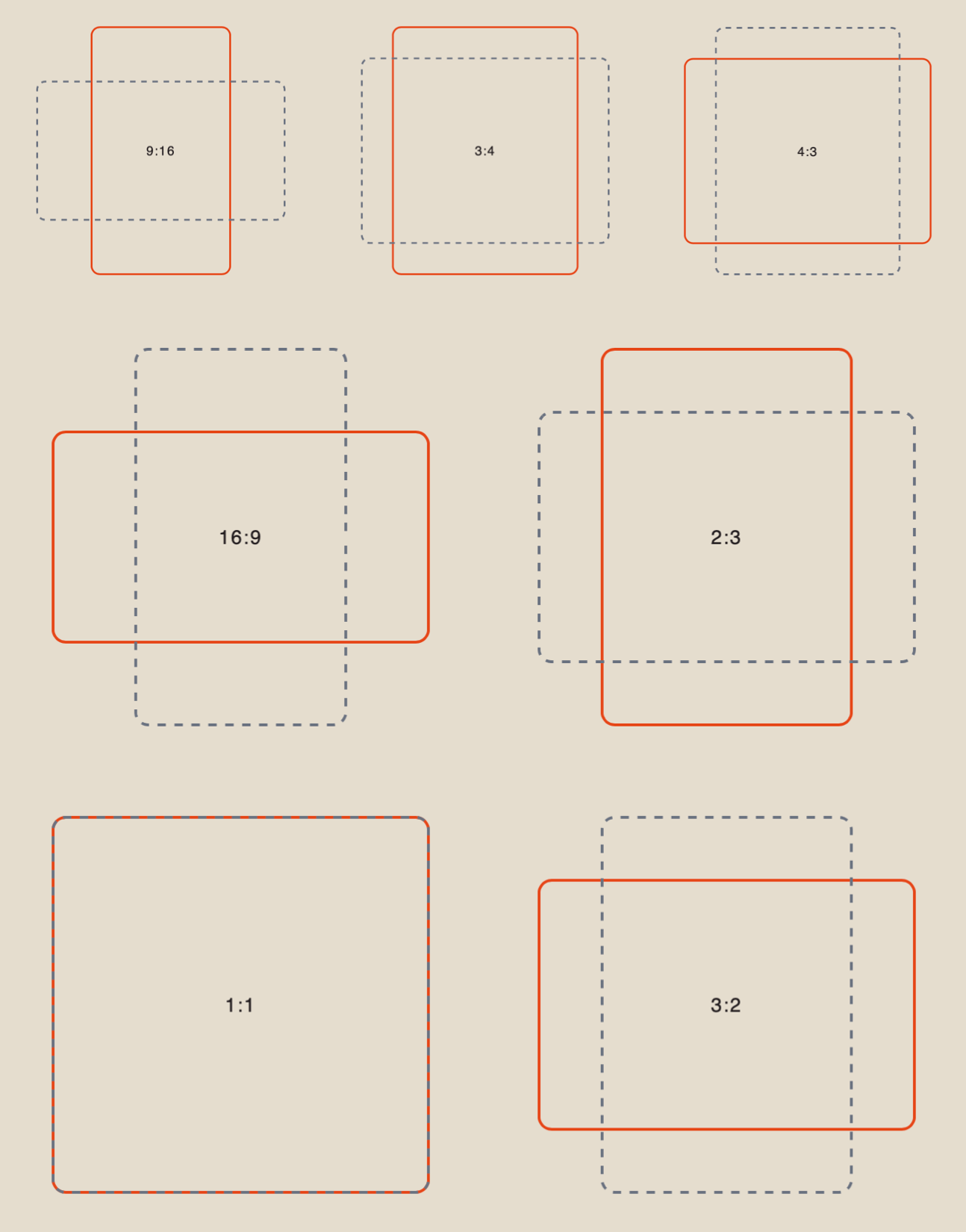
❣️ If the selected aspect ratio does not match the aspect ratio of the uploaded image, the AI will automatically crop the image to fit the chosen format.
After configuring all the settings, click “Save and Close”. You can then proceed to upload your image.
Image Upload
Technical Requirements for Images:
- Supported formats: JPEG, PNG, or HEIC.
- Maximum file size: 19 MB.
Example:
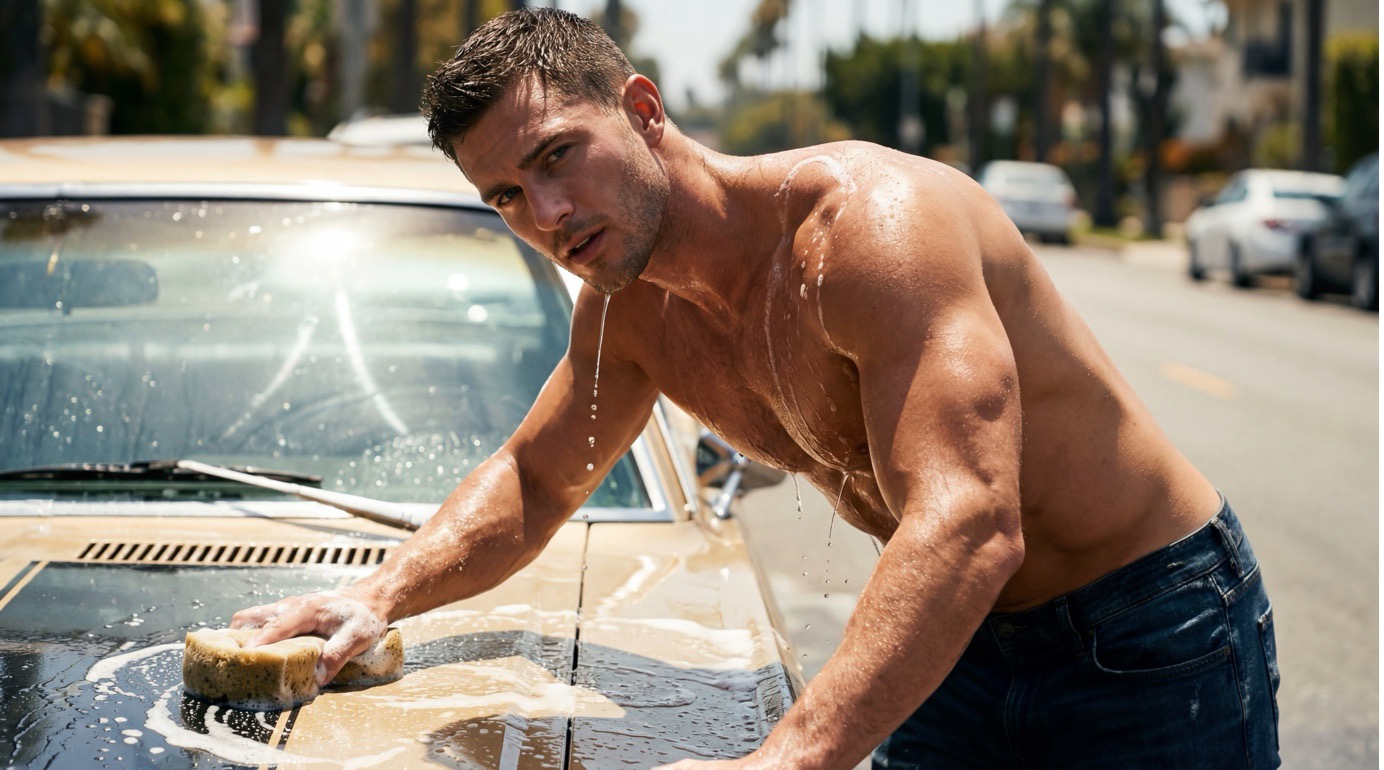
After uploading your reference image, you need to enter a text prompt to define the motion and animation of the image.
Creating a Text Prompt
High-quality video generation starts with a well-structured prompt - it helps the model accurately understand your idea and produce the desired result.
In your prompt, clearly describe the outcome you would like to see in the final video.
A good prompt structure should include:
- Main Subject and Action: specify who or what appears in the scene and describe what the subject is doing.
- Environment and Time of Day: describe the location and lighting conditions (daytime, sunset, night, etc.) to establish the atmosphere of the scene.
- Style and Mood: indicate the desired visual style (realistic, cinematic, anime, etc.) and the overall mood or emotional tone of the video.
Example:
“A man is washing a car, energetically wiping the body with a sponge. Water droplets sparkle in the sunlight while foam slowly runs down the surface. He straightens up, brushes his wet hair back, and gives the camera a brief, confident look. The camera slowly moves closer. Warm sunlight, realistic movements, natural colors, and subtle slow-motion create a cinematic atmosphere.”
Results
Grok Imagine 1.0
Grok Imagine 1.5 Preview
💥 Step-by-Step Guide to Using Grok Imagine «Generation with Voice»
By default, all generated videos include automatically created audio that matches the actions shown in the scene.
If needed, you can also provide custom dialogue or narration, and the model will incorporate it into the final video.
❣️ Configure the model settings according to your preferences. For more information about each parameter, see: 💥 Step-by-Step Guide to Using Grok Imagine «Text to Video».
Creating a Text Prompt
High-quality generation starts with a well-structured prompt - it helps the model accurately understand your idea.
In your prompt, clearly describe the outcome you would like to see in the final video.
A good prompt structure should include:
- Main Subject and Action: specify who or what appears in the scene and describe what the subject is doing.
- Environment and Time of Day: describe the location and lighting conditions (daytime, sunset, night, etc.) to establish the atmosphere of the scene.
- Style and Mood: indicate the desired visual style (realistic, cinematic, anime, etc.) and the overall mood or emotional tone of the video.
- Voice dialogue: add the line you want the character to say, and the model will integrate it into the final video. For example: “Meow, where’s my food?”
Example:
“A domestic cat stands in the middle of a room, looks directly at the camera, and says, ‘Meow, where’s my food?’ The voice sounds playful and slightly demanding. Immediately afterward, the cat starts running around the room, sniffing the corners, looking under the table, and jumping onto the couch in search of food. The camera follows the cat with smooth, dynamic movement, creating a sense of immersion. Realistic animation, natural paw sounds on the floor, gentle purring, warm indoor lighting, and a cinematic atmosphere.”
Results
Grok Imagine 1.0
Grok Imagine 1.5 Preview
💥 Step-by-Step Guide to Using Grok Imagine «Video to Video»
When working with video references, the first step is to upload your files correctly.
Video Upload
Technical Requirements for Videos:
- Maximum file size: 19 MB
- Minimum video length: 1 second
- Maximum video length: 8.7 seconds
- Maximum video resolution: 1280 × 720.
Example:
After uploading your video, enter a text prompt.
Creating a Text Prompt
High-quality results start with a well-structured prompt. Based on your instructions, the model determines which elements of the original video should be changed while preserving or modifying the scene, style, objects, and overall atmosphere.
For the most accurate results, describe the desired changes in detail and include the key elements of the scene.
Your prompt can include:
- Which elements should be changed.
- Which elements should remain unchanged.
- The desired actions of characters or objects.
- The environment and background.
- The visual style of the video.
- Lighting and atmosphere.
- Additional details and specific features.
Example:
“Replace the original room with a forest while keeping the cat, its appearance, movements, and the camera motion unchanged. Replace the couch with a moss-covered tree stump. The cat should run along a forest trail just as it ran through the room and finish by jumping onto the stump instead of the couch. Preserve the cat’s natural movement, speed, behavior, trajectory, camera angle, and camera motion. Use a cinematic realistic style with soft daylight, sun rays filtering through the trees, and gentle movement of the leaves in the wind.”
Result
💥 Additional Features of Grok Imagine
Grok Imagine is more than just a video generator - it’s a powerful tool for creating cinematic and memorable scenes. Below are some of its key capabilities.
Dynamic Action Scenes
The model performs exceptionally well with fast-paced sequences such as cars, drifting, explosions, destruction, flying debris, and fire. Motion physics remain realistic and visually impressive even in complex action scenes.
Example:
Text Integration
Grok Imagine can naturally integrate text into videos. Titles and captions can appear within the scene, emerge from particles, fire, or light, and blend seamlessly into the environment rather than looking like an overlay.
Example:
Cinematic Camera Movement
The model supports a wide range of camera movements, including zooms, pull-backs, pans, and dynamic fly-through shots, creating a stronger sense of immersion.
Example:
Atmosphere and Sound
Automatic sound effects and atmospheric details such as smoke, lighting effects, and floating particles make videos feel more immersive and cinematic.
Example:
We sincerely hope this guide helps you unlock the full potential of Grok Imagine and use it confidently in your work. We’ve done our best to make the learning process as simple, clear, and enjoyable as possible.
If you encounter any difficulties, don’t worry - that’s completely normal. Feel free to experiment, try different approaches, and discover what works best for you. With each generation, you’ll get closer to creating exactly the videos you envision. 💛
SYNTX AI: Syntx AI
SYNTX Support: Syntx Support
YouTube channel “SYNTX”: Syntx YouTube
SYNTX.AI Academy: SYNTX Academy