Luma - is an AI model that generates videos from text prompts or images. It accurately captures motion, lighting, atmosphere, and visual consistency, making it suitable for both creative projects and commercial content production.
The tool is available on the PRO plan and above.
⚡️ Our Luma processes prompts in any language, although English is its primary language.
❗️The maximum prompt length is 1000 characters.
- 🎛 Navigation:
- 💥 Step-by-Step Guide to Using Luma “Text to Video”
- 💥 Step-by-Step Guide to Using Luma “Image to Video”
- 💥 Step-by-Step Guide: Luma “Two Images to Video”
- 🎥 Camera Movement Controls in Luma
🎛 Navigation:
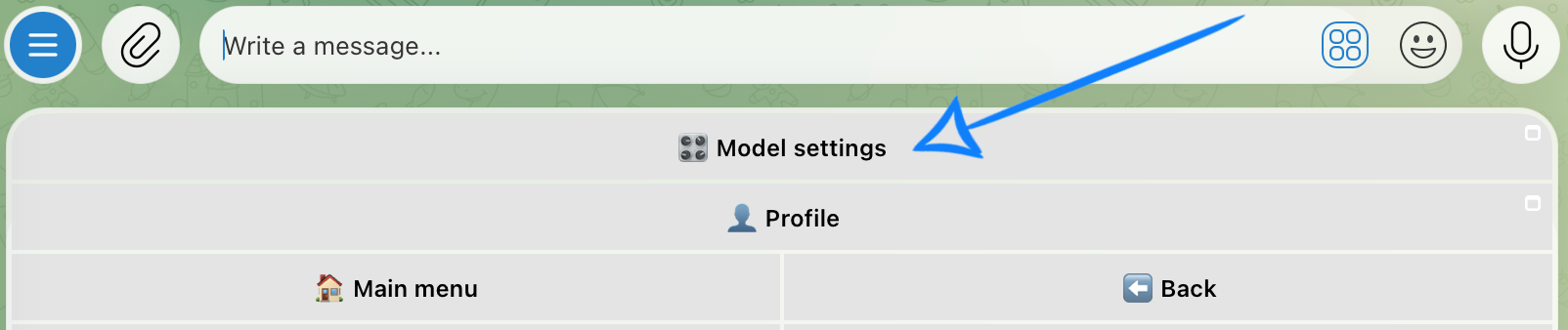
🏠 Main Menu > 🎬 Video > 📽️ Luma: DM
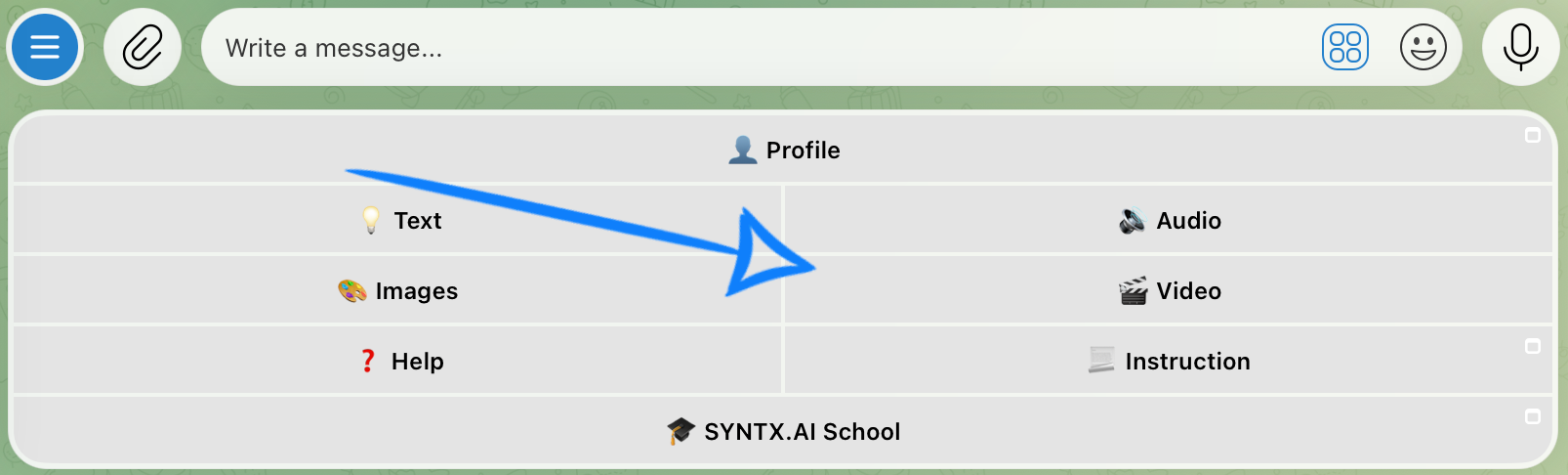
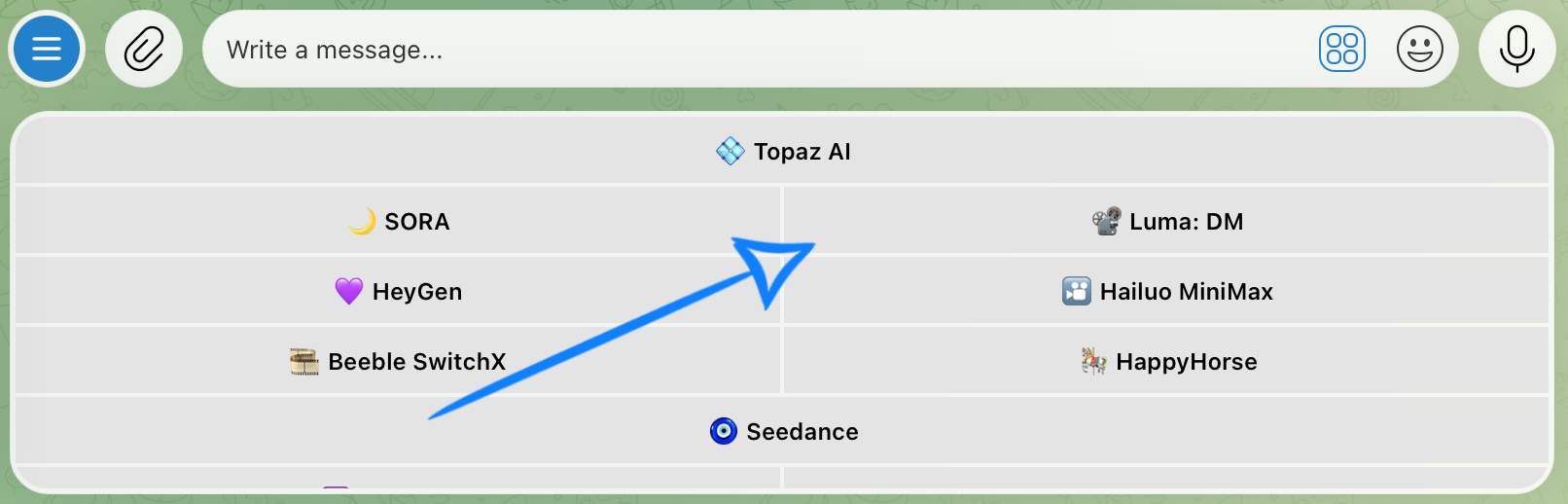
💥 Step-by-Step Guide to Using Luma “Text to Video”
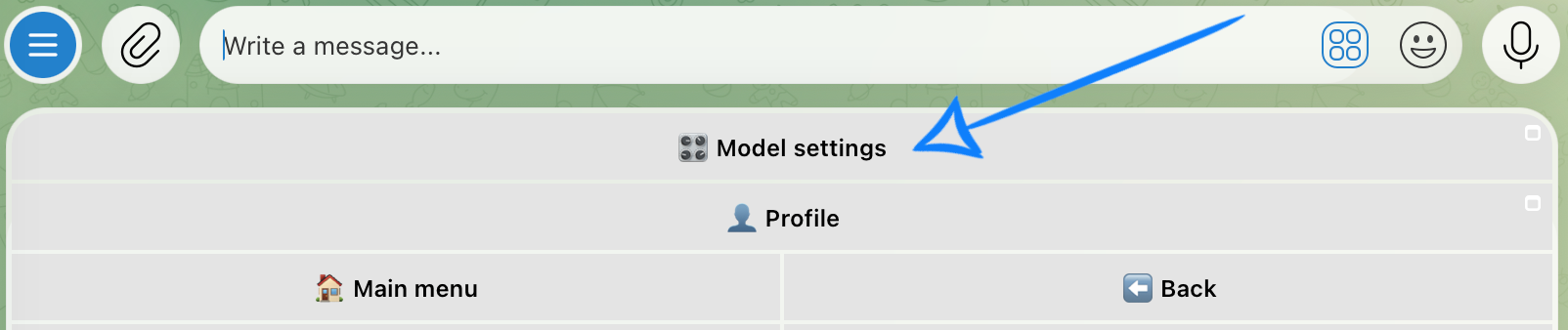
Before generating a video from a text prompt, configure the model settings for your generation.
Model Settings
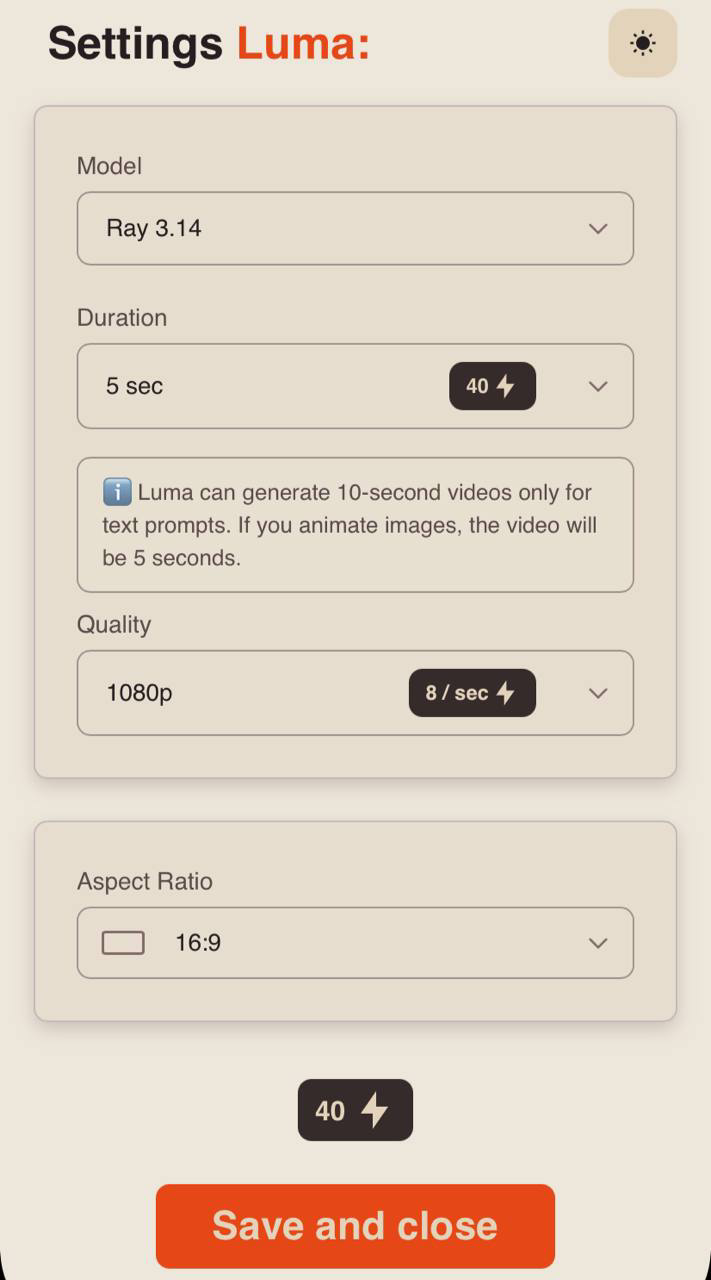
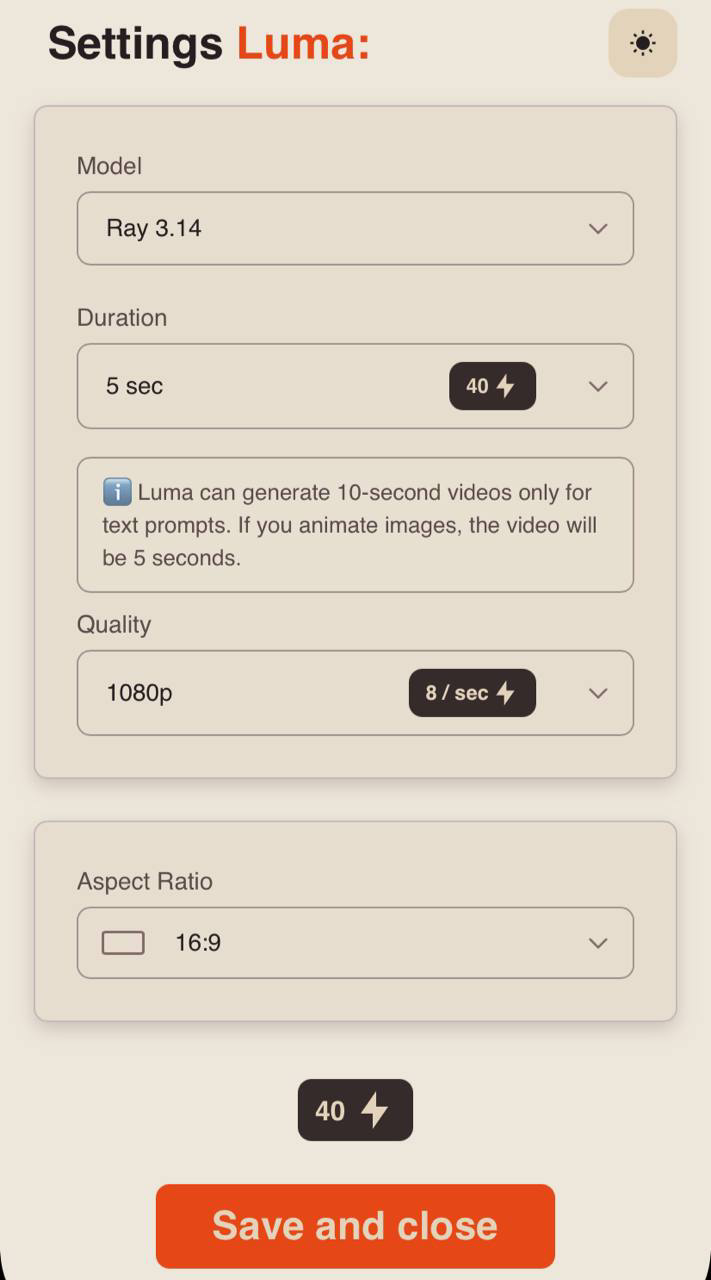
Model
Ray 3.14 is a video generation model that delivers consistent frames and follows prompts accurately. It produces highly detailed videos with natural color rendering and is optimized for fast, efficient generation.
Duration
Choose a video duration of 5 or 10 seconds.
Quality
- 360p
The lowest available resolution. Ideal for quick test generations and viewing on smaller screens. It generates videos faster and produces smaller file sizes, although fine details and textures may appear less sharp.
- 540p
A standard resolution that provides a good balance between visual quality and file size. Suitable for previews, messaging apps, and social media content where maximum detail is not essential.
- 720p
A high-definition resolution that delivers excellent clarity and detail. Recommended for most use cases, including viewing on computers, tablets, and smartphones, as well as sharing content online.
- 1080p
The highest available resolution, delivering maximum sharpness and detail. Best suited for final renders, large displays, and professional-quality content.
Aspect Ratio
Choose from six available aspect ratios to match your desired output format.
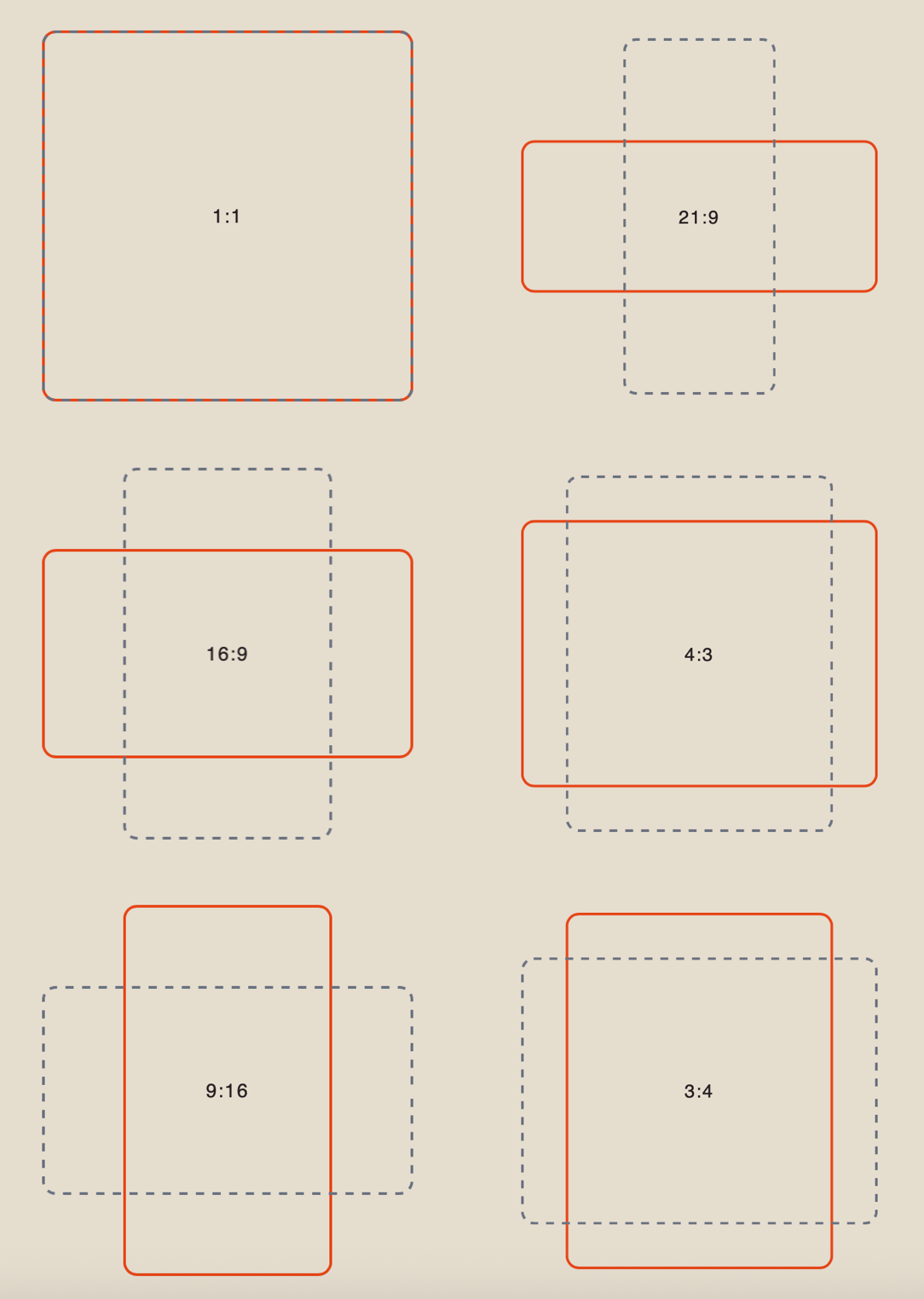
After configuring all the settings, click “Save and Close”. You can then proceed to creating your text prompt.
Creating a Text Prompt
A well-structured prompt is essential for successful video generation, as it helps the model understand your idea more accurately.
Ideally, your prompt should include:
- the main subject and its action;
- the location and time of day;
- the visual style and mood;
- camera movement (if needed).
Example:
“A ginger kitten plays with a ray of sunlight, trying to catch it with its paws. The scene takes place in a cozy room by a window in the morning, with soft natural light filling the space. Cinematic, realistic style with a warm color palette. Calm, gentle mood that captures the feeling of a carefree moment.”
Result
💥 Step-by-Step Guide to Using Luma “Image to Video”
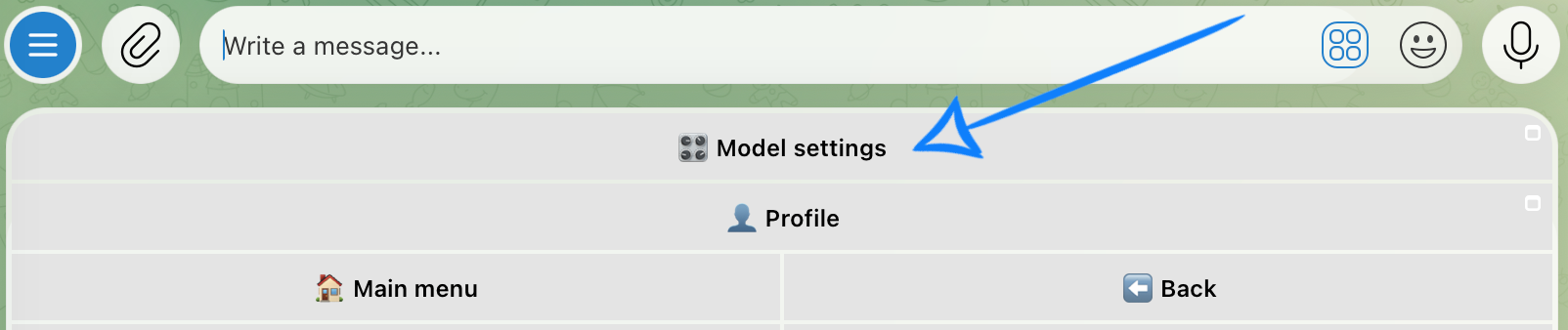
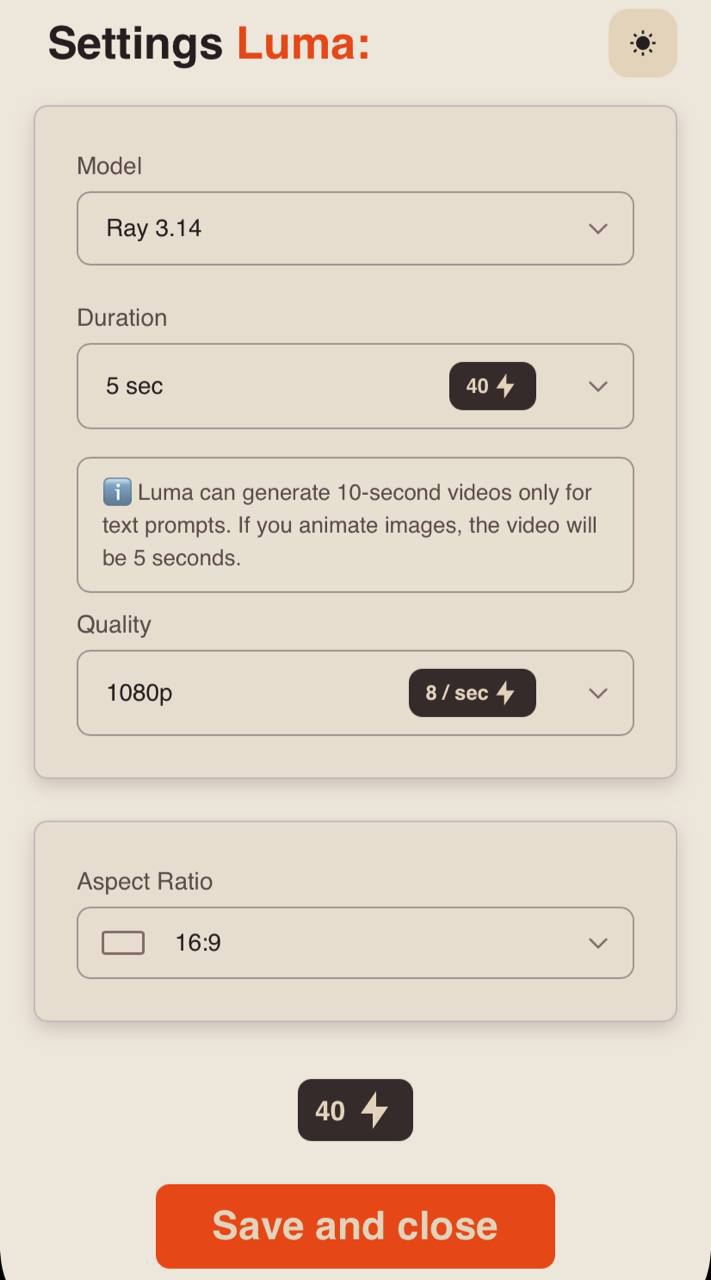
When generating a video from a reference image, the first step is to configure the model settings.
Model Settings
Model
Ray 3.14 is a video generation model that delivers consistent frames and follows prompts accurately. It produces highly detailed videos with natural color rendering and is optimized for fast, efficient generation.
Duration
Choose a video duration of 5 or 10 seconds.
Quality
- 360p
The lowest available resolution. Ideal for quick test generations and viewing on smaller screens. It generates videos faster and produces smaller file sizes, although fine details and textures may appear less sharp.
- 540p
A standard resolution that provides a good balance between visual quality and file size. Suitable for previews, messaging apps, and social media content where maximum detail is not essential.
- 720p
A high-definition resolution that delivers excellent clarity and detail. Recommended for most use cases, including viewing on computers, tablets, and smartphones, as well as sharing content online.
- 1080p
The highest available resolution, delivering maximum sharpness and detail. Best suited for final renders, large displays, and professional-quality content.
Aspect Ratio
Choose from six available aspect ratios to match your desired output format.
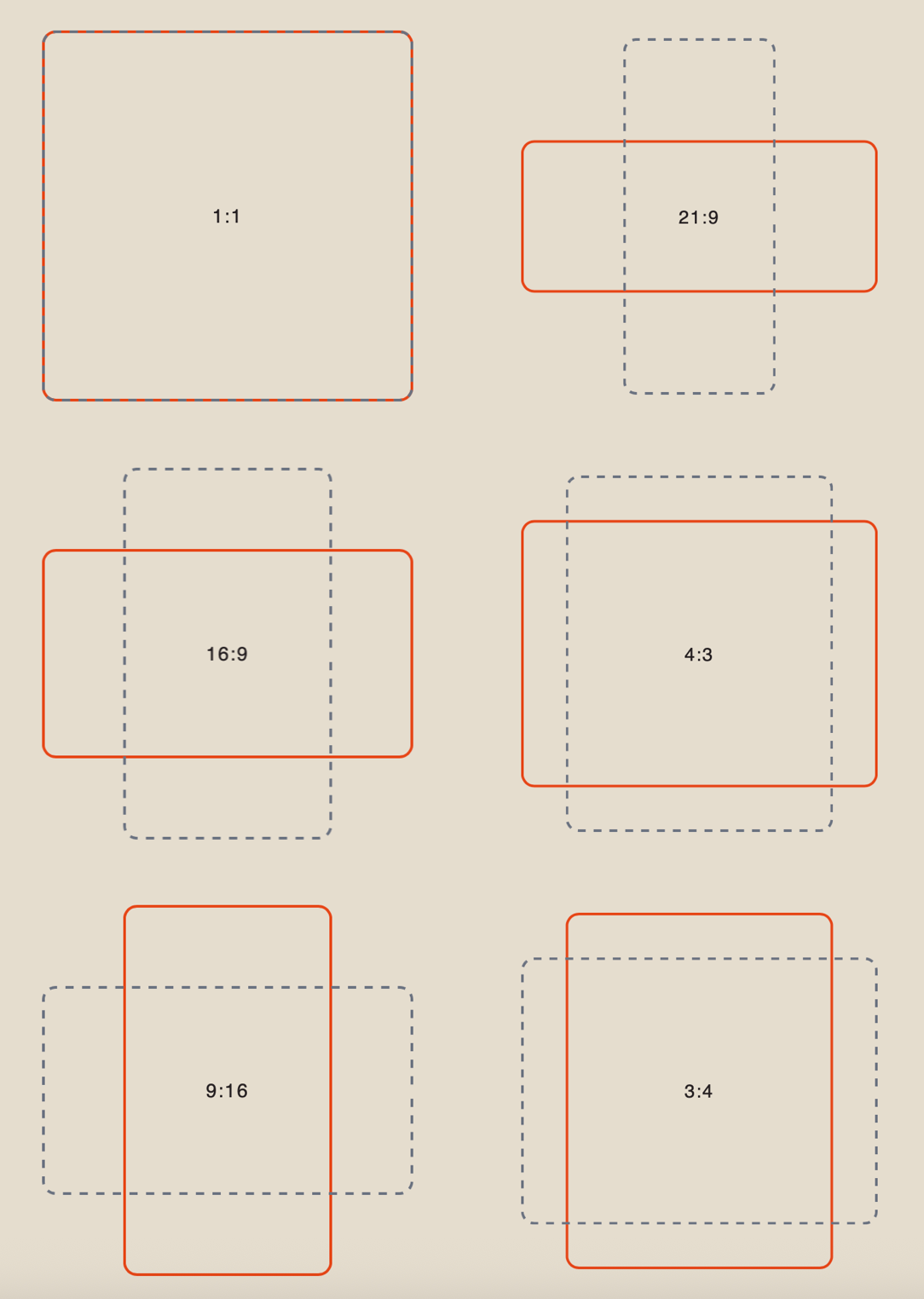
After configuring all the settings, click “Save & Close”. You can then proceed to upload your image.
Uploading an Image
Image Requirements:
- Supported formats: JPEG, PNG, and HEIC.
- Maximum file size: 10 MB.
- When a single image is uploaded, it is used as the first frame of the generated video.
Example:
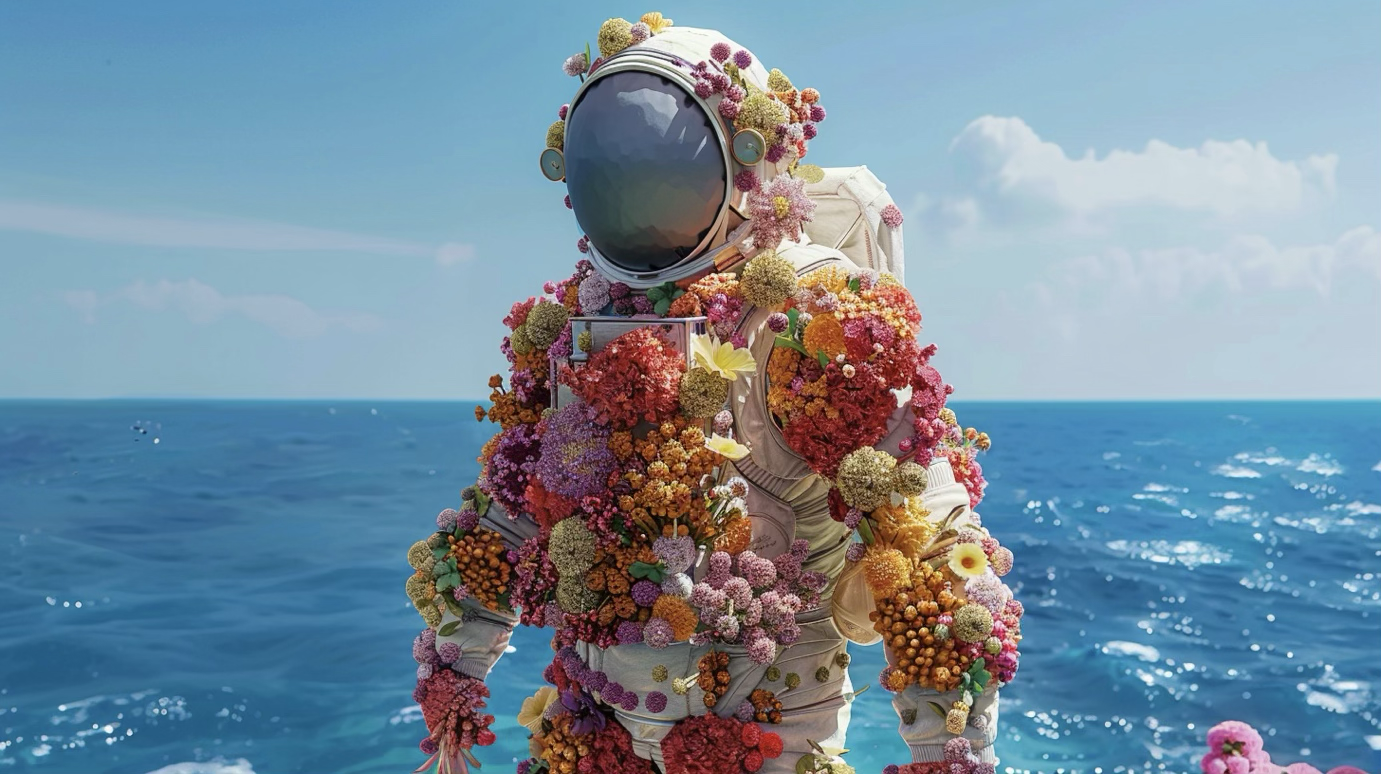
After uploading your reference image, enter a text prompt describing the motion you want to see in the generated video.
Creating a Text Prompt
A well-structured prompt is essential for successful video generation, as it helps the model understand your idea more accurately.
Ideally, your prompt should include:
- the main subject and its action;
- the location and time of day;
- the visual style and mood;
- сamera Movement (if needed).
❣️ A text prompt is optional. If you leave the prompt field empty, the model will automatically determine suitable motion based on the uploaded image.
Example:
“An astronaut stands still as the camera slowly pulls back and flowers gradually emerge and bloom across the surface of the water.”
Once you have uploaded your image and entered your prompt, click “Generate” to start the video generation process.
Result
💥 Step-by-Step Guide: Luma “Two Images to Video”
When working with two reference images, the first step is to configure the model settings for your upcoming generation.
Model Settings
Model
Ray 3.14 is a video generation model that delivers consistent frames and follows prompts accurately. It produces highly detailed videos with natural color rendering and is optimized for fast, efficient generation.
Duration
Choose a video duration of 5 or 10 seconds.
Quality
- 360p
The lowest available resolution. Ideal for quick test generations and viewing on smaller screens. It generates videos faster and produces smaller file sizes, although fine details and textures may appear less sharp.
- 540p
A standard resolution that provides a good balance between visual quality and file size. Suitable for previews, messaging apps, and social media content where maximum detail is not essential.
- 720p
A high-definition resolution that delivers excellent clarity and detail. Recommended for most use cases, including viewing on computers, tablets, and smartphones, as well as sharing content online.
- 1080p
The highest available resolution, delivering maximum sharpness and detail. Best suited for final renders, large displays, and professional-quality content.
Aspect Ratio
Choose from six available aspect ratios to match your desired output format.
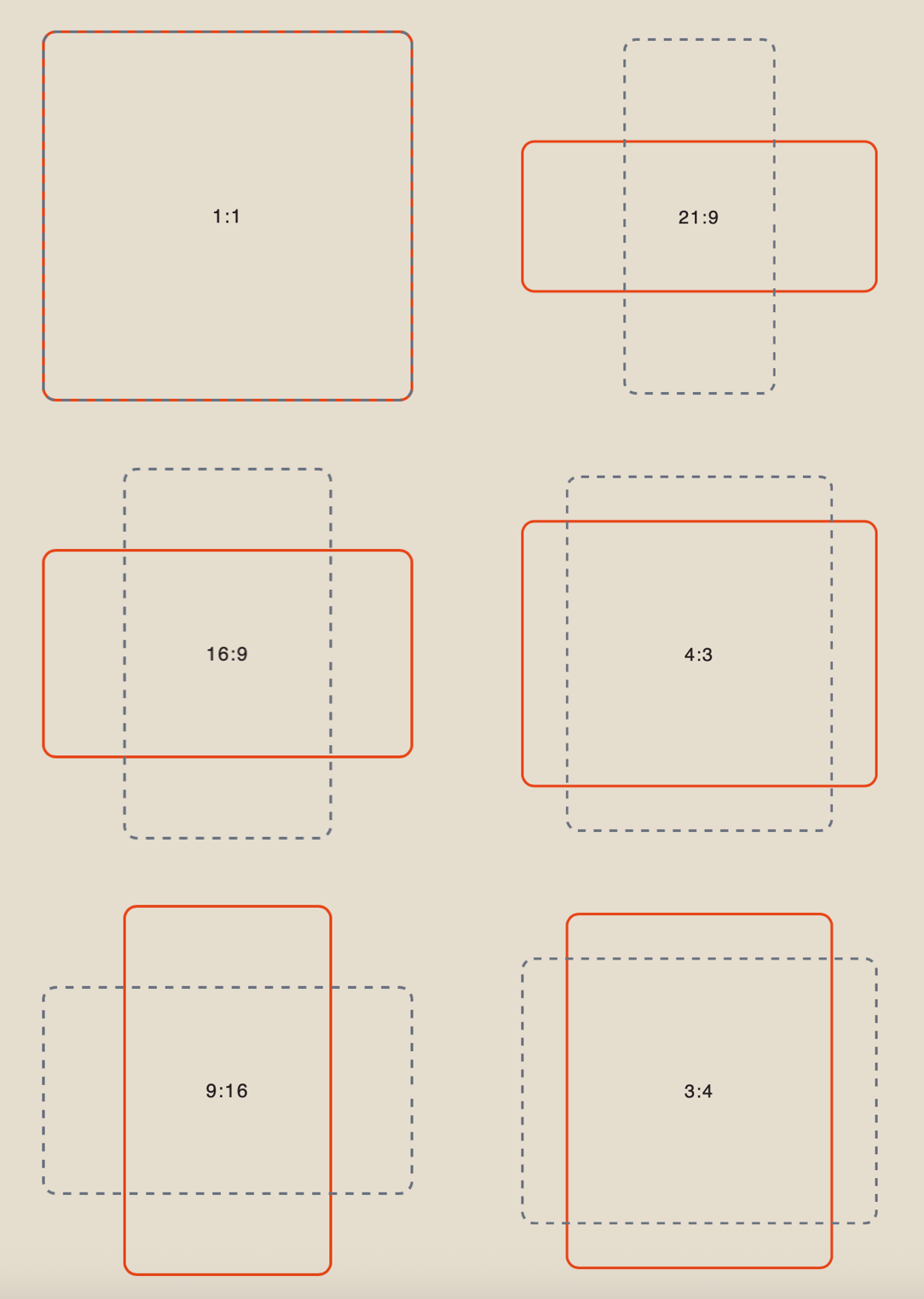
After configuring all the settings, click “Save and Close”. You can then proceed to uploading your images.
Uploading Images
Image requirements:
- Supported formats: JPEG, PNG, and HEIC.
- Maximum file size: 10 MB.
- The first uploaded image will be used as the first frame of the generated video.
- The second uploaded image will be used as the last frame of the generated video.
Example:
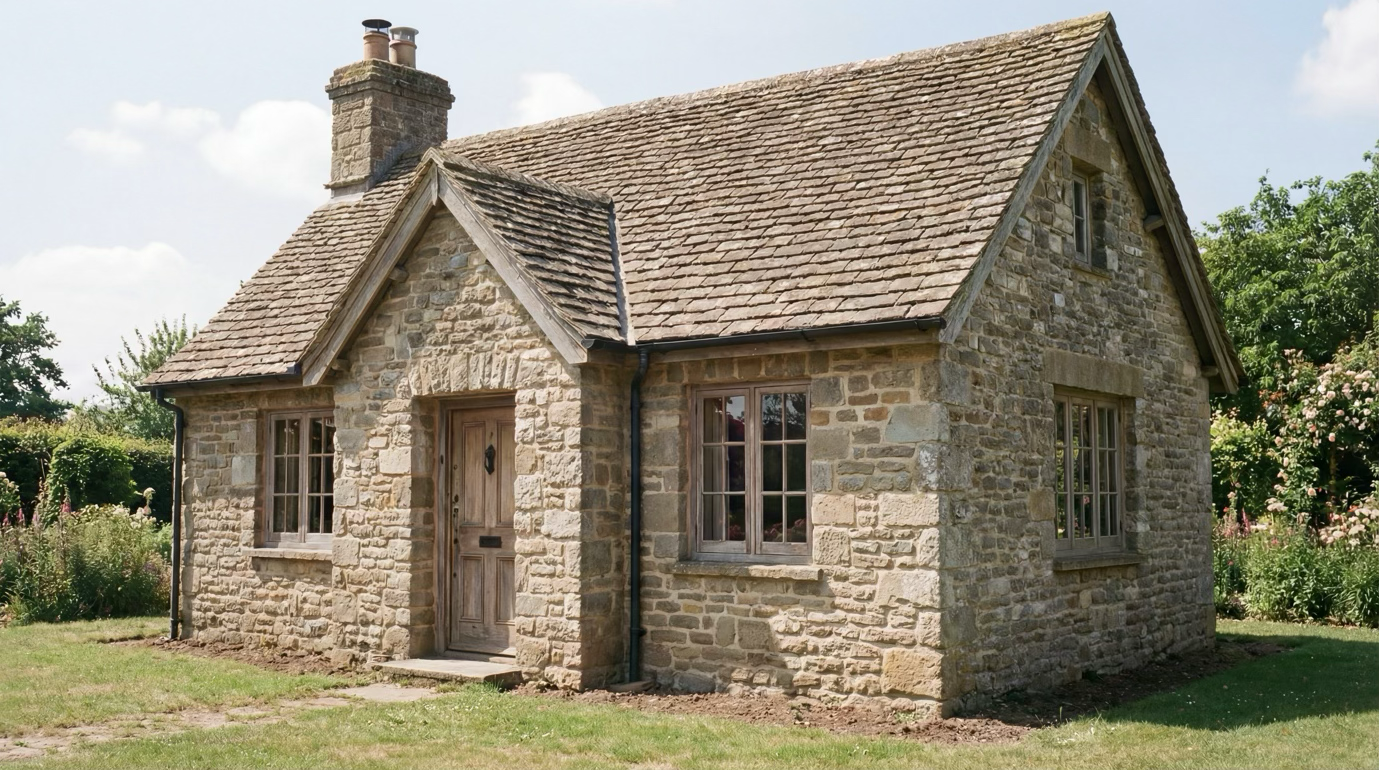
.png)
After uploading your reference images, enter a text prompt to define the motion and transition between them.
Creating a Text Prompt
A well-structured prompt is the key to successful video generation, as it helps the model accurately understand your idea.
Your prompt should ideally include:
- the main subject and its action;
- the location and time of day;
- the visual style and mood;
- camera movement (if needed).
❣️ A text prompt is optional. If you leave the prompt field empty, the model will automatically determine suitable motion based on the uploaded images.
Example:
“Plants gradually begin to grow across the surface of the house. Thin vines slowly spread along the walls as flowers bloom one by one. Greenery gently covers the façade, wrapping around the windows and edges of the building. Cinematic, realistic style with a rich yet natural color palette.”
Once you have uploaded your images and entered your prompt, click “Generate” to start the video generation process.
Result
🎥 Camera Movement Controls in Luma
When using Luma, you can control camera movement by adding specific commands to your prompt.
Simply place the desired command at the beginning or end of your text prompt, and the model will apply the corresponding camera movement when generating the video.
- Camera move left — move the camera left
- Camera move right — move the camera right
- Camera move up — move the camera up
- Camera move down — move the camera down
- Camera push in — zoom in
- Camera pull out — zoom out
- Camera pan left — pan the camera left
- Camera pan right — pan the camera right
- Camera orbit left — orbit the camera around the subject to the left
- Camera orbit right — orbit the camera around the subject to the right
- Camera crane up — crane the camera upward
- Camera crane down — crane the camera downward
Examples:
“Camera pan right. A doctor is walking through the hospital corridor.”
“A woman looks at the flowers. Camera crane up.”
We hope this guide helps you explore Luma’s capabilities and make the most of the tool in your workflow.
Don’t be afraid to experiment - every attempt helps you better understand how the model works and what you can achieve with it. If your first results aren’t exactly what you expected, that’s completely normal. Try different settings, refine your prompts, and explore new approaches. Over time, you’ll discover what works best and learn how to achieve the results you envision. 💛
SYNTX AI: Syntx AI
SYNTX Support: Syntx Support
YouTube channel “SYNTX”: Syntx YouTube
SYNTX.AI Academy: SYNTX Academy