FLUX 3 is a powerful video model from Black Forest Labs designed to create cohesive, dynamic videos up to 20 seconds long. The model accurately follows detailed scripts, maintains event continuity, realistically renders object and camera movement, and enables the creation of complex scenes featuring characters and dialogue. It supports video generation from text descriptions, images, and existing video footage.
One of FLUX 3’s key features is built-in audio generation: character speech, ambient sounds, and sound effects are generated alongside the video and synchronized with the action on screen. The model also supports lip-syncing and expressive facial animation, realistic motion physics, and multiple languages.
- 🎛 Navigation
- 💥 Step-by-Step Guide to Using FLUX 3 “Text to Video”
- 💥 Step-by-Step Guide to Using FLUX 3 “Working with References”
- 💥 Step-by-Step Guide to Using FLUX 3 “Video Extension (Extend)”
🎛 Navigation
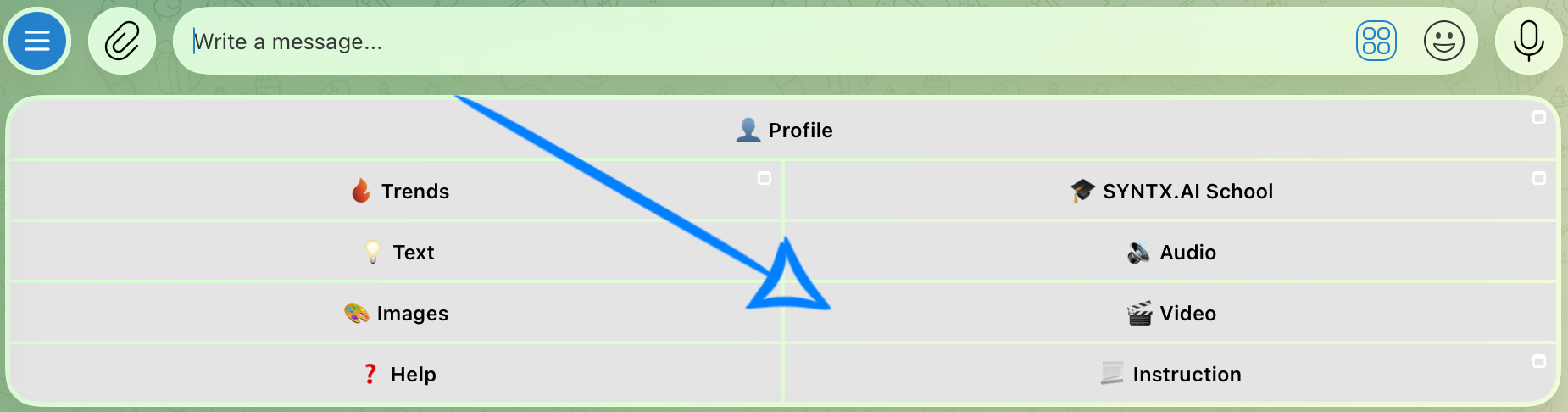
🏠 Main menu > 🎬 Video > ♦️ FLUX 3
.png)
💥 Step-by-Step Guide to Using FLUX 3 “Text to Video”
When using the “Text to Video” feature, the first step is to create a clear and well-structured text prompt.
Writing a Text Prompt
High-quality video generation starts with a well-crafted text prompt. The more precisely you describe the scene you want to create, the better the model will be able to reproduce it in the final video.
When writing a prompt, it is recommended to describe the main elements of the scene in a clear sequence:
- Main subject and action: specify who or what appears in the frame, what is happening, and how the action unfolds.
- Setting and atmosphere: describe the location, time of day, lighting, and other important environmental details.
- Camera movement: specify how you want the camera to behave, such as zooming in or out, panning, following a character, or remaining static.
- Style and mood: define the visual style of the video and its emotional tone, such as realistic, cinematic, dramatic, calm, etc.
- Sound and dialogue: if necessary, describe character dialogue, ambient sounds, or sound effects that should accompany the action on screen. If the video includes speech, write the dialogue as direct speech and specify the language in which it should be spoken.
For example:
«A young woman walks along a quiet city street at sunset. Small cafés line the street, illuminated by warm streetlights. The camera moves smoothly in front of the woman, following her as she walks. Cinematic, realistic style with a calm and cozy atmosphere. Soft city ambience and footsteps can be heard. The woman looks into the camera and says in English: “Looks like it’s going to be a nice evening. ”»
Model Settings
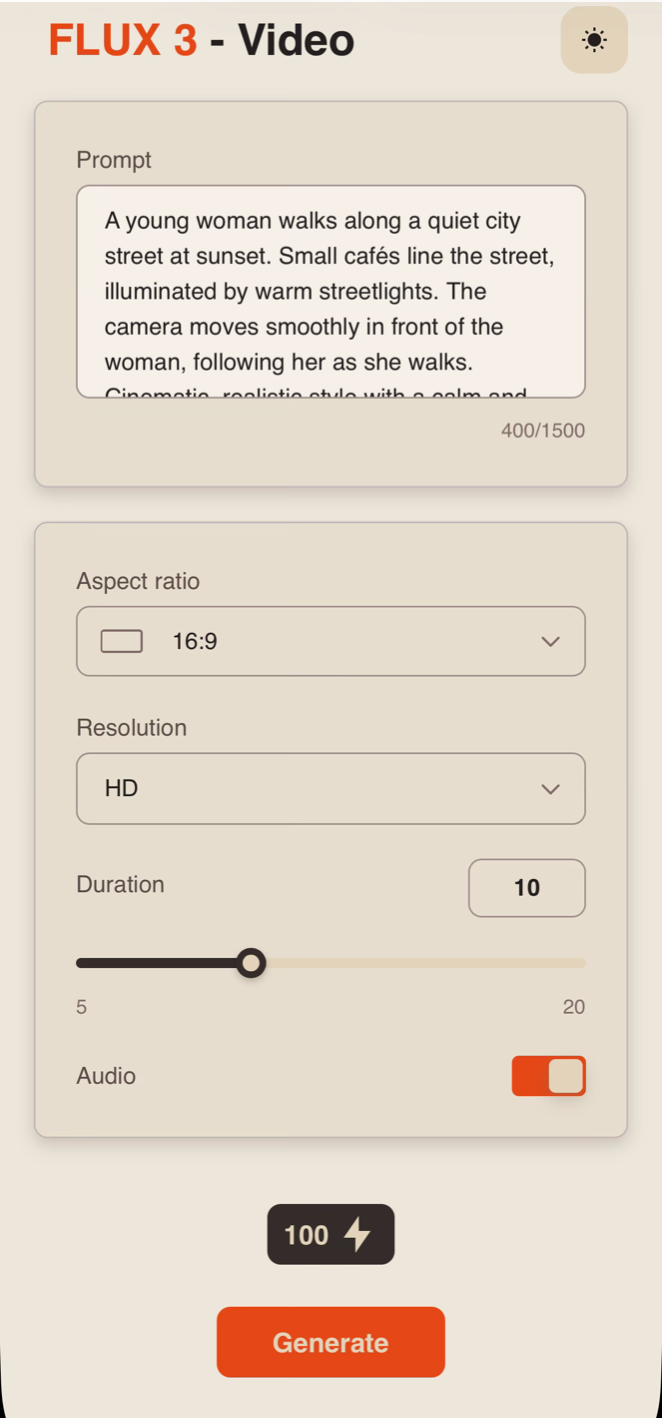
After submitting your text prompt, click the “Configure (Video)” button and then configure the appropriate settings for your video generation.
Prompt
If necessary, you can edit your prompt in the Description field. If you leave it unchanged, the model will use the original text prompt you submitted for the generation.
Aspect Ratio
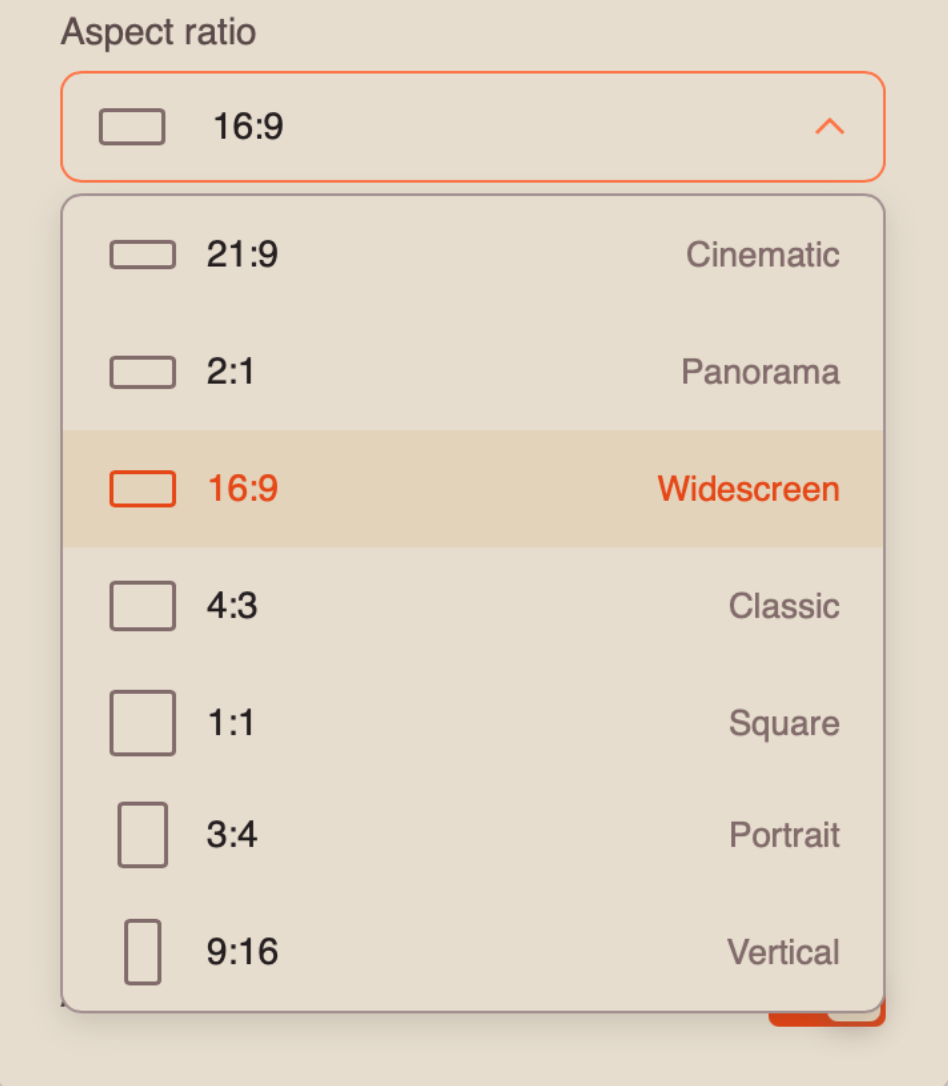
When generating a video from a text prompt, you can choose from 7 aspect ratio options:
Resolution
When generating a video from a text prompt, you can choose between two resolution options:
HD (720p) - A medium-resolution video format that provides a good balance between video quality and file size. It has become a popular standard for online video, including YouTube, and delivers a clear image suitable for viewing on medium-sized TVs and most modern devices.
Full HD (1080p) - A high-quality video format that provides excellent detail and sharpness. It is ideal for viewing on larger screens and TVs. While it requires a faster internet connection and takes up significantly more storage space, it delivers a sharper and more detailed image.
Duration
When generating a video from a text prompt, you can choose a duration ranging from 5 to 20 seconds.
❣️Please note that the default duration is set to 10 seconds.
Audio
To generate a video with sound, enable the “Audio” toggle.
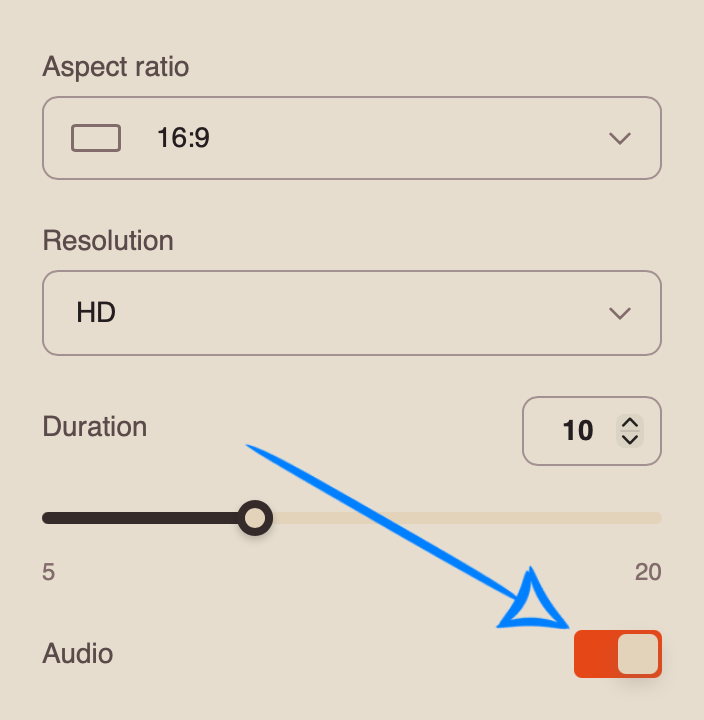
If you prefer to generate a video without sound, disable the “Audio” toggle.
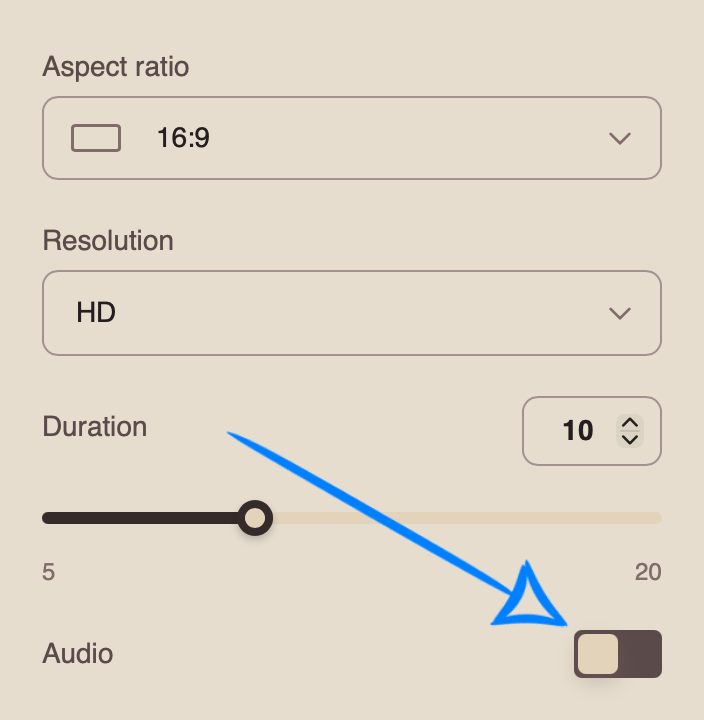
Once you have configured all the settings, click the “Generate” button to start the video generation process.
Result
💥 Step-by-Step Guide to Using FLUX 3 “Working with References”
When working with images, the first step is to upload them correctly.
Uploading Images
Technical requirements for images:
- You can upload images in JPG and PNG formats.
- Maximum file size: 10 MB.
- Supported aspect ratio: from 5:2 to 2:5.
- Minimum number of images: 1.
- Maximum number of images: 10.
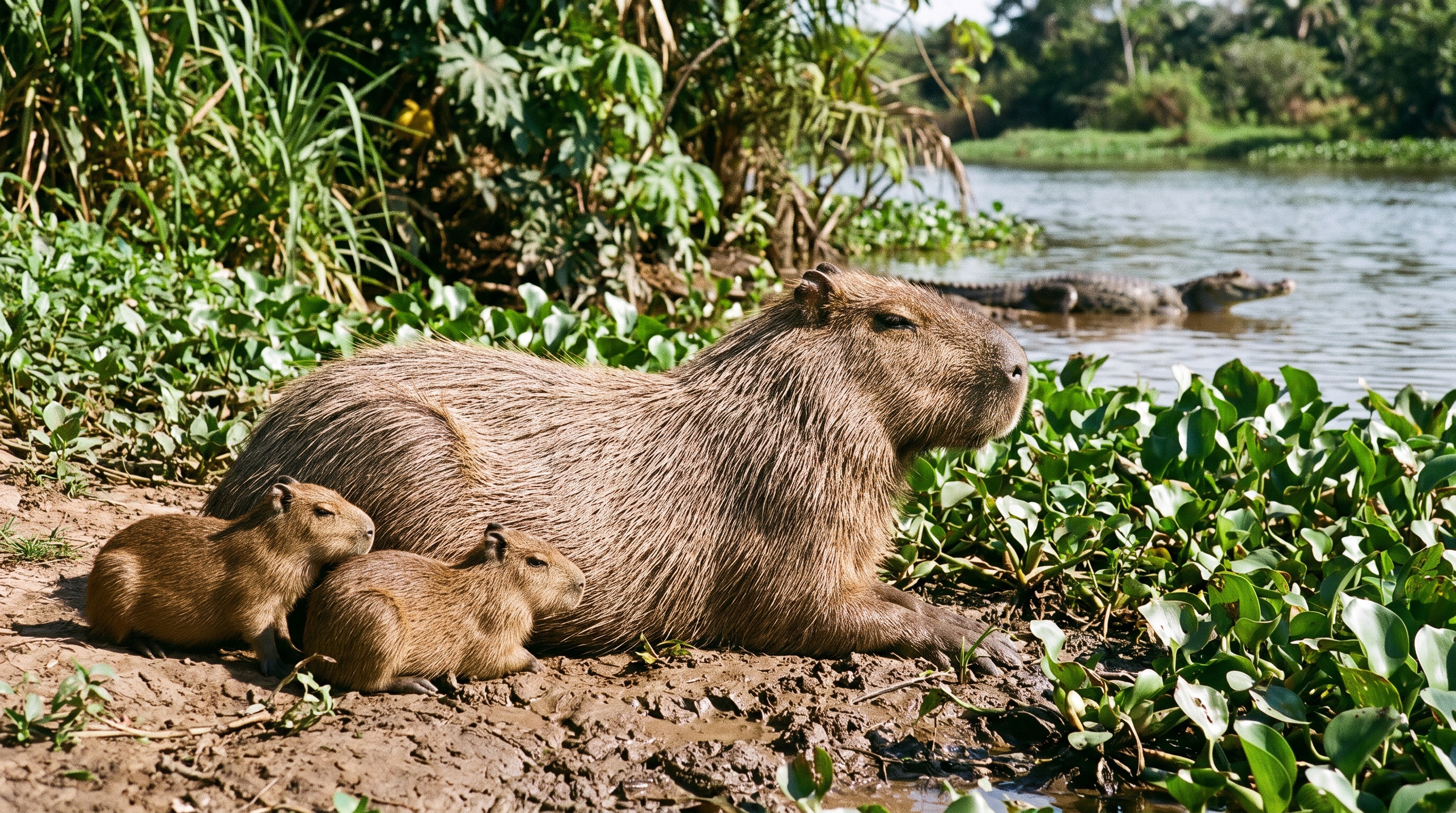
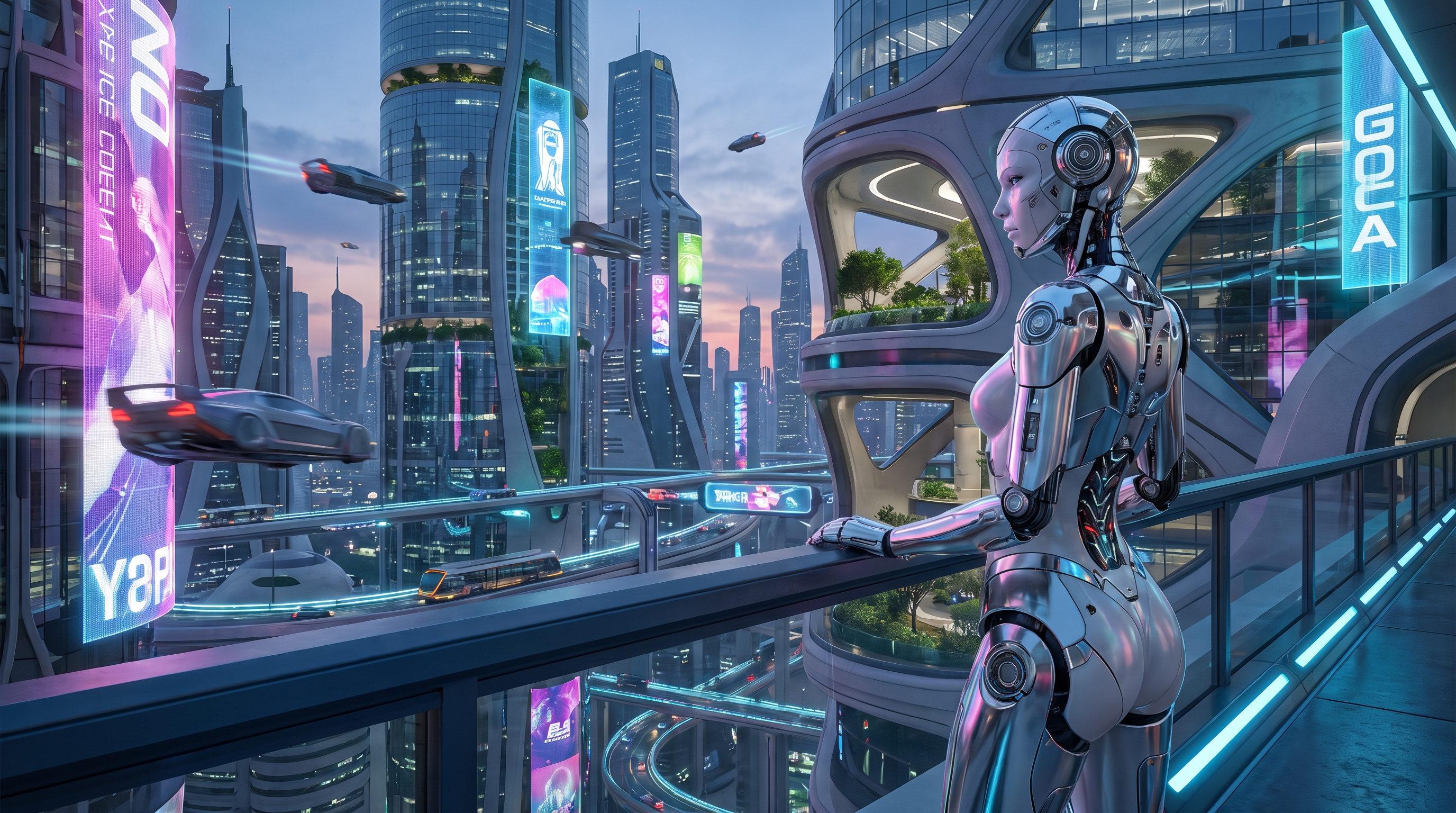
For example:
Working with a Single Image
Model Settings
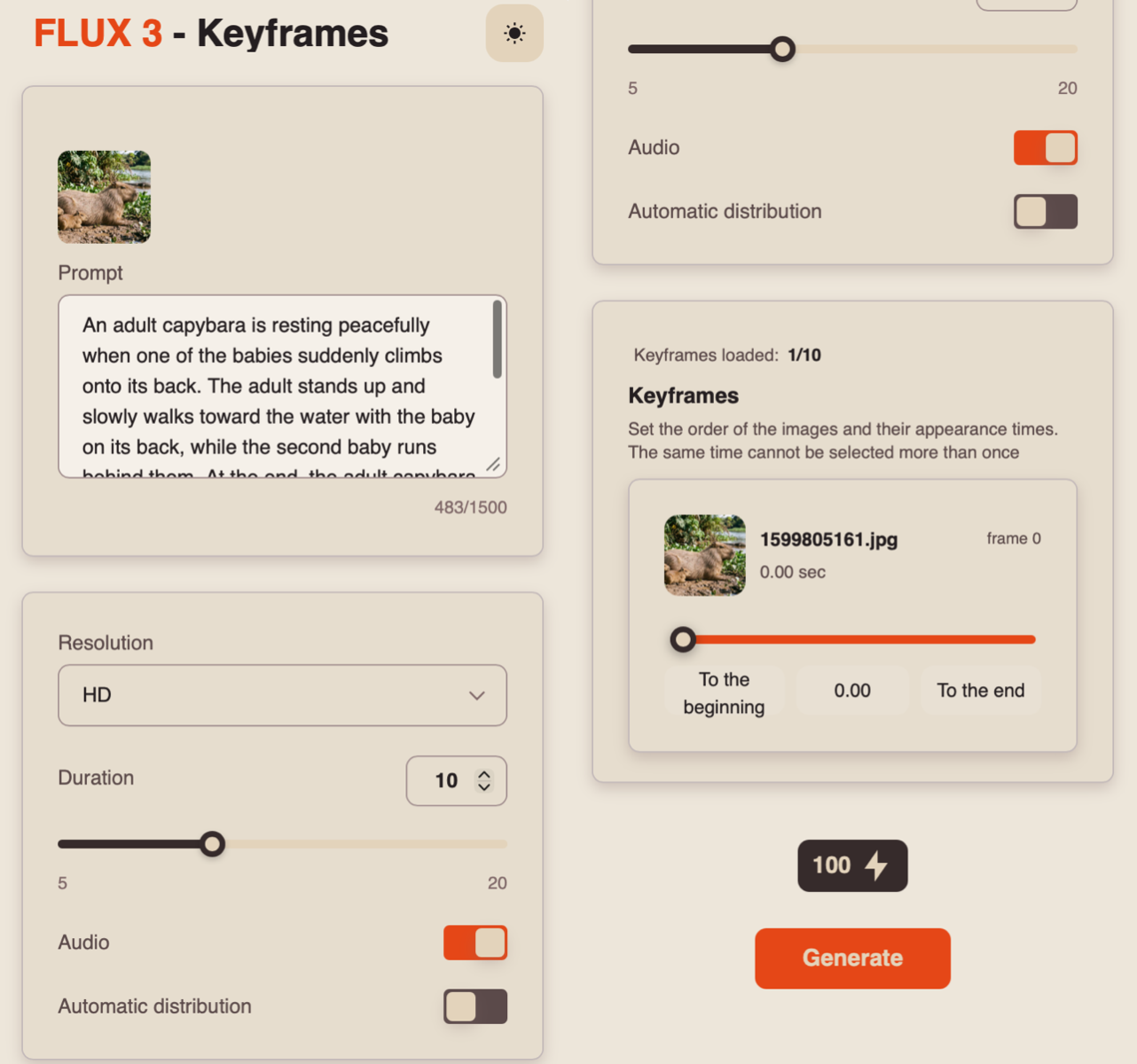
After uploading an image, click the “Configure and Start (Keyframes)” button and then configure the appropriate settings for your video generation.
Prompt
High-quality video generation starts with a well-crafted text prompt. The more precisely you describe the scene you want to create, the better the model will be able to reproduce it in the final video.
When writing a prompt, it is recommended to describe the main elements of the scene in a clear sequence:
- Main subject and action: specify who or what appears in the frame, what is happening, and how the action unfolds.
- Setting and atmosphere: describe the location, time of day, lighting, and other important environmental details.
- Camera movement: specify how you want the camera to behave, such as zooming in or out, panning, following a character, or remaining static.
- Style and mood: define the visual style of the video and its emotional tone, such as realistic, cinematic, dramatic, calm, etc.
- Sound and dialogue: if necessary, describe character dialogue, ambient sounds, or sound effects that should accompany the action on screen. If the video includes speech, write the dialogue as direct speech and specify the language in which it should be spoken.
For example:
«An adult capybara is resting peacefully when one of the babies suddenly climbs onto its back. The adult stands up and slowly walks toward the water with the baby on its back, while the second baby runs behind them. At the end, the adult capybara enters the water, creating a large splash. The camera smoothly follows the animals, gradually moving closer. Photorealistic wildlife footage with natural physics and realistic movement. Sounds of water, birds, and the surrounding nature.»
Resolution
When generating a video from a text prompt, you can choose between two resolution options:
HD (720p) - A medium-resolution video format that provides a good balance between video quality and file size. It has become a popular standard for online video, including YouTube, and delivers a clear image suitable for viewing on medium-sized TVs and most modern devices.
Full HD (1080p) - A high-quality video format that provides excellent detail and sharpness. It is ideal for viewing on larger screens and TVs. While it requires a faster internet connection and takes up significantly more storage space, it delivers a sharper and more detailed image.
Duration
When generating a video from a text prompt, you can choose a duration ranging from 5 to 20 seconds.
❣️Please note that the default duration is set to 10 seconds.
Audio
To generate a video with sound, enable the “Audio” toggle.
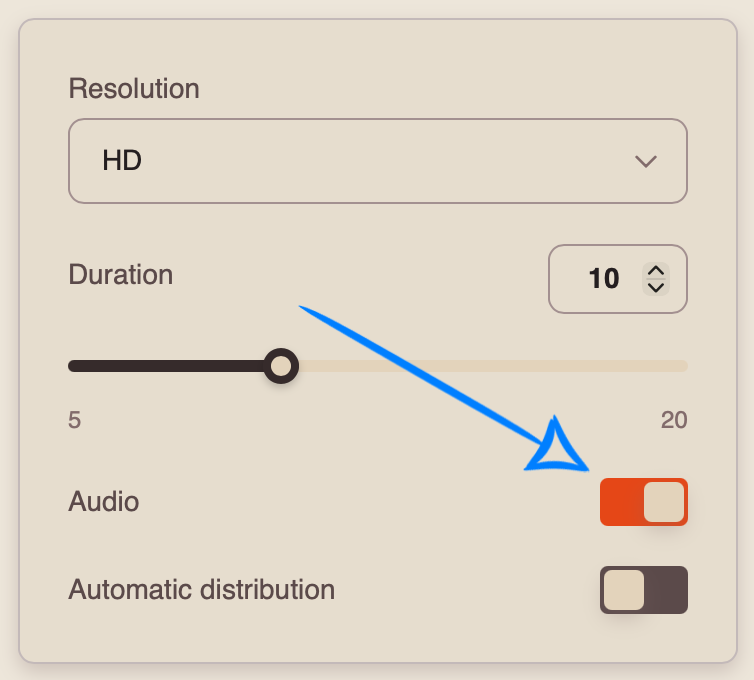
If you prefer to generate a video without sound, disable the “Audio” toggle.
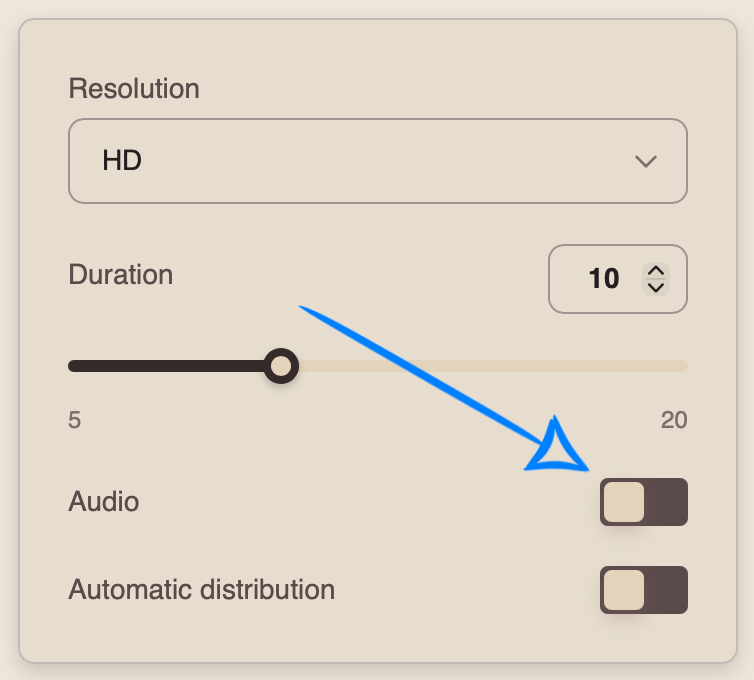
Automatic distribution
If it does not matter exactly when the uploaded image is used in the video and you do not need to specify a particular time for it to appear, you can enable the “Automatic distribution” toggle.
In this case, the model will automatically determine the most appropriate moment to use the image in the video.
Setting the Position and Appearance Time:
If it is important for the image to appear at a specific point in the video, you can manually set when it should appear.
For the uploaded image, you can specify the desired moment using the slider or select one of the available options: “To the beginning” or “To the end.”
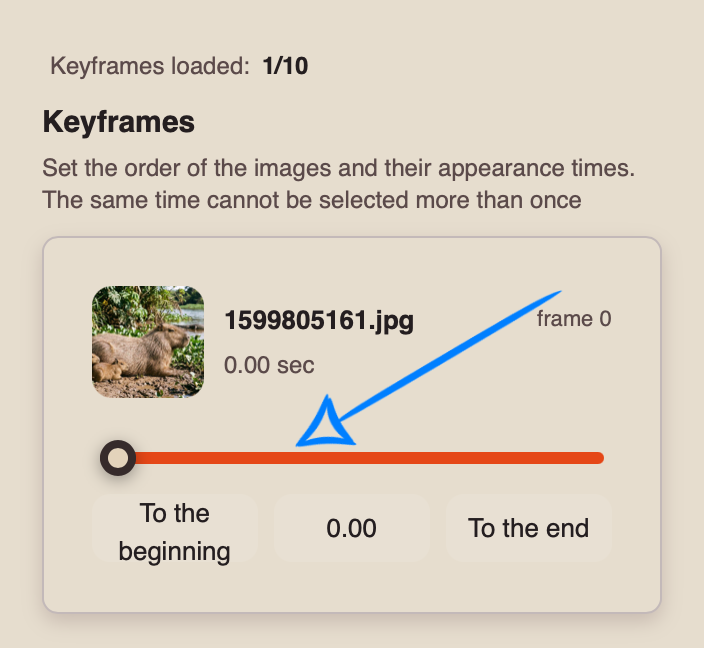
Once you have configured all the settings, click the “Generate” button to start the video generation process.
Result
Working with Multiple Images
Model Settings
After uploading your images, click the “Configure and Start (Keyframes)” button and then configure the appropriate settings for your video generation.
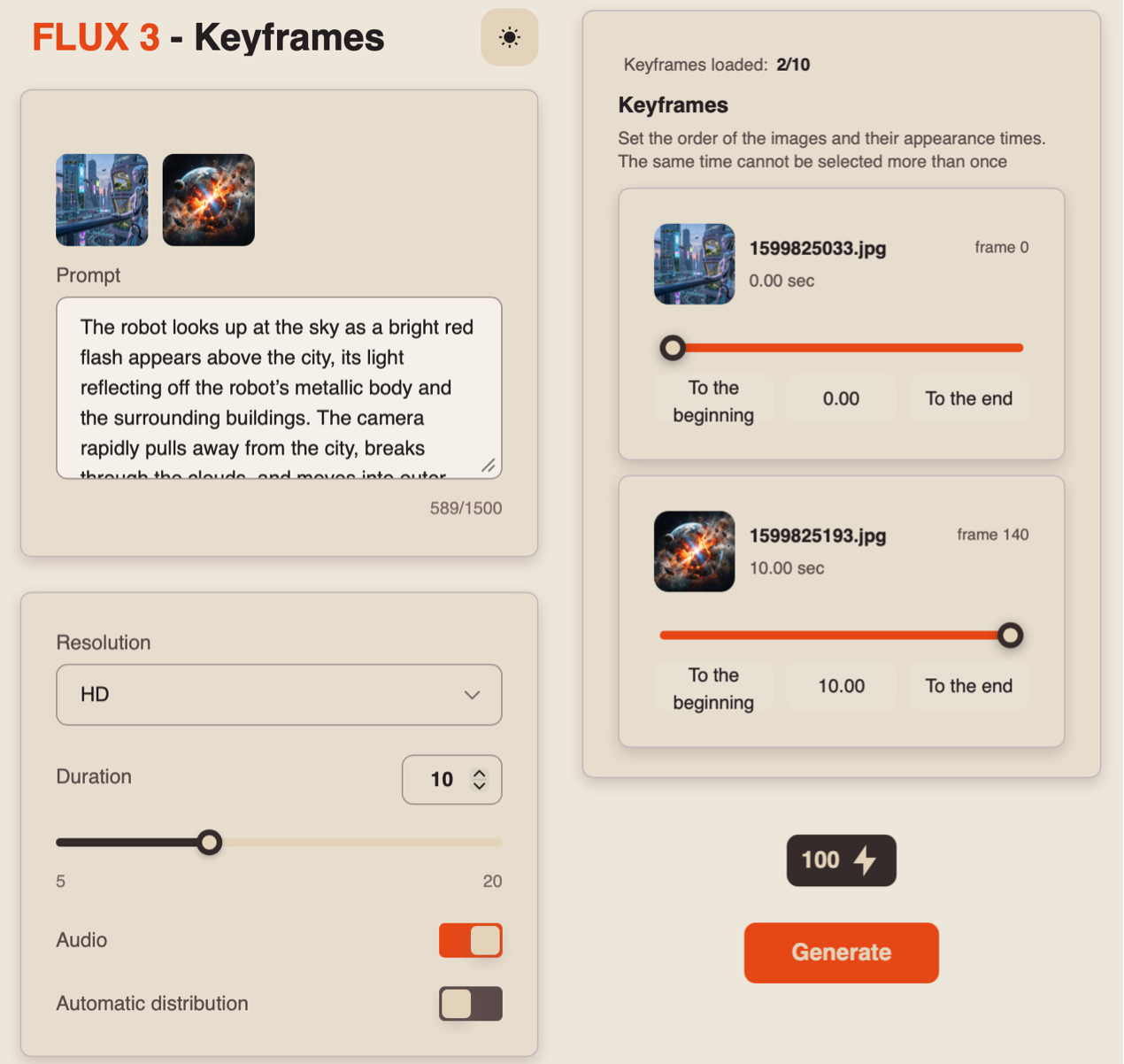
Prompt
High-quality video generation starts with a well-crafted text prompt. The more precisely you describe the scene you want to create, the better the model will be able to reproduce it in the final video.
When writing a prompt, it is recommended to describe the main elements of the scene in a clear sequence:
- Main subject and action: specify who or what appears in the frame, what is happening, and how the action unfolds.
- Setting and atmosphere: describe the location, time of day, lighting, and other important environmental details.
- Camera movement: specify how you want the camera to behave, such as zooming in or out, panning, following a character, or remaining static.
- Style and mood: define the visual style of the video and its emotional tone, such as realistic, cinematic, dramatic, calm, etc.
- Sound and dialogue: if necessary, describe character dialogue, ambient sounds, or sound effects that should accompany the action on screen. If the video includes speech, write the dialogue as direct speech and specify the language in which it should be spoken.
For example:
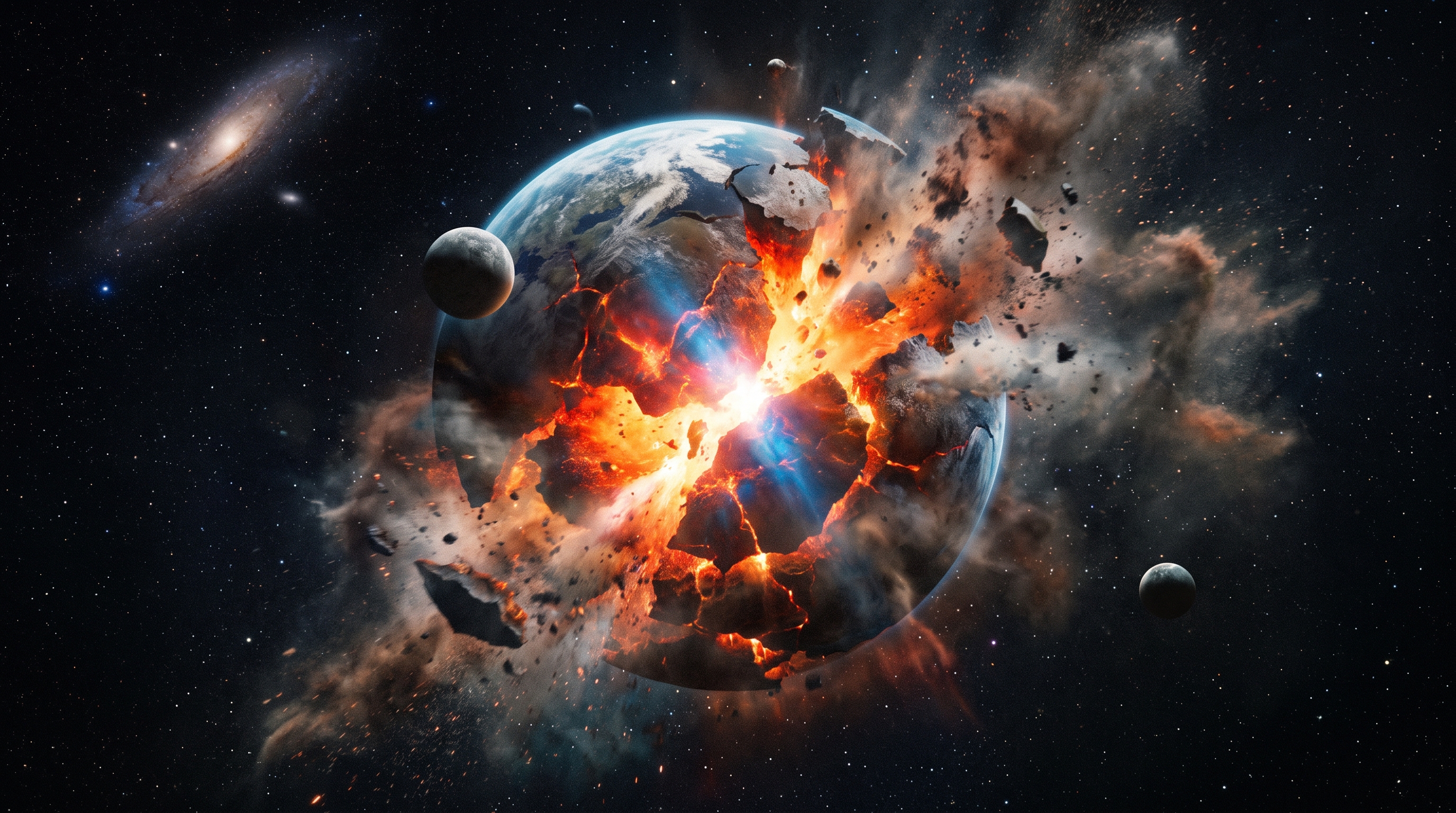
«The robot looks up at the sky as a bright red flash appears above the city, its light reflecting off the robot’s metallic body and the surrounding buildings. The camera rapidly pulls away from the city, breaks through the clouds, and moves into outer space. Massive glowing cracks begin to spread across the planet’s surface. In the final scene, Earth explodes from within, breaking apart into enormous fragments that scatter through space. Epic cinematic sci-fi style, dynamic camera movement, realistic physics, steadily rising tension, and a powerful explosion sound in the final scene.»
Resolution
When generating a video from a text prompt, you can choose between two resolution options:
HD (720p) - A medium-resolution video format that provides a good balance between video quality and file size. It has become a popular standard for online video, including YouTube, and delivers a clear image suitable for viewing on medium-sized TVs and most modern devices.
Full HD (1080p) - A high-quality video format that provides excellent detail and sharpness. It is ideal for viewing on larger screens and TVs. While it requires a faster internet connection and takes up significantly more storage space, it delivers a sharper and more detailed image.
Duration
When generating a video from a text prompt, you can choose a duration ranging from 5 to 20 seconds.
❣️Please note that the default duration is set to 10 seconds.
Audio
To generate a video with sound, enable the “Audio” toggle.
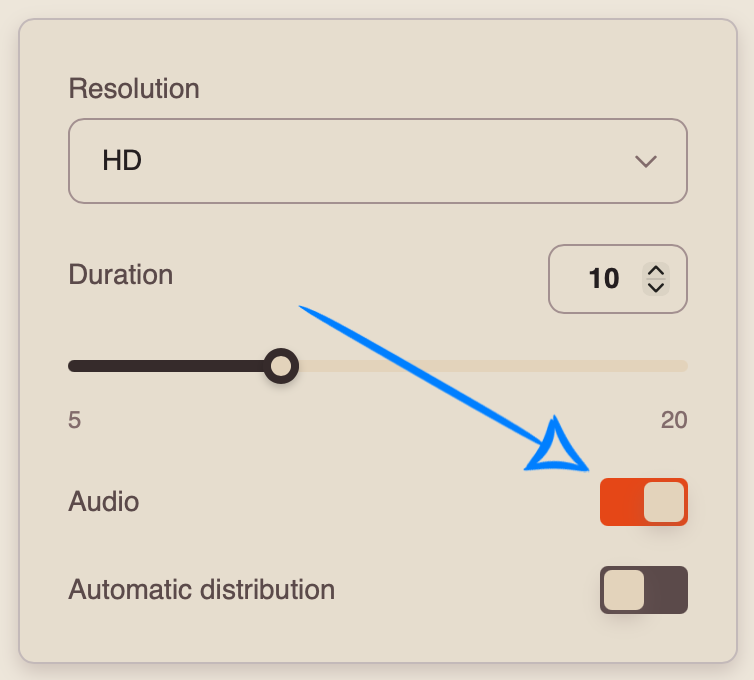
If you prefer to generate a video without sound, disable the “Audio” toggle.
.png)
Automatic distribution
If it does not matter exactly when the uploaded image is used in the video and you do not need to specify a particular time for it to appear, you can enable the “Automatic distribution” toggle.
In this case, the model will automatically determine the most appropriate moment to use the image in the video.
Setting the Position and Appearance Time:
If it is important for the image to appear at a specific point in the video, you can manually set when it should appear.
For the uploaded image, you can specify the desired moment using the slider or select one of the available options: “To the beginning” or “To the end.”
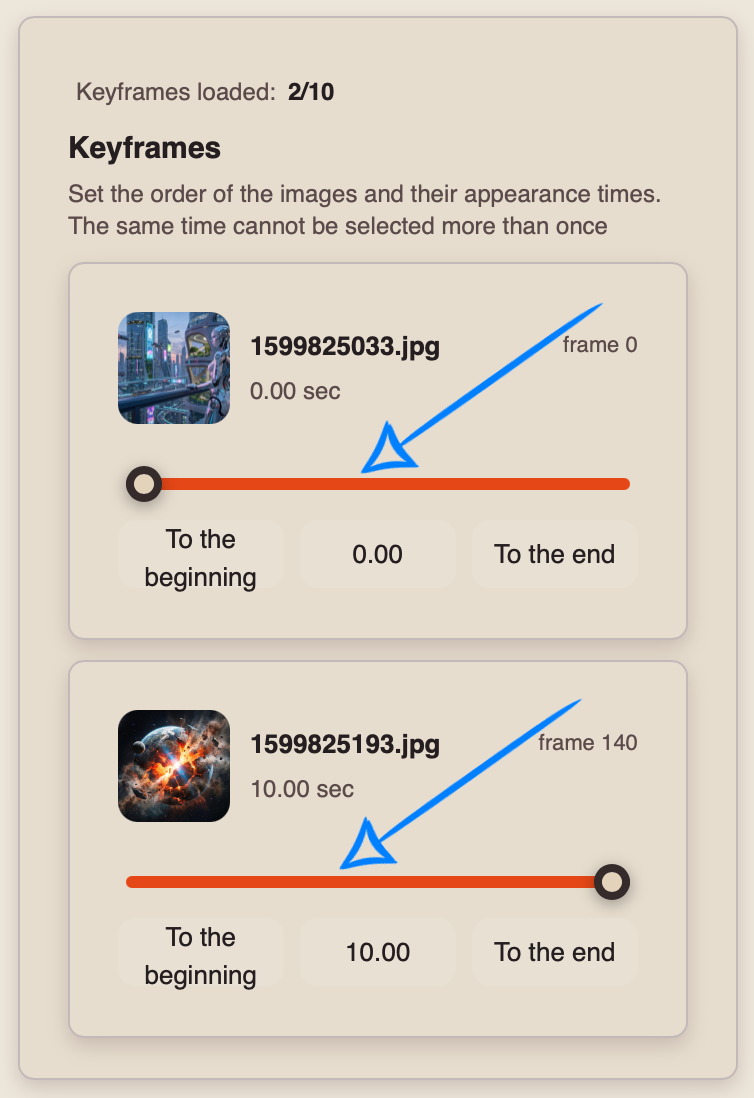
Once you have configured all the settings, click the “Generate” button to start the video generation process.
Result
💥 Step-by-Step Guide to Using FLUX 3 “Video Extension (Extend)”
When using the video extension feature, the first step is to upload your video correctly.
Uploading a Video
Technical requirements for videos:
- File format: MP4
- Maximum file size: 50 MB
- Maximum number of videos: 1
For example:
Model Settings
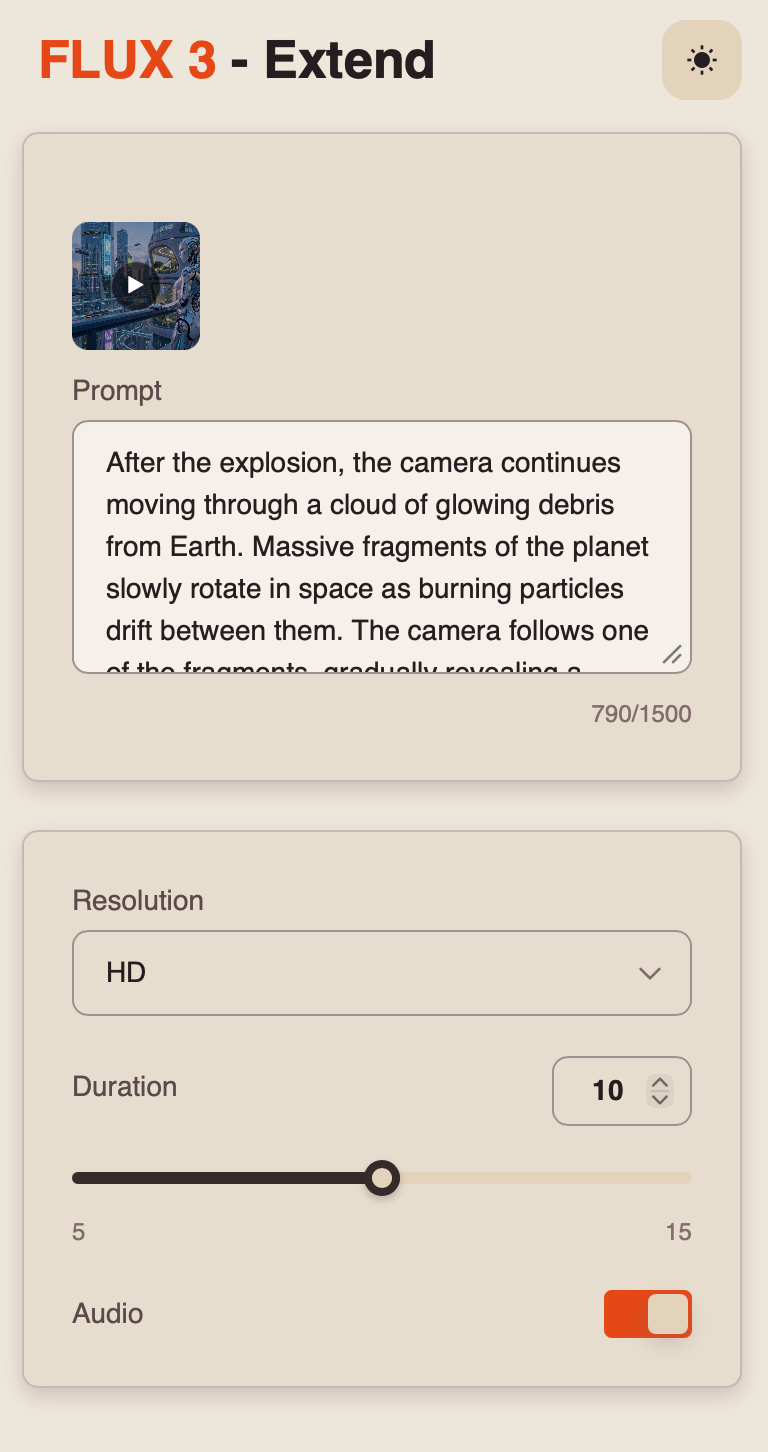
After uploading your video, click the “Configure (Extend)” button and then configure the appropriate settings for your video generation.
Prompt
High-quality video generation starts with a well-crafted text prompt. The more precisely you describe the scene you want to create, the better the model will be able to reproduce it in the final video.
When writing a prompt, it is recommended to describe the main elements of the scene in a clear sequence:
- Main subject and action: specify who or what appears in the frame, what is happening, and how the action unfolds.
- Setting and atmosphere: describe the location, time of day, lighting, and other important environmental details.
- Camera movement: specify how you want the camera to behave, such as zooming in or out, panning, following a character, or remaining static.
- Style and mood: define the visual style of the video and its emotional tone, such as realistic, cinematic, dramatic, calm, etc.
- Sound and dialogue: if necessary, describe character dialogue, ambient sounds, or sound effects that should accompany the action on screen. If the video includes speech, write the dialogue as direct speech and specify the language in which it should be spoken.
For example:
«After the explosion, the camera continues moving through a cloud of glowing debris from Earth. Massive fragments of the planet slowly rotate in space as burning particles drift between them. The camera follows one of the fragments, gradually revealing a massive futuristic space station in the distance. Behind a panoramic window of the station, the same robot stands silently, watching the remains of the destroyed Earth. The red glow of the explosion reflects off its metallic face. The camera slowly moves closer to the robot. It quietly says in English: “It was never meant to end this way.” After the line, the last remaining glow of Earth fades away completely. Cinematic sci-fi style, dark atmosphere, realistic physics, a deep ambient hum from the station, and muffled alarm sounds.»
Resolution
When generating a video from a text prompt, you can choose between two resolution options:
HD (720p) - A medium-resolution video format that provides a good balance between video quality and file size. It has become a popular standard for online video, including YouTube, and delivers a clear image suitable for viewing on medium-sized TVs and most modern devices.
Full HD (1080p) - A high-quality video format that provides excellent detail and sharpness. It is ideal for viewing on larger screens and TVs. While it requires a faster internet connection and takes up significantly more storage space, it delivers a sharper and more detailed image.
Duration
When extending a video, you can choose a duration for the extended segment ranging from 5 to 15 seconds.
❣️ Please note that the default duration is set to 10 seconds.
❣️ The original video is not merged with the extended segment. The generated result will contain only the continuation of the uploaded video.
Audio
To generate a video with sound, enable the “Audio” toggle.
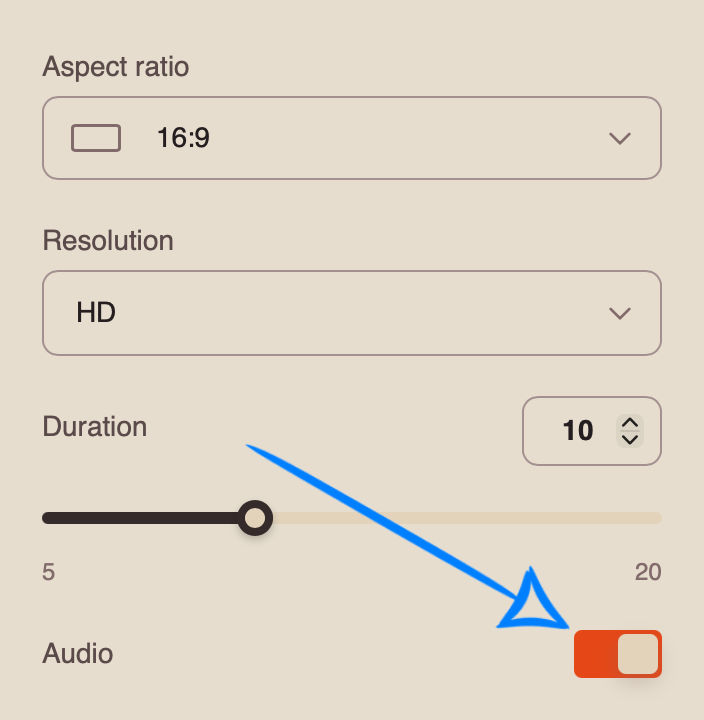
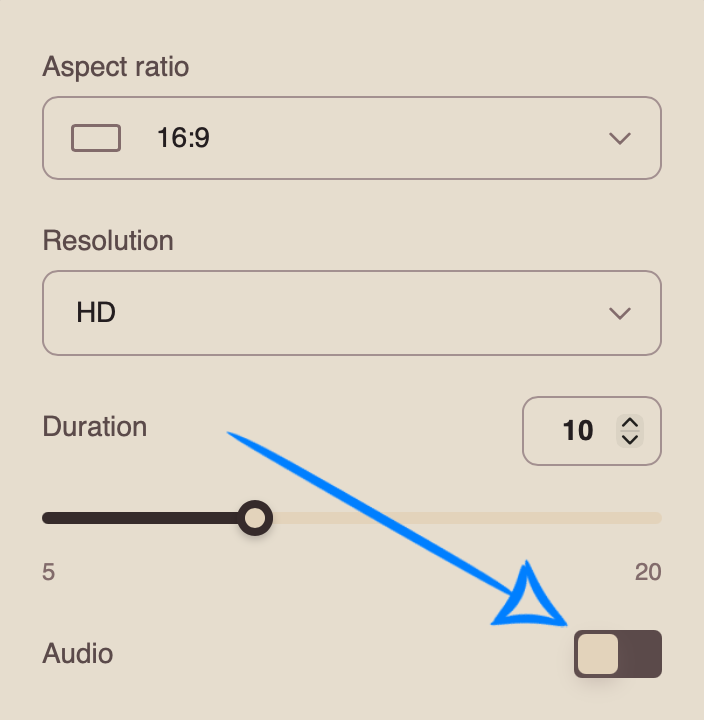
If you prefer to generate a video without sound, disable the “Audio” toggle.
Once you have configured all the settings, click the “Generate” button to start the video generation process.
Result
We hope this guide helps you explore the capabilities of FLUX 3 and confidently use the model to create videos. We’ve tried to make the entire process as simple and straightforward as possible.
Experiment with prompts, references, and settings. Over time, you’ll gain more precise control over the generation process and be able to create exactly the videos you envision. 💛
SYNTX AI: Syntx AI
SYNTX Support: Syntx Support
YouTube channel “SYNTX”: Syntx YouTube
SYNTX.AI Academy: SYNTX Academy