
HappyHorse is Alibaba’s video generation model focused on realistic physics, high detail, and synchronized audio. It supports multiple references and text-based video editing. Best suited for simple scenes with smooth motion, natural movement, and realistic physical behavior.
- 🎛 Navigation
- 💥 Step-by-Step Guide to Using HappyHorse “Text-to-Video”
- 💥 Step-by-Step Guide to Using HappyHorse “Image to Video”
- 💥 Step-by-step guide for using HappyHorse “References to Video”
- 💥 Step-by-step guide for using HappyHorse “Video Editing”
🎛 Navigation
🏠 Main Menu > 🎬 Video of the future > 🎠 HappyHorse


💥 Step-by-Step Guide to Using HappyHorse “Text-to-Video”
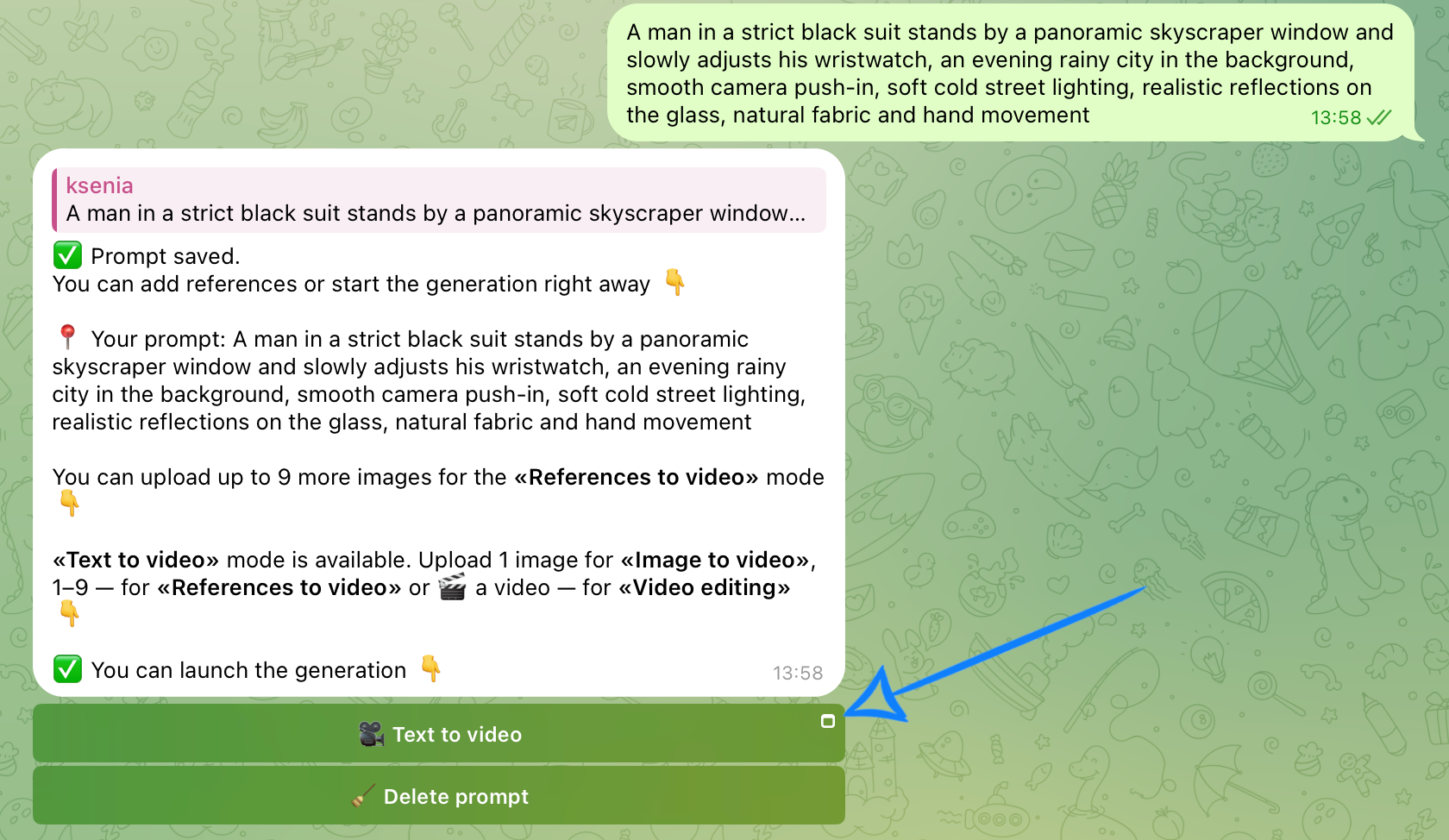
The first step when working with the “Text to Video” feature is to correctly structure your text prompt.
Writing a text prompt
Generation quality in HappyHorse directly depends on the structure and order of your prompt. The model works best with short, clear scenes that include one main action, a specific environment, and detailed object physics.
Overloaded, overly complex, or abstract prompts may cause errors, artifacts, and inconsistencies in scene logic.
A good text prompt should include:
- Main subject / character
- Action
- Location
- Camera movement
- Lighting / atmosphere / style
Example prompt:
“A man in a strict black suit stands by a panoramic skyscraper window and slowly adjusts his wristwatch, an evening rainy city in the background, smooth camera push-in, soft cold street lighting, realistic reflections on the glass, natural fabric and hand movement.”
Model settings
After submitting your text prompt, click the “Text to Video” button and correctly configure the settings for the future generation.
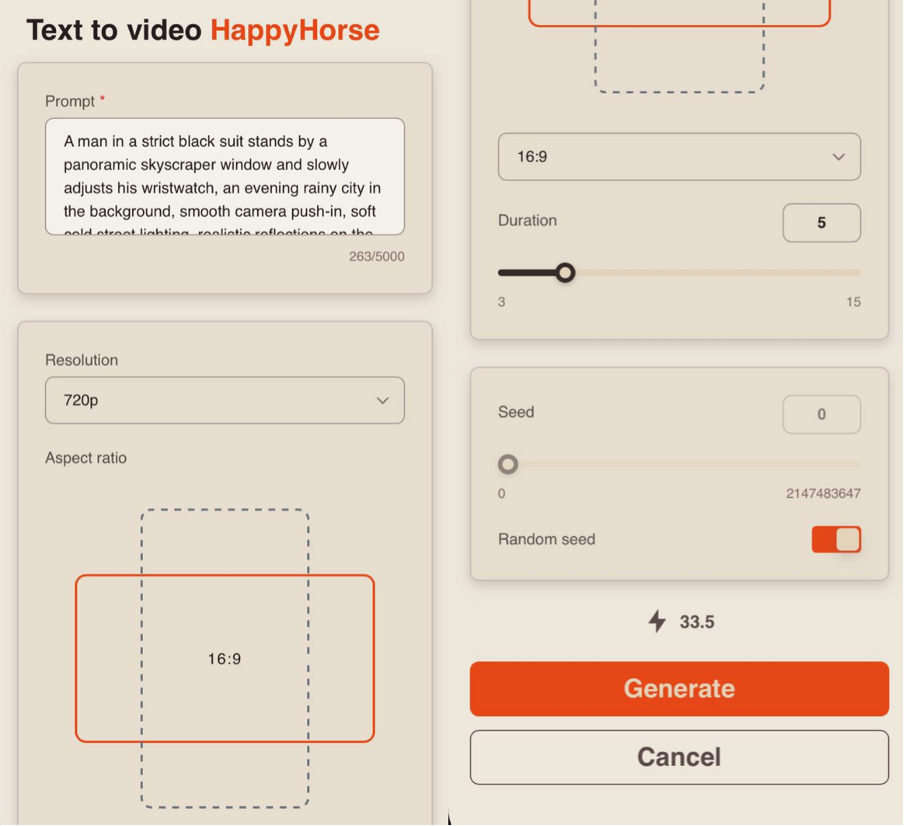
Prompt
If necessary, you can adjust your prompt in this field. If left unchanged, the generation will use the original text prompt you submitted initially.
Resolution
When working with text prompts, you can choose between two resolution options:
• 720p
A medium video resolution that offers a good balance between quality and file size. It is a popular standard for online videos, including YouTube, and provides a clear image suitable for medium-sized TVs and most modern devices.
• 1080p
A high-resolution video format with greater detail and sharpness. It is ideal for large screens and TVs, but requires a faster internet connection and significantly more storage space. In return, it delivers the clearest and most detailed video quality.
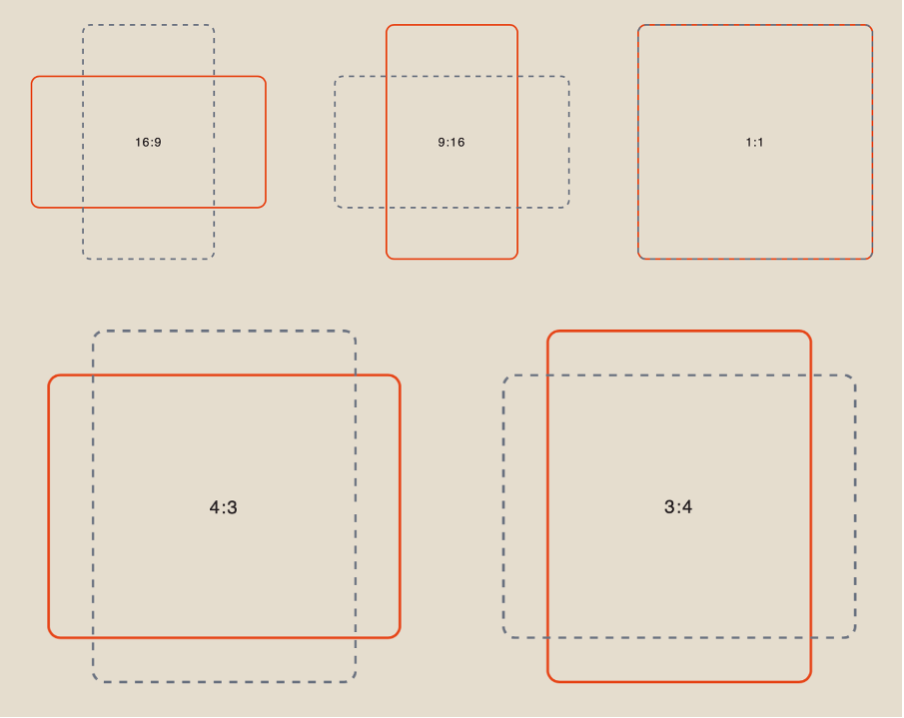
Aspect ratio
When working with text prompts, you can choose from 5 aspect ratio options:
Duration
You can set the duration of the future video from 3 to 15 seconds.
❣️ Please note that the default duration in the settings is 5 seconds.
Seed
Seed lets you generate identical or highly similar results when repeating a generation. It is especially useful if you liked a video and want to create a similar result while changing or adding specific details.
You can copy the Seed value from the generated video description and use it to reproduce the result with the necessary changes. To do this, paste the copied Seed into this field.
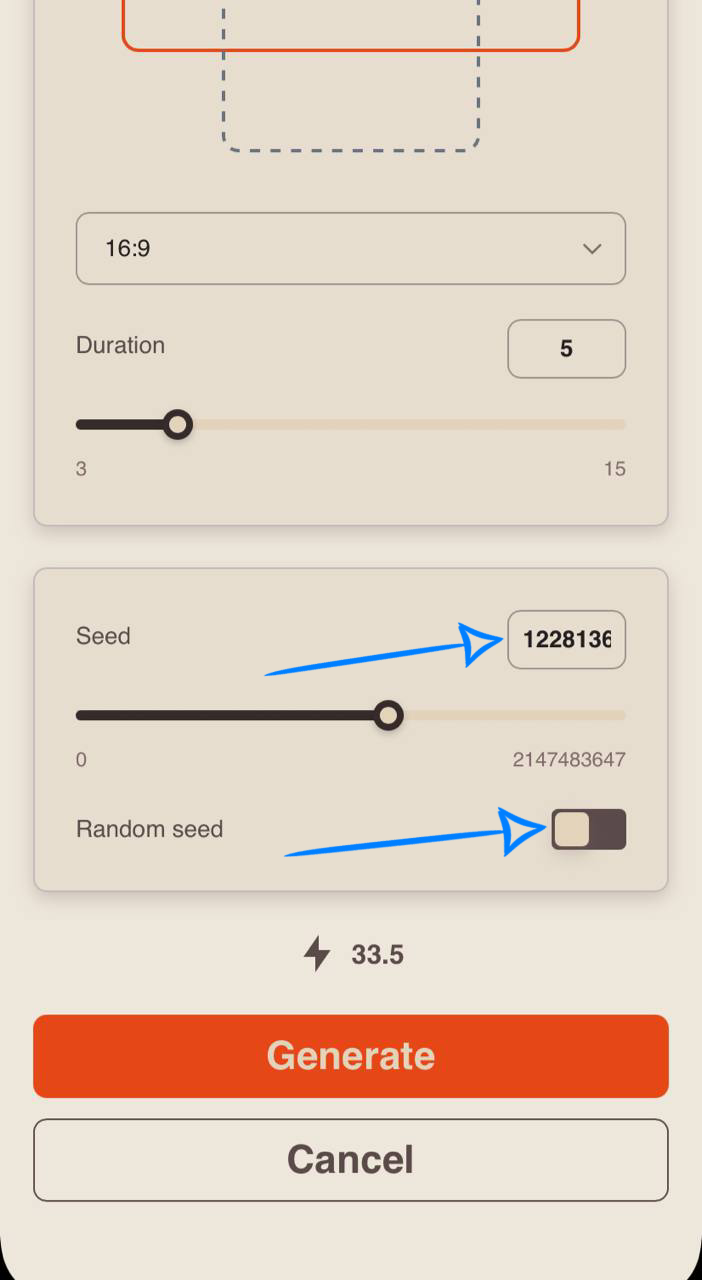
If you do not need to create a similar video, we recommend enabling Random Seed. This way, each generation will use a new Seed value and produce results that differ from previous generations.
.png)
Generation example
💥 Step-by-Step Guide to Using HappyHorse “Image to Video”
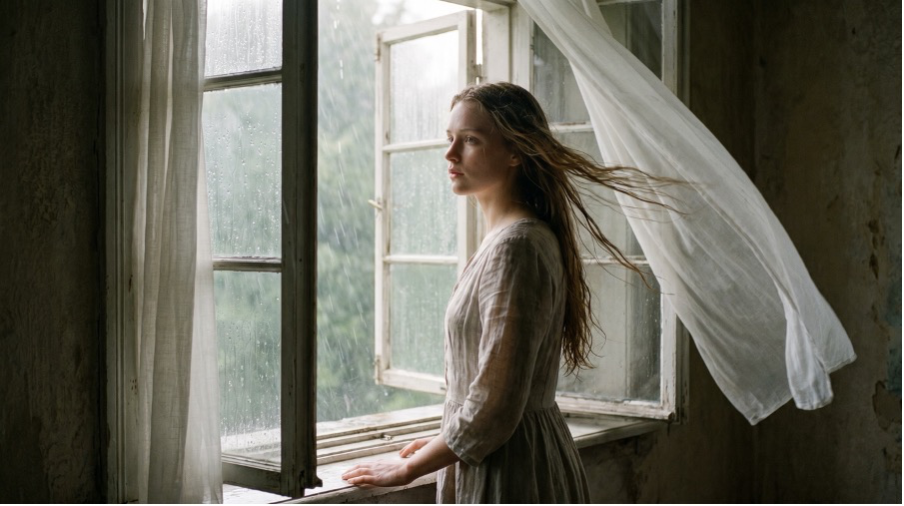
The first step when working with an image is to upload it correctly.
Image upload
Technical requirements for images:
• You can upload images in JPG and PNG formats.
• Maximum file size: up to 10 MB.
• Maximum number of uploaded images: 1.
For example:
Model settings
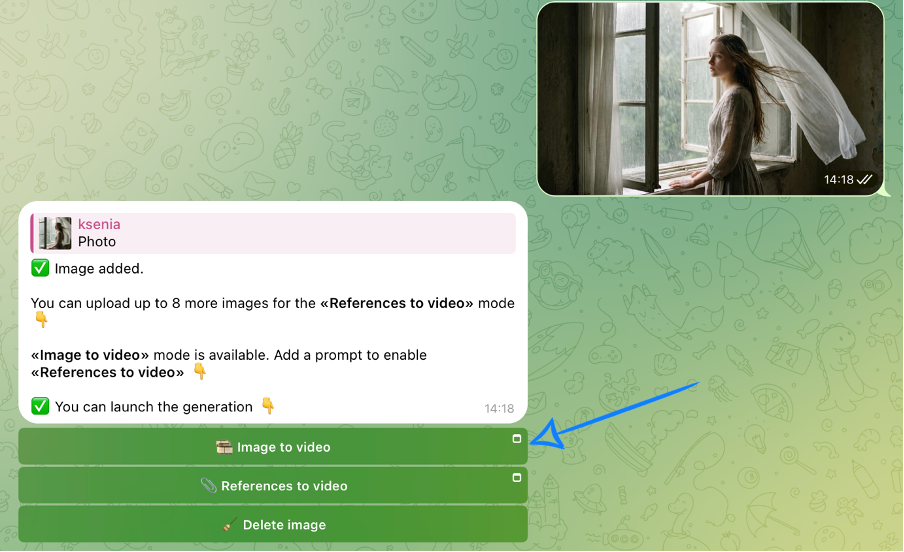
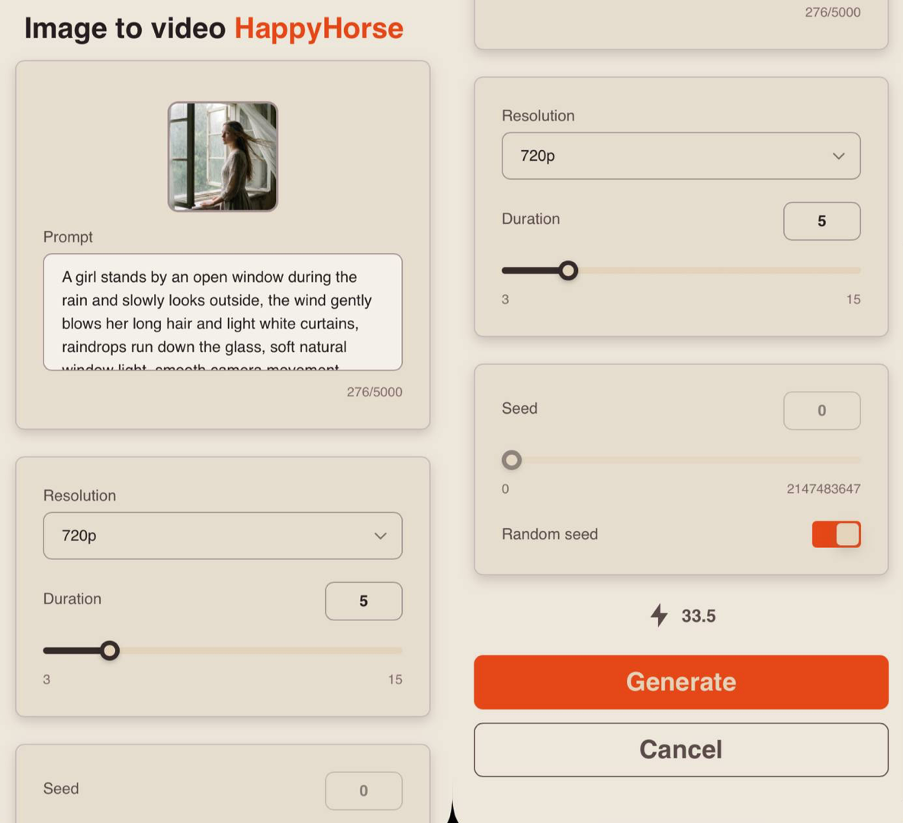
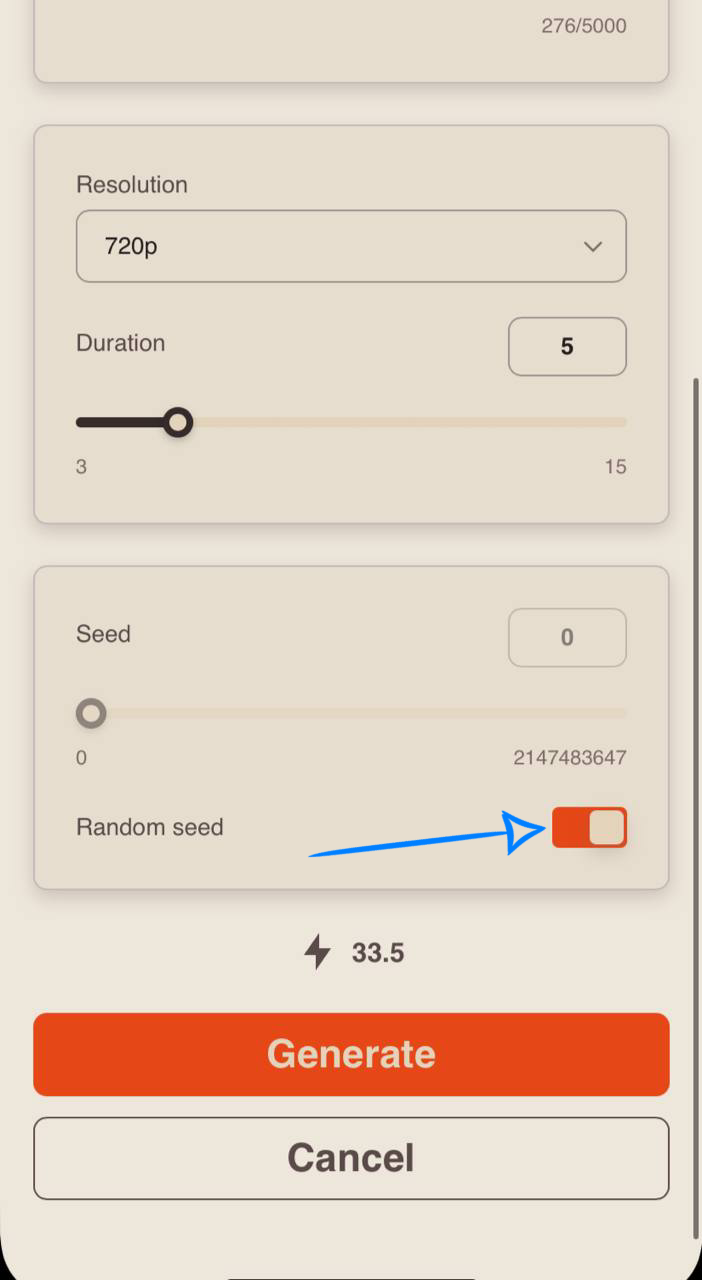
After uploading an image, select the “Image to Video” button and correctly configure the settings for the future generation.
❣️If you want to remove the uploaded image, click the “Delete image” button. After that, you will be able to upload a new image.
Prompt
Generation quality in HappyHorse directly depends on the structure and order of your prompt. The model works best with short, clear scenes that include one main action, a specific environment, and detailed object physics.
Overloaded or overly abstract prompts may cause errors, artifacts, and inconsistencies in scene logic.
A good text prompt should include:
- Main subject / character
- Action
- Location
- Camera movement
- Lighting / atmosphere / style
❣️Entering a text prompt is optional: if you leave the field empty and upload only an image, the neural network will independently determine the action in the scene.
Example prompt:
“A girl stands by an open window during the rain and slowly looks outside, the wind gently blows her long hair and light white curtains, raindrops run down the glass, soft natural window light, smooth camera movement, realistic cloth, hair, and rain physics, atmospheric scene.”
Resolution
When working with a single image, you can choose between two resolution options:
• 720p
A medium video resolution that provides a good balance between video quality and file size. This format has become a popular standard for online videos, including YouTube, and delivers a clear image suitable for viewing on medium-sized TVs and most modern devices.
• 1080p
A high-quality video format that provides excellent detail and sharpness. This format is ideal for viewing on large screens and TVs, although it requires a faster internet connection and significantly more storage space. In return, it delivers the clearest and most detailed video quality.
Duration
You can set the duration of the future video from 3 to 15 seconds.
❣️Please note that the default duration in the settings is set to 5 seconds.
Seed
Seed allows you to generate identical or highly similar results in style when repeating a generation. If you liked a video and want to create a similar result while changing or adding specific details, the Seed setting will be especially useful.
In the description of a generated video, you can copy the Seed value and use it to reproduce the result with the necessary changes. To do this, paste the copied Seed into this section.
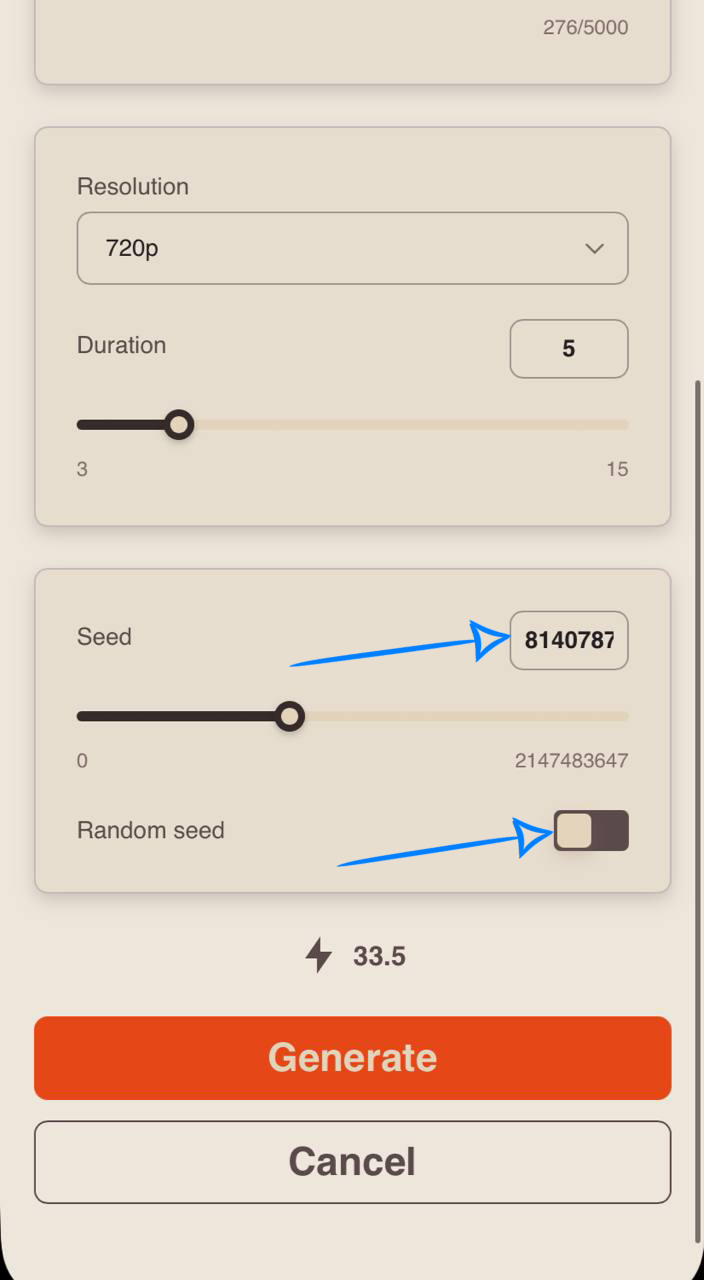
If you do not need to create a similar video, we recommend enabling Random Seed. This way, each generation will use a new Seed value and produce results that differ from previous generations.
Generation example
💥 Step-by-step guide for using HappyHorse “References to Video”
The first step when working with references is to upload them correctly.
Image upload
Technical requirements for images:
• You can upload images in JPG and PNG formats.
• Maximum file size: up to 10 MB.
• Maximum number of uploaded images: 9.
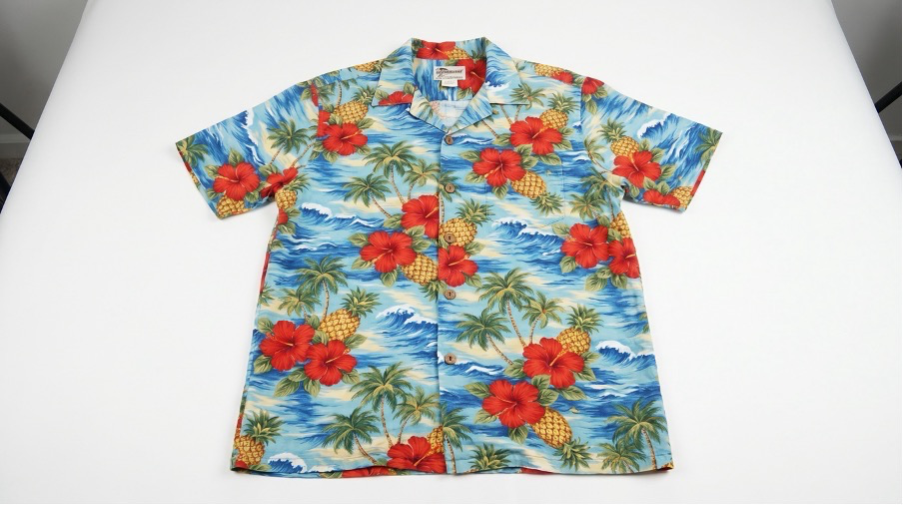
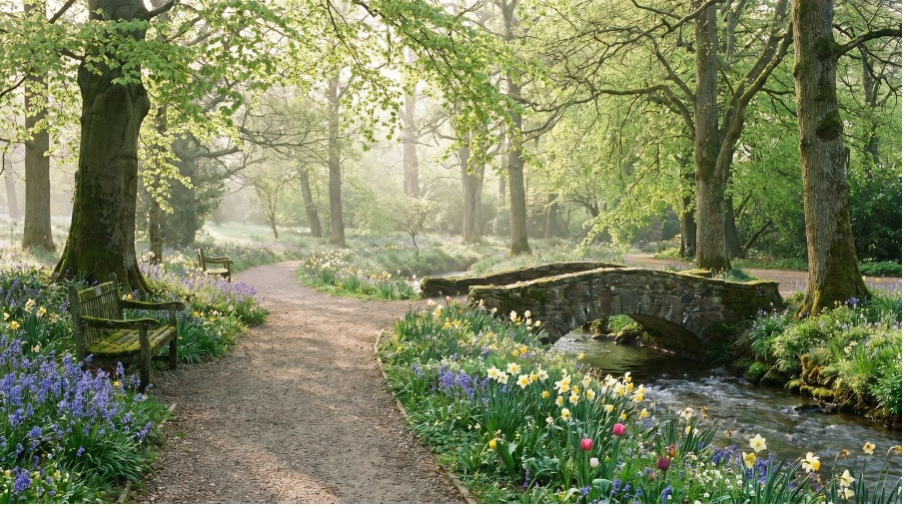
For example:

Model settings
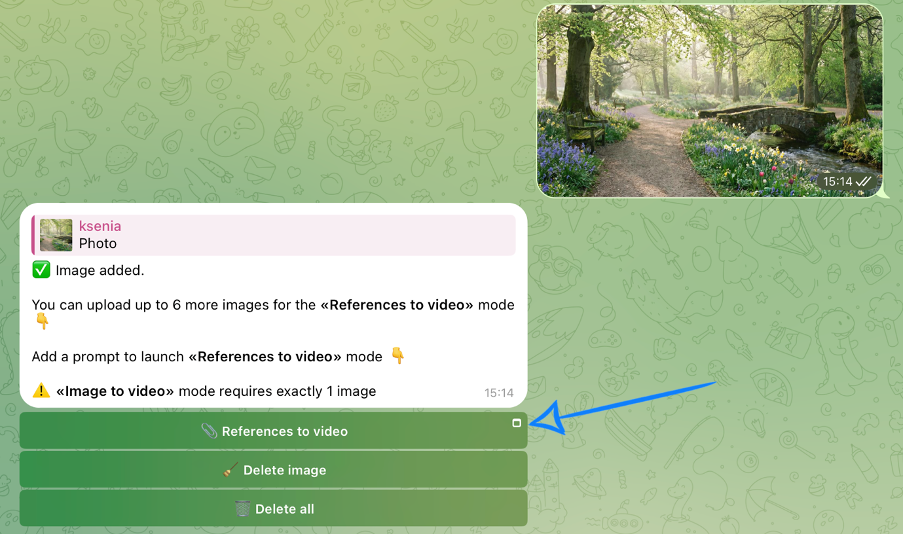
After uploading the references, select the “References to Video” button and correctly configure the settings for the future generation.
❣️If you want to remove the last uploaded image, click the “Delete image” button. After that, you will be able to upload a new image. If you want to remove all uploaded images at once, click the “Delete all” button.
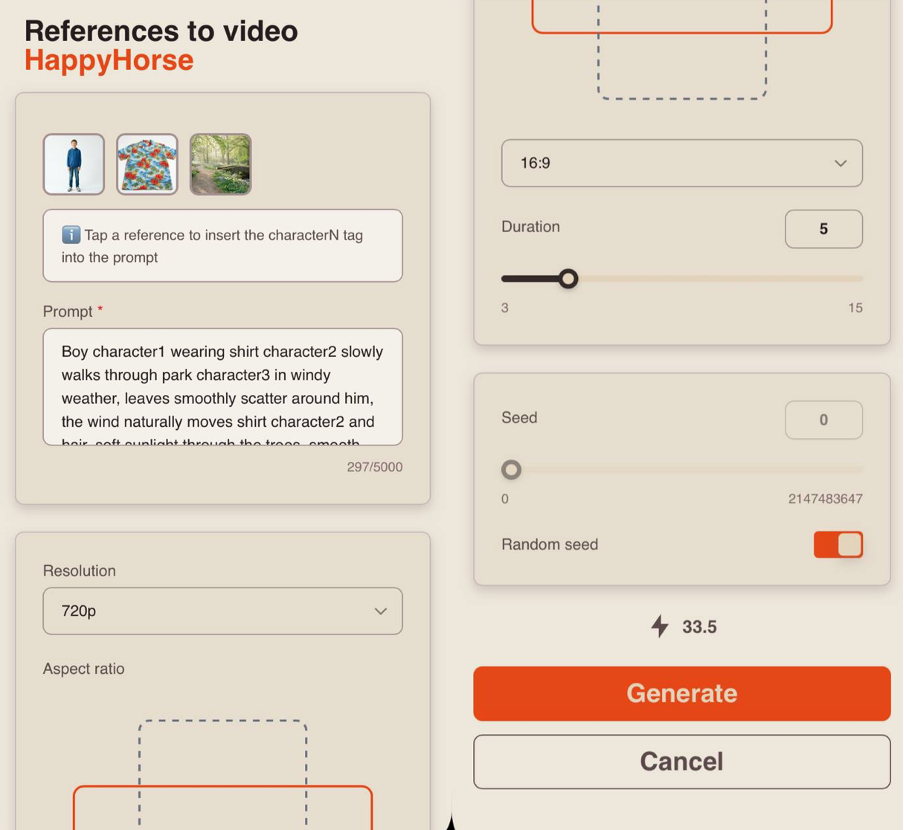
Prompt
Generation quality in HappyHorse directly depends on the structure and sequence of the prompt. The model works best with short and clear scenes that contain one main action, a specific environment description, and detailed object physics.
Overloaded or overly abstract prompts may lead to errors, artifacts, and inconsistencies in scene logic.
A good text prompt should include:
- Main subject / character
- Action
- Location
- Camera movement
- Lighting / atmosphere / style
Example prompt:
“Boy character1 wearing shirt character2 slowly walks through park character3 in windy weather, leaves smoothly scatter around him, the wind naturally moves shirt character2 and hair, soft sunlight through the trees, smooth side camera movement, realistic cloth and leaf physics, atmospheric scene.”
Resolution
When working with references, you can choose between two resolution options:
• 720p
A medium video resolution that provides a good balance between video quality and file size. This format has become a popular standard for online videos, including YouTube, and delivers a clear image suitable for viewing on medium-sized TVs and most modern devices.
• 1080p
A high-quality video format that provides excellent detail and sharpness. This format is ideal for viewing on large screens and TVs, although it requires a faster internet connection and significantly more storage space. In return, it delivers the clearest and most detailed video quality.
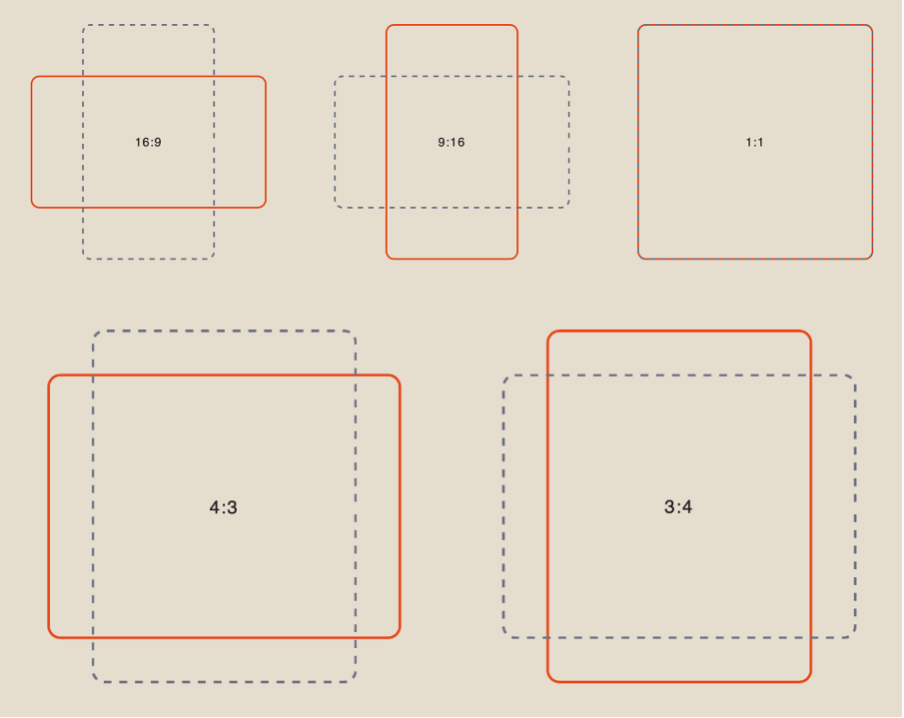
Aspect ratio
When working with references, you can choose from 5 different aspect ratio options:
Duration
You can set the duration of the future video from 3 to 15 seconds.
❣️Please note that the default duration in the settings is set to 5 seconds.
Seed
Seed allows you to generate identical or highly similar results in style when repeating a generation. If you liked a video and want to create a similar result while changing or adding specific details, the Seed setting will be especially useful.
In the description of a generated video, you can copy the Seed value and use it to reproduce the result with the necessary changes. To do this, paste the copied Seed into this section.
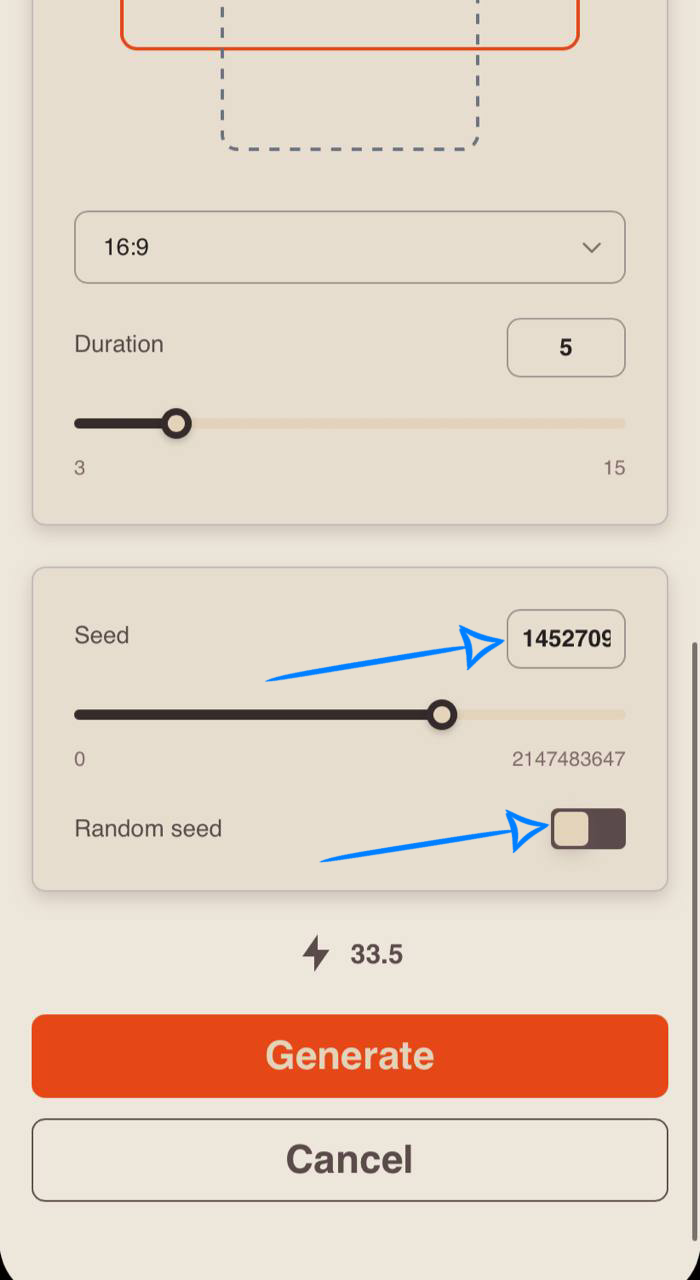
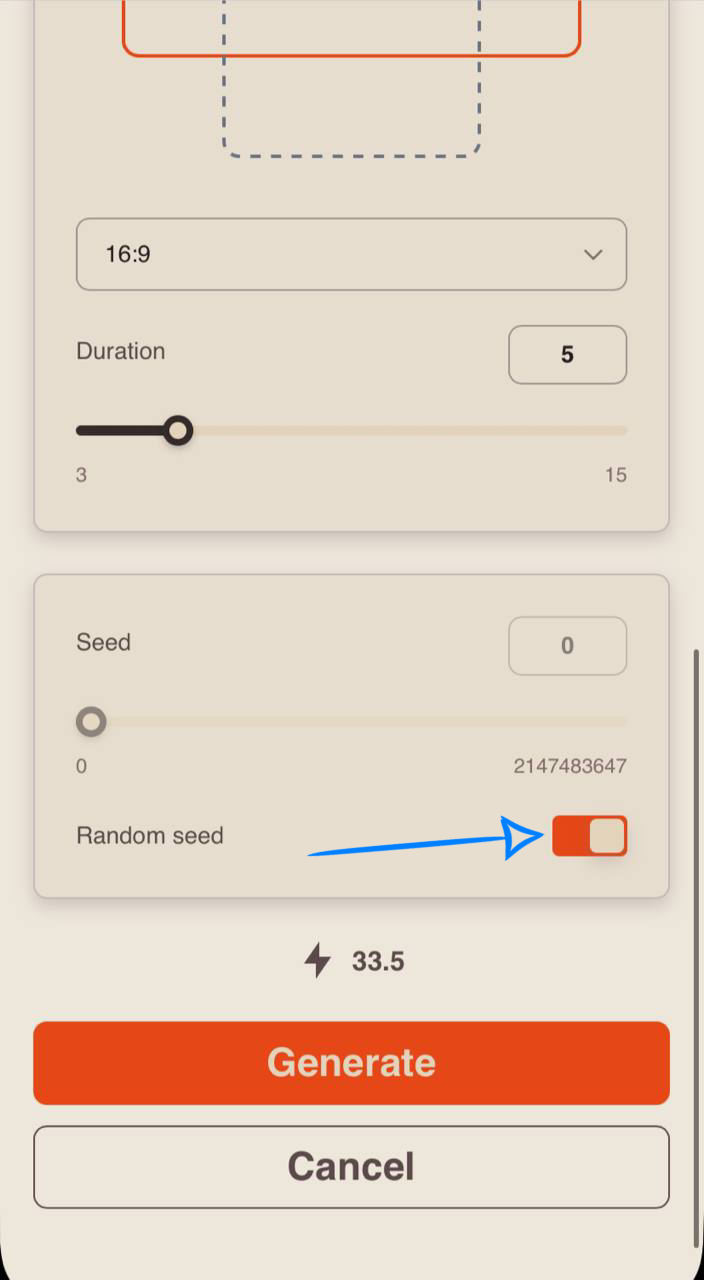
If you do not need to create a similar video, we recommend enabling Random Seed. This way, each generation will use a new Seed value and produce results that differ from previous generations.
Generation example
💥 Step-by-step guide for using HappyHorse “Video Editing”
When working in HappyHorse, you can edit your videos using both text prompts and additional references.
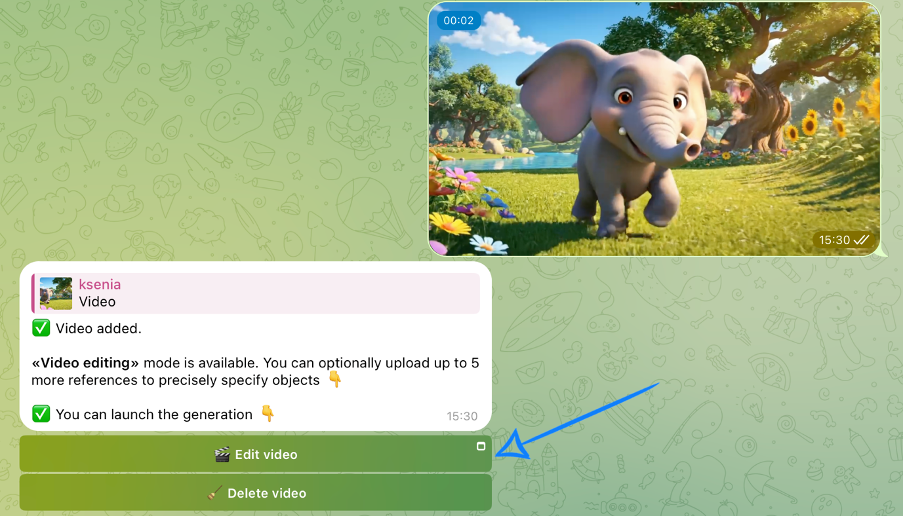
The first step in video editing is to upload your video correctly.
Video upload
Technical requirements for videos:
- File format: MP4
- Maximum file size: up to 10 MB
For example:
Working without additional references
Model settings
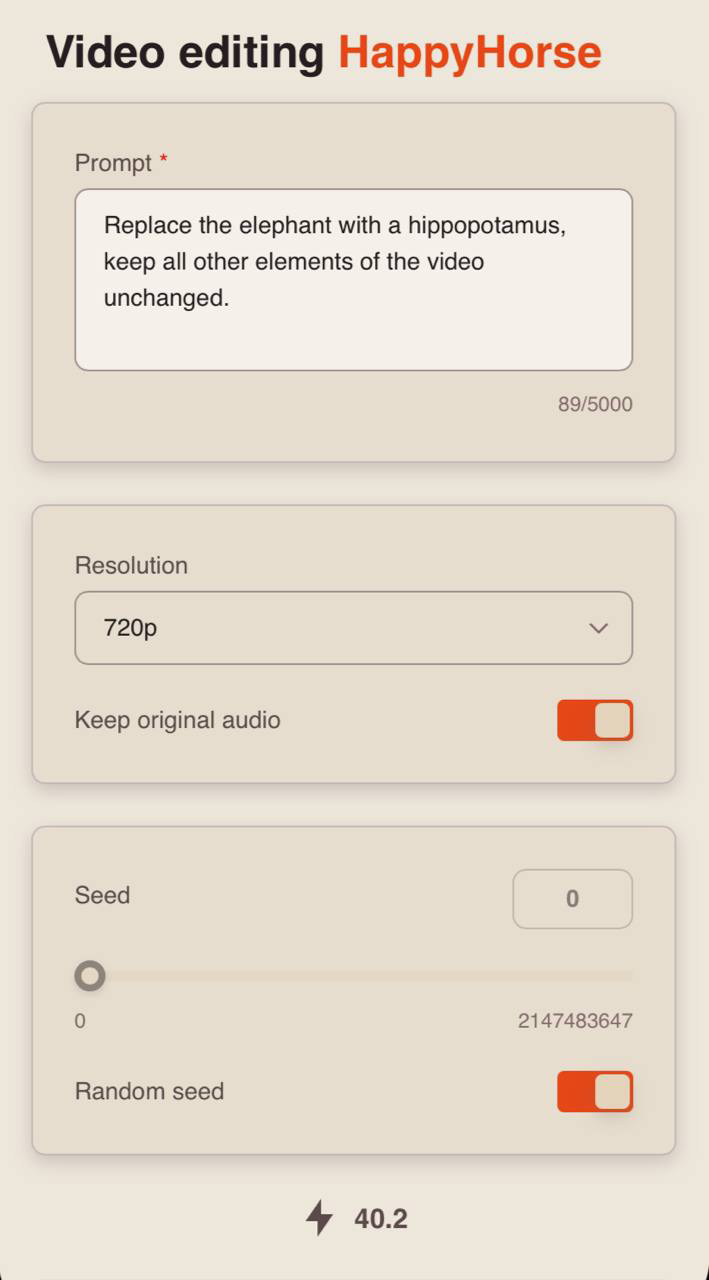
After uploading the video, select the “Edit Video” button and correctly configure the settings for the future generation.
❣️If you want to remove the uploaded video, click the “Delete video” button. After that, you will be able to upload a new video.
Prompt
When editing a video, the most important thing is to clearly specify what should change in the final generation. Describe exactly what needs to be generated based on the existing video.
A good text prompt should include:
- object or scene - what or who should be replaced or added;
- details and environment - where the action takes place and what it looks like;
- lighting and mood - warm, cool, soft, dramatic, etc.
Example prompt:
“Replace the elephant with a hippopotamus, keep all other elements of the video unchanged.”
Resolution
When editing videos, you can choose between two resolution options:
• 720p
A medium video resolution that provides a good balance between video quality and file size. This format has become a popular standard for online videos, including YouTube, and delivers a clear image suitable for viewing on medium-sized TVs and most modern devices.
• 1080p
A high-quality video format that provides excellent detail and sharpness. This format is ideal for viewing on large screens and TVs, although it requires a faster internet connection and significantly more storage space. In return, it delivers the clearest and most detailed video quality.
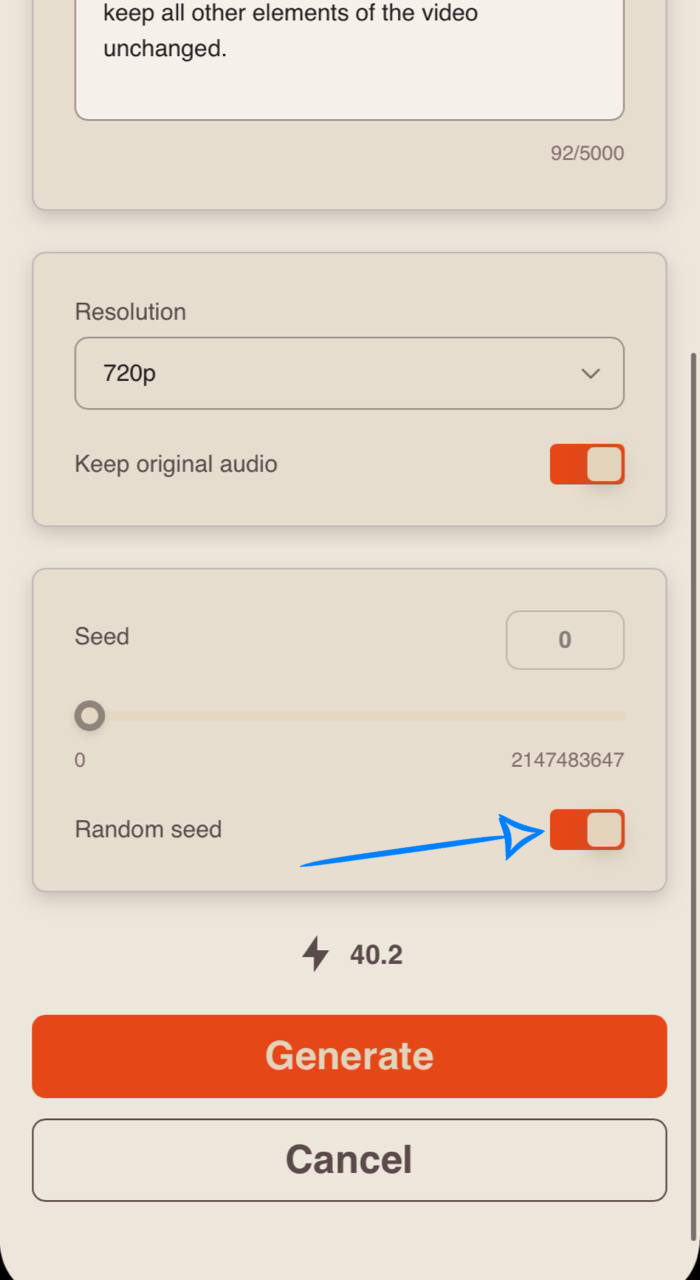
Preserve original audio
You can preserve the original audio track of the video.
If this option is enabled, the original audio will be preserved.
If disabled, the audio track in the final video may change.
Seed
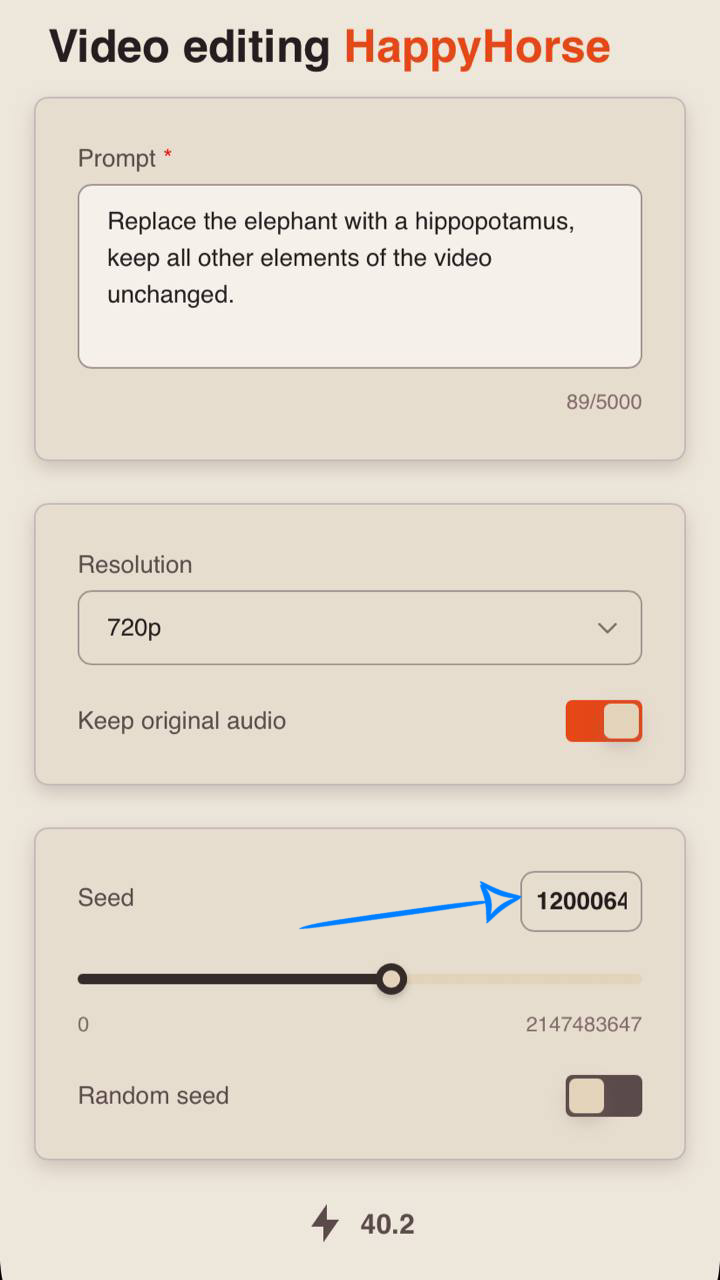
Seed lets you generate identical or highly similar results when repeating a generation. It is especially useful if you liked a video and want to create a similar result while changing or adding specific details.
You can copy the Seed value from the generated video description and use it to reproduce the result with the necessary changes. To do this, paste the copied Seed into this field.
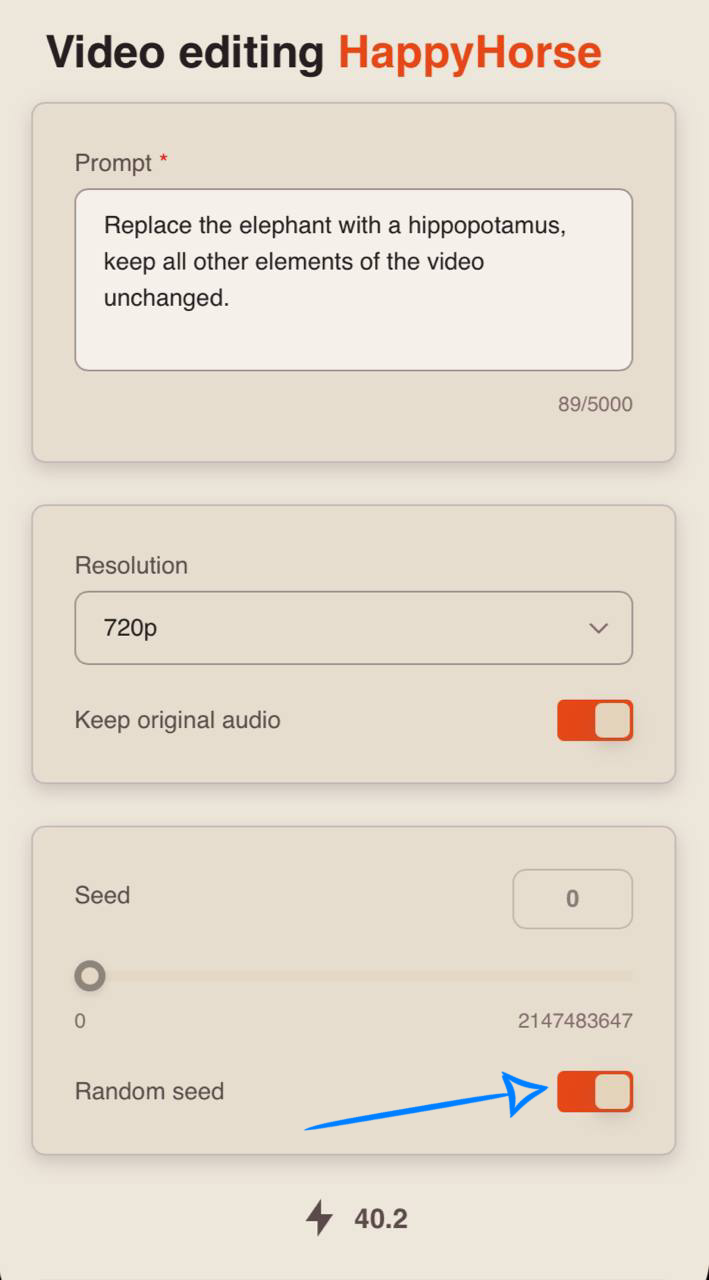
If you do not need to create a similar video, we recommend enabling Random Seed. This way, each generation will use a new Seed value and produce results that differ from previous generations.
Generation example
Working with additional references
When working in HappyHorse, you can edit your videos both with text prompts and by using additional references.
The first thing you need to do when editing a video is upload it correctly.
Video Upload
Technical requirements for the video:
- File format: MP4
- Maximum file size: up to 10 MB
Image upload
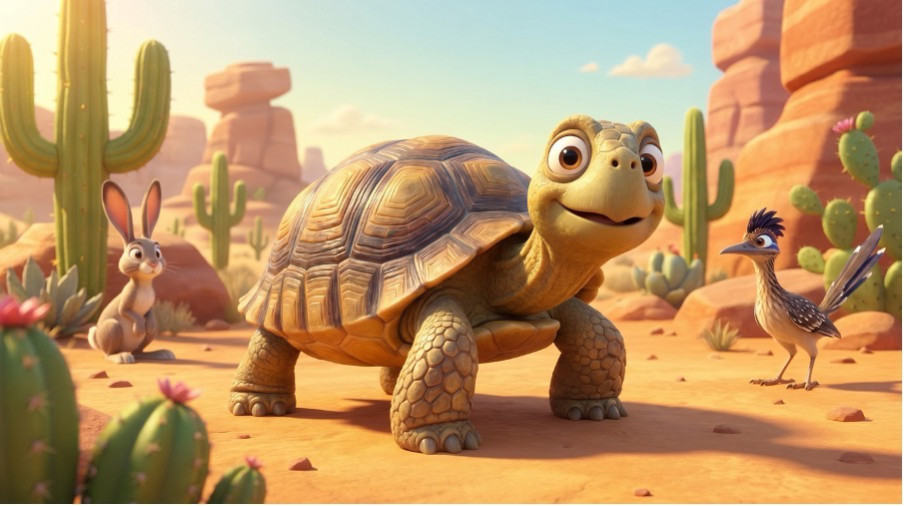
Technical requirements for images:
• You can upload images in JPG and PNG formats.
• Maximum file size: up to 10 MB.
• Maximum number of uploaded images: 5.
For example:
Model settings
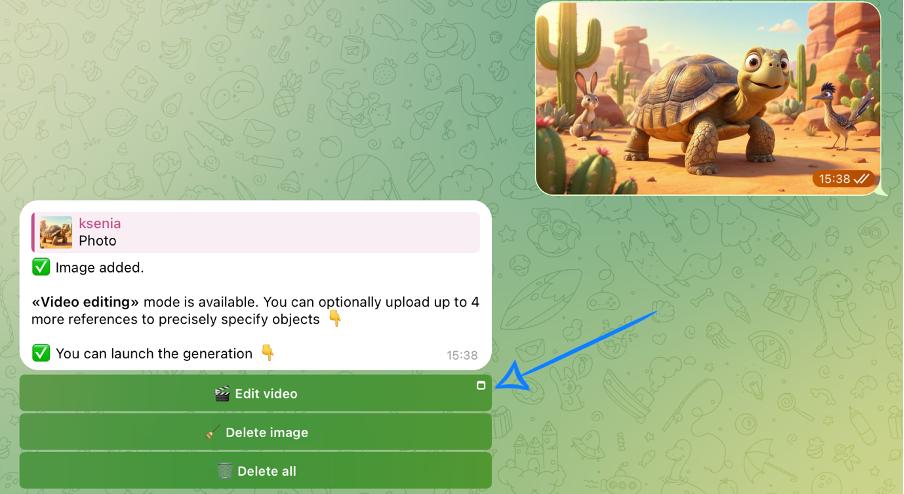
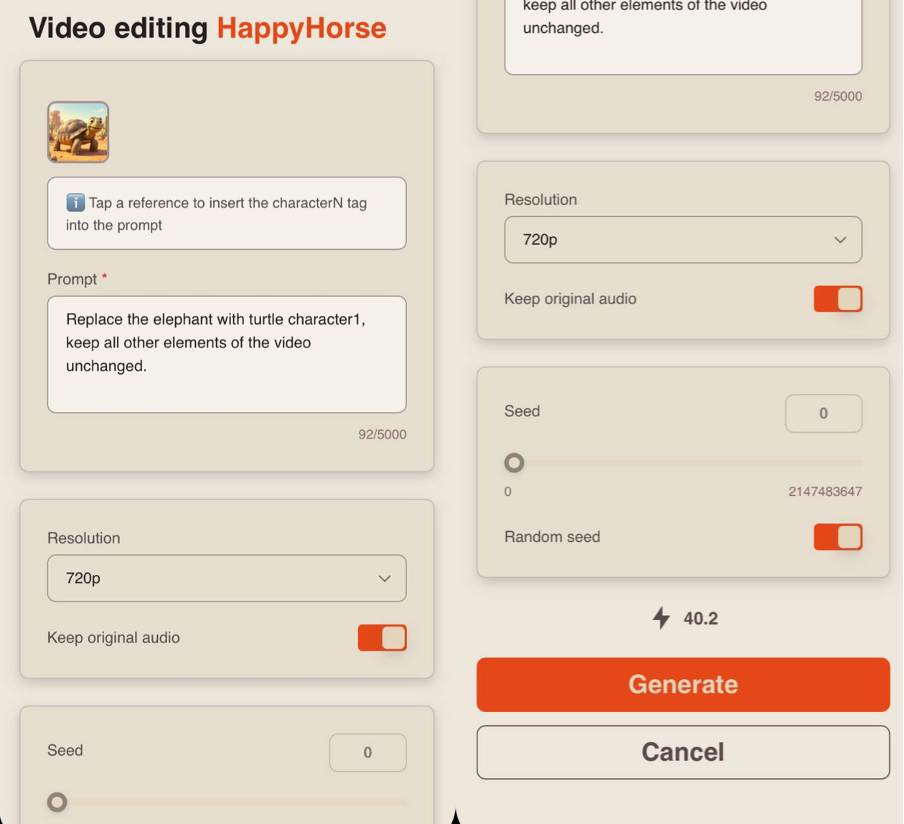
After uploading the video and references, select the “Edit Video” button and correctly configure the settings for the future generation.
❣️If you want to remove the uploaded image, click the “Delete image” button. After that, you will be able to upload a new image. If you want to remove all uploaded images and videos at once, click the “Delete all” button
Prompt
When editing a video, the most important thing is to clearly specify what should be changed in the final generation. Describe exactly what needs to be generated based on the existing video.
A good text prompt should include:
• object or scene - what or who needs to be replaced/added;
• details and environment - where the action takes place and how it looks;
• lighting and mood - warm, cold, soft, dramatic, etc.
Example prompt:
“Replace the elephant with turtle character1, keep all other elements of the video unchanged.”
Resolution
When editing videos, you can choose between two resolution options:
• 720p
A medium video resolution that provides a good balance between video quality and file size. This format has become a popular standard for online videos, including YouTube, and delivers a clear image suitable for viewing on medium-sized TVs and most modern devices.
• 1080p
A high-quality video format that provides excellent detail and sharpness. This format is ideal for viewing on large screens and TVs, although it requires a faster internet connection and significantly more storage space. In return, it delivers the clearest and most detailed video quality.
Preserve original audio
You can preserve the original audio track of the video.
If this option is enabled, the original audio will be preserved.
If disabled, the audio track in the final video may change.
Seed
Seed allows you to generate identical or highly similar results in style when repeating a generation. If you liked a video and want to create a similar result while changing or adding specific details, the Seed setting will be especially useful.
In the description of a generated video, you can copy the Seed value and use it to reproduce the result with the necessary changes. To do this, paste the copied Seed into this section.
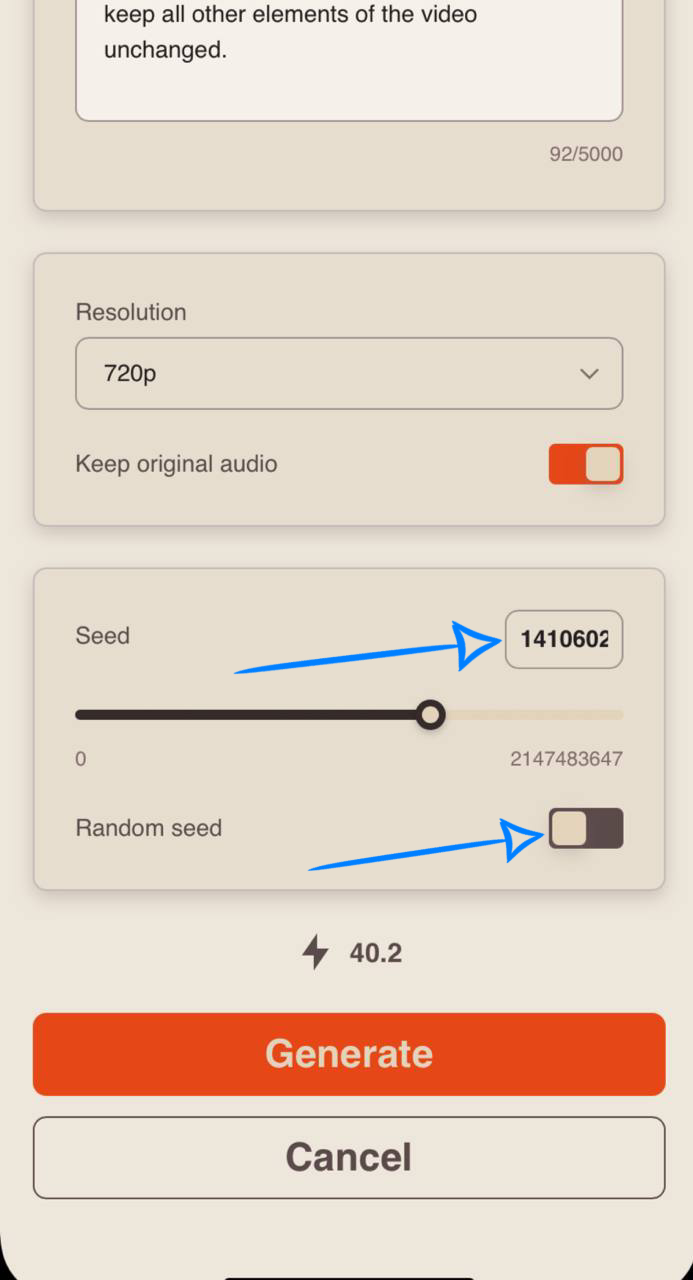
If you do not need to create a similar video, we recommend enabling Random Seed. This way, each generation will use a new Seed value and produce results that differ from precious generations.
Generation example
We hope this guide helps you better understand HappyHorse and use the tool confidently in your work.
We did our best to make the learning process simple, clear, and inspiring. Don’t be afraid to experiment, try new ideas, and explore what the tool can do. With each generation, your experience and results will keep improving. 💛
SYNTX AI: Syntx AI
SYNTX Сообщество: Syntx Community
Блог SYNTX FAMILY: Syntx Family
Служба Заботы SYNTX: Syntx Support