Beeble SwitchX is a video-to-video editing tool that allows you to change backgrounds, environments, lighting, and individual scene elements without reshooting the video.
The model preserves the character, facial features, movements, and lip-sync, while also supporting reference images and multiple masking modes for precise control over the edited area.
- 🎛 Navigation
- 💥 Step-by-Step Guide to Using Beeble SwitchX: Editing Videos with Text Prompts
- 💥 Step-by-Step Guide to Using Beeble SwitchX: Editing Videos with Reference Images
🎛 Navigation
🏠Main Menu > 🎬 Video of the Future > 🎞️ Beeble SwitchX


💥 Step-by-Step Guide to Using Beeble SwitchX: Editing Videos with Text Prompts
To get started with the tool, you first need to upload a video.
Video Upload
Basic requirements for uploaded videos:
- Maximum duration: up to 15 seconds
- Supported formats: MP4, MOV
For example:
Text prompt
If you are not using reference images, the text prompt becomes the primary source of information for the model. Based on it, the AI determines the scene content, object appearance, environment, and overall atmosphere of the image.
To achieve the most accurate results, it is recommended to describe the desired scene in detail and include key elements in your prompt.
A prompt may include:
- the main subject of the scene;
- the subject’s action;
- the environment and background;
- the composition style;
- lighting and atmosphere;
- additional details and features.
Example prompt:
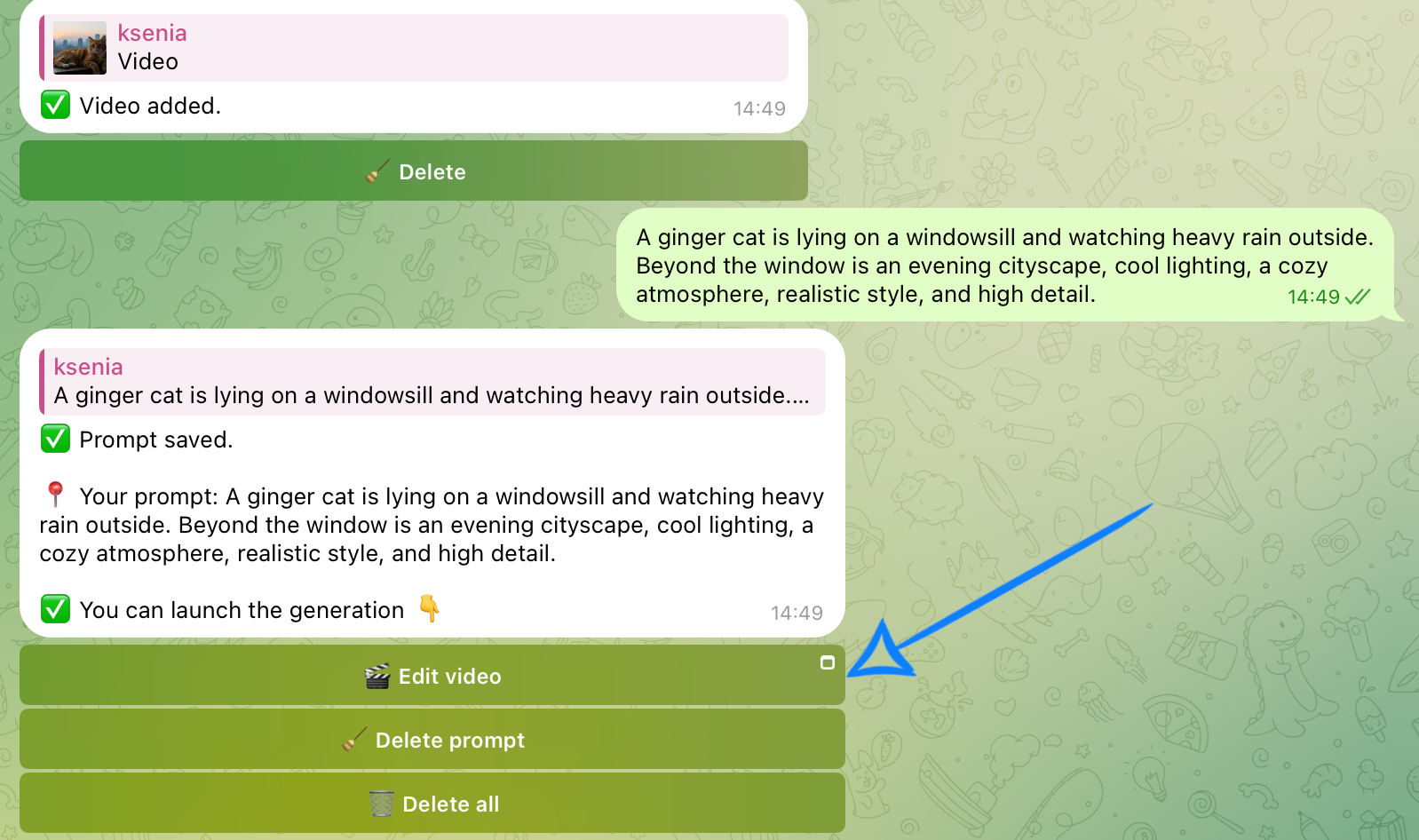
“A ginger cat is lying on a windowsill and watching heavy rain outside. Beyond the window is an evening cityscape, cool lighting, a cozy atmosphere, realistic style, and high detail.”
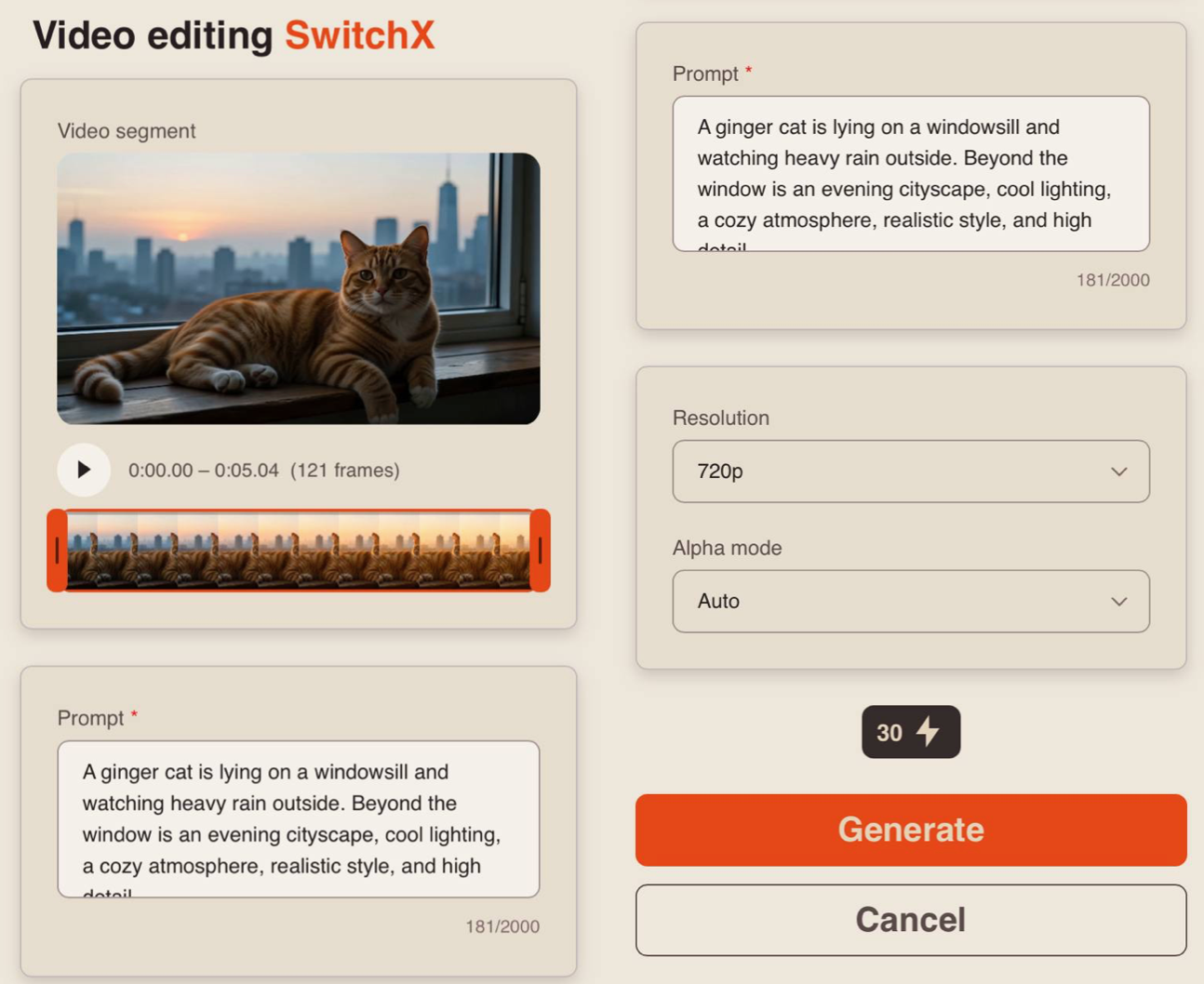
After entering your prompt, click the “Edit Video” button and configure the generation settings as needed.
❣️ If you want to remove the submitted prompt, click the “Delete Prompt” or “Delete All” button. After that, you will be able to upload new materials.
Model settings
Video Segment
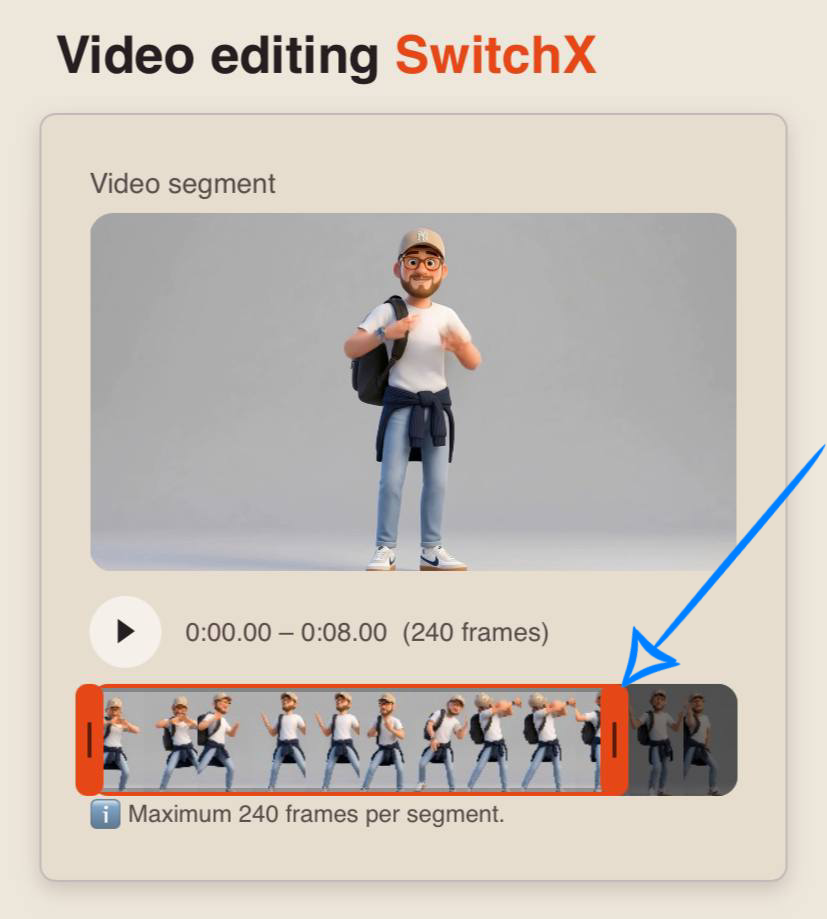
Beeble SwitchX can process up to 240 video frames per generation.
The final duration of the processed segment depends on the FPS (frames per second) of the source video. The higher the FPS, the fewer seconds of video can fit within the 240-frame limit.
For example:
- 24 FPS → up to 10 seconds of video
- 25 FPS → up to 9.6 seconds of video
- 30 FPS → up to 8 seconds of video
- 50 FPS → up to 4.8 seconds of video
If your video exceeds the 240-frame limit, the tool will automatically trim its duration. Before starting the generation, you can select the desired video segment using the slider.
For example:
Prompt
If needed, you can modify your prompt in the prompt field. If left unchanged, the generation will use the original text prompt that you initially submitted.
Resolution
You can choose between two resolution options:
• 720p
A medium video resolution that provides a good balance between video quality and file size. This format has become a popular standard for online video platforms, including YouTube, and delivers a clear image suitable for viewing on medium-sized TVs and most modern devices.
• 1080p
A high-quality video format that offers superior detail and clarity. It is ideal for viewing on large screens and TVs. While it requires more storage space and a faster internet connection, it provides the sharpest and most detailed video output.
Alpha Mode
You can choose between two available modes:
Auto
This mode automatically detects the main subject in the frame and replaces the surrounding background. It is suitable for most use cases, including footage featuring people, objects, vehicles, and other subjects.
It is the optimal choice for quick and high-quality environment replacement without additional configuration.
Fill
This mode replaces the entire frame while preserving the composition and geometry of the scene. It is particularly effective for relighting, changing the atmosphere or time of day, and completely transforming a location.
This mode is not recommended for footage with speaking people, as it may negatively affect the natural appearance of the face and facial expressions.
Result
Generation in Auto mode:
Generation in Fill mode:
💥 Step-by-Step Guide to Using Beeble SwitchX: Editing Videos with Reference Images
To get started with the tool, you first need to upload a video.
Video Upload
Basic requirements for uploaded videos:
- Maximum duration: up to 15 seconds
- Supported formats: MP4, MOV
For example:
Next, you need to upload a reference image.
Image Upload
Basic requirements for uploaded images:
- Supported formats: PNG, JPEG
- Maximum number of reference images: 1
For example:
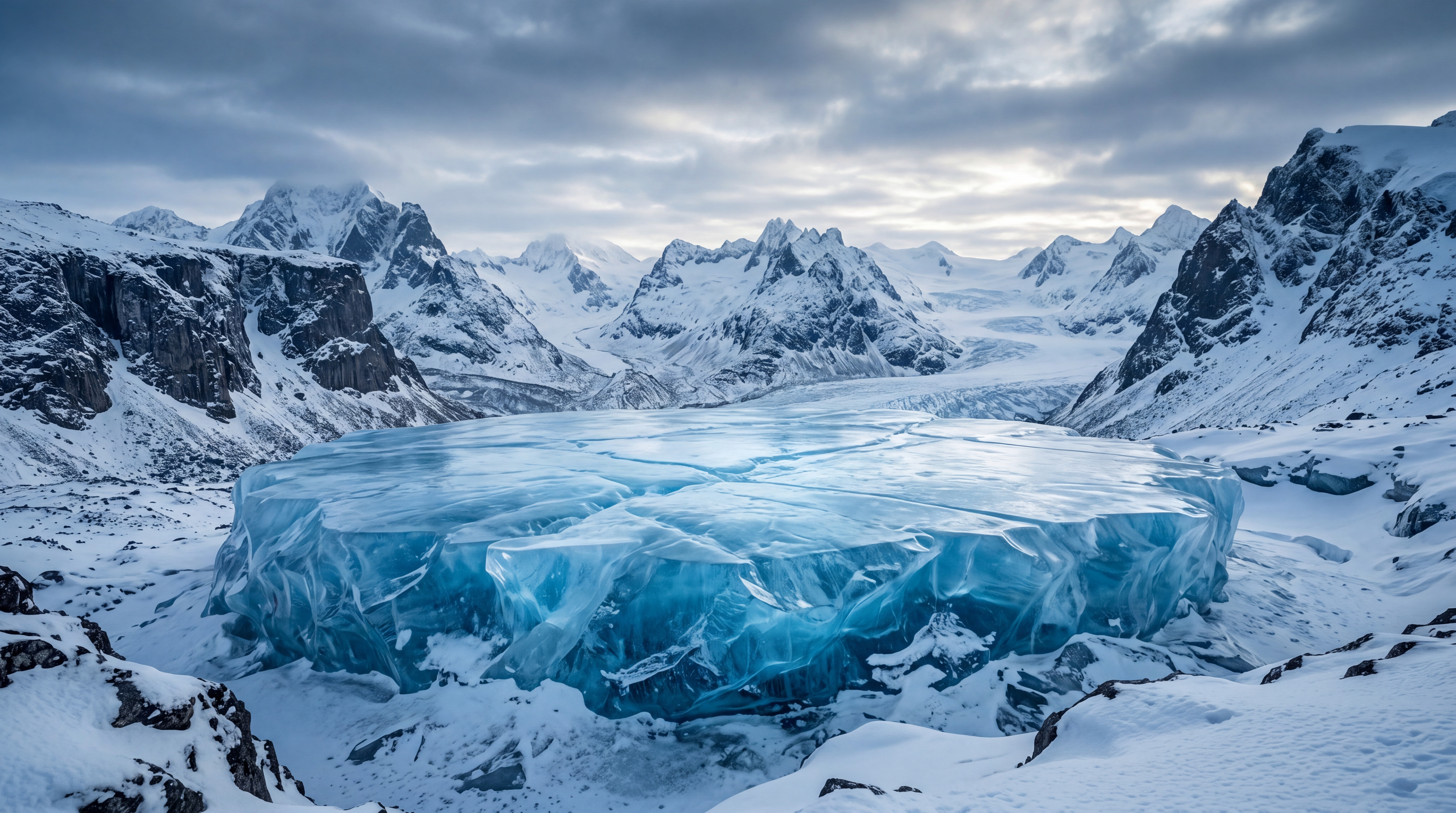
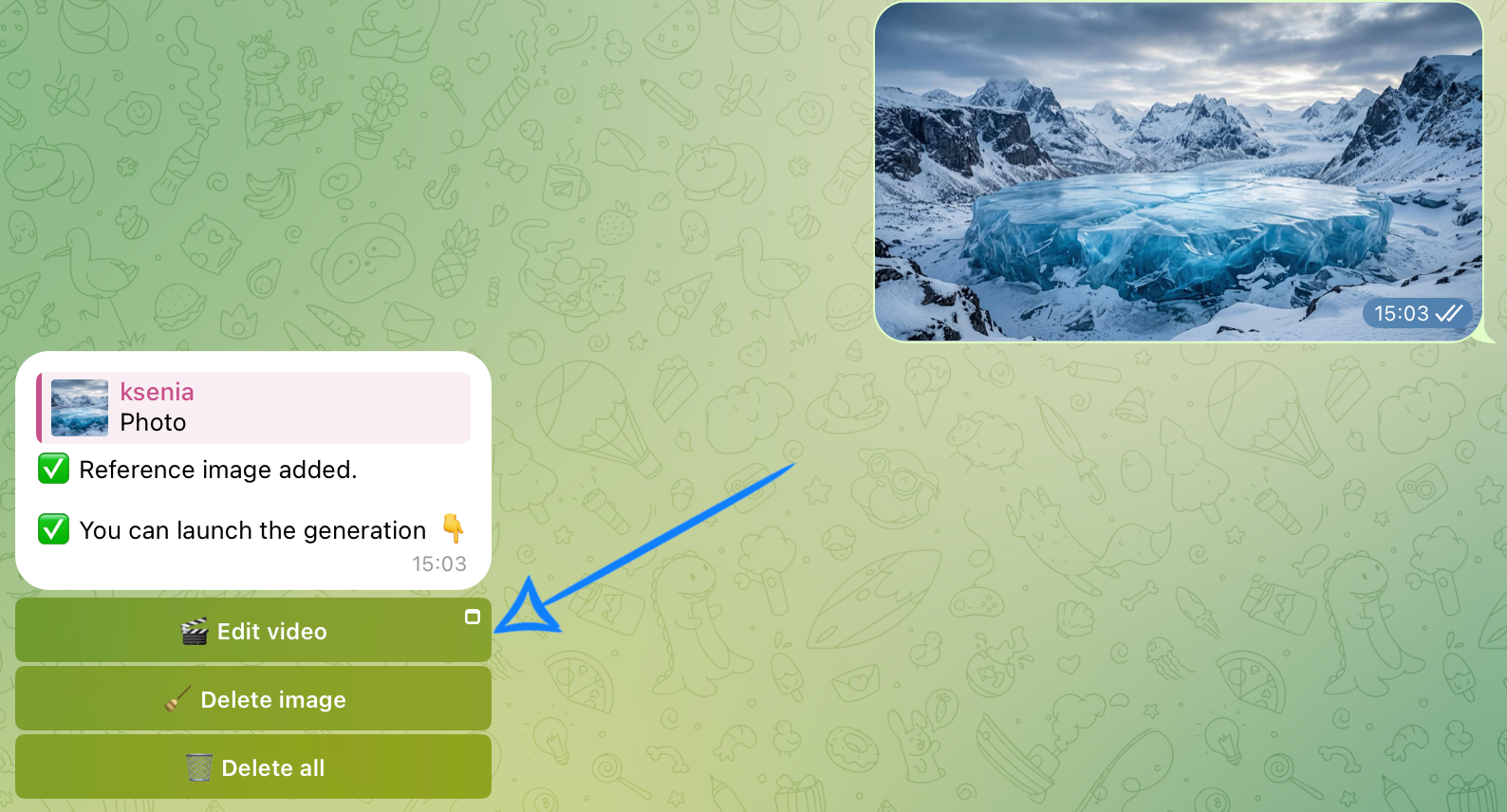
After uploading the image, click the “Edit Video” button and configure the generation settings as needed.
❣️ If you want to remove the uploaded reference image, click the “Delete Image” or “Delete All” button. After that, you will be able to upload new materials.
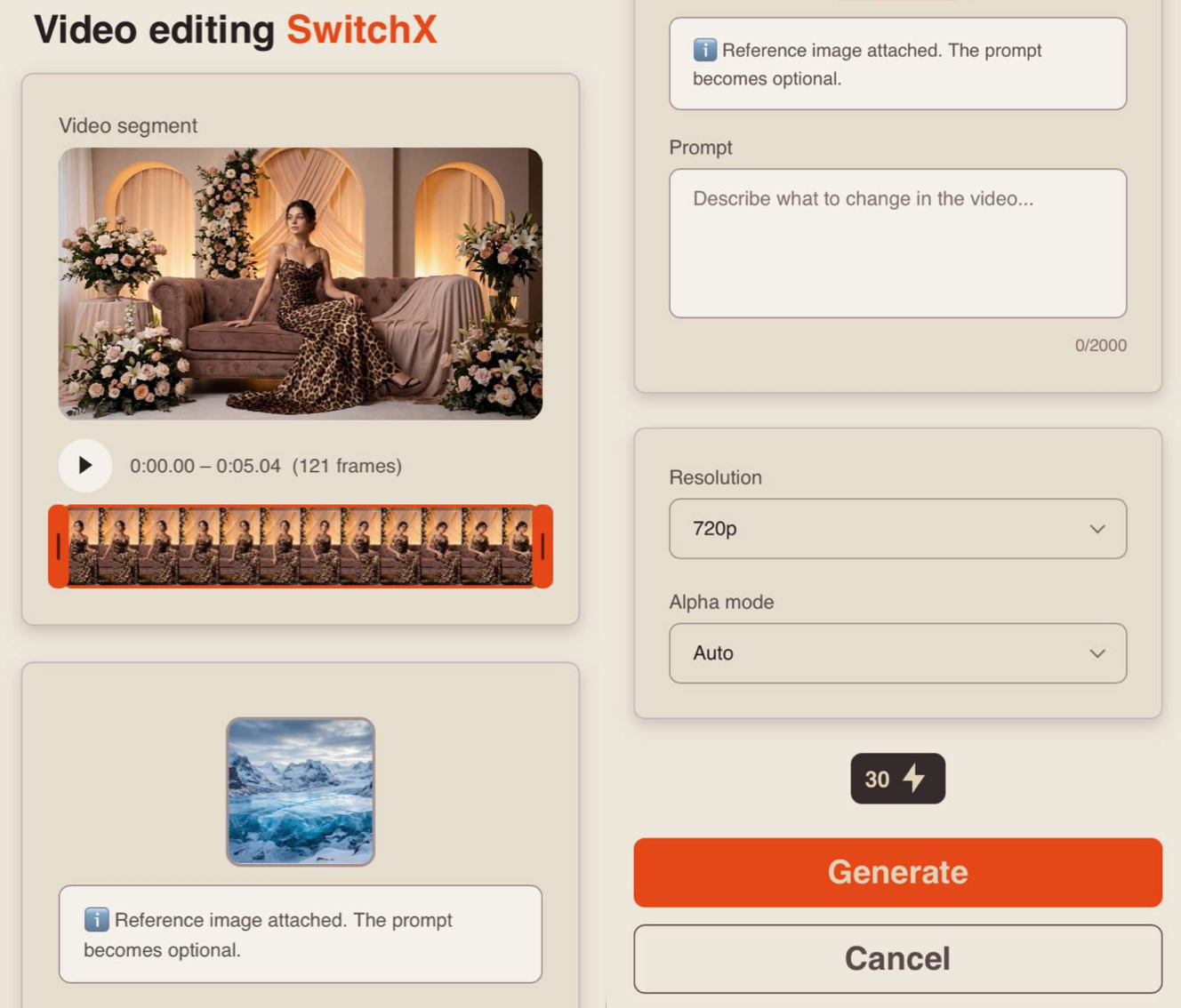
Model settings
Video Segment
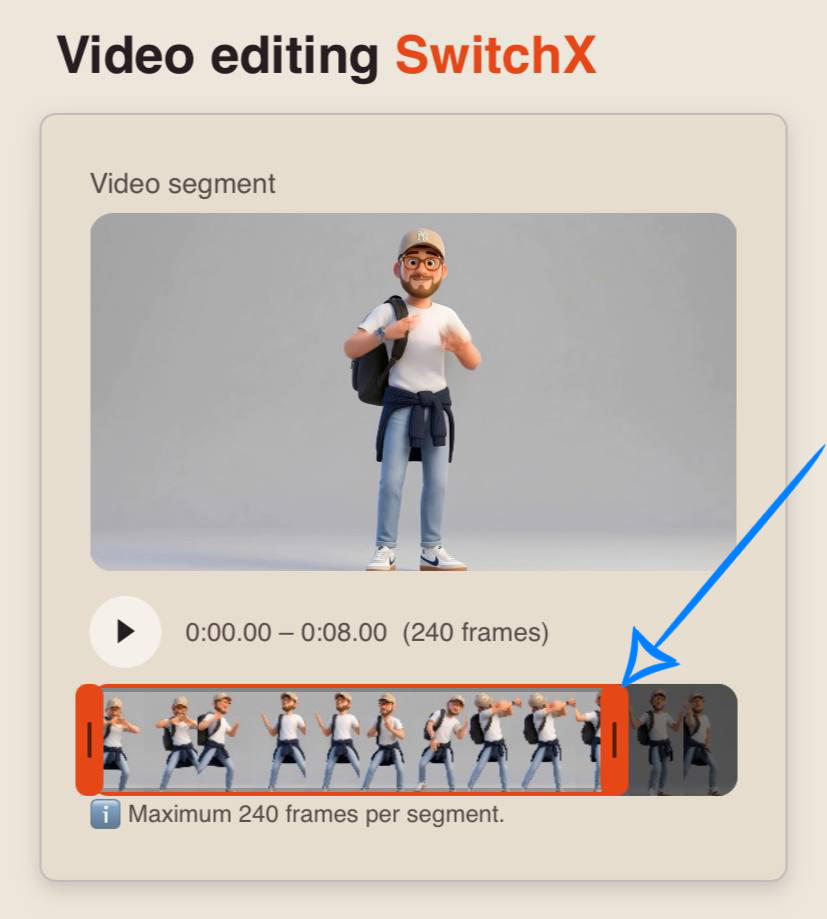
Beeble SwitchX can process up to 240 video frames per generation.
The final duration of the processed segment depends on the FPS (frames per second) of the source video. The higher the FPS, the fewer seconds of video can fit within the 240-frame limit.
For example:
- 24 FPS → up to 10 seconds of video
- 25 FPS → up to 9.6 seconds of video
- 30 FPS → up to 8 seconds of video
- 50 FPS → up to 4.8 seconds of video
If your video exceeds the 240-frame limit, the tool will automatically trim its duration. Before starting the generation, you can select the desired video segment using the slider.
For example:
Prompt
When working with a reference image, using a text prompt is optional. The model can independently analyze the uploaded image and generate the final scene based on the selected editing mode.
If desired, you can further guide the generation with a text prompt. In this case, it is recommended to use simple descriptions consisting of one or two sentences.
The prompt structure should include:
- the main subject of the scene;
- the action being performed by the subject.
The model will derive the remaining details of the composition, style, and environment from the provided reference image.
Example prompt:
“A woman is sitting on a glacier and posing.”
Resolution
You can choose between two resolution options:
• 720p
A medium video resolution that provides a good balance between video quality and file size. This format has become a popular standard for online video platforms, including YouTube, and delivers a clear image suitable for viewing on medium-sized TVs and most modern devices.
• 1080p
A high-quality video format that offers superior detail and clarity. It is ideal for viewing on large screens and TVs. While it requires more storage space and a faster internet connection, it provides the sharpest and most detailed video output.
Alpha Mode
You can choose between two available modes:
Auto
This mode automatically detects the main subject in the frame and replaces the surrounding background. It is suitable for most use cases, including footage featuring people, objects, vehicles, and other subjects.
It is the optimal choice for quick and high-quality environment replacement without additional configuration.
Fill
This mode replaces the entire frame while preserving the composition and geometry of the scene. It is particularly effective for relighting, changing the atmosphere or time of day, and completely transforming a location.
This mode is not recommended for footage with speaking people, as it may negatively affect the natural appearance of the face and facial expressions.
Result
Generation with a reference image in Auto mode:
Generation with a reference image in Fill mode:
We hope this guide helps you explore the capabilities of Beeble SwitchX and use the tool confidently in your workflow. Experiment with different scenarios and settings, hands-on practice is the best way to understand the model’s behavior and achieve the exact results you envision. 💛
SYNTX AI: Syntx AI
SYNTX Support: Syntx Support
YouTube channel “SYNTX”: Syntx YouTube
SYNTX.AI Academy: SYNTX Academy