Seedream is an ideal tool for working with consistent visual series. As one of Nano Banana’s main competitors, it delivers high-quality, professional-looking images with stable style, clean composition, and strong visual consistency across generations.
- 🎛 Navigation
- 💥 Step-by-Step Guide to Using Seedream: Text to Image
- 💥 Step-by-Step Guide to Using Seedream. “Working with References”
🎛 Navigation
**🏠 Main Menu > 🎨 Images > 🧿 Seedream **
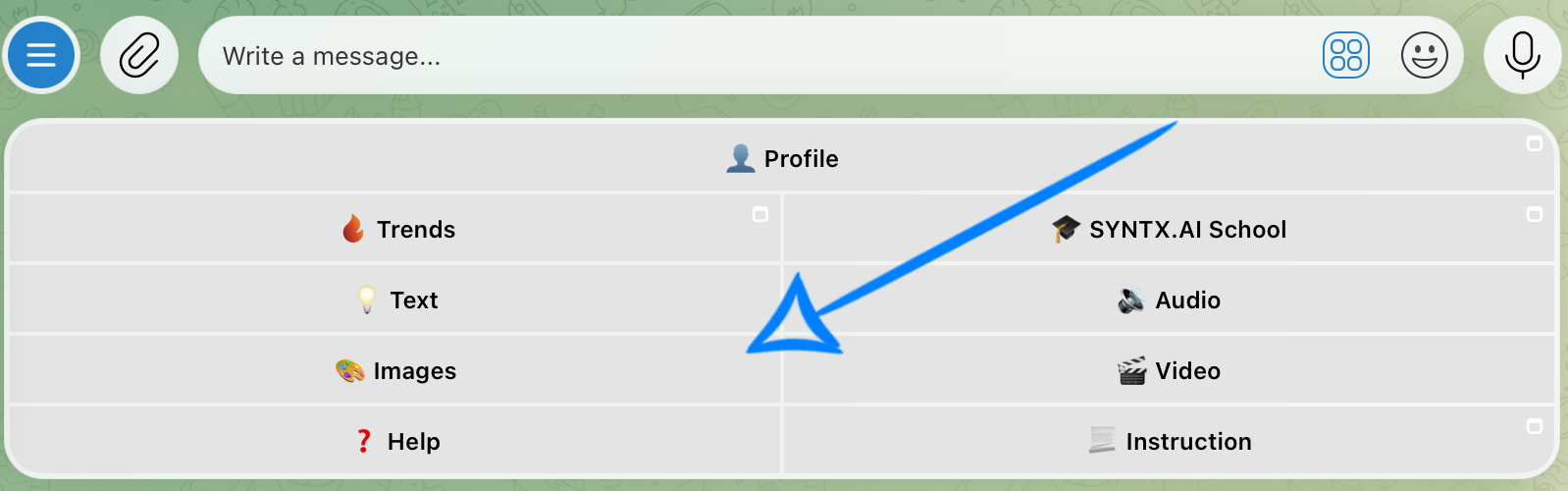
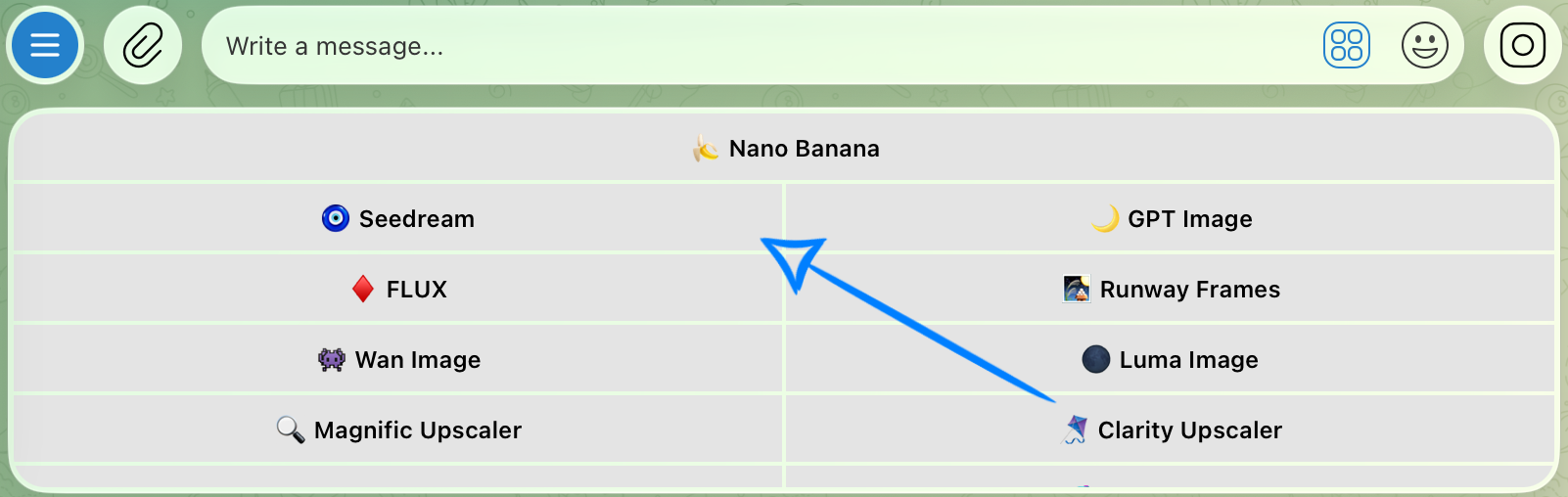
💥 Step-by-Step Guide to Using Seedream: Text to Image
The first step when working with a text prompt is to formulate it correctly.
Writing a Text Prompt
High-quality generation starts with a structured prompt - it helps the model correctly understand your idea.
A well-structured text prompt should include:
- Main subject and action: specify who or what is in the frame and what they are doing.
- Location: describe the setting and the main elements that should surround the main subject.
- Style and atmosphere: specify the desired visual style of the image and the mood of the scene.
- Details: add important characteristics of objects or characters - clothing, materials, colors, textures, and other elements.
- Lighting: describe the source and quality of the light, such as sunlight, soft studio lighting, neon lights, or sunset light.
For example:
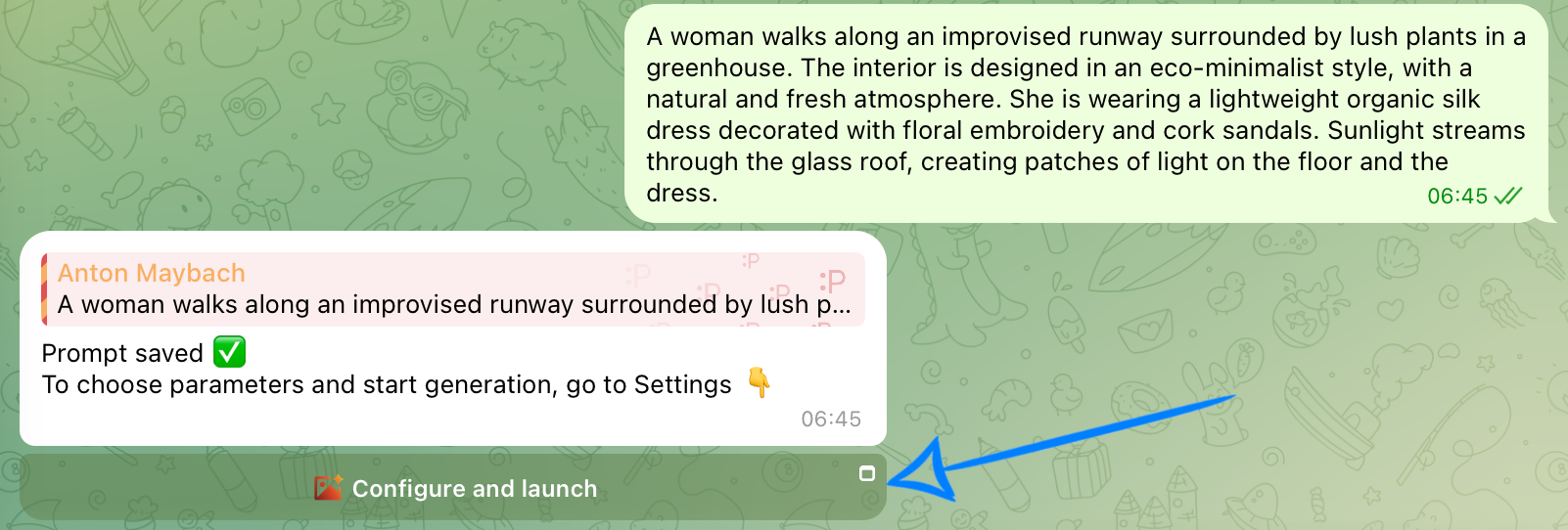
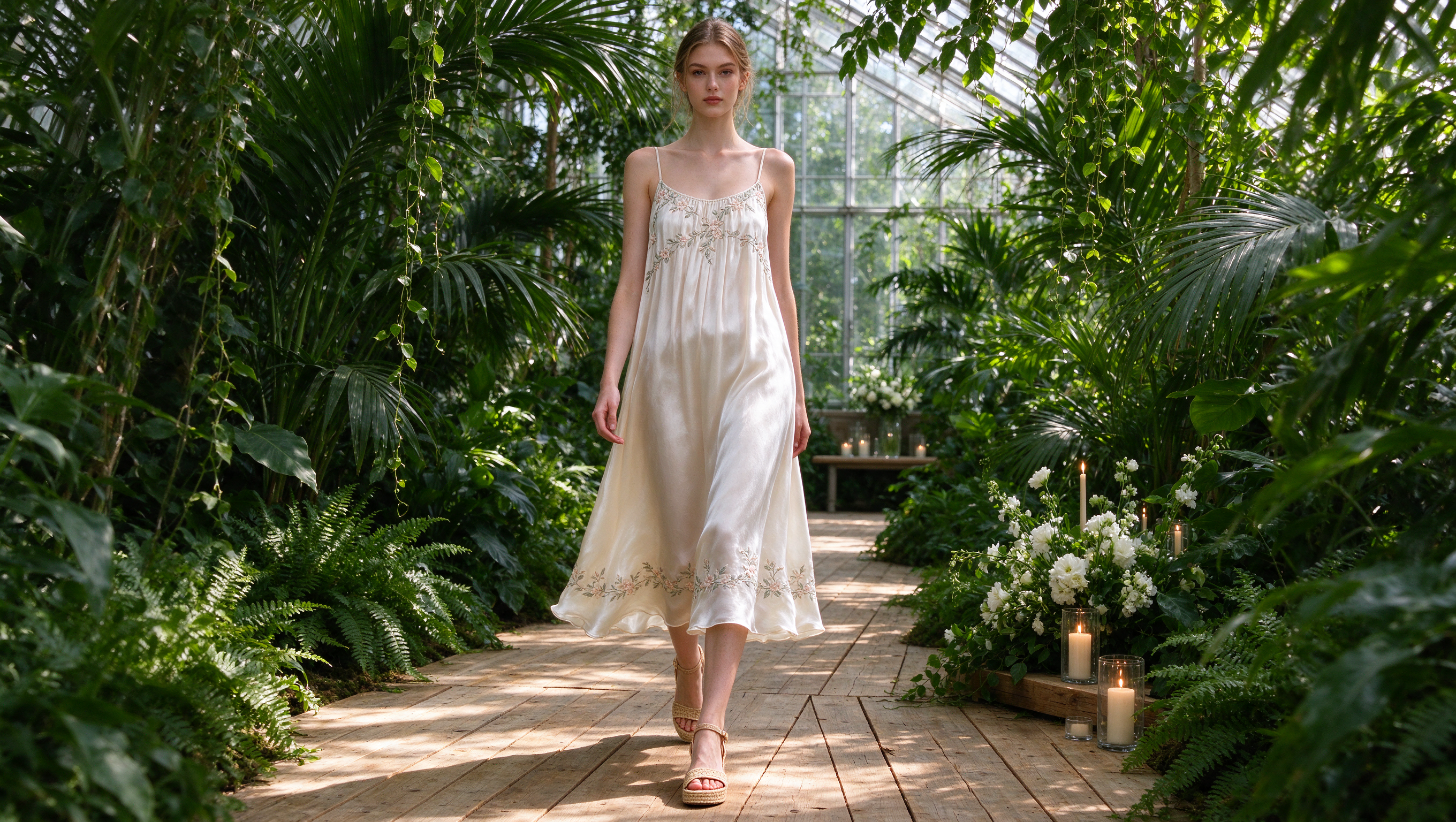
“A woman walks along an improvised runway surrounded by lush plants in a greenhouse. The interior is designed in an eco-minimalist style, with a natural and fresh atmosphere. She is wearing a lightweight organic silk dress decorated with floral embroidery and cork sandals. Sunlight streams through the glass roof, creating patches of light on the floor and the dress.”
Model Settings
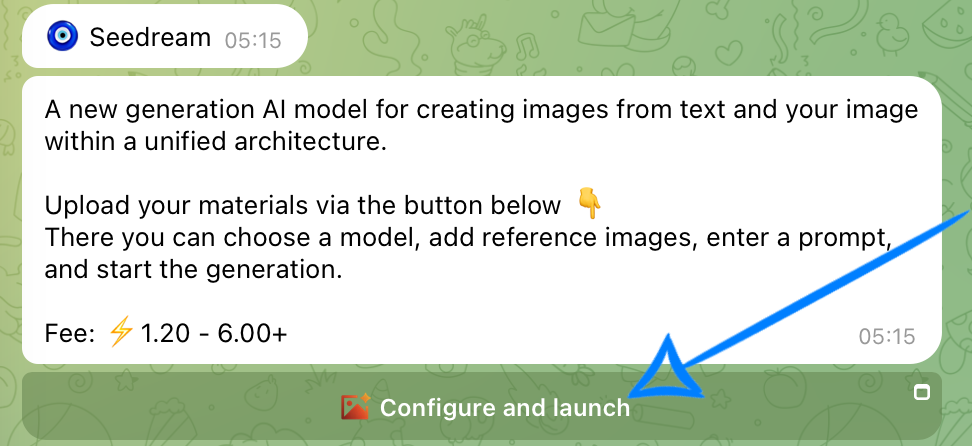
After submitting your text prompt, you need to click the “Configure and launch” button.
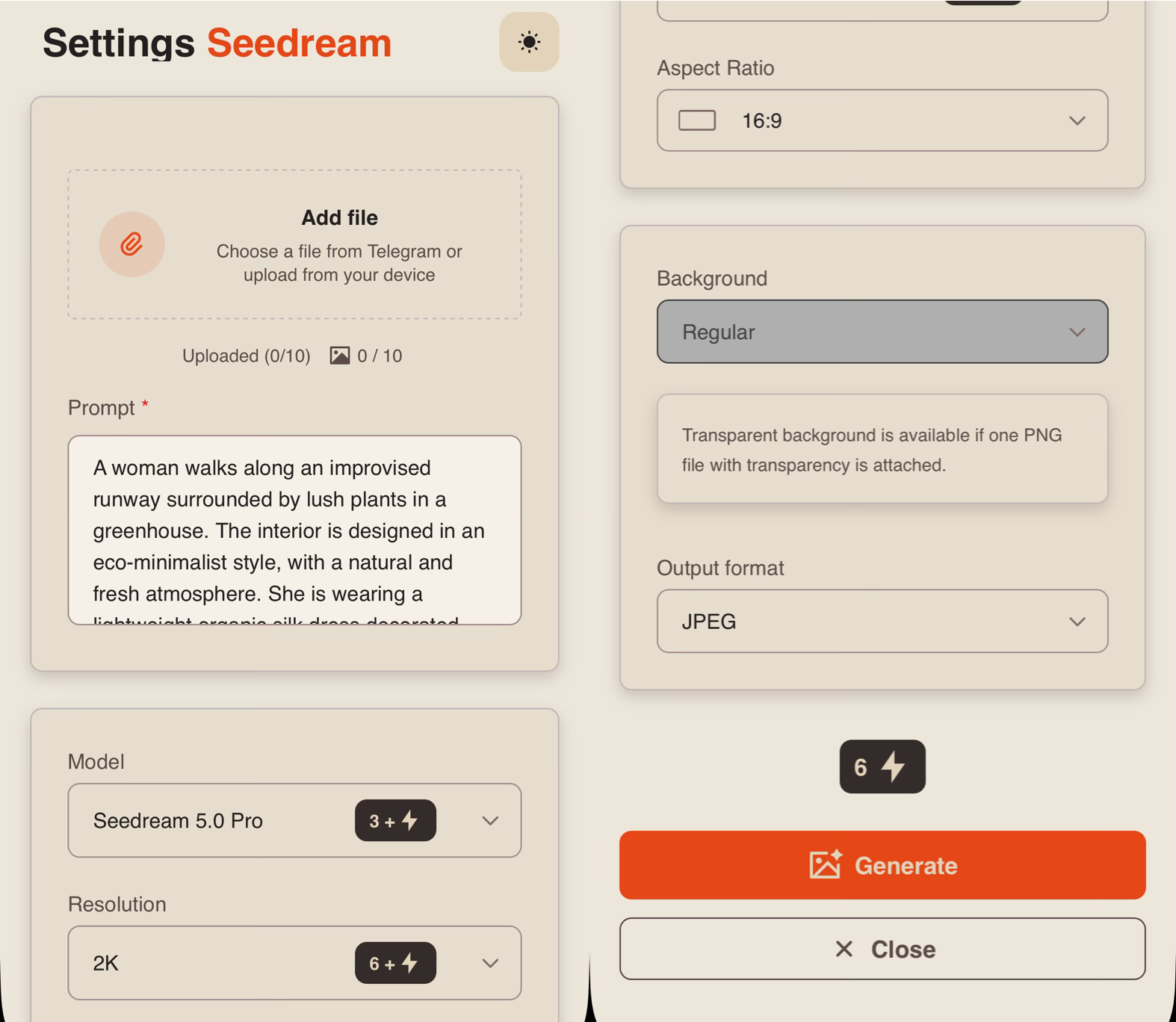
Prompt
If necessary, you can edit your request in the prompt field. If you leave it unchanged, the original text prompt you submitted will be used for generation.
Model
You can choose from 5 models:
Seedream 4 is a powerful model capable of generating images from text, editing existing ones, and working with multiple references. It’s especially well-suited for creative tasks, idea sketching, and experimentation.
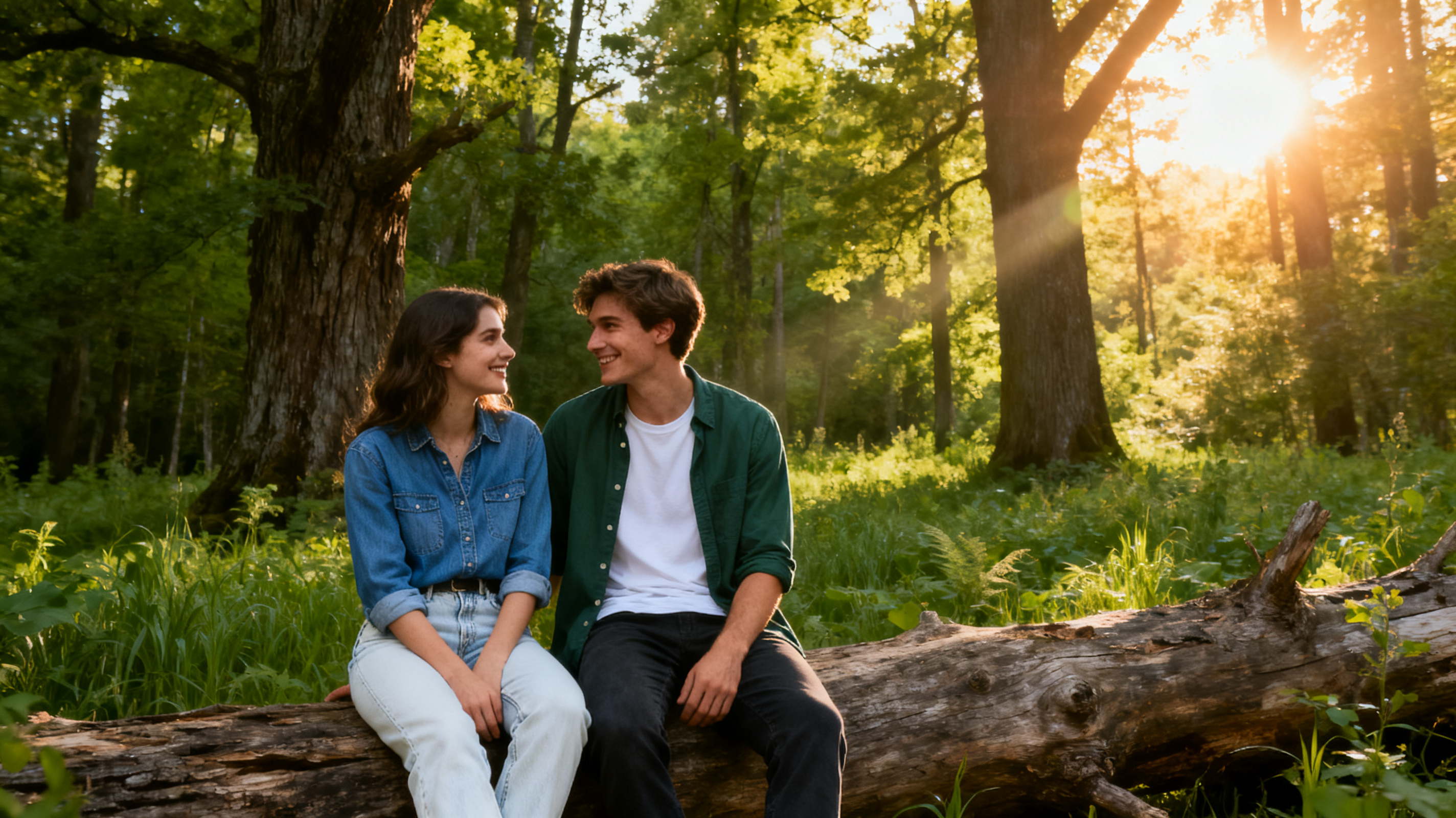
Seedream 4.5 is an improved version of Seedream 4. Its advantages include a deeper understanding of text, highly precise editing, and increased image consistency. This model is ideal for more complex tasks and commercial projects where stability, clarity, and style consistency are essential.

Seedream 5.0 Lite is a new version of the image generation model. Its key improvements include an even more accurate understanding of complex text prompts, enhanced handling of details and composition, and more consistent style preservation across generations. The model performs better in photorealism, rendering text within images, and handling complex scenes with multiple objects.

Seedream 5.0 Pro - an advanced model for image generation and precise editing with enhanced reference handling. It supports combining objects and styles from multiple images, replacing colors and materials while preserving object shapes, as well as creating readable text in different languages. It is suitable for complex tasks where accuracy, control, and consistency of results are important.

Seedream 5.0 Flash - a faster and more affordable version of the Seedream 5.0 Pro model. It retains the core capabilities of the more advanced model but is optimized for speed and lower generation costs. Flash is ideal for everyday tasks, drafts, quick idea testing, and large-scale image generation.

Quality
- In the Seedream 4 model, you can choose between 1K, 2K, and 4K quality.
- In the Seedream 4.5 model, only 2K and 4K quality options are available.
- In the Seedream 5.0 Lite model, you can choose between 2K and 3K quality.
- When working with the Seedream 5.0 Pro model, you can choose the resolution of the image: 1K, 1.5K or 2K.
- When working with the Seedream 5.0 Flash model, you can choose the resolution of the image: 1K, 1.5K or 2K.
1K - basic image resolution. Suitable for quick generations, previewing results, and tasks where high detail is not required.
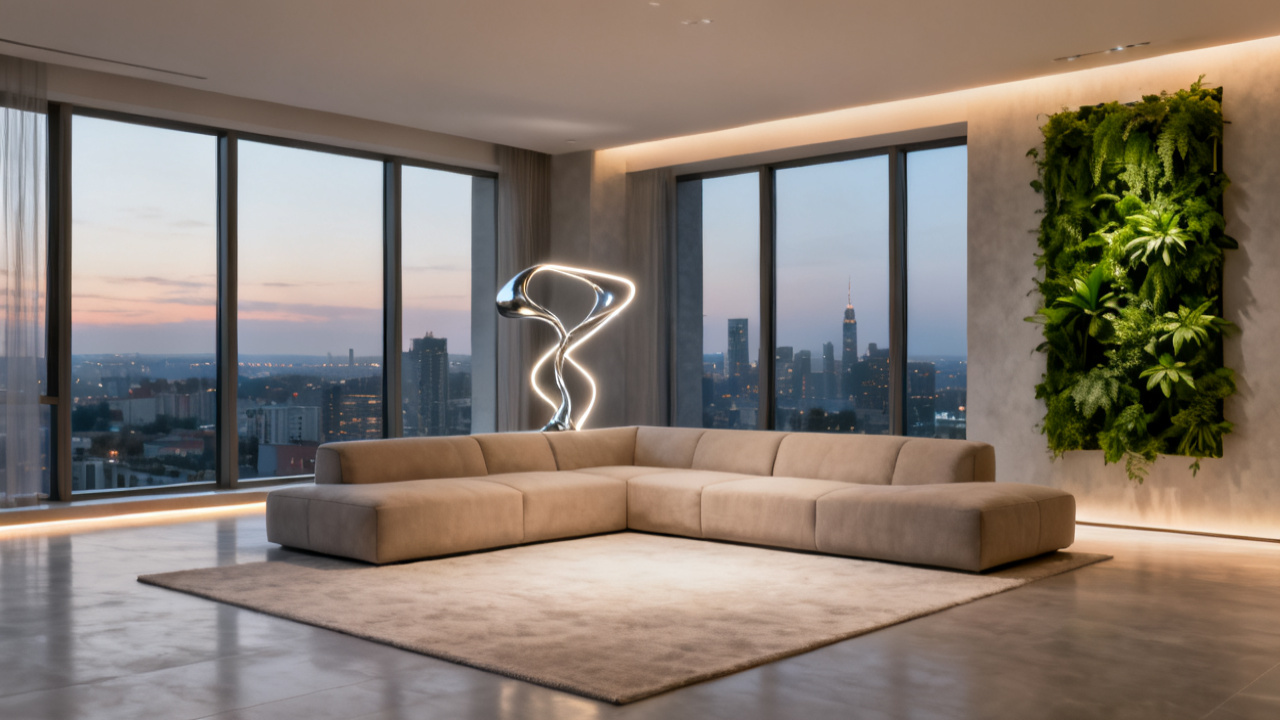
1.5K - medium resolution with improved sharpness and detail compared to 1K. Suitable for everyday generations, creating images with a moderate level of detail, and tasks where a balance between quality and generation speed is important.

2K - higher resolution with sharper detail. Suitable for most everyday tasks and allows you to create a higher-quality image.

3K - high resolution with improved image detail. Suitable for large images, complex scenes, and tasks where more precise rendering of small elements is important.

4K - the maximum available resolution with the highest level of detail and sharpness. Suitable for professional and commercial tasks, large images, and cases where preserving the maximum amount of detail is important.

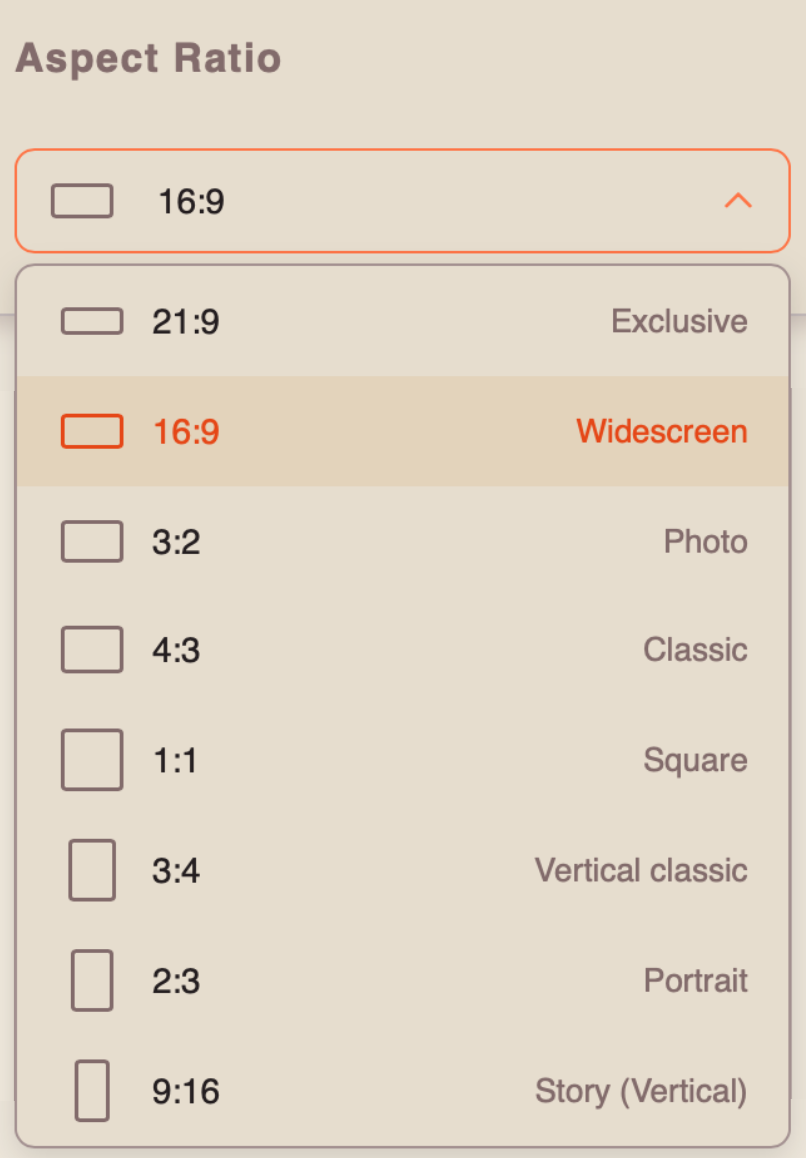
Aspect Ratio
When working with a text prompt, you can choose from 8 aspect ratio options:
Background
Background settings are only available when working with reference images. When using a text prompt, the option to select a background is unavailable.
Image Format
When working with any model, you can choose the format of your future image: PNG or JPEG.
PNG - an image format that preserves high quality and supports transparency. Suitable for images with fine details, graphic elements, and tasks where maintaining image quality is important.
JPEG - an image format that offers good quality and a smaller file size. Suitable for photographs, realistic images, and everyday generations.
Once all settings have been configured, click the “Generate” button to start generation.
Results
Seedream 4
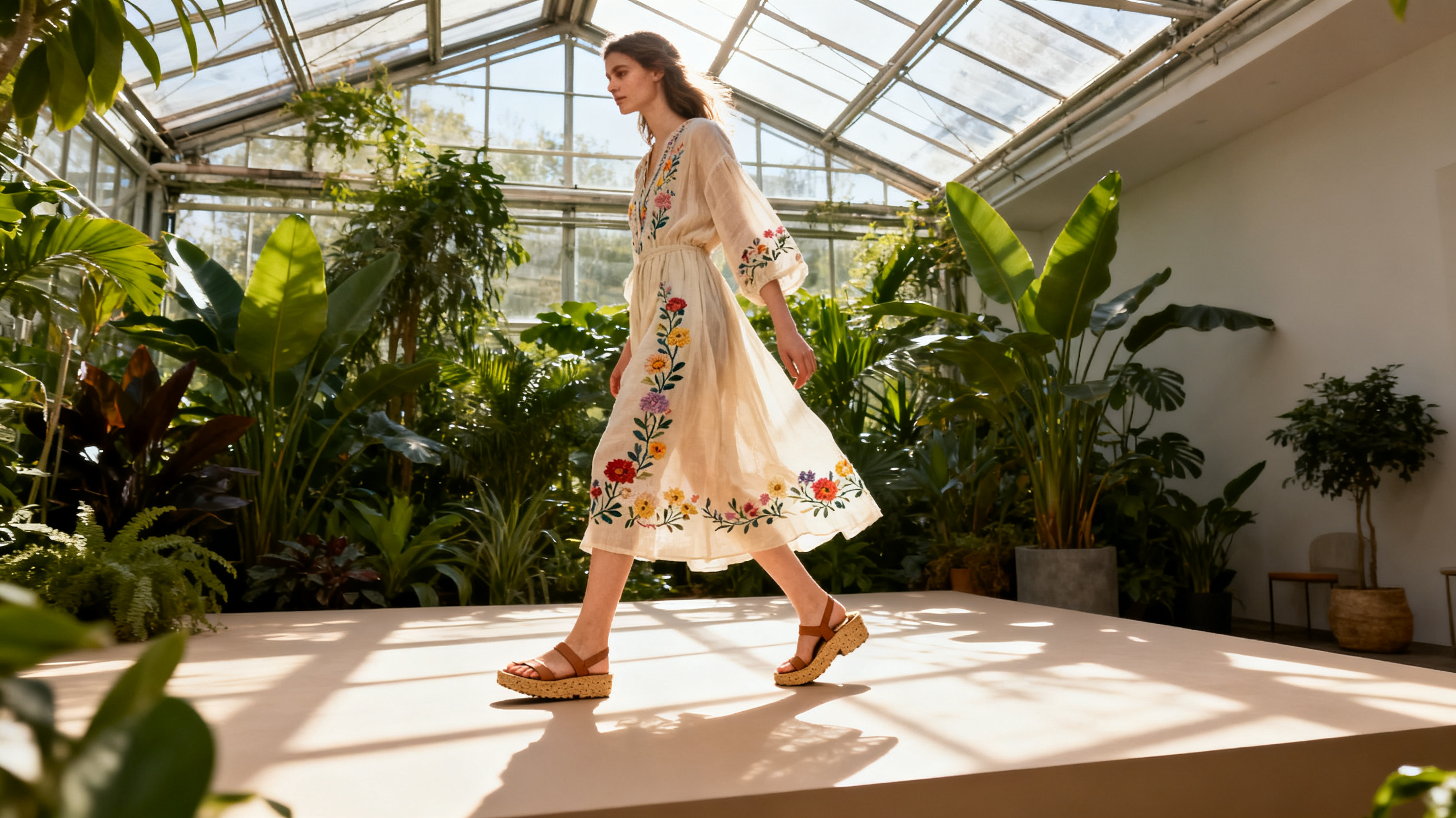
Seedream 4.5
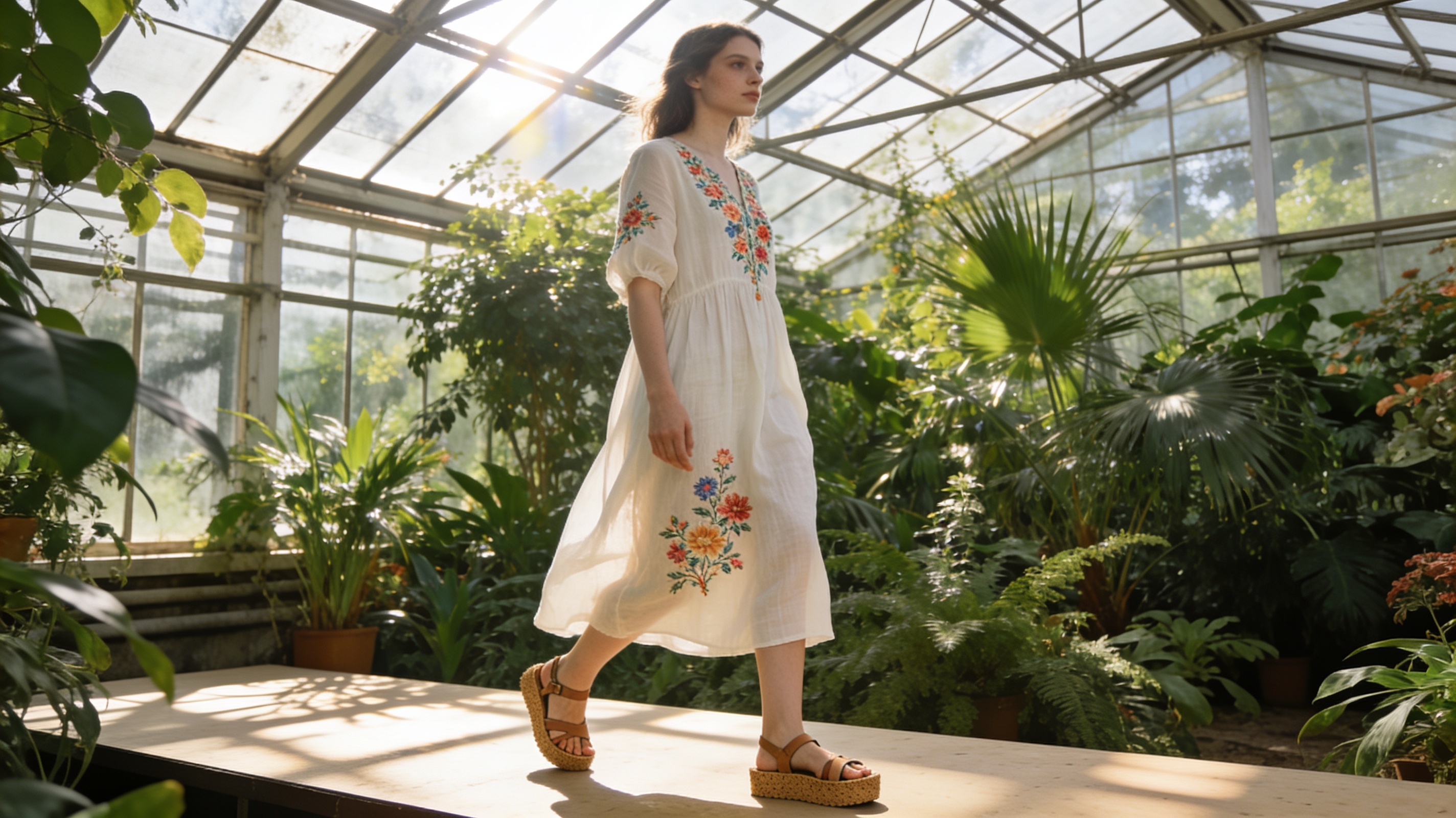
Seedream 5.0 Lite
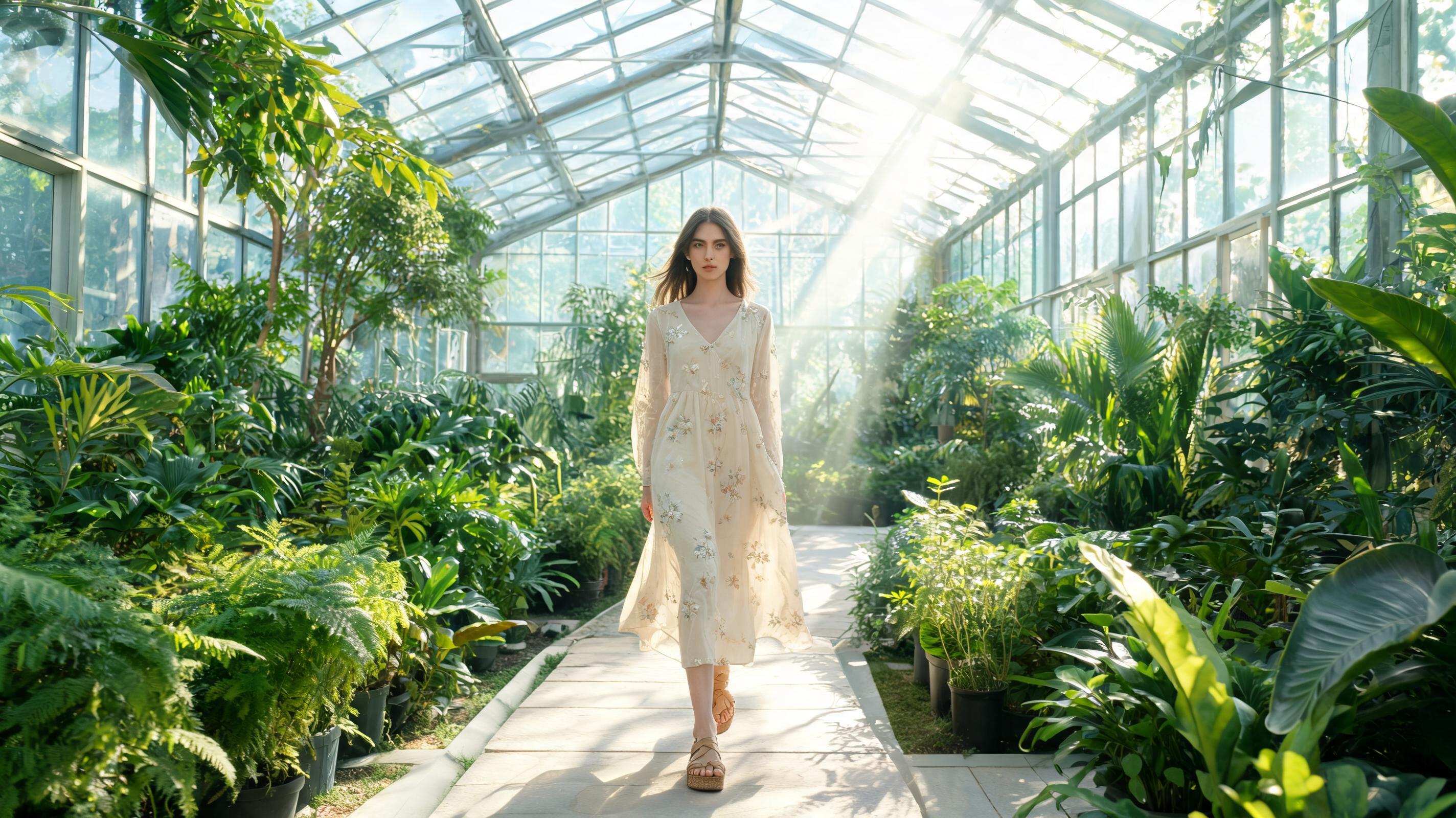
Seedream 5.0 Pro
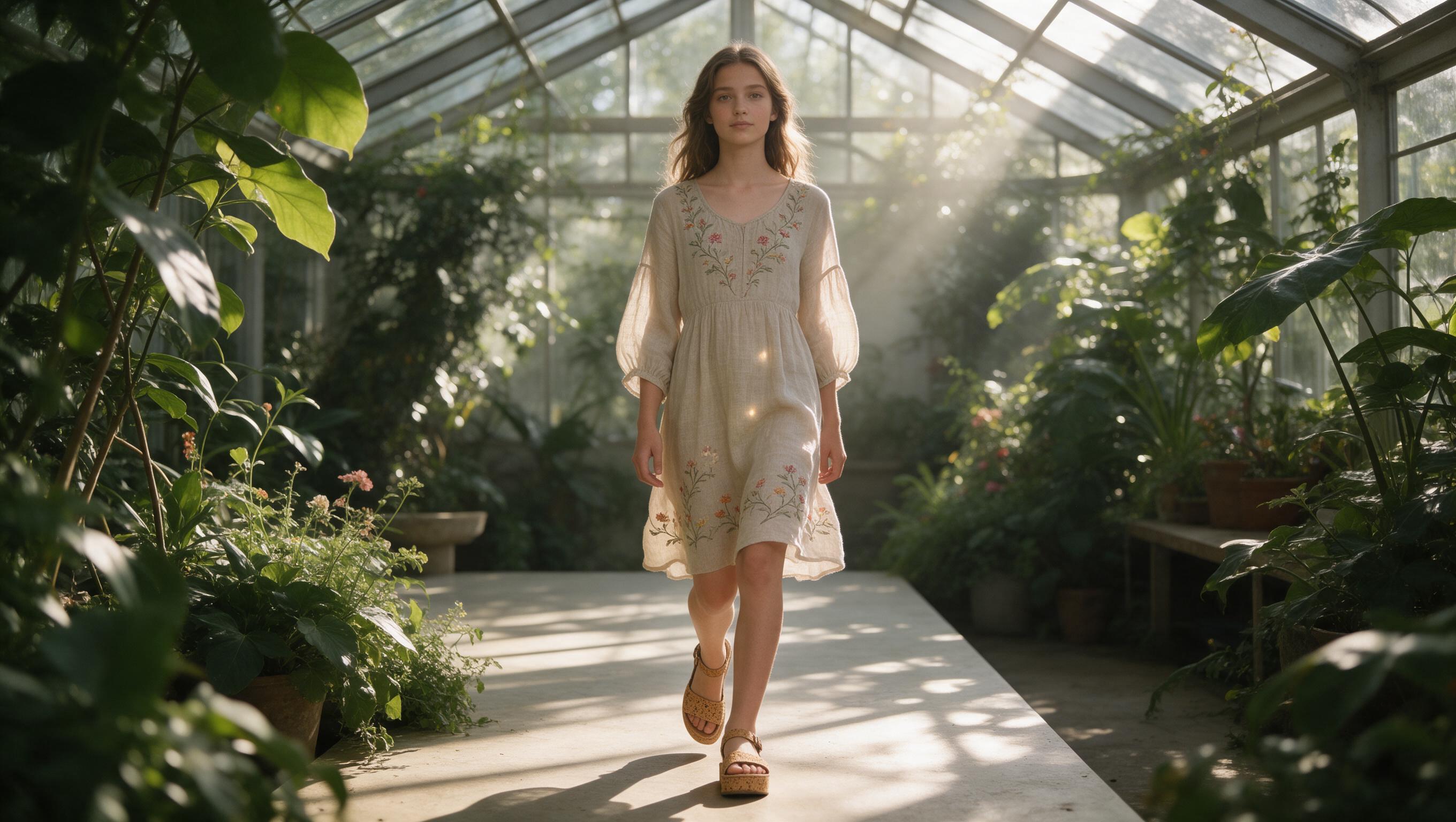
Seedream 5.0 Flash
💥 Step-by-Step Guide to Using Seedream. “Working with References”
The first step when working with reference images is to open the settings. To do this, click the “Configure and launch” button.
Model Settings
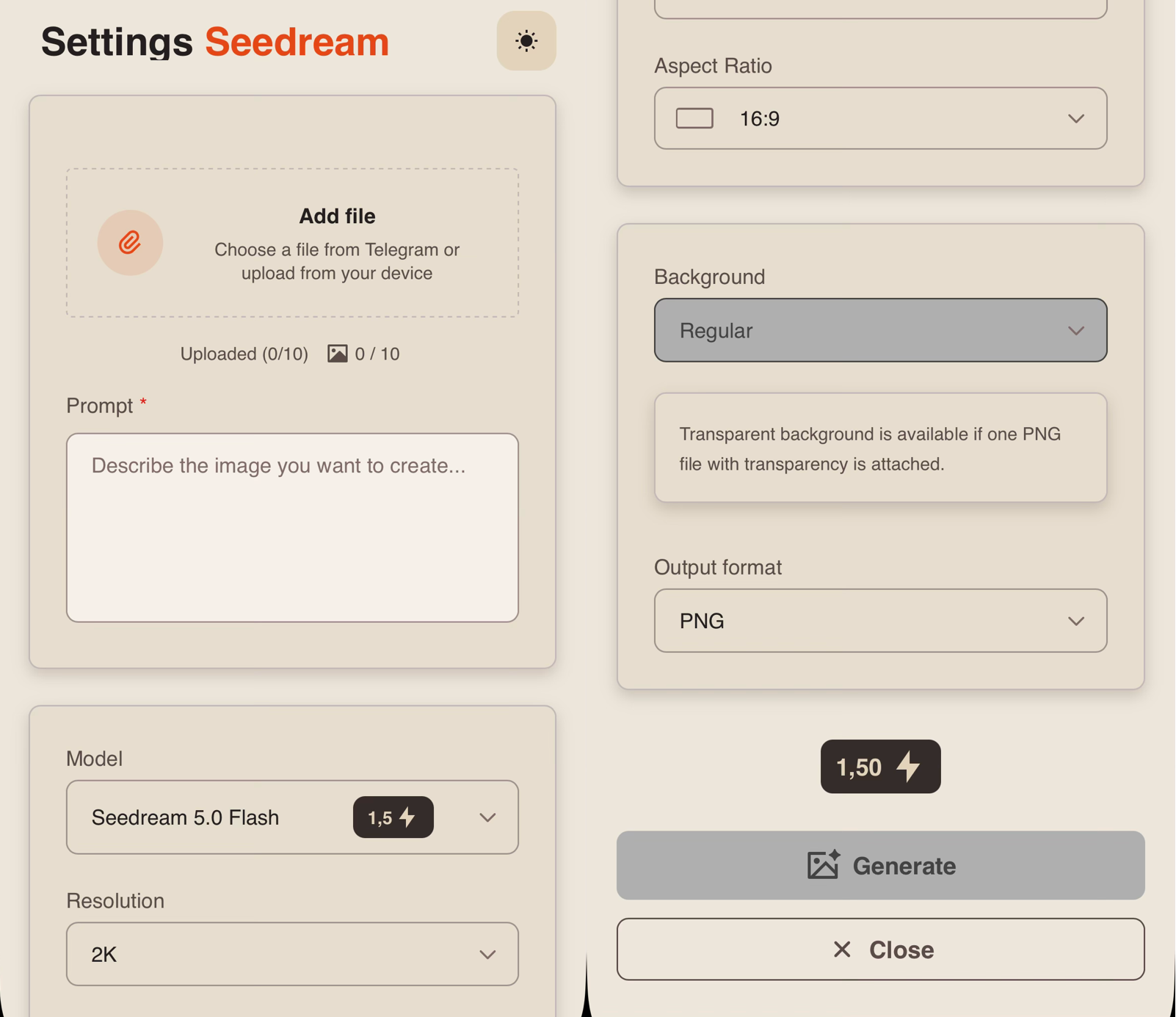
Image Upload
- Maximum uploaded image size: 2 MB.
- Required aspect ratio: from 5:2 to 2:5.
- Supported formats: PNG, JPG.
- Maximum number of images in Seedream 4 and 4.5 models: 4.
- Maximum number of images in Seedream 5.0 Lite: 14.
- Maximum number of images in Seedream 5.0 Pro and Flash: 10.
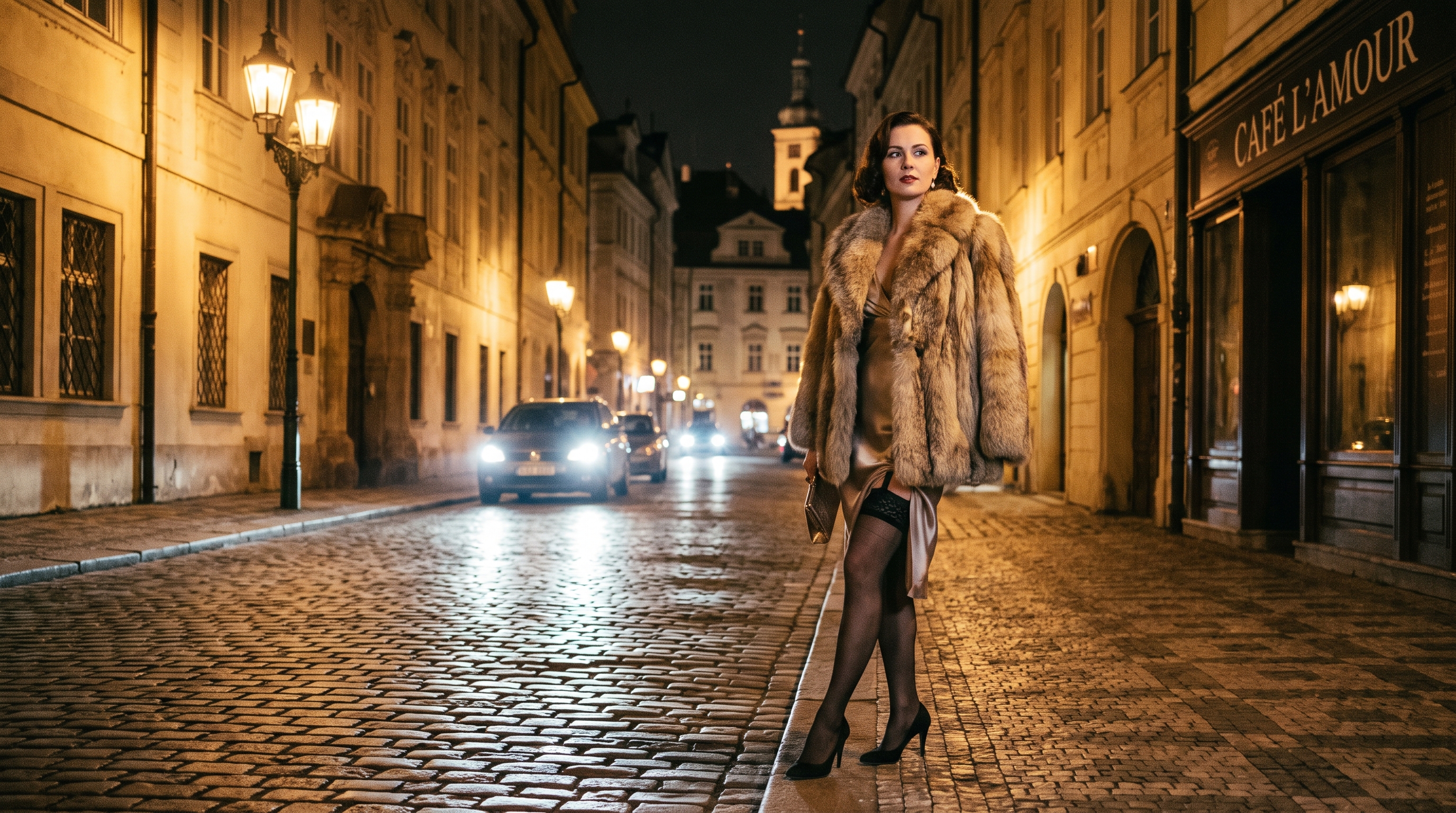
For example:

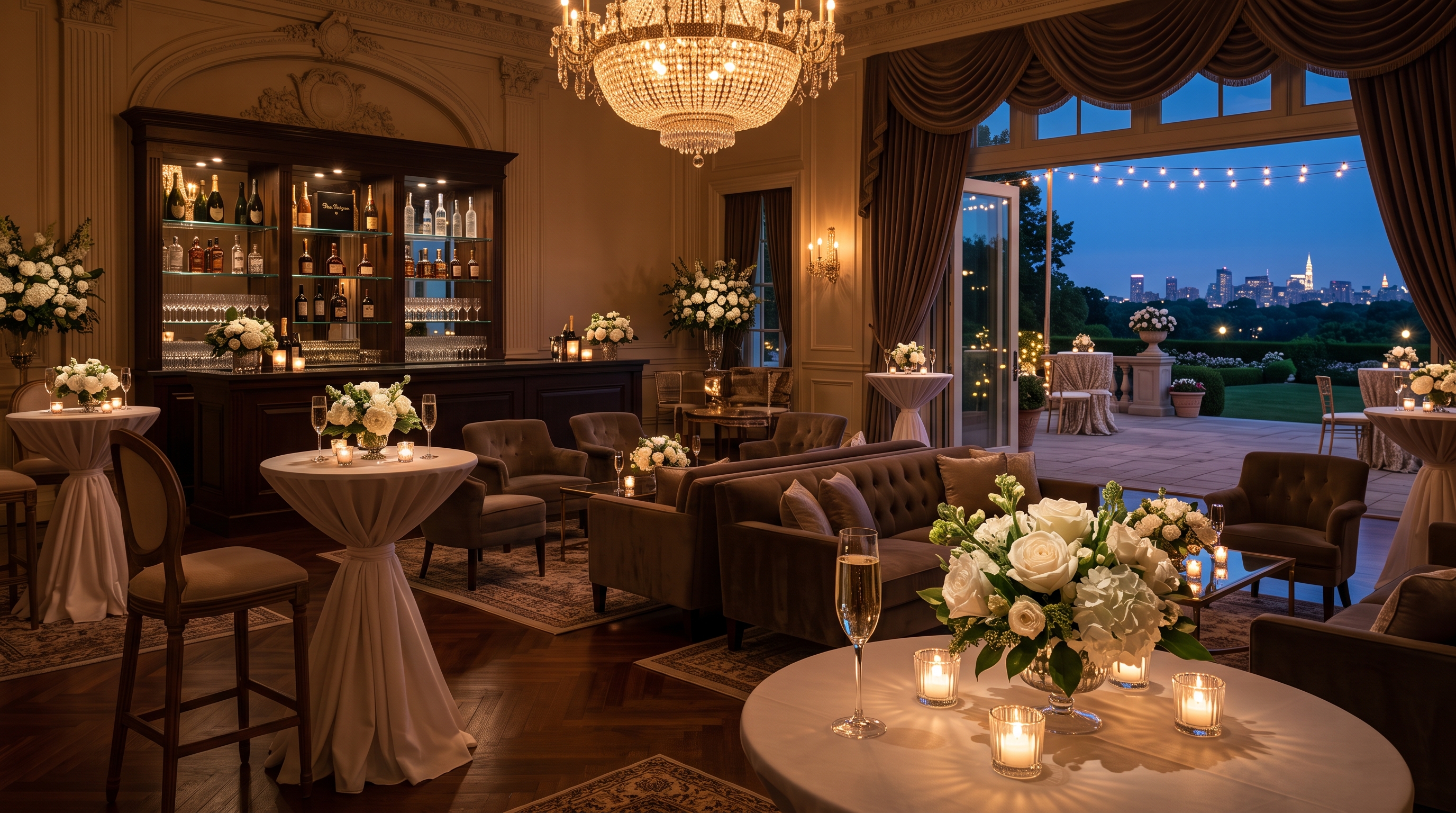
Prompt
After successfully uploading the reference images, you need to enter a text prompt for your future generation.
When working with reference images, it is important to specify in the text prompt which elements should be taken from each reference and how they should be used in the final generation.
If you have uploaded multiple images, specify exactly what should be used from each one.
For example:
“Character - from the first image”. “Clothing - from the second image”. “Background and lighting - from the third image”.
After that, describe the result you want to achieve. Specify the character’s action or the object’s position, the surroundings, additional details, style, and lighting.
For example:
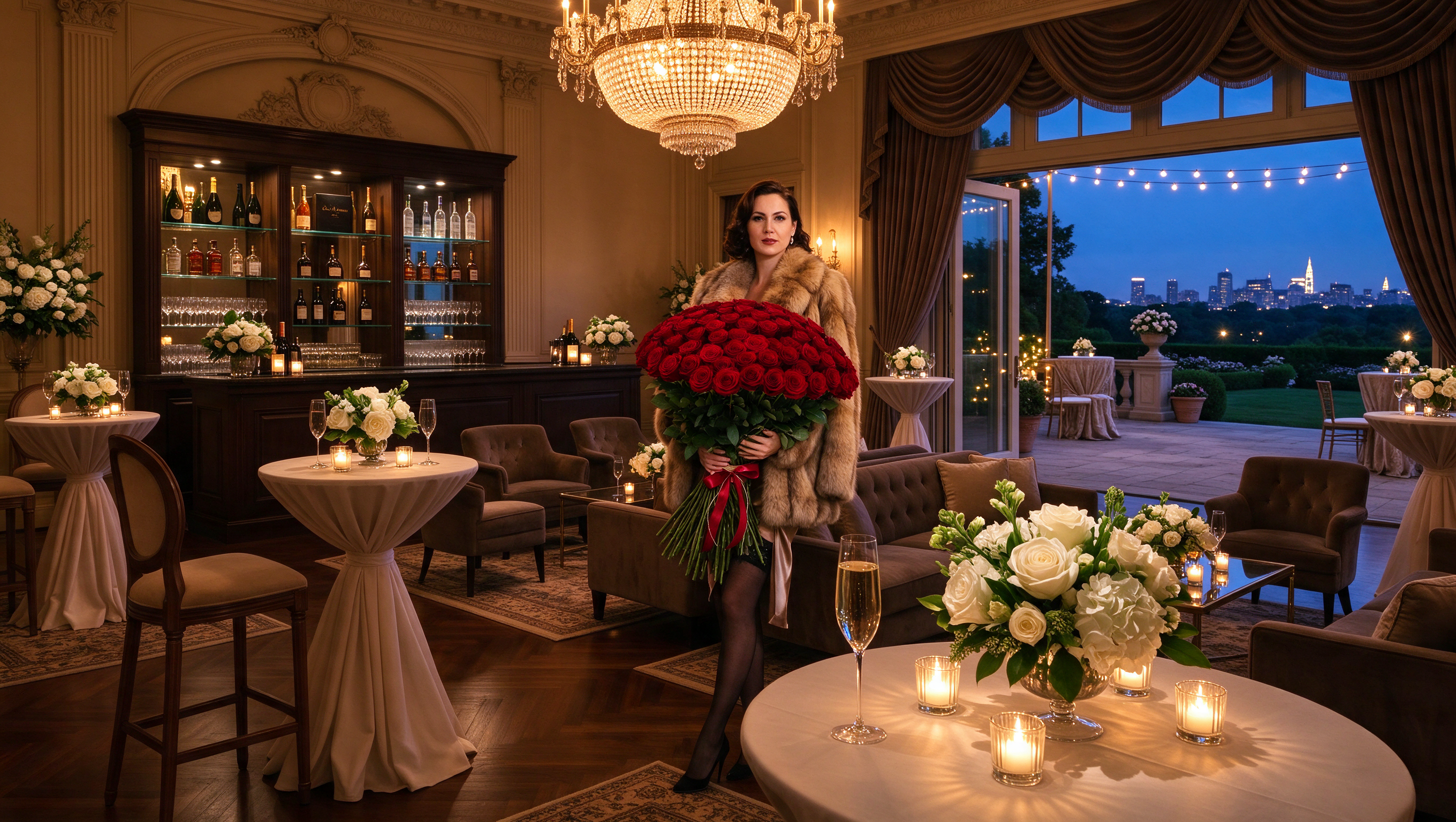
“Character and clothing - from the second image. Bouquet of red roses - from the first image. Interior, composition, and lighting - from the third image. Place the woman in a restaurant near one of the tables. She is holding a large bouquet of red roses and looking at the camera. Preserve the woman’s appearance, the details of her clothing, and the shape and size of the bouquet. Photorealism, elegant evening atmosphere, warm lighting, high detail.”
Model
You can choose from 5 models:
Seedream 4 - a versatile model for image generation and editing with support for multiple references. It works well with various visual styles and is suitable for everyday generations, creative tasks, and experimentation.
Seedream 4.5 - an improved version of the model with more accurate understanding of text prompts, stable editing, and high-quality detail rendering. It is suitable for complex generations and tasks where preserving the style and characteristics of the original image is important.
Seedream 5.0 Lite - an updated model with improved handling of composition, details, and complex text prompts. It performs better with photorealism, text in images, and scenes containing many objects while maintaining style consistency across generations.
Seedream 5.0 Pro - an advanced model for image generation and precise editing with enhanced reference handling. It supports combining objects and styles from multiple images, replacing colors and materials while preserving object shapes, as well as creating readable text in different languages. It is suitable for complex tasks where accuracy, control, and consistency of results are important.
Seedream 5.0 Flash - a faster and more affordable version of the Seedream 5.0 Pro model. It retains the core capabilities of the more advanced model but is optimized for speed and lower generation costs. Flash is ideal for everyday tasks, drafts, quick idea testing, and large-scale image generation.
Resolution
- When working with the Seedream 4 model, you can choose the resolution of the image: 1K, 2K, or 4K.
- When working with the Seedream 4.5 model, you can choose the resolution of the image: 2K or 4K.
- When working with the Seedream 5.0 Lite model, you can choose the resolution of the image: 2K or 3K.
- When working with the Seedream 5.0 Pro model, you can choose the resolution of the image: 1K, 1.5K or 2K.
- When working with the Seedream 5.0 Flash model, you can choose the resolution of the image: 1K, 1.5K or 2K.
1K - basic image resolution. Suitable for quick generations, previewing results, and tasks where high detail is not required.
1.5K - medium resolution with improved sharpness and detail compared to 1K. Suitable for everyday generations, creating images with a moderate level of detail, and tasks where a balance between quality and generation speed is important.
2K - higher resolution with sharper detail. Suitable for most everyday tasks and allows you to create a higher-quality image.
3K - high resolution with improved image detail. Suitable for large images, complex scenes, and tasks where more precise rendering of small elements is important.
4K - the maximum available resolution with the highest level of detail and sharpness. Suitable for professional and commercial tasks, large images, and cases where preserving the maximum amount of detail is important.
Aspect Ratio
When working with reference images, you can choose from 8 aspect ratio options:
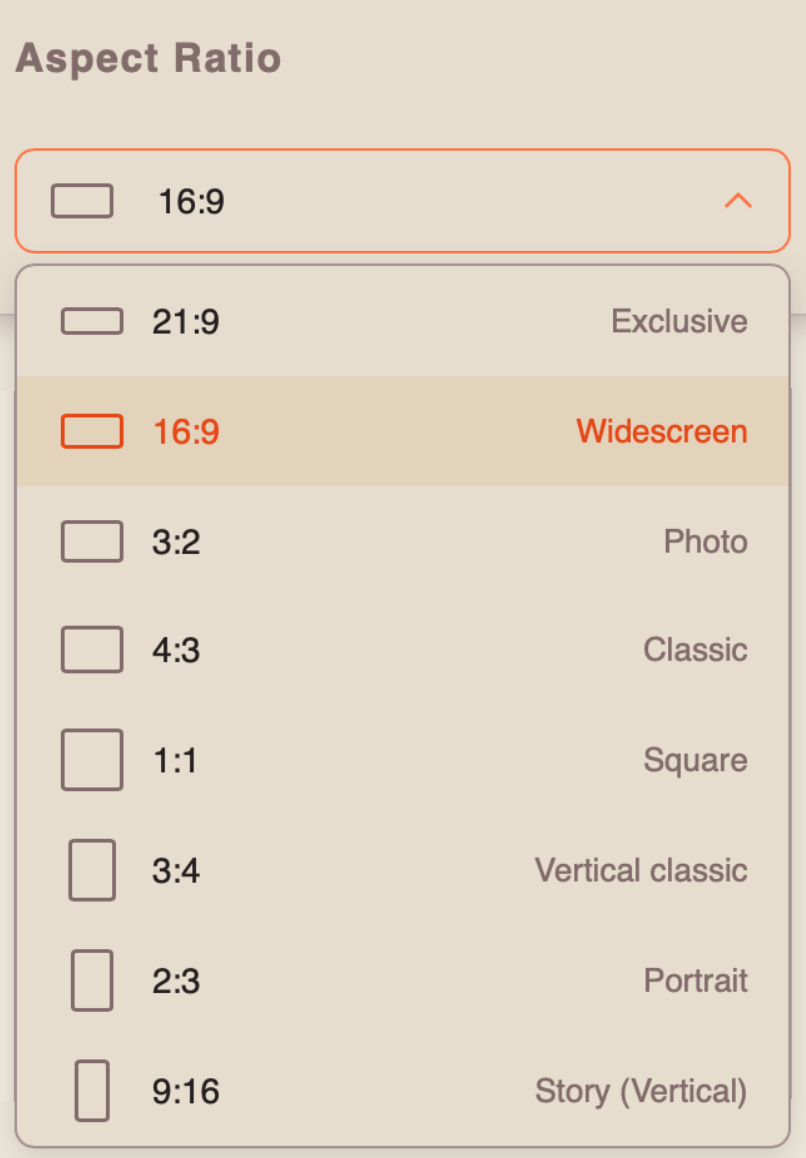
Background
When using the Seedream 5.0 Flash and Seedream 5.0 Pro models, you can additionally customize the background of the generated image.
This setting is only available when the PNG format is selected and a reference image with a transparent background has been uploaded.
You can choose from 2 options:
- Normal - generates an image with a standard opaque background.
- Transparent - generates an image while preserving the transparent background. Suitable for creating individual objects, characters, and graphic elements without a background.
❣️Please note that selecting the PNG format alone does not make the image background transparent. To generate an image with a transparent background, you need to upload a reference image with transparency and select the “Transparent” option in the background settings.
For example:
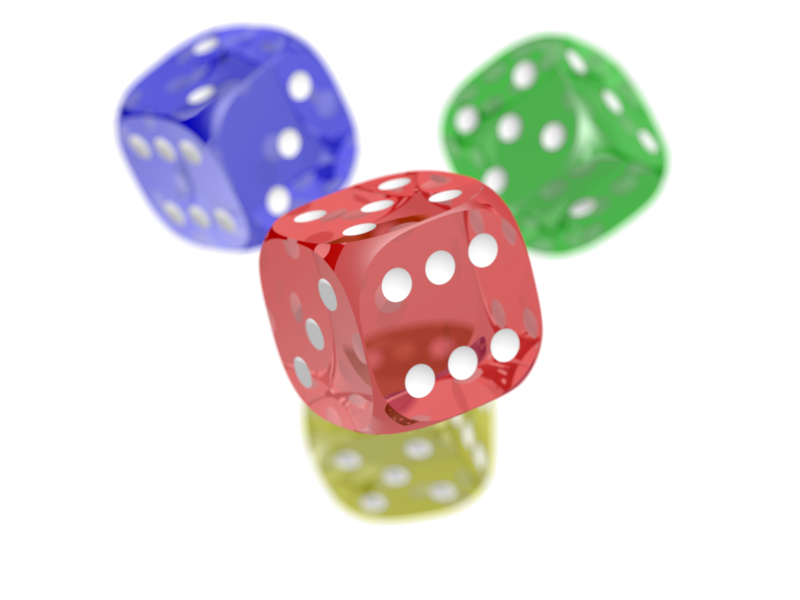
Results
Regular background:
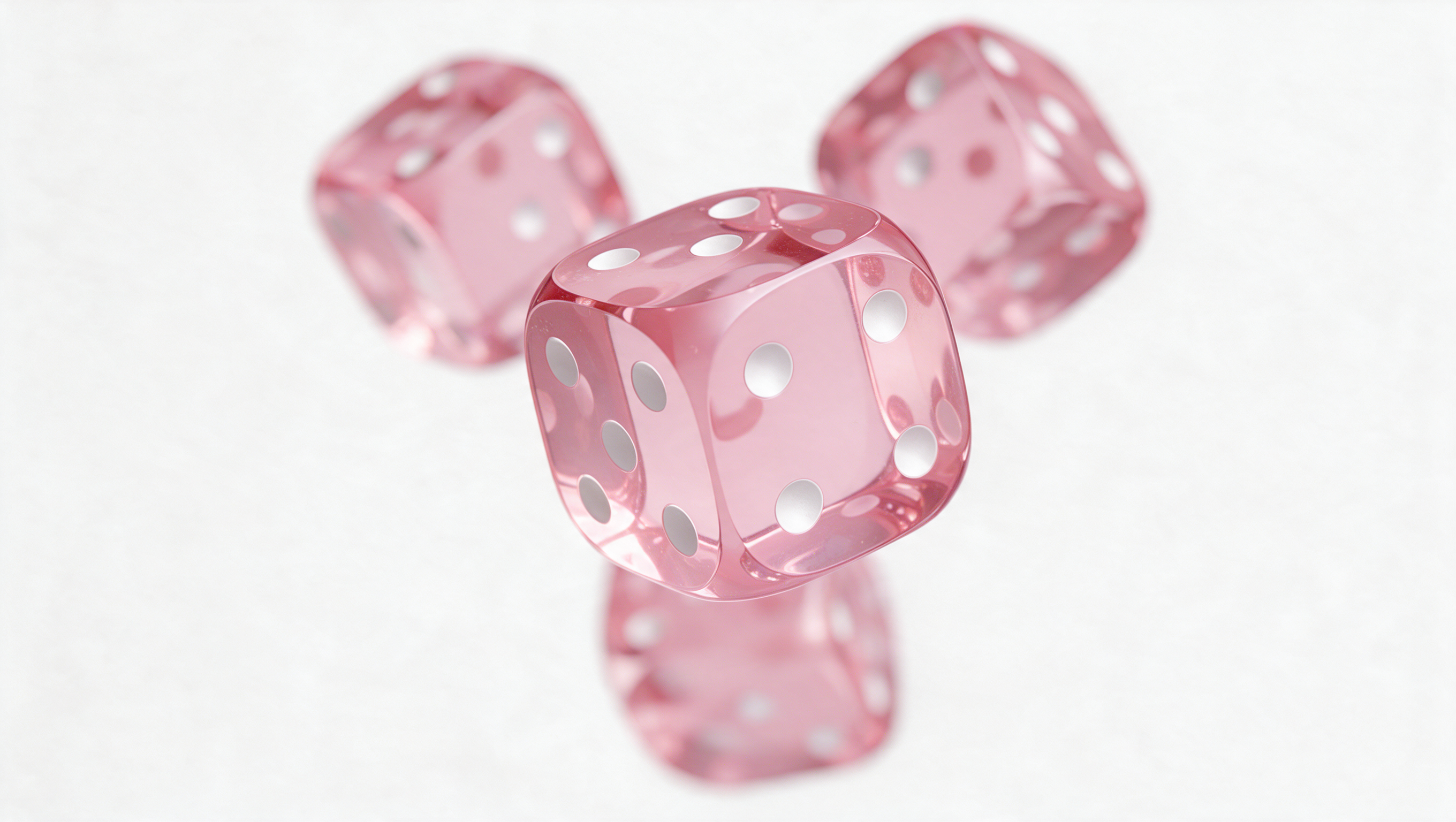
Transparent background:
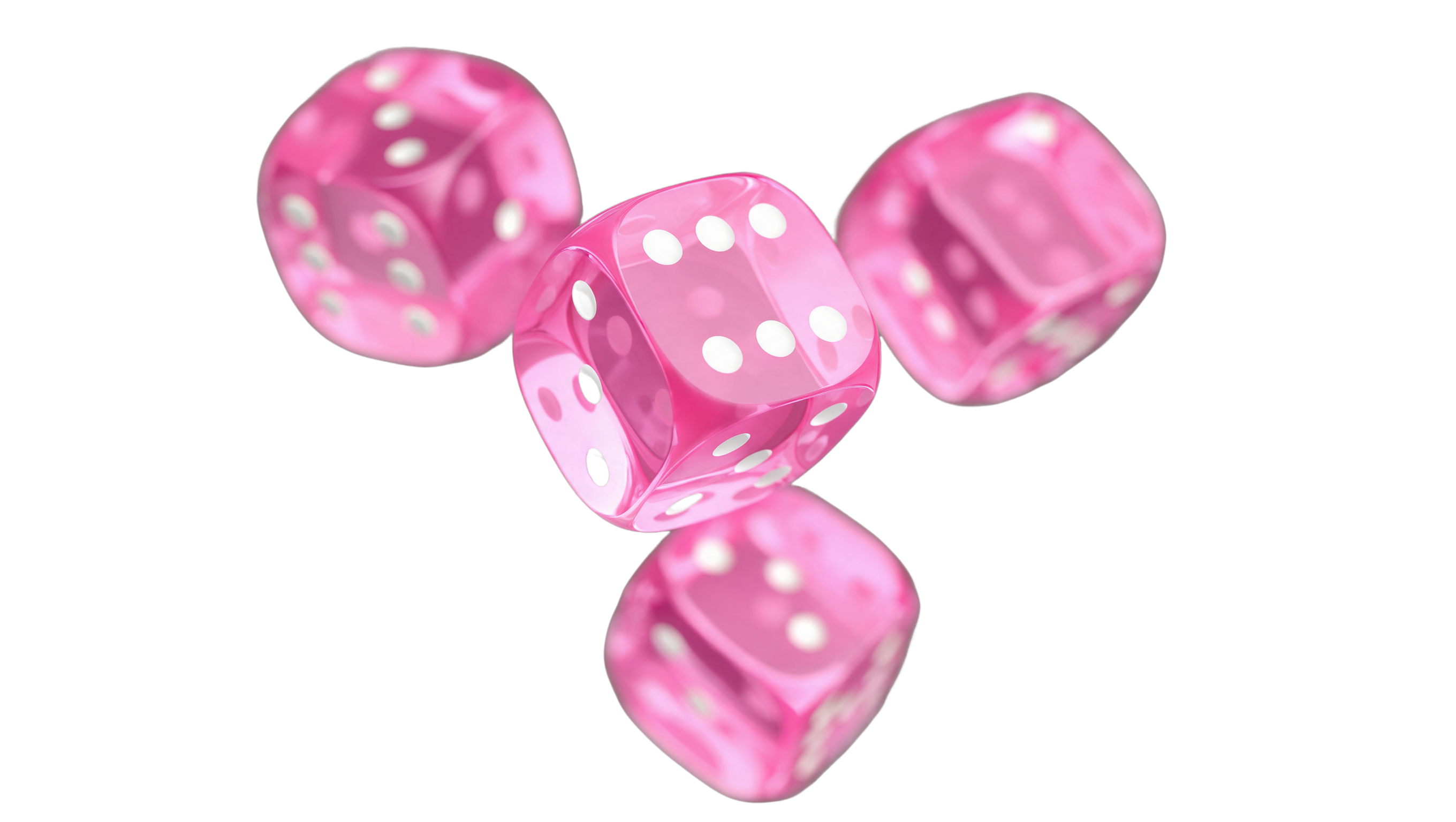
Image Format
When working with any model, you can choose the format of your future image: PNG or JPEG.
PNG - an image format that preserves high quality and supports transparency. Suitable for images with fine details, graphic elements, and tasks where maintaining image quality is important.
JPEG - an image format that offers good quality and a smaller file size. Suitable for photographs, realistic images, and everyday generations.
Once all settings have been configured, click the “Generate” button to start generation.
Results
Seedream 4

Seedream 4.5

Seedream 5.0 Lite
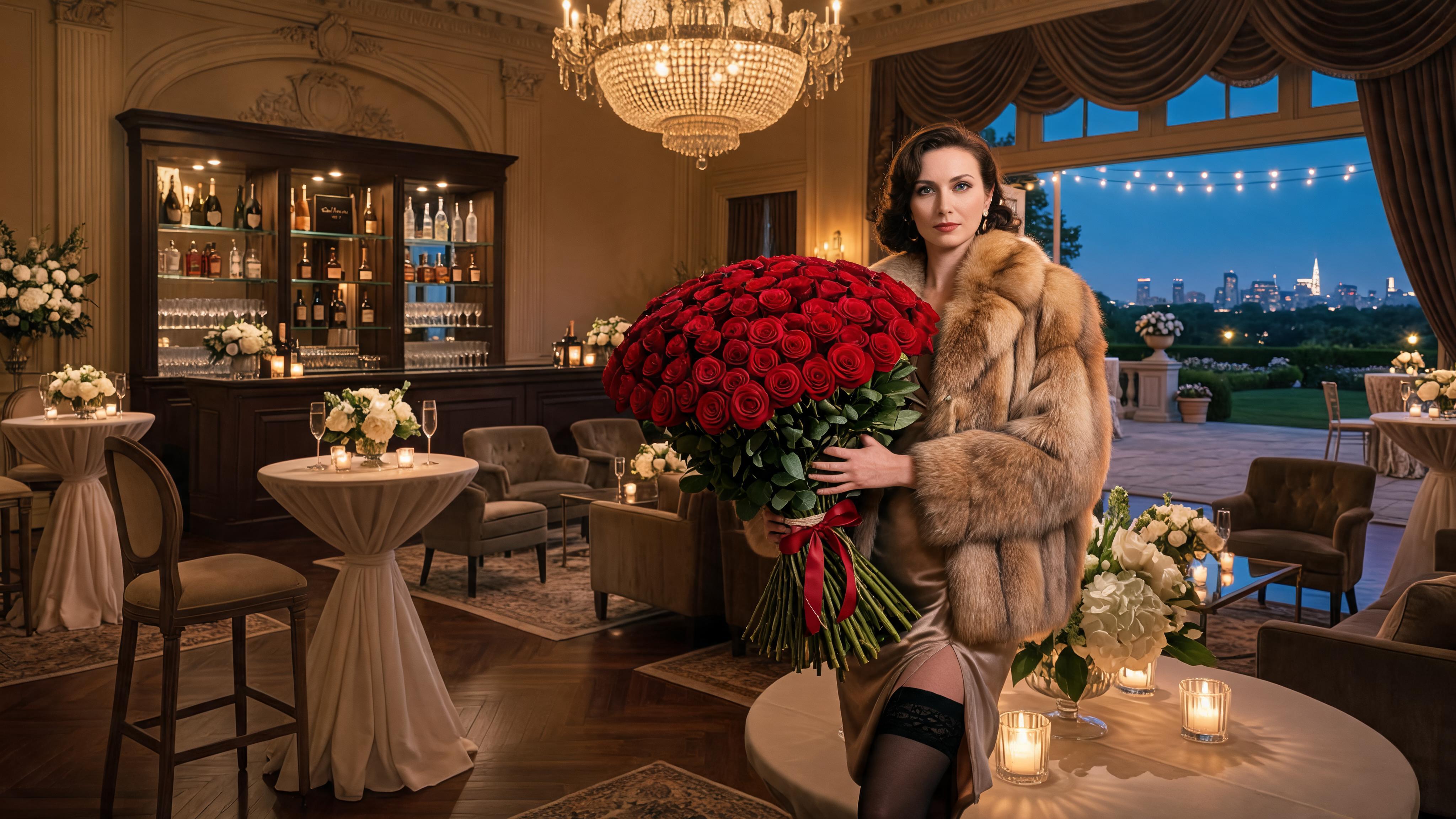
Seedream 5.0 Pro

Seedream 5.0 Flash
We sincerely hope that this guide will help you better understand and effectively use the Seedream tool. We have tried to make the process as simple and intuitive as possible. Remember: every mistake is a step toward success. If something doesn’t work out on the first try, don’t get discouraged. Experiment, explore, and you will definitely achieve the results you want. 💛
SYNTX AI: Syntx AI
SYNTX Сообщество: Syntx Community
Блог SYNTX FAMILY: Syntx Family
Служба Заботы SYNTX: Syntx Support