HeyGen - is an AI-powered tool for creating realistic talking avatars. To generate a video, you only need to upload a single image and an audio file. The model produces photorealistic facial expressions that reflect the tone, rhythm, and emotions of the speech, including pauses and head movements.
🎛 Navigation
🏠 Main Menu > 🎬 Video > 💜 HeyGen
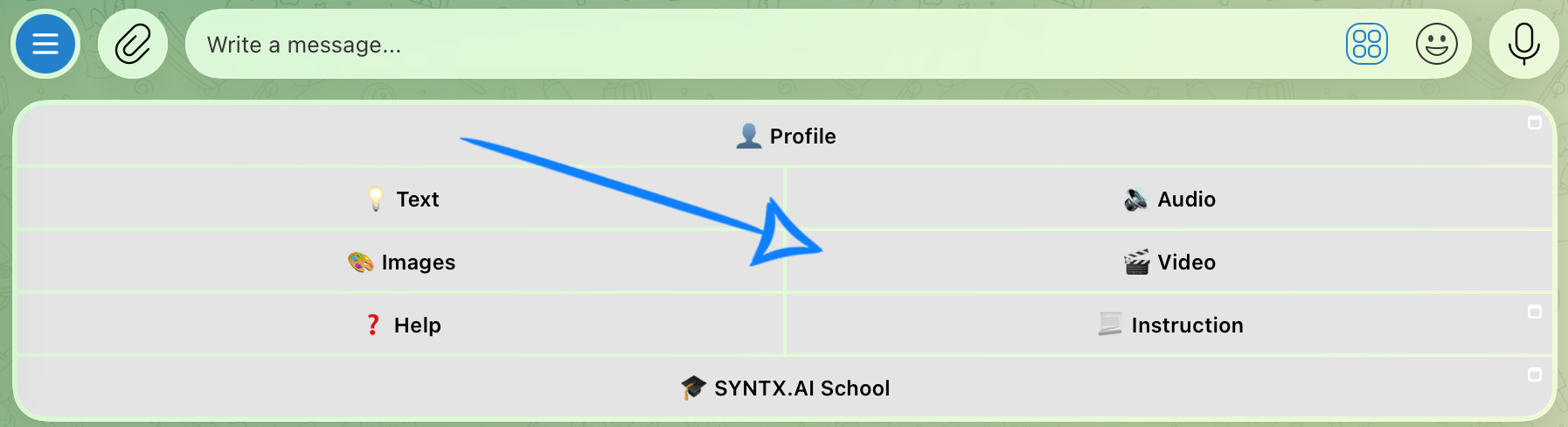
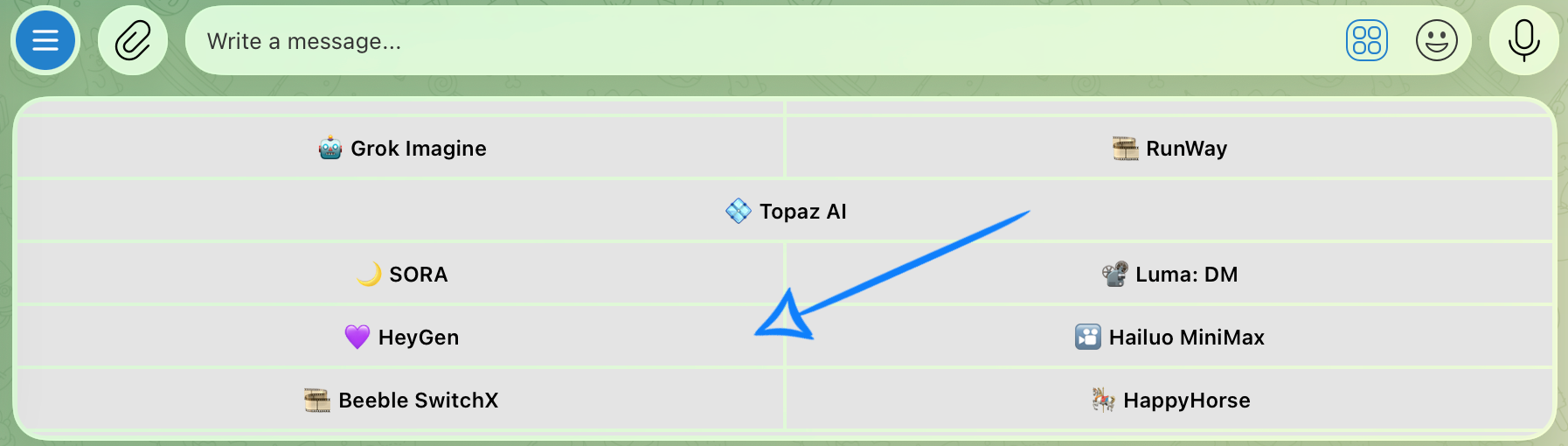
💥 Step-by-Step Guide to Using HeyGen
To get started with the tool, you first need to upload the image that will be used as the foundation for creating your avatar.
Uploading an Image
Image requirements:
- Maximum file size: 9 MB.
- Supported image formats: PNG and JPEG.
- Recommended aspect ratio: 16:9 or 9:16.
❣️ Images with other aspect ratios will be automatically cropped to a supported format.
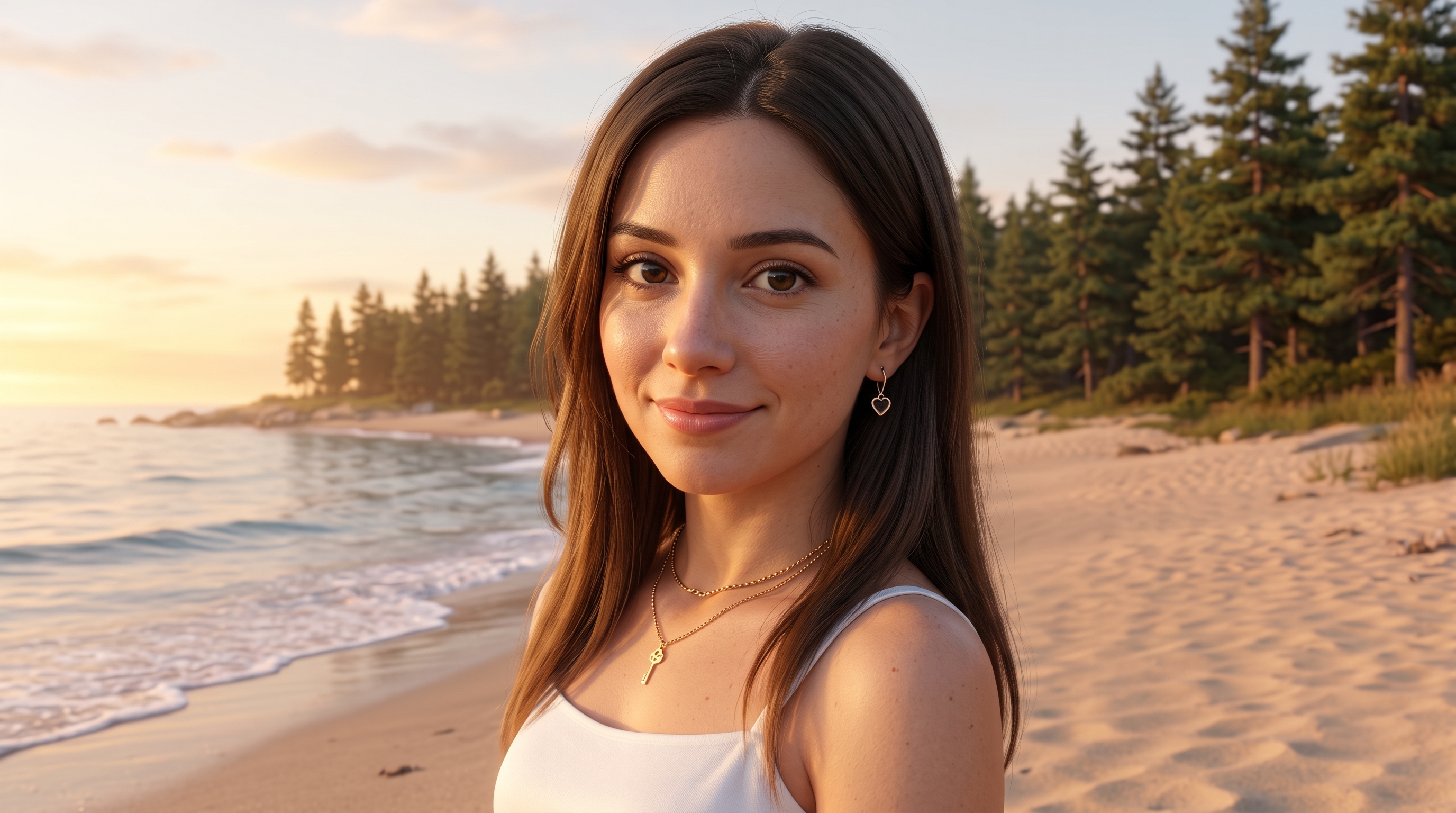
Face Requirements for the Image:
- Good lighting: The face should be clearly illuminated, without harsh shadows or overexposed areas.
- Sharpness and clarity: Facial features should be clearly visible.
- One person in the frame: The image should contain only one face.
- Face position: The person should be facing directly toward the camera, without tilting or turning their head.
For example:

Next, upload the audio file that will be used to voice your avatar.
Uploading an Audio File
Audio file requirements:
- Supported formats: Voice Message, MP3, WAV, M4A
- Duration: From 2 seconds to 2 minutes
Audio Quality Requirements:
-
High-quality recording
For the best results, use high-quality audio files with minimal compression, such as WAV. Compressed audio may reduce quality and negatively affect lip-sync accuracy. -
Clear and intelligible speech
Avoid unclear pronunciation, speaking too quickly, or using a strong accent, as these may reduce the accuracy of facial animation and lip synchronization. -
Minimal background noise
Ensure the recording is free from background noise, music, or echo. Clean audio helps the model synchronize speech with facial movements more accurately. -
Complete sentences
Whenever possible, use recordings that contain complete phrases and sentences rather than isolated words. This results in more natural facial expressions and a more realistic talking avatar.
For example:
Settings
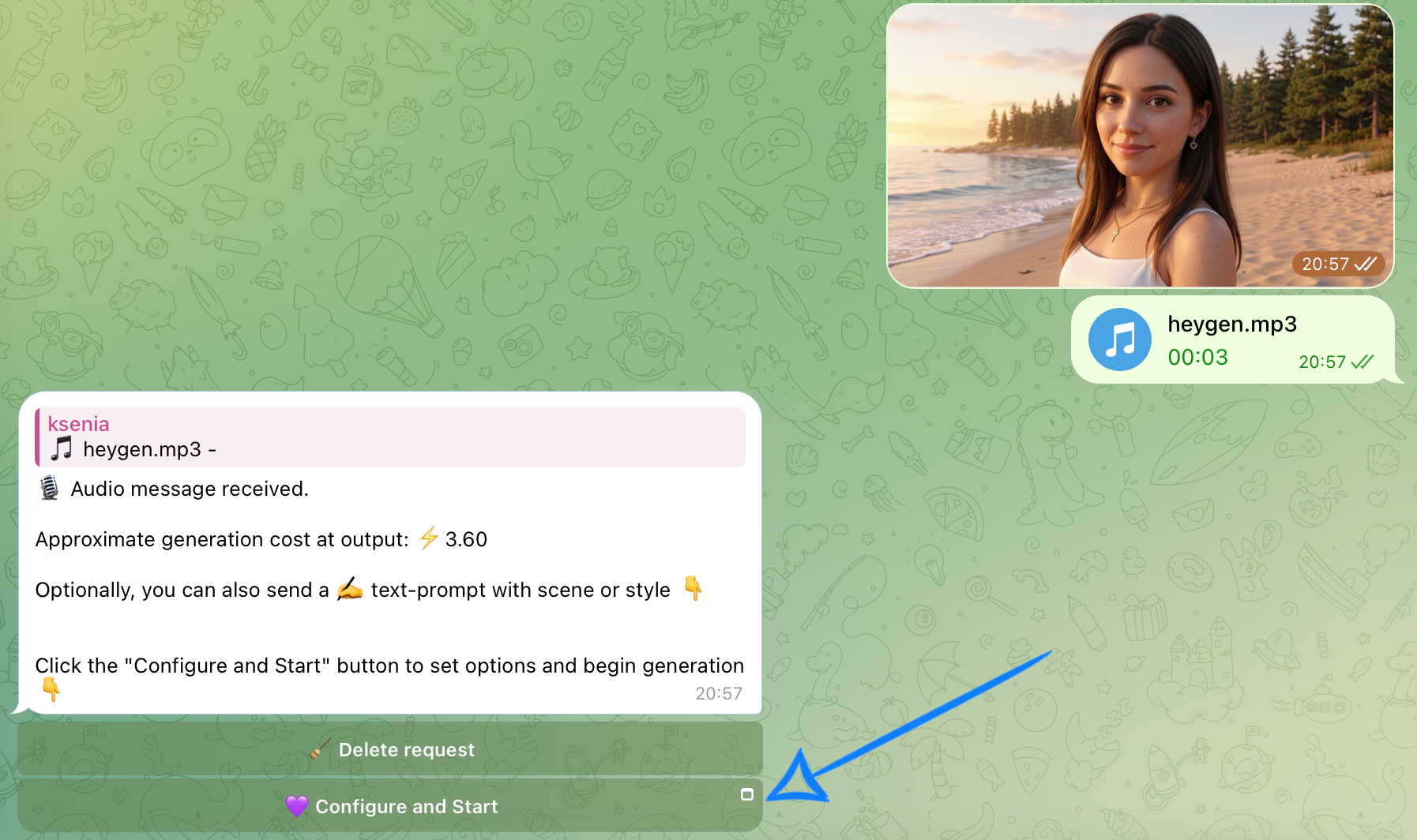
After uploading all the required files, configure the generation settings for your video.
If any of the uploaded files are incorrect, you can remove the current request and upload the correct materials again. To do this, simply click the “Delete Request” button.
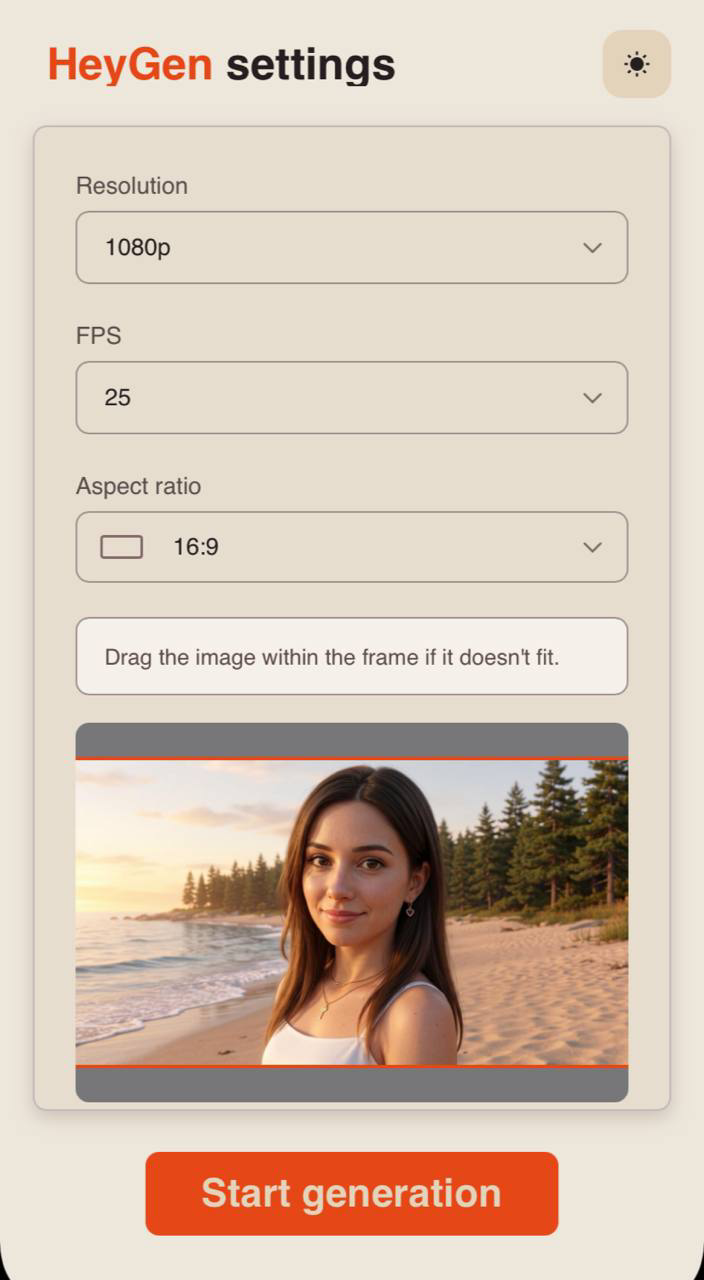
Resolution
Videos are generated at a fixed resolution of 1080p. This setting cannot be changed.
FPS
You can choose between 25, 30, or 60 frames per second (FPS). Higher FPS values produce smoother and more fluid video playback.
Aspect Ratio
Two aspect ratios are available:
- 16:9 (landscape)
- 9:16 (portrait)
If the uploaded image has a different aspect ratio, it will be automatically cropped to one of the supported formats.
After selecting the desired settings, click “Start Generation” and wait for the process to complete.
Results
❗️Important to know
- Facial expressions are reproduced well, however, hair and headwear may sometimes be generated incorrectly or become partially cropped.
- Animal generation remains inconsistent. In most cases, the model struggles with such requests or requires multiple attempts to achieve an acceptable result. Anthropomorphic characters are generated much more reliably.
- Cartoon characters are generated consistently and generally without noticeable issues.
- Images of well-known public figures and popular actors are not supported in most cases.
- When combined with the Voice Cloning feature, this tool can be used to create high-quality media content.
- For the best results, carefully choose the source image. Pay particular attention to the character’s hairstyle, headwear, and overall framing. The character should not occupy too much or too little of the frame.
Following these recommendations will significantly improve the chances of a successful generation.
We sincerely hope this guide has helped you understand the capabilities of HeyGen and use this tool effectively. We’ve done our best to make the entire process as simple and easy to follow as possible.
Remember: if something doesn’t work perfectly on your first attempt, that’s completely normal. Keep experimenting, explore the tool’s features, and continue refining your skills. With practice, you’ll be able to achieve the results you’re looking for. 💛
SYNTX AI: Syntx AI
SYNTX Support: Syntx Support
YouTube channel “SYNTX”: Syntx YouTube
SYNTX.AI Academy: SYNTX Academy