Wan is a modern AI-powered video generation model that creates short videos from text prompts, images, or video references. The model can generate videos with synchronized audio, resolutions of up to 1080p, and durations of up to 15 seconds.
❗️Maximum prompt length: 1500 characters.
- 🎛 Navigation:
- 💥 Step-by-Step Guide to Using Wan “Text to Video”
- 💥 Step-by-Step Guide to Using Wan “Image Reference Generation”
- 💥 Step-by-Step Guide to Using Wan “Video Reference Generation”
- 💥 Step-by-Step Guide to Using Wan “Audio Reference Generation”
🎛 Navigation:
🏠 Main Menu > 🎬 Video > 👾 Wan
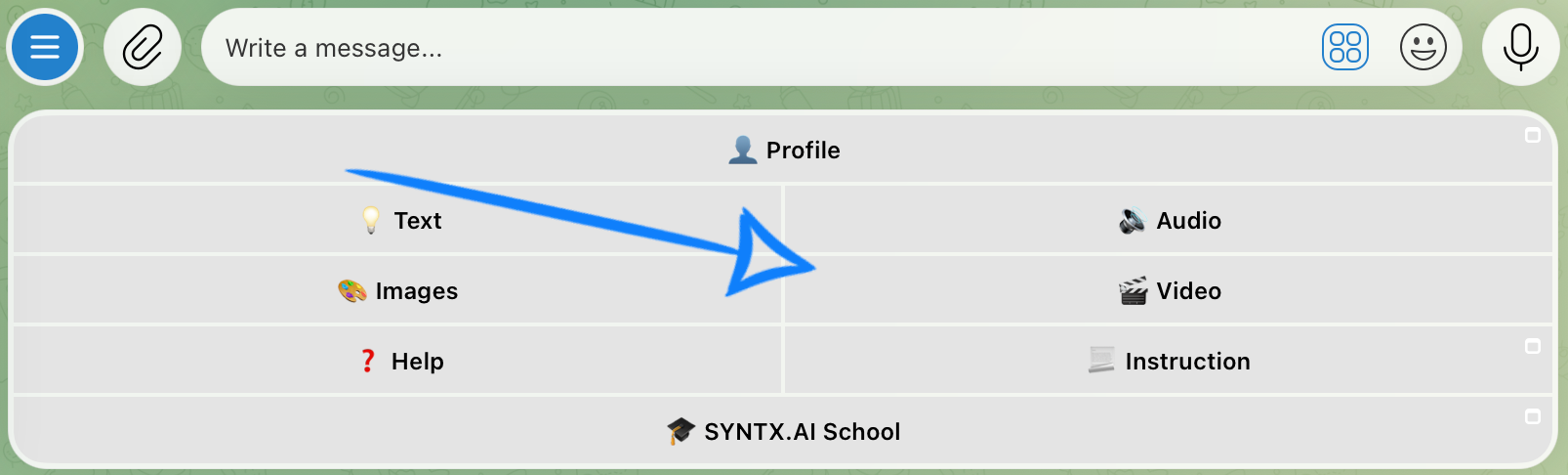
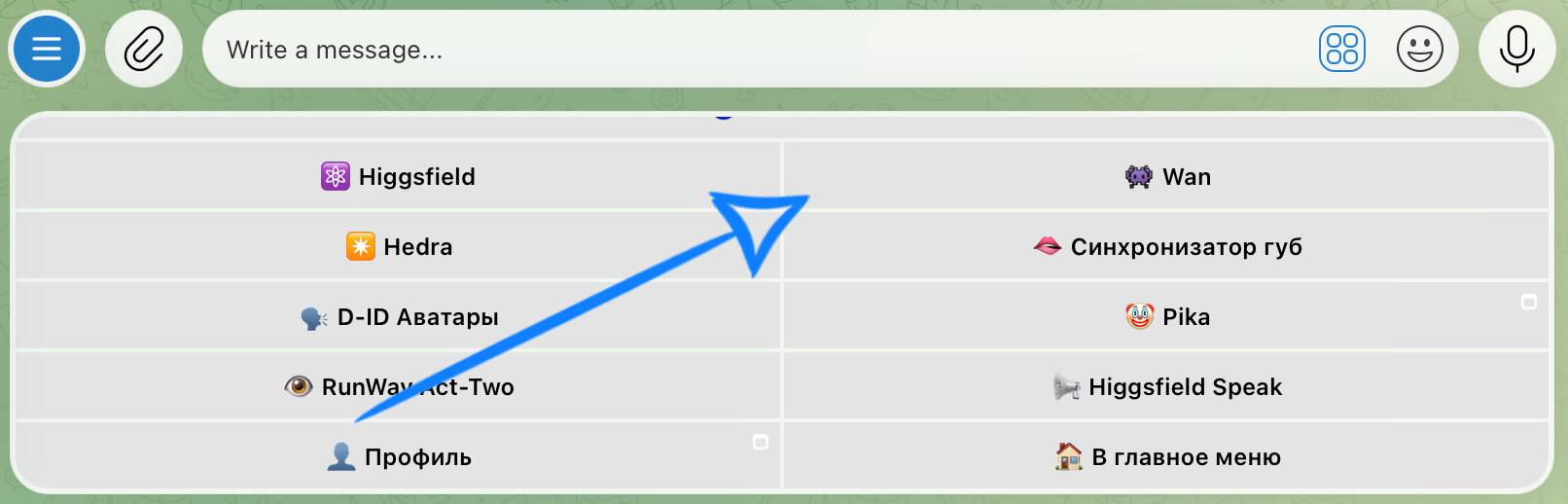
💥 Step-by-Step Guide to Using Wan “Text to Video”
When using the “Text to Video” feature, the first step is to create a clear and well-structured text prompt.
Creating a Text Prompt
High-quality video generation starts with a well-structured prompt - it helps the model accurately understand your idea and produce the desired result.
In your prompt, clearly describe the outcome you would like to see in the final video.
A good prompt structure should include:
- Main Subject and Action: specify who or what appears in the scene and describe what the subject is doing.
- Environment and Time of Day: describe the location and lighting conditions (daytime, sunset, night, etc.) to establish the atmosphere of the scene.
- Style and Mood: indicate the desired visual style (realistic, cinematic, anime, etc.) and the overall mood or emotional tone of the video.
Example:
“A young woman slowly walks along a wooden pier. The wind gently moves her hair and flowing dress as she calmly breathes and brushes her hair back with her hand. The scene takes place on a seaside pier at sunset, with warm golden sunlight reflecting off the water. A light sea breeze creates natural movement throughout the environment. Photorealistic cinematic style, realistic skin and fabric textures, soft warm lighting, natural colors, a lively summer evening atmosphere, smooth camera movement.”
Model Settings
After submitting your text prompt, click “Configure and Start” and set the appropriate parameters for your generation.
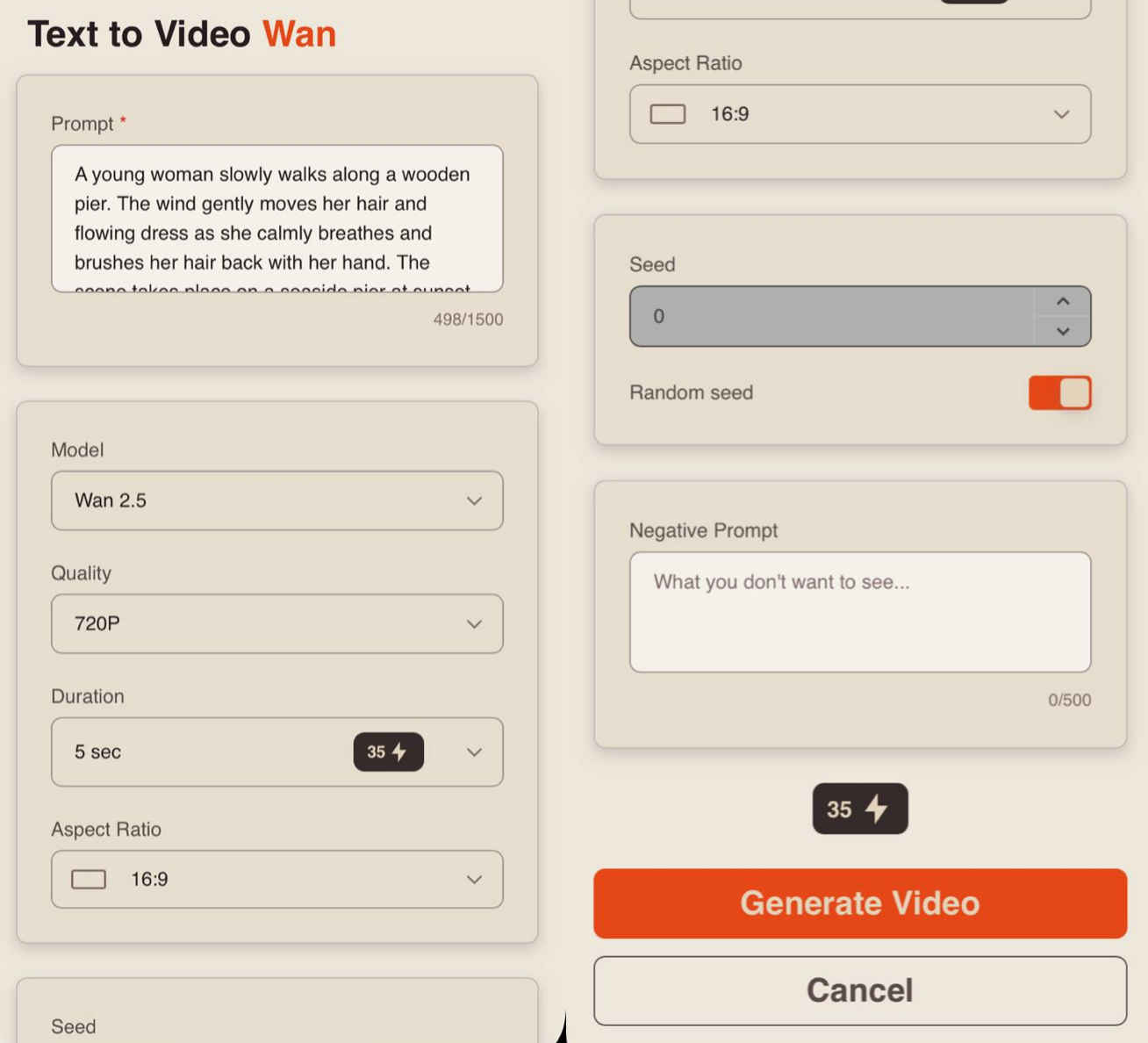
Prompt
If needed, you can edit your prompt in the Prompt field. If you leave it unchanged, the generation will use the original text prompt you submitted.
Model
When generating a video from a text prompt, you can choose between two available models:
Wan 2.5: a stable and predictable video generation model, ideal for everyday use. It works well for creating short scenes from text prompts and delivers consistent results across a wide range of scenarios.
Wan 2.6: a flagship video generation model with enhanced detail and more accurate prompt understanding. It provides more realistic animation, higher-quality motion, and better preservation of scene details.
Quality
When generating a video from a text prompt, you can choose from three quality options:
• 480p
The basic video resolution. It is ideal for viewing on smaller mobile device screens and helps save bandwidth. Videos may appear slightly less sharp, and fine details may not be as clearly visible.
• 720p
A medium video resolution that provides a good balance between video quality and file size. This format is a popular standard for online video platforms, including YouTube, and delivers a clear image that is comfortable to watch on most modern devices and medium-sized screens.
• 1080p
A high-quality video format that offers excellent detail and sharpness. It is ideal for viewing on large displays and televisions. While it requires a faster internet connection and more storage space, it provides the highest level of visual clarity and detail.
Duration
When using Wan 2.5, you can choose between two video lengths: 5 seconds or 10 seconds.
When using Wan 2.6, you can select a duration from 2 to 15 seconds, depending on your needs.
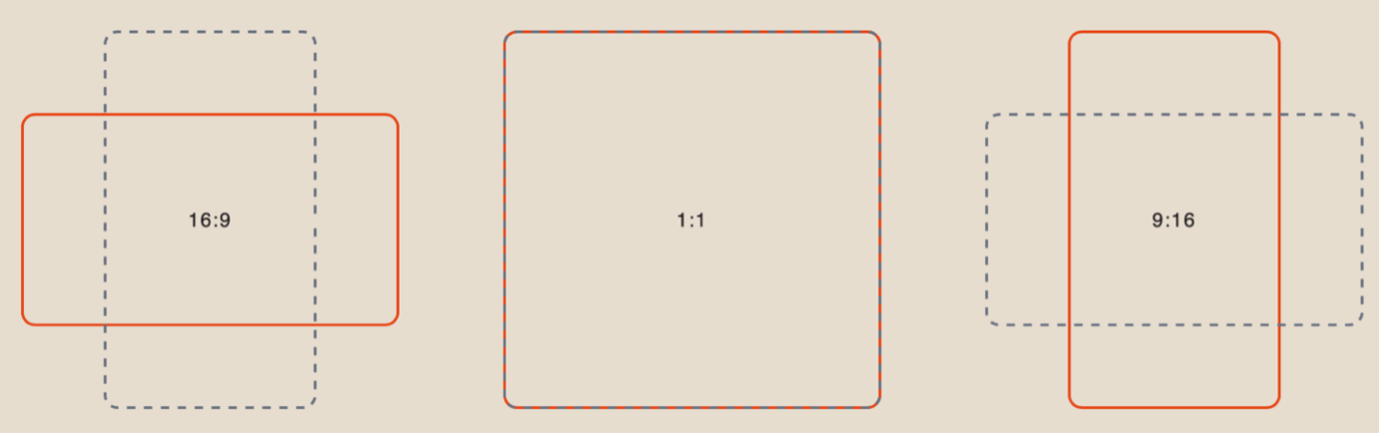
Aspect Ratio
When generating a video from a text prompt, you can choose from three available aspect ratios:
Seed
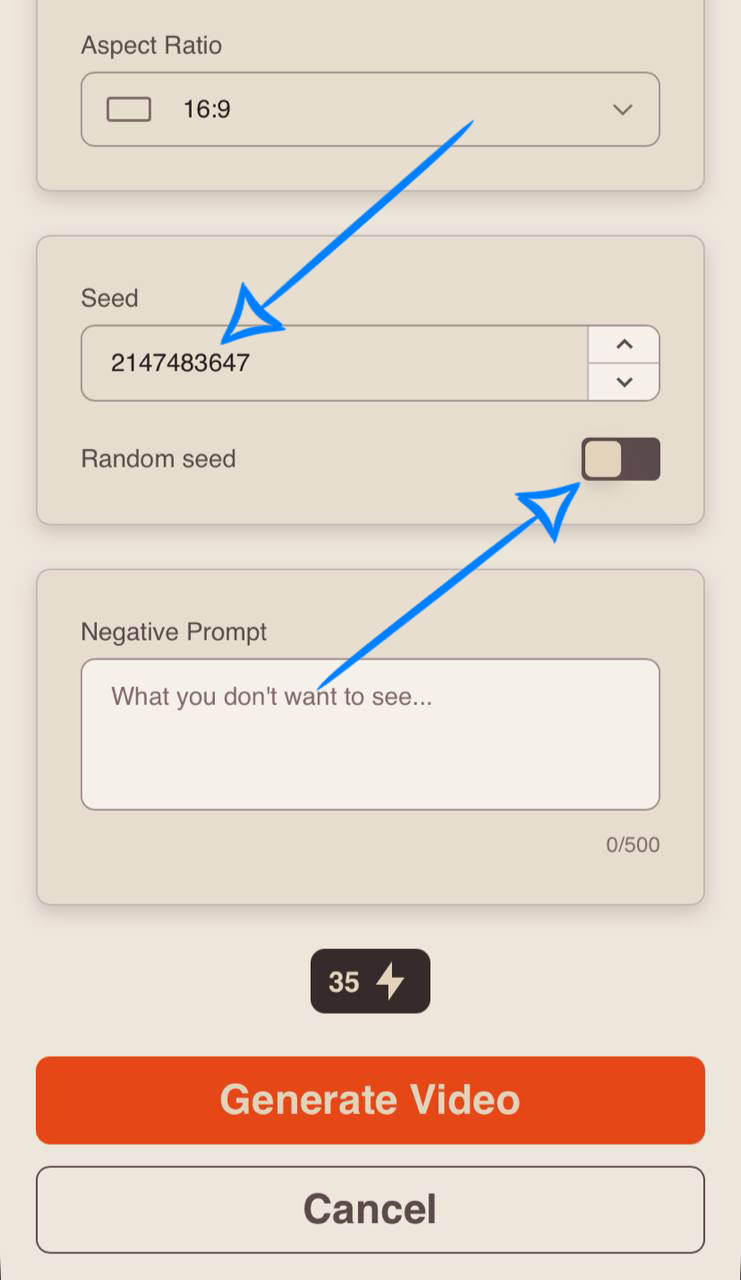
The Seed setting allows you to generate identical or highly similar results when running the same generation multiple times with the same prompt and settings.
If you like a generated video and want to create a similar version while changing or adding certain details, the Seed feature can be especially useful.
You can copy the Seed value from the description of a video you like and reuse it to recreate a similar result with your desired modifications. To do this, disable the “Random Seed” option and paste the copied Seed value into the corresponding field.
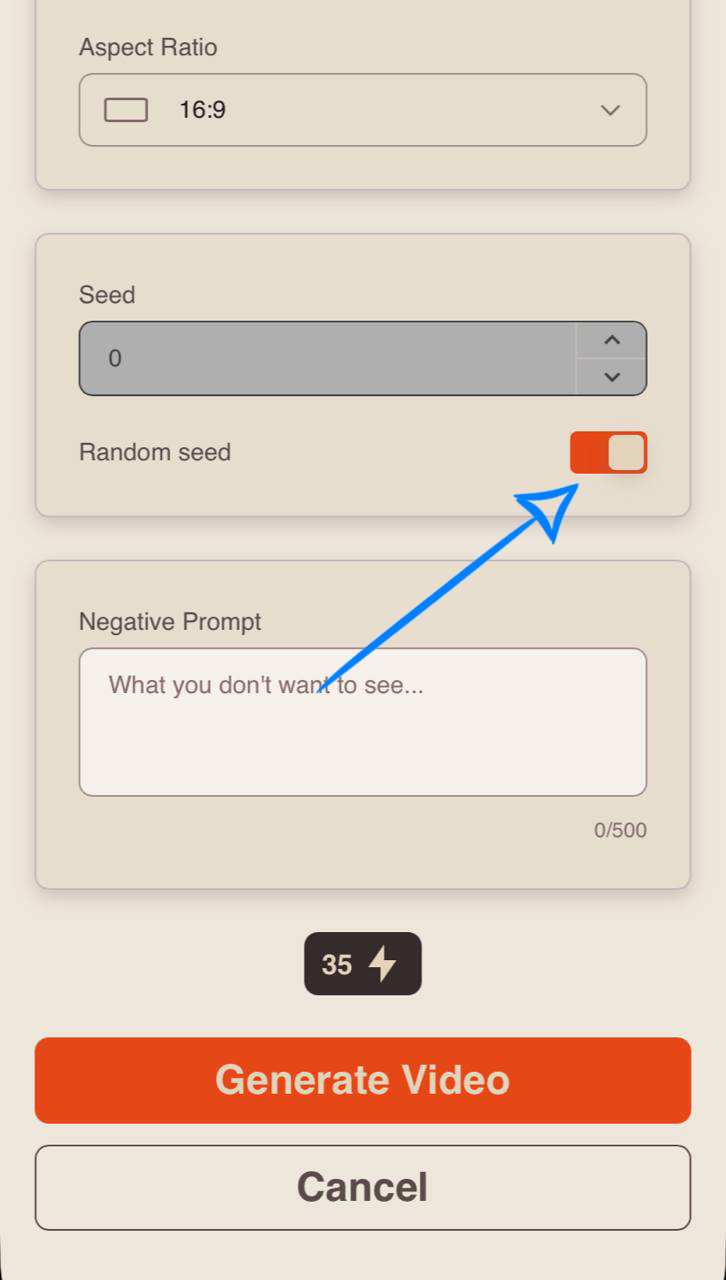
If your goal is not to recreate a similar video, it is recommended to enable the “Random Seed” option.
In this case, each generation will use a new Seed value, resulting in unique outputs that differ from previous generations. This allows the model to produce a wider variety of scenes, compositions, and visual details with every new generation.
Negative Prompt
This setting allows you to specify elements that should not appear in the generated video, such as blur, black backgrounds, distortions, visual artifacts, or cartoon-style visuals.
Filling out this field is optional, but it can help further refine the generation result.
Once all settings have been configured, click “Generate Video” to start the video generation process.
Results
Prompt:
“A young barista prepares coffee behind the counter. He carefully pours steamed milk into a cup of espresso, creating latte art on the surface, then gently rotates the cup and places it on a wooden countertop. The scene takes place in a cozy coffee shop early in the morning, with soft sunlight streaming through a large window and light steam rising from the hot coffee. Photorealistic cinematic style, natural hand movements, detailed wood and ceramic textures, warm atmosphere, soft lighting, smooth camera movement.”
Wan 2.5
Wan 2.6
❣️ Please note: Wan automatically generates and adds audio to videos in all available generation modes. No additional audio settings are required.
💥 Step-by-Step Guide to Using Wan “Image Reference Generation”
When working with image references, the first step is to upload your images correctly.
❣️ When using only image references, without additional video references, you can upload up to 5 images.
Image Upload
Technical Requirements for Images:
- Supported formats: JPEG and PNG
- Maximum file size: 5 MB
- Maximum number of uploaded images: 5
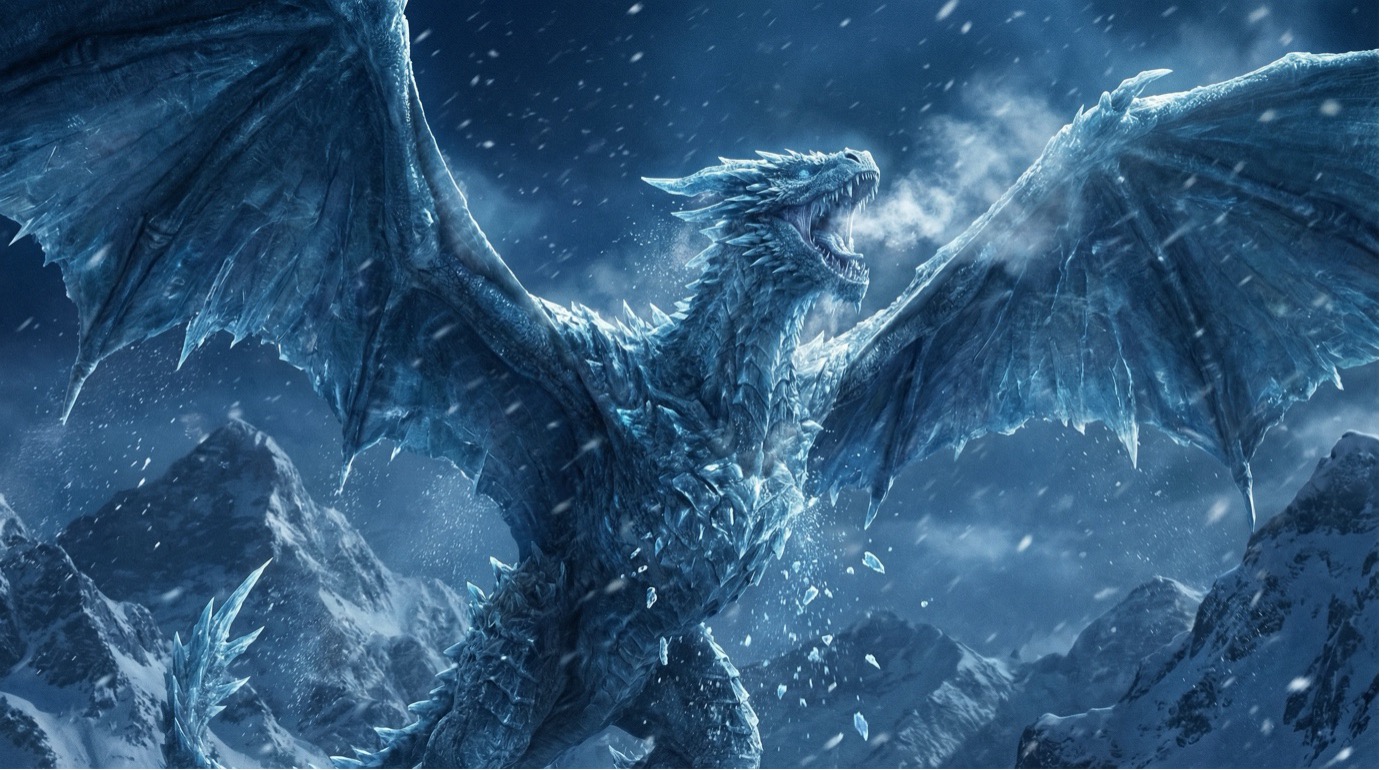
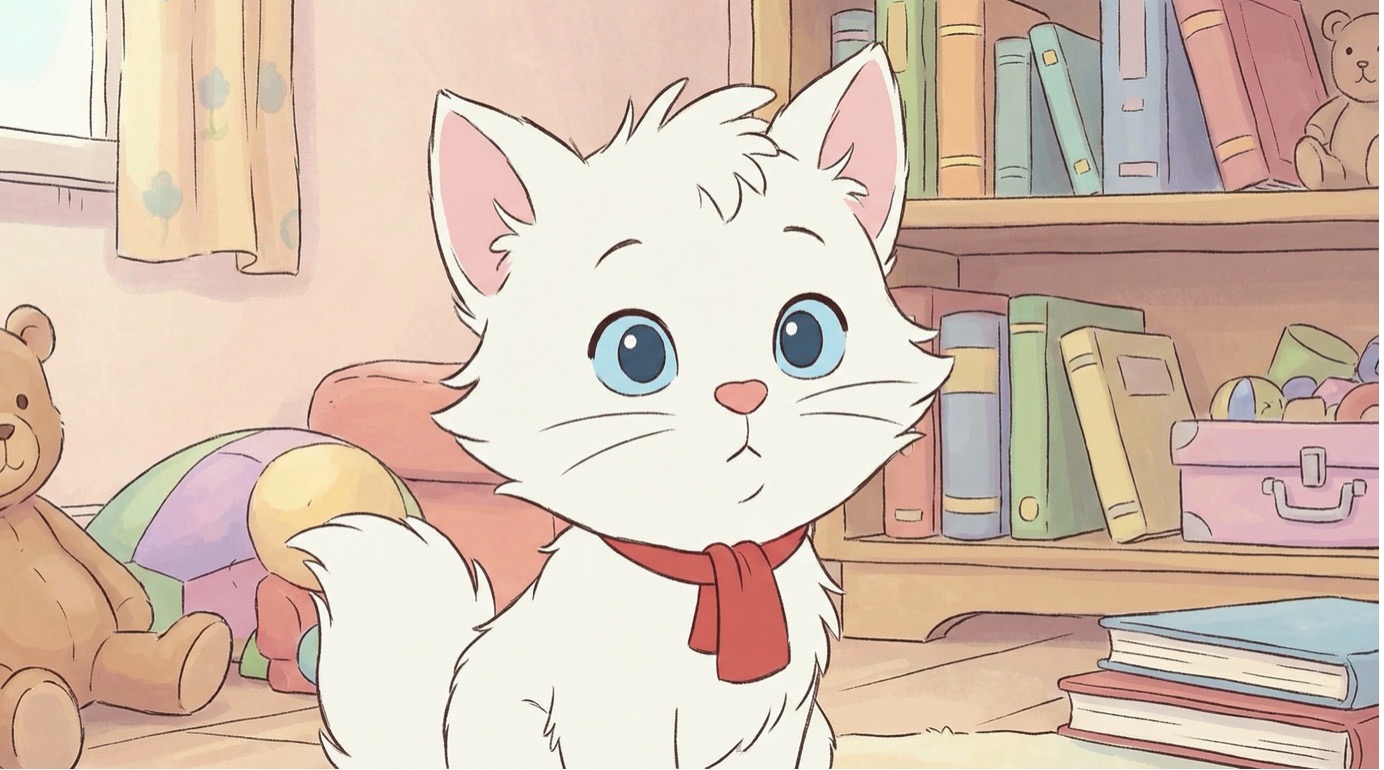
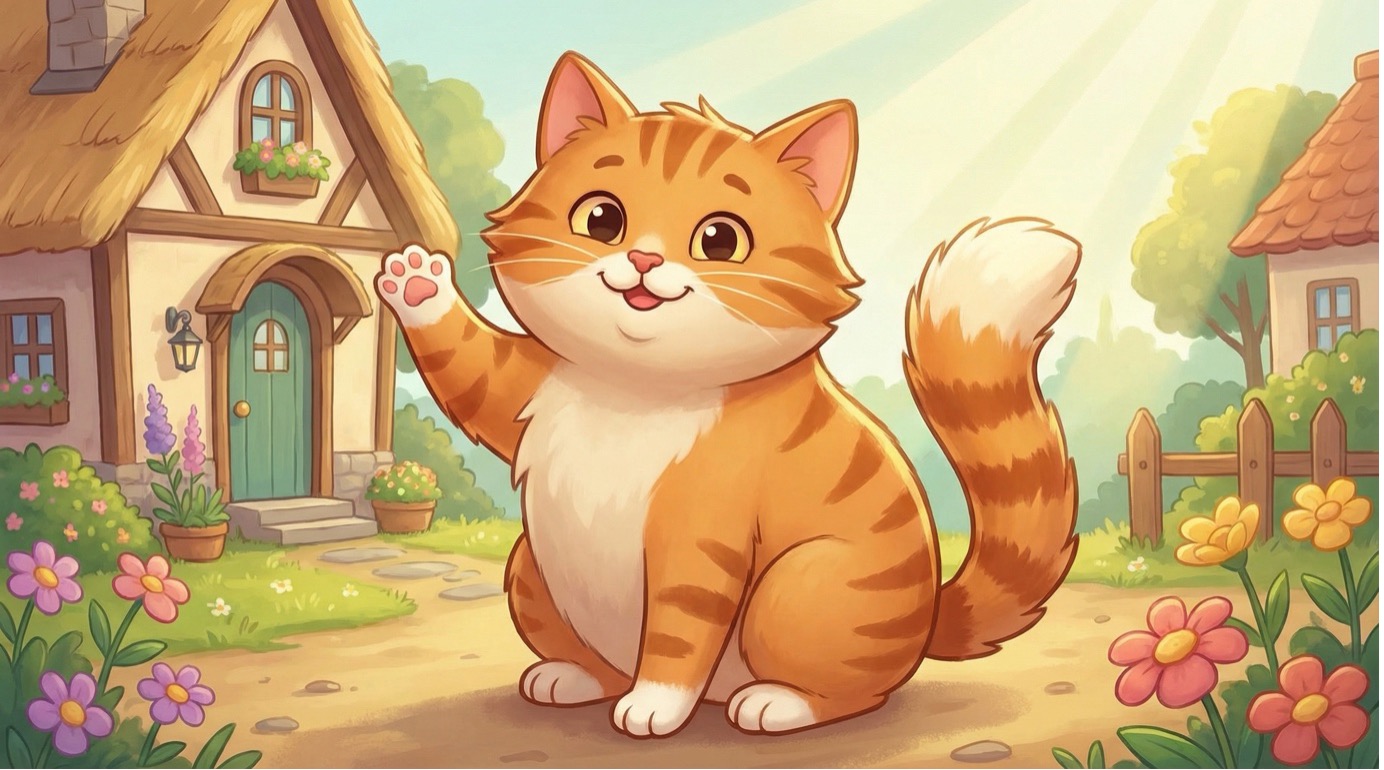
Example:
Working with a Single Image
Model Settings
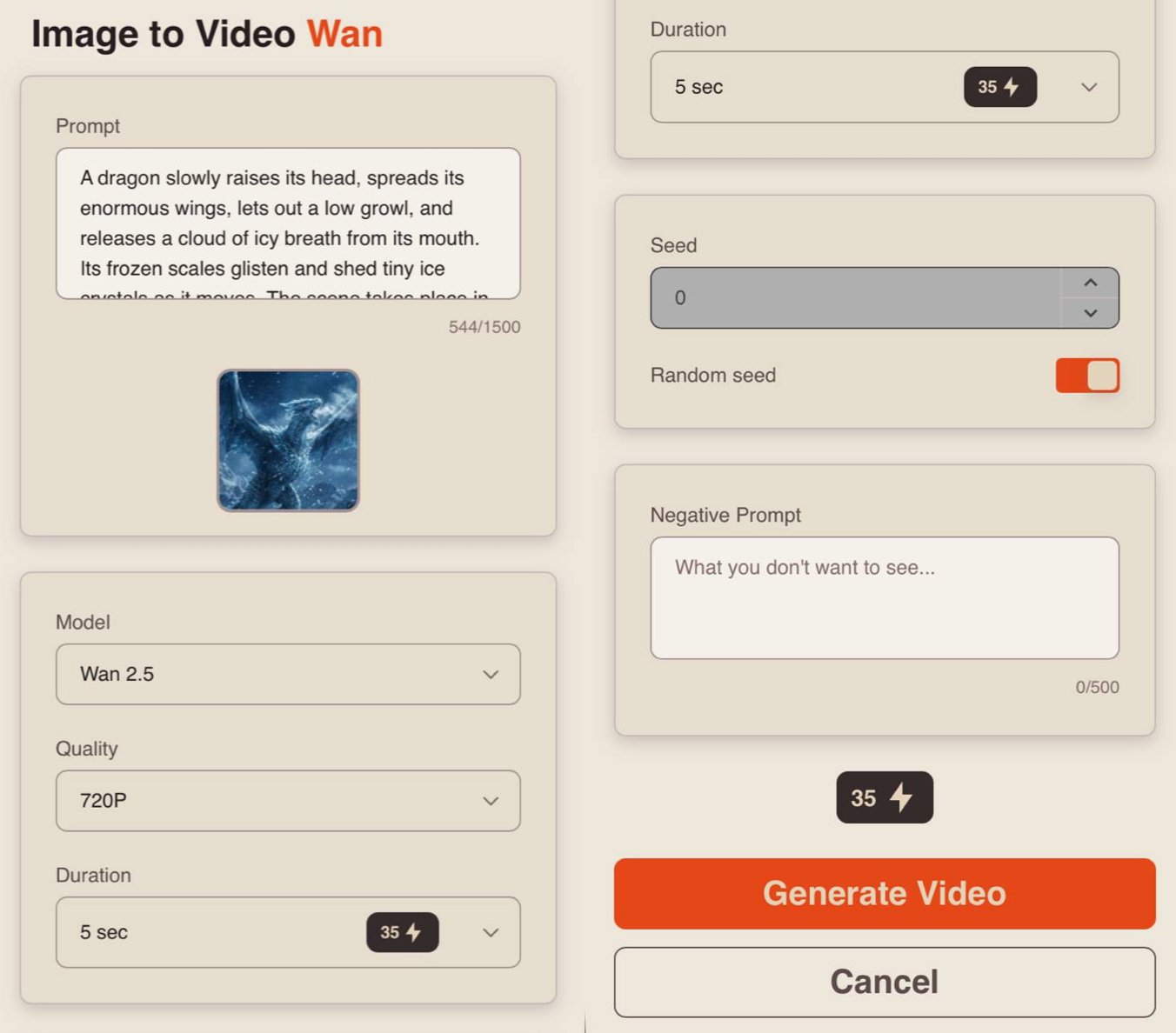
After uploading the image, click “Configure and Start” and set the appropriate parameters for your generation.
Prompt
For the best results, it is recommended to provide a prompt, as it helps the model better understand your idea and generate a more accurate video.
In your prompt, clearly describe the result you would like to achieve.
A well-structured prompt should include:
- Main Subject and Action: describe who or what appears in the scene and what the subject is doing.
- Environment and Time of Day: specify the location and lighting conditions (daytime, sunset, night, etc.) to establish the atmosphere of the scene.
- Style and Mood: indicate the desired visual style (realistic, cinematic, anime, etc.) and the overall emotional tone of the video.
Example:
“A dragon slowly raises its head, spreads its enormous wings, lets out a low growl, and releases a cloud of icy breath from its mouth. Its frozen scales glisten and shed tiny ice crystals as it moves. The scene takes place in snowy mountains at night, with the wind lifting fine snow into the air. Cold moonlight illuminates the dragon and reflects off the surrounding ice-covered cliffs. Ultra-realistic cinematic style, highly detailed icy scale textures, realistic snow and vapor physics, cold blue color palette, epic and mystical atmosphere.”
Model
When working with image references, you can choose from three available models:
Wan 2.5: A stable and predictable video generation model, ideal for everyday use. It performs well when creating short scenes from image references and prompts, delivering consistent results across a wide variety of scenarios.
Wan 2.6: A flagship video generation model with enhanced detail and more accurate prompt understanding. It provides more realistic animation, higher-quality motion, and better preservation of scene details.
Wan 2.6 Flash: A faster version of Wan 2.6 designed for quicker and more cost-effective generations. It retains the key capabilities of the flagship model, including strong prompt understanding and image reference support, while being optimized for faster generation speeds.
Quality
When generating videos from image references, you can choose from three quality options:
• 480p
The basic video resolution. It is ideal for viewing on smaller mobile device screens and helps save bandwidth. Videos may appear slightly less sharp, and fine details may not be as clearly visible.
• 720p
A medium video resolution that provides a good balance between video quality and file size. This format is a popular standard for online video platforms, including YouTube, and delivers a clear image that is comfortable to watch on most modern devices and medium-sized screens.
• 1080p
A high-quality video format that offers excellent detail and sharpness. It is ideal for viewing on large displays and televisions. While it requires a faster internet connection and more storage space, it provides the highest level of visual clarity and detail.
❣️ Please note: The 480p quality option is not available when using Wan 2.6 or Wan 2.6 Flash.
Duration
When using Wan 2.5, you can choose between two video lengths: 5 seconds or 10 seconds.
When using Wan 2.6 or Wan 2.6 Flash, you can select a duration from 2 to 15 seconds, depending on your needs.
Shot Type
When using Wan 2.6 or Wan 2.6 Flash, the Shot Type setting becomes available.
Single Shot: The video consists of one continuous scene without transitions.
Multi Shot: The video contains multiple scenes with transitions between them.
Seed
The Seed setting allows you to generate identical or highly similar results when running the same generation multiple times with the same prompt and settings.
If you like a generated video and want to create a similar version while changing or adding certain details, the Seed feature can be especially useful.
You can copy the Seed value from the description of a video you like and reuse it to recreate a similar result with your desired modifications. To do this, disable the “Random Seed” option and paste the copied Seed value into the corresponding field.
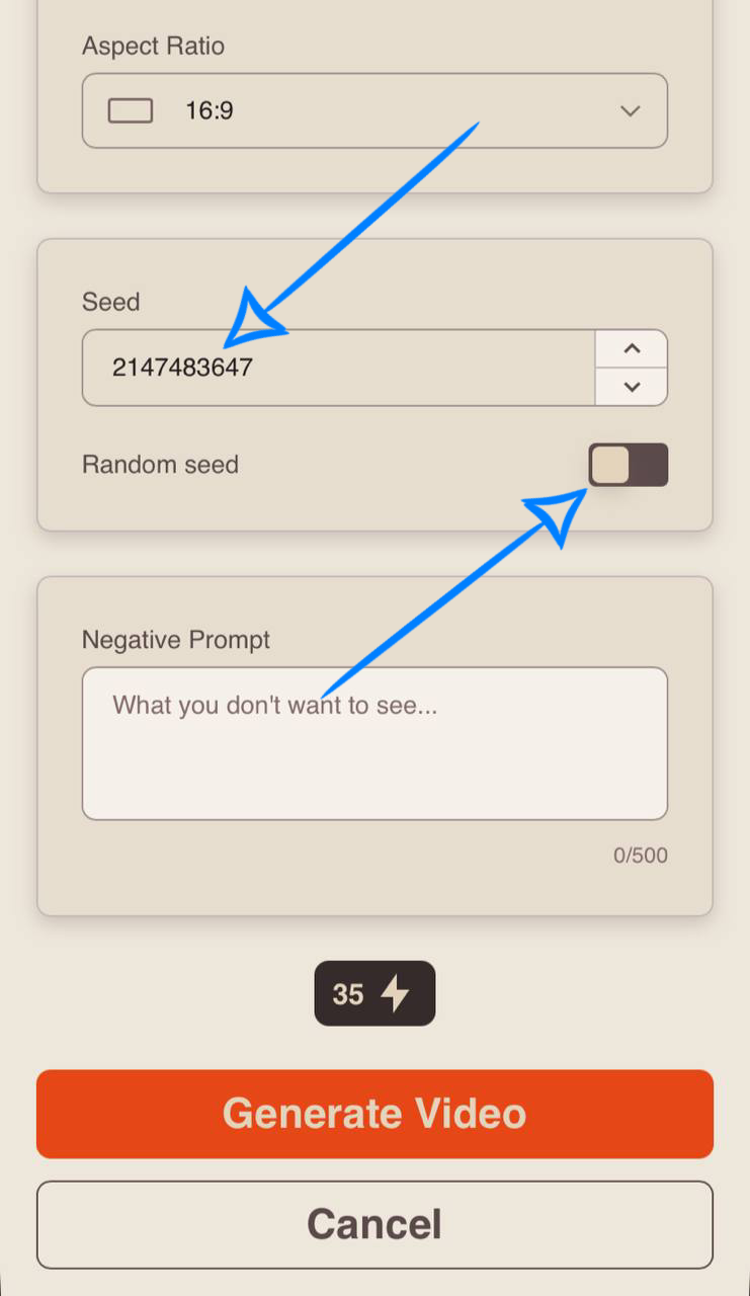
If your goal is not to create a similar video, it is recommended to enable the “Random Seed” option.
In this case, each generation will use a new Seed value, producing unique results that differ from previous generations. This allows the model to create a wider variety of scenes, compositions, and visual details with every new generation.
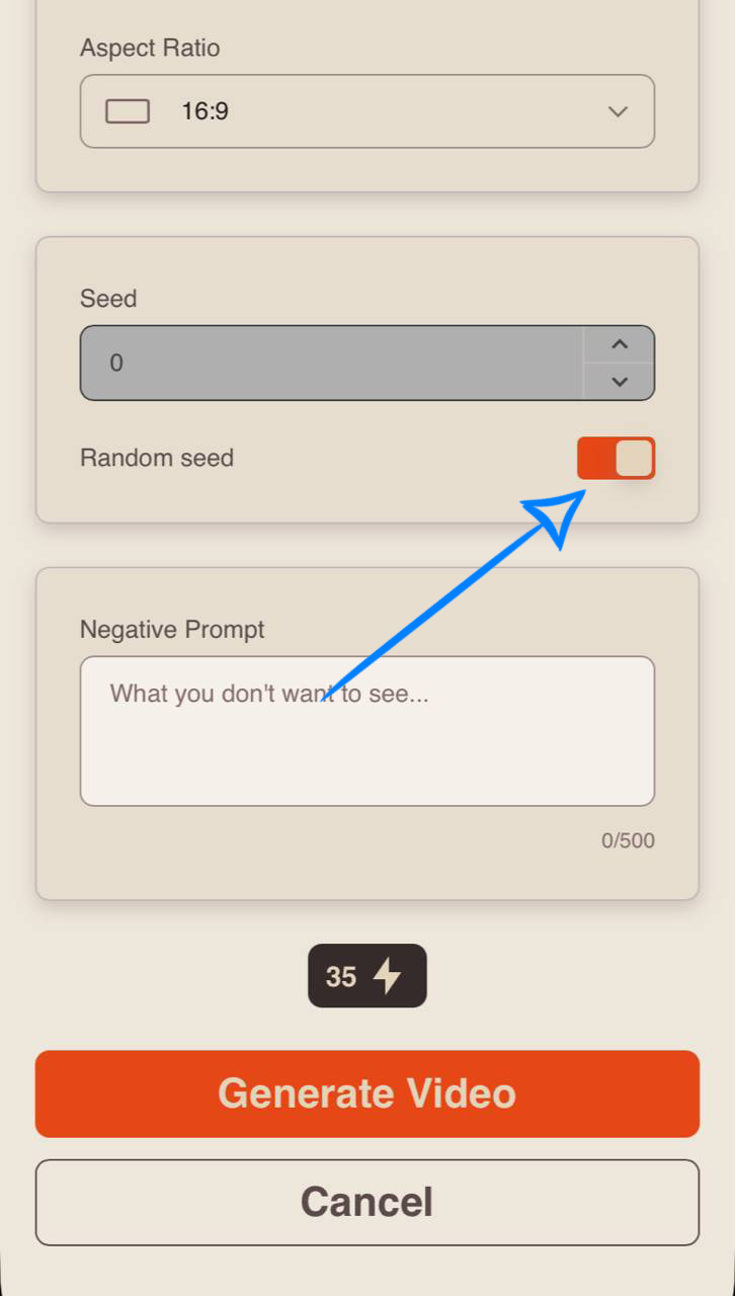
Negative Prompt
This setting allows you to specify elements that should not appear in the generated video, such as blur, black backgrounds, visual distortions, artifacts, or cartoon-style visuals.
Filling out this field is optional, but it can help further refine the final result.
❣️ Maximum negative prompt length: 500 characters.
Once all settings have been configured, click “Generate Video” to start the video generation process.
❣️ Please note: Wan automatically generates and adds audio to videos in all available generation modes.
Working with Multiple Images
After uploading your images, click “Configure and Start” and set the appropriate parameters for your generation.
Model Settings
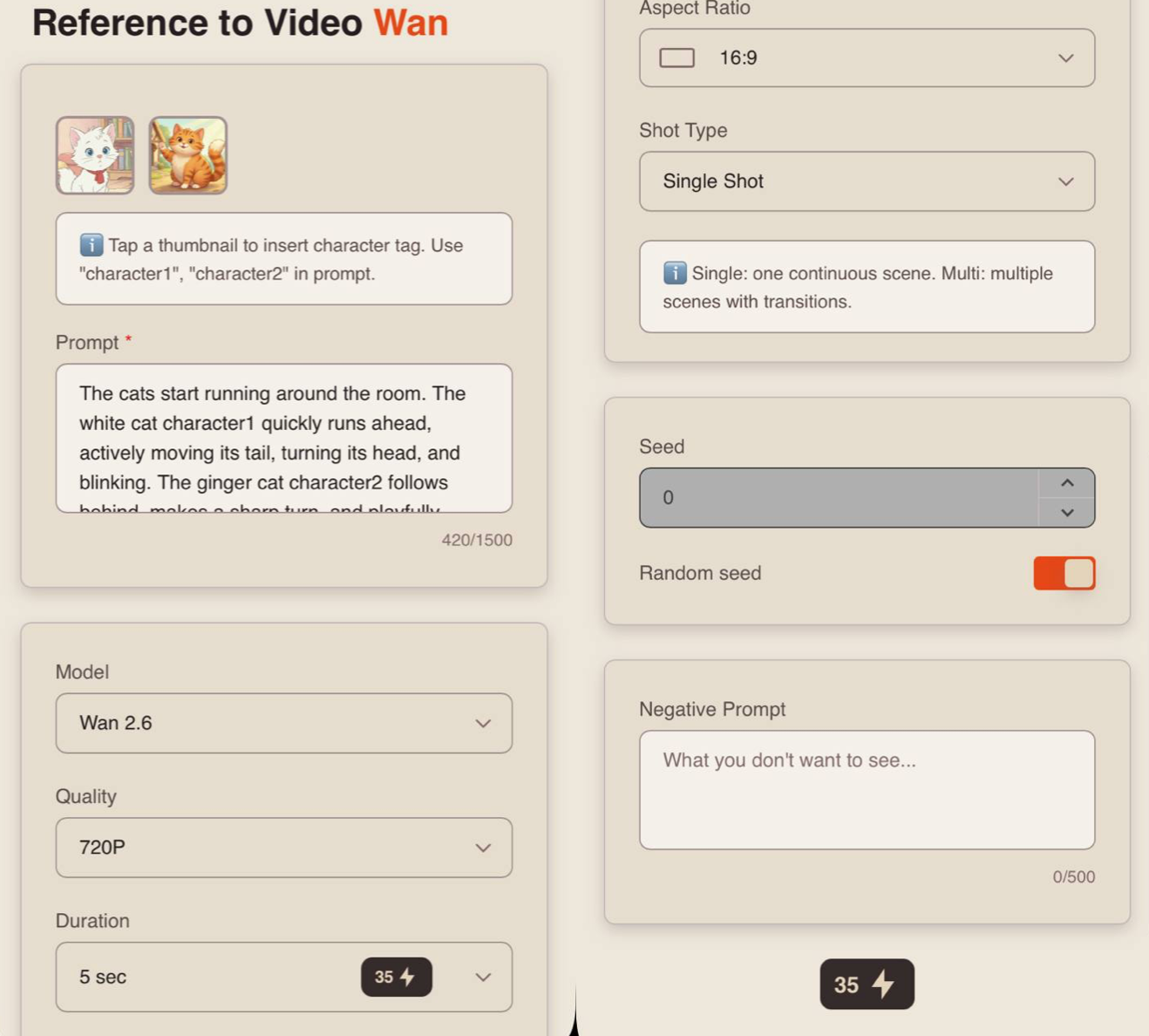
Prompt
To achieve the best results when working with multiple image references, it is recommended to provide a prompt, as it helps the model better understand your idea and generate a more accurate video.
In your prompt, clearly describe the result you would like to achieve.
A well-structured prompt should include:
- Main Subject and Action: describe who or what appears in the scene and what the subject is doing.
- Environment and Time of Day: specify the location and lighting conditions (daytime, sunset, night, etc.) to establish the atmosphere of the scene.
- Style and Mood: indicate the desired visual style (realistic, cinematic, anime, etc.) and the overall emotional tone of the video.
Example:
“The cats start running around the room. The white cat character1 quickly runs ahead, actively moving its tail, turning its head, and blinking. The ginger cat character2 follows behind, makes a sharp turn, and playfully jumps. The cats chase each other around the room, occasionally stopping, looking around, and moving their ears and tails. Their movements appear lively and natural, creating a dynamic and playful scene.”
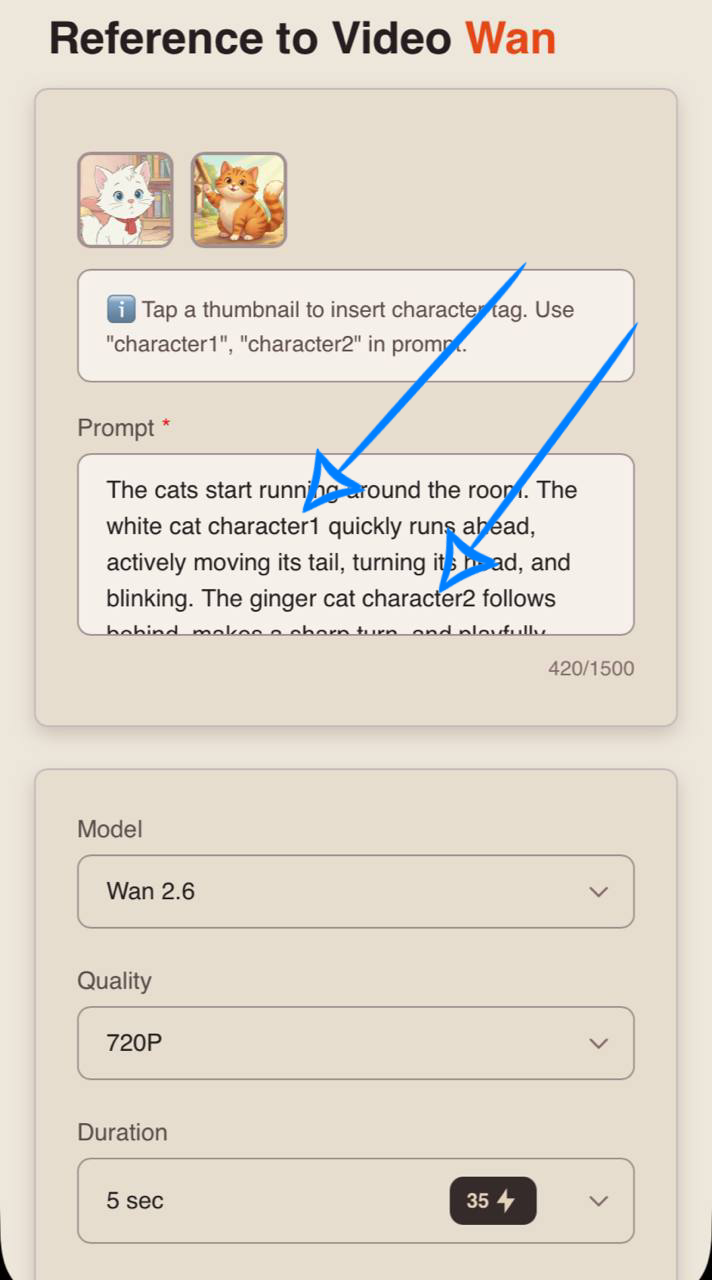
Tag System
The main feature when working with multiple image references is the character tag system.
To insert a tag into your prompt, simply click on the thumbnail of the desired image. The corresponding tag will be automatically added to the prompt field.
This helps the model better understand which image should be used for a specific character or part of the scene, resulting in more accurate and consistent generations.
Example:
“The cats start running around the room. The white cat character1 quickly runs ahead, actively moving its tail, turning its head, and blinking. The ginger cat character2 follows behind, makes a sharp turn, and playfully jumps. The cats chase each other around the room, occasionally stopping, looking around, and moving their ears and tails. Their movements appear lively and natural, creating a dynamic and playful scene.”
Model
When working with multiple image references, you can choose from two available models:
Wan 2.6: a flagship video generation model with high detail and accurate prompt understanding. It delivers realistic animation, high-quality motion, and excellent preservation of scene details.
Wan 2.6 Flash: a faster version of Wan 2.6 designed for quicker and more cost-effective generations. It retains the key capabilities of the flagship model, including strong prompt understanding and image reference support, while being optimized for faster generation speeds.
Quality
When generating videos from multiple image references, you can choose from two quality options:
• 720p A medium video resolution that provides a good balance between video quality and file size. This format has become a popular standard for online video platforms, including YouTube, delivering a clear image that is comfortable to watch on most modern devices and medium-sized screens.
• 1080p A high-quality video format that offers excellent detail and sharpness. It is ideal for viewing on large displays and televisions. While it requires a faster internet connection and more storage space, it provides the highest level of visual clarity and detail.
Duration
When working with multiple image references, you can select a video duration from 2 to 10 seconds.
Aspect Ratio
When generating videos from multiple image references, you can choose from three available aspect ratios:
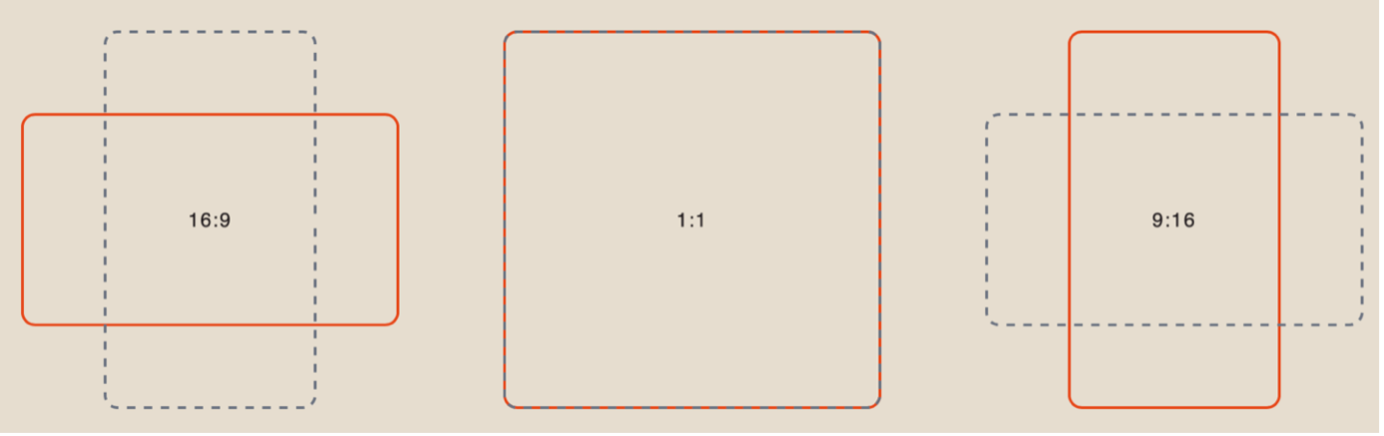
❣️ Please note: If the selected aspect ratio does not match the format of the uploaded images, the model will automatically crop the images to fit the chosen dimensions.
Shot Type
When working with multiple image references, the Shot Type setting becomes available.
Single Shot: The video consists of one continuous scene without transitions.
Multi Shot: The video contains multiple scenes with transitions between them.
Seed
The Seed setting allows you to generate identical or highly similar results when running the same generation multiple times with the same prompt and settings.
If you like a generated video and want to create a similar version while changing or adding certain details, the Seed feature can be especially useful.
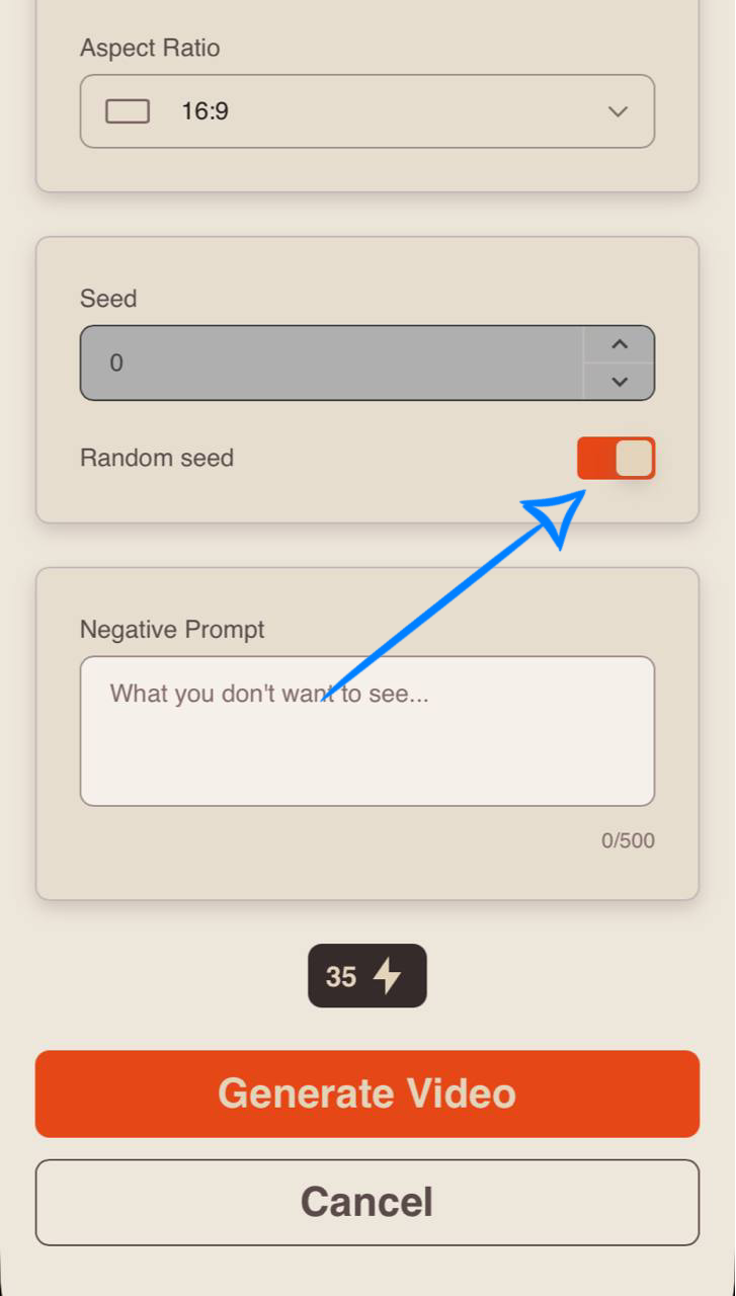
You can copy the Seed value from the description of a video you like and reuse it to recreate a similar result with your desired modifications. To do this, disable the “Random Seed” option and paste the copied Seed value into the corresponding field.
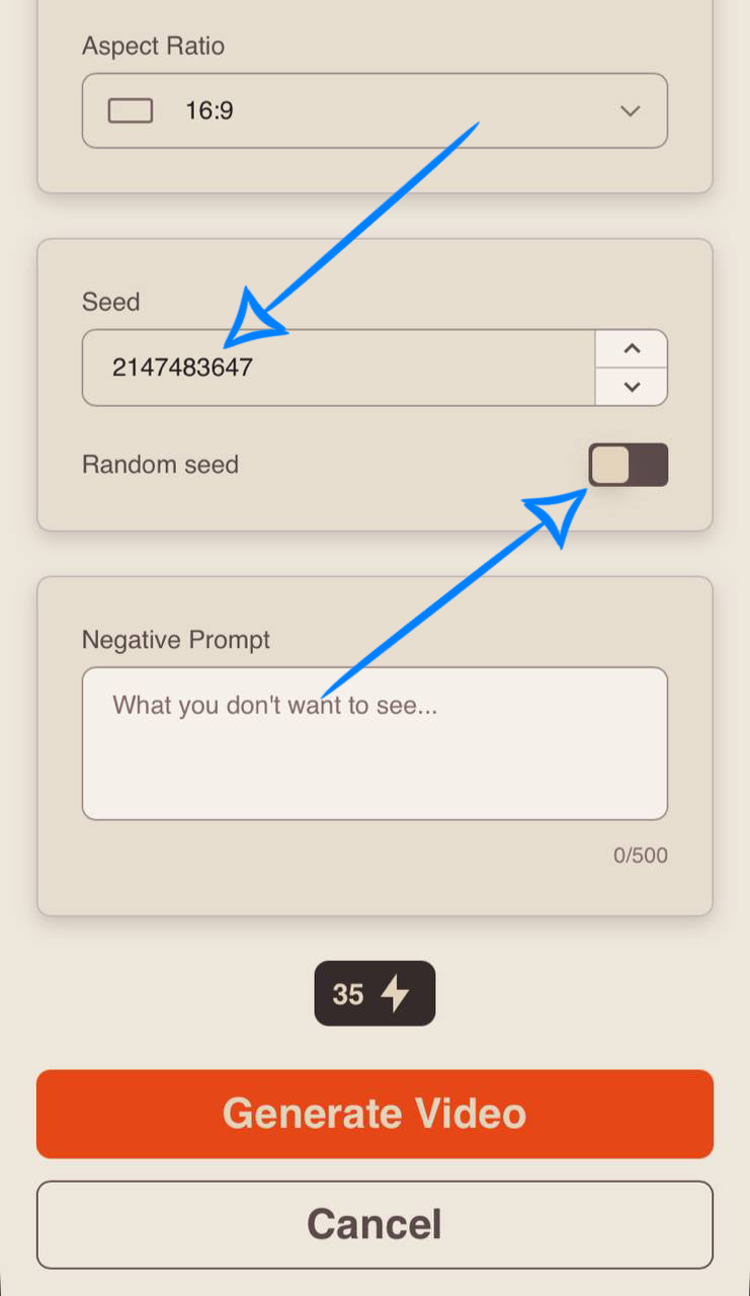
If your goal is not to create a similar video, it is recommended to enable the “Random Seed” option.
In this case, each generation will use a new Seed value, producing unique results that differ from previous generations. This allows the model to generate a wider variety of scenes, compositions, and visual details with every new generation.
Negative Prompt
This setting allows you to specify elements that should not appear in the generated video, such as blur, black backgrounds, visual distortions, visual artifacts, or cartoon-style visuals.
Filling out this field is optional, but it can help further refine the final result.
❣️ Maximum negative prompt length: 500 characters.
Once all settings have been configured, click “Generate Video” to start the video generation process.
❣️ Please note: Wan automatically generates and adds audio to videos in all available generation modes. No additional audio settings are required.
💥 Step-by-Step Guide to Using Wan “Video Reference Generation”
When working with video references, the first step is to upload your files correctly.
❣️ When using video references, you can upload up to 3 video files.
The total number of references cannot exceed 5 files.
Possible upload combinations:
- If you upload 3 videos, you can add up to 2 images.
- If you upload 2 videos, you can add up to 3 images.
- If you upload 1 video, you can add up to 4 images.
❣️ If you upload 5 image references, you will not be able to add any video references.
Video Upload
Technical Requirements for Videos:
- File format: MP4
- Maximum file size: 19 MB
- For the best results, it is recommended to upload high-quality video files.
Example:
Image Upload
Technical Requirements for Images:
- Supported formats: JPEG and PNG
- Maximum file size: 5 MB
- Maximum number of uploaded images: 4
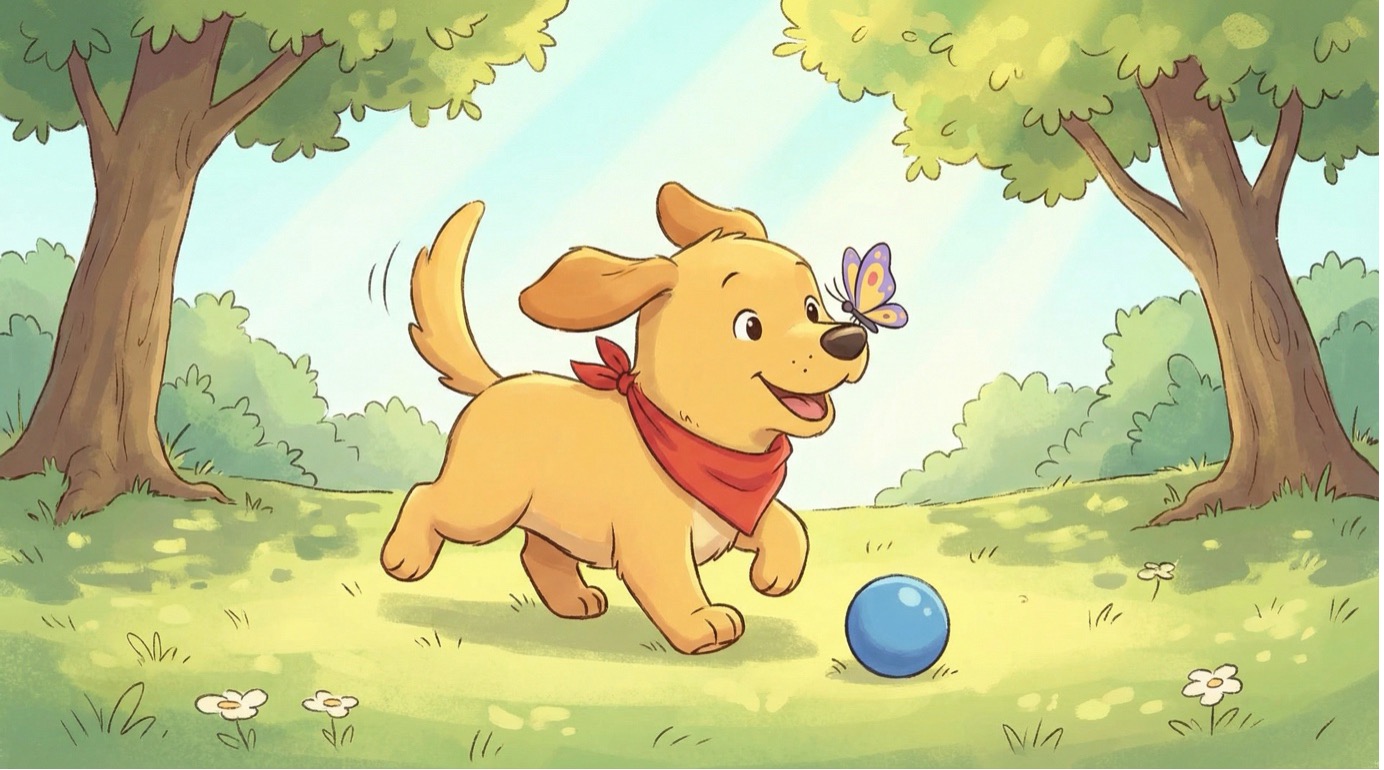
Example:
Model Settings
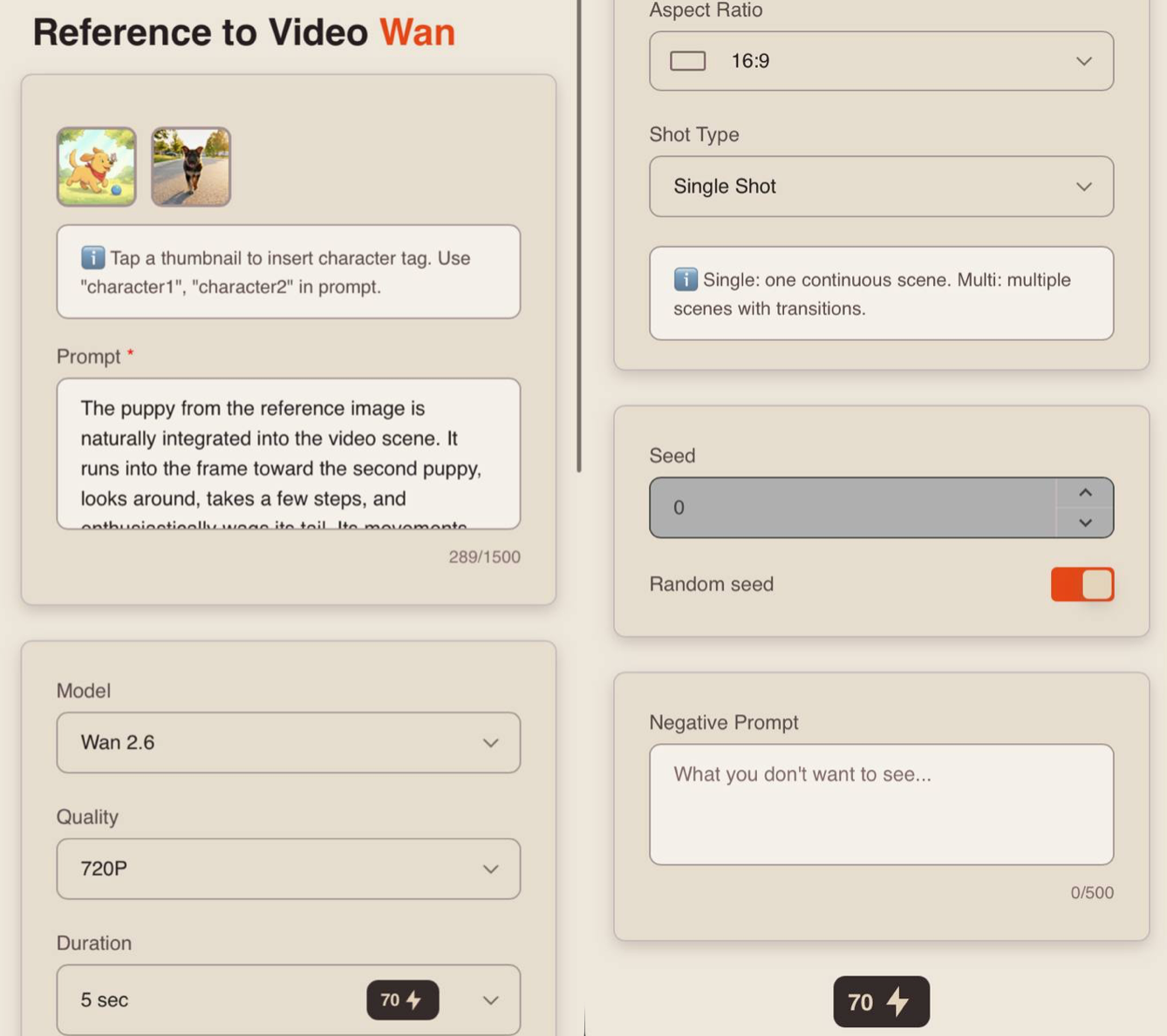
After uploading your video and image references, click “Configure and Start” and set the appropriate parameters for the upcoming generation.
Prompt
When using references, providing a text prompt is optional. However, for the best results, it is recommended to add a prompt, as it helps the model better understand your idea and generate a more accurate video.
In your prompt, clearly describe the result you would like to achieve.
A well-structured prompt should include:
- Main Subject and Action: describe who or what appears in the scene and what the subject is doing.
- Environment and Time of Day: specify the location and lighting conditions (daytime, sunset, night, etc.) to establish the atmosphere of the scene.
- Style and Mood: indicate the desired visual style (realistic, cinematic, anime, etc.) and the overall emotional tone of the video.
Example:
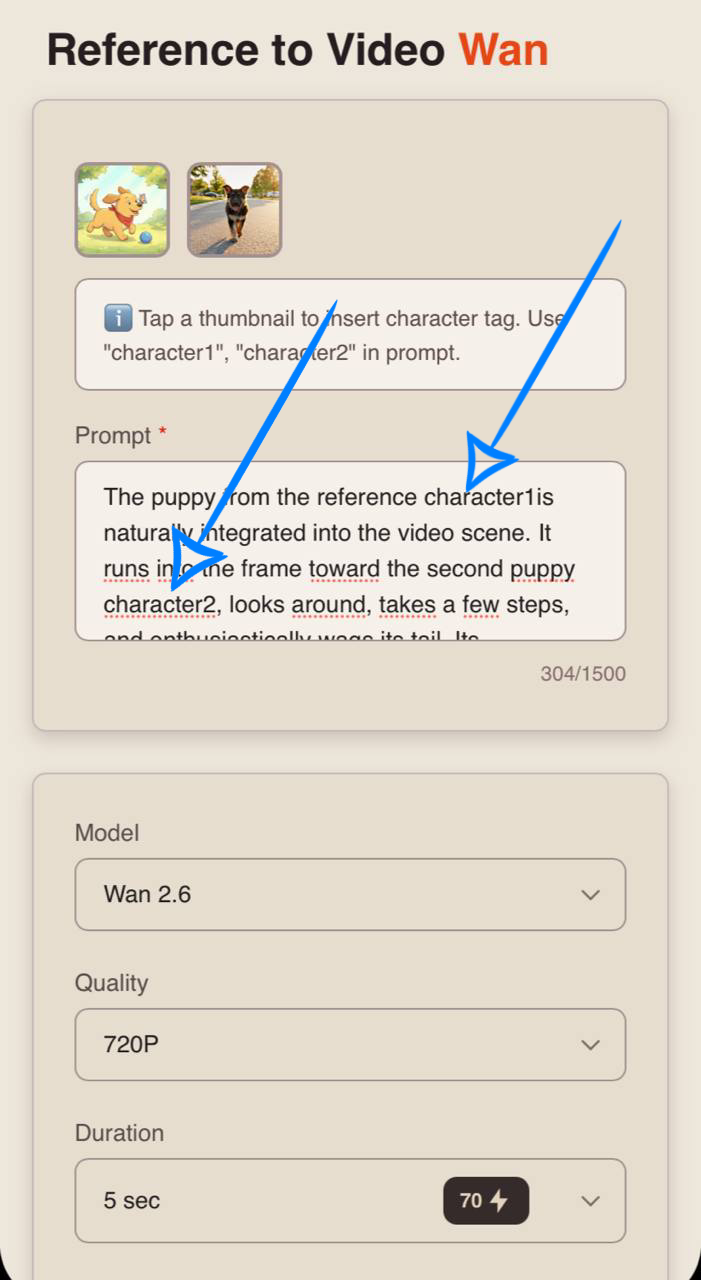
“The puppy from the reference image is naturally integrated into the video scene. It runs into the frame toward the second puppy, looks around, takes a few steps, and enthusiastically wags its tail. Its movements appear natural and blend seamlessly with the events taking place in the video.”
Tag System
One of the key features when working with references is the character tag system.
To insert a tag into your prompt, simply click on the thumbnail of the desired image. The corresponding tag will be automatically added to the prompt field.
This helps the model better understand which reference image should be used for a specific character or part of the scene, resulting in more accurate and consistent generations.
Example:
“The puppy from the reference image character1 is naturally integrated into the video scene. It runs into the frame toward the second puppy character2, looks around, takes a few steps, and enthusiastically wags its tail. Its movements appear natural and blend seamlessly with the events taking place in the video.”
Model
When working with video references, you can choose from two available models:
Wan 2.6: a flagship video generation model with enhanced detail and more accurate prompt understanding. It delivers more realistic animation, higher-quality motion, and better preservation of scene details.
Wan 2.6 Flash: a faster version of Wan 2.6 designed for quicker and more cost-effective generations. It retains the key capabilities of the flagship model, including strong prompt understanding and reference support, while being optimized for faster generation speeds.
Quality
When generating videos from video references, you can choose from two quality options:
• 720p
A medium video resolution that provides a good balance between video quality and file size. This format is a popular standard for online video platforms, including YouTube, and delivers a clear image that is comfortable to watch on most modern devices and medium-sized screens.
• 1080p
A high-quality video format that offers excellent detail and sharpness. It is ideal for viewing on large displays and televisions. While it requires a faster internet connection and more storage space, it provides the highest level of visual clarity and detail.
Duration
When working with video references, you can select a video duration from 2 to 10 seconds.
Aspect Ratio
When generating videos from video references, you can choose from three available aspect ratios:
❣️ Please note: If the selected aspect ratio does not match the format of the uploaded references, the model will automatically crop them to fit the chosen dimensions.
Shot Type
When working with video references, the Shot Type setting becomes available.
Single Shot: The video consists of one continuous scene without transitions.
Multi Shot: The video contains multiple scenes with transitions between them.
Seed
The Seed setting allows you to generate identical or highly similar results when running the same generation multiple times with the same prompt and settings.
If you like a generated video and want to create a similar version while changing or adding certain details, the Seed feature can be especially useful.
You can copy the Seed value from the description of a video you like and reuse it to recreate a similar result with your desired modifications. To do this, disable the “Random Seed” option and paste the copied Seed value into the corresponding field.
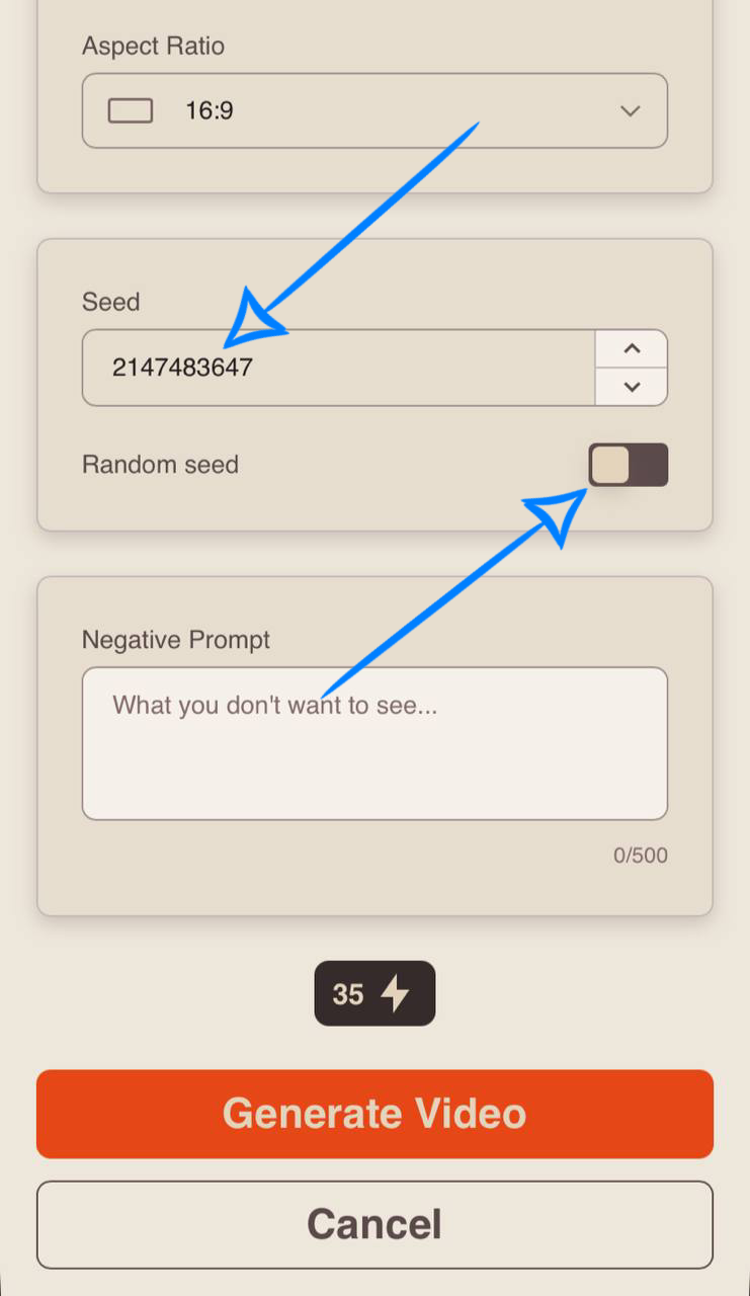
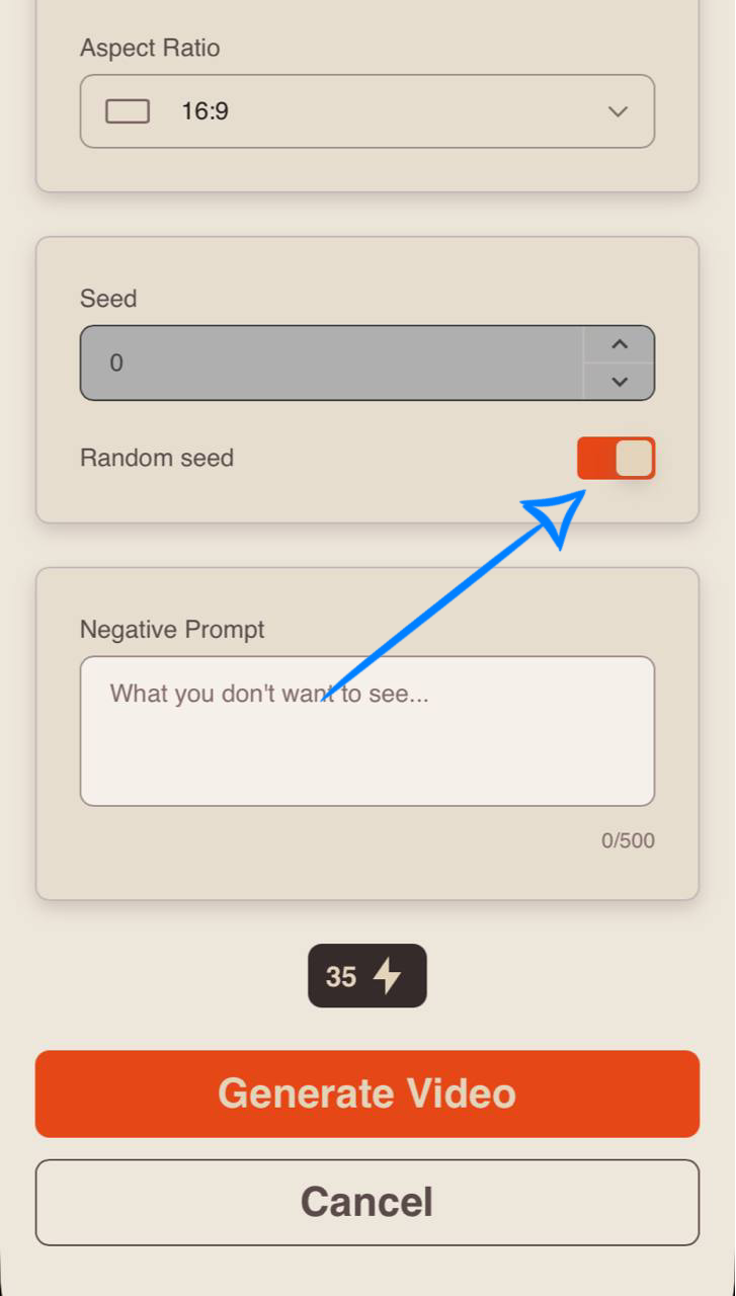
If your goal is not to create a similar video, it is recommended to enable the “Random Seed” option. In this case, each generation will use a new seed value, producing unique results that differ from previous generations.
This allows the model to generate a wider variety of scenes, compositions, and visual details with every new generation.
Negative Prompt
This setting allows you to specify elements that should not appear in the generated video, such as blur, black backgrounds, visual distortions, visual artifacts, or cartoon-style visuals.
Filling out this field is optional, but it can help further refine the final result.
❣️ Maximum negative prompt length: 500 characters.
Once all settings have been configured, click “Generate Video” to start the video generation process.
❣️ Please note: Wan automatically generates and adds audio to videos in all available generation modes. No additional audio settings are required.
💥 Step-by-Step Guide to Using Wan “Audio Reference Generation”
When working in any generation mode, you can upload an audio file. The uploaded audio will be integrated into the final video and used as background sound during playback.
Audio Upload
Technical Requirements for Audio:
- Minimum duration: 3 seconds
- Maximum duration: 15 seconds
- Supported formats: voice messages and MP3 files
Example:
You can use audio together with any generation mode: Text to Video, Image References, or Video References.
First, upload your text prompt, image reference(s), or video reference(s). Then upload the audio file that will be used as the soundtrack for the generated video.
Result
Thank you for taking the time to read this guide. We hope this information helps you make the most of Wan and achieve excellent results in your video generations.
We wish you inspiration, creativity, and success in all your future projects! 💛
SYNTX AI: Syntx AI
SYNTX Support: Syntx Support
YouTube channel “SYNTX”: Syntx YouTube
SYNTX.AI Academy: SYNTX Academy