Hailuo MiniMax 3.0 – a versatile video generation model from MiniMax for creating high-quality, dynamic videos up to 15 seconds long. The model supports video generation from text prompts and start and end frames, as well as the use of multiple images, videos, and audio files as references.
The model can generate videos at resolutions up to 2K and supports simultaneous video and audio generation. Thanks to its ability to work with multiple references, Hailuo MiniMax 3.0 can maintain consistent characters, objects, and other elements across scenes, resulting in more coherent and visually consistent videos.
- 🎛 Navigation
- 💥 Step-by-Step Guide to Using Hailuo MiniMax 3.0 “Text to Video”
- 💥 Step-by-Step Guide to Using Hailuo MiniMax 3.0 “Working with References (Omni-Reference)”
- 💥 Step-by-Step Guide to Using Hailuo 3.0 “Working with a Start Frame”
- 💥 Step-by-Step Guide to Using Hailuo 3.0 “Working with an End Frame”
- 💥 Step-by-Step Guide to Using Hailuo 3.0 “Working with Start and End Frames”
🎛 Navigation
🏠 Main Menu > 🎬 Video > 🎦 Hailuo MiniMax
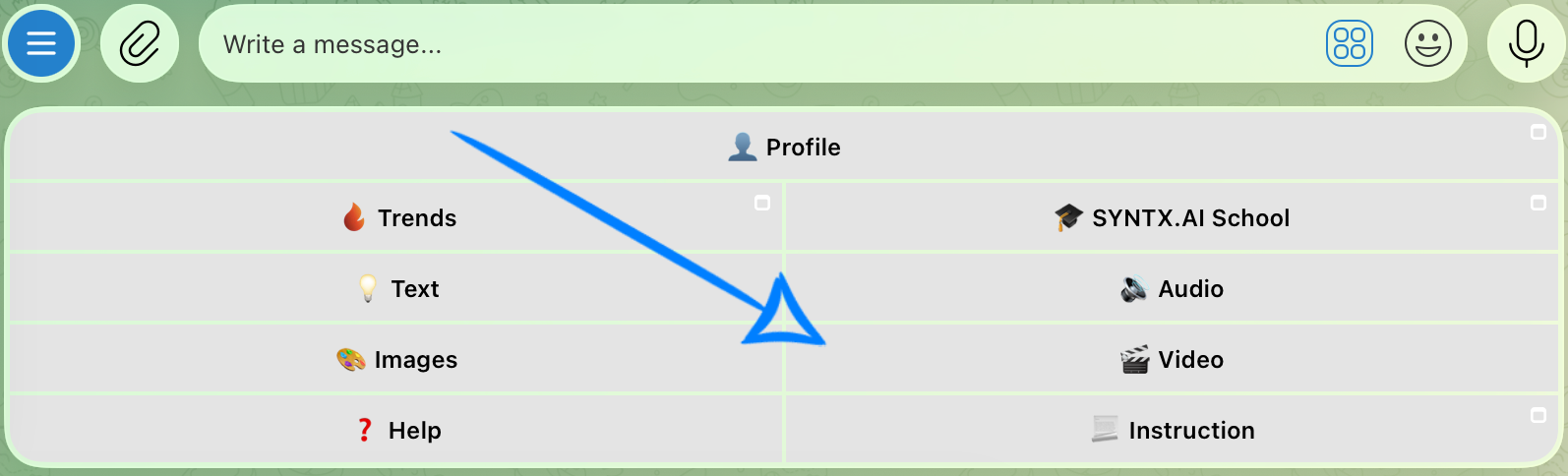
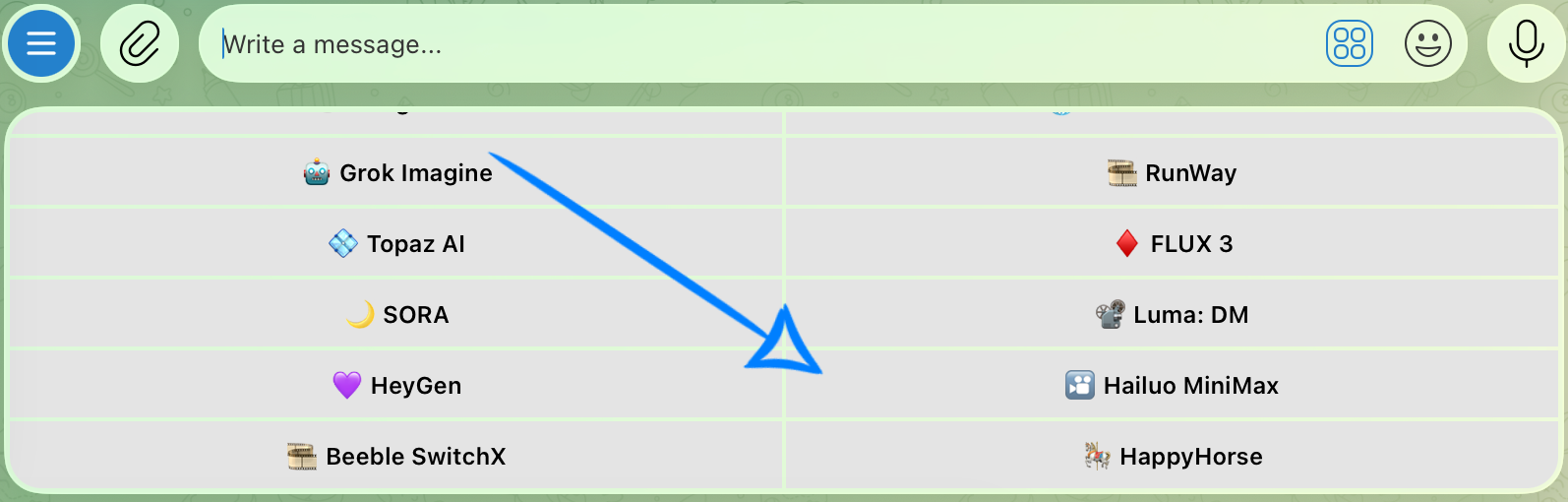
💥 Step-by-Step Guide to Using Hailuo MiniMax 3.0 “Text to Video”
First, when using the “Text to Video” feature, click the “Configure and launch” button. There, you can enter a text prompt and configure the settings for your video.
Model Settings
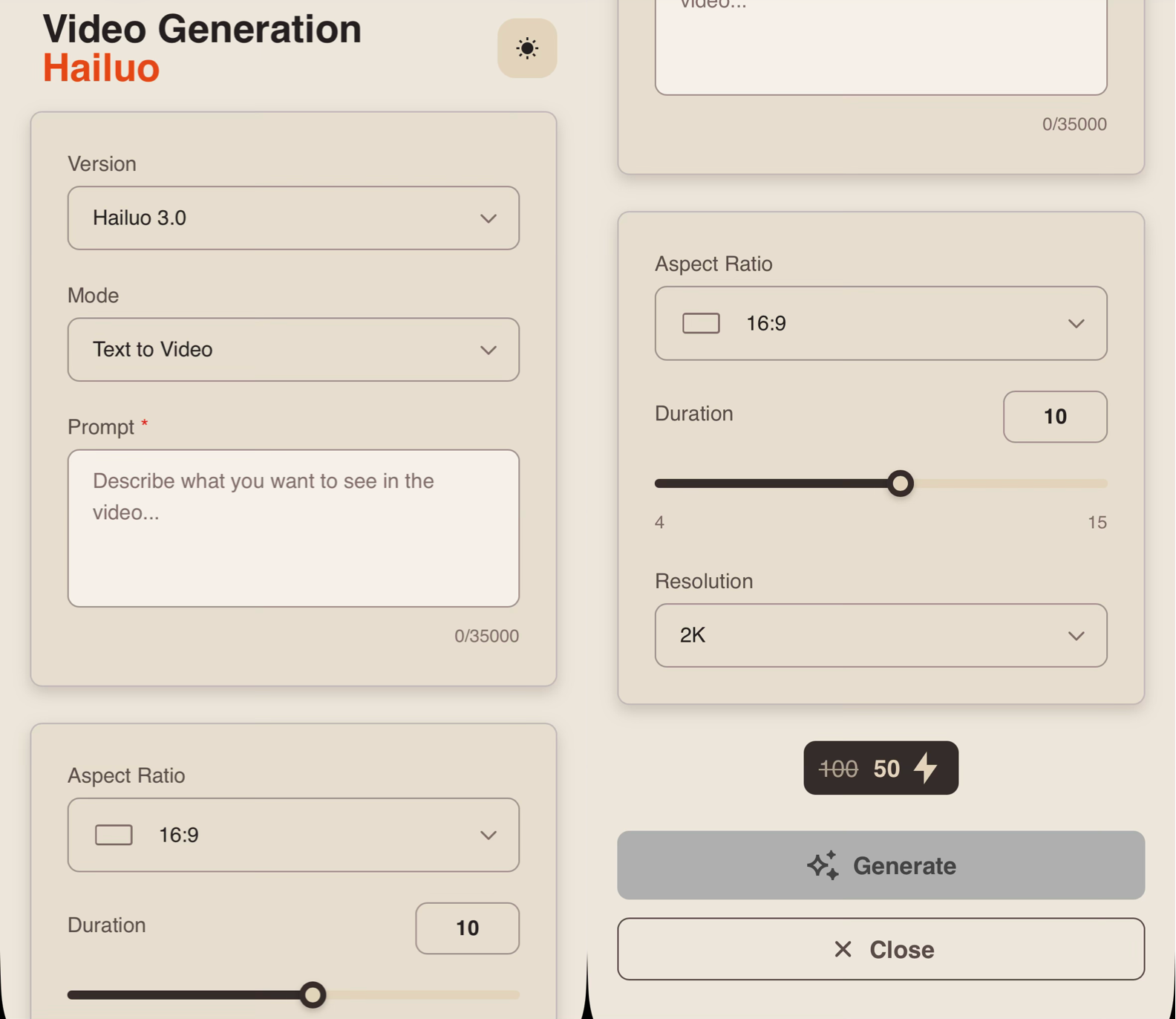
Version
This Knowledge Base explains how to work with the “Hailuo 3.0” version.
Mode
When working with Hailuo 3.0, you can choose from five available modes. To work with a text prompt only, select the “Text to Video” mode.
Text to Video – a mode for creating videos based solely on a text prompt, without using images, videos, or audio as references.
Prompt
When working in “Text to Video” mode, the text prompt is the primary source of information for the model, so it should clearly describe what should happen in the resulting video and what the scene should look like.
A good text prompt structure should include:
- Main subject or character: specify who or what appears in the frame and, if needed, describe their appearance and key characteristics.
- Action: describe what the character or object is doing and what events are taking place in the scene.
- Environment: specify the setting, time of day, weather, and important details of the surroundings.
- Camera movement: describe the desired camera angle and movement, such as zooming in, zooming out, panning, or following the character.
- Style and atmosphere: define the visual style, lighting, mood, and overall dynamics of the video.
For example:
“A young man in a black coat walks down a narrow street in Tokyo at night in heavy rain. Neon signs glow around him, cars drive along the wet pavement, and bright lights are reflected in the puddles. The man stops near an intersection and looks up at a huge advertising screen. The camera initially follows him from behind, then smoothly moves around to the side and closes in on his face. Cinematic realistic style, high-contrast neon lighting, atmospheric nighttime scene.”
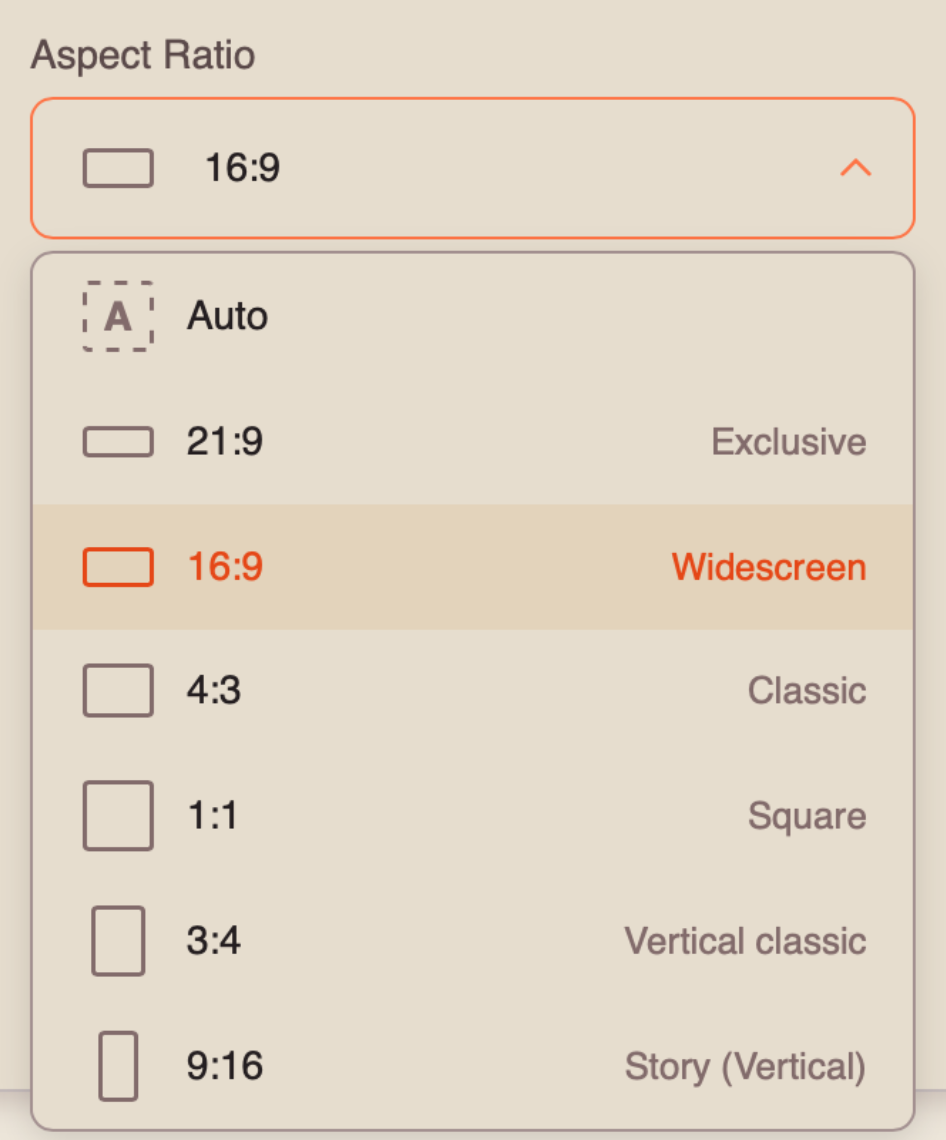
Aspect Ratio
When working in Text-to-Video mode, you can choose from 7 available aspect ratios:
Duration
You can set the duration of the resulting video from 4 to 15 seconds.
❣️ Please note that the duration is set to 10 seconds by default.
Resolution
When working with a text prompt, you can choose between two resolution options:
- 768p - standard resolution that provides good image quality with faster generation. Suitable for most everyday tasks and publishing content on social media.
- 2K - higher resolution that provides greater sharpness and detail. Recommended for videos where the quality of objects, characters, and small scene details is especially important.
Once you have entered the text prompt and configured the necessary settings, click the “Generate” button.
Generation example
💥 Step-by-Step Guide to Using Hailuo MiniMax 3.0 “Working with References (Omni-Reference)”
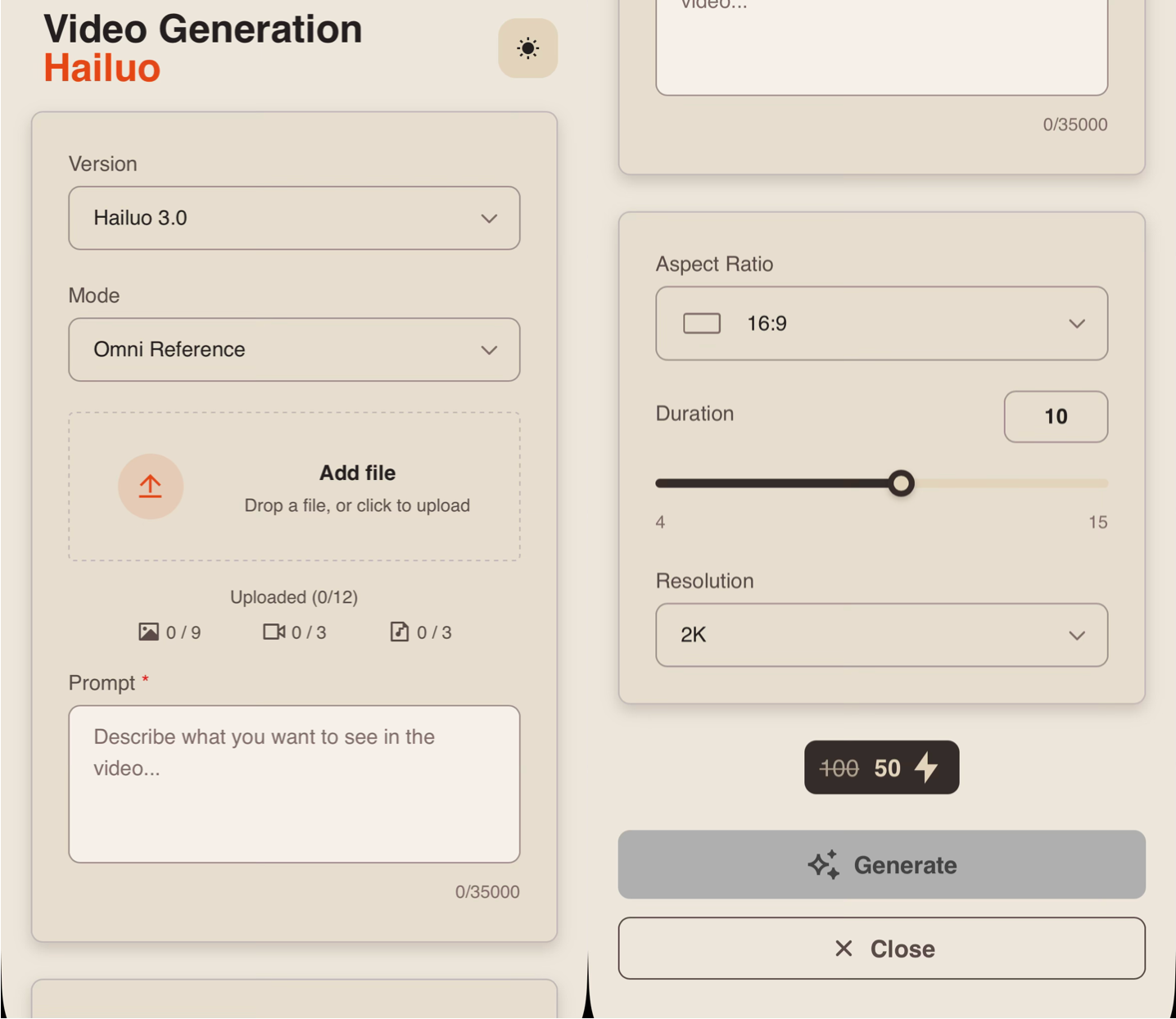
First, when working with references, click the “Configure and launch” button. There, you can upload all the required materials, enter a text prompt, and configure the settings for your video.
Model Settings
Version
This Knowledge Base explains how to work with the “Hailuo 3.0” version.
Mode
When working with Hailuo 3.0, you can choose from five available modes. To use multiple references, select the “Omni-Reference” mode.
Omni-Reference – a mode for creating videos using multiple references, including images, videos, and audio files. The model uses the uploaded materials to preserve the appearance of characters, objects, environments, movement, visual style, and audio in accordance with the text prompt.
Uploading References
The total number of references cannot exceed 12 files.
Uploading Images
Technical requirements for images:
- Supported formats: JPG, PNG, and HEIC.
- Maximum total file size: 200 MB.
- Maximum number of uploaded images: 9.
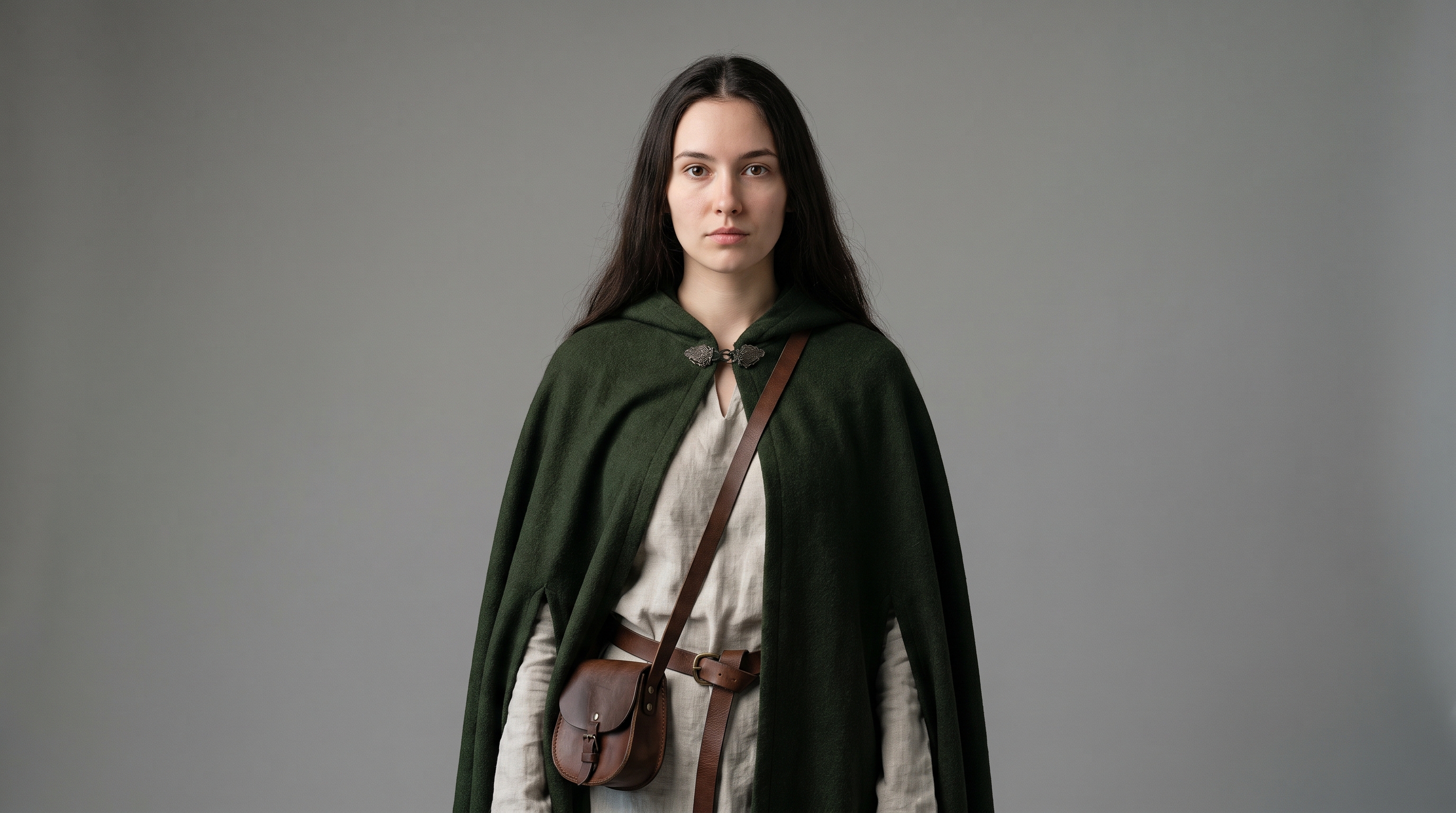
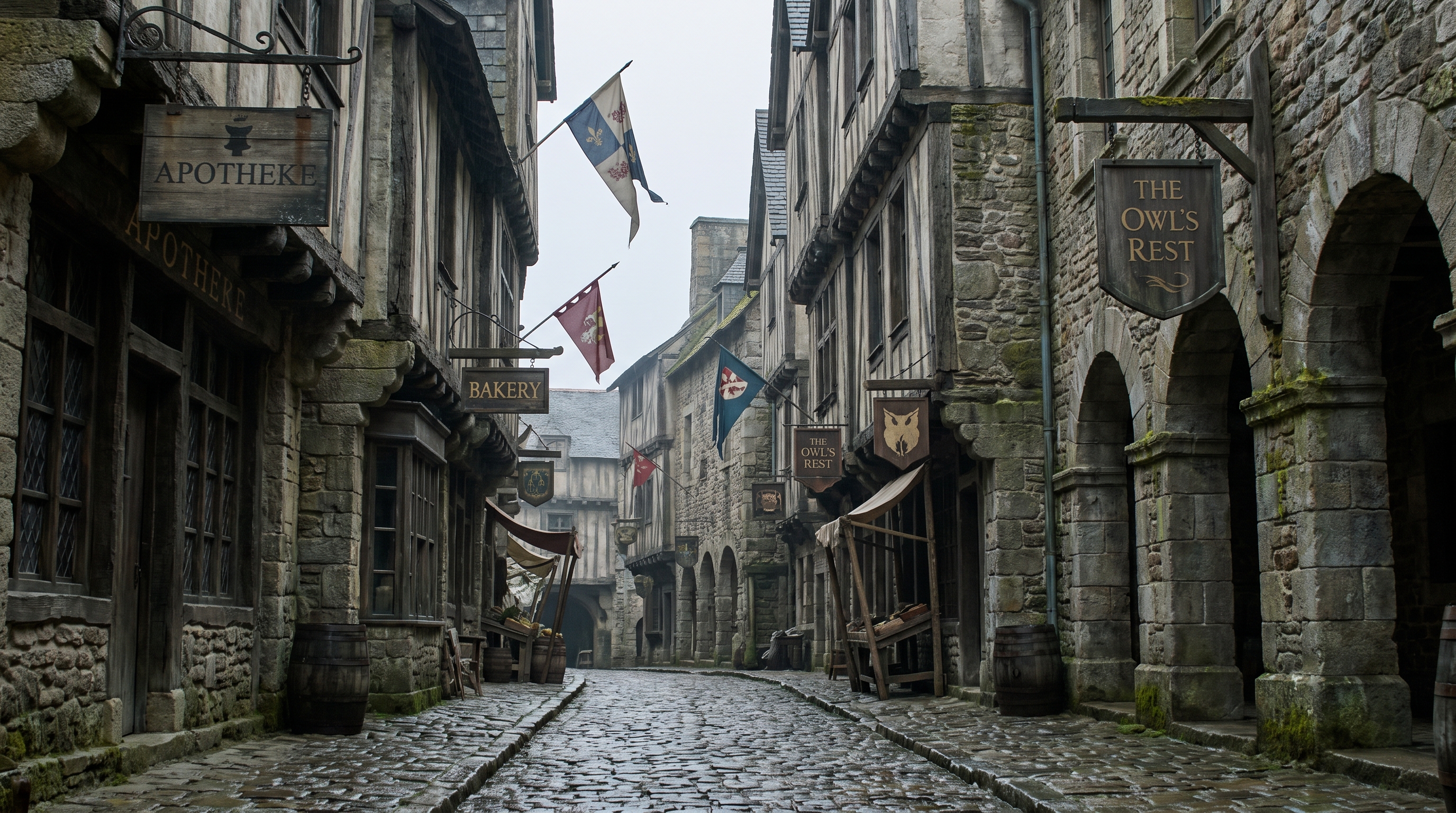
For example:
Uploading Videos
Technical requirements for videos:
- File format: MP4.
- Maximum total file size: up to 200 MB.
- Maximum number of uploaded videos: 3.
For example:
Uploading Audio
Technical requirements for audio:
- File format: MP3.
- Maximum total file size: up to 200 MB.
- Maximum number of uploaded audio files: 3.
For example:
Prompt
When working in “Omni-Reference” mode, the text prompt should describe the future scene and specify exactly how each uploaded reference should be used. For images, videos, and audio, it is recommended to define their role in the generation separately.
A good text prompt structure should include:
- Main subject and action: describe who or what appears in the frame and what actions take place in the video.
- Scene development: specify the sequence of key events and the interactions between characters and objects.
- Camera movement: specify the desired camera movement, such as zooming in, zooming out, following the character, or changing the camera angle.
- Audio: when using an audio reference, specify how and when it should be used.
- Style and atmosphere: if needed, specify the visual style, lighting, mood, and overall dynamics of the scene.
❣️ When using multiple references, we recommend clearly defining the role of each one. This helps the model understand which characteristics should be taken from each specific image, video, or audio reference and applied to the final video.
For example:
“Use the first image as a reference for the main character’s appearance and clothing, and the second as a reference for the surrounding street and location. The woman runs quickly down the street, looking back in fear. A dragon from the video reference appears in the sky behind her. Preserve its appearance, size, and movement characteristics based on the video references. The dragon flies rapidly above the street, chasing the woman and getting closer to her. The camera dynamically follows the main character from the front, then moves to the side and shows the dragon flying behind her for a few seconds. At the end of the video, while running, the woman says the line from the audio reference, preserving the voice, intonation, and content of the audio reference. In the final shot, the camera focuses on the running woman again as the dragon approaches in the background. Realistic cinematic style, tense chase atmosphere, natural movements, and dynamic camera work.”
Aspect Ratio
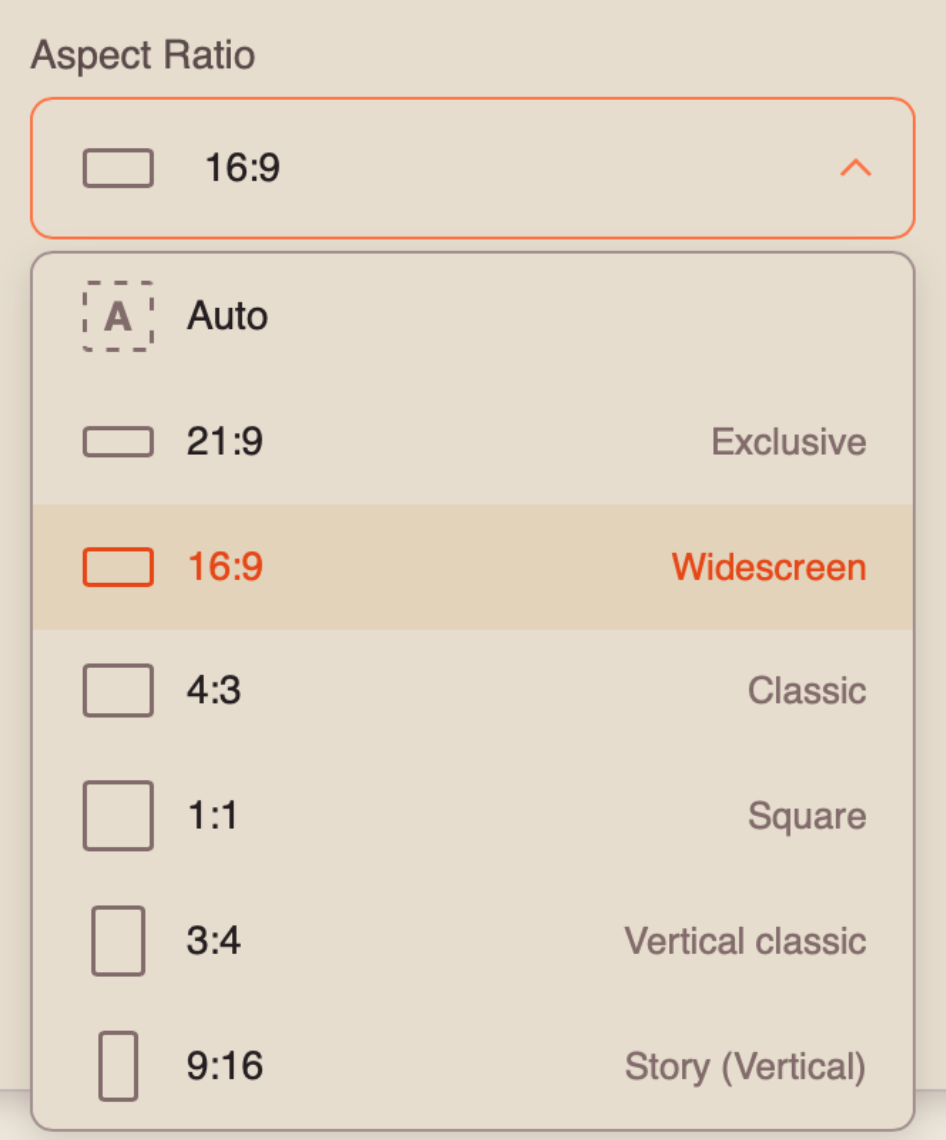
When working in “Omni-Reference” mode, you can choose from 7 available aspect ratios:
Duration
You can set the duration of the video from 4 to 15 seconds.
❣️ Please note that the duration is set to 10 seconds by default.
Resolution
When working with a text prompt, you can choose between two resolution options:
- 768p - standard resolution that provides good image quality with faster generation. Suitable for most everyday tasks and publishing content on social media.
- 2K - higher resolution that provides greater sharpness and detail. Recommended for videos where the quality of objects, characters, and small scene details is especially important.
Once you have entered the text prompt and configured the necessary settings, click the “Generate” button.
Generation example
💥 Step-by-Step Guide to Using Hailuo 3.0 “Working with a Start Frame”
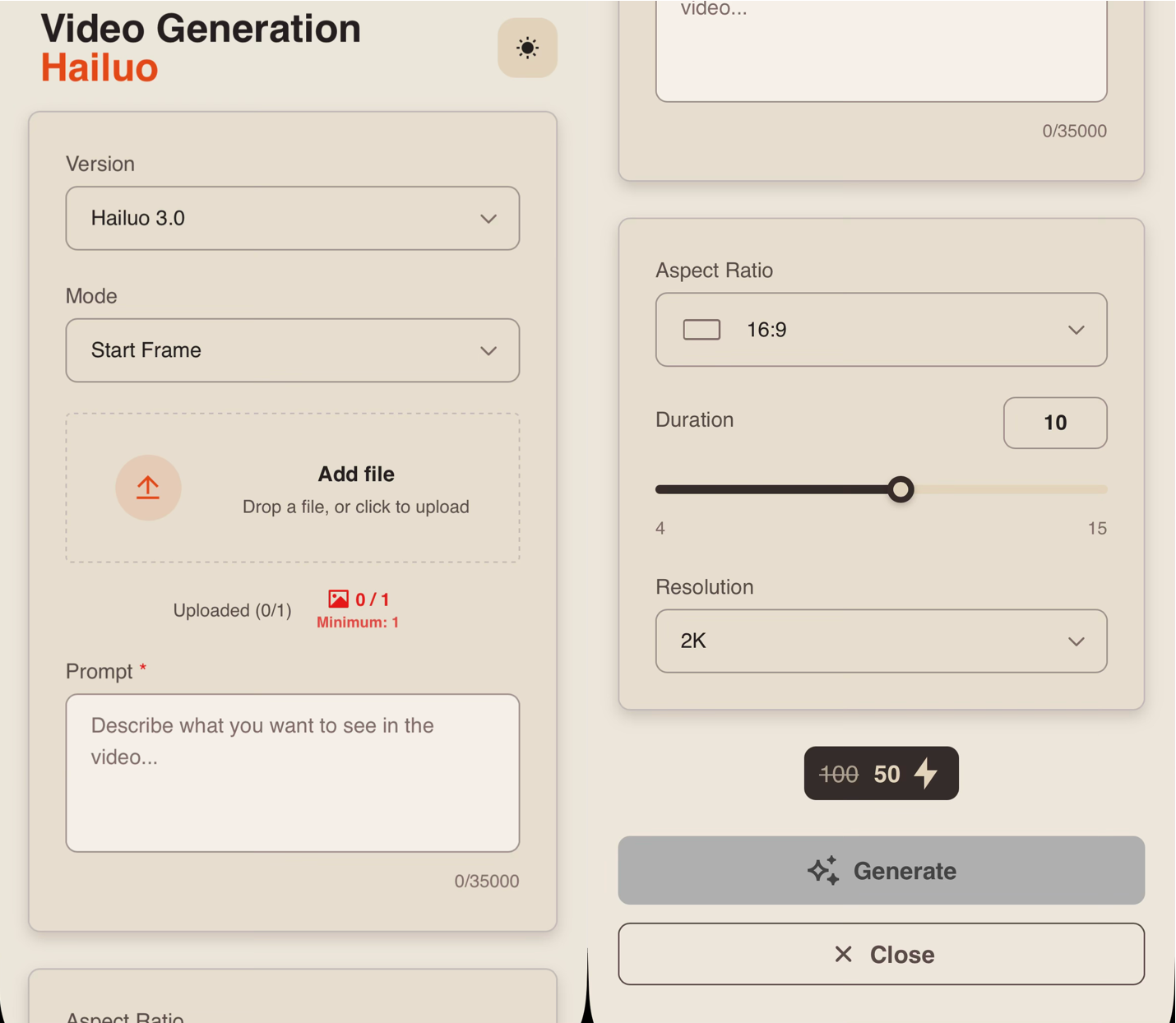
First, when working with a start frame, you need to click the “Configure and launch” button. There, you can upload the source image, add a text prompt, and configure the parameters for your future video.
Model Settings
Version
This Knowledge Base explains how to work with the “Hailuo 3.0” version.
Mode
When working with Hailuo 3.0, you can choose from five available modes. To use an image as the first frame of the video, select the “Start Frame” mode.
Start Frame – a mode for creating a video from an image used as the first frame. The model preserves the original scene and continues its development according to the specified text prompt.
Uploading an Image
Technical requirements for images:
- Supported formats: JPG, PNG, and HEIC.
- Maximum file size: 30 MB.
- Maximum number of uploaded images: 1.
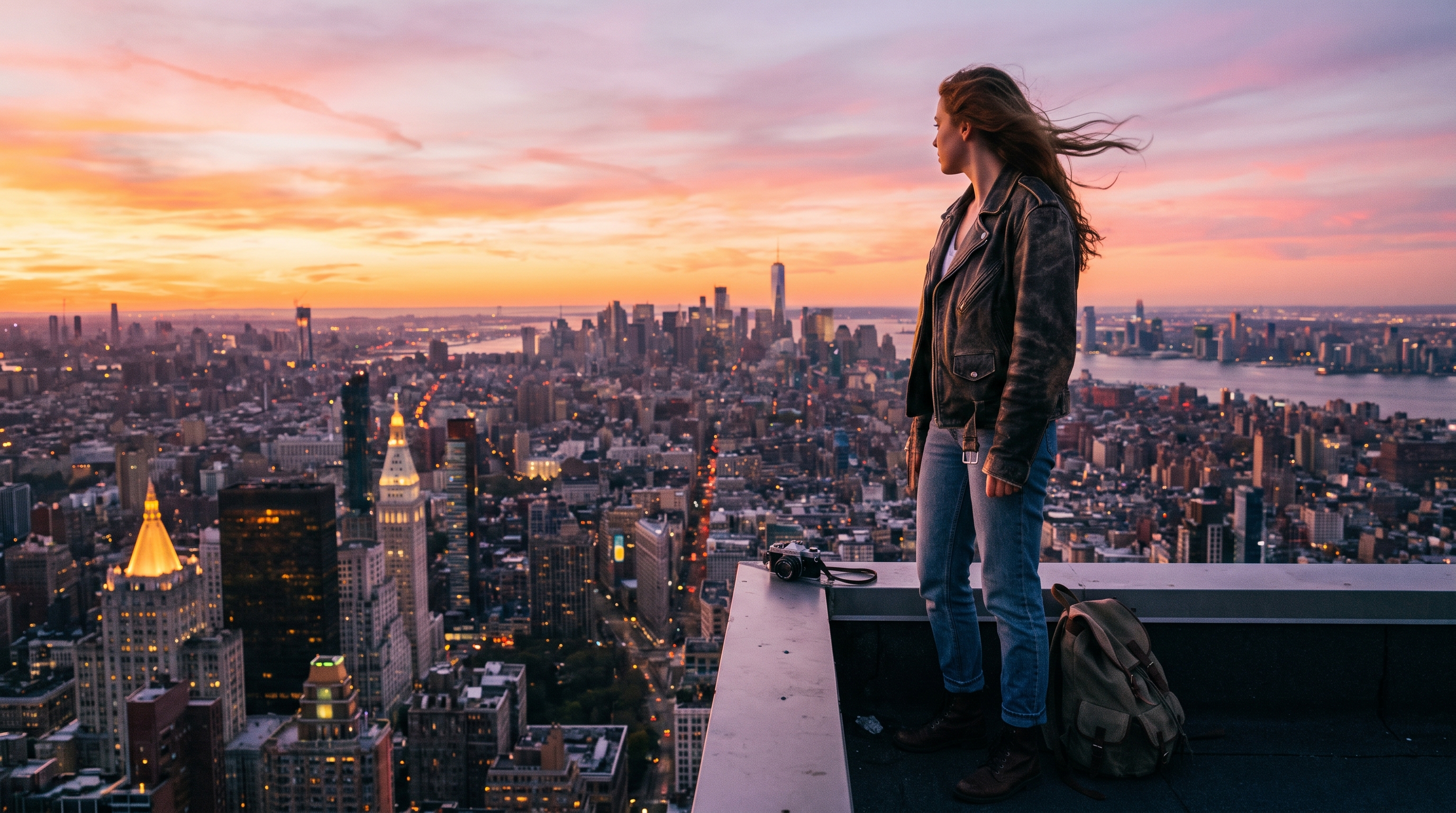
For example:
Prompt
When working with a start frame, the text prompt should describe the further development of the scene after the uploaded image.
A good text prompt structure should include:
- Action: describe what happens to the character or object after the start frame.
- Scene development: specify the sequence of key events and changes that should occur in the video.
- Camera movement: specify the desired camera movement, zooming in, zooming out, panning, following the character, etc.
- Atmosphere and dynamics: if necessary, specify the lighting, mood, movement speed, and visual effects.
❣️ It is not recommended to describe the start frame in detail again, as the model already uses the uploaded image as the beginning of the video. It is better to focus on what should happen next.
For example:
“The woman slowly approaches the edge of the rooftop, her hair and clothes blowing in the strong wind. She stops and looks at the city below. The camera smoothly follows her, then moves around the woman from the side and gradually pulls back, revealing a panoramic view of the skyscrapers. The sun slowly disappears below the horizon, and the city lights begin to turn on. Cinematic atmosphere, smooth natural movements.”
Aspect Ratio
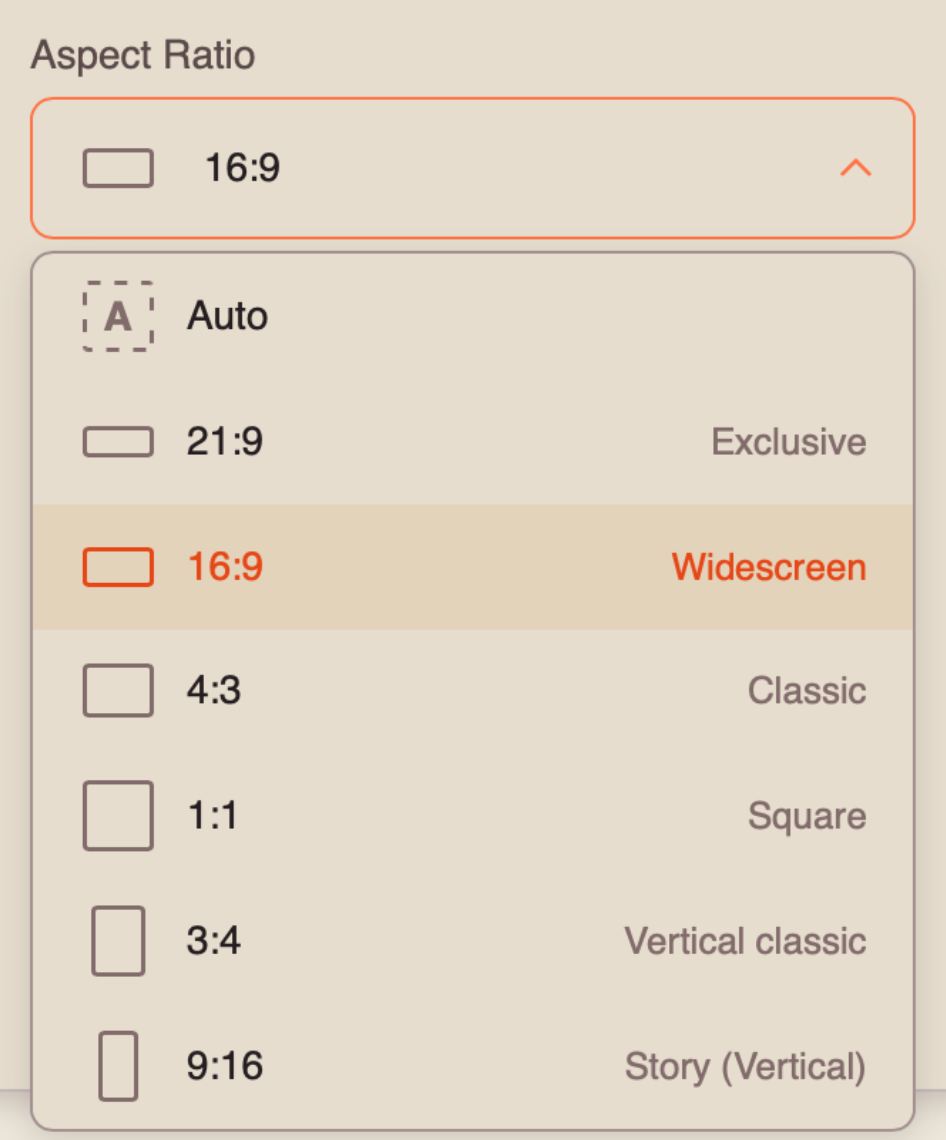
When working in “Start Frame” mode, you can choose from 7 available aspect ratios:
Duration
You can set the duration of the video from 4 to 15 seconds.
❣️ Please note that the duration is set to 10 seconds by default.
Resolution
When working with a text prompt, you can choose between two resolution options:
- 768p - standard resolution that provides good image quality with faster generation. Suitable for most everyday tasks and publishing content on social media.
- 2K - higher resolution that provides greater sharpness and detail. Recommended for videos where the quality of objects, characters, and small scene details is especially important.
Once you have entered the text prompt and configured the necessary settings, click the “Generate” button.
Generation example
💥 Step-by-Step Guide to Using Hailuo 3.0 “Working with an End Frame”
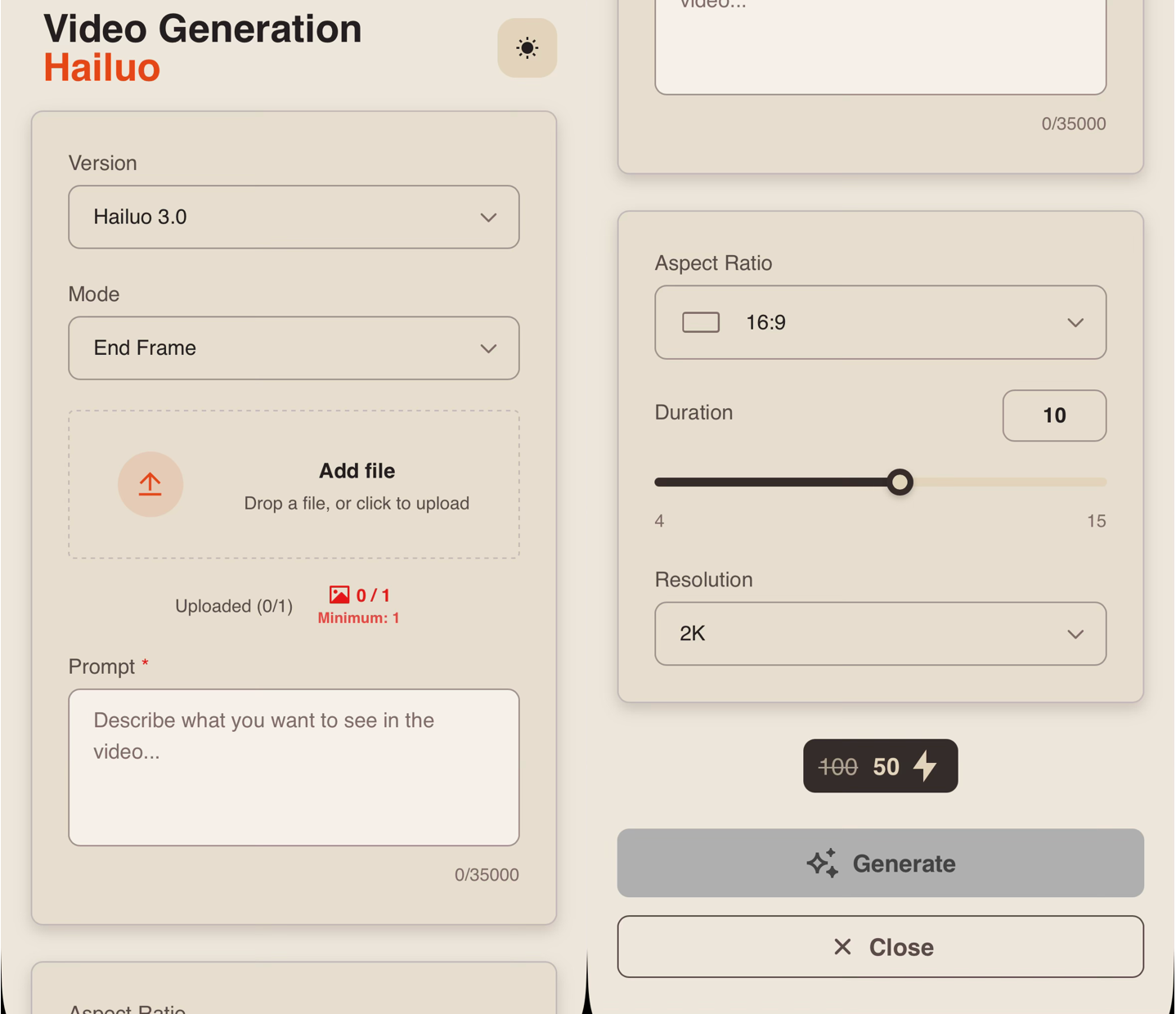
First, when working with an end frame, you need to click the “Configure and launch” button. There, you can upload the source image, add a text prompt, and configure the parameters for your future video.
Model Settings
Version
This Knowledge Base describes how to work with the “Hailuo 3.0” version.
Mode
When working with Hailuo 3.0, you can choose from five available modes. To use an image as the final frame of the video, select the “End Frame” mode.
End Frame – a mode for creating a video from an image used as the final frame. The model automatically builds the scene progression so that the events in the video lead naturally to the uploaded final image.
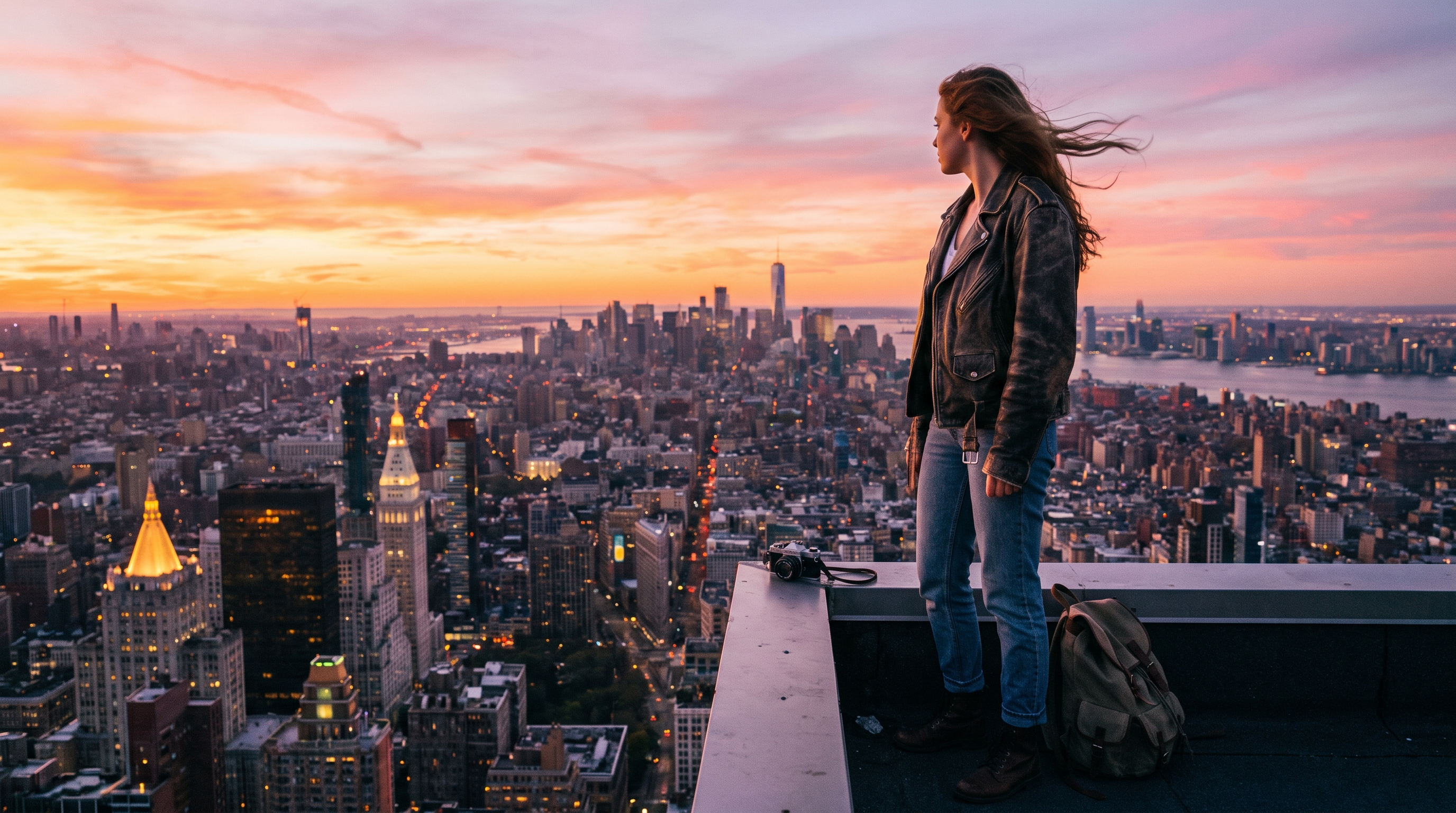
Uploading an Image
Technical requirements for images:
- Supported formats: JPG, PNG, and HEIC.
- Maximum file size: 30 MB.
- Maximum number of uploaded images: 1.
For example:
Prompt
When working with an end frame, the text prompt should describe the events that occur before the uploaded image and lead to it at the end of the video.
A good text prompt structure should include:
- Beginning of the scene: describe how the video starts and the initial positions of the characters or objects.
- Scene development: specify the sequence of key actions and changes that should lead to the final frame.
- Camera movement: specify the desired camera movement, such as zooming in, zooming out, panning, or following the character.
- Transition to the end frame: describe how the scene should gradually transition into the state shown in the uploaded image.
- Atmosphere and dynamics: if needed, specify the lighting, mood, movement speed, and visual effects.
❣️ It is not recommended to describe the final image itself in detail, as the model already uses it as the last frame of the video. Instead, focus on the events and actions that should lead to it.
For example:
“At the beginning, the woman slowly walks across the rooftop of a skyscraper toward the edge, her hair and clothes gently blowing in the wind. The camera smoothly follows her from behind, gradually moving closer. The woman approaches the edge, stops, and turns toward the city. The camera smoothly moves to the side and focuses on the woman against the backdrop of the skyscrapers. The sun descends toward the horizon, creating a warm golden light. The movement gradually slows down and naturally transitions into the end frame.”
Aspect Ratio
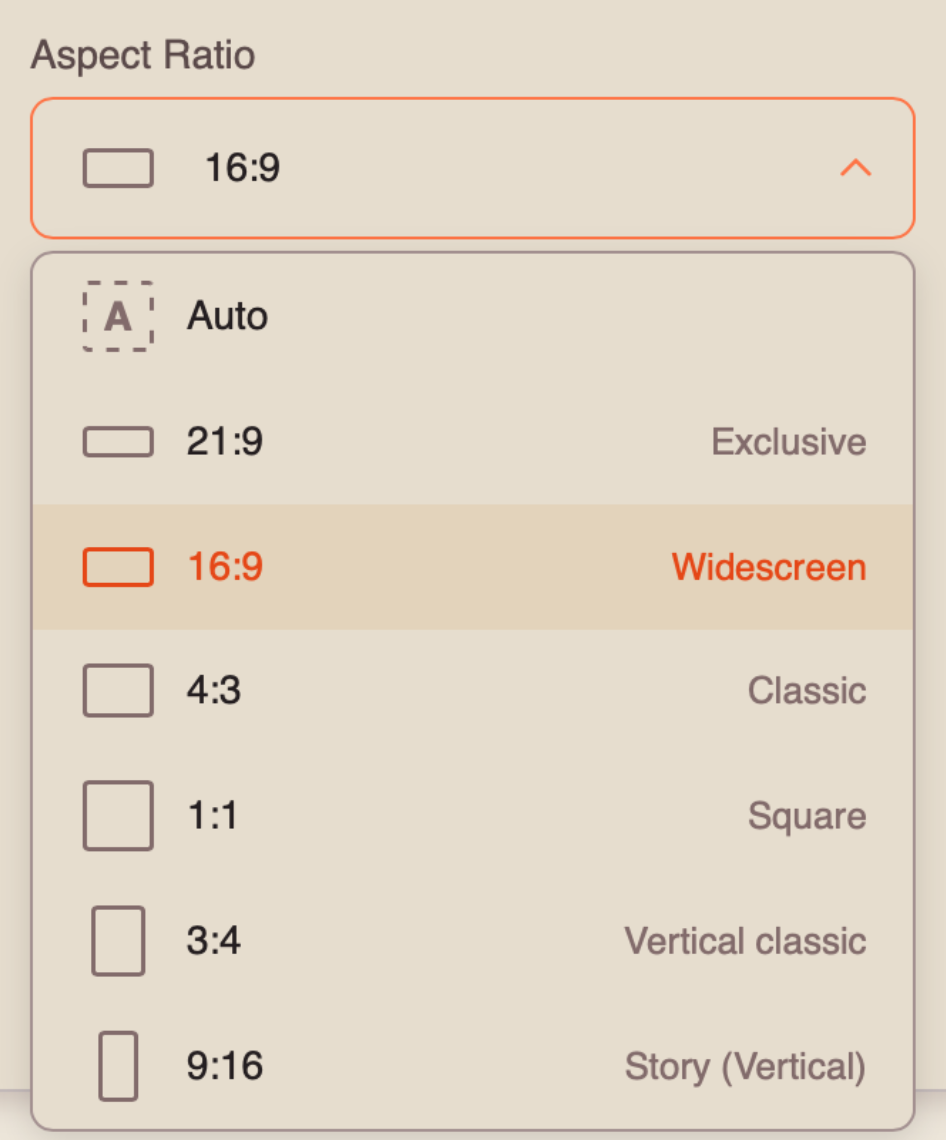
When working in “End Frame” mode, you can choose from 7 available aspect ratios:
Duration
You can set the duration of the resulting video from 4 to 15 seconds.
❣️ Please note that the duration is set to 10 seconds by default.
Resolution
When working with a text prompt, you can choose between two resolution options:
- 768p - standard resolution that provides good image quality with faster generation. Suitable for most everyday tasks and publishing content on social media.
- 2K - higher resolution that provides greater sharpness and detail. Recommended for videos where the quality of objects, characters, and small scene details is especially important.
Once you have entered the text prompt and configured the necessary settings, click the “Generate” button.
Generation example
💥 Step-by-Step Guide to Using Hailuo 3.0 “Working with Start and End Frames”
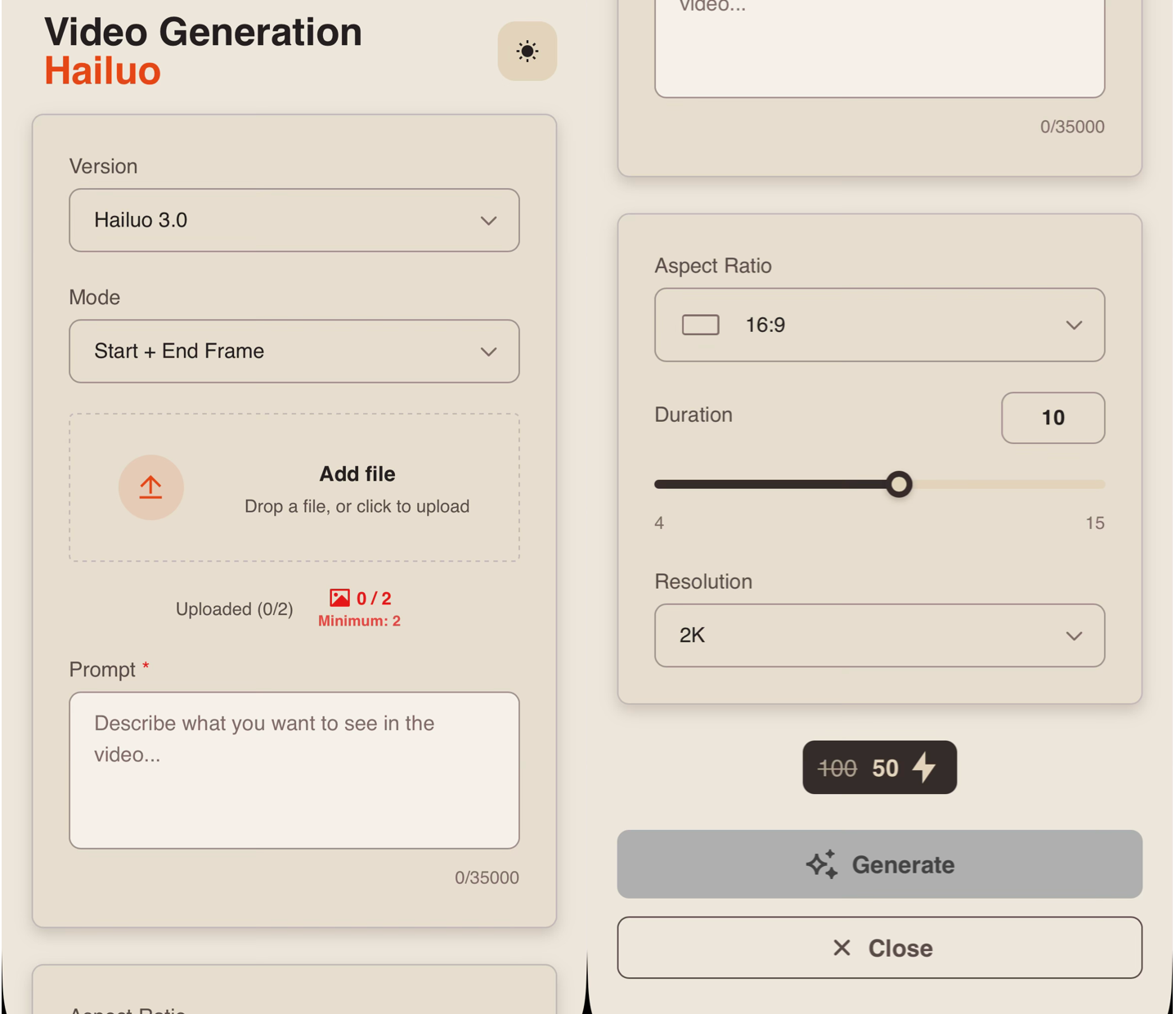
First, when working with start and end frames, you need to click the “Configure and launch” button. There, you can upload two source images, add a text prompt, and configure the parameters for your future video.
Model Settings
Mode
When working with Hailuo 3.0, you can choose from 5 available modes. To use images as the start and end frames of the video, select the “Start + End” mode.
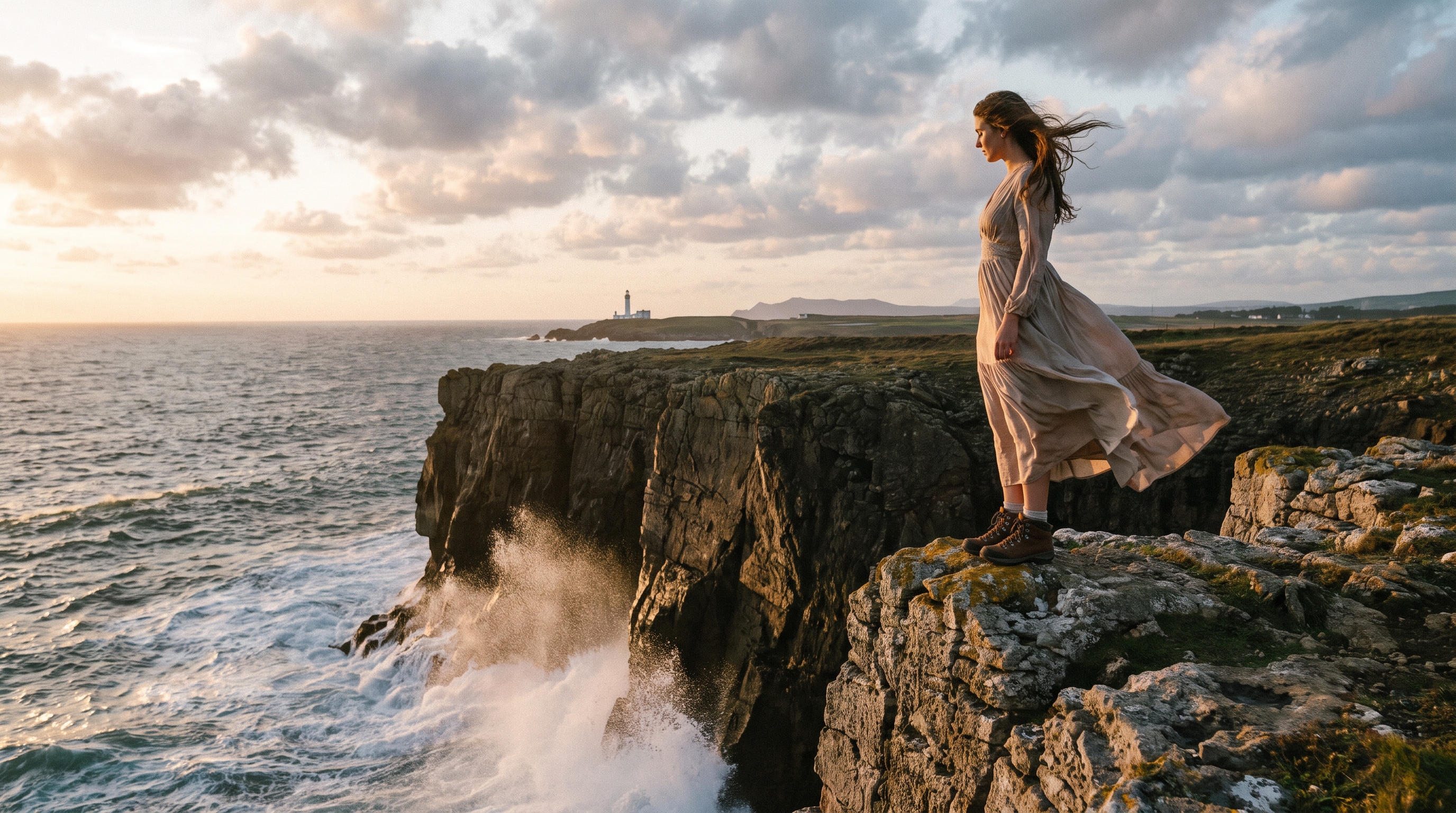
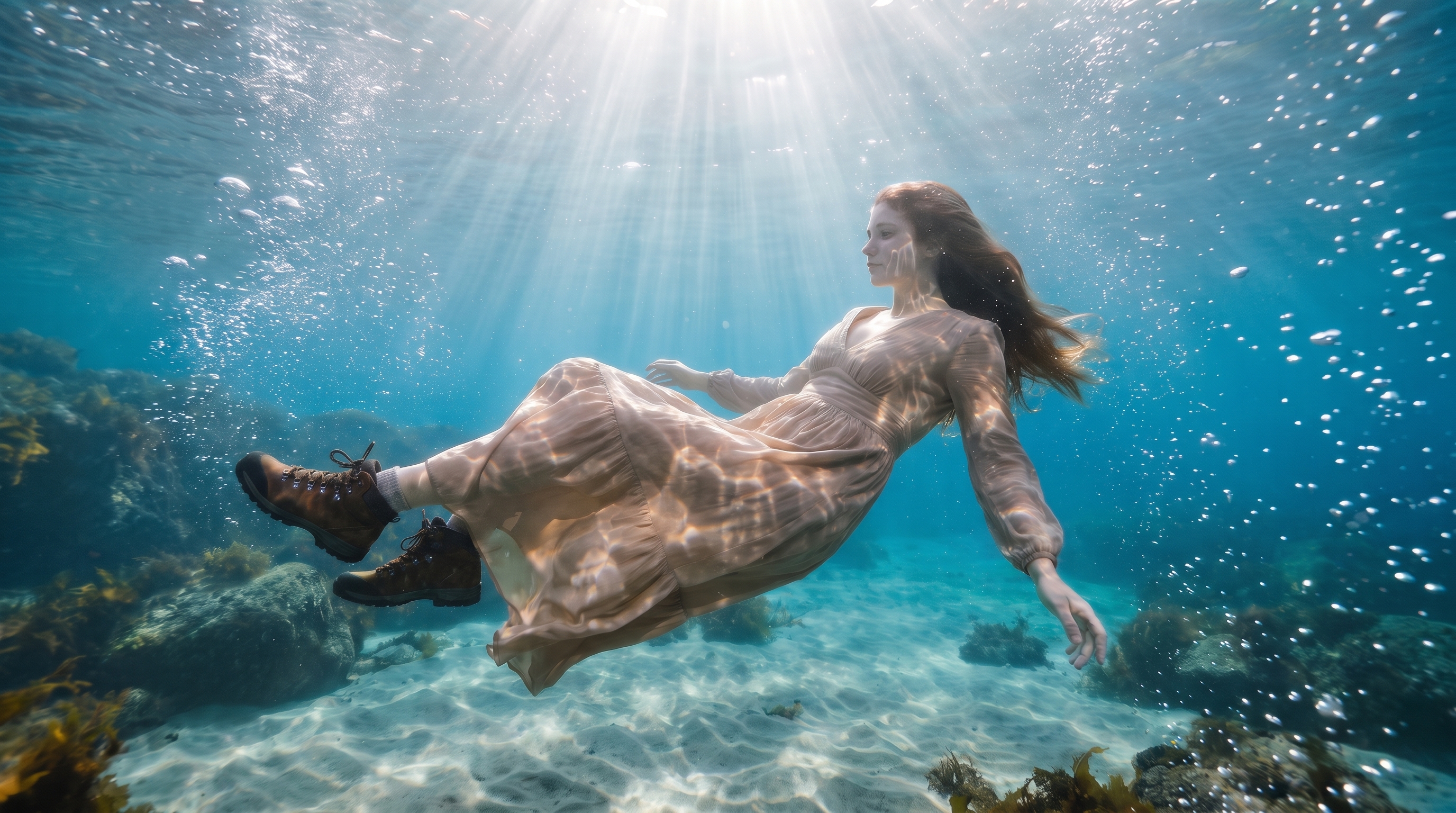
Start + End – a mode for creating a video between two specified images. The first image is used as the start frame, and the second as the end frame. The model independently creates the scene development and transition between them according to the text prompt.
Uploading Images
Technical requirements for images:
- You can add images in JPG, PNG, and HEIC formats.
- Maximum file size: up to 30 MB.
- Maximum number of uploaded images: 2.
For example:
Start frame:
End frame:
Prompt
When working with start and end frames, the text prompt should describe the scene development and events that should occur between the two uploaded images.
A good text prompt structure should include:
- Initial action: describe what begins to happen from the start frame.
- Scene development: specify the sequence of actions and changes that should occur between the start and end frames.
- Camera movement: specify the desired camera movement: zooming in, zooming out, panning, following the character, etc.
- Transition to the end frame: describe how the events should lead the scene to the state shown in the second image.
- Atmosphere and dynamics: if necessary, specify the lighting, mood, movement speed, and visual effects.
❣️ It is not recommended to describe the contents of the start and end frames in detail, as the model already uses the uploaded images as the beginning and end of the video. It is better to focus on the actions and changes that should occur between them.
For example:
“The woman takes several quick steps forward and jumps off the cliff into the sea. The camera follows her, showing her fall toward the surface of the water. As she enters the water, splashes scatter around her and air bubbles appear. The camera smoothly follows the woman underwater. She dives deeper, the movements of her hair and clothes become fluid, and sunlight filters through the surface of the water. The camera movement slows down and naturally transitions into the final underwater frame.”
Aspect Ratio
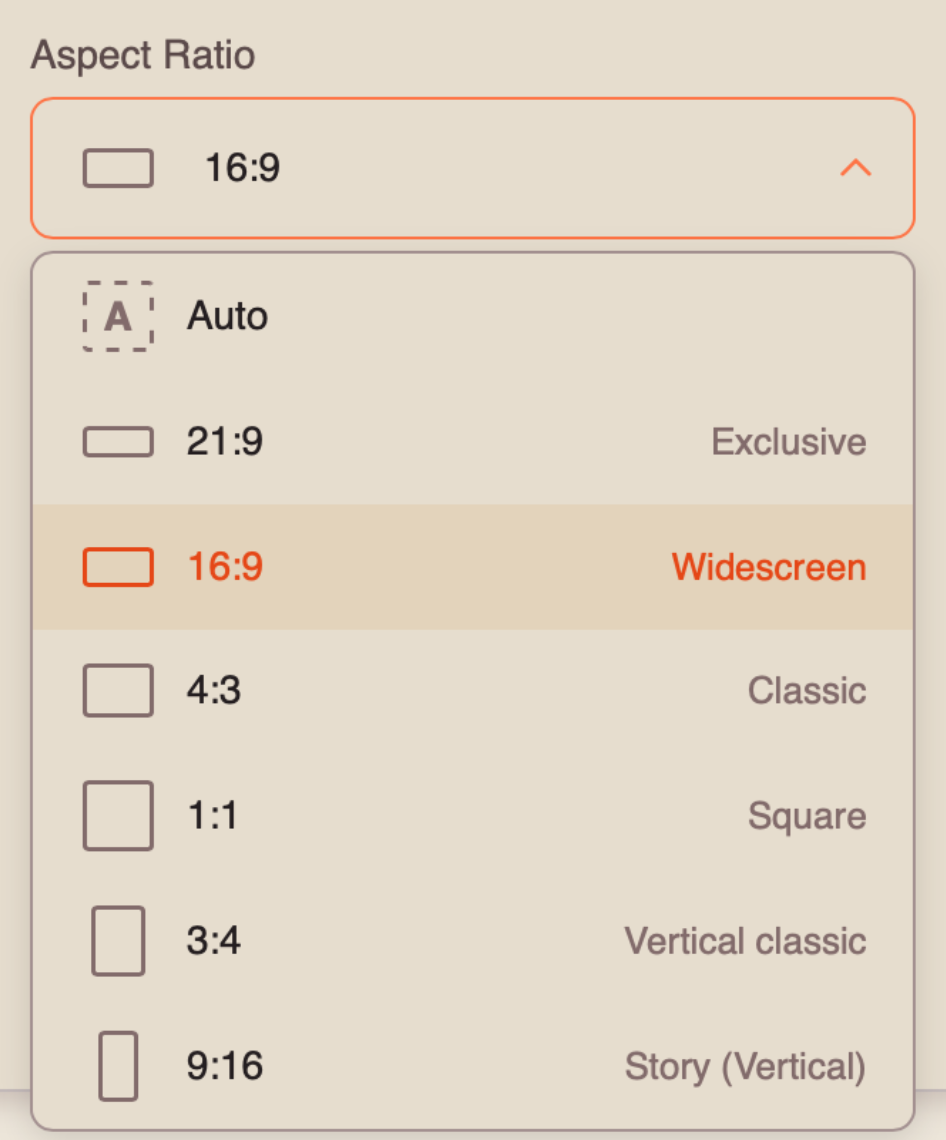
When working in “Start + End Frame” mode, you can choose from 7 available aspect ratios:
Duration
You can set the duration of the video from 4 to 15 seconds.
❣️ Please note that the duration is set to 10 seconds by default.
Resolution
When working with a text prompt, you can choose between two resolution options:
- 768p - standard resolution that provides good image quality with faster generation. Suitable for most everyday tasks and publishing content on social media.
- 2K - higher resolution that provides greater sharpness and detail. Recommended for videos where the quality of objects, characters, and small scene details is especially important.
Once you have entered the text prompt and configured the necessary settings, click the “Generate” button.
Generation example
We sincerely hope this guide helps you better understand and make the most of Hailuo MiniMax 3.0. We have done our best to make the process as simple and intuitive as possible.
Remember, it is completely normal if you do not get the result you want on your first attempt. Keep experimenting, try different approaches, and learn what works best for your projects. With practice, you will achieve better and more consistent results. 💛
SYNTX AI: Syntx AI
SYNTX Support: Syntx Support
YouTube channel “SYNTX”: Syntx YouTube
SYNTX.AI Academy: SYNTX Academy