Runway - is a modern AI-powered tool for creating and editing videos. It allows you to animate images, generate video scenes from text prompts, and edit existing videos.
The model focuses on motion generation: you can control character actions, camera movement, scene dynamics, and the overall atmosphere simply by describing the desired result in natural language.
The tool is available for PRO plans and above.
⚡️ In our chatbot, Runway supports prompts in any language, even though its primary language is English.
❗️The maximum prompt length is 500 characters.
- 🎛 Navigation:
- 💥 Step-by-Step Guide to Using Runway “Text to Video”
- 💥 Step-by-Step Guide to Using Runway “Image to Video”
- 💥 Step-by-Step Guide to Using Runway “Two Images to Video”
- 🖇 Keywords for Prompts
🎛 Navigation:
🏠Main Menu > 🎬 Video > 🎞️ Runway
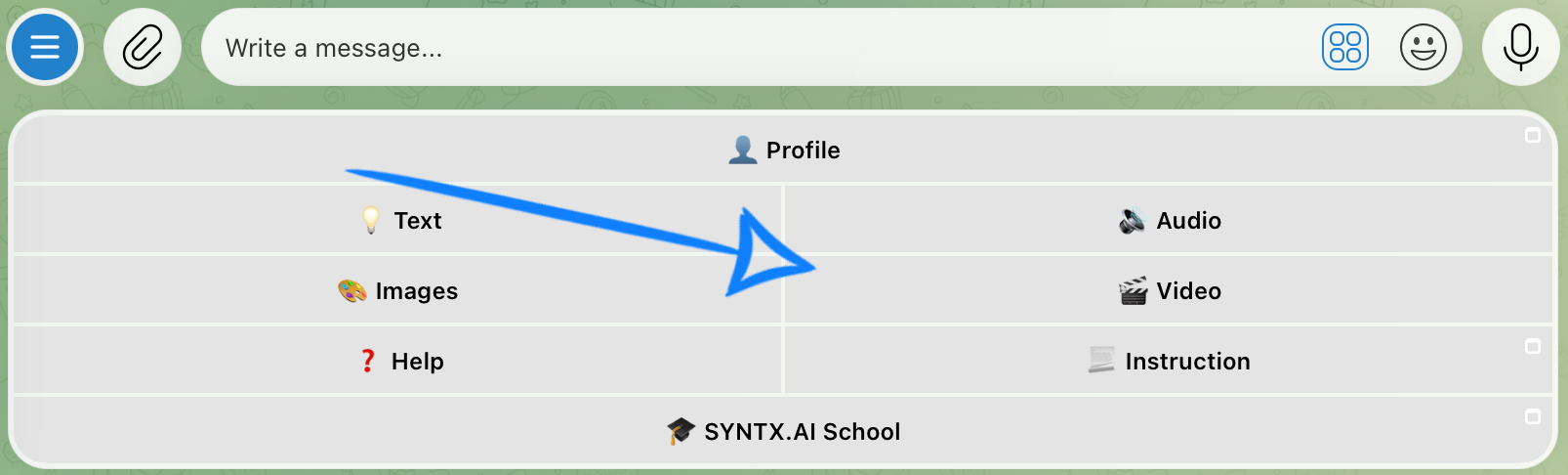
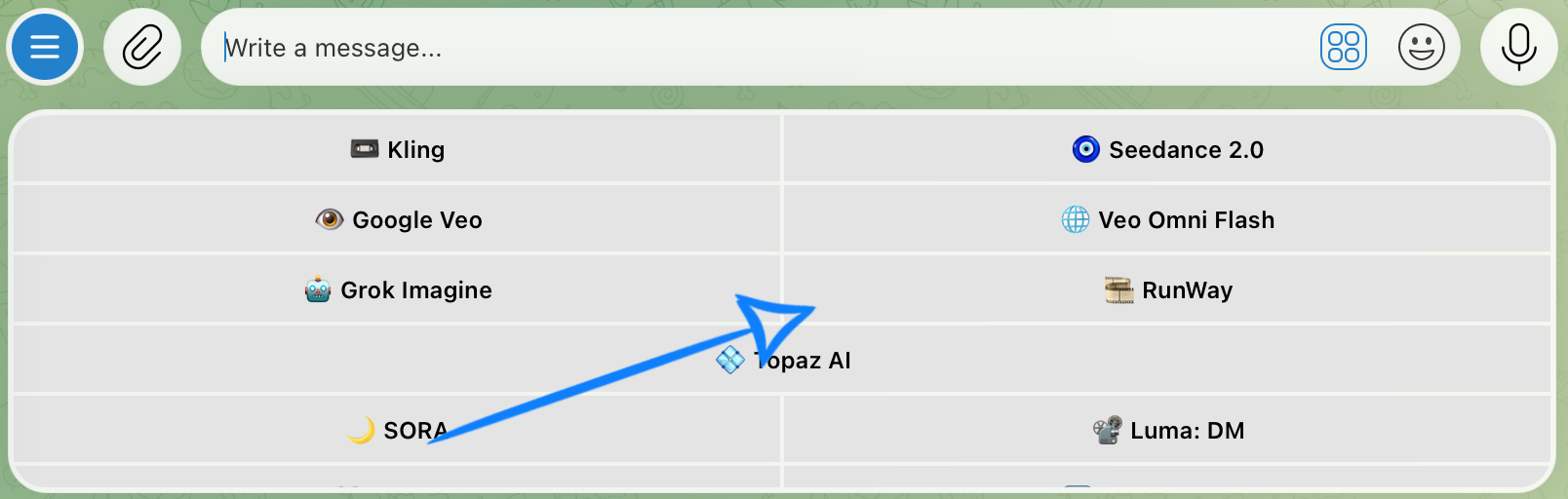
💥 Step-by-Step Guide to Using Runway “Text to Video”
When creating a video from a text prompt, the first step is to configure the generation settings correctly.
Model settings
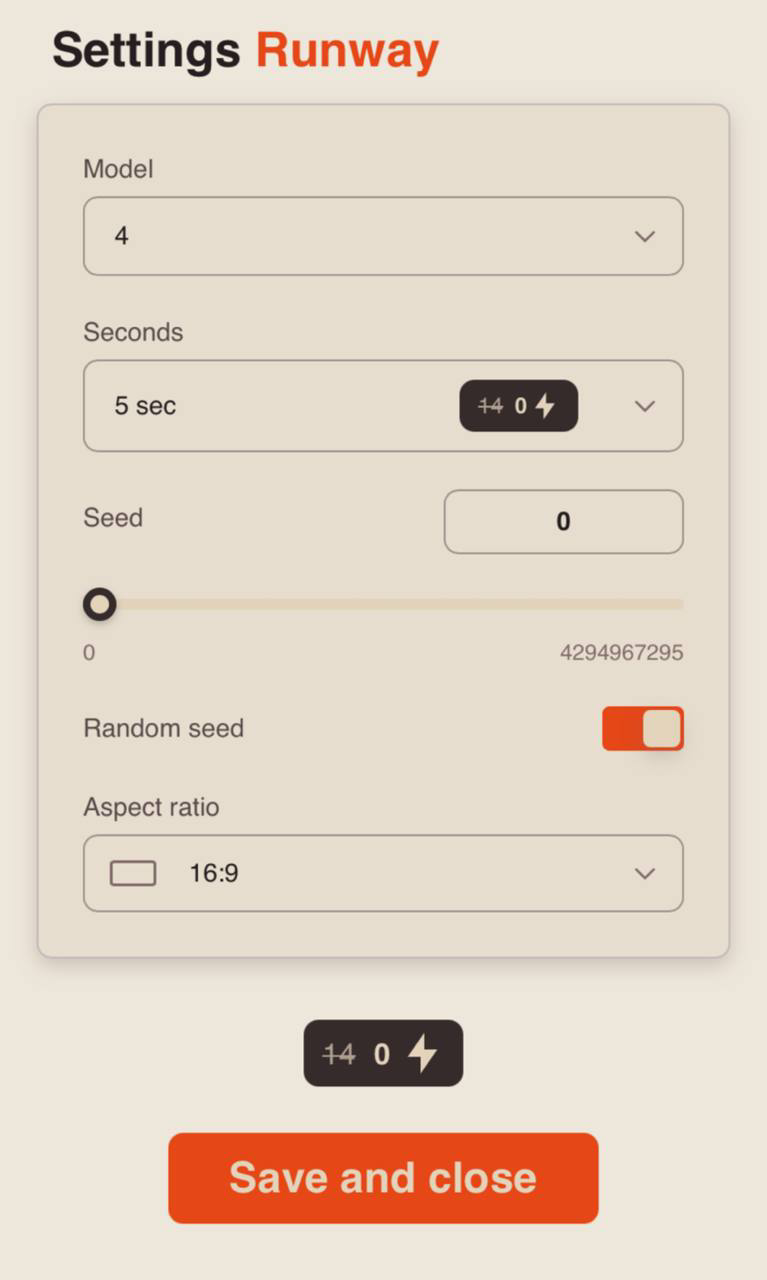
Model
You can choose one of the following two models:
Runway Gen-4 - an advanced model with improved understanding of composition, motion, and scene logic. It delivers realistic animation, consistent characters, and accurate prompt adherence. Best suited for complex scenes and full-length video generation.
Runway Gen-4.5 - the latest and most powerful model in Runway. It offers enhanced detail, more natural motion physics, and a cinematic visual style. Recommended for final renders, advertising, and creative projects with high-quality requirements.
Duration
You can choose a video duration of 5, 10, or 15 seconds.
Seed
The Seed parameter allows you to generate identical or highly similar results when running the same prompt multiple times.
If you like a generated video and want to create a similar version while changing or adding specific details, the Seed setting is especially useful.
You can copy the Seed value from the description of a generated video and use it to recreate the result with your desired modifications. Simply paste the copied Seed into the Model Settings section.
If you don’t need to recreate a similar video, enable the Random Seed option. In this case, each generation will use a new seed and produce a different result.
Aspect Ratio
You can choose one of the following six aspect ratios:
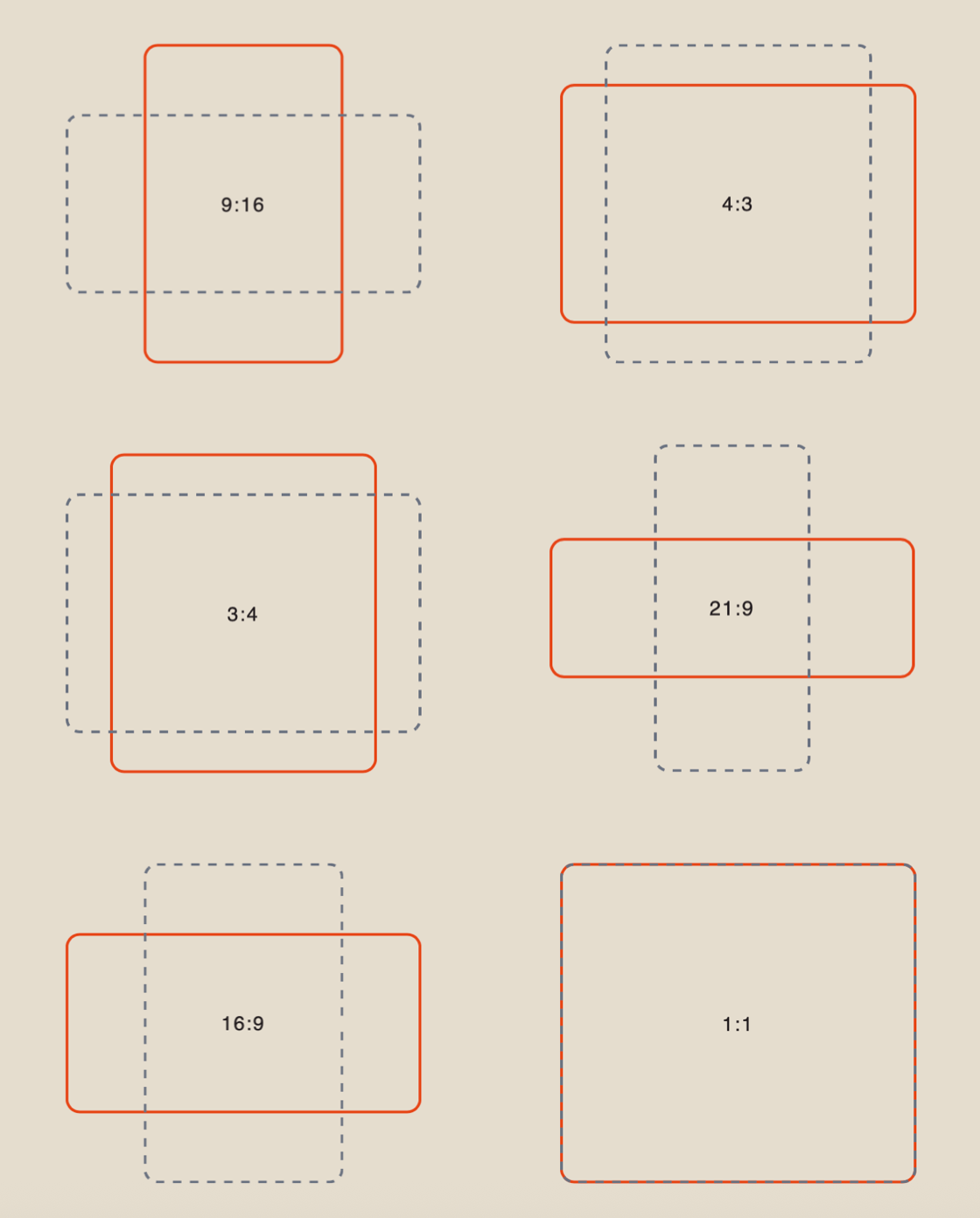
After configuring all the settings, click “Save and Close”. Next, proceed to creating your text prompt.
Creating a Text Prompt
The key to a successful generation is a well-structured prompt that helps the model accurately understand your idea.
Your text prompt should clearly describe what you want to see in the final result.
A well-structured prompt should include:
- Main Subject and Action
This is the foundation of every prompt. Clearly specify who or what appears in the scene and what action the subject is performing. Keep your description clear and unambiguous, avoiding unnecessary details and pronouns so the model can interpret the scene correctly.
- Camera Movement
In Runway, the camera is an important creative tool. It can behave like a real camera, smoothly zooming in, following the subject, panning, or orbiting around the scene.
- Style, Lighting, and Camera Angle (if needed)
If necessary, specify the visual style, lighting, and camera angle. This helps establish the desired mood, emphasize the subject, and achieve a more cinematic and predictable result.
Example:
“Realistic vegetables fall onto a table in slow motion, hitting the surface and slightly bouncing on impact. The camera is fixed and pointed directly at the table without shifting or sudden movements, allowing full focus on the moment the objects land. Realistic style. Soft studio lighting highlights the vibrant colors of the vegetables and the texture of the tabletop. Front-facing camera angle at table level with cinematic slow-motion movement.”
Result
Runway Gen-4:
Runway Gen-4.5:
💥 Step-by-Step Guide to Using Runway “Image to Video”
When working with an image reference, the first step is to upload an image that meets the required specifications.
Image upload
Technical requirements for image:
- You can upload images in JPEG or PNG format.
- The maximum file size is 20 MB.
Example:
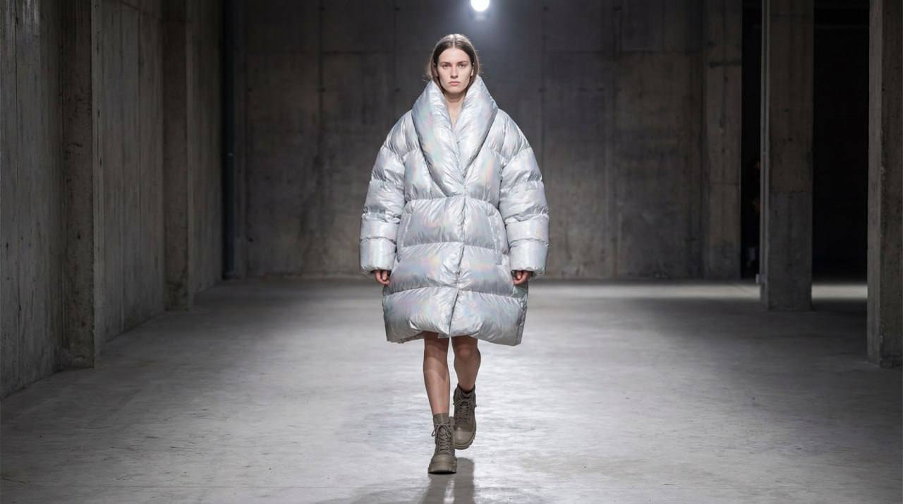
After uploading the image, click “Configure and Generate” to adjust the settings and write a prompt for the upcoming generation.
Model Settings
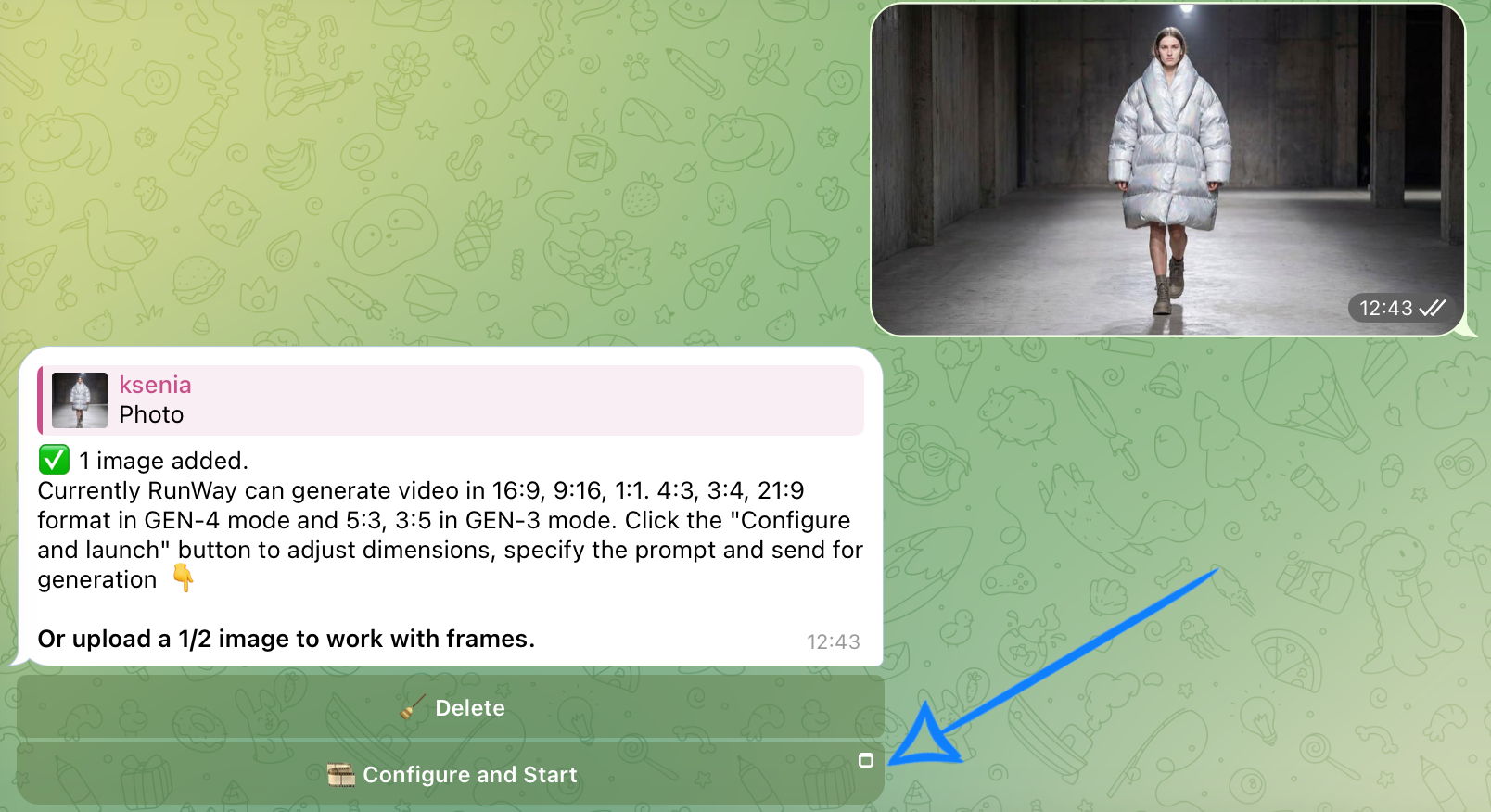
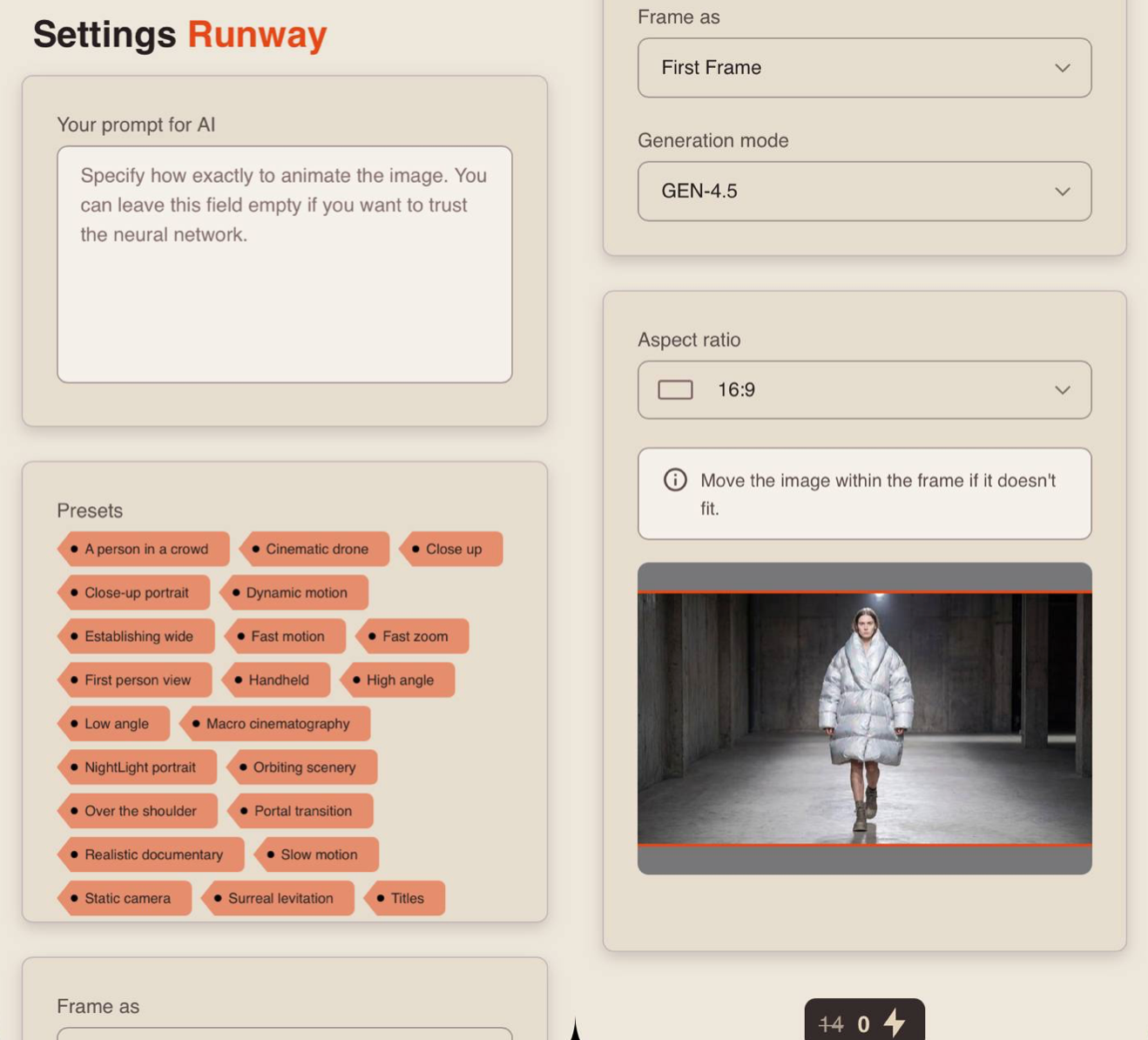
Creating a Text Prompt
When using images, you should enter your text prompt in the settings window.
Your prompt should describe what you want to see in the final video.
A well-structured prompt should include:
1. Main Subject and Action
This is the foundation of every prompt. Clearly specify who or what appears in the scene and what action the subject is performing. Keep your description clear and unambiguous, avoiding unnecessary details and pronouns so the model can interpret the scene correctly.
2. Camera Movement
In Runway, the camera is an important creative tool. It can behave like a real camera, smoothly zooming in, following the subject, panning, or orbiting around the scene.
3. Style, Lighting, and Camera Angle (if needed)
If necessary, specify the visual style, lighting, and camera angle. This helps establish the desired mood, emphasize the subject, and achieve a more cinematic and predictable result.
Example:
“A woman walks confidently down a runway with smooth, graceful steps, slightly turning her body and posing as she moves. The camera gently follows her, then smoothly circles around her, emphasizing the movement and energy of the runway. Camera motion remains stable and cinematic, without sudden shifts. Fashion style. Professional runway lighting with soft highlights accentuates the silhouette and texture of the outfit. Slightly low camera angle creates a stronger sense of presence and visual impact.”
Presets
Presets are pre-made prompt templates designed for specific types of actions, allowing you to achieve great results quickly and easily.
Example:
Cinematic Drone - “First person view shot of a [subject]. hyper-speed fly, dynamic motion, dynamic blur, timelapse, 30x speed. In the style of [describe style; ex. cinematic, muted color palette]. ”
When you select a preset, it is automatically inserted into the prompt field, and the generation is based on that text.
❣️ Important: If you have already entered your own prompt and then select a preset, your existing prompt will be replaced. If you want to customize a preset, it is recommended to select it first and then edit or expand the prompt manually.
Frame As
You can choose how the uploaded image will be used in the generated video:
First Frame - the image will be used as the opening frame.
Last Frame - the image will be used as the ending frame.
Choose the option that best matches the role you want the image to play in the composition and flow of the video.
Generation Mode
You can choose from five generation modes:
Runway Gen-3 Normal - the standard video generation model that provides stable and predictable results. Suitable for simple scenes, test generations, and exploring Runway’s capabilities. Performs well with basic motion and straightforward visual tasks.
Runway Gen-3 Turbo - a faster version of Gen-3 optimized for maximum generation speed. Produces results in significantly less time while sacrificing some visual detail. Ideal for quickly testing ideas.
Runway Gen-4 - an advanced model with improved understanding of composition, motion, and scene logic. It delivers more realistic animation, consistent characters, and accurate prompt adherence. Best suited for complex scenes and full-length videos.
Runway Gen-4 Turbo - an optimized version of Gen-4 that combines high image quality with faster rendering. It retains the key advantages of Gen-4 while reducing generation time. An excellent choice for production workflows where both quality and speed matter.
Runway Gen-4.5 - the latest and most powerful model in Runway. It offers enhanced detail, more natural motion physics, and a cinematic visual style. Recommended for final renders, advertising, and creative projects with high-quality requirements.
Aspect Ratio
For Gen-4, Gen-4 Turbo, and Gen-4.5, you can choose from the following eight aspect ratios:
1:1, 4:3, 3:4, 16:9, 9:16, 21:9, 5:3, and 3:5.
For Gen-3 Turbo, two aspect ratios are available:
5:3 and 3:5.
For Gen-3 Normal, video generation is available only in the 5:3 aspect ratio.
If your uploaded image has a different aspect ratio, you can adjust it to fit one of the supported formats by repositioning the image within the crop frame.
After configuring all settings, click “Generate” to start the generation process.
Results
Runway Gen-3 Normal:
Runway Gen-3 Turbo:
Runway Gen-4:
Runway Gen-4 Turbo:
Runway Gen-4.5:
💥 Step-by-Step Guide to Using Runway “Two Images to Video”
❗️Available only in TURBO mode.
When working with two image references, the first step is to upload images that meet the required specifications.
Image upload
Technical requirements for image:
- You can upload images in JPEG or PNG format.
- The maximum file size is 20 MB.
Example:
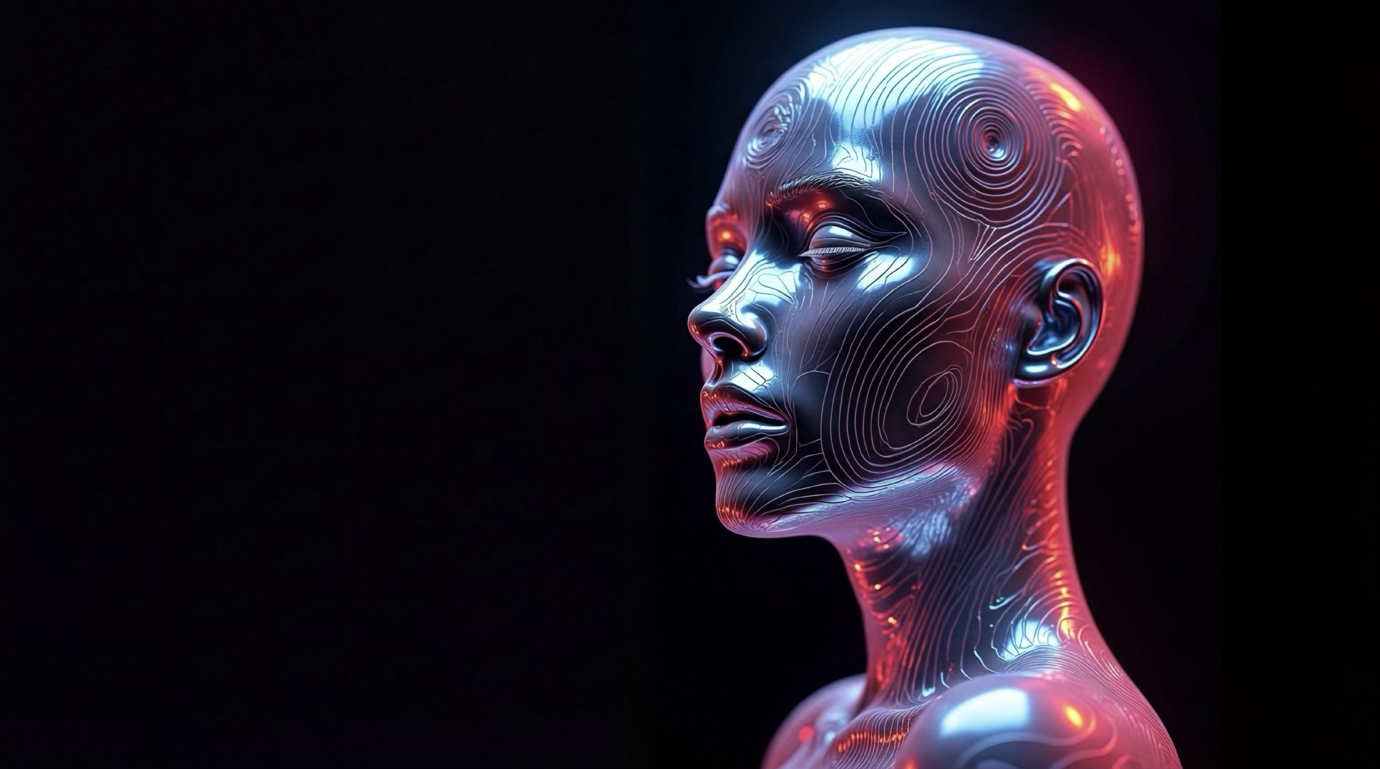
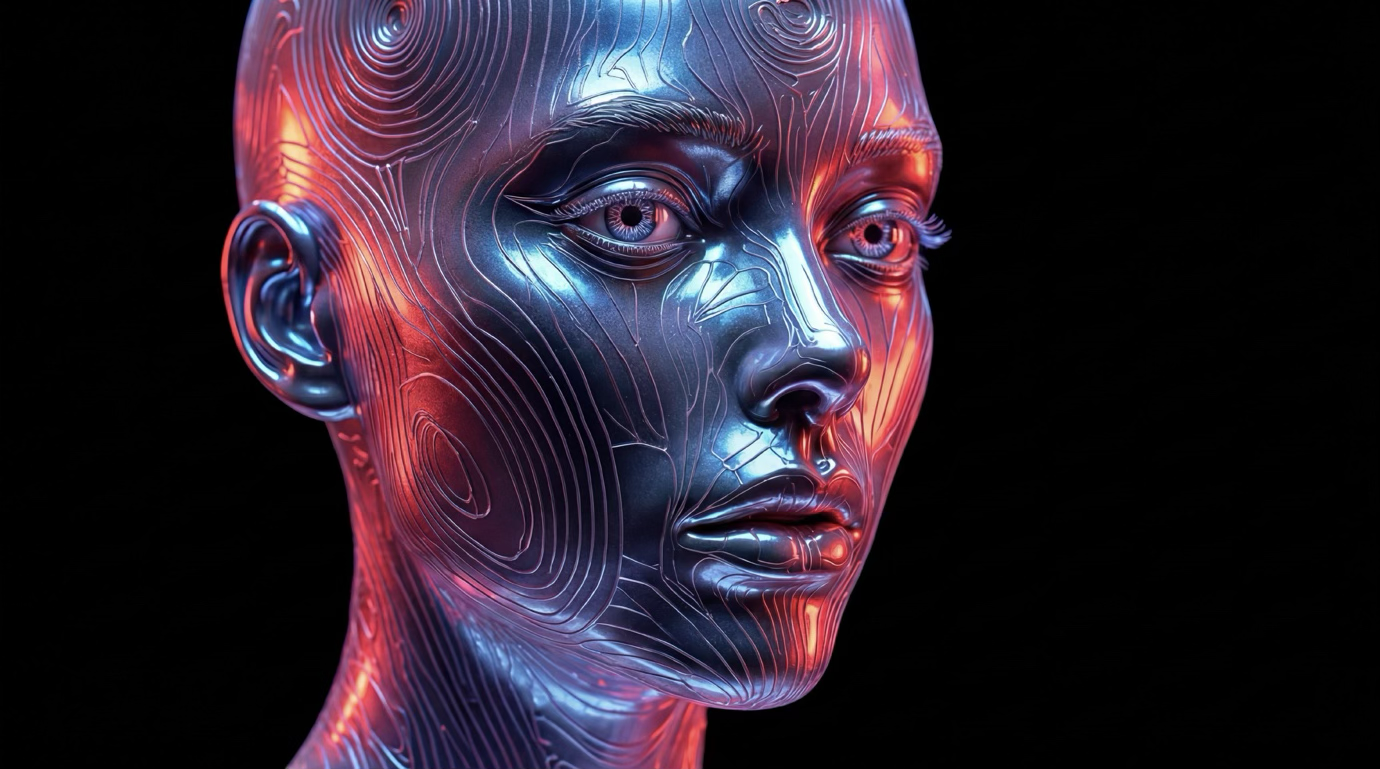
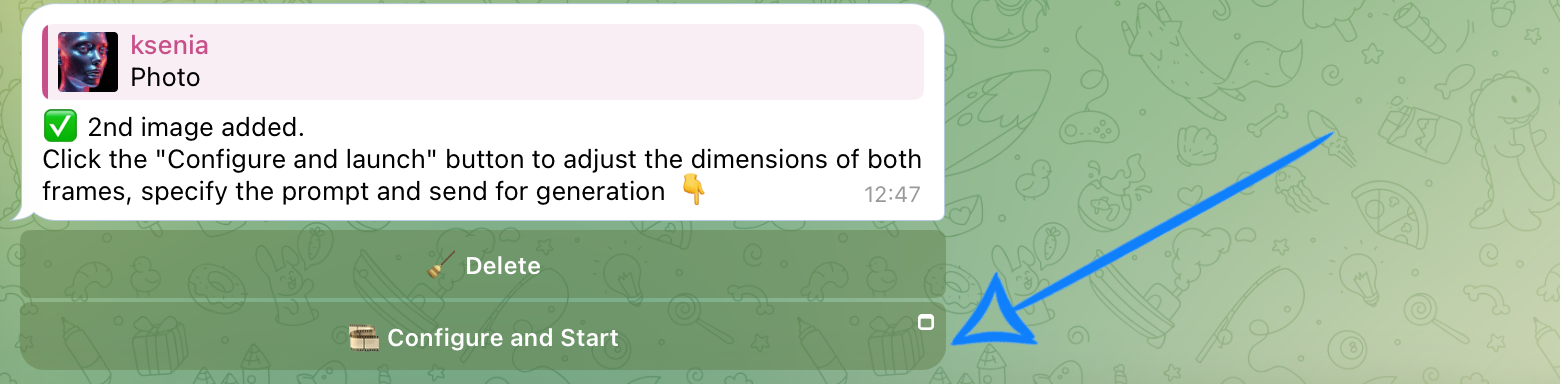
After uploading the images, click “Configure and Start” to adjust the settings and write a prompt for the upcoming generation.
Model Settings
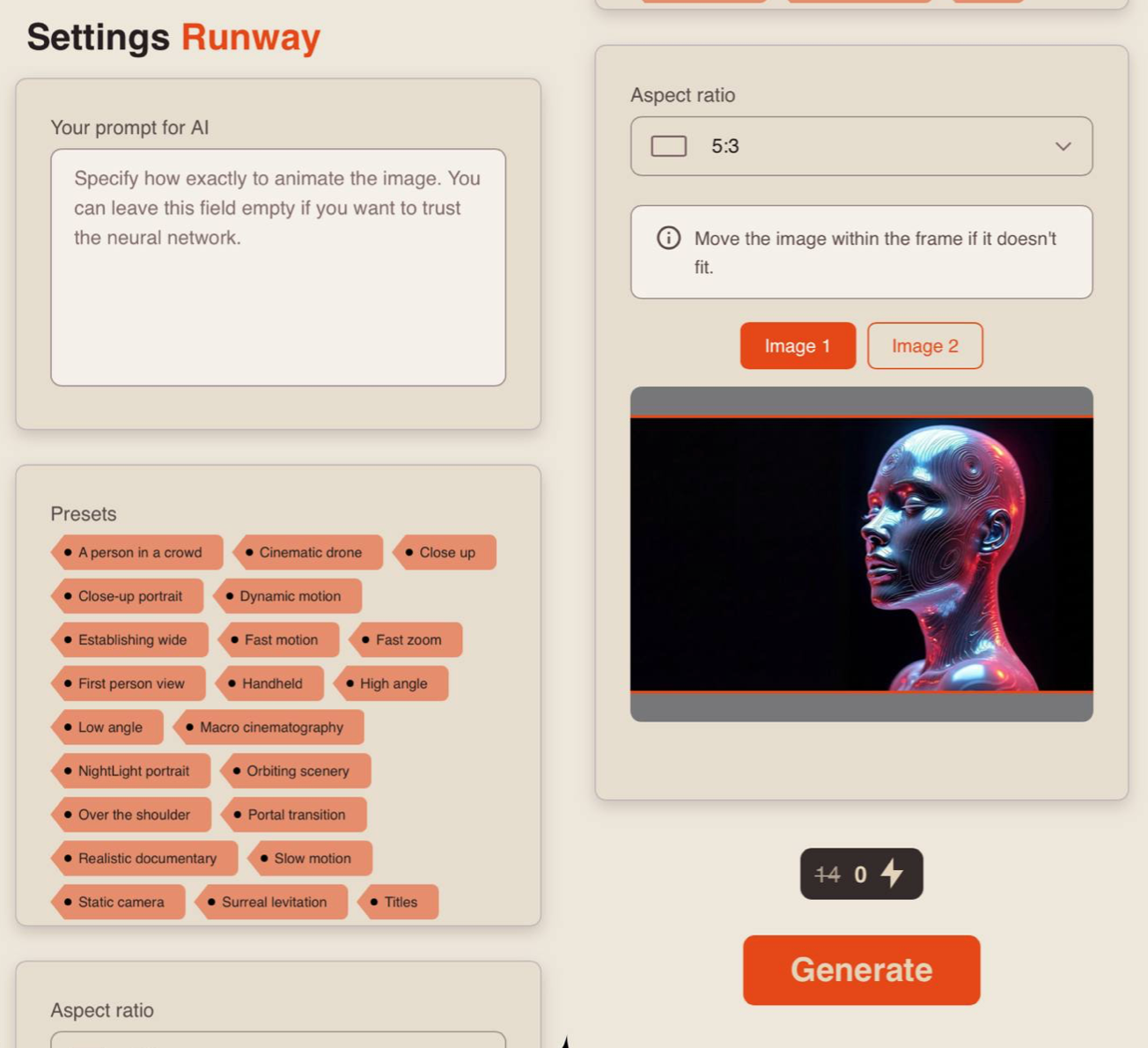
Creating a Text Prompt
When using images, you should enter your text prompt in the settings window.
Your prompt should describe what you want to see in the final video.
A well-structured prompt should include:
1. Main Subject and Action
This is the foundation of every prompt. Clearly specify who or what appears in the scene and what action the subject is performing. Keep your description clear and unambiguous, avoiding unnecessary details and pronouns so the model can interpret the scene correctly.
2. Camera Movement
In Runway, the camera is an important creative tool. It can behave like a real camera, smoothly zooming in, following the subject, panning, or orbiting around the scene.
3. Style, Lighting, and Camera Angle (if needed)
If necessary, specify the visual style, lighting, and camera angle. This helps establish the desired mood, emphasize the subject, and achieve a more cinematic and predictable result.
Example:
«A futuristic female android slowly opens her eyes. At the moment of activation, her gaze becomes focused and aware while her expression remains calm and emotionless. Soft glowing pulses begin to travel across the surface of her synthetic skin. The camera slowly pushes in toward her face, then gently arcs around it to emphasize her profile and the contours of her head. Camera movement is slow, stable, and cinematic, with no sudden shifts or abrupt angle changes. Futuristic sci-fi style. Cool neon lighting with blue, purple, and pink highlights. Additional glowing particles and soft energy flares appear around her head and along the contours of her body. Side or three-quarter camera angle. A dark background enhances the contrast and the luminous effects.»
Presets
Presets are pre-made prompt templates designed for specific types of actions, allowing you to achieve great results quickly and easily.
Example:
Cinematic Drone - “First person view shot of a [subject]. hyper-speed fly, dynamic motion, dynamic blur, timelapse, 30x speed. In the style of [describe style; ex. cinematic, muted color palette]. ”
When you select a preset, it is automatically inserted into the prompt field, and the generation is based on that text.
❣️ Important: If you have already entered your own prompt and then select a preset, your existing prompt will be replaced. If you want to customize a preset, it is recommended to select it first and then edit or expand the prompt manually.
Aspect Ratio
You can choose between two aspect ratios:
5:3 and 3:5.
If your uploaded images have different aspect ratios, you can adjust them to fit one of the supported formats by repositioning the images within the crop frame so that the main parts of the images remain visible.
Once all settings have been configured correctly, click “Generate” to start the generation process.
Result
🖇 Keywords for Prompts
Keywords help you control the style and improve the accuracy of the generated results.
For example, mentioning skin texture will have little effect in a wide-angle shot where the camera is not focused on the subject’s face. In such cases, it is more effective to include details describing the environment, atmosphere, and the overall scene.
Below are examples of keywords that you can experiment with when creating your prompts.
🌟 Camera Styles
- Low angle
- High Angle
- Overhead
- FPV
- Hand held
- Wide angle
- Close up
- Macro cinematography
- Over the shoulder
- Tracking
- Establishing wide
- 50mm lens
- SnorriCam
- Realistic documentary
- Camcorder
🌟 Lighting Styles:
- Diffused lighting
- Silhouette
- Back lit
- Side lit
- [color] gel lighting
- Venetian lighting
🌟 Motion Speed:
- Dynamic motion
- Slow motion
- Fast motion
- Timelapse
🌟 Motion Types:
- Emerges
- Explodes
- Ascends
- Undulates
- Warps
- Transforms
- Ripples
- Shatters
- Unfolds
🌟 Style & Aesthetics:
- Moody
- Iridescent
- Home video VHS
- Glitchcore
🌟 Text Style:
- Bold
- Graffiti
- Neon
- Varsity
- Embroidery
Thank you for taking the time to study this guide. We hope the knowledge you’ve gained will help you make the most of our tool and achieve outstanding results in your generations. We wish you the best of luck and plenty of inspiration in your future creative projects! 💛
SYNTX AI: Syntx AI
SYNTX Support: Syntx Support
YouTube channel “SYNTX”: Syntx YouTube
SYNTX.AI Academy: SYNTX Academy