Veo Omni Flash 1.1 is Google’s multimodal model for generating 8-second videos from text, images, video clips, or any combination of these inputs. It maintains consistency in the scene, motion, lighting, and visual style, while allowing you to use reference images to preserve the appearance of characters and objects throughout the generated video.
- 🎛 Navigation:
- 💥 Step-by-Step Guide to Using Veo Omni Flash 1.1: Text to Video
- 💥 Step-by-Step Guide to Using Veo Omni Flash 1.1 “Using Image References”
- 💥 Step-by-Step Guide to Using Veo Omni Flash 1.1: Using a Video Reference
- 💥 Step-by-Step Guide to Using Veo Omni Flash 1.1: Generation with Voice
🎛 Navigation:
**🏠 Main Menu > 🎬 Video > 🌐 Veo Omni Flash 1.1 **
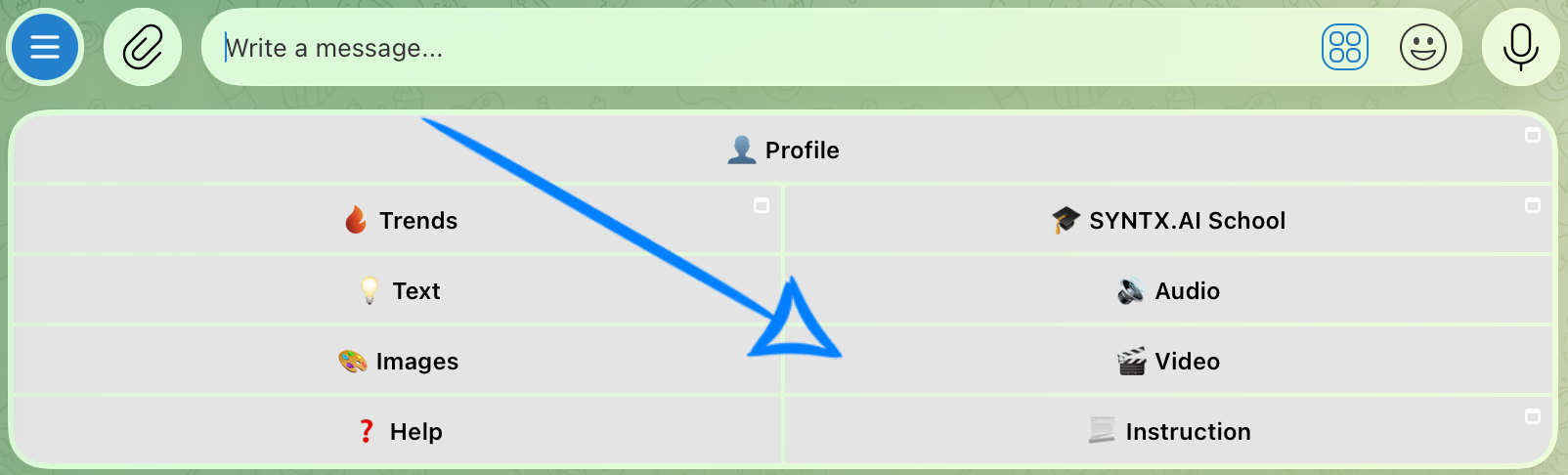
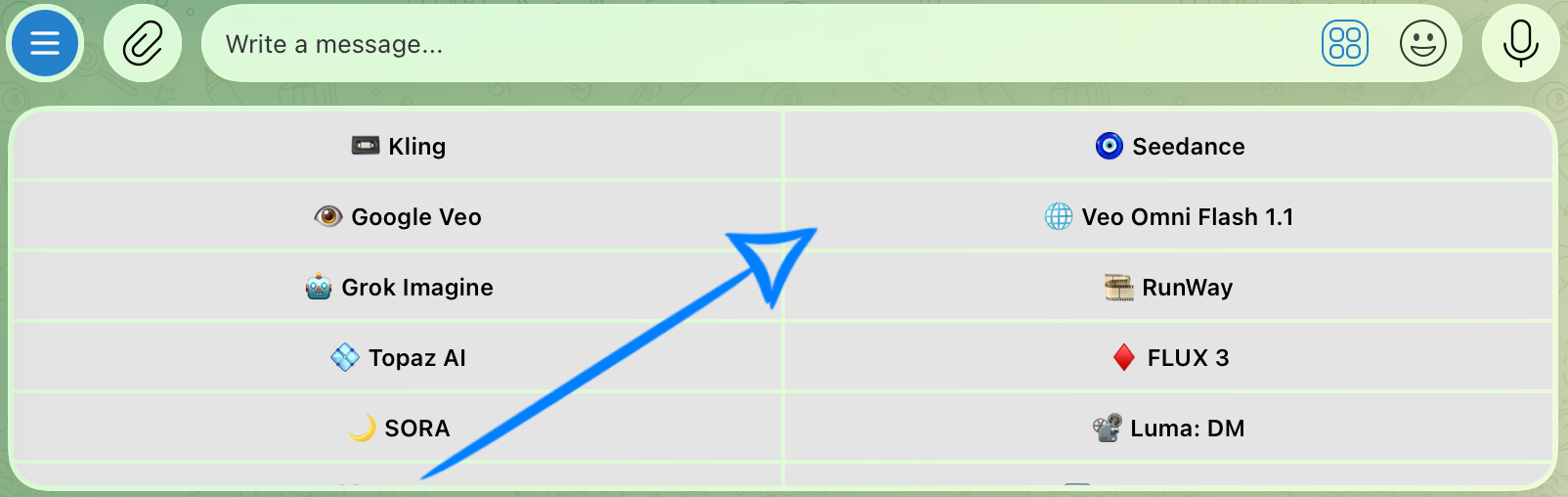
💥 Step-by-Step Guide to Using Veo Omni Flash 1.1: Text to Video
The first step when using the Text to Video feature is to write a clear, well-structured prompt.
Creating a Text Prompt
High-quality results begin with a well-structured prompt, as it helps the model understand your idea more accurately.
Your prompt should clearly describe the video you want to generate.
A good prompt should include:
- Main Subject and Action: Describe who or what appears in the scene and what they are doing.
- Location and Time of Day: Specify the setting and lighting conditions, such as daytime, sunset, or night, to establish the atmosphere.
- Style and Mood: Define the visual style, such as realistic, cinematic, or anime, as well as the overall mood or emotional tone of the scene.
Example:
“A Japanese woman wearing a stylish long coat slowly walks through the bustling streets of a neon-lit city. Her hair gently sways in the night breeze, while reflections of glowing signs shimmer across the rain-soaked pavement.
The scene takes place at night in a futuristic district of Tokyo. Japanese neon signs, shop windows, digital billboards, and streetlights illuminate the surroundings, while the city glows with vivid pink, blue, and purple reflections after the rain.
The shot features a cinematic, realistic style with a cyberpunk atmosphere, soft rim lighting, deep street perspective, a subtle haze, and a mood of mystery, solitude, and urban beauty.”
Model Settings
After submitting your text prompt, click “Configure and Start.” Then adjust the generation settings based on your desired result before starting the generation process.
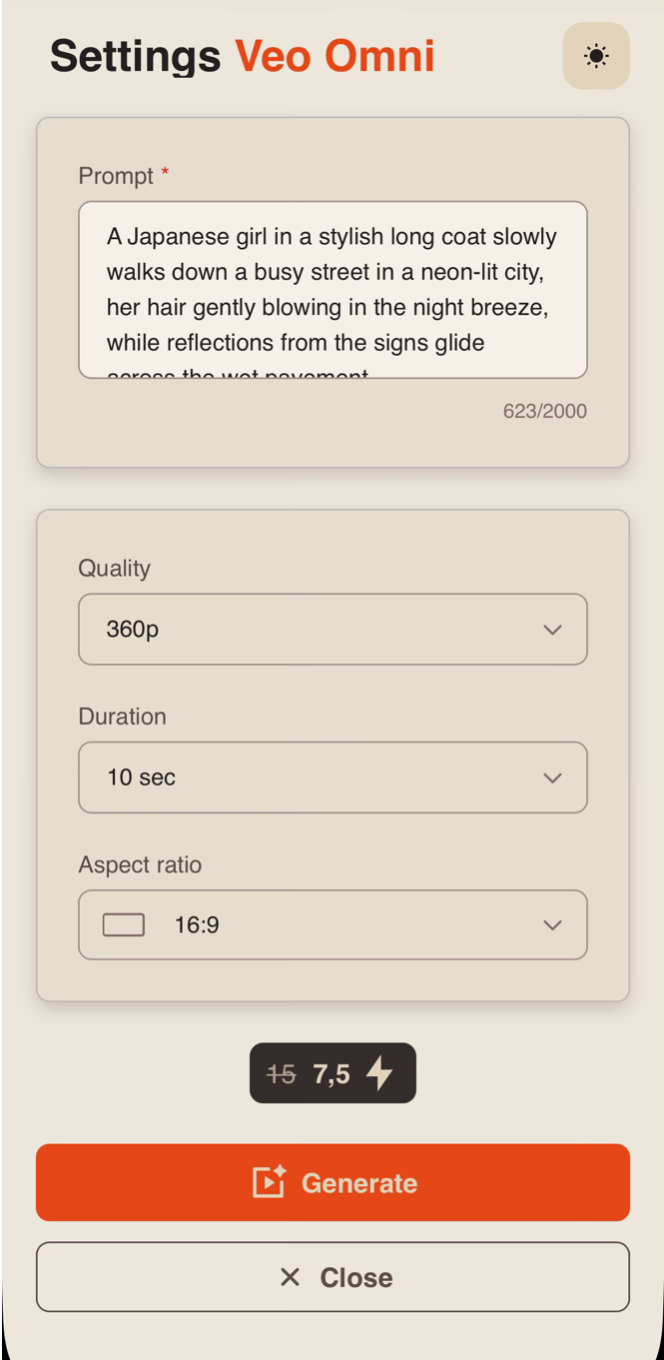
Prompt
If necessary, you can edit your prompt in the Prompt field. If you leave it unchanged, the model will use the original prompt you submitted.
Quality
When generating a video from a text prompt, you can choose from four quality options:
360p
Minimum video resolution. Suitable for quick test generations and viewing on small screens. It takes up less space and is generated faster, but fine details and textures may be less sharp.
720p
A medium-resolution option that offers a good balance between video quality and file size. It is widely used for online content and delivers clear visuals suitable for most modern devices and medium-sized screens.
1080p
A high-resolution option that provides excellent sharpness and detail. It is ideal for larger screens and professional-looking results, though it requires more storage space and may take longer to generate than 720p.
4K
The highest available quality, capturing fine details, realistic textures, lighting, and scene depth. It is best suited for professional projects and situations where maximum visual fidelity is required.
Duration
You can set the duration of the future video to 4, 6, 8, or 10 seconds.
❣️Please note that the duration is set to 10 seconds by default in the settings.
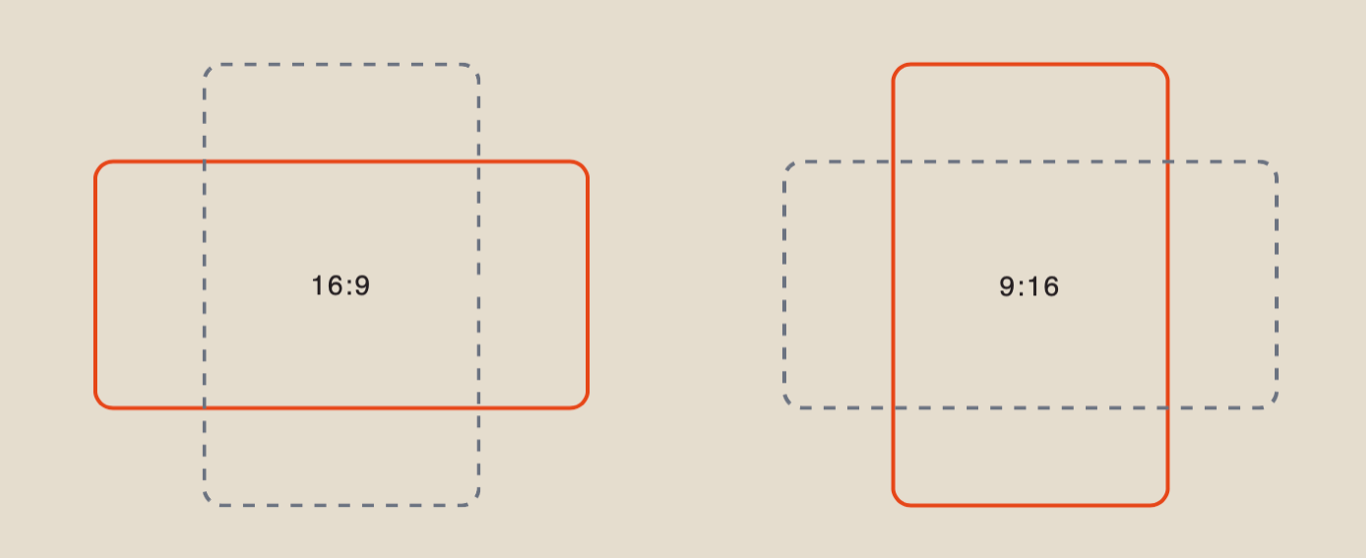
Aspect Ratio
When generating a video from a text prompt, you can choose between two aspect ratios:
After configuring all the settings, click “Generate” to start the video generation process.
Result
💥 Step-by-Step Guide to Using Veo Omni Flash 1.1 “Using Image References”
The first step when working with image references is to upload your images correctly.
❣️ When using only image references (without a video reference), you can upload up to 7 images.
Uploading Images
Image requirements:
- Supported formats: JPEG, PNG, and HEIC.
- Maximum file size: 19 MB.
- Maximum number of uploaded images: 7.
Example:
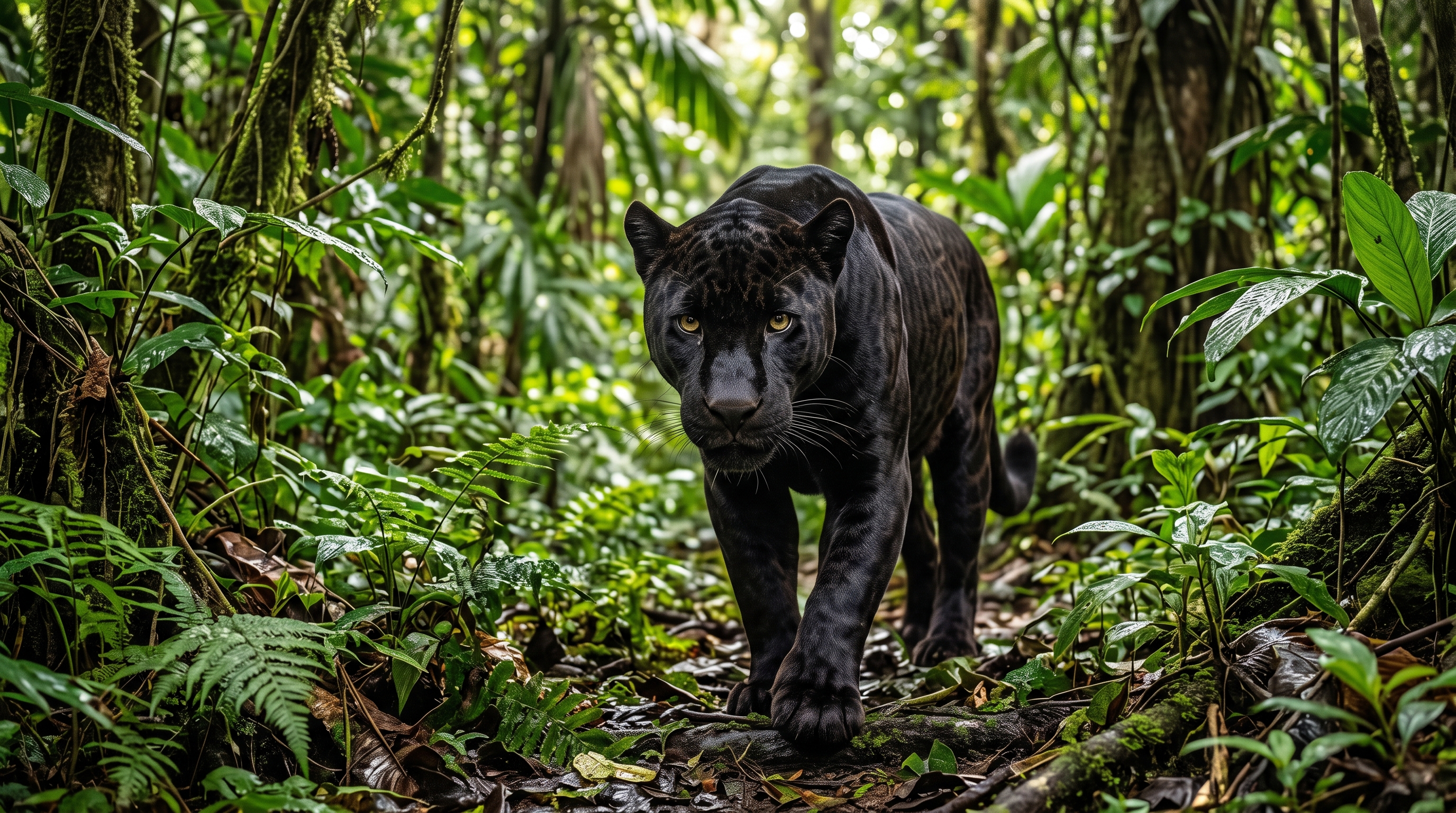
Working with a Single Image
After uploading an image, click “Configure and Start,” then adjust the generation settings based on your desired result.
❣️ To remove the uploaded image, click “Delete” or “Delete All.” You can then upload a new reference image.
Model Settings
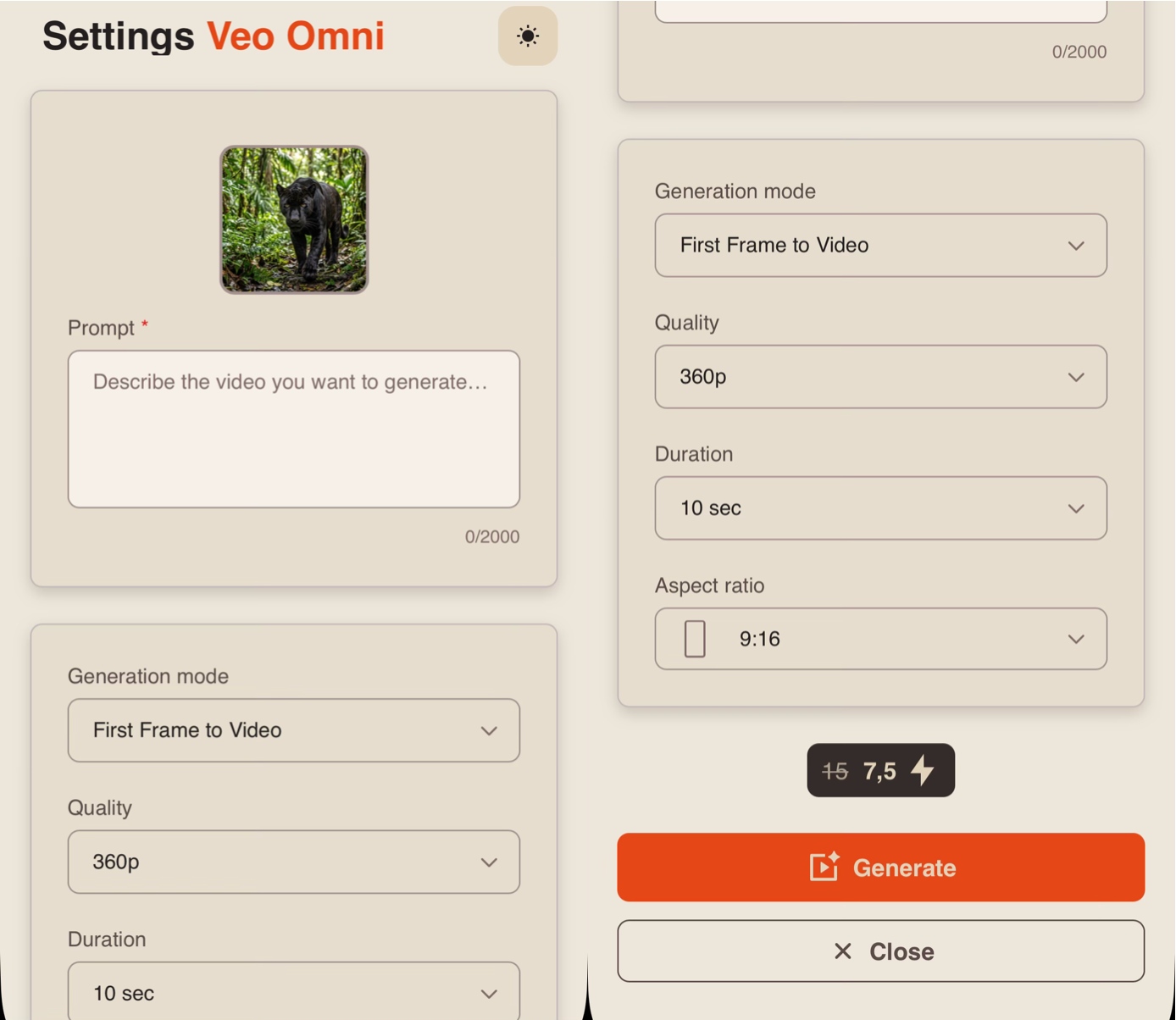
Prompt
High-quality results begin with a well-structured prompt, as it helps the model understand your idea more accurately.
Your prompt should clearly describe the video you want to generate.
A good prompt should include:
- Main subject and action: Describe who or what appears in the scene and what they are doing.
- Location and time of day: Specify the setting and lighting conditions (daytime, sunset, night, etc.) to establish the atmosphere.
- Style and mood: Define the visual style (realistic, cinematic, anime, etc.) and the overall mood or emotional tone of the scene.
For example:
“A black panther slowly emerges from the dense jungle, silently walks straight toward the camera, carefully looks around, and at the end suddenly makes a powerful leap over the lens.
A tropical jungle in the early morning. Golden rays of sunlight stream through the trees, a light mist hangs in the air, and the leaves sway in the wind.
Highly realistic cinematic style, a sense of tension and the predator’s power, smooth camera movement, detailed fur, volumetric lighting, high level of detail.”
Generation Mode
When working with the Veo Omni Flash 1.1 tool, you have 3 generation modes available. Two of them can be used when working with an image reference.
If the uploaded image should be used as the first frame of the video, select the “First Frame to Video” mode.
If the image should be used only as a reference, without being tied to the first frame of the video, select the “Reference to Video” mode.
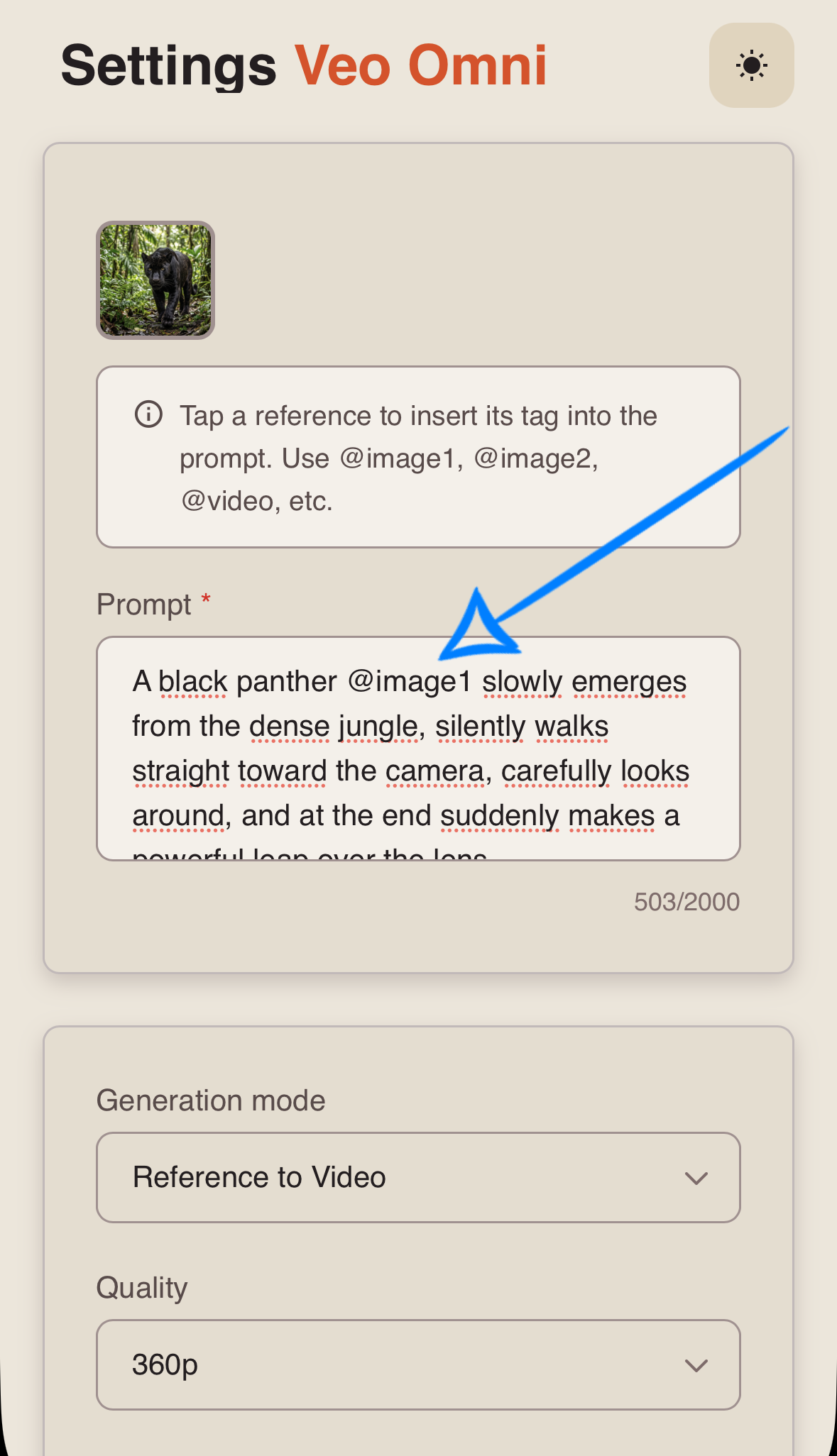
Tag System
When working in the “Reference to Video” mode, the main feature of this tool is the tag system. To insert a tag into your prompt, simply click the image thumbnail. The corresponding tag will be added to the prompt field automatically.
This helps the model identify more accurately which reference image should be used for each part of your prompt.
Example:
Quality
When generating a video from image references, you can choose from four quality options:
360p
Minimum video resolution. Suitable for quick test generations and viewing on small screens. It takes up less space and is generated faster, but fine details and textures may be less sharp.
720p
A medium-resolution option that offers a good balance between video quality and file size. It is widely used for online content and delivers clear visuals suitable for most modern devices and medium-sized screens.
1080p
A high-resolution option that provides excellent sharpness and detail. It is ideal for larger screens and professional-looking results, though it requires more storage space and may take longer to generate than 720p.
4K
The highest available quality, capturing fine details, realistic textures, lighting, and scene depth. It is best suited for professional projects and situations where maximum visual fidelity is required.
Duration
You can set the duration of the future video to 4, 6, 8, or 10 seconds.
❣️Please note that the duration is set to 10 seconds by default in the settings.
Aspect Ratio
When generating a video from image references, you can choose between two aspect ratios:
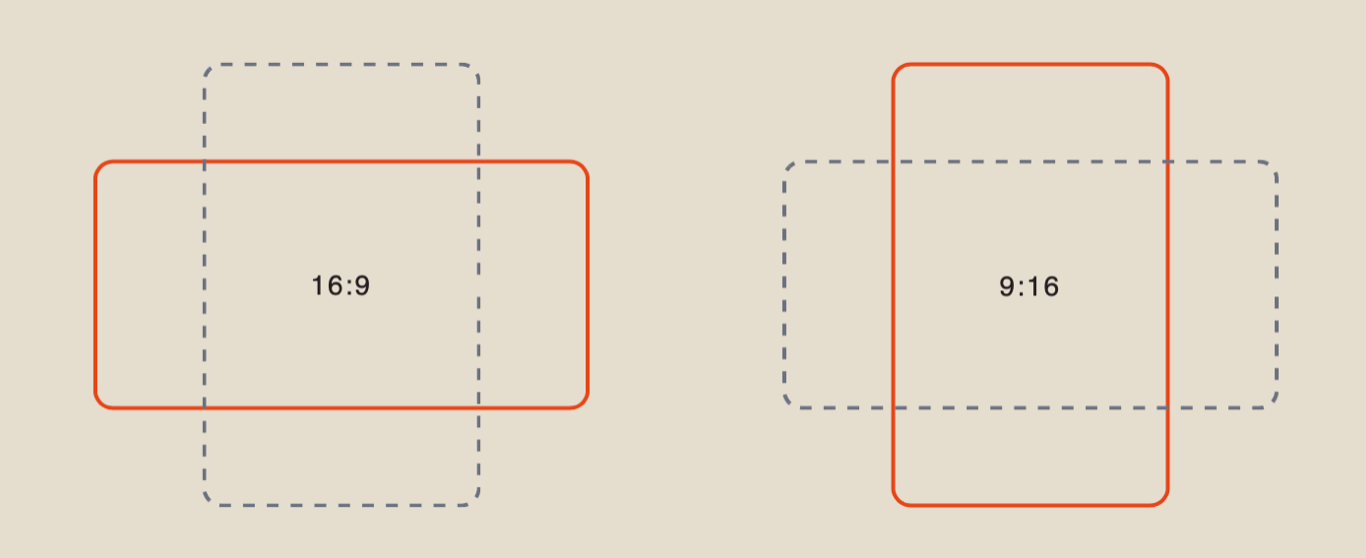
After configuring all the settings, click “Generate” to start the video generation process.
Result
Working with Two Images
After uploading the images, you need to select the “Configure and Run” button and then correctly set the parameters for the upcoming generation.
❣️If you want to remove the uploaded images, click the “Delete” or “Delete All” button. After that, you will be able to upload new references.
Model Settings
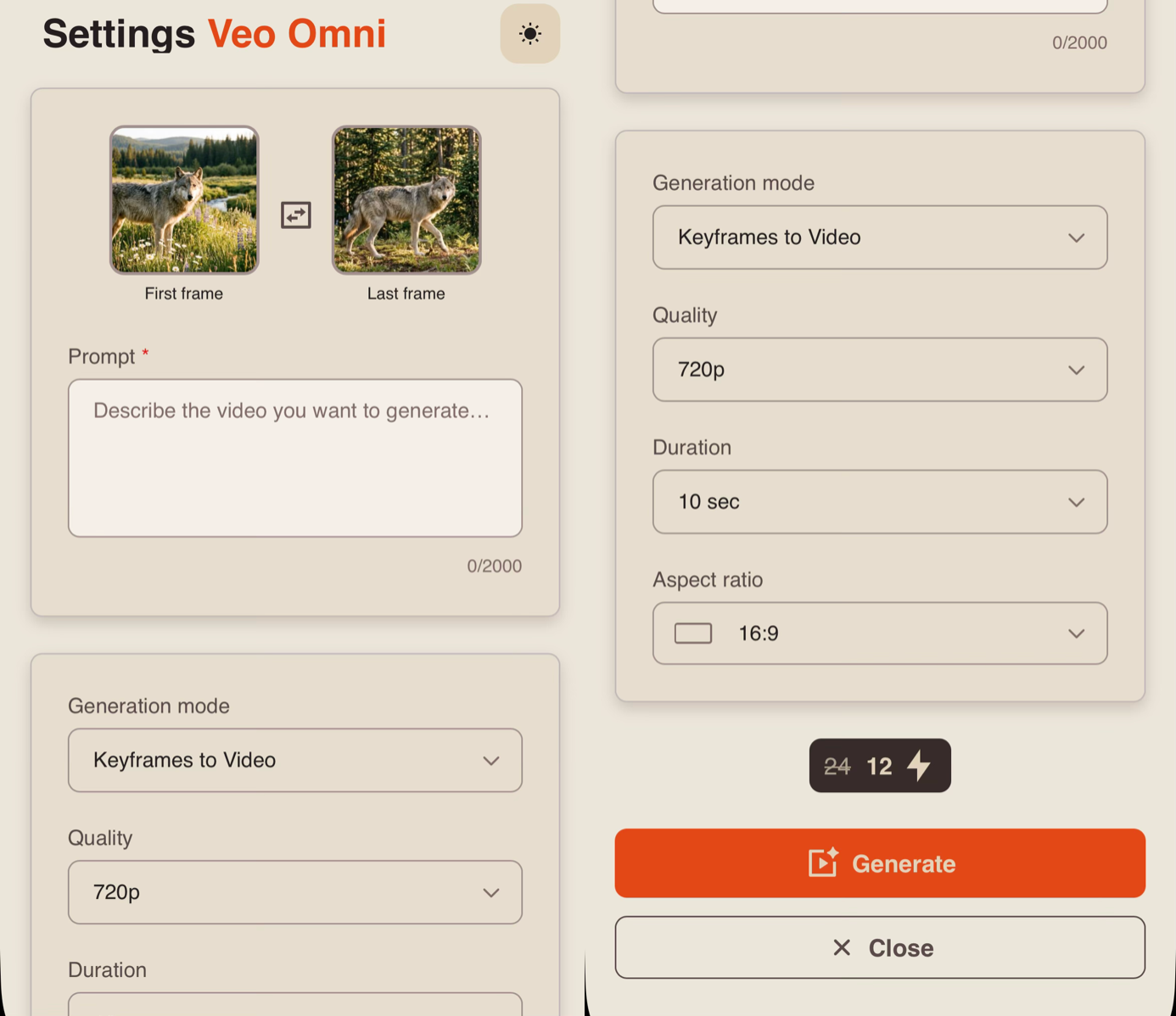
Prompt
High-quality results begin with a well-structured prompt, as it helps the model understand your idea more accurately.
Your prompt should clearly describe the video you want to generate.
A good prompt should include:
- Main subject and action: Describe who or what appears in the scene and what they are doing.
- Location and time of day: Specify the setting and lighting conditions (daytime, sunset, night, etc.) to establish the atmosphere.
- Style and mood: Define the visual style (realistic, cinematic, anime, etc.) and the overall mood or emotional tone of the scene.
For example:
“A gray wolf slowly walks forward across a flowering meadow bathed in warm sunlight and heads toward a dense coniferous forest. The camera smoothly follows the wolf from the side, keeping it in the center of the frame. As it moves, the open field gradually transitions into a forest trail, with more tall trees, ferns, and moss appearing around it, while the bright sunlight turns into soft rays filtering through the treetops. The wolf calmly continues walking between the trees, naturally transitioning into the position and surroundings of the final frame. Realistic cinematic style, a calm wilderness atmosphere, natural animal movement, smooth camera work.”
Generation Mode
When working with the Veo Omni Flash 1.1 tool, you have 3 generation modes available. Two of them can be used when working with two image references.
If the uploaded images should be used as the first and last frames of the video, select the “Keyframes to Video” mode.
If the images should be used only as references, without being tied to the first and last frames of the video, select the “Reference to Video” mode.
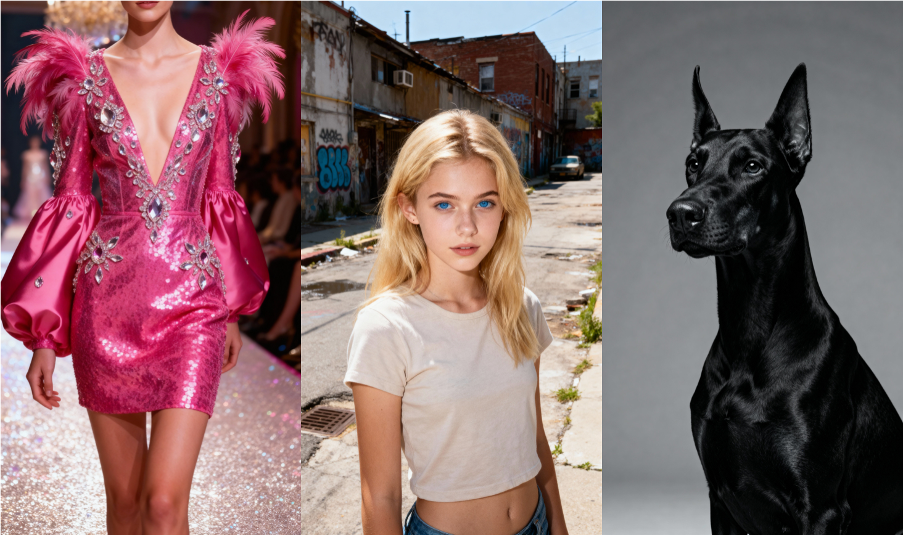
Tag System
When working in the “Reference to Video” mode, the main feature of this tool is the tag system. To insert a tag into your prompt, simply click the image thumbnail. The corresponding tag will be added to the prompt field automatically.
This helps the model identify more accurately which reference image should be used for each part of your prompt.
For example:
Quality
When generating a video from image references, you can choose from four quality options:
360p
Minimum video resolution. Suitable for quick test generations and viewing on small screens. It takes up less space and is generated faster, but fine details and textures may be less sharp.
720p
A medium-resolution option that offers a good balance between video quality and file size. It is widely used for online content and delivers clear visuals suitable for most modern devices and medium-sized screens.
1080p
A high-resolution option that provides excellent sharpness and detail. It is ideal for larger screens and professional-looking results, though it requires more storage space and may take longer to generate than 720p.
4K
The highest available quality, capturing fine details, realistic textures, lighting, and scene depth. It is best suited for professional projects and situations where maximum visual fidelity is required.
Duration
You can set the duration of the future video to 4, 6, 8, or 10 seconds.
❣️Please note that the duration is set to 10 seconds by default in the settings.
Aspect Ratio
When working with a text prompt, you have two aspect ratios to choose from:
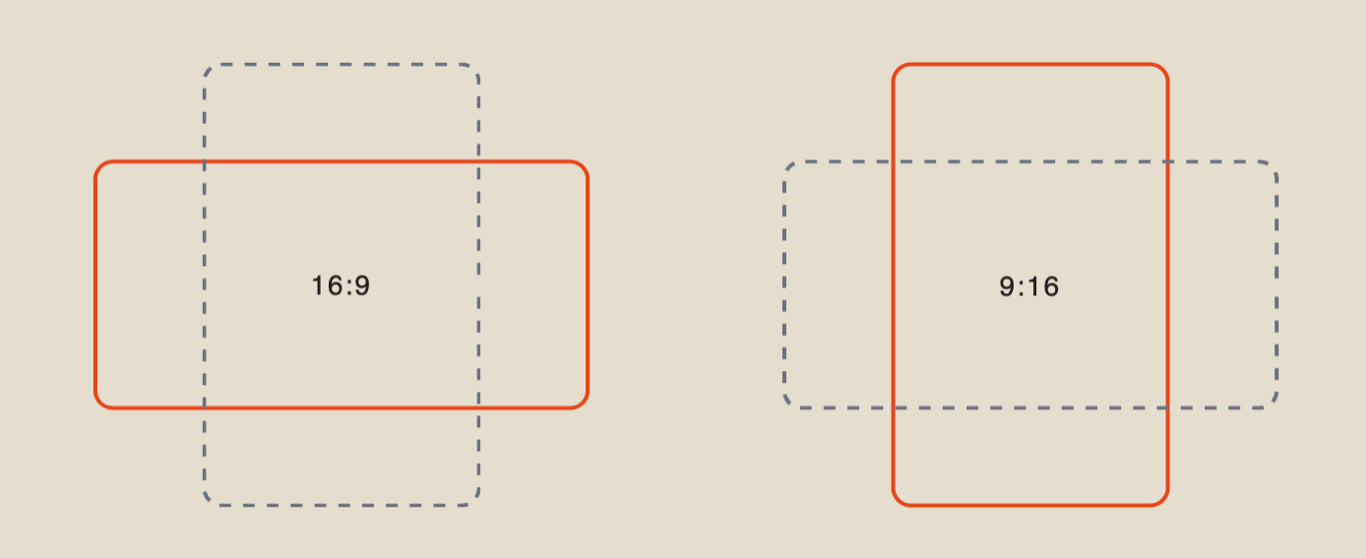
After configuring all the settings, click “Generate” to start the video generation process.
Result
Working with Multiple Images
After uploading your images, click “Configure and Start”, then set the generation parameters according to your desired result.
❣️ If you want to remove the uploaded images, click “Delete” or “Delete All”. After that, you will be able to upload new reference images.
Model Settings
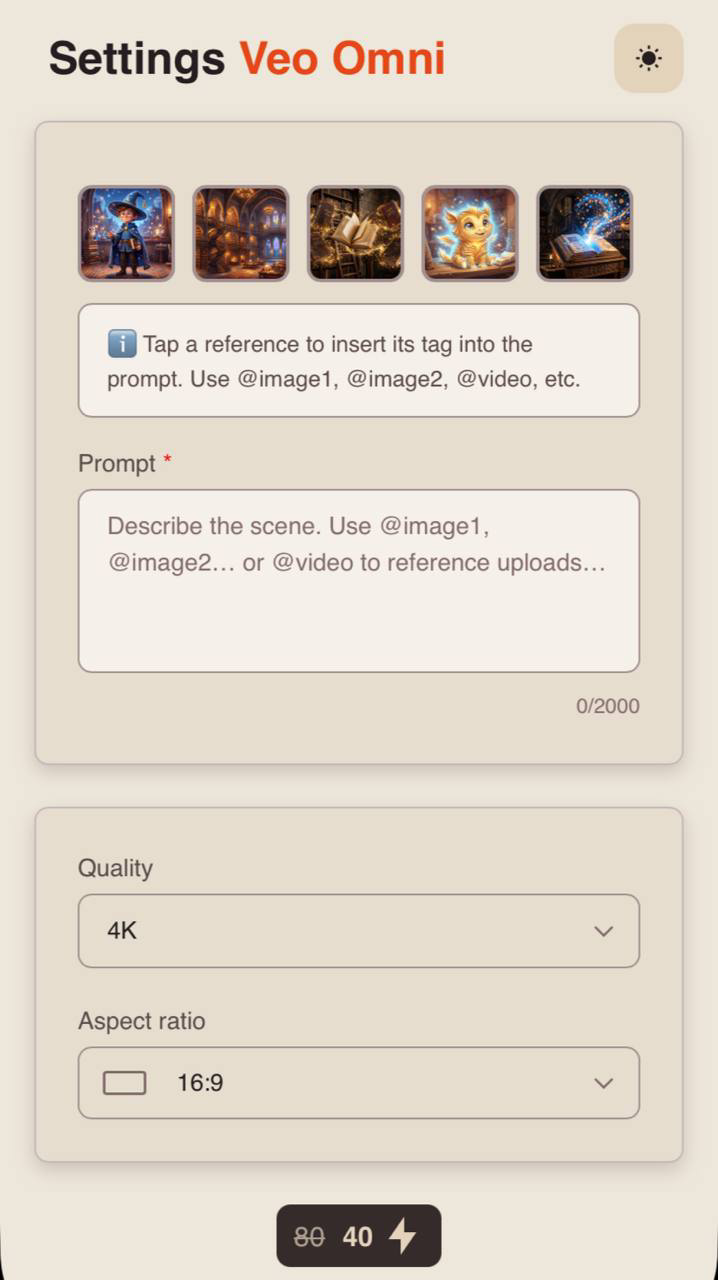
Prompt
High-quality results start with a well-structured prompt, as it helps the model accurately understand your idea.
Your prompt should clearly describe the video you want to generate.
A good prompt should include:
- Main subject and action: Describe who or what appears in the scene and what they are doing.
- Location and time of day: Specify the setting and lighting conditions (daytime, sunset, night, etc.) to establish the atmosphere.
- Style and mood: Define the visual style (realistic, cinematic, anime, etc.) and the overall mood or emotional tone of the scene.
For example:
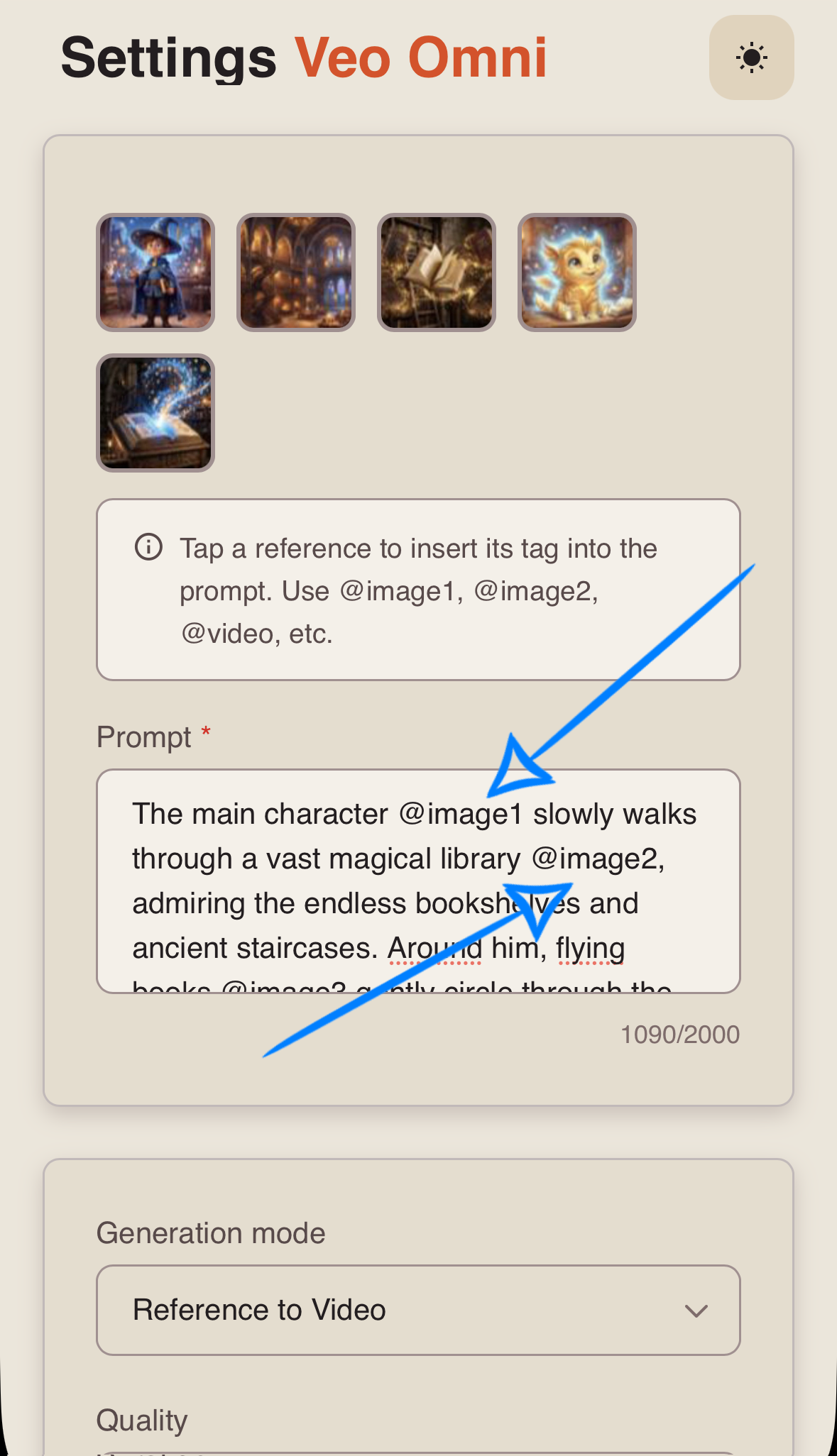
“The main character slowly walks through a vast magical library, admiring the endless bookshelves and ancient staircases. Around him, flying books gently circle through the air and turn their pages on their own. Suddenly, a small glowing magical spirit emerges from one of the books, cheerfully flies around the wizard, and invites him to follow. The camera smoothly follows them toward a huge ancient book resting on a pedestal in the center of the library. The wizard carefully opens the book, and a stream of golden and blue light, magical runes, stardust, and sparkling particles bursts from it, filling the entire hall. The camera slowly pulls back, revealing the scale of the library as the light spreads throughout the space, bringing the books, staircases, and ancient symbols on the walls to life. In the final scene, the magical spirit hovers beside the wizard, while glowing particles and book pages continue to swirl around them. The atmosphere is magical, mysterious, and cinematic, with soft volumetric lighting, high detail, and smooth camera movement.”
Generation Mode
When working with the Veo Omni Flash 1.1 tool, you have 3 generation modes available. When working with multiple image references, you need to use the “Reference to Video” mode.
Tag System
When working in the “Reference to Video” mode, the main feature of this tool is the tag system. To insert a tag into your prompt, simply click the thumbnail of the desired image - the corresponding tag will be automatically added to the prompt field.
This allows the model to more accurately determine which image should be used for each part of your prompt.
Example:
Quality
When generating a video from image references, you can choose from four quality options:
360p
Minimum video resolution. Suitable for quick test generations and viewing on small screens. It takes up less space and is generated faster, but fine details and textures may be less sharp.
720p
A medium-resolution option that offers a good balance between video quality and file size. It is widely used for online content and delivers clear visuals suitable for most modern devices and medium-sized screens.
1080p
A high-resolution option that provides excellent sharpness and detail. It is ideal for larger screens and professional-looking results, though it requires more storage space and may take longer to generate than 720p.
4K
The highest available quality, capturing fine details, realistic textures, lighting, and scene depth. It is best suited for professional projects and situations where maximum visual fidelity is required.
Duration
You can set the duration of the future video to 4, 6, 8, or 10 seconds.
❣️Please note that the duration is set to 10 seconds by default in the settings.
Aspect Ratio
When generating a video from image references, you can choose between two aspect ratios:
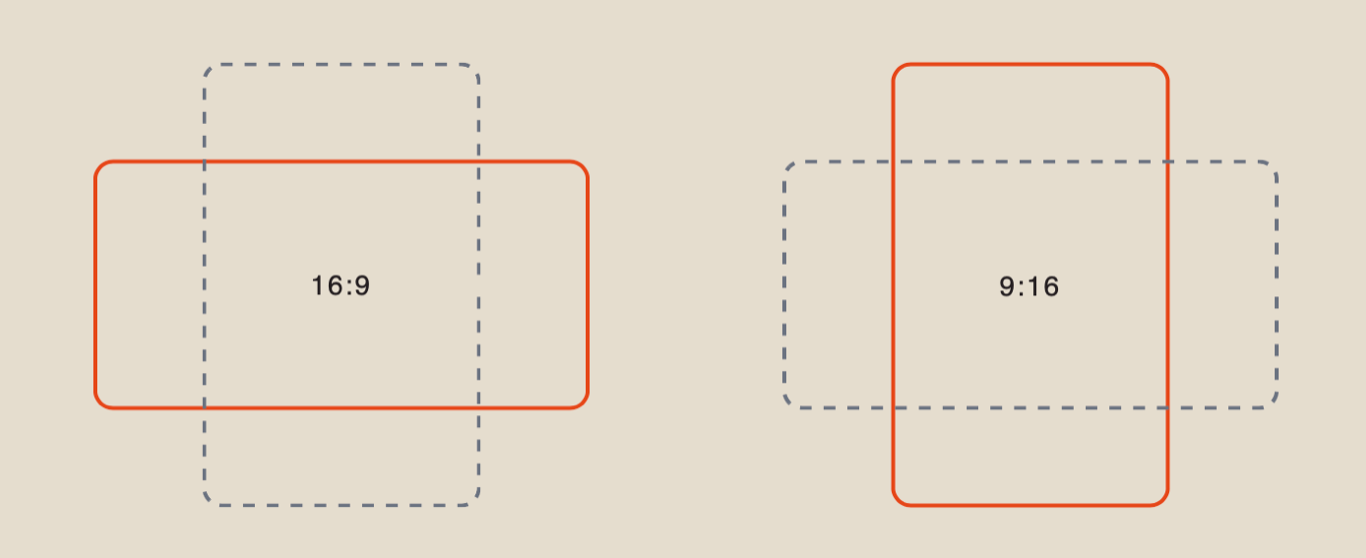
After configuring all the settings, click “Generate” to start the video generation process.
Result
💥 Step-by-Step Guide to Using Veo Omni Flash 1.1: Using a Video Reference
The first step when working with a video reference is to upload your video correctly.
Uploading a Video
Video requirements:
- Supported formats: MP4, MOV
- Maximum file size: 20 MB
- Recommended video length: 8 seconds
❣️ If you upload a video shorter than 8 seconds, the generated video will match the length of the reference video. However, the generation cost will remain the same.
❣️ If you upload a video longer than 8 seconds, only the first 8 seconds will be used for generation.
Example
Working with a Single Video Reference
After uploading your video, click “Configure and Start,” then adjust the generation settings based on your desired result.
❣️ To remove the uploaded video, click “Delete” or “Delete All.” You can then upload a new reference video.
Model Settings
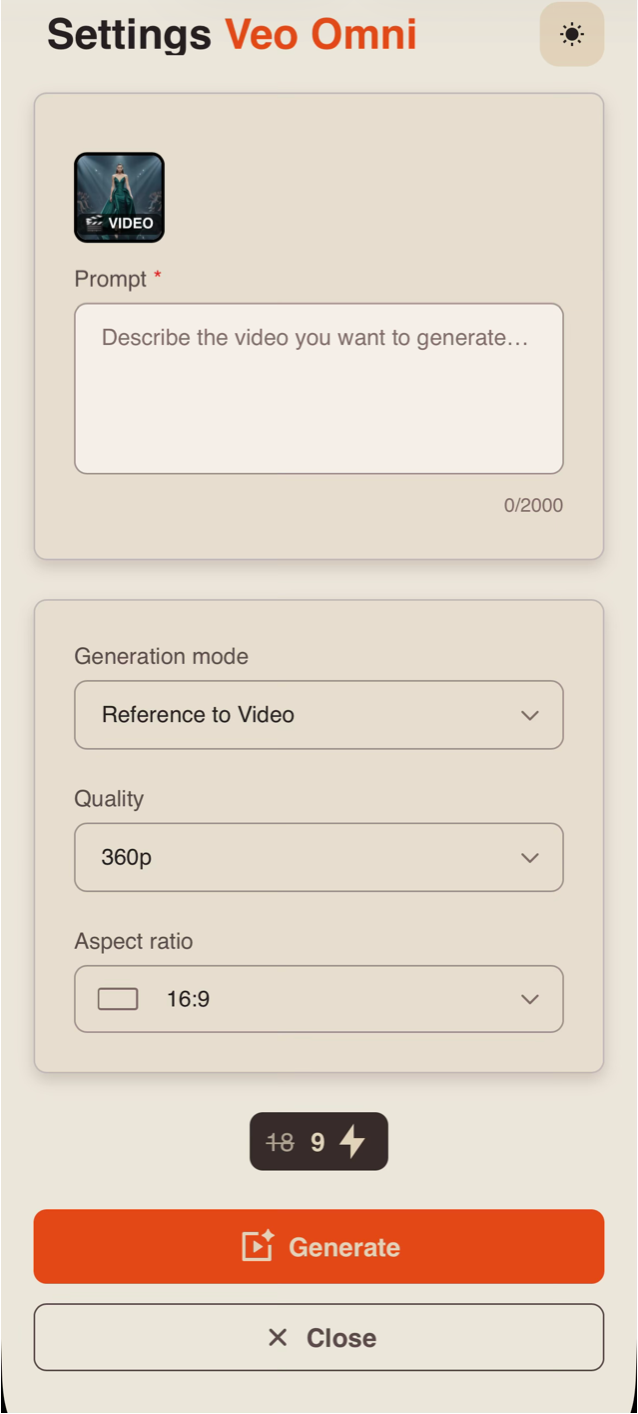
Prompt
High-quality results start with a well-structured prompt, as it helps the model accurately understand your idea.
Your prompt should clearly describe the video you want to generate.
A good prompt should include:
- Main subject and action: Describe who or what appears in the scene and what they are doing.
- Location and time of day: Specify the setting and lighting conditions (daytime, sunset, night, etc.) to establish the atmosphere.
- Style and mood: Define the visual style (realistic, cinematic, anime, etc.) and the overall mood or emotional tone of the scene.
Generation Mode
When working with the Veo Omni Flash 1.1 tool, you have 3 generation modes available. When working with a video reference, you need to use the “Reference to Video” mode.
Tag System
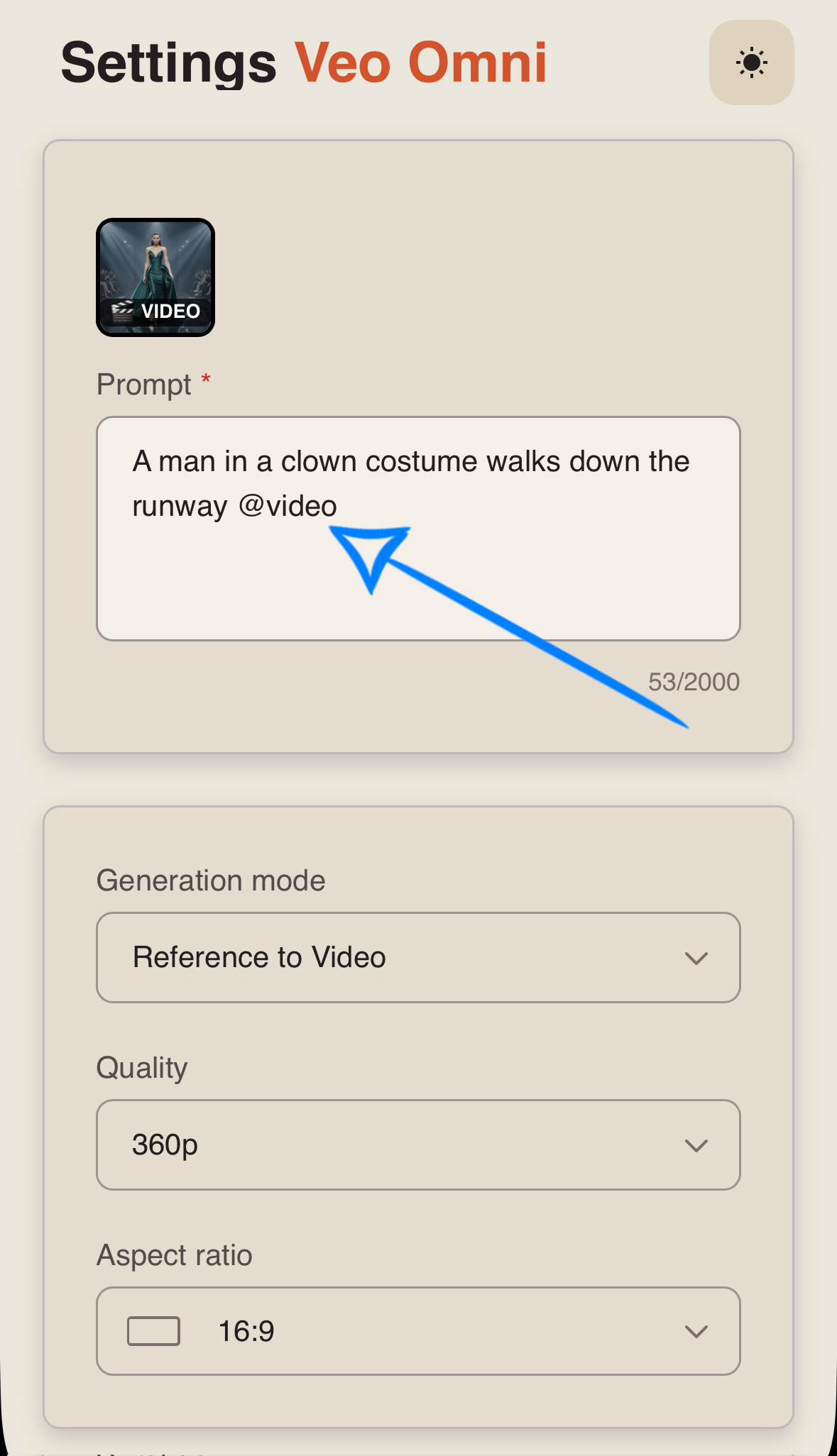
A key feature of working with video references in this tool is the tag system. To insert a tag into your prompt, simply click the video thumbnail. The corresponding tag will be added to the prompt field automatically.
This helps the model identify more accurately which reference should be used for each part of your prompt.
Example:
Quality
When generating a video from a video reference, you can choose from four quality options:
360p
Minimum video resolution. Suitable for quick test generations and viewing on small screens. It takes up less space and is generated faster, but fine details and textures may be less sharp.
720p
Provides medium video resolution with a good balance between image quality and file size. It is a widely used standard for online content and delivers clear visuals suitable for most modern devices and medium-sized displays.
1080p
Delivers high-quality video with excellent sharpness and detail. It is ideal for larger screens and professional-looking results, though it requires more storage space and longer generation times than 720p.
4K
Offers the highest level of visual quality, capturing fine details, realistic textures, lighting, and scene depth. This option is best suited for professional projects and situations where maximum image fidelity is required.
Duration
You can set the duration of the future video to 4, 6, 8, or 10 seconds.
❣️Please note that the duration is set to 10 seconds by default in the settings.
Aspect Ratio
When generating a video from a video reference, you can choose between two aspect ratios:
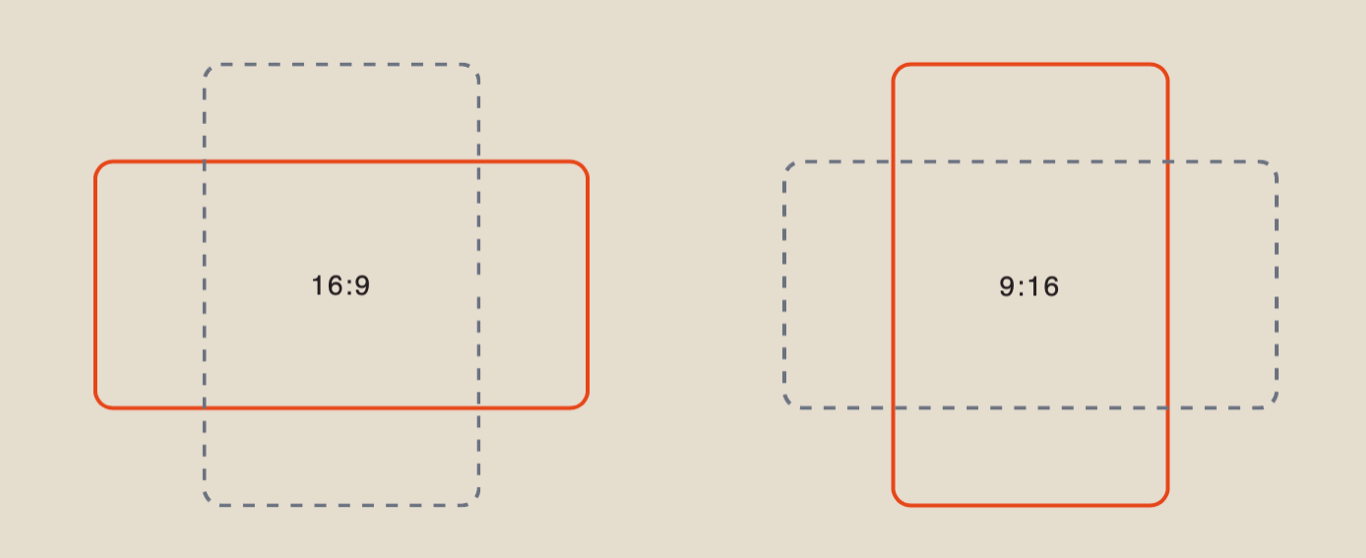
After configuring all the settings, click “Generate” to start the video generation process.
Result
Working with Video and Image References
When using a video reference, you can also upload up to five additional images.
After uploading your video and image references, click “Configure and Start,” then adjust the generation settings based on your desired result.
❣️ To remove the uploaded references, click “Delete” or “Delete All.” You can then upload new references.
Model Settings
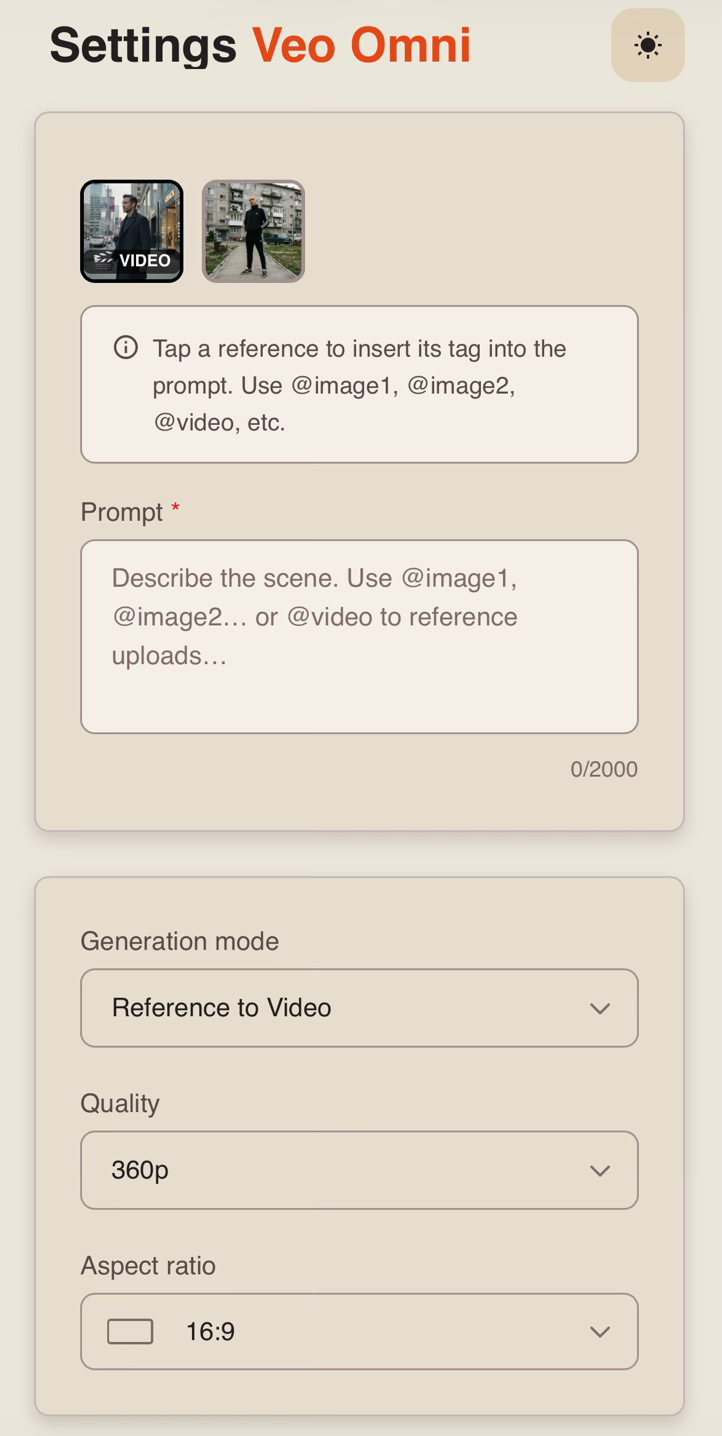
Prompt
High-quality results begin with a well-structured prompt, as it helps the model understand your idea more accurately.
Your prompt should clearly describe the video you want to generate.
A good prompt should include:
- Main Subject and Action: Describe who or what appears in the scene and what they are doing.
- Location and Time of Day: Specify the setting and lighting conditions, such as daytime, sunset, or night, to establish the atmosphere.
- Style and Mood: Define the visual style, such as realistic, cinematic, or anime, as well as the overall mood or emotional tone of the scene.
Generation Mode
When working with the Veo Omni Flash 1.1 tool, you have 3 generation modes available. When working with video and image references, you need to use the “Reference to Video” mode.
Tag System
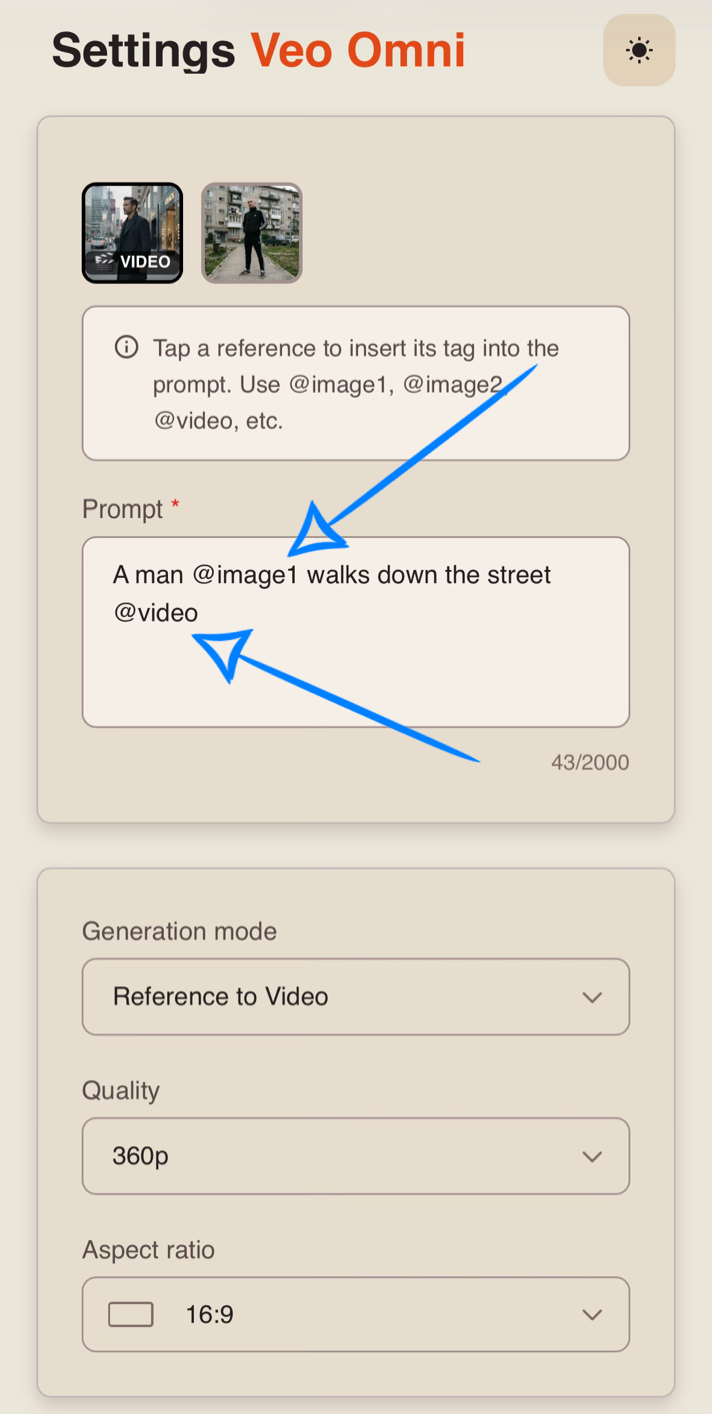
A key feature of working with video and image references in this tool is the tag system. To insert a tag into your prompt, simply click the thumbnail of the desired video or image. The corresponding tag will be added to the prompt field automatically.
This helps the model identify more accurately which reference should be used for each part of your prompt.
Example:
Quality
When generating a video using multiple references, you can choose from four quality options:
360p
Minimum video resolution. Suitable for quick test generations and viewing on small screens. It takes up less space and is generated faster, but fine details and textures may be less sharp.
720p
Provides medium video resolution with a good balance between image quality and file size. It is a widely used standard for online content and delivers clear visuals suitable for most modern devices and medium-sized displays.
1080p
Delivers high-quality video with excellent sharpness and detail. It is ideal for larger screens and professional-looking results, though it requires more storage space and longer generation times than 720p.
4K
Offers the highest level of visual quality, capturing fine details, realistic textures, lighting, and scene depth. This option is best suited for professional projects and situations where maximum image fidelity is required.
Duration
You can set the duration of the future video to 4, 6, 8, or 10 seconds.
❣️Please note that the duration is set to 10 seconds by default in the settings.
Aspect Ratio
When generating a video using multiple references, you can choose between two aspect ratios:
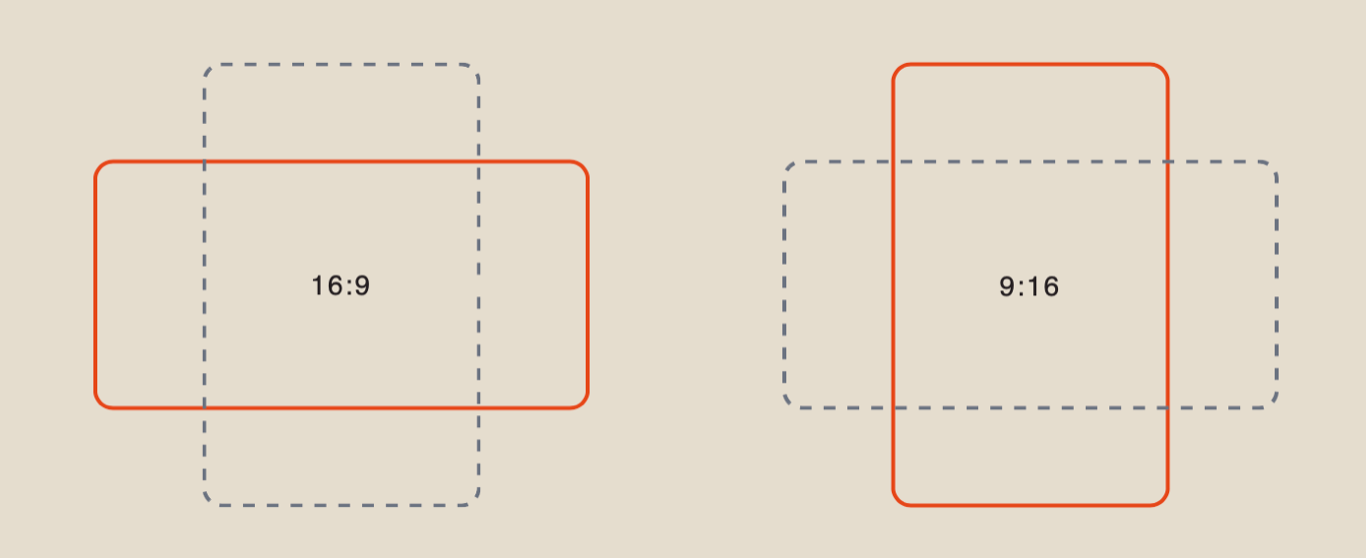
After configuring all the settings, click “Generate” to start the video generation process.
Example References
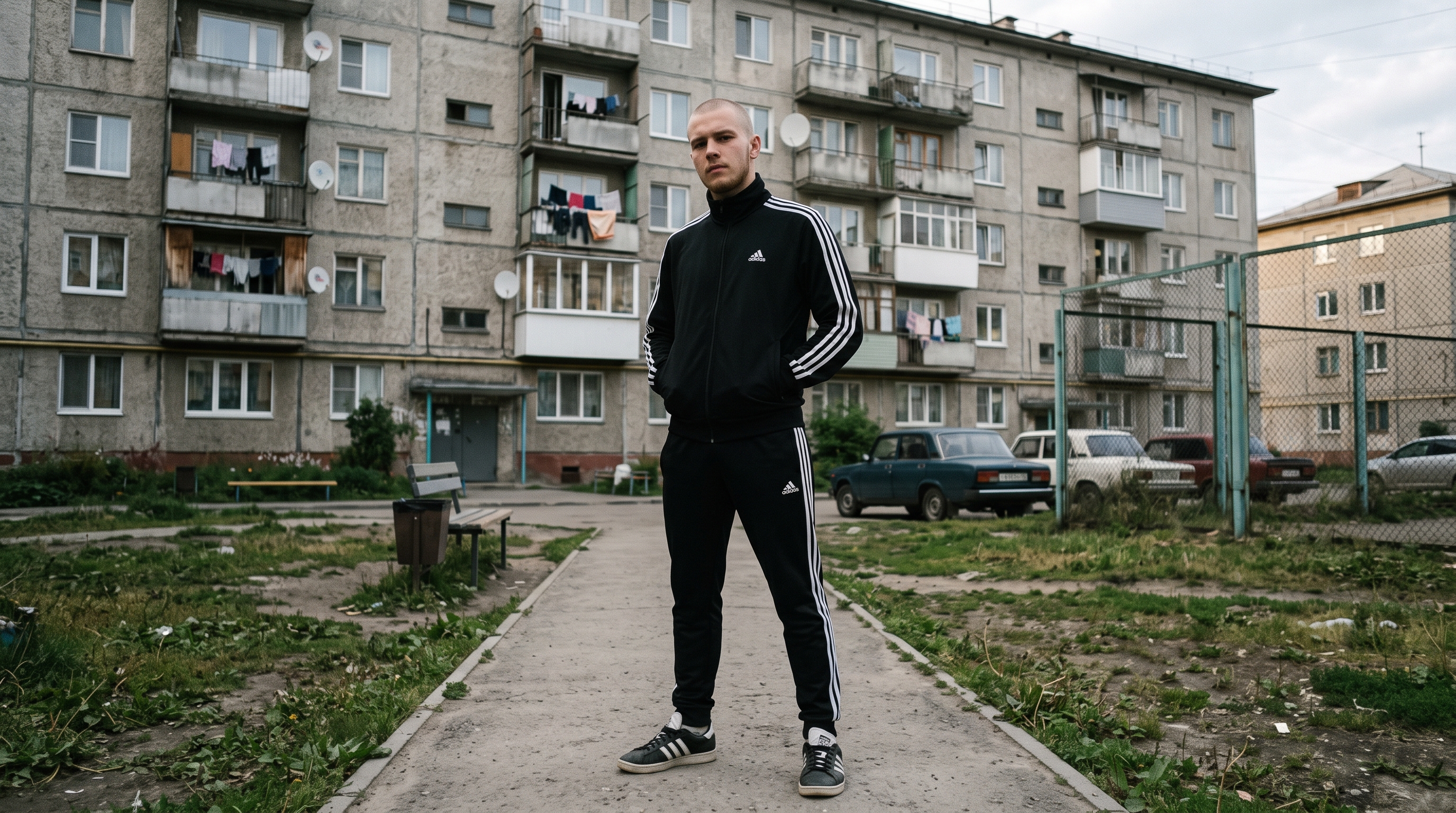
Result
💥 Step-by-Step Guide to Using Veo Omni Flash 1.1: Generation with Voice
By default, all generated videos include automatically created audio that matches the actions taking place in the scene.
You can also add a custom line of dialogue, which the model will use when generating the final video.
❣️ Configure the model settings according to your preferences. You can find a detailed explanation of each parameter in the 💥 Step-by-Step Guide to Using Veo Omni Flash 1.1: Text to Video section.
Creating a Text Prompt
High-quality results begin with a well-structured prompt, as it helps the model understand your idea more accurately.
Your prompt should clearly describe the video you want to generate.
A good prompt should include:
- Main Subject and Action: Describe who or what appears in the scene and what they are doing.
- Location and Time of Day: Specify the setting and lighting conditions, such as daytime, sunset, or night, to establish the atmosphere.
- Style and Mood: Define the visual style, such as realistic, cinematic, or anime, as well as the overall mood or emotional tone of the scene.
- Dialogue: Include the exact line you want the character to say, and the model will incorporate it into the final video. For example: “Are we going to order lunch?” Be sure to specify the language in which the dialogue should be spoken.
Example
“A realistic office worker sits at a modern desk in a bright open-plan office, focused on working at his computer. He types on the keyboard, occasionally moves the mouse, and keeps his eyes fixed on the monitor. Documents, a notebook, and a coffee mug are placed on the desk. The camera slowly moves closer, creating the feeling of an ordinary workday.
Then the employee glances at the wall clock, pauses thoughtfully for a few seconds, raises his head, looks directly into the camera, and naturally says in English with a slight smile: “Are we going to order lunch?“.
Natural facial expressions, smooth head and hand movements, expressive gestures, cinematic composition, soft office lighting, modern interior, high level of detail, natural colors, and a professional realistic style.”
Result

We hope this guide helps you explore the capabilities of Veo Omni Flash and quickly get started with your own projects. We have designed it to be as clear and practical as possible, so you can start creating videos right away. If your first results are not exactly what you expected, that is completely normal.
Experiment with different prompts and creative ideas. Over time, you will discover which wording and techniques produce the best results, helping you create the videos you envision. 💛
SYNTX AI: Syntx AI
SYNTX Support: Syntx Support
YouTube channel “SYNTX”: Syntx YouTube
SYNTX.AI Academy: SYNTX Academy