Veo - is an advanced AI model developed by Google that can generate videos from text prompts or images. It can also create realistic audio, including speech, sound effects, and ambient background sounds.
❗️Maximum prompt length: 2000 characters.
- 🎛 Navigation
- 💥 Step-by-Step Guide to Using Veo. Text to Video
- 💥 Step-by-Step Guide to Using Veo: Image to Video
- 💥 Step-by-Step Guide to Using Veo: Frames Type
- 💥 Step-by-Step Guide to Using Veo: Ingredients Type
- 💥 Step-by-Step Guide to Using Veo: Extend Video
- 💥 Step-by-Step Guide to Using Veo: Edit Video
🎛 Navigation
🏠 Main Menu > 🎬 Video > ⭕ Veo
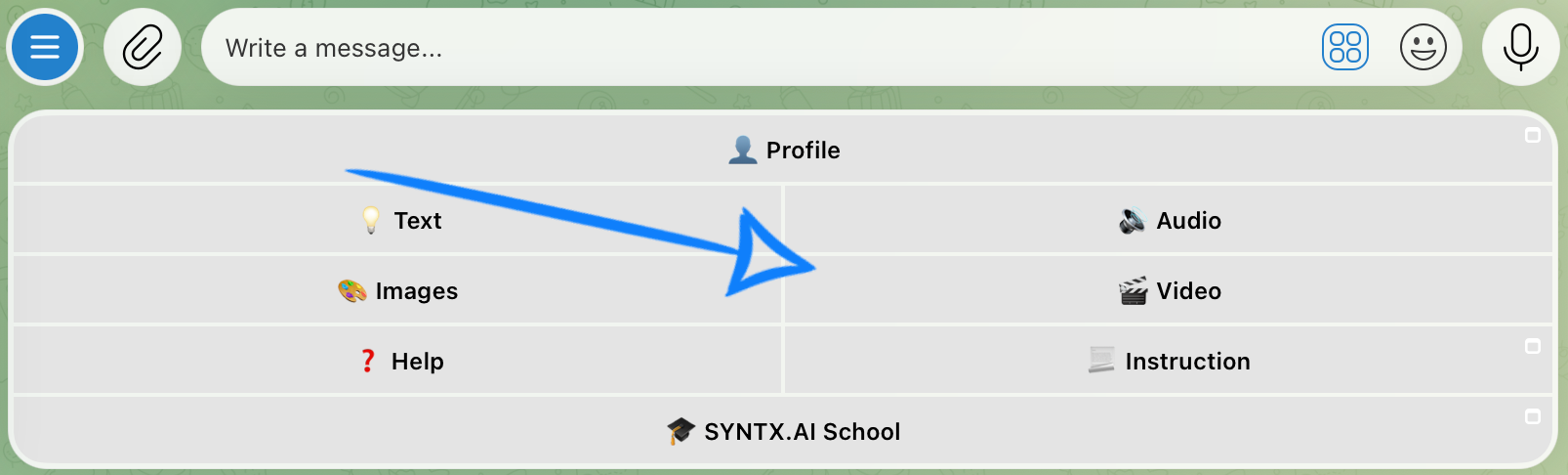
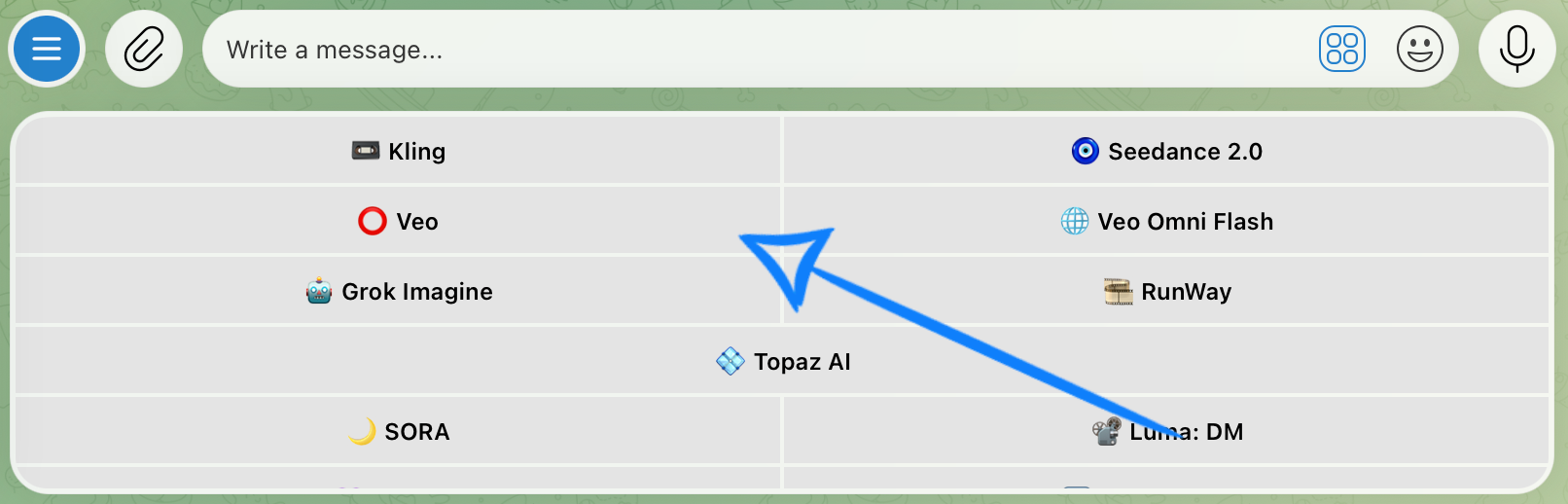
💥 Step-by-Step Guide to Using Veo. Text to Video
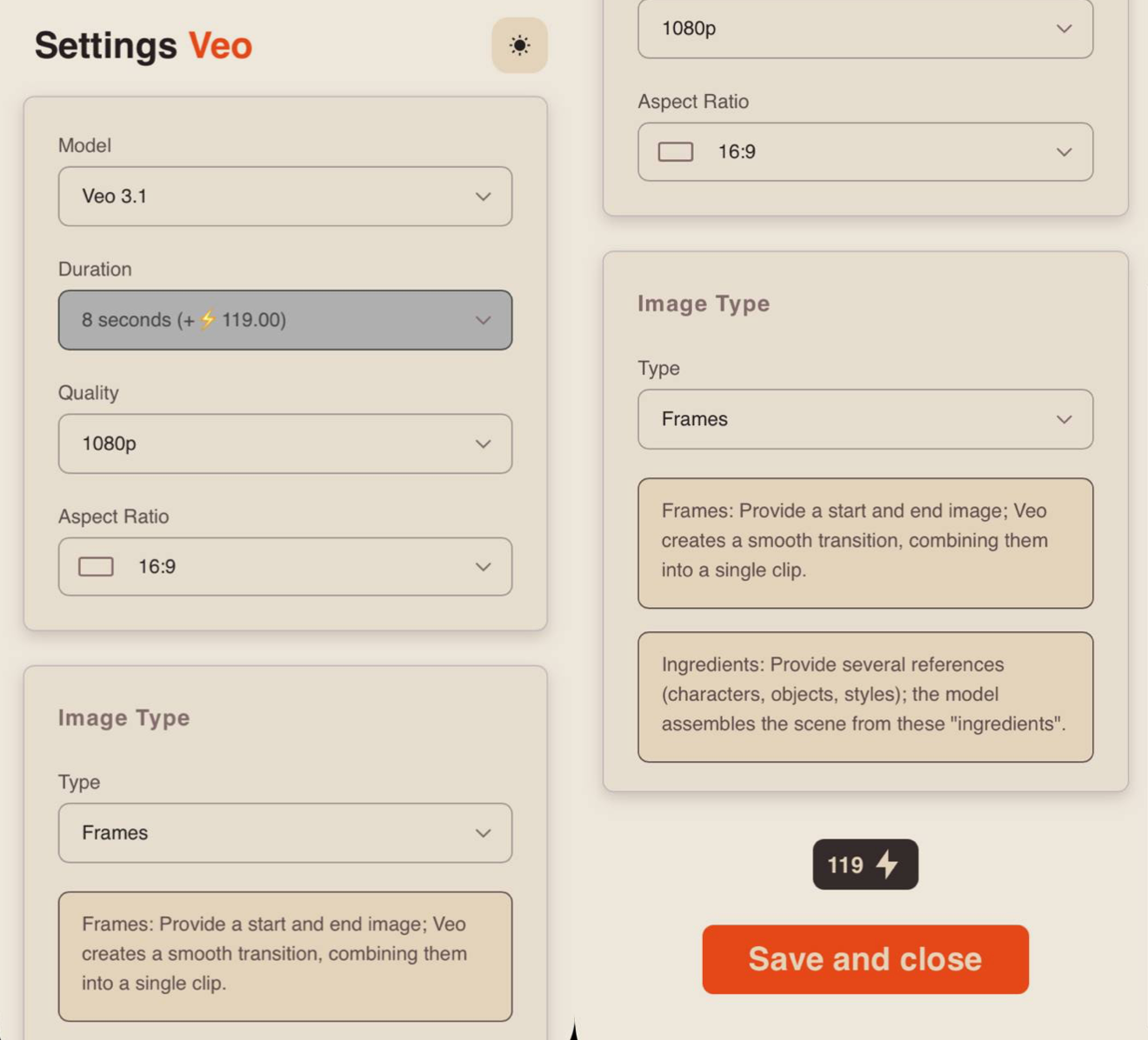
When using the Text to Video feature, the first step is to configure the model settings correctly.
Model Settings
Model
We offer three advanced video generation models: Veo 3.1, Veo 3.1 Fast, and Veo 3.1 Fast (relax). These models combine powerful generative AI, realistic visuals, and intelligent audio generation in a single system.
Veo 3.1 - is designed for users who want the highest possible quality and cinematic results. It delivers exceptional detail, smooth motion, and realistic audio synchronization, making it ideal for creating professional-quality videos.
Veo 3.1 Fast - is a faster, more lightweight version of the model, optimized for speed and efficiency. It is ideal for quickly testing ideas and creating dynamic videos while reducing generation time and resource usage.
Veo 3.1 Fast (relax) - is a more cost-effective version of Veo 3.1 Fast. It delivers the same output quality while processing generations in the background. This model is ideal when speed is not a priority, allowing you to use resources more efficiently while still achieving high-quality results.
Duration
Currently, all Veo models support a fixed video length. Each generated video is 8 seconds long.
Quality
When generating a video from a text prompt, you can choose from three quality options:
720p A medium-resolution option that offers a good balance between video quality and file size. It delivers clear visuals and is well suited for online content and playback on most modern devices.
1080p A high-resolution option that provides excellent sharpness and detail. It is ideal for larger screens and professional-looking content, though it requires more storage space and may take longer to generate.
4K The highest available quality, offering maximum visual detail and realism. It is ideal for professional projects where every element, from textures and lighting to scene depth, matters.
Aspect Ratio
Two aspect ratios are available:
- 9:16 - Vertical video
- 16:9 - Horizontal video
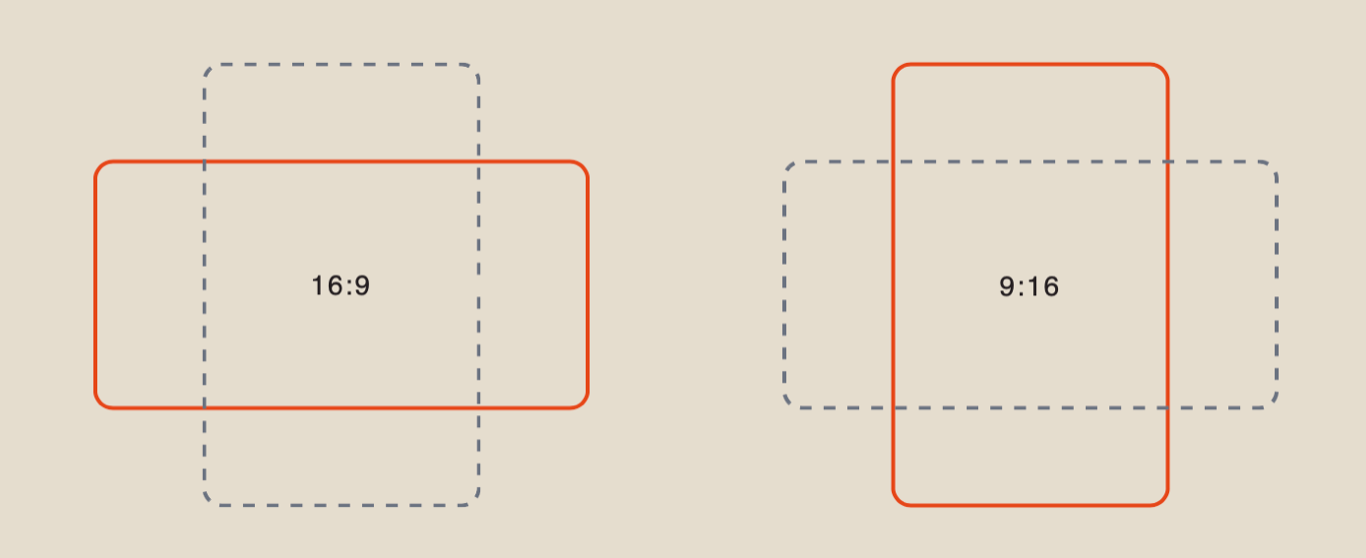
Image Type
When generating a video from a text prompt, you can ignore the Image Type setting, as it does not affect the result in this mode.
Structuring a Text Prompt
Once you have configured the model settings, the next step is to write a clear, well-structured prompt to achieve the best possible results.
- Main Subject and Action
This is the foundation of every prompt. Clearly describe who or what appears in the scene and what they are doing. Keep the description concise and avoid unnecessary details or pronouns, as they may confuse the model.
- Environment and Time of Day
Specify where the scene takes place and the time of day. This helps define the atmosphere, lighting, and overall color palette of the video.
- Camera Movement
In Veo, camera movement is an important storytelling tool. The camera can behave like a real film camera by moving closer to the subject, following a character, orbiting around an object, and more.
Example:
A giant elephant drinks water from a river in the savanna at sunset. Golden sunlight reflects on the water while a light cloud of dust rises around the elephant. The camera slowly circles around the elephant.
Results
Veo 3.1
Veo 3.1 Fast
Veo 3.1 Fast (relax)
Structuring a Text Prompt with Speech
Once you have configured the model settings, the next step is to write a well-structured prompt to generate a high-quality video with synchronized speech.
- Main Subject and Action
This is the foundation of every prompt. Clearly describe who or what appears in the scene and what they are doing. Keep the description concise and avoid unnecessary details or pronouns that may confuse the model.
- Environment and Time of Day
Specify where the scene takes place and the time of day. This helps establish the atmosphere, lighting, and overall visual style of the video.
- Specify That the Character Speaks
To ensure the model generates dialogue, explicitly state that the character is speaking. Include this naturally in your prompt.
- Add the Exact Line of Dialogue
If you want the character to say something specific, include a short quoted line in the prompt.
Veo will generate synchronized speech and realistic lip movements based on the provided dialogue. Write spoken lines in a script-style format, for example:
The cat blinks and says, “No dinner again? Typical human…”
- Specify the Spoken Language
To make the character speak in the desired language, clearly specify the language in your prompt.
Example:
A teacher stands in front of a classroom whiteboard, with a student holding a notebook nearby. The camera slowly moves closer. The teacher says: “Not bad, but I expected more from you. Try one more time, you can do it!” Realistic style, dialogue spoken in English.
Results
Veo 3.1
Veo 3.1 Fast
Veo 3.1 Fast (relax)
💥 Step-by-Step Guide to Using Veo: Image to Video
When using the Image to Video feature, the first step is to configure the model settings correctly.
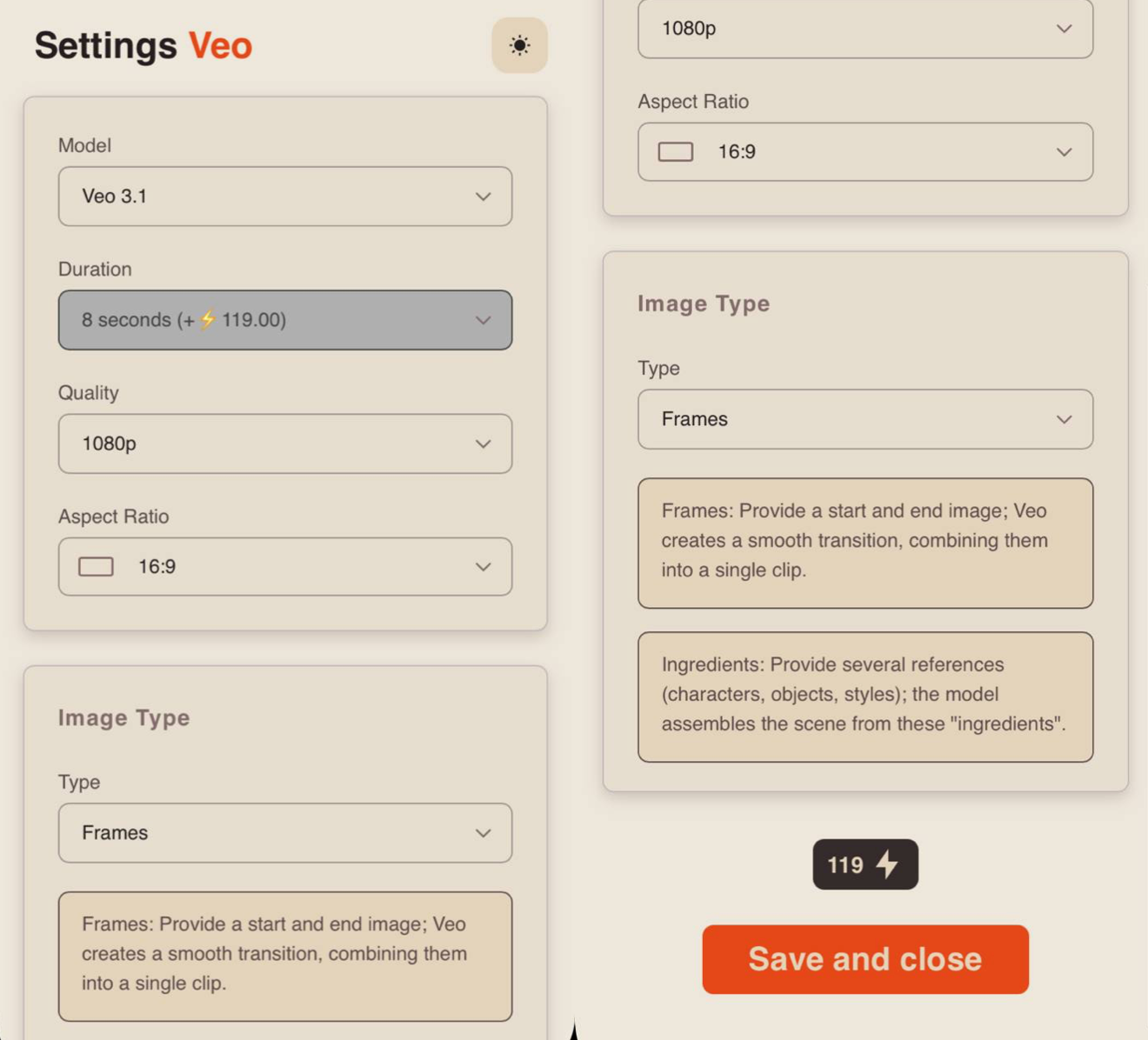
Model Settings
Model
We offer three advanced video generation models: Veo 3.1, Veo 3.1 Fast, and Veo 3.1 Fast (relax). These models combine powerful generative AI, realistic visuals, and intelligent audio generation in a single system.
Veo 3.1 - is designed for users who want the highest possible quality and cinematic results. It delivers exceptional detail, smooth motion, and realistic audio synchronization, making it ideal for creating professional-quality videos.
Veo 3.1 Fast - is a faster, more lightweight version of the model, optimized for speed and efficiency. It is ideal for quickly testing ideas and creating dynamic videos while reducing generation time and resource usage.
Veo 3.1 Fast (relax) - is a more cost-effective version of Veo 3.1 Fast. It delivers the same output quality while processing generations in the background. This model is ideal when speed is not a priority, allowing you to use resources more efficiently while still achieving high-quality results.
Duration
Currently, all Veo models support a fixed video length. Each generated video is 8 seconds long.
Quality
When generating a video from an image, you can choose from three quality options:
720p A medium-resolution option that offers a good balance between video quality and file size. It delivers clear visuals and is well suited for online content and playback on most modern devices.
1080p A high-resolution option that provides excellent sharpness and detail. It is ideal for larger screens and professional-looking content, though it requires more storage space and may take longer to generate.
4K The highest available quality, offering maximum visual detail and realism. It is ideal for professional projects where every element, from textures and lighting to scene depth, matters.
Aspect Ratio
Two aspect ratios are available:
- 9:16 - Vertical video
- 16:9 - Horizontal video
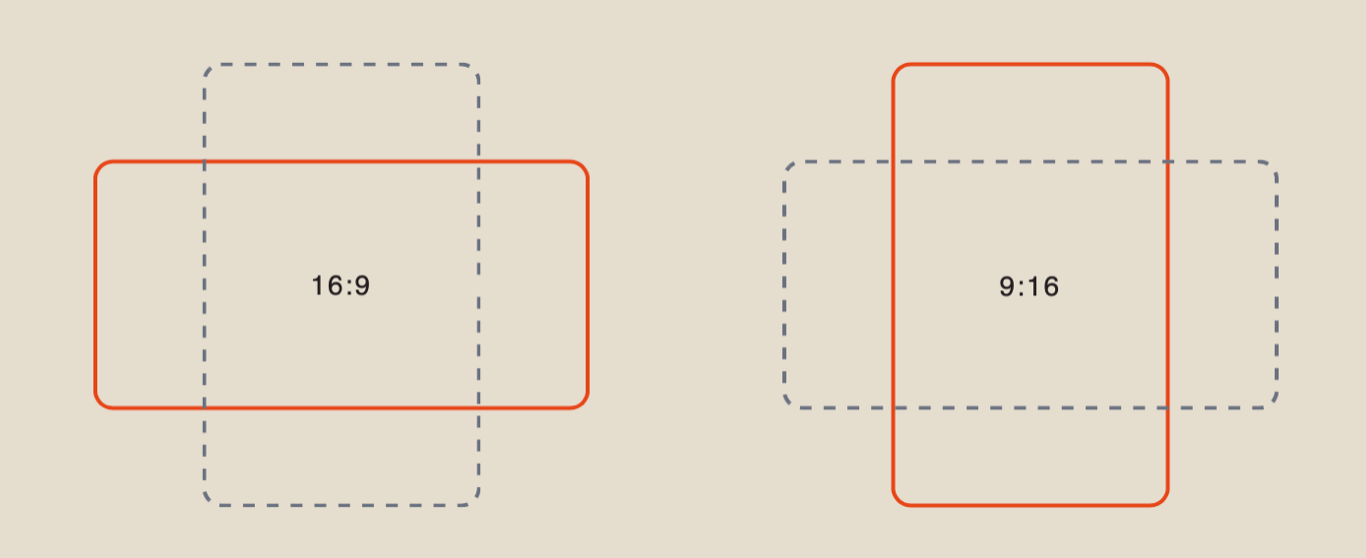
The selected aspect ratio will be applied regardless of the original aspect ratio of the uploaded image.
Image Type
When using a single image, you can ignore the Image Type setting, as it does not affect the result in this mode.
Uploading an Image
Once you have configured the model settings, upload the image you want to animate.
File requirements:
- Maximum file size: 19 MB
- Minimum resolution: 300 × 300 pixels
- Supported formats: PNG and JPEG
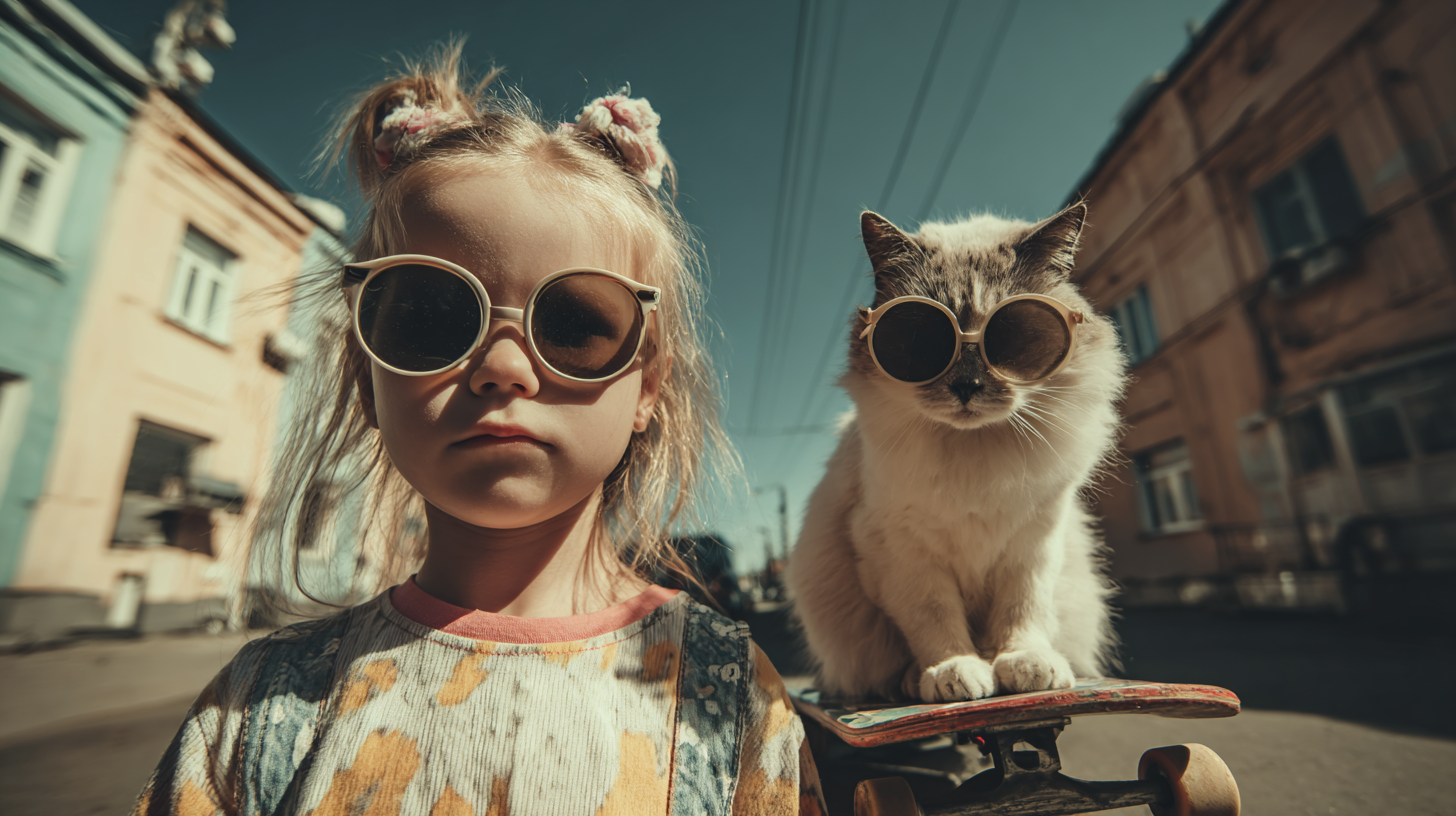
Example:
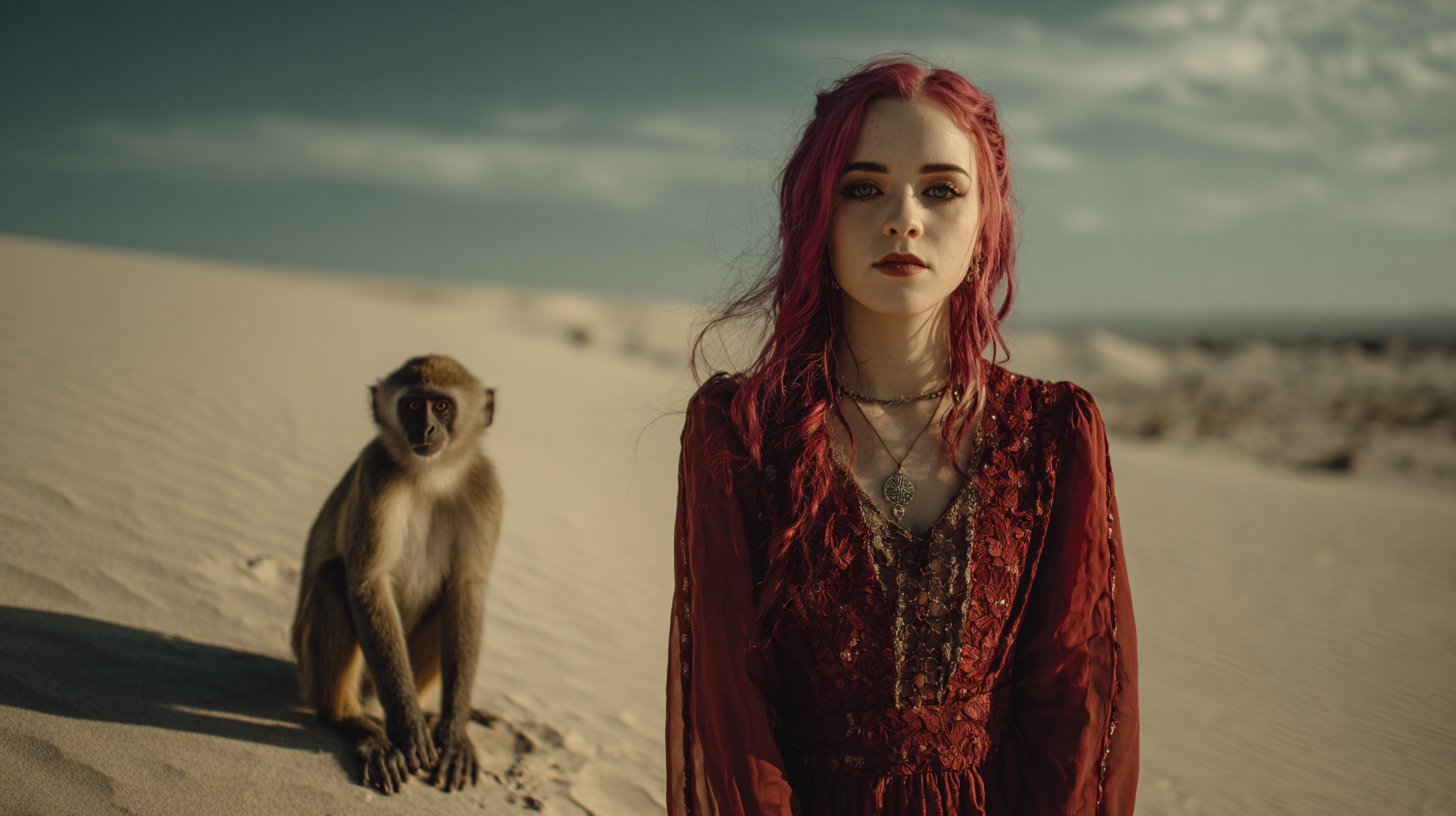
Structuring a Prompt for Standard Image-to-Video Generation
Once you have configured the model settings and uploaded your image, the next step is to write a clear, well-structured prompt to achieve the best possible results.
- Describe what Happens in the Image
Explain the specific action or visual change you want to add to the static image. The model can already see the image, so you only need to describe what should come to life.
- Describe the Movement
Specify the style and pace of the animation. This helps the model understand how the scene should move, whether the motion should be subtle, energetic, dramatic, or smooth.
- Animation Style
Describe the overall visual style of the animation, such as realistic, cinematic, artistic, or stylized.
Example:
A girl and a cat wearing glasses sit still. The cat gently tilts its head while the girl blinks and maintains a serious expression. The camera slowly moves forward, with subtle and natural animation.
Results
Veo 3.1
Veo 3.1 Fast
Veo 3.1 Fast (relax)
Structuring a Prompt for Image-to-Video Generation with Speech
Once you have configured the model settings and uploaded your image, the next step is to write a well-structured prompt to generate a high-quality video with synchronized speech.
- Describe What Happens in the Image
Explain the specific action or visual change you want to add to the static image. The model can already see the image, so you only need to describe what should come to life.
- Describe the Movement
Specify the style and pace of the animation. This helps the model understand how the scene should move, whether the motion should be subtle, energetic, dramatic, or smooth.
- Animation Style
Describe the overall visual style of the animation, such as realistic, cinematic, artistic, or stylized.
- Specify That the Characters Speak
To ensure the model generates dialogue, explicitly state that the characters are speaking. Include this naturally in your prompt.
- Add the Exact Dialogue
If you want the characters to say something specific, include short quoted lines in the prompt.
Veo will generate synchronized speech and realistic lip movements based on the provided dialogue. Write all spoken lines in a script-style format.
- Specify the Spoken Language
To make the characters speak in the desired language, clearly specify the language in your prompt.
Example:
A young woman stands in the middle of a desert while a monkey beside her looks around curiously. The monkey says, “Are you sure this is the beach?” The woman turns her head and replies, “Absolutely. There’s just a little more sand than usual.” Cinematic animation, dialogue spoken in English.
Results
Veo 3.1
Veo 3.1 Fast
Veo 3.1 Fast (relax)
💥 Step-by-Step Guide to Using Veo: Frames Type
To create a smooth transition between two images, select Frames as the image type in the model settings. In this mode, the first image is used as the opening frame, while the second image becomes the final frame of the generated video.
Model Settings
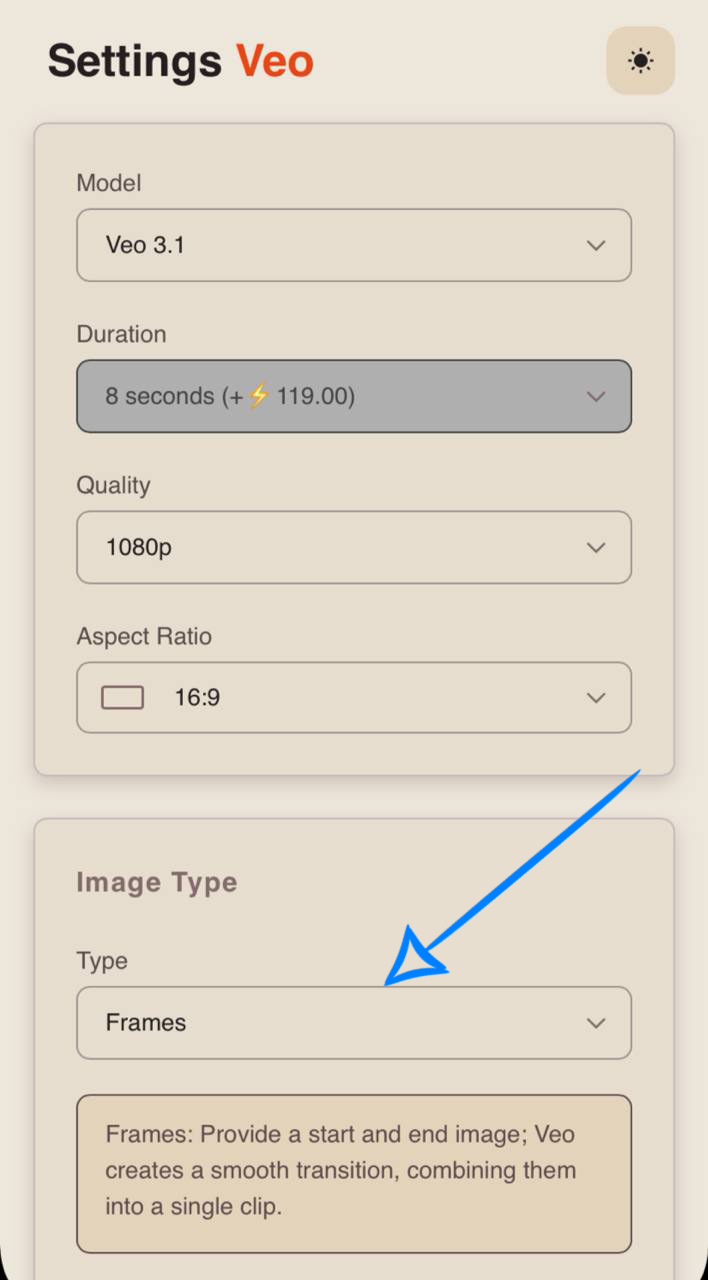
Model
We offer three advanced video generation models: Veo 3.1, Veo 3.1 Fast, and Veo 3.1 Fast (relax). These models combine powerful generative AI, realistic visuals, and intelligent audio generation in a single system.
Veo 3.1 - is designed for users who want the highest possible quality and cinematic results. It delivers exceptional detail, smooth motion, and realistic audio synchronization, making it ideal for creating professional-quality videos.
Veo 3.1 Fast - is a faster, more lightweight version of the model, optimized for speed and efficiency. It is ideal for quickly testing ideas and creating dynamic videos while reducing generation time and resource usage.
Veo 3.1 Fast (relax) - is a more cost-effective version of Veo 3.1 Fast. It delivers the same output quality while processing generations in the background. This model is ideal when speed is not a priority, allowing you to use resources more efficiently while still achieving high-quality results.
Duration
Currently, all Veo models support a fixed video length. Each generated video is 8 seconds long.
Quality
When generating a video in Frames mode, you can choose from three quality options.
720p A medium-resolution option that offers a good balance between video quality and file size. It delivers clear visuals and is well suited for online content and playback on most modern devices.
1080p A high-resolution option that provides excellent sharpness and detail. It is ideal for larger screens and professional-looking content, though it requires more storage space and may take longer to generate.
4K The highest available quality, offering maximum visual detail and realism. It is ideal for professional projects where every element, from textures and lighting to scene depth, matters.
Aspect Ratio
Two aspect ratios are available:
- 9:16 - Vertical video
- 16:9 - Horizontal video
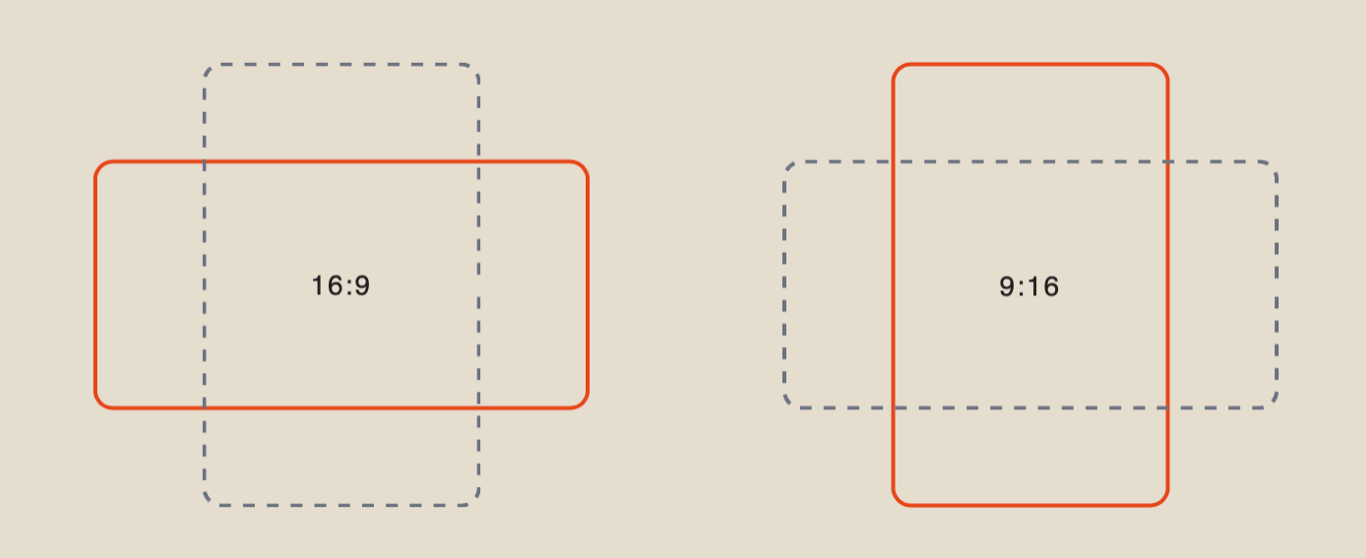
The selected aspect ratio will be applied regardless of the original aspect ratio of the uploaded images.
Image Type
When using two images, you must select the Frames option under Image Type.
Veo will generate a smooth transition between the two images and combine them into a single video.
Uploading Images
Once you have configured the model settings, upload the two images you want to use as the starting and ending frames.
File requirements:
- Maximum file size: 19 MB
- Minimum resolution: 300 × 300 pixels
- Supported formats: PNG and JPEG
❣️ For the best results, we recommend using two visually similar images. Smooth transitions are easier to achieve when the images share a similar composition, subject, or perspective. Using completely different images may produce lower-quality results.
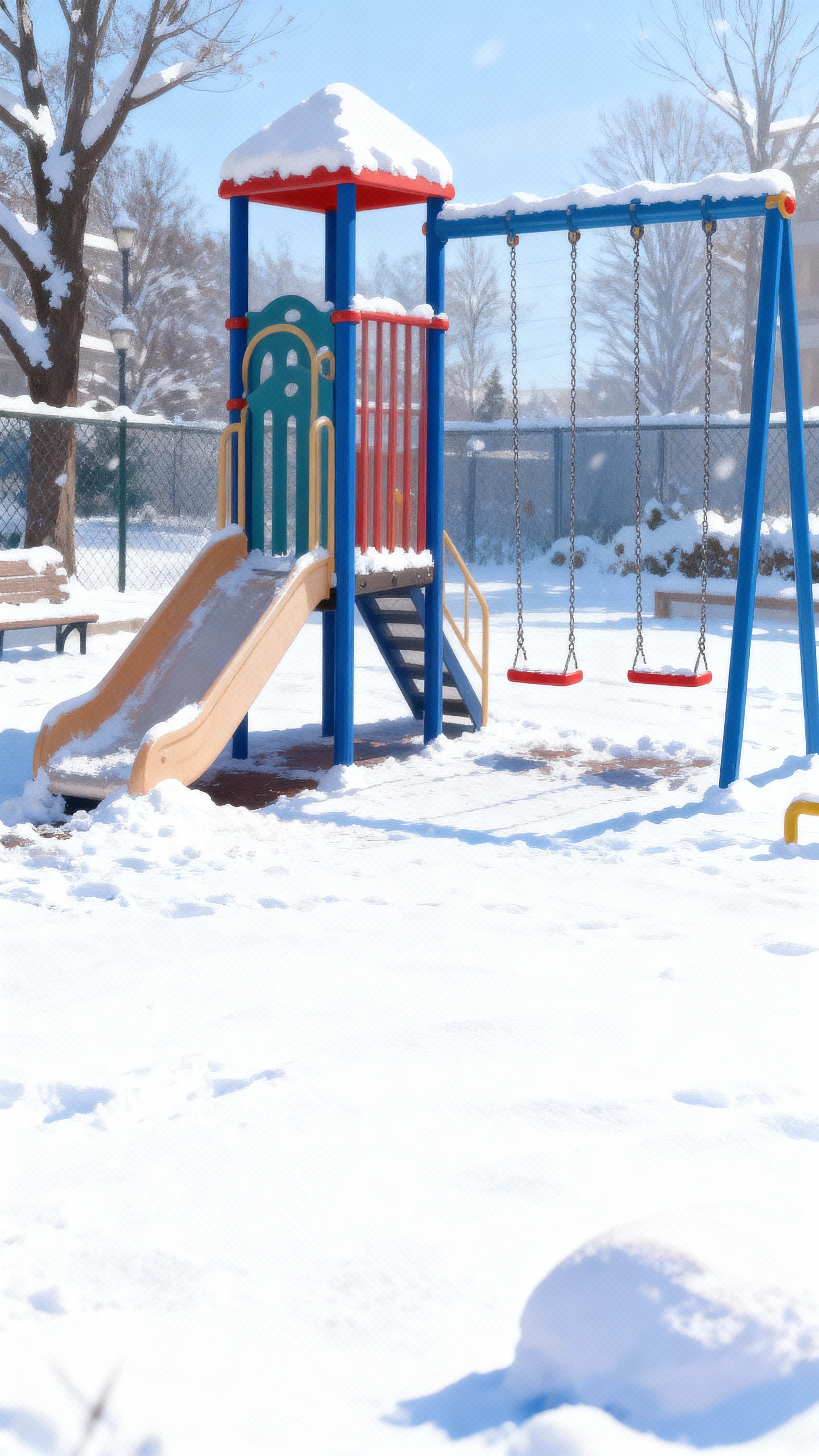
Example:
Starting Frame

Ending Frame
Structuring a Prompt for Standard Frames Generation
Once you have configured the model settings and uploaded both images, the next step is to write a clear, well-structured prompt to achieve the best possible result.
- Describe What Happens Between the Two Images
Explain the action or visual transformation that should occur as the video transitions from the first image to the second.
- Describe the Movement
Specify the style and pace of the animation. This helps the model understand how the transition should unfold, whether it should be subtle, energetic, dramatic, or smooth.
- Animation Style
Describe the overall visual style of the animation, such as realistic, cinematic, artistic, or stylized.
Example
A friendly snowman smiles and waves at the camera. In the background, a playground swing gently sways in the wind as light snow begins to fall. The wind suddenly grows stronger, turning into a powerful blizzard that completely engulfs the snowman until it mysteriously disappears. The storm gradually fades away, revealing only the empty playground. The swing continues to move gently while snowflakes slowly drift to the ground. The atmosphere shifts from cheerful to mysterious and eerie. Highly detailed, dynamic cinematic animation.
Results
Veo 3.1
Veo 3.1 Fast
Veo 3.1 Fast (relax)
Structuring a Prompt for Frames Generation with Speech
Once you have configured the model settings and uploaded both images, the next step is to write a well-structured prompt to generate a high-quality video with synchronized speech.
- Describe What Happens Between the Two Images
Explain the action or visual transformation that should occur as the video transitions from the first image to the second.
- Describe the Movement
Specify the style and pace of the animation. This helps the model understand how the transition should unfold, whether it should be subtle, energetic, dramatic, or smooth.
- Animation Style
Describe the overall visual style of the animation, such as realistic, cinematic, artistic, or stylized.
- Specify That the Characters Speak
To ensure the model generates dialogue, explicitly state that the characters are speaking. Include this naturally in your prompt.
- Add the Exact Dialogue
If you want the characters to say something specific, include short quoted lines in the prompt.
Veo will generate synchronized speech and realistic lip movements based on the provided dialogue. Write all spoken lines in a script-style format.
- Specify the Spoken Language
To make the characters speak in the desired language, clearly specify the language in your prompt.
Example
The scene begins with a snowy playground where a snowman wearing a red scarf stands in the center of the frame. The camera slowly moves closer. Smiling directly at the camera, the snowman says, “Well… spring is here. I guess this is the end for me!” After speaking, the snowman slowly melts into vapor that gradually fades into the air. Smooth, comedic animation in a cinematic, realistic style, with dialogue spoken in English.
Results
Veo 3.1
Veo 3.1 Fast
Veo 3.1 Fast (relax)
💥 Step-by-Step Guide to Using Veo: Ingredients Type
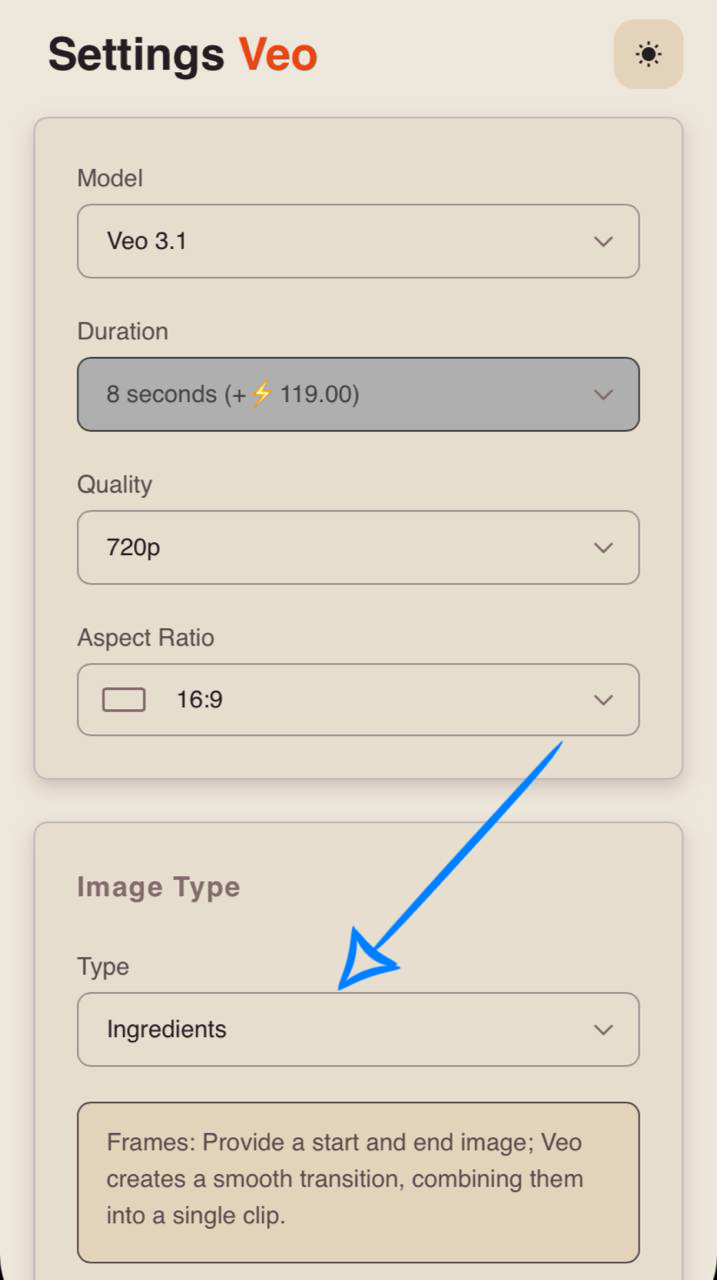
To combine multiple images into a single scene, select Ingredients as the image type in the model settings.
Model Settings
Model
We offer three advanced video generation models: Veo 3.1, Veo 3.1 Fast, and Veo 3.1 Fast (relax). These models combine powerful generative AI, realistic visuals, and intelligent audio generation in a single system.
Veo 3.1 - is designed for users who want the highest possible quality and cinematic results. It delivers exceptional detail, smooth motion, and realistic audio synchronization, making it ideal for creating professional-quality videos.
Veo 3.1 Fast - is a faster, more lightweight version of the model, optimized for speed and efficiency. It is ideal for quickly testing ideas and creating dynamic videos while reducing generation time and resource usage.
Veo 3.1 Fast (relax) - is a more cost-effective version of Veo 3.1 Fast. It delivers the same output quality while processing generations in the background. This model is ideal when speed is not a priority, allowing you to use resources more efficiently while still achieving high-quality results.
Duration
Currently, all Veo models support a fixed video length. Each generated video is 8 seconds long.
Quality
When generating a video using Ingredients mode, you can choose from three quality options.
720p A medium-resolution format that provides a good balance between video quality and file size. It delivers clear visuals and is well suited for online content and playback on most modern devices.
1080p A high-quality resolution that offers excellent sharpness and detail. It is ideal for larger screens and professional-looking content, though it requires more storage space and longer generation times.
4K The highest available quality, delivering maximum visual detail and realism. It is perfect for professional projects where every element - from textures and lighting to scene depth - matters.
Aspect Ratio
Two aspect ratios are available:
- 9:16 - Vertical video
- 16:9 - Horizontal video
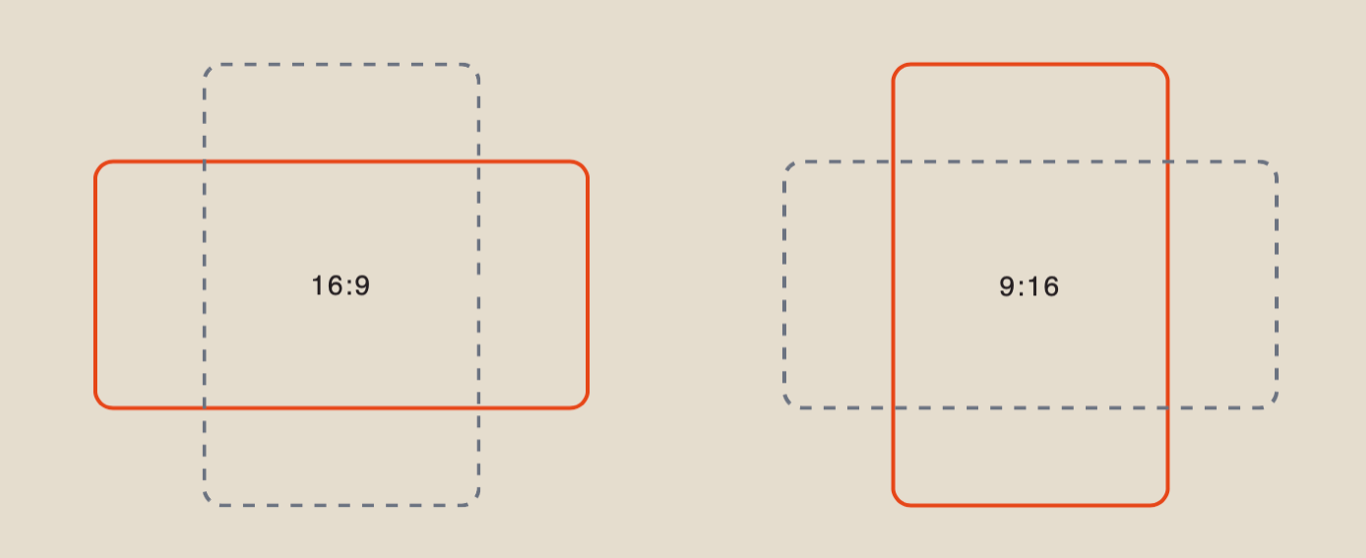
The selected aspect ratio will be applied regardless of the original aspect ratio of the uploaded images.
Image Type
When using multiple images, you must select Ingredients under Image Type. Veo will combine your reference images into a single coherent scene.
Uploading Images
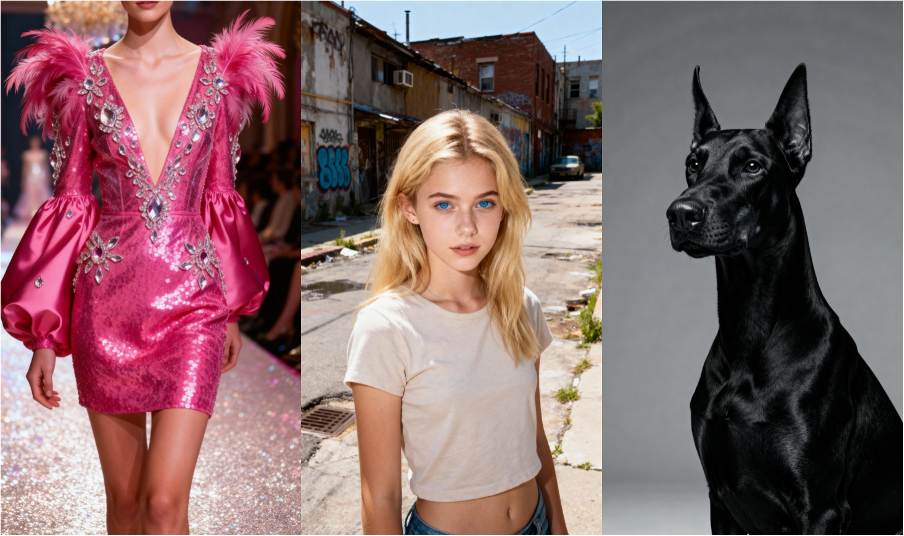
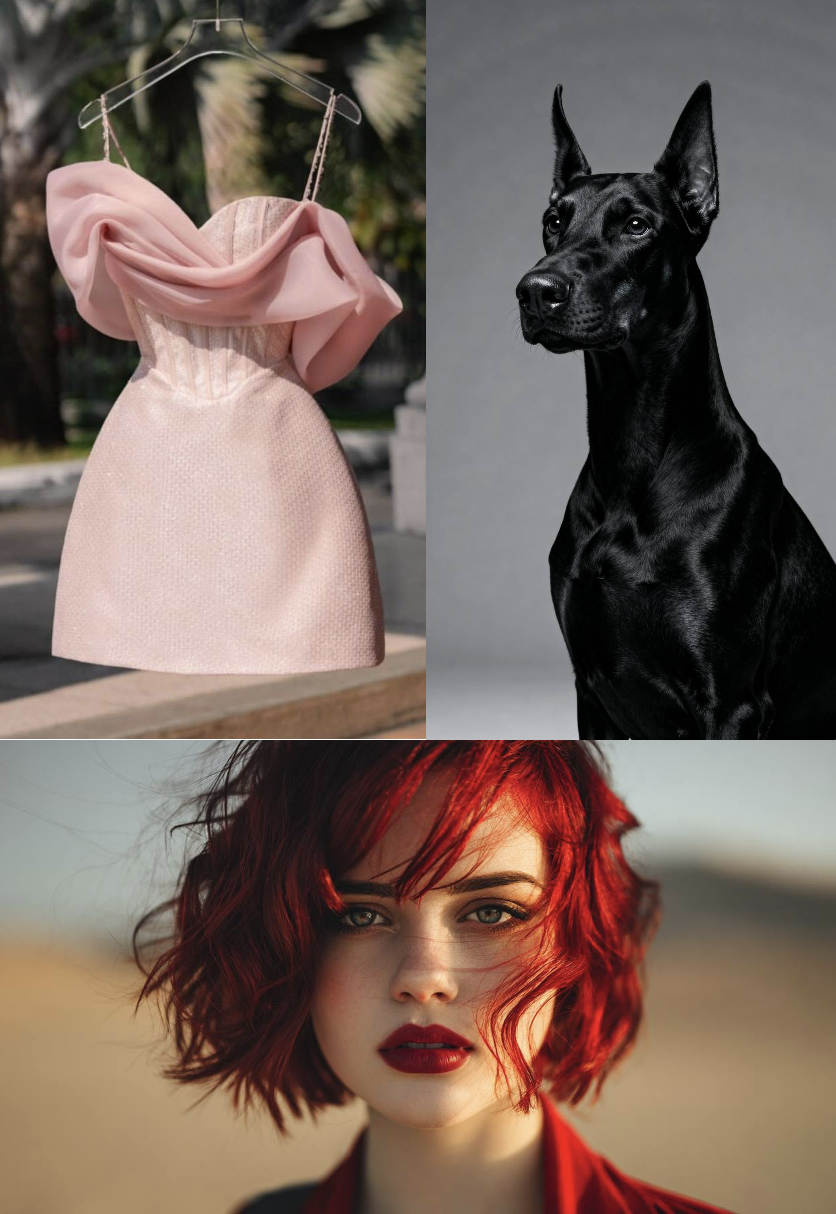
Once you have configured the model settings, upload 2 to 3 images that you want to combine.
File requirements:
- Maximum file size: 19 MB
- Minimum resolution: 300 × 300 pixels
- Supported formats: PNG and JPEG
- Minimum number of images: 2
- Maximum number of images: 3
Example
Structuring a Prompt for Standard Ingredients Generation
Once you have configured the model settings and uploaded your images, the next step is to write a clear, well-structured prompt to achieve the best possible results.
- Describe What Happens in the Scene
Describe the action or visual changes that should occur based on the uploaded reference images. The model will use these images as the foundation for creating a single, coherent scene.
- Describe the Movement
Specify the style and pace of the animation. This helps the model understand how the scene should move, whether the motion should be subtle, energetic, dramatic, or smooth.
- Animation Style
Describe the overall visual style of the animation, such as realistic, cinematic, artistic, or stylized.
Example
A beautiful young blonde woman with bright blue eyes walks through an abandoned urban district. She is wearing a luxurious pink mini dress decorated with feathers and sparkling crystals, while the feathers gently sway in the wind. A large black Doberman walks confidently beside her. The atmosphere is tense and mysterious, blending elegance with strength. Bright lighting creates dramatic shadows as they move. Cinematic composition with highly detailed, realistic animation.
Results
Veo 3.1
Veo 3.1 Fast
Veo 3.1 Fast (relax)
Structuring a Prompt for Ingredients Generation with Speech
Once you have configured the model settings and uploaded your images, the next step is to write a well-structured prompt to generate a high-quality video with synchronized speech.
- Describe What Happens in the Scene
Describe the action or visual changes that should occur based on the uploaded reference images. The model will use these images as the foundation for creating a single, coherent scene.
- Describe the Movement
Specify the style and pace of the animation. This helps the model understand how the scene should move, whether the motion should be subtle, energetic, dramatic, or smooth.
- Animation Style
Describe the overall visual style of the animation, such as realistic, cinematic, artistic, or stylized.
- Specify That the Characters Speak
To ensure the model generates dialogue, explicitly state that the characters are speaking. Include this naturally in your prompt.
- Add the Exact Dialogue
If you want the characters to say something specific, include short quoted lines in the prompt.
Veo will generate synchronized speech and realistic lip movements based on the provided dialogue. Write all spoken lines in a script-style format.
- Specify the Spoken Language
To make the characters speak in the desired language, clearly specify the language in your prompt.
Example
A young woman in a bright pink dress walks through the city with a black dog on a leash. The camera smoothly tracks alongside them while the lights of nearby storefronts glow in the background. The woman says, “Yes, it’s just an ordinary walk. I’m just not very good at being ordinary.” Realistic, comedic animation with smooth camera movement, dialogue spoken in English.
Results
Veo 3.1
Veo 3.1 Fast
Veo 3.1 Fast (relax)
💥 Step-by-Step Guide to Using Veo: Extend Video
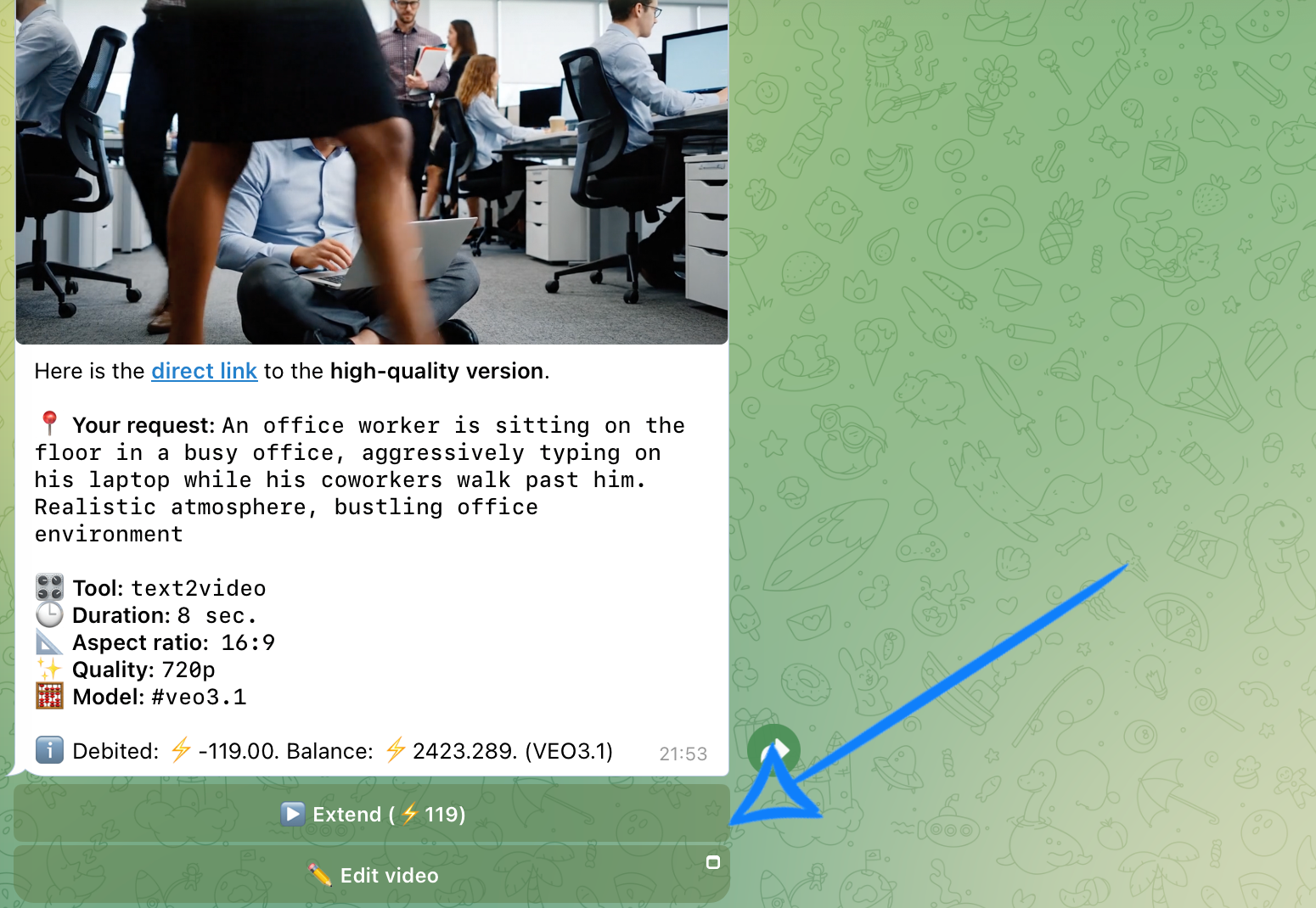
With Veo, you can extend an existing generated video by an additional 8 seconds.
Create the Initial Video
First, generate the opening part of your video. This will serve as the starting point for the extended version.
Detailed instructions for each video generation mode are provided in the sections above.
Once you are satisfied with the initial result and want to continue the scene, select the “Extend” button.
Writing a Prompt for Video Extension
When extending a video, your new prompt should continue the existing scene naturally while preserving the same subjects, atmosphere, and visual style. The model uses the original video as the starting point, while your prompt describes what should happen next.
- New Action or Scene Progression
Describe what should happen next in the scene, such as a subtle action, movement, reaction, or camera adjustment.
Avoid abrupt transitions or introducing new characters, as the extension should feel like a seamless continuation.
- Movement Style: Pace and Smoothness
Specify how the movement should unfold, whether it should be slow, gentle, fast, or dynamic.
Video extensions generally work best with smooth, natural motion, helping the transition feel continuous rather than abrupt.
Example
The office worker throws his laptop aside and bursts into tears. He covers his face with his hands, breathing heavily in frustration. His coworkers glance at him in surprise but continue walking past. Realistic atmosphere, bustling office environment, cinematic lighting, handheld camera, emotional scene.
Results
Veo 3.1
Veo 3.1 Fast
Veo 3.1 Fast (relax)
💥 Step-by-Step Guide to Using Veo: Edit Video
With Veo, you can edit an existing generated video with text prompt.
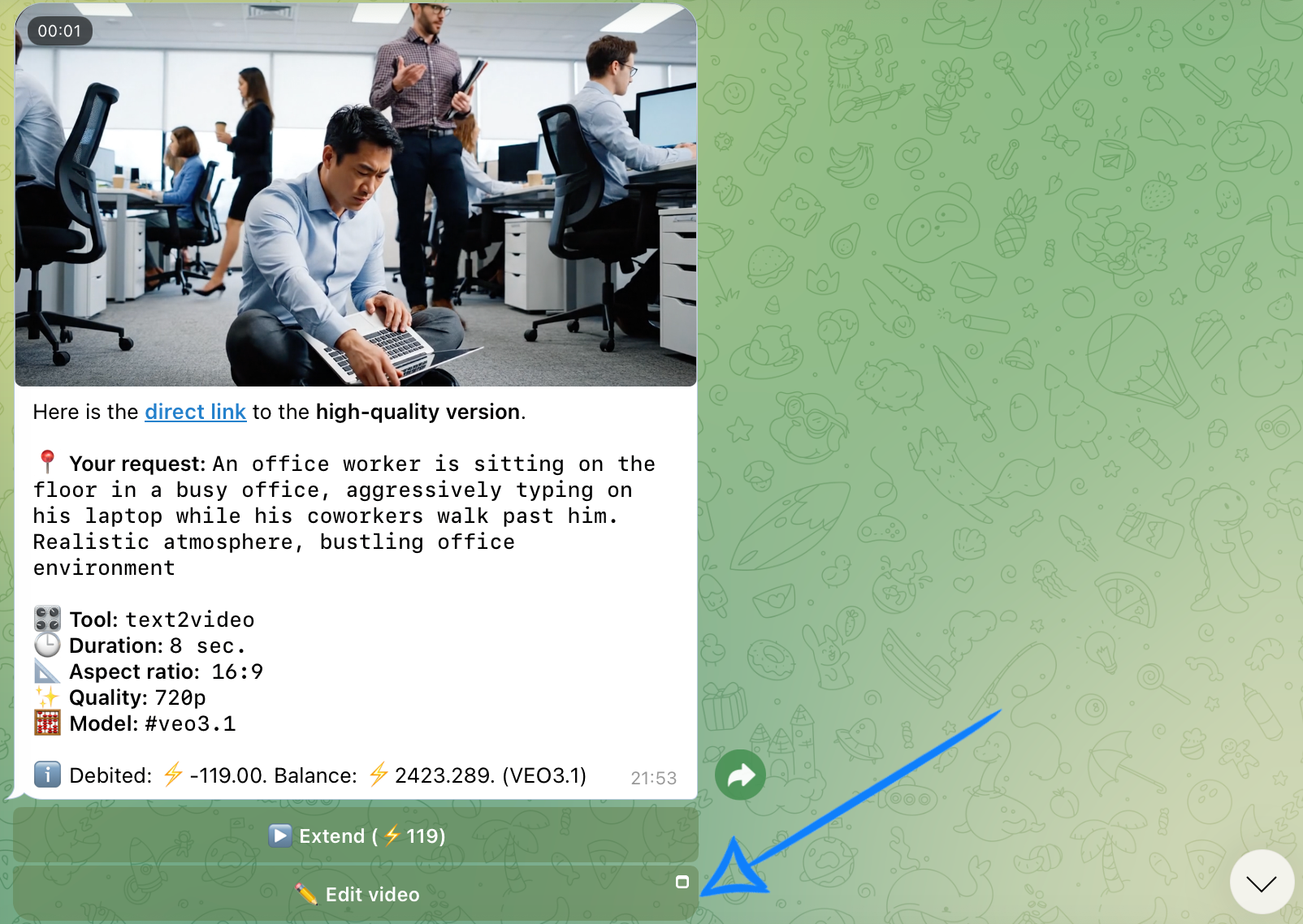
A detailed guide to using the video editing tool is available in this section:
We hope this guide helps you explore the capabilities of Veo and start creating videos with confidence. If your first results aren’t exactly what you expected - that’s completely normal.
Experiment with different prompts, try new approaches, and keep refining your ideas. With a bit of practice, you’ll be able to create exactly the videos you envision. 💛
SYNTX AI: Syntx AI
SYNTX Support: Syntx Support
YouTube channel “SYNTX”: Syntx YouTube
SYNTX.AI Academy: SYNTX Academy