A modern artificial intelligence model by Google that can generate videos from text descriptions or images. The model also adds realistic audio, including speech, sound effects, and ambient background.
❗️The maximum number of characters in a request is 2000 characters.
- 🎛 Navigation
- 💥 Step-by-step guide to using VEO. Text to video
- 💥 Step-by-step guide to using Veo. Image to video
- 💥 Step-by-step guide to Veo. Frames Type
- 💥 Step-by-step guide to Veo. Ingredients Type
- 💥 Step-by-step guide to Veo. Extension
🎛 Navigation
🏠 Main menu > 🎬 Video of the future > 👁️ Google Veo
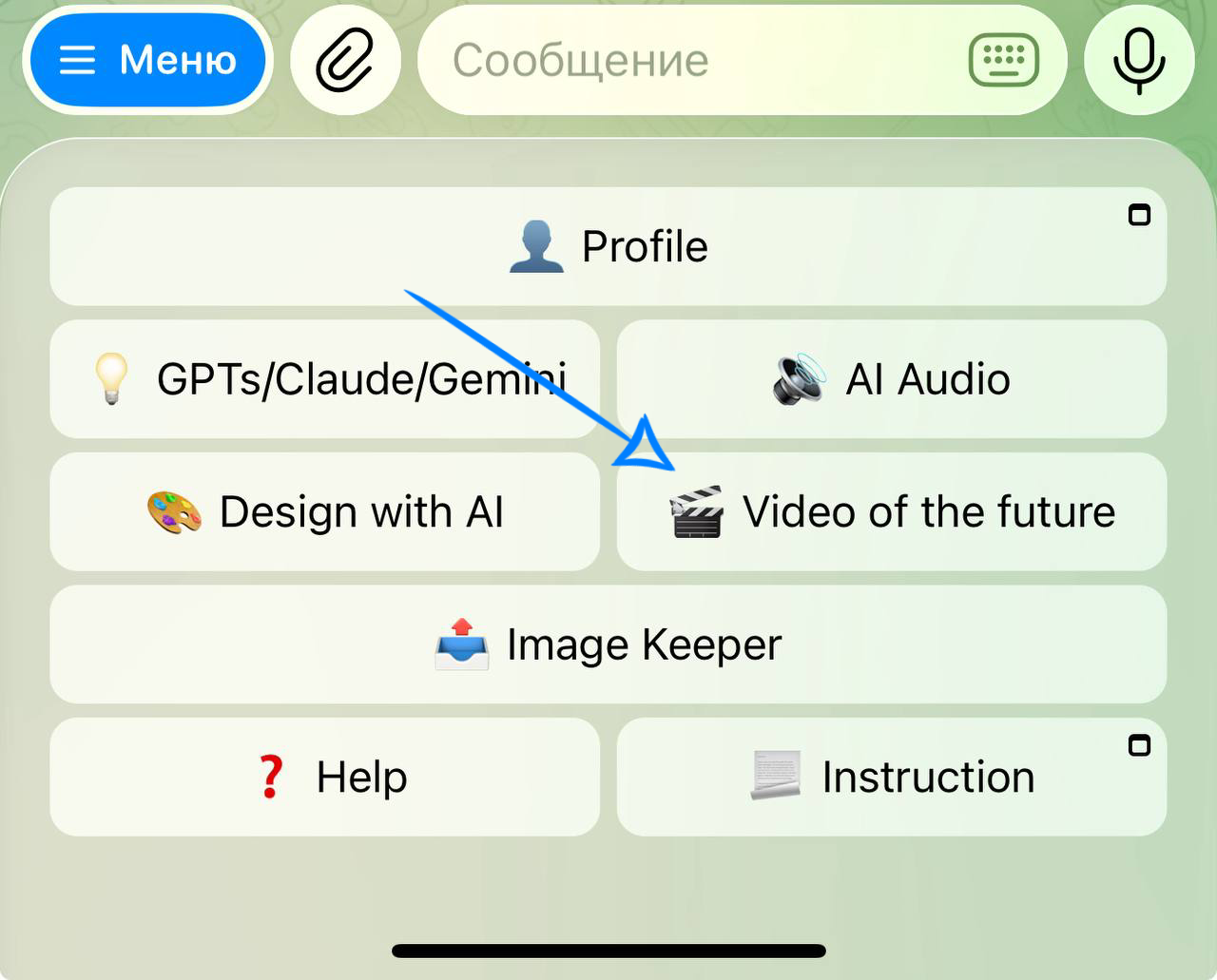
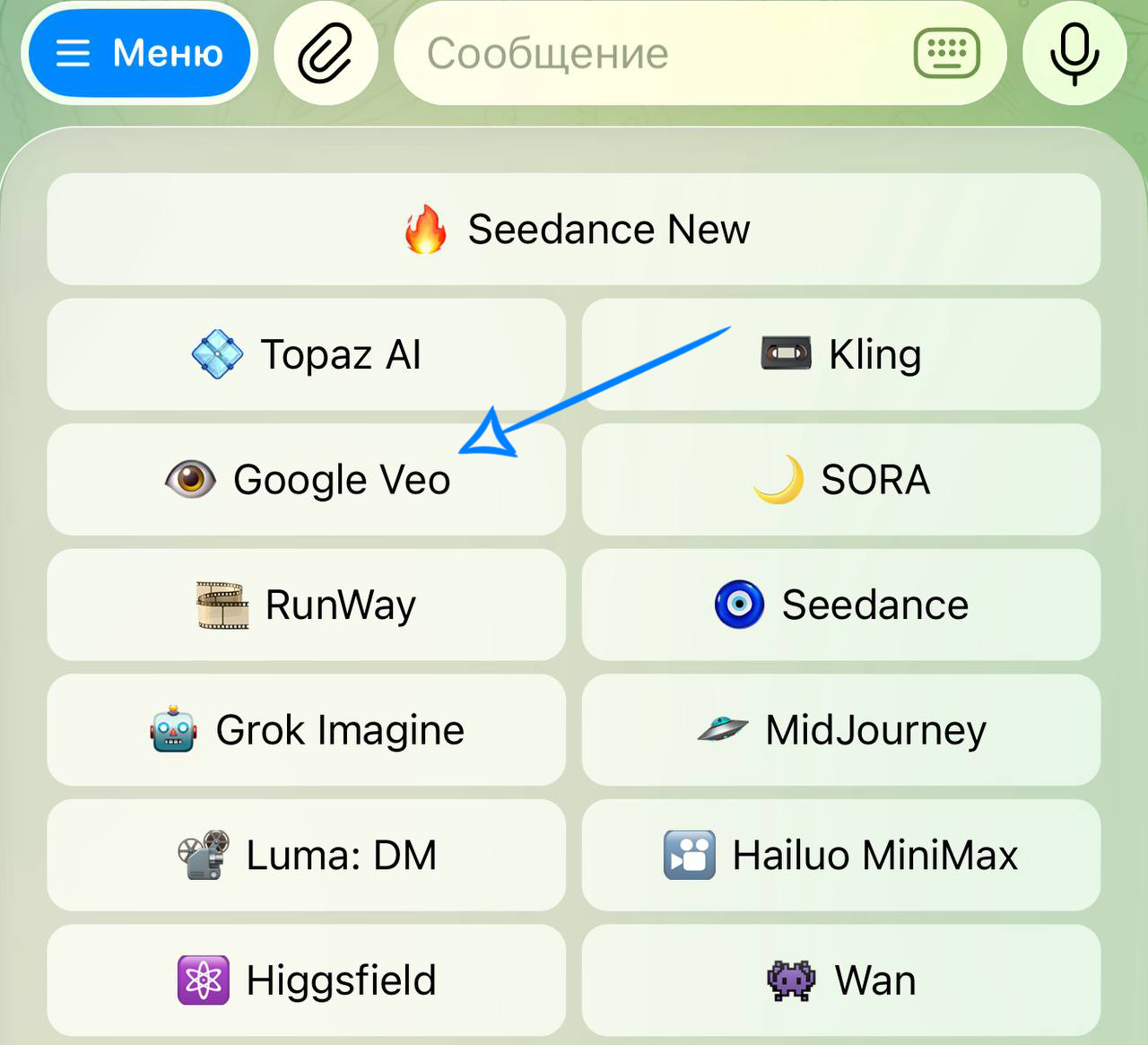
💥 Step-by-step guide to using VEO. Text to video
Model settings
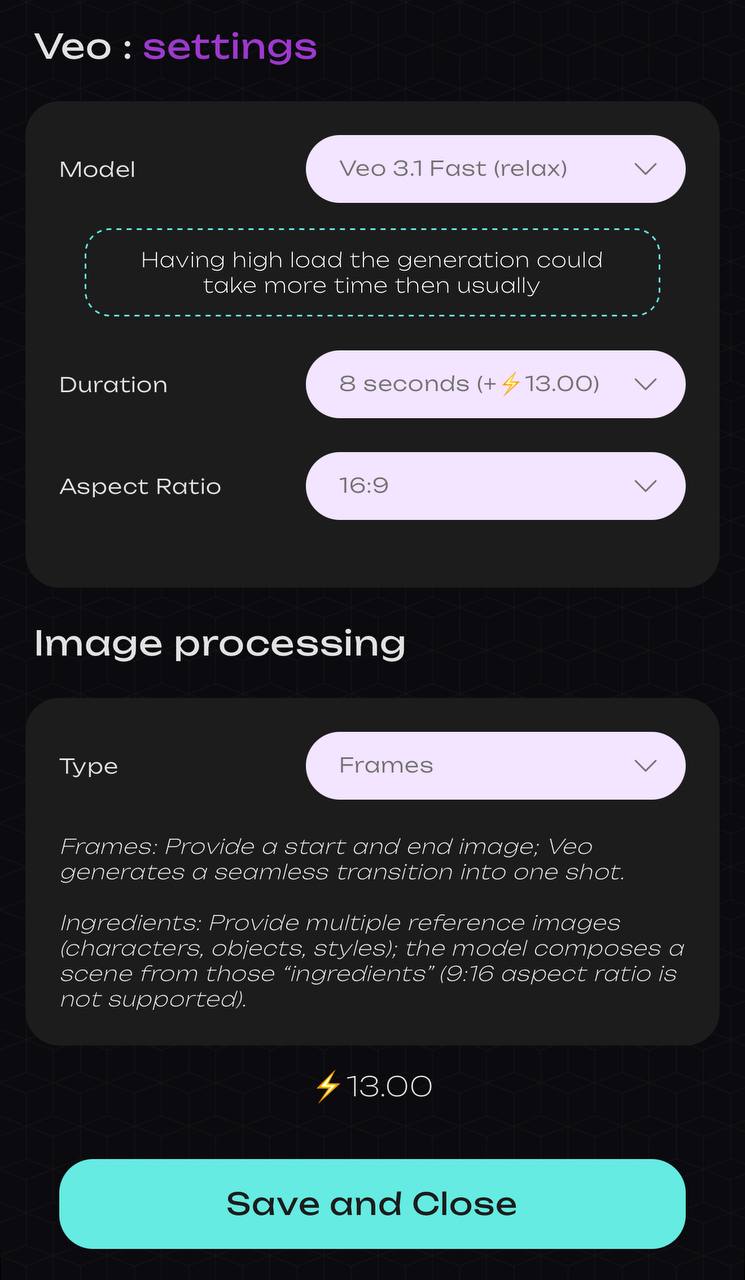
Model
We offer three advanced models for next-generation video generation - Veo 3.1, Veo 3.1 Fast, and Veo 3.1 Fast Relax. These models combine the power of generative technologies, realistic visuals, and intelligent audio within a single system.
Veo 3.1 - a model designed for those who seek maximum quality and cinematic results. It delivers exceptional detail, smooth motion, and precise audio synchronization, unlocking limitless possibilities for professional content.
Veo 3.1 Fast - a faster and more lightweight version of the model, optimized for speed and efficiency. It is ideal for rapid idea testing and creating dynamic videos with minimal time and resource costs.
Veo 3.1 Fast Relax - a more cost-efficient version of Veo 3.1 Fast. The output quality remains high, while the mode is designed for steady background processing. This model is suitable when speed is not a priority, and stability along with efficient resource usage matters most.
Duration
At the moment, all models support a fixed video length. Each generated video has a duration of 8 seconds.
Aspect Ratio
Two aspect ratios are available in the system: 9:16 (vertical video) and 16:9 (horizontal video).
If Frames are selected in the “Type” section, you can choose between both aspect ratios - 9:16 or 16:9.
If Ingredients are selected in the “Type” section, only one aspect ratio will be available - 16:9.
Type
When working with a text prompt, the “Type” section is used only to adjust variations of the aspect ratio.
Structure of a text prompt for standard generation
After configuring all model settings correctly, you need to write a proper text prompt to achieve accurate generation results.
-
Main subject and action
This is the foundation of any prompt. Specify who or what is in the frame and what the subject is doing. Keep it clear and avoid unnecessary details or pronouns to prevent confusion. -
Environment and time of day
Define the location and lighting based on the time of day — this shapes the atmosphere and color palette of the video. -
Camera movement
In Veo, the camera is an important expressive tool. It can move like in real cinematography: zoom in, follow the subject, orbit around objects, and more.
Example:
A massive elephant drinks water from a river in the savanna at sunset. Golden sunlight reflects on the water, and light dust rises around. The camera smoothly moves around the elephant.
Results
Veo 3.1
Veo 3.1 Fast
Veo 3.1 Fast Relax
Structure of a text prompt for generation with voiceover
After configuring all model settings correctly, you need to write a proper text prompt to achieve accurate generation with voice.
-
Main subject and action
This is the foundation of any prompt. Specify who or what is in the frame and what the subject is doing. Keep it clear and avoid unnecessary details or pronouns to prevent confusion. -
Environment and time of day
Define the location and lighting based on the time of day - this shapes the atmosphere and color palette of the video. -
Indicate what the characters say
To ensure the model understands that speech should be included, explicitly mention it in the prompt. Specify what the character says. -
Add the exact phrase the character should say
If you want precise speech, include short quotes. Veo will generate voiceover and lip movements synchronized with the text. All quotes should be formatted like script lines, for example:
The cat blinks and says: “No dinner again? What kind of human are you…”
- Specify the language of speech
To make characters speak in the desired language, include a note in the prompt indicating which language should be used.
Example:
A teacher stands by the blackboard in a bright classroom, with a student holding a notebook nearby. The camera slightly zooms in. The woman says: “Try again, you’ll definitely succeed!” Realistic style, speech in Russian.
Results
Veo 3.1
Veo 3.1 Fast
Veo 3.1 Fast Relax
💥 Step-by-step guide to using Veo. Image to video
Model settings
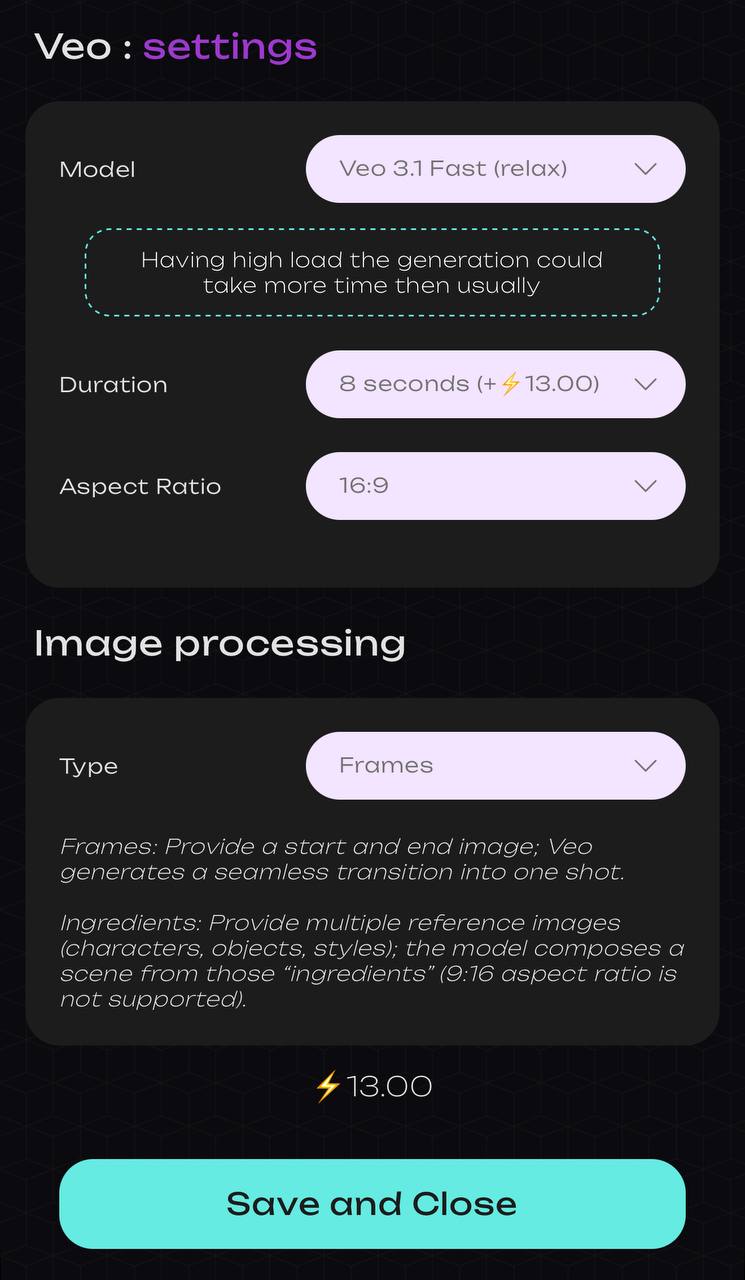
Model
We offer three advanced models for next-generation video generation - Veo 3.1, Veo 3.1 Fast, and Veo 3.1 Fast Relax. These models combine the power of generative technologies, realistic visuals, and intelligent audio within a single system.
Veo 3.1 - a model designed for those who seek maximum quality and cinematic results. It delivers exceptional detail, smooth motion, and precise audio synchronization, unlocking limitless possibilities for professional content.
Veo 3.1 Fast - a faster and more lightweight version of the model, optimized for speed and efficiency. It is ideal for rapid idea testing and creating dynamic videos with minimal time and resource costs.
Veo 3.1 Fast Relax - a more cost-efficient version of Veo 3.1 Fast. The output quality remains high, while the mode is designed for steady background processing. This model is suitable when speed is not a priority, and stability along with efficient resource usage matters most.
Duration
At the moment, all models support a fixed video length. Each generated video has a duration of 8 seconds.
Aspect Ratio
Two aspect ratios are available in the system: 9:16 (vertical video) and 16:9 (horizontal video). The aspect ratio will be applied regardless of the original format of your uploaded image.
If Frames are selected in the “Type” section, you can choose between both aspect ratios - 9:16 or 16:9.
If Ingredients are selected in the “Type” section, only one aspect ratio will be available - 16:9.
Type
When working with a single image, the “Type” section is used only to adjust variations of the aspect ratio.
Image Upload
After selecting all model settings, upload the image you want to animate.
File requirements:
- Maximum file size: up to 19 MB
- Minimum resolution: 300 × 300 pixels
- Supported formats: PNG and JPEG
For example:
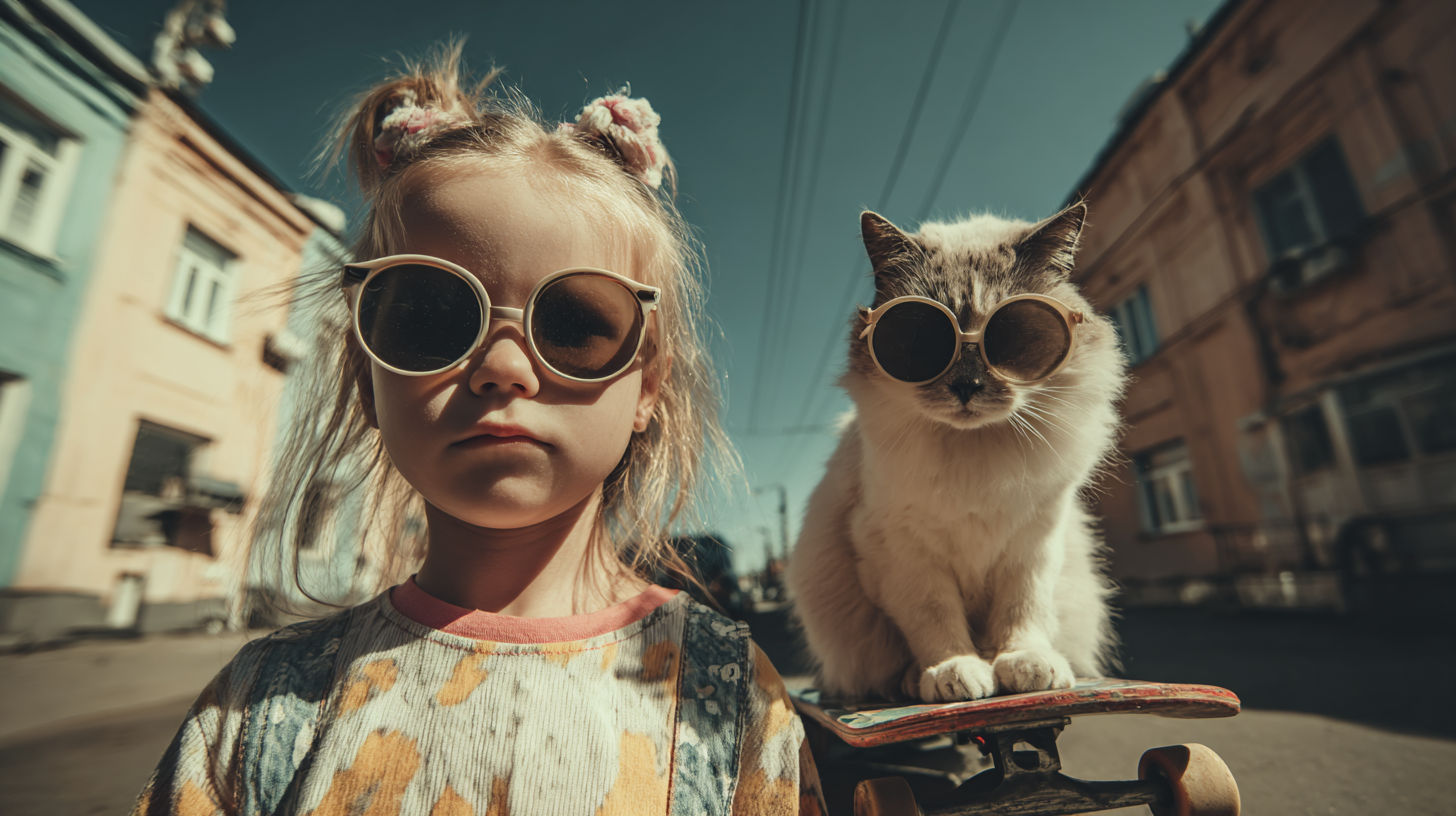
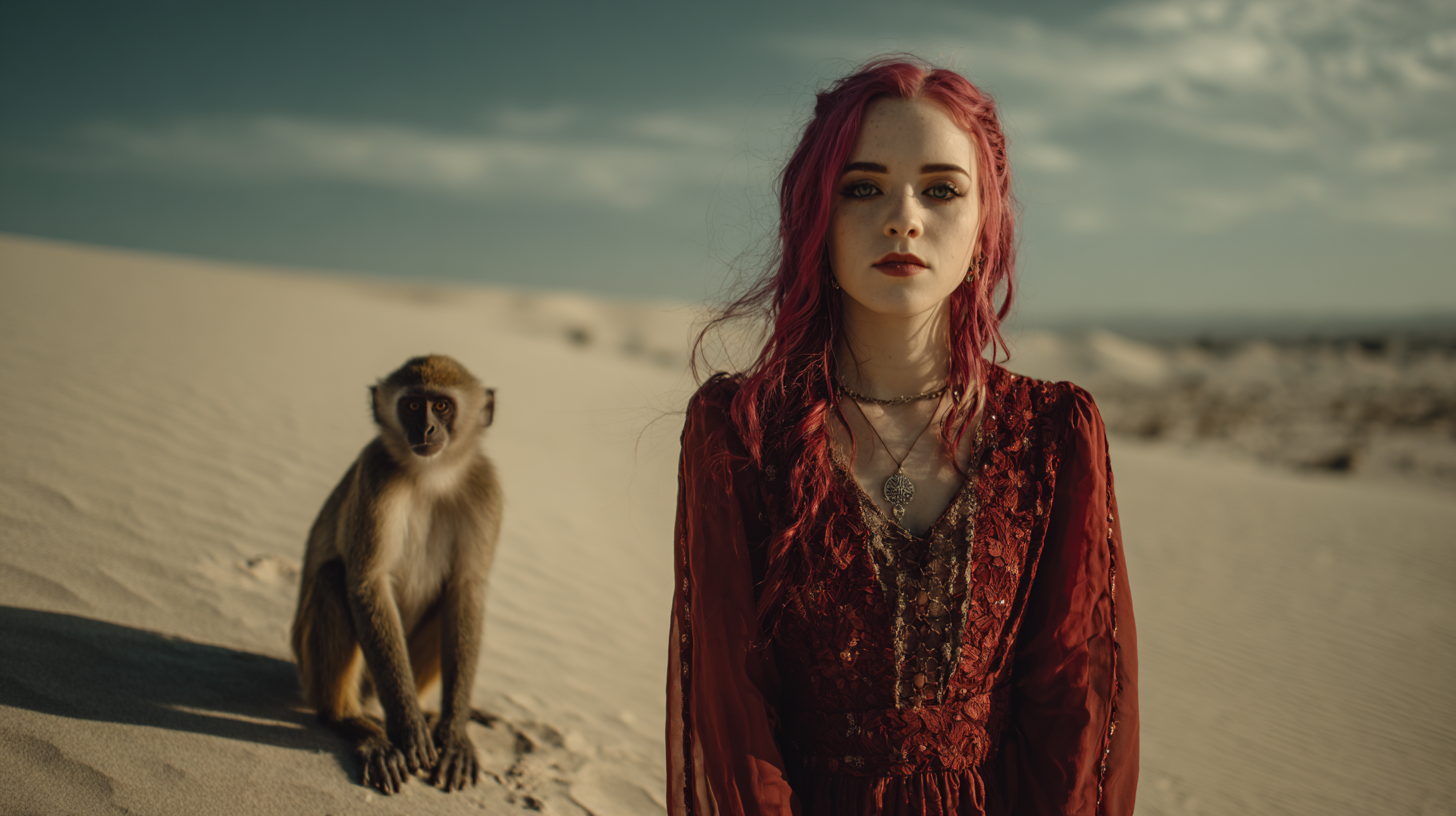
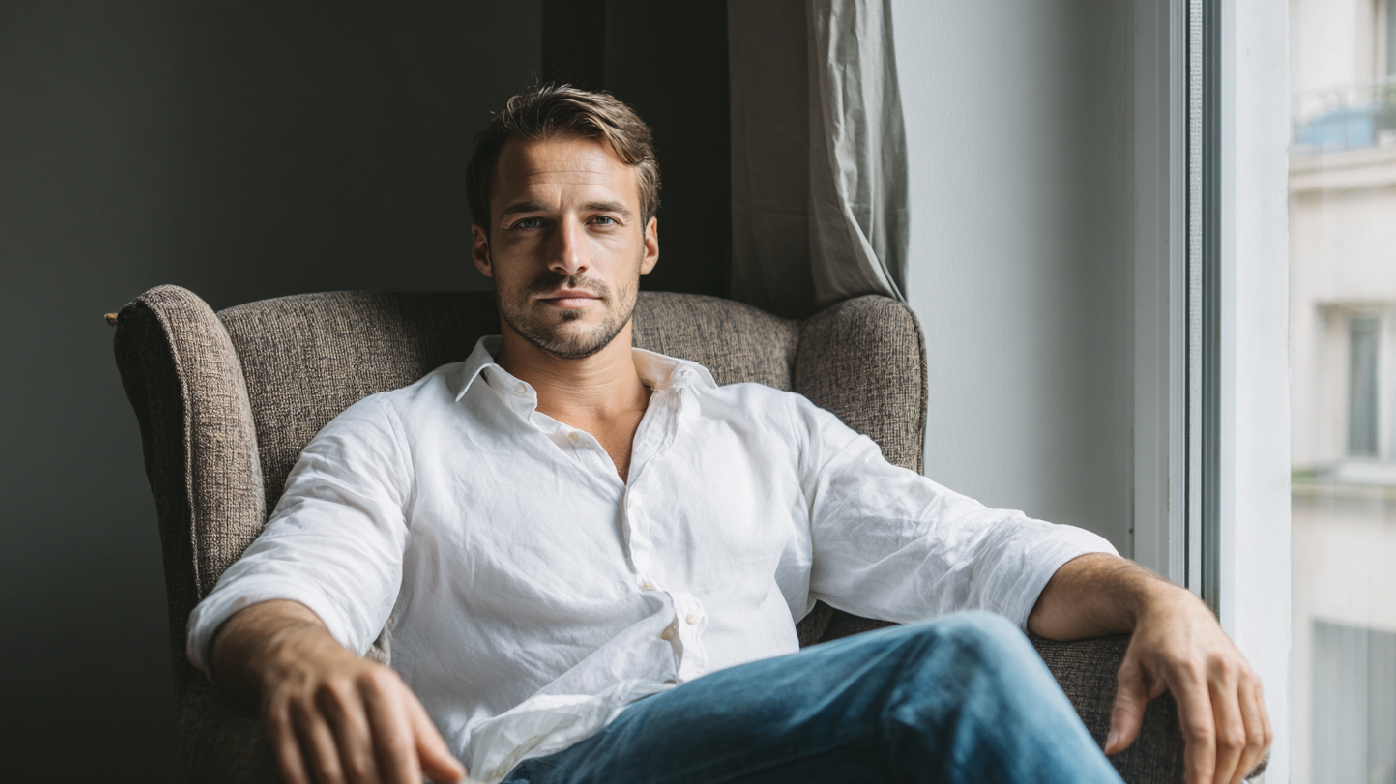
Structure of a text prompt for standard generation
After configuring all model settings and uploading the image, you need to write a proper text prompt to achieve accurate generation.
-
What is happening or changing in the image
Describe the specific action or visual change that should appear in the static image. The model already sees the image — you only need to specify what should “come to life.” -
How the movement looks
Define the character and pace of the animation. This helps the model understand how active the scene should be: subtle, dynamic, dramatic, etc. -
Animation style
Specify the style - how the animation should look: realistic, cinematic, artistic, or animated.
Example:
A girl and a cat wearing glasses sit still, but the cat slightly tilts its head. The girl blinks while maintaining a serious expression. Smooth forward camera movement, subtle animation.
Result
Veo 3.1
Veo 3.1 Fast
Veo 3.1 Fast Relax
Structure of a text prompt for generation with voiceover
After configuring all model settings and uploading the image, you need to write a proper text prompt to achieve accurate generation with voice.
-
What is happening or changing in the image
Describe the specific action or visual change that should appear in the static image. The model already sees the image - you only need to specify what should “come to life.” -
How the movement looks
Define the character and pace of the animation. This helps the model understand how active the scene should be: subtle, dynamic, dramatic, etc. -
Animation style
Specify the style - how the animation should look: realistic, cinematic, artistic, or animated. -
Indicate what the characters say
To ensure the model understands that speech should be included, explicitly mention it in the prompt. Specify what the character says. -
Add the exact phrase the character should say
If you want precise speech, include short quotes. Veo will generate voiceover and lip movements synchronized with the text. All quotes should be formatted like script lines. -
Specify the language of speech
To make characters speak in the desired language, include a note in the prompt indicating which language should be used.
Example:
A girl stands in the desert, with a monkey looking around. The monkey says: “Are you sure this is a beach?” The girl turns her head and replies: “One hundred percent, there’s just a bit more sand than usual.” Cinematic animation, speech in English.
Result
Veo 3.1
Veo 3.1 Fast
Veo 3.1 Fast Relax
💥 Step-by-step guide to Veo. Frames Type
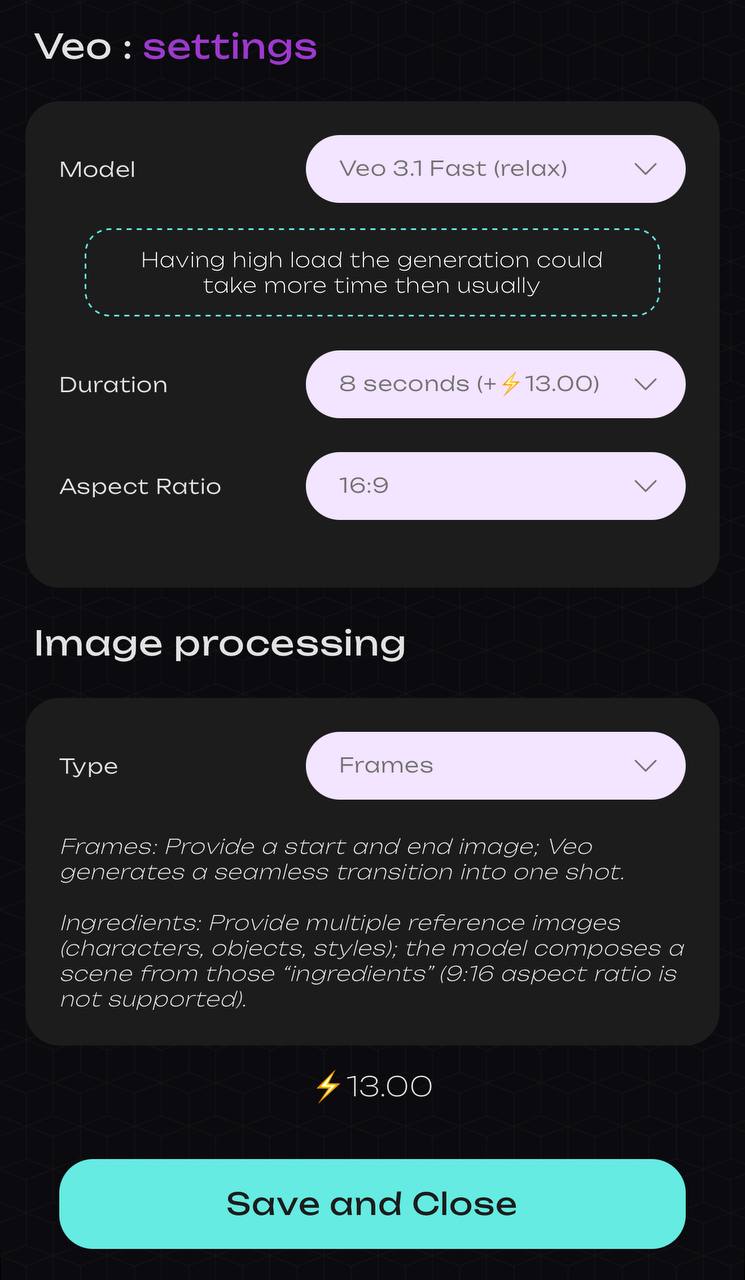
If you want to achieve a smooth transition from the first image to the second, you can select the “Frames” type in the model settings. This helps better guide the neural network and define the correct task for animating the scene.
Model settings
Model
We offer three advanced models for next-generation video generation — Veo 3.1, Veo 3.1 Fast, and Veo 3.1 Fast Relax. These models combine the power of generative technologies, realistic visuals, and intelligent audio within a single system.
Veo 3.1 - a model designed for those who seek maximum quality and cinematic results. It delivers exceptional detail, smooth motion, and precise audio synchronization, unlocking limitless possibilities for professional content.
Veo 3.1 Fast - a faster and more lightweight version of the model, optimized for speed and efficiency. It is ideal for rapid idea testing and creating dynamic videos with minimal time and resource costs.
Veo 3.1 Fast Relax - a more cost-efficient version of Veo 3.1 Fast. The output quality remains high, while the mode is designed for steady background processing. This model is suitable when speed is not a priority, and stability along with efficient resource usage matters most.
Duration
At the moment, all models support a fixed video length. Each generated video has a duration of 8 seconds.
Aspect Ratio
Two aspect ratios are available in the system: 9:16 (vertical video) and 16:9 (horizontal video).
In the “Type” section, you can choose between both aspect ratios - 9:16 or 16:9.
Type
“Frames” type - upload a starting image and an ending image. The neural network will create a smooth transition between them and combine them into a single video.
Image Upload
After selecting all model settings, upload two images that you want to use as the first and last frames.
File requirements:
- Maximum file size: up to 19 MB
- Minimum resolution: 300 × 300 pixels
- Supported formats: PNG and JPEG
❣️We recommend using two similar frames to achieve a smoother transition. If completely different images are used, the result may be less satisfactory.
Example:
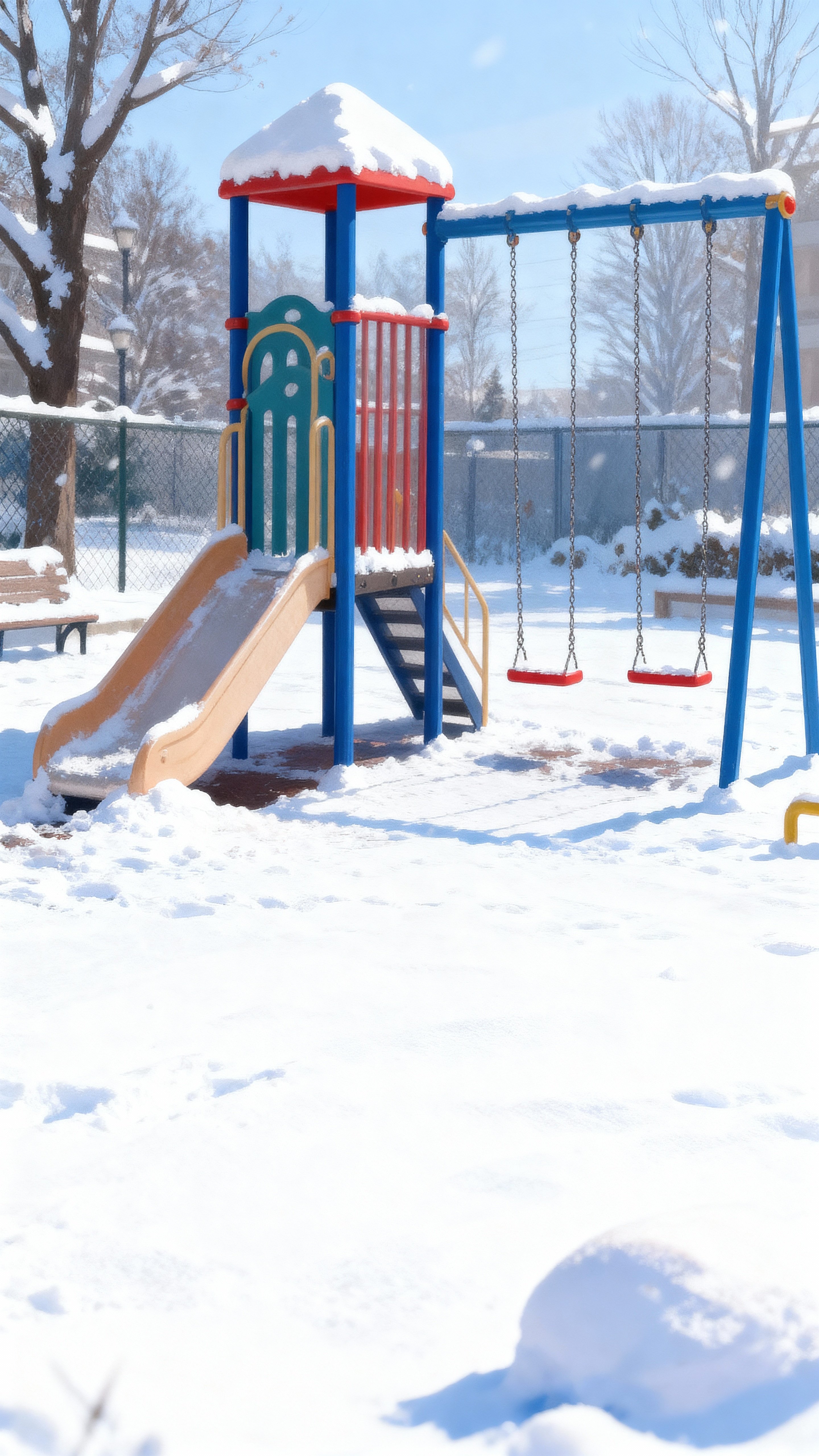
Starting frame

Final frame
Structure of a text prompt for standard generation
After configuring all model settings and uploading the images, you need to write a proper text prompt to achieve accurate generation.
-
What is happening or changing in the scene
Describe the specific action or visual transition that should occur between the two uploaded images. -
How the movement looks
Define the character and pace of the animation. This helps the model understand how active the scene should be: subtle, dynamic, dramatic, etc. -
Animation style
Specify the style - how the animation should look: realistic, cinematic, artistic, or animated.
Example:
A kind snowman smiles and waves at the camera. A swing in the background gently moves in the wind. Light snow is falling. Suddenly, a strong wind begins, turning into a fierce blizzard that completely engulfs the snowman, and he mysteriously disappears. The blizzard stops. Only the playground remains in the frame, the swing continues to sway, and snowflakes slowly fall to the ground. The atmosphere shifts from cheerful to eerily mysterious. High detail, dynamic scene.
Results
Veo 3.1
Veo 3.1 Fast
Veo 3.1 Fast Relax
Structure of a text prompt for generation with voiceover
After configuring all model settings and uploading the images, you need to write a proper text prompt to achieve accurate generation with voice.
-
What is happening or changing in the scene
Describe the specific action or visual transition that should occur between the two uploaded images. -
How the movement looks
Define the character and pace of the animation. This helps the model understand how active the scene should be: subtle, dynamic, dramatic, etc. -
Animation style
Specify the style - how the animation should look: realistic, cinematic, artistic, or animated. -
Indicate what the characters say
To ensure the model understands that speech should be included, explicitly mention it in the prompt. Specify what the character says. -
Add the exact phrase the character should say
If you want precise speech, include short quotes. Veo will generate voiceover and lip movements synchronized with the text. All quotes should be formatted like script lines. -
Specify the language of speech
To make characters speak in the desired language, include a note in the prompt indicating which language should be used.
Example:
The image shows a snowy playground with a snowman wearing a red scarf standing in the center. The camera slightly zooms in. The snowman smiles and, looking directly at the camera, says: “Well, that’s it - spring is here, I’m done for!” After speaking, the snowman slowly begins to melt, turning into steam that dissipates into the air. Smooth, comedic animation in a cinematic realistic style, speech in Russian.
Result
Veo 3.1
Veo 3.1 Fast
Veo 3.1 Fast Relax
💥 Step-by-step guide to Veo. Ingredients Type
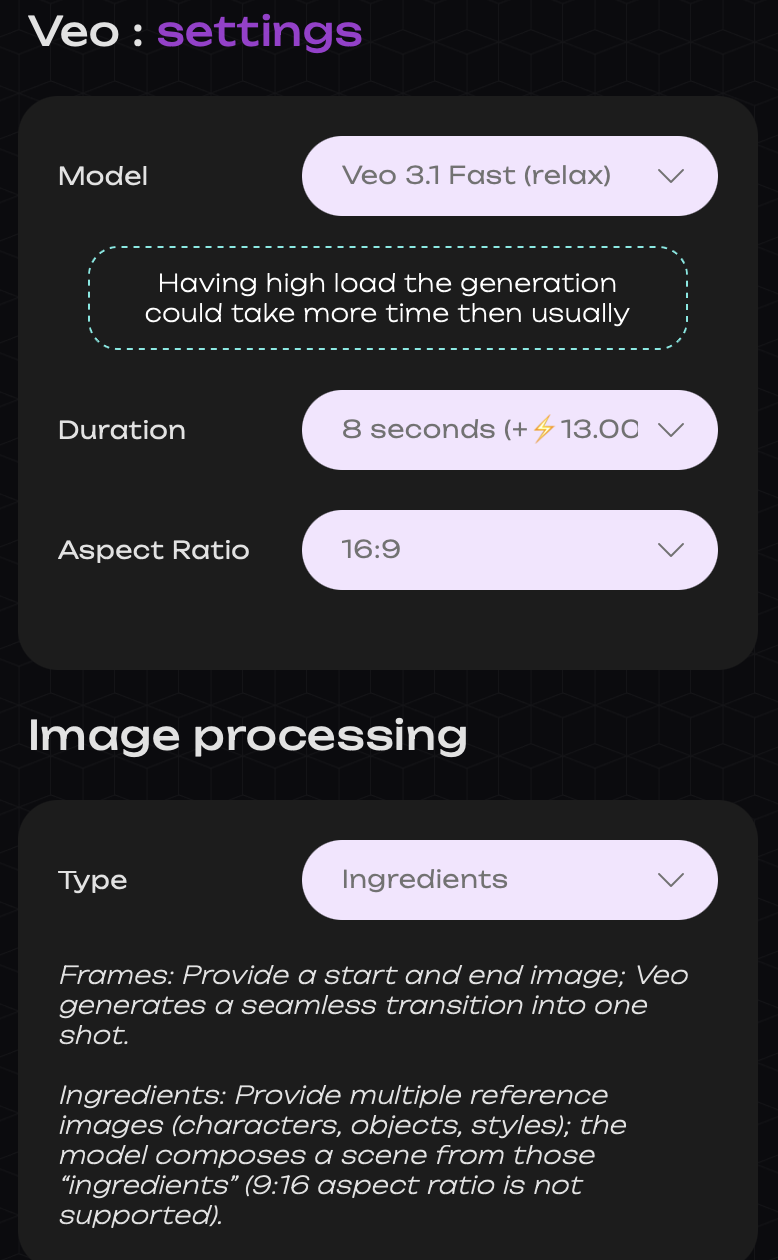
If you want to combine multiple images into a single scene, you need to select the “Ingredients” type in the model settings. This helps better guide the neural network and define the correct task for animating the scene.
Model settings
Model
We offer three advanced models for next-generation video generation - Veo 3.1, Veo 3.1 Fast, and Veo 3.1 Fast Relax. These models combine the power of generative technologies, realistic visuals, and intelligent audio within a single system.
Veo 3.1 - a model designed for those who seek maximum quality and cinematic results. It delivers exceptional detail, smooth motion, and precise audio synchronization, unlocking limitless possibilities for professional content.
Veo 3.1 Fast - a faster and more lightweight version of the model, optimized for speed and efficiency. It is ideal for rapid idea testing and creating dynamic videos with minimal time and resource costs.
Veo 3.1 Fast Relax - a more cost-efficient version of Veo 3.1 Fast. The output quality remains high, while the mode is designed for steady background processing. This model is suitable when speed is not a priority, and stability along with efficient resource usage matters most.
Duration
At the moment, all models support a fixed video length. Each generated video has a duration of 8 seconds.
Aspect Ratio
If Ingredients are selected in the “Type” section, only one aspect ratio is available - 16:9.
Type
“Ingredients” type - upload multiple references (character, object, style). The neural network will create a unified scene by combining the selected elements into a harmonious composition.
Image Upload
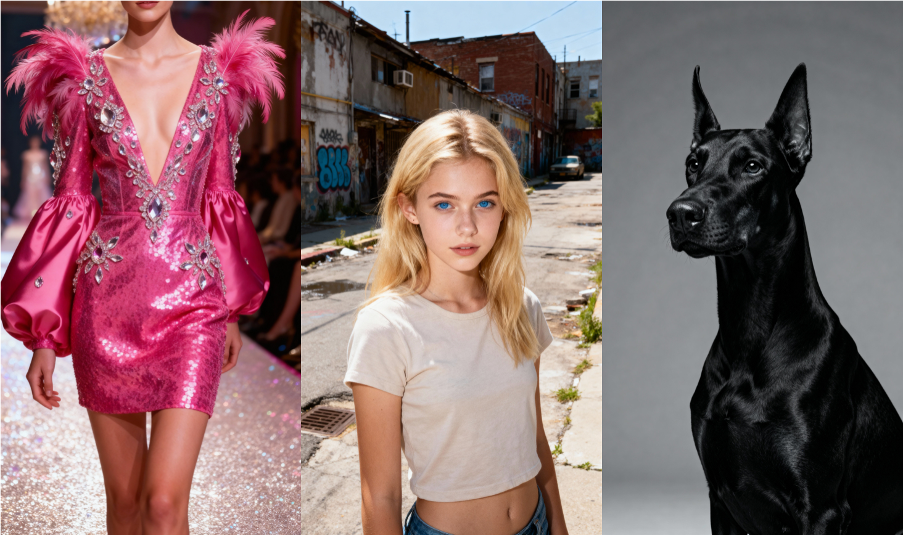
After selecting all model settings, upload 2 to 3 images that you want to combine into one scene.
File requirements:
- Maximum file size: up to 19 MB
- Minimum resolution: 300 × 300 pixels
- Supported formats: PNG and JPEG
- Minimum number of images - 2
- Maximum number of images - 3
Example:
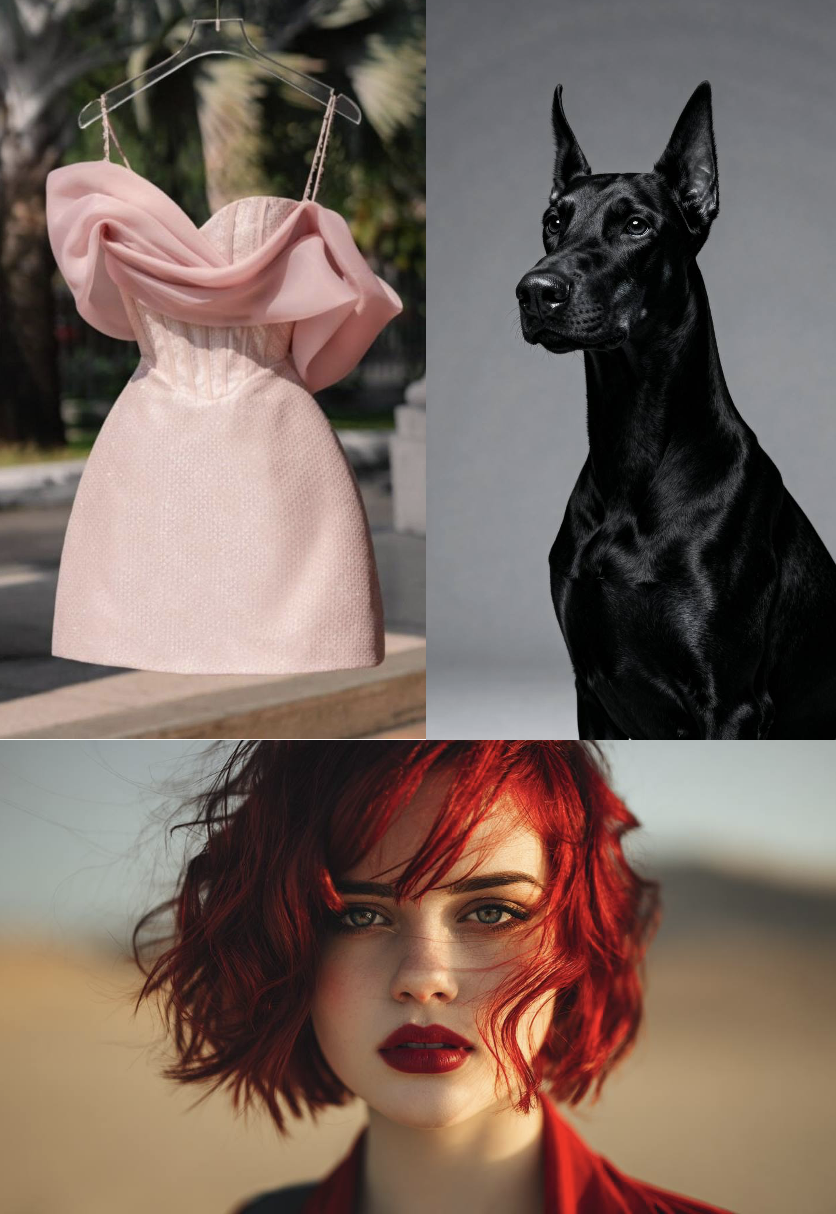
Structure of a text prompt for standard generation
After configuring all model settings and uploading the images, you need to write a proper text prompt to achieve accurate generation.
-
What is happening or changing in the scene
Describe the specific action or visual change that should appear based on the uploaded images. -
How the movement looks
Define the character and pace of the animation. This helps the model understand how active the scene should be: subtle, dynamic, dramatic, etc. -
Animation style
Specify the style - how the animation should look: realistic, cinematic, artistic, or animated.
Example:
A beautiful young blonde woman with bright blue eyes walks through an abandoned district. She wears a luxurious pink mini dress decorated with feathers and rhinestones. The feathers gently move in the wind. A large black Doberman walks beside her. The atmosphere is tense and mysterious, blending fear and strength. Bright lighting with dynamic shadows during movement. Cinematic composition, high detail.
Results
Veo 3.1
Veo 3.1 Fast
Veo 3.1 Fast Relax
Structure of a text prompt for generation with voiceover
After configuring all model settings and uploading the images, you need to write a proper text prompt to achieve accurate generation with voice.
-
What is happening or changing in the scene
Describe the specific action or visual change that should appear based on the uploaded images. -
How the movement looks
Define the character and pace of the animation. This helps the model understand how active the scene should be: subtle, dynamic, dramatic, etc. -
Animation style
Specify the style - how the animation should look: realistic, cinematic, artistic, or animated. -
Indicate what the characters say
To ensure the model understands that speech should be included, explicitly mention it in the prompt. Specify what the character says. -
Add the exact phrase the character should say
If you want precise speech, include short quotes. Veo will generate voiceover and lip movements synchronized with the text. All quotes should be formatted like script lines. -
Specify the language of speech
To make characters speak in the desired language, include a note in the prompt indicating which language should be used.
Example:
A girl in a bright pink dress walks through the city with a black dog on a leash. The camera smoothly moves from the side, with glowing storefront lights in the background. The girl says: “Yes, it’s just a regular walk. I’m just not good at being ordinary.” Realistic comedic animation, smooth motion, speech in Russian.
Results
Veo 3.1
Veo 3.1 Fast
Veo 3.1 Fast Relax
💥 Step-by-step guide to Veo. Extension
Video creation
First, create the initial part of your video - this will serve as the starting point for the final clip. Detailed instructions for each way of starting a video are provided above.
⚠️ Important
If your prompt includes speech synthesis (voiceover), the extension will not work. Extension is only available without using speech synthesis.
Choosing a model for extension
After you get the desired result and want to continue the video, select the model that will be used for the extension.
Only two models are available for extension: Veo 3.1 and Veo 3.1 Fast.
- Extend Fast - extends the video using the Veo 3.1 Fast model.
- Extend QUALITY - extends the video using the Veo 3.1 model.
Text prompt
When extending an already generated video in Veo 3.1 or Veo 3.1 Fast, it’s important that the new prompt logically continues the scene, preserving the same objects, atmosphere, and style. The model treats the first video as the starting point, while the text prompt helps it understand what should happen next.
-
New action or scene development
Describe what new element should occur in the extension - a subtle change, movement, reaction, or camera shift. Avoid abrupt transitions or introducing new characters; it should feel like a natural continuation. -
Movement characteristics (pace and smoothness)
Describe how the movement should happen: fast, slow, smooth, or dynamic. Extensions typically require smooth transitions so the scene doesn’t feel cut off.
Example:
A girl in a pink sparkling dress continues walking forward with a black dog. The camera smoothly follows behind, and the wind gently moves the fabric of her dress. The girl slightly slows her pace, tilts her head, and smiles. The motion is calm, natural, and realistic, with a smooth transition and no abrupt changes, cinematic animation, no sound.
Result
Veo 3.1
Veo 3.1 Fast
We sincerely hope this guide helps you better understand and effectively use the Veo tool. We’ve done our best to make the process as simple and intuitive as possible.
Don’t forget: every mistake is a step toward success. If something doesn’t work the first time, don’t get discouraged. Experiment, learn, and you will definitely achieve the results you’re aiming for 💛
SYNTX AI: Syntx AI
SYNTX Support: Syntx Support
YouTube channel “SYNTX”: Syntx YouTube
SYNTX.AI Academy: SYNTX Academy