GPT Image is a neural network for creating and editing images using text prompts. It’s focused on visual creativity and lets you work in various styles. It’s suitable for creating branded imagery, comics, and visual concepts, and can work with text in different languages.
- 🎛 Navigation
- 💥 Step-by-Step Guide to Using GPT Image 1. “Text to Image”
- 💥 Step-by-Step Guide to Using GPT Image 1. “Working with References”
- 💥 Step-by-Step Guide to Using GPT Image 2. “Text to Image”
- 💥 Step-by-Step Guide to Using GPT Image 2. “Working with References”
- Additional Features of GPT Image 2
🎛 Navigation
🏠 Main Menu > 🎨 Images > 🌙 GPT Image
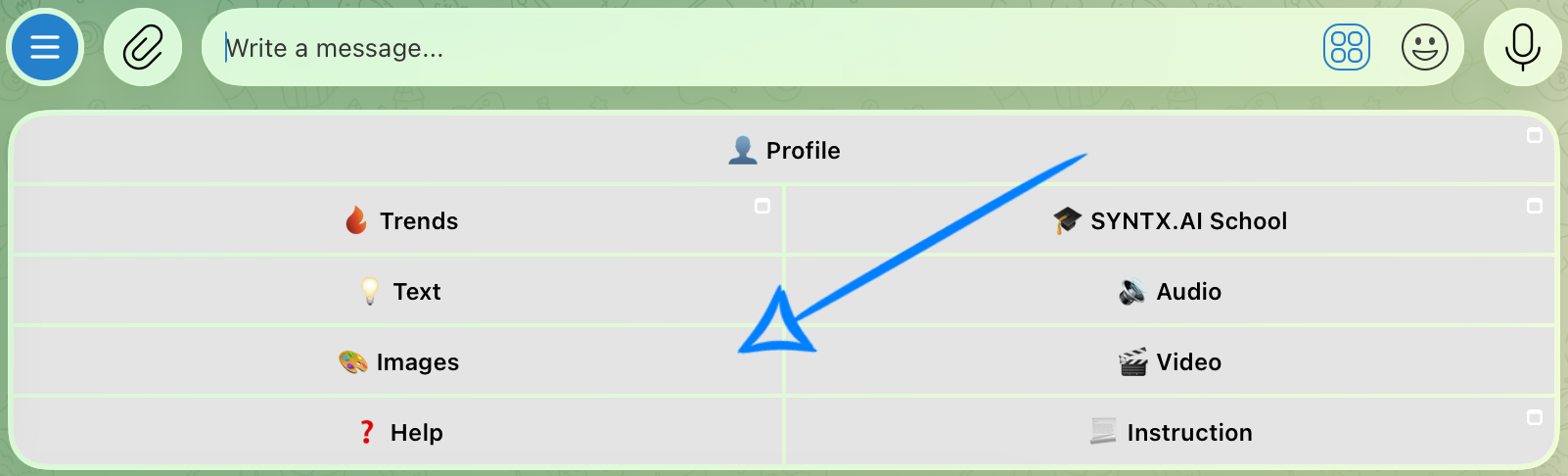
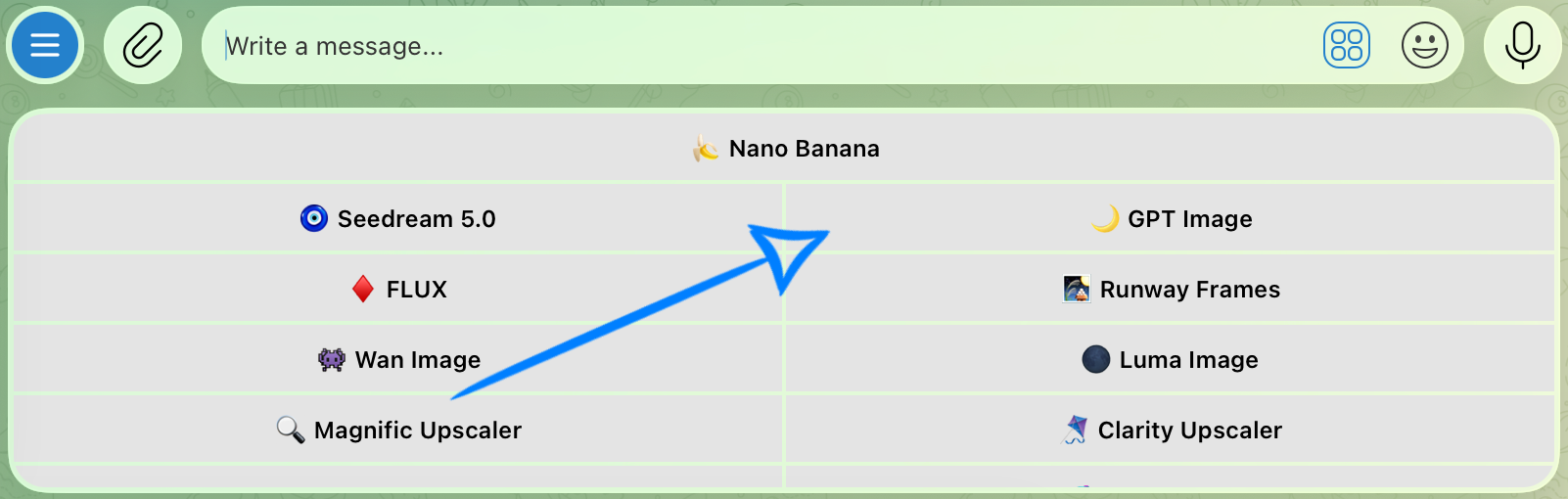
💥 Step-by-Step Guide to Using GPT Image 1. “Text to Image”
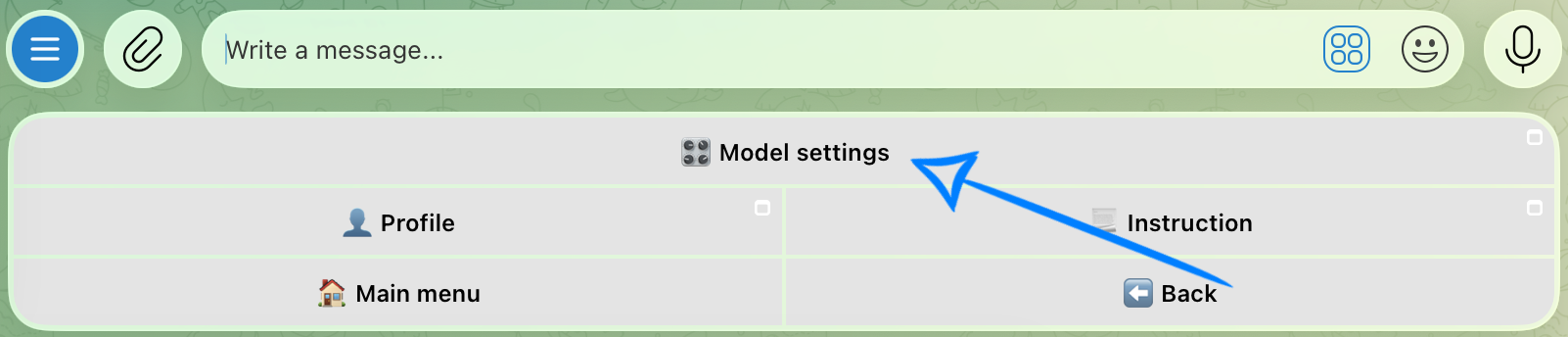
When using the Text to Image feature, open Model settings. There, you can configure the parameters for the future image.
Model settings
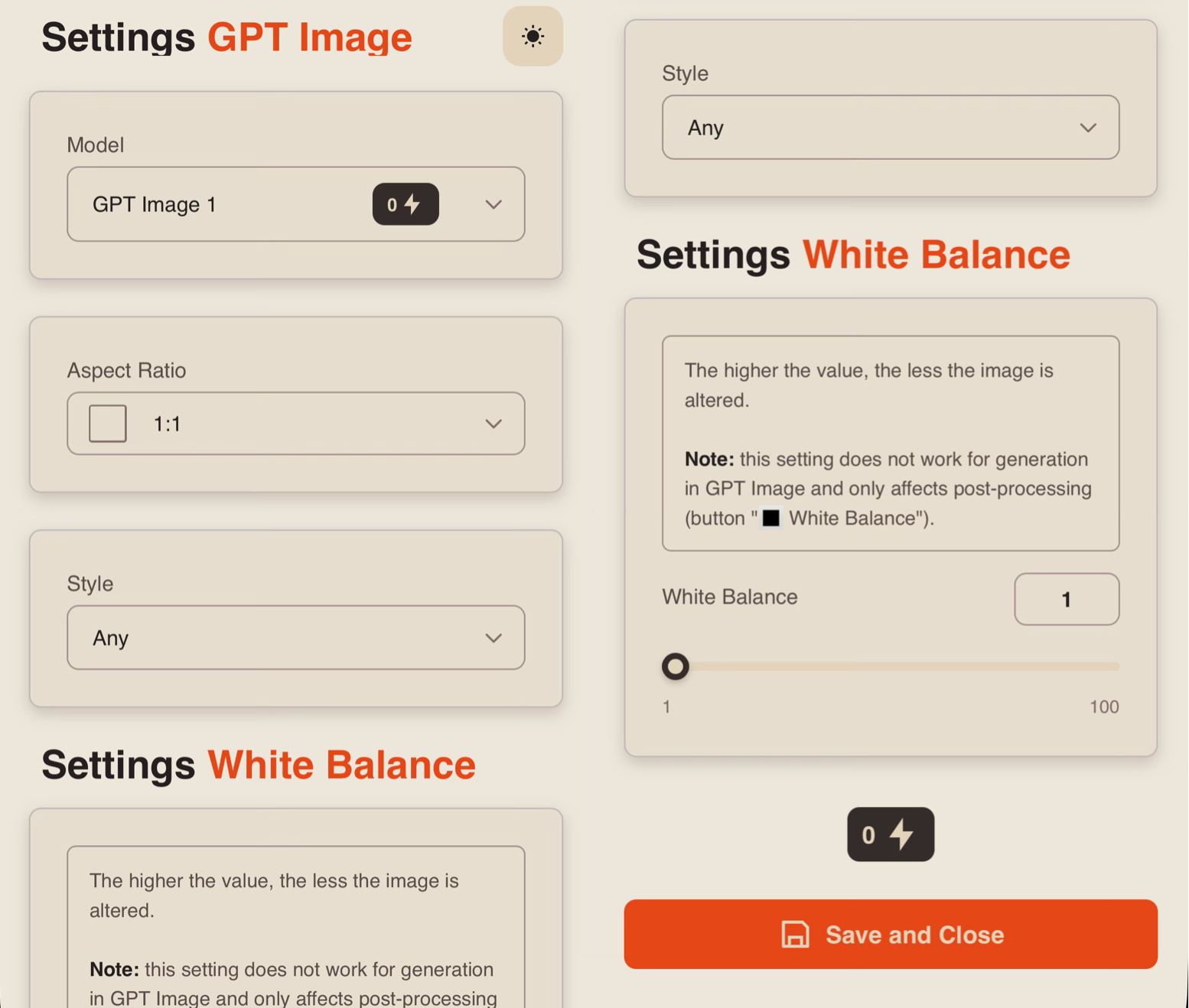
Model
You have two models to choose from:
GPT Image 1 - suitable for creating stylized imagery, comics, and concepts, it can edit images based on text prompts and work with text.
GPT Image 1.5 - a newer model with more precise prompt following, consistent scene editing, and noticeably improved detail. The model generates results faster, works better with faces and hands, and is suitable for design, marketing, concept art, and prototyping tasks.
Aspect Ratio
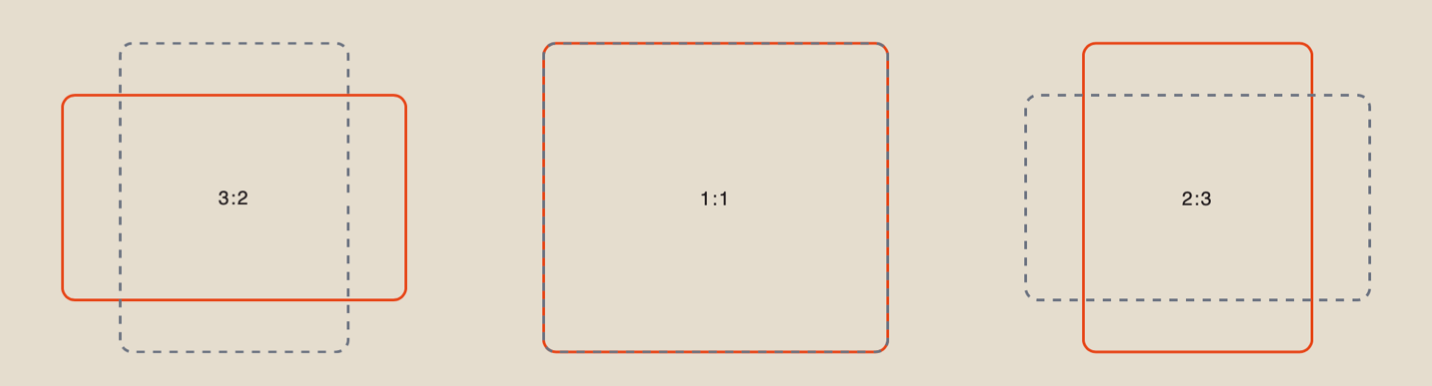
You have three aspect ratio options available:
- 2:3
- 1:1
- 3:2
❣️ If you don’t select an aspect ratio, images will be generated in 3:2 ratio by default.
Style
The GPT Image 1 model allows you to select image style. You can view examples of each available style to get an idea of the final result.
❣️Style selection is only available when using the GPT Image 1 model.
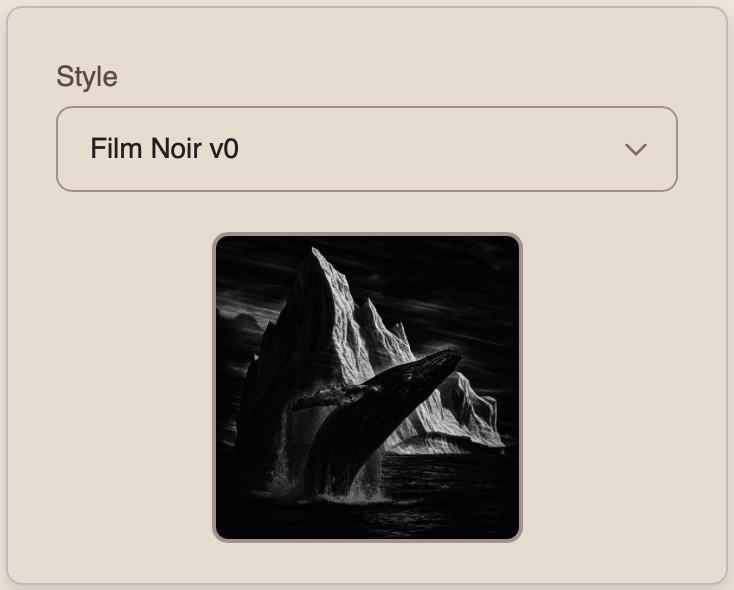
If you haven’t selected a preset style, you have two options:
- Specify the desired style directly in the text prompt.
- Don’t specify a style. In this case, the neural network will determine the appropriate style based on your prompt.
Description and examples of styles:
- Film Noir v0
A style inspired by the classic cinematic genre of the 1940s–50s. Characterized by high-contrast black-and-white imagery with deep shadows, dramatic lighting, and an atmosphere
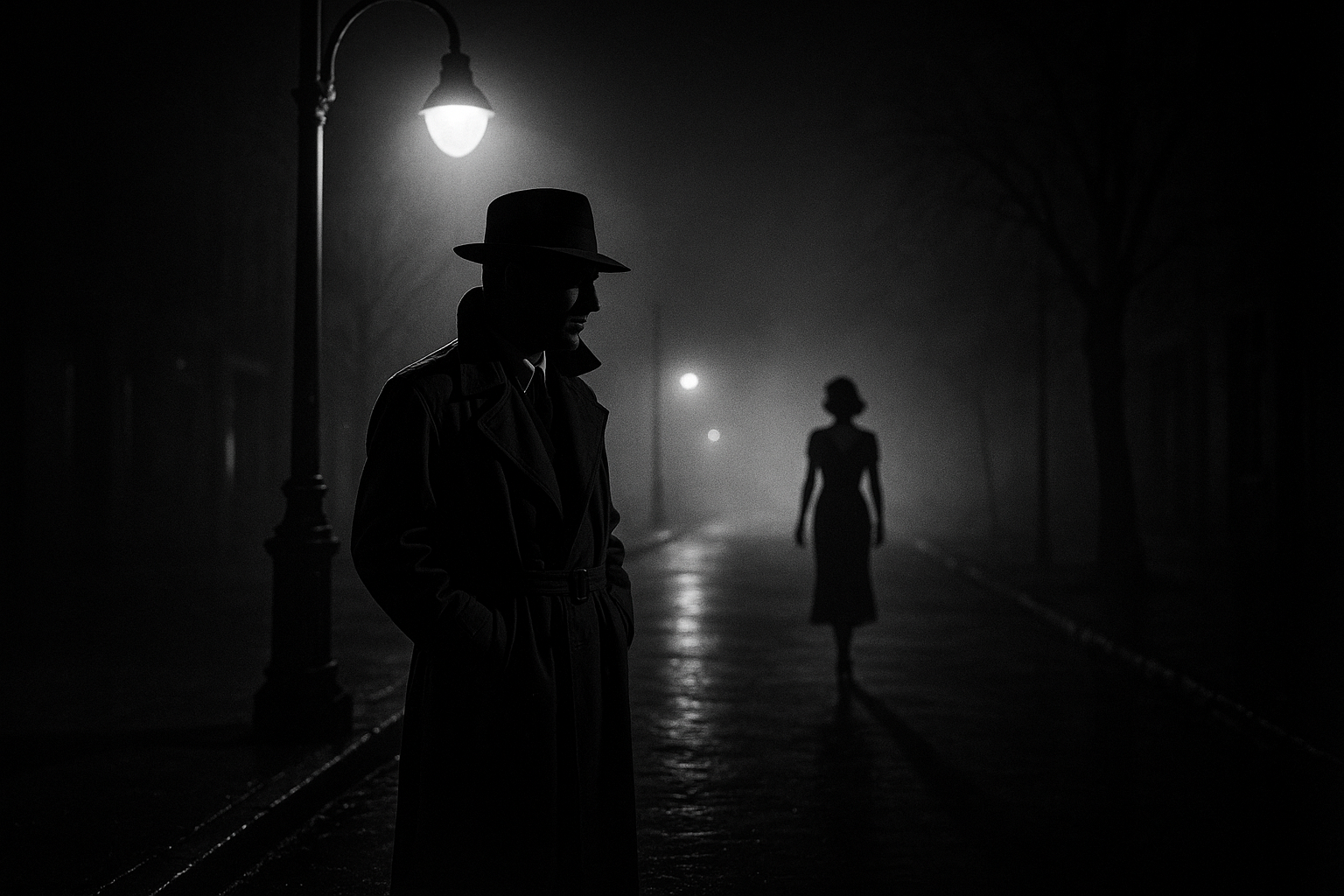
A detective in a hat and trench coat stands under a streetlamp on a foggy night, long shadows fall across the wet pavement, the silhouette of a woman in an elegant dress can be seen in the distance, an atmosphere of mystery and danger permeates the scene
- Archival v0
A style that imitates old photographs. Images look like historical artifacts with fading, grain, and wear effects. Suitable for creating vintage scenes, historical reconstructions, or styling images to resemble documentary materials from past eras.
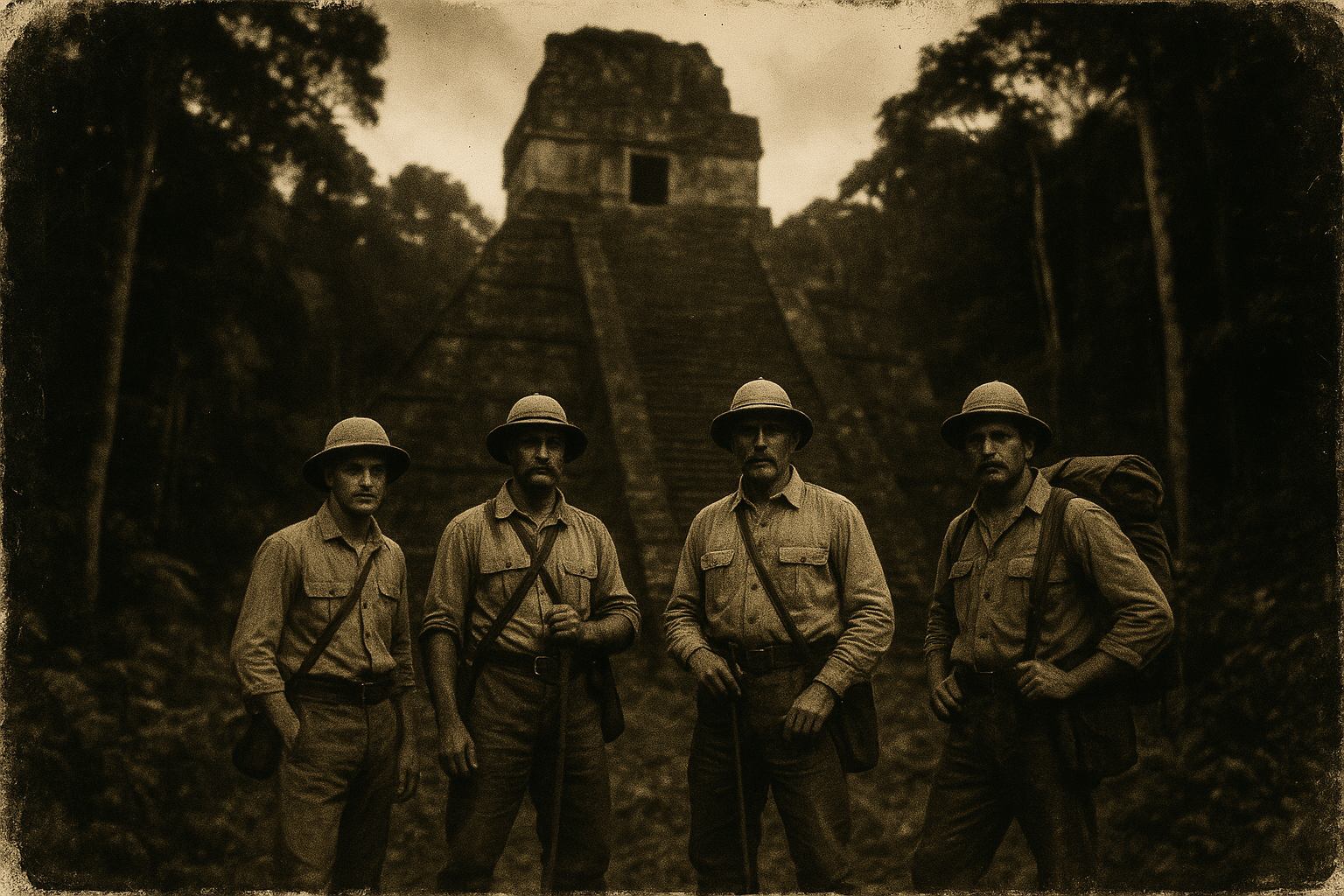
An old photograph from the 1920s: a group of explorers in colonial attire stands in front of a recently discovered ancient pyramid in the jungle, worn edges of the image, signs of age, and faded sepia tones add authenticity to the historical moment
- Cardboard and Papercraft v0
A style that imitates objects and scenes made from cardboard, paper, and other similar materials. Characterized by paper textures, visible seams and folds, and simplified shapes. Gives images a handcrafted and warm feel, ideal for children’s illustrations or creative projects.
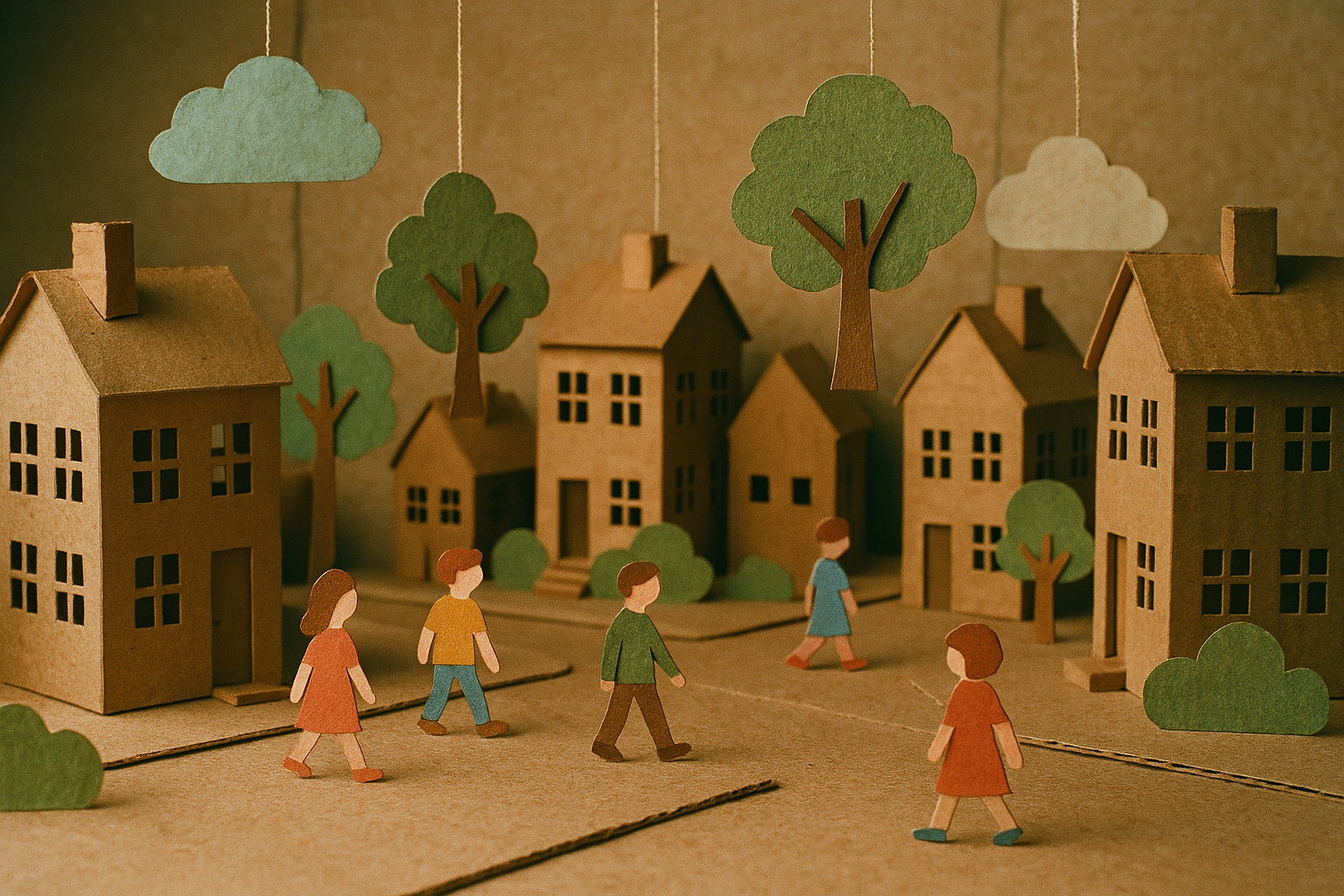
A miniature town made entirely of cardboard and colored paper: tiny paper people walk through the streets, cardboard houses with cut-out windows, paper trees and clouds hang from strings, with visible paper textures and neat glued seams
- Whimsical Stop Motion v0
A style inspired by the stop-motion animation technique using physical objects. Characterized by a slightly uneven effect, textured surfaces, and a tactile feel. Creates whimsical, imaginative scenes with a distinctive charm.
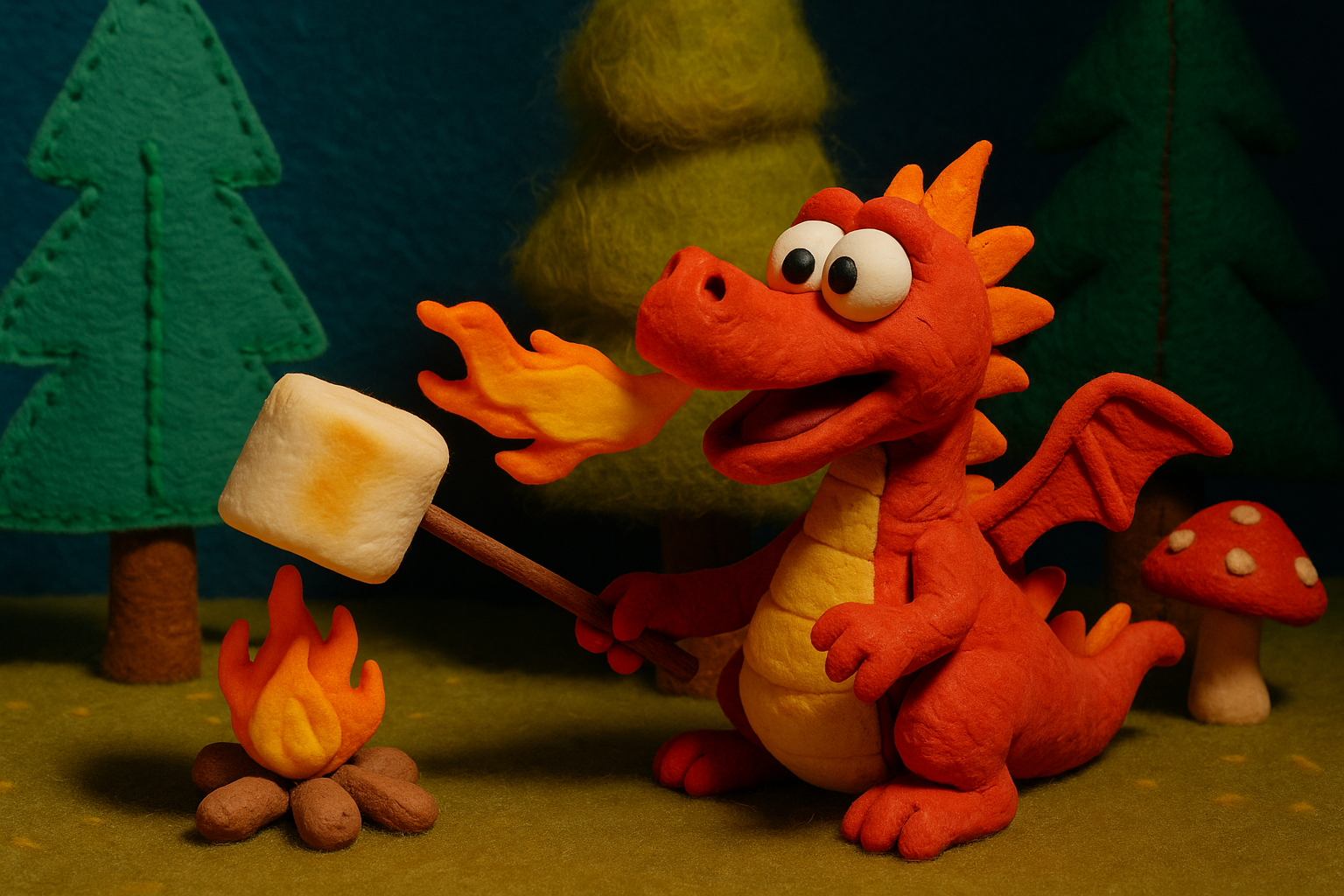
A funny clay dragon tries to toast a marshmallow with its breath in a fairy-tale forest made of felt and fabric, surrounded by clay mushrooms and trees made of wool, the textures of the materials are clearly visible, the lighting is soft and warm
- Balloon World v1
A style in which objects and characters are made from balloons or stylized to look like them. Characterized by bright colors, shiny surfaces, rounded shapes, and a distinctive texture resembling latex or foil balloons. Creates fun, festive, and surreal images.
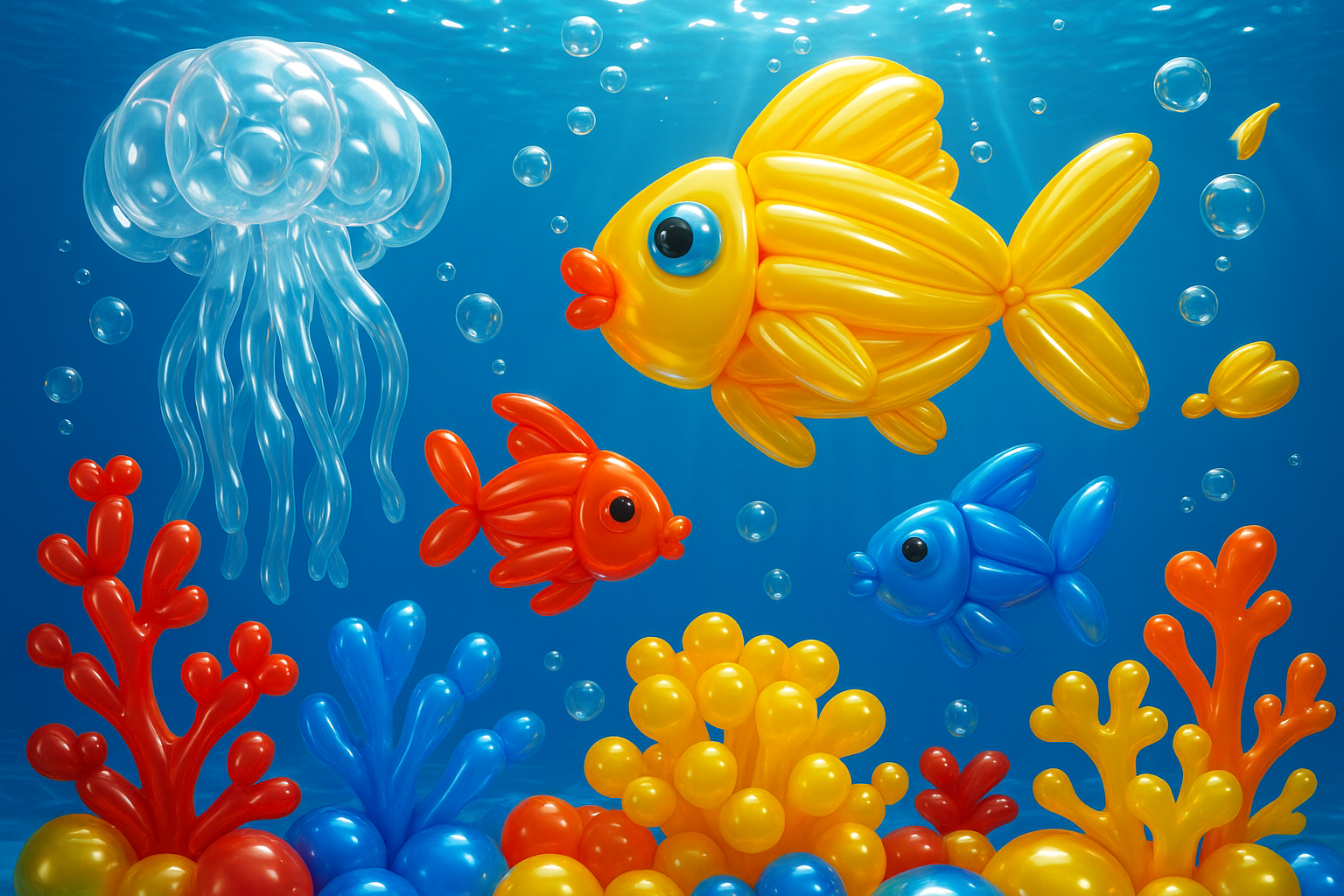
A fantastical underwater world where all creatures and plants are made of balloons: a jellyfish made of transparent balloons, fish made of twisted long balloons, corals made of many small colorful balloons, air bubbles rise toward the surface, reflections of light play across the glossy surfaces
- OpenAI Superbowl v0
Minimalist pixel art in black and white. A retro aesthetic reminiscent of early computer graphics, with clean geometric shapes and contrasting elements.
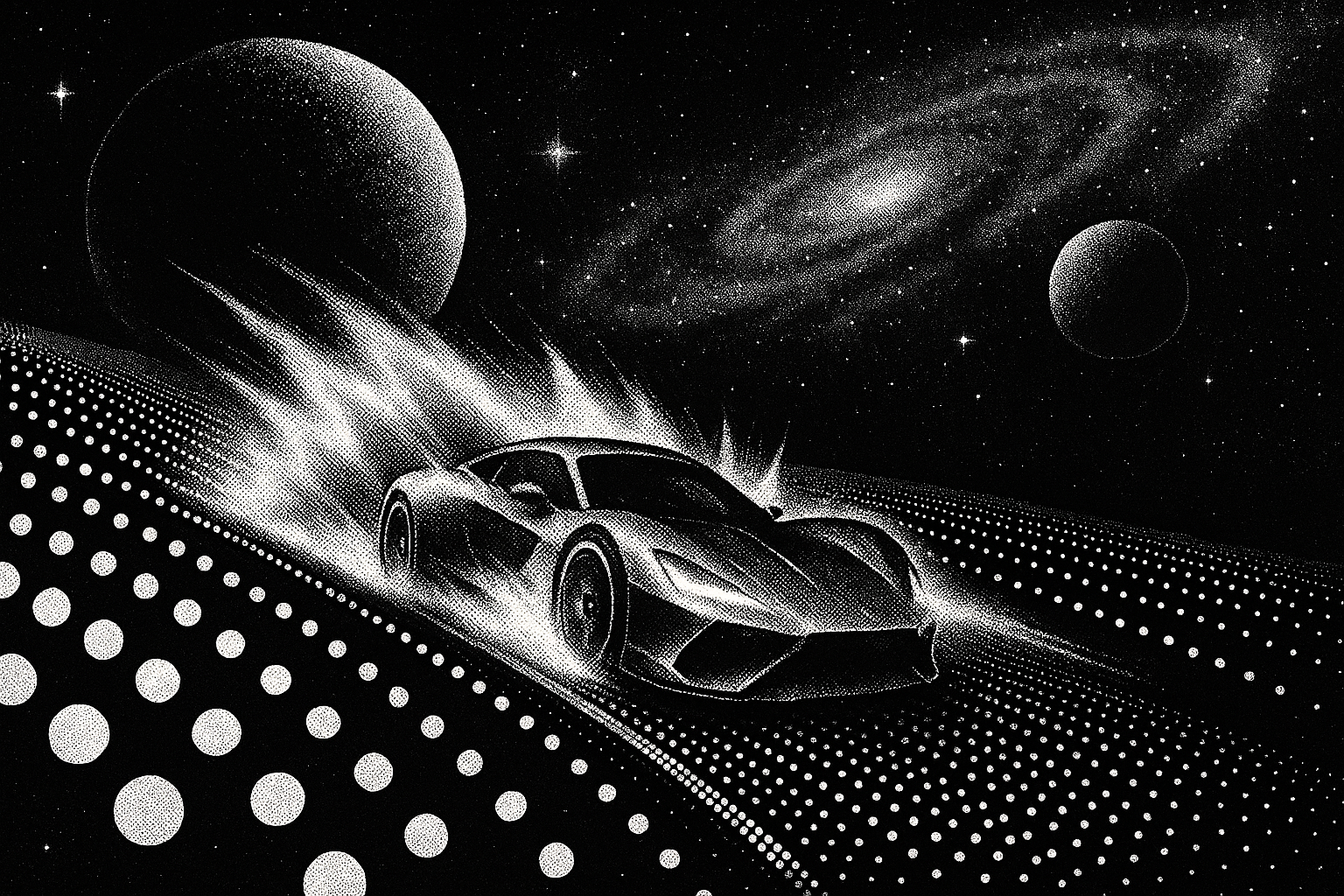
An epic moment in a space race: a futuristic sports car breaks the sound barrier on a track floating between planets, incredible visual effects, dramatic lighting, stars and galaxies in the background, a moment of maximum tension and spectacle.
- Cartoonify by Sora v0
A style that imitates high-quality modern computer animation. Characterized by smooth lines, bright colors, expressive characters, and detailed backgrounds. Creates images reminiscent of scenes from animated films by leading studios.
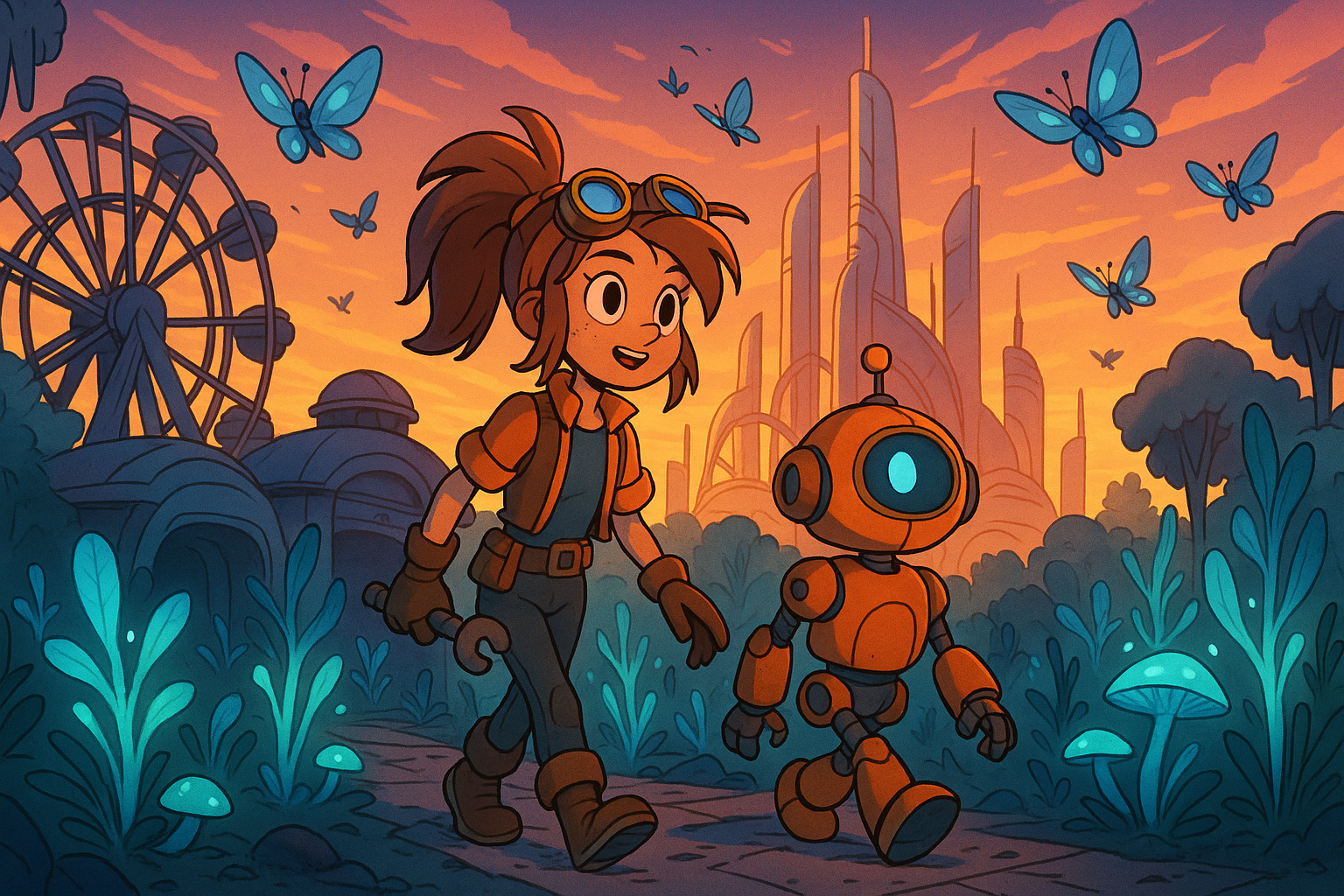
A young inventor and her robot companion explore an abandoned amusement park of the future, overgrown with strange glowing plants, mechanical butterflies fly around them, and the towers of a futuristic city illuminated by the setting sun can be seen on the horizon
- Pixel Art by Sora v0
A style inspired by retro computer graphics and video games. Characterized by a visible pixel structure, a limited color palette, and simplified shapes. At the same time, it retains modern quality and detail, creating an interesting contrast between retro aesthetics and modern image generation technologies.
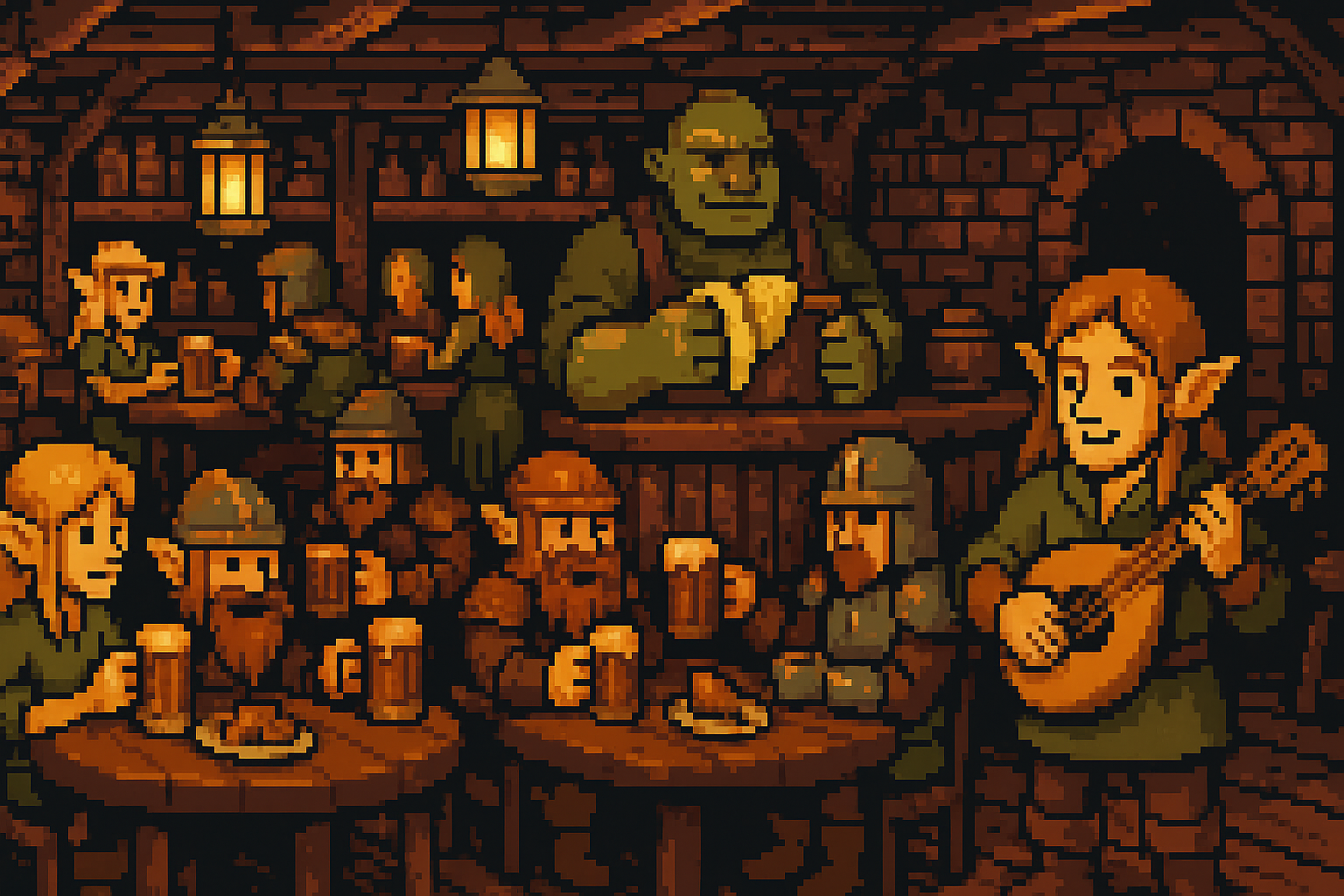
A pixel art scene of a fantasy tavern filled with a variety of adventurers: elves, dwarves, and warriors sit at tables, a bard plays the lute, an ogre bartender wipes mugs behind the bar, detailed pixel art with a limited color palette and a distinctive retro aesthetic
White Balance
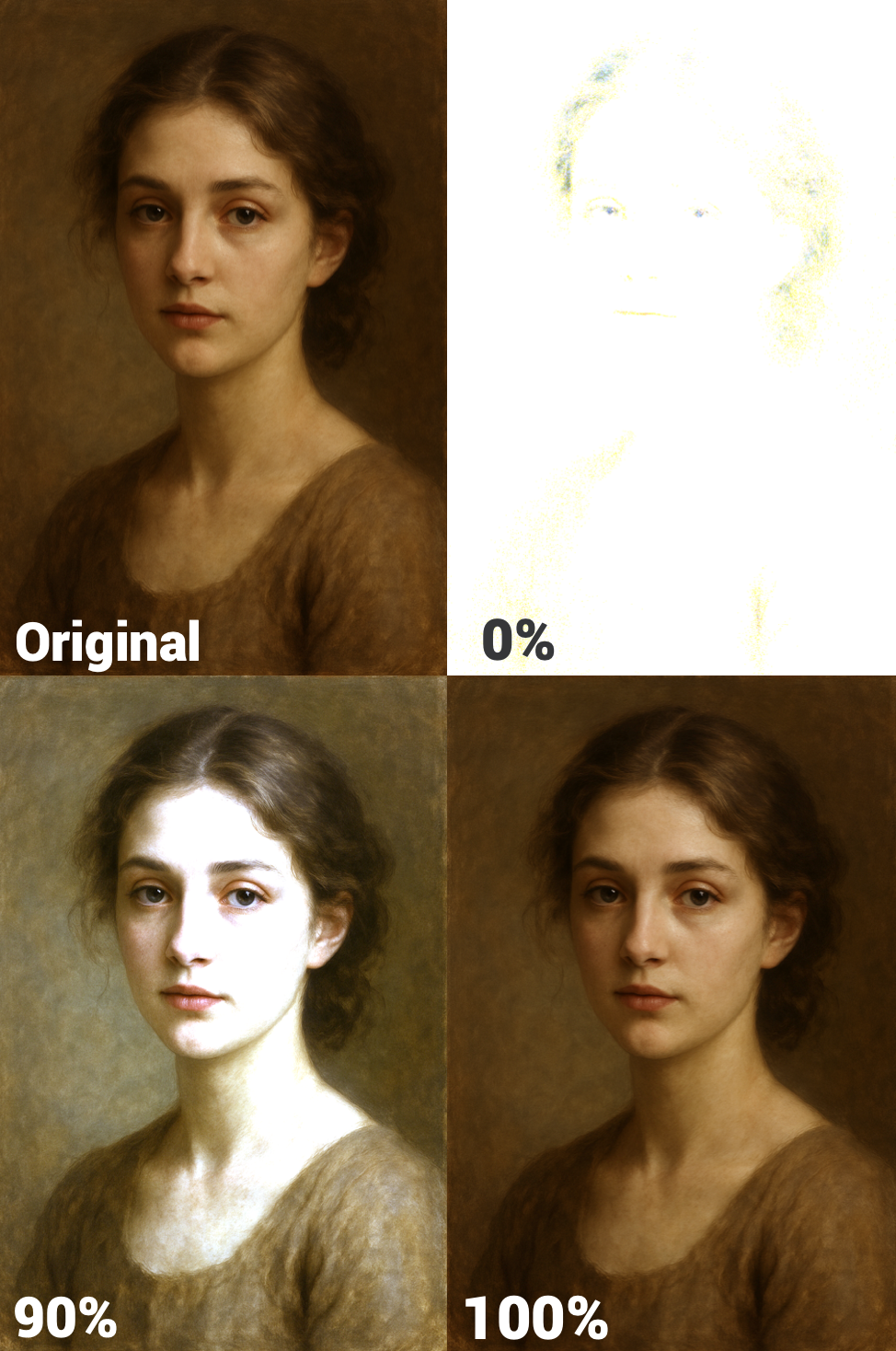
The “White Balance” feature allows you to correct an unwanted warm (yellowish) tint that may sometimes appear in images created with GPT Image.
How it works:
- Generate an image in GPT Image.
- Open “Model Settings”. At the bottom of the section, find the “White Balance” slider.
- Set the desired value:
100 - minimal correction, the warm tint is largely preserved. 1 - maximum correction, the image takes on a more neutral and cooler tone.
- Close the settings window to save the selected value.
- Return to the image you have already created. The “🔳 White Balance” icon will be available below it.
- Click the icon. The neural network will create a corrected version of the image based on the “White Balance” value previously set in the model settings.
Repeated Correction
If you are not satisfied with the result, return to “Model Settings”, change the slider value, and click “🔳 White Balance” again. The number of attempts is unlimited.
❣️The “White Balance” option is applied only during post-processing and does not affect the original image generation in GPT Image.
Creating a Text Prompt
Once you have made sure that all parameters in the “Model Settings” section are set correctly, create a detailed and clear text prompt describing the desired result and start the generation process.
A good text prompt structure should include:
- Main subject: specify who or what should be depicted in the image.
- Action or pose: describe what the main subject is doing or what position they are in.
- Environment: specify the setting, background, and important elements of the surroundings.
- Lighting and time of day: describe the desired lighting or time of day, such as daylight, sunset, night, or studio lighting.
- Style: specify the desired visual style of the image, such as realistic, cinematic, illustrative, etc.
- Atmosphere: define the overall mood of the final image, such as calm, dark, cozy, or dynamic.
For example:
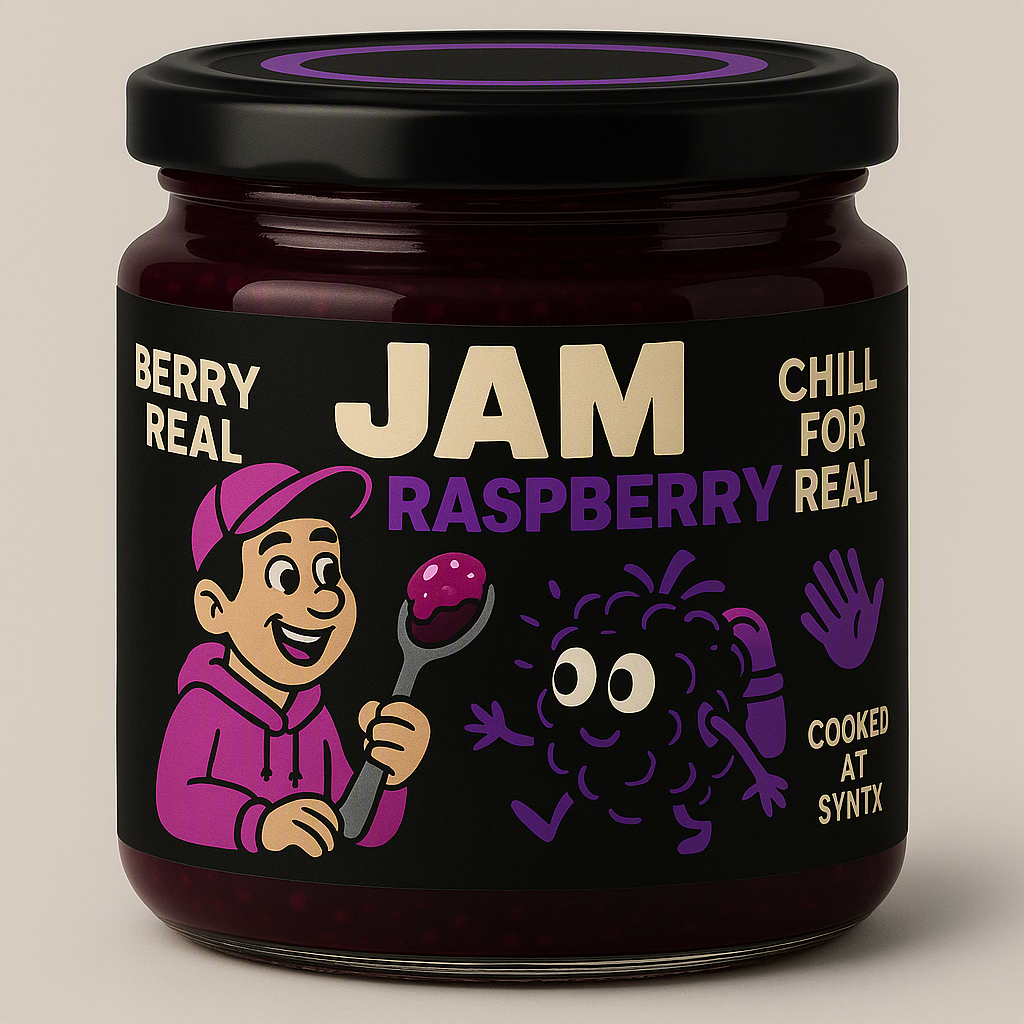
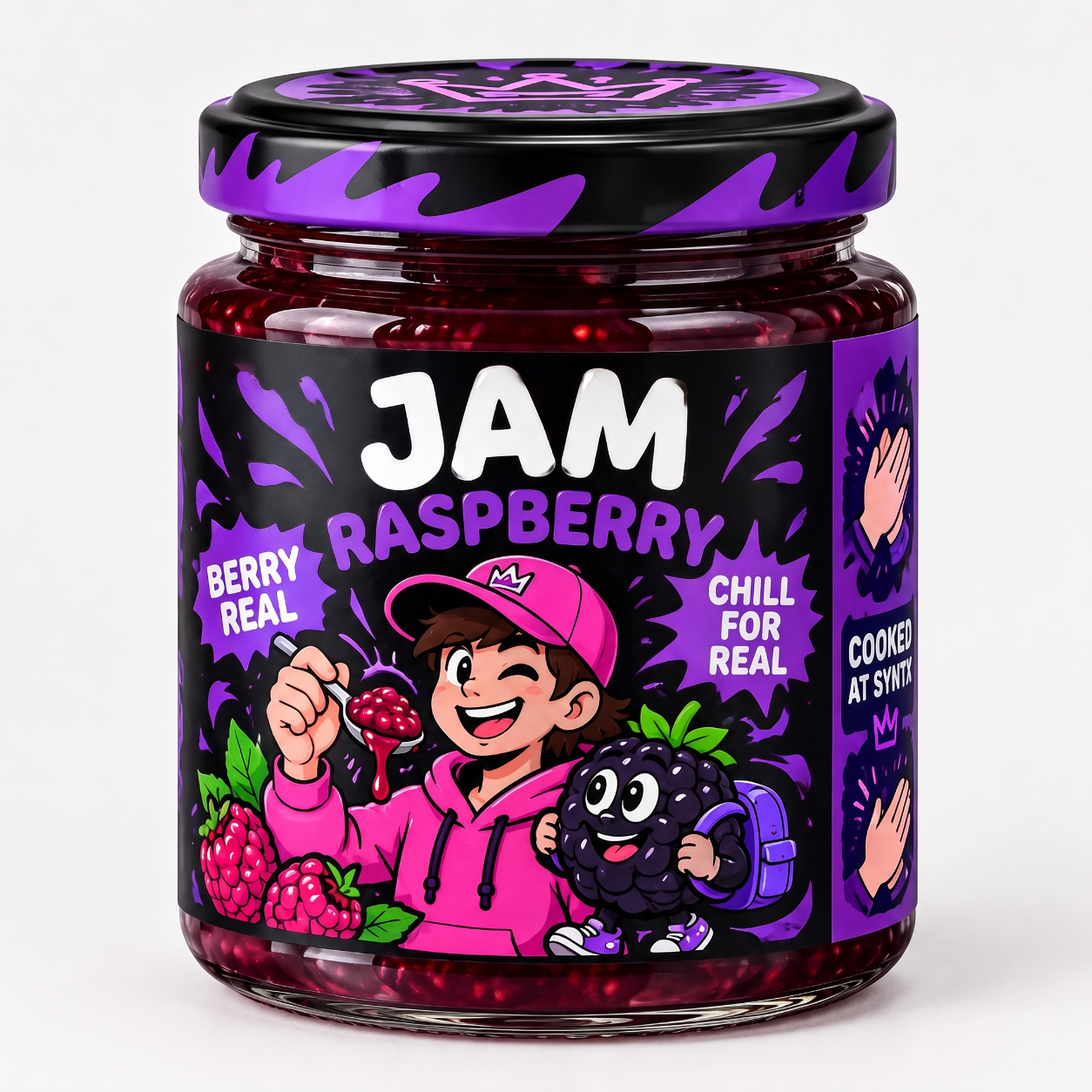
“A glass jar of raspberry jam with a creative cartoon-style label design. The main color palette is deep black and vibrant purple. The front label features a cheerful character wearing a bright pink hoodie and cap, holding a spoonful of jam. Next to the character is a cartoon black raspberry wearing a small backpack.
The label prominently features the words “JAM” and “RASPBERRY”, along with the eye-catching phrases “BERRY REAL” and “CHILL FOR REAL”. The side of the jar features clapping hands and additional text: “COOKED AT SYNTX”.
The illustration style is bold, modern, humorous, and vividly cartoonish. The lid has a classic shape and follows the same black-and-purple color palette.”
Results
GPT Image 1
GPT Image 1.5
💥 Step-by-Step Guide to Using GPT Image 1. “Working with References”
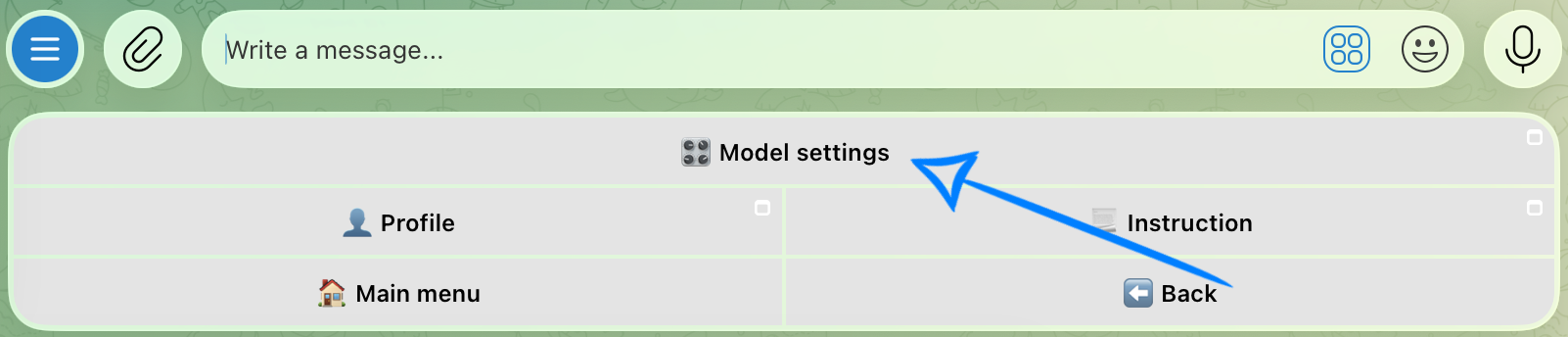
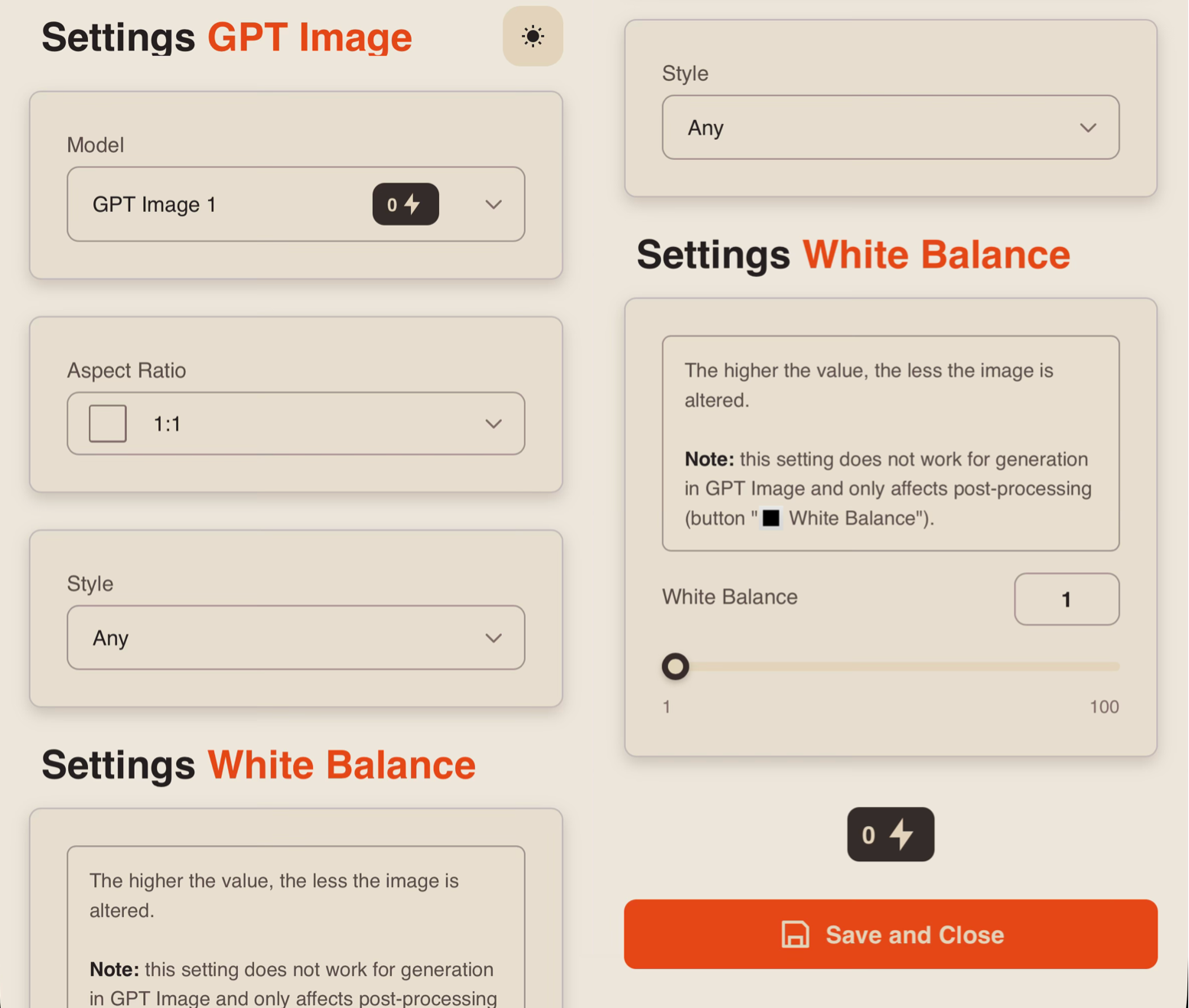
First, when using the “Working with References” feature, you need to open “Model Settings”. There, you can configure the parameters for the future image.
Model settings
Model
You are provided with two models to choose from:
GPT Image 1 - a visual model for creative image generation and editing. Suitable for creating stylized imagery, comics, and concepts, it can edit images based on text prompts and work with text.
GPT Image 1.5 - a new generation of image generation with more precise prompt following, consistent scene editing, and noticeably improved detail. The model generates results faster, works better with faces and hands, and is suitable for design, marketing, concept art, and prototyping tasks.
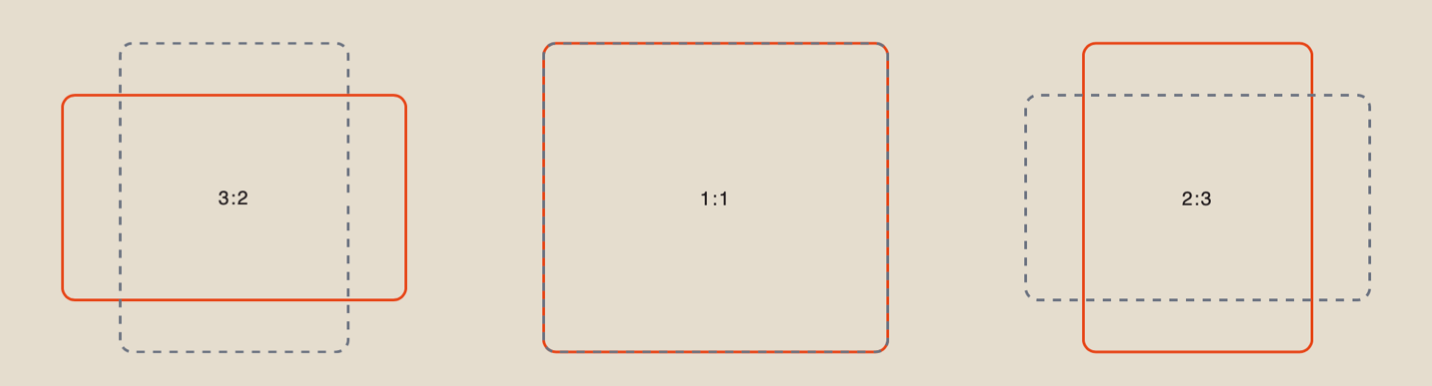
Aspect Ratio
You have three aspect ratio options available:
- 2:3
- 1:1
- 3:2
❣️ If you do not select an aspect ratio, generations will be delivered in 3:2 format by default.
Style
The GPT Image 1 model allows you to select a style for generating your image. You can view examples of each available style to get an idea of the final result.
❣️Style selection is only available when using the GPT Image 1 model.
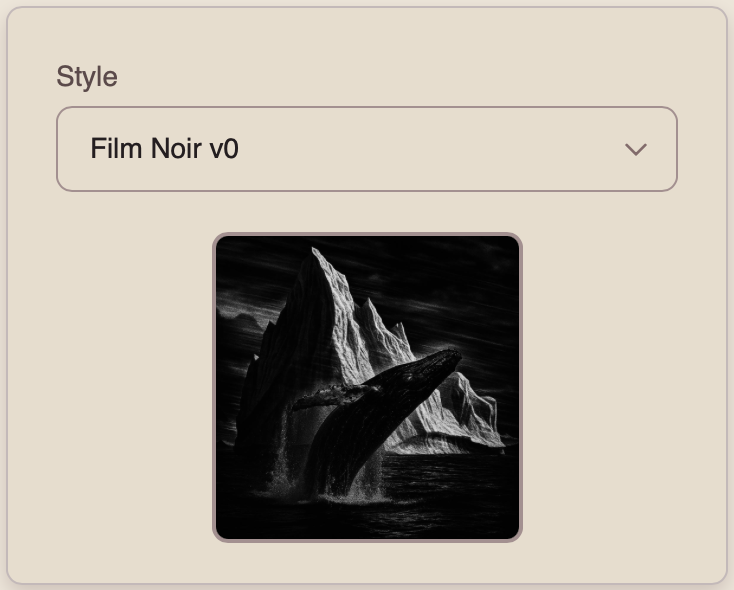
If you have not selected a preset style, you have two options:
- Specify the desired style directly in the text prompt.
- Do not specify a style. In this case, the neural network will determine the appropriate style based on your prompt.
Description and examples of styles:
- Film Noir v0
A style inspired by the classic cinematic genre of the 1940s–50s. Characterized by high-contrast black-and-white imagery with deep shadows, dramatic lighting, and an atmosphere of mystery. Ideal for creating dark, tense scenes with elements of detective fiction, crime, or mysticism.
- Archival v0
A style that imitates old photographs. Images look like historical artifacts with fading, grain, and wear effects. Suitable for creating vintage scenes, historical reconstructions, or styling images to resemble documentary materials from past eras.
- Cardboard and Papercraft v0
A style that imitates objects and scenes made from cardboard, paper, and other similar materials. Characterized by paper textures, visible seams and folds, and simplified shapes. Gives images a handcrafted and warm feel, ideal for children’s illustrations or creative projects.
- Whimsical Stop Motion v0
A style inspired by the stop-motion animation technique using physical objects. Characterized by a slightly uneven effect, textured surfaces, and a tactile feel. Creates whimsical, imaginative scenes with a distinctive charm.
- Balloon World v1
A style in which objects and characters are made from balloons or stylized to look like them. Characterized by bright colors, shiny surfaces, rounded shapes, and a distinctive texture resembling latex or foil balloons. Creates fun, festive, and surreal images.
- OpenAI Superbowl v0
Minimalist pixel art in black and white. A retro aesthetic reminiscent of early computer graphics, with clean geometric shapes and contrasting elements.
- Cartoonify by Sora v0
A style that imitates high-quality modern computer animation. Characterized by smooth lines, bright colors, expressive characters, and detailed backgrounds. Creates images reminiscent of scenes from animated films by leading studios.
- Pixel Art by Sora v0
A style inspired by retro computer graphics and video games. Characterized by a visible pixel structure, a limited color palette, and simplified shapes. At the same time, it retains modern quality and detail, creating an interesting contrast between retro aesthetics and modern image generation technologies.
White Balance
The “White Balance” feature allows you to correct an unwanted warm (yellowish) tint that may sometimes appear in images created with GPT Image.
How it works:
- Generate an image in GPT Image.
- Open “Model Settings”. At the bottom of the section, find the “White Balance” slider.
- Set the desired value:
100 - minimal correction, the warm tint is largely preserved. 1 - maximum correction, the image takes on a more neutral and cooler tone.
- Close the settings window to save the selected value.
- Return to the image you have already created. The “🔳 White Balance” icon will be available below it.
- Click the icon. The neural network will create a corrected version of the image based on the “White Balance” value previously set in the model settings.
❣️The “White Balance” feature is only available when using the GPT Image 1 model.
Repeated Correction
If you are not satisfied with the result, return to “Model Settings”, change the slider value, and click “🔳 White Balance” again. The number of attempts is unlimited.
❣️The “White Balance” option is applied only during post-processing and does not affect the original image generation in GPT Image.
Image Upload
Once you have made sure that all parameters in the “Model Settings” section are set correctly, upload from 1 to 10 images and create a text prompt describing the desired result.
Technical requirements for images:
- Maximum number of images in GPT Image 1: 4.
- Maximum number of images in GPT Image 1.5: 10.
- Maximum size of a single file: 10 MB.
- Supported formats: PNG, JPG.
- Required aspect ratio: from 5:2 to 2:5.
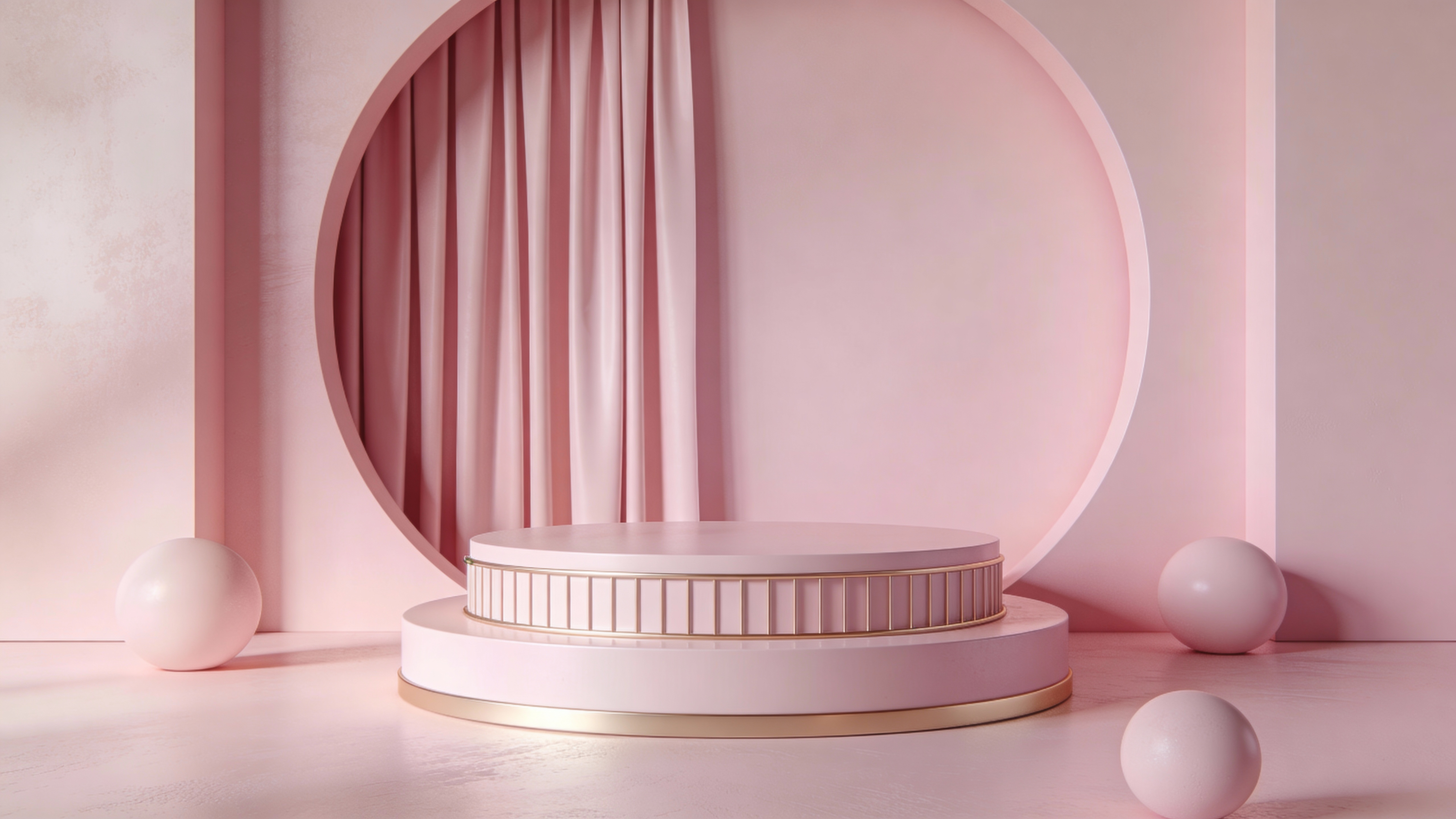
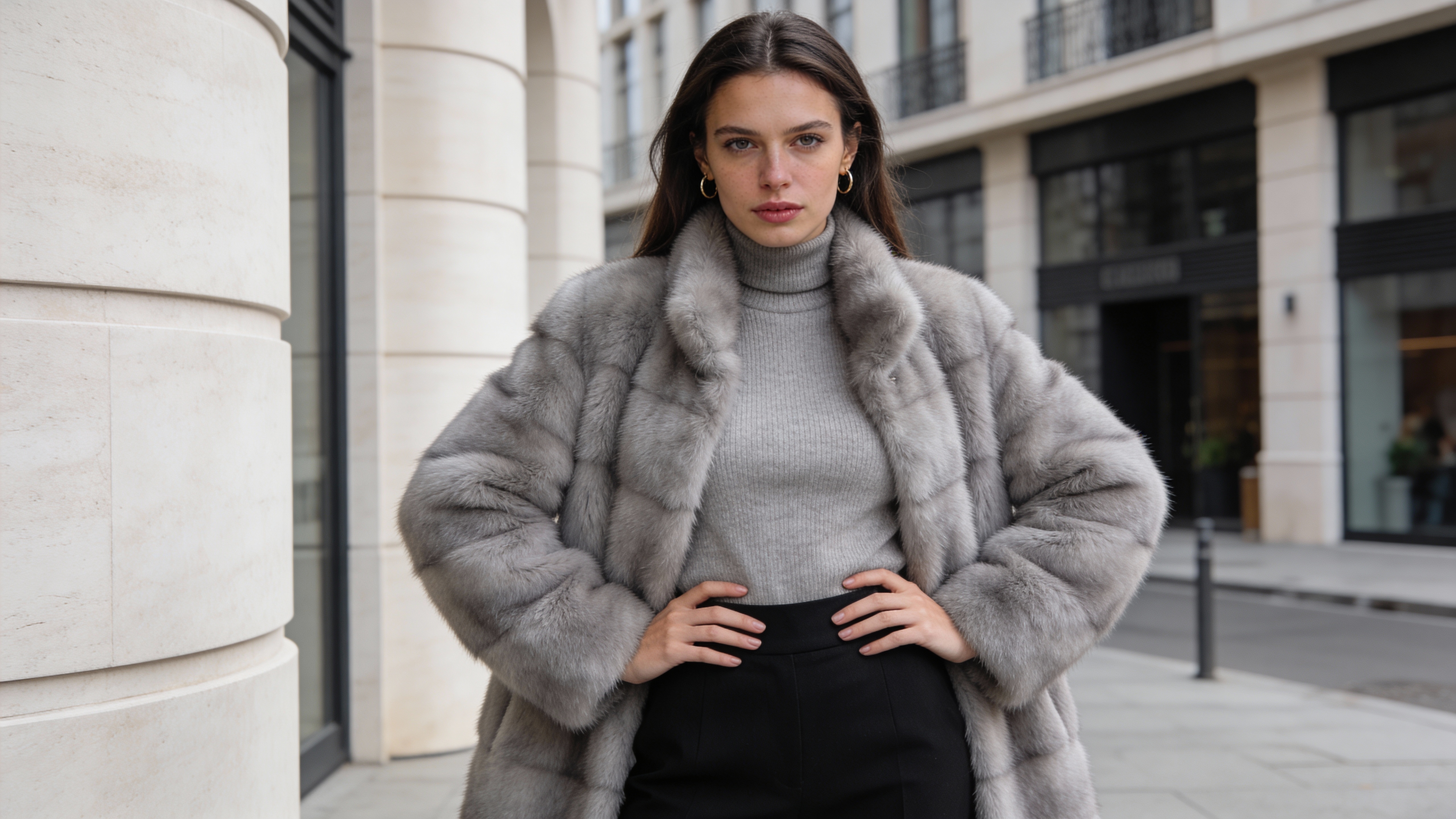
For example:
Creating a text prompt
When uploading one or more reference images, it is important to create a text prompt that clearly specifies which elements should be preserved, changed, or added. This will help the model better understand the task and produce the desired result based on the provided images.
Elements to preserve
When adding a reference image, specify exactly what needs to be preserved. This may include:
- image style;
- object or character;
- composition;
- character’s pose or facial expression;
- color palette;
- lighting;
- overall mood or atmosphere.
Elements to change or add
Describe exactly what needs to be changed or added based on the reference:
- object or character - who or what needs to be added or changed;
- details and environment - where the scene takes place and what elements should be present;
- lighting and mood - warm, cool, soft, dramatic, etc.;
- artistic style - realistic, watercolor, cartoon, digital art, and others.
Additional recommendations
- Avoid negative phrasing, such as “do not add a background”. Instead, describe the desired result: “a blurred minimalist background”.
- When necessary, use English names for artistic techniques, movements, and genres, as this can help define the desired visual style more precisely.
- Try not to upload visually conflicting reference images, as this may affect the final result.
For example:
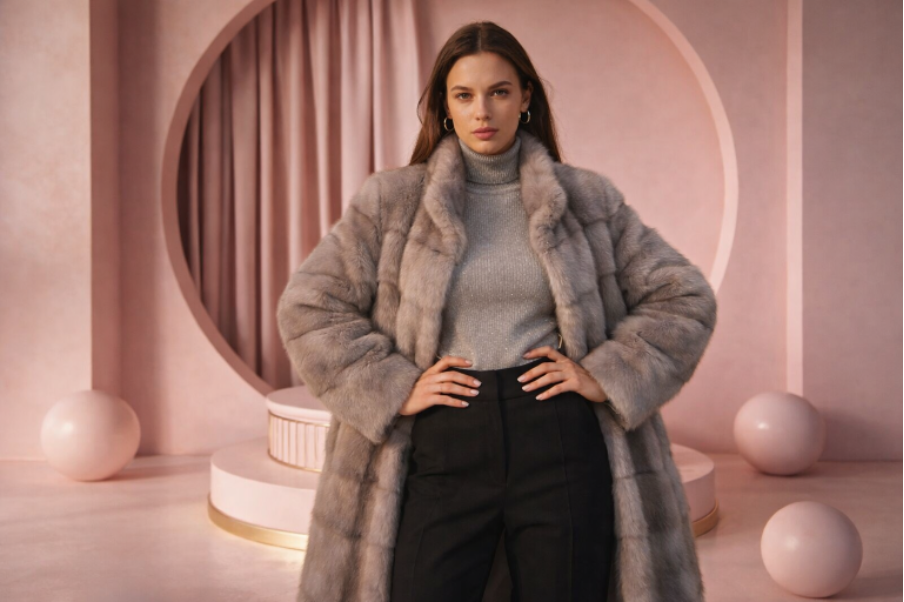
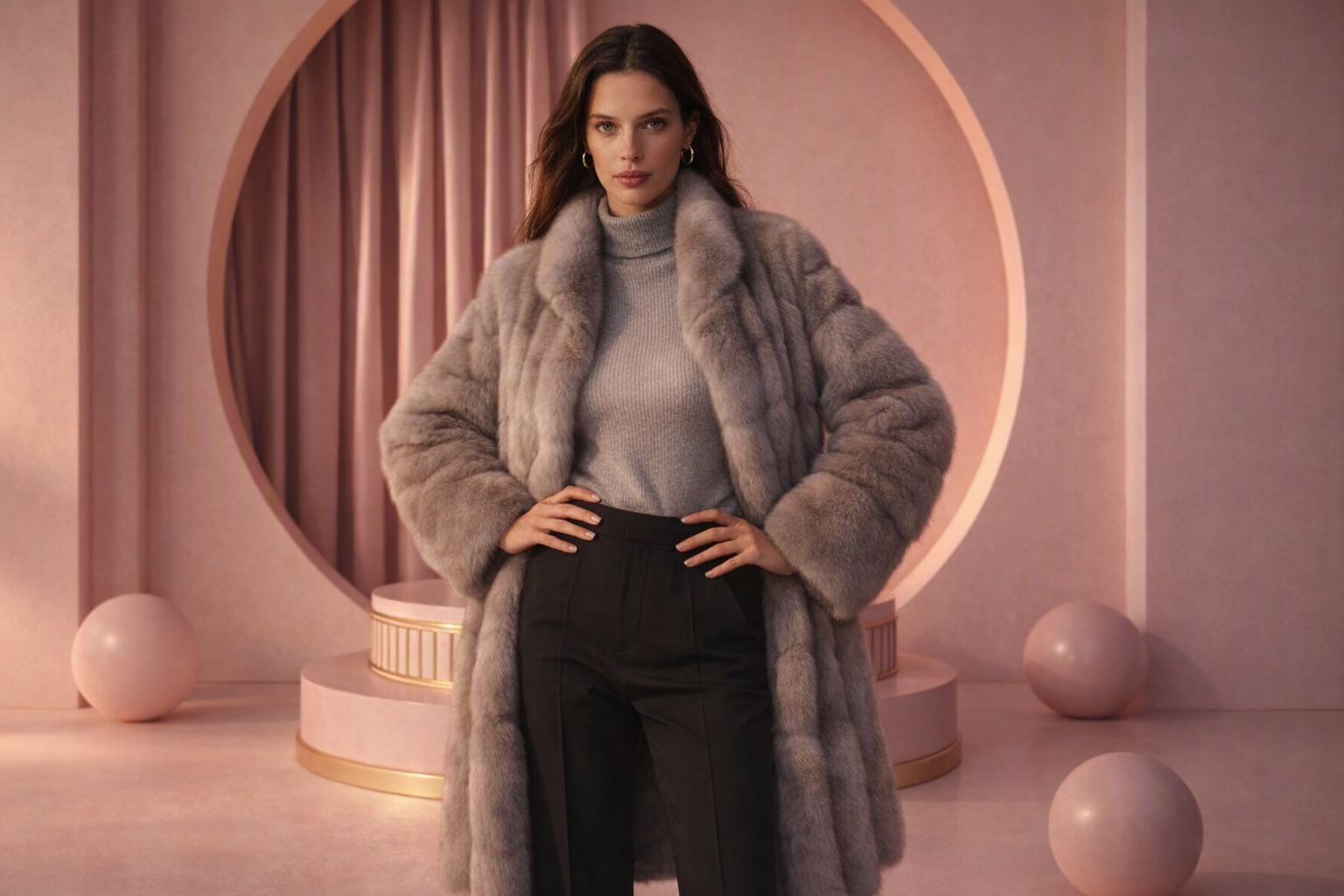
“Generate an image of a woman against a fashion-style background with a soft pinkish tint, preserving the style and atmosphere of the first reference image. The woman’s appearance must remain identical to the model in the second reference image.
Dress the woman in a gray fur coat, preserving the clothing style from the second image. The lighting should be warm, with soft shadows emphasizing the texture of the fabric. The image style should be photorealistic, with a cinematic atmosphere.”
After uploading the images and submitting the corresponding text prompt, you will receive a high-quality processed result.
Results
GPT Image 1
GPT Image 1.5
💥 Step-by-Step Guide to Using GPT Image 2. “Text to Image”
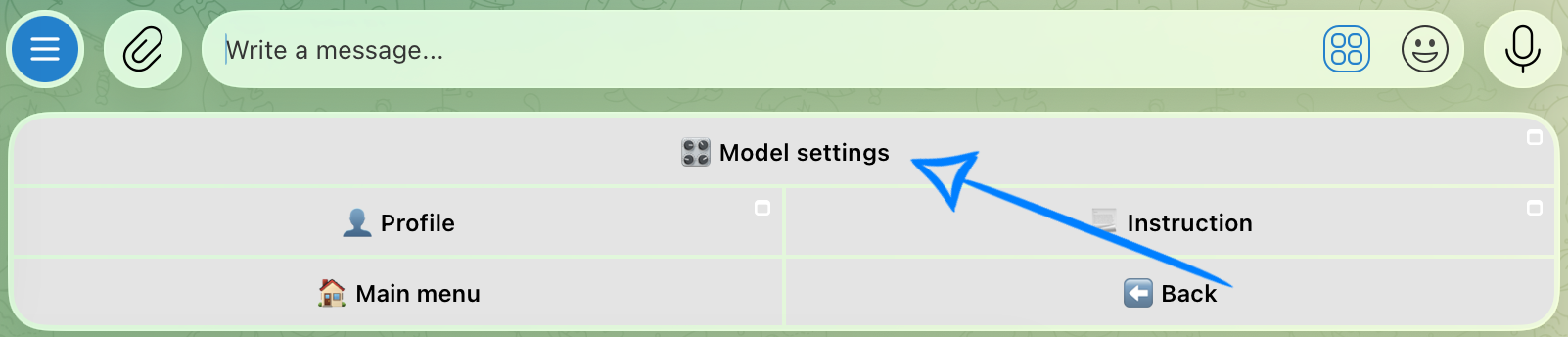
First, when using the “Text to Image” feature, you need to open “Model Settings”. There, you can configure the parameters for the future image.
Model settings
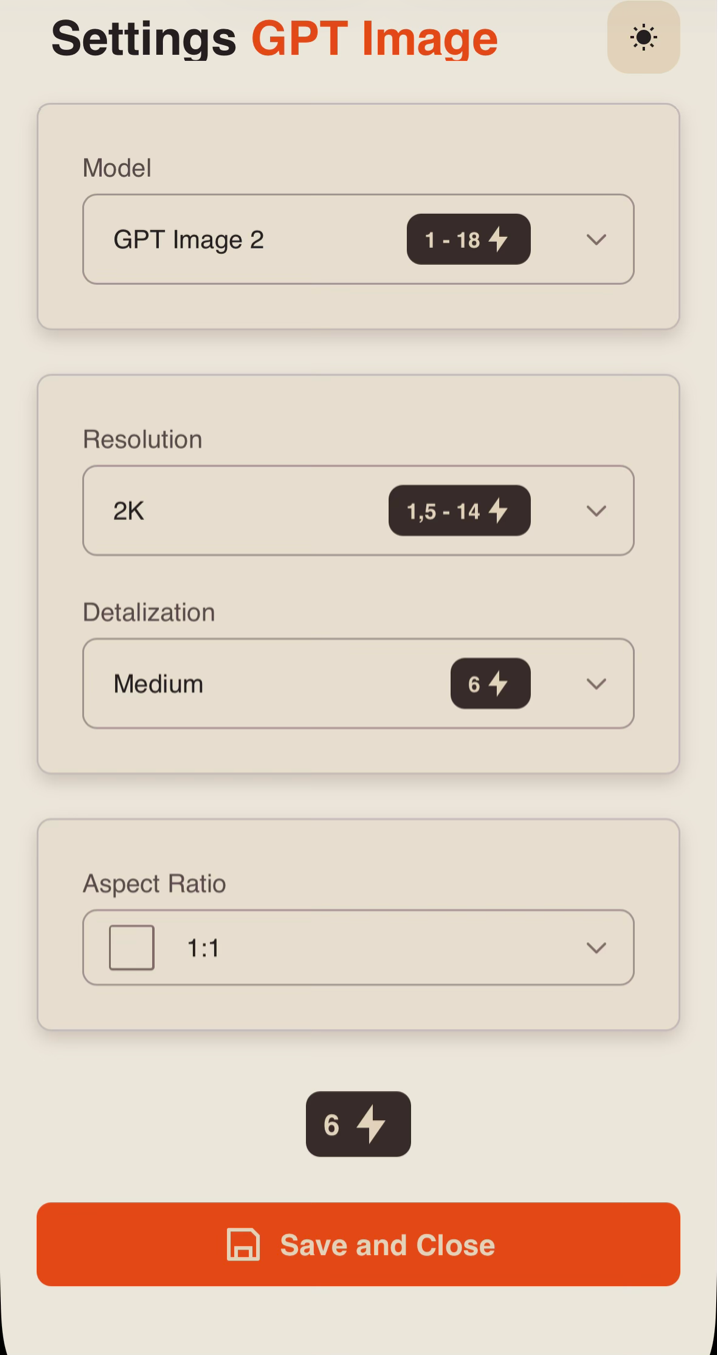
Model
You are provided with three models to choose from:
GPT Image 2 - a visual model for generating and editing images with improved understanding of complex compositions, object placement, and text. Suitable for creating advertising materials, infographics, and other content with complex visual structures.
GPT Image 2.5 Flare - a fast version of the model designed for generating and editing large volumes of images. It offers increased processing speed and can preserve original image elements more accurately when making changes. Suitable for social media content and rapid prototyping.
GPT Image 2.5 Sunburst - a version of the model designed for tasks where maximum quality and precise editing control are the priority. It better preserves characters, objects, composition, and other elements during complex and sequential edits. Suitable for advertising materials, product images, and detailed creative work.
Resolution
The “Resolution” parameter determines the output resolution of the final image. Higher values produce images at a higher resolution, making them better suited for larger formats and further visual editing.
You can choose one of three quality options:
- 1K - basic resolution. Suitable for quick generations, drafts, and small images.
- 2K - higher resolution. Suitable for most finished visuals and content.
- 4K - maximum available resolution. Recommended for images that need to be used in large formats or require further editing.
Detalization
The “Detalization” parameter determines how thoroughly the model will render small elements in the image.
The higher the detail level, the more attention the model pays to textures, materials, small objects, clothing details, hair, backgrounds, and other visual elements.
The GPT Image 2 model has the following detalization options:
- Low - minimal rendering of fine details.
- Medium - standard level of detail for most generations.
- High - more thorough rendering of objects and textures.
The GPT Image 2.5 models have the following detalization options:
- Low - minimal rendering of fine details.
- Medium - standard level of detail for most generations.
- High - more thorough rendering of objects and textures.
- Very High - enhanced detail for small elements and complex scenes.
- Maximum - the most thorough rendering of the image and its individual elements.
Aspect Ratio
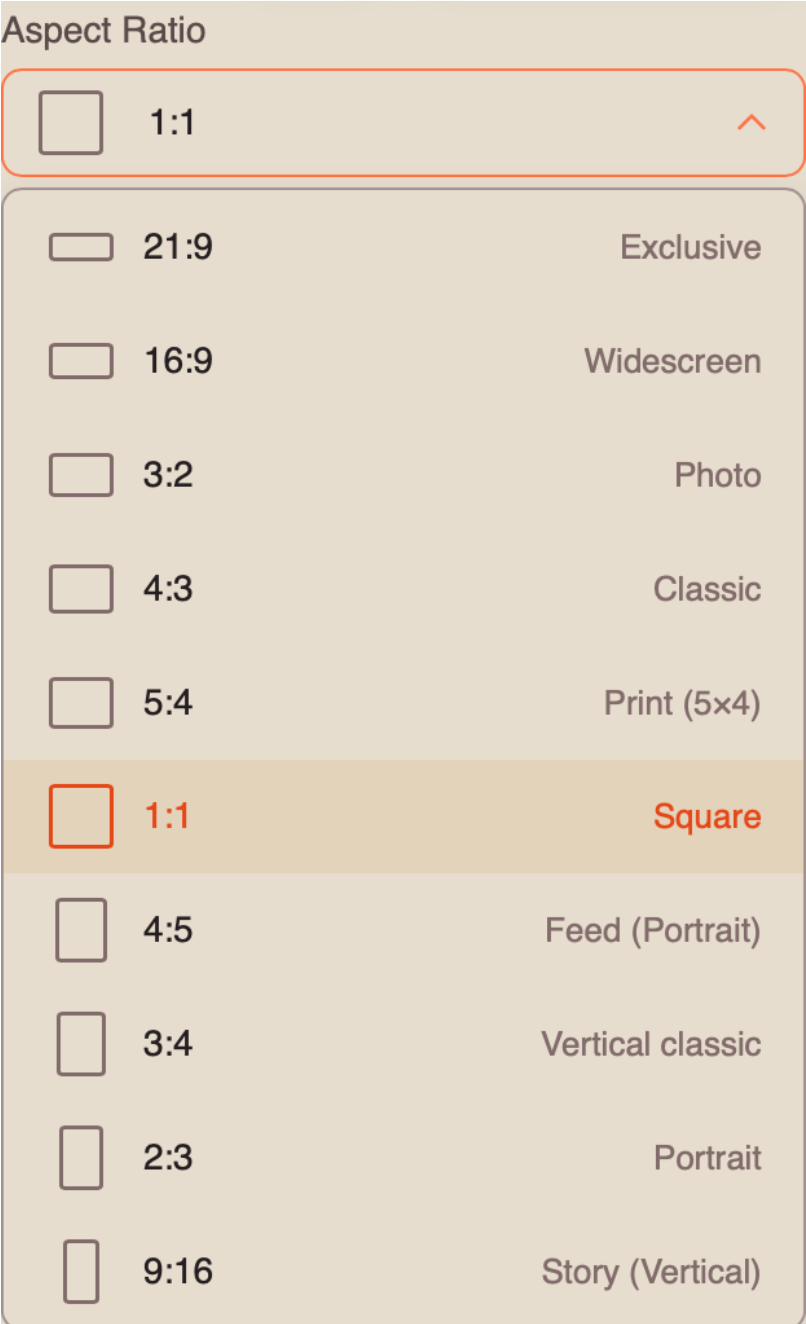
When working with any model, you have 10 aspect ratio options to choose from:
Creating a Text Prompt
Once you have made sure that all parameters in the “Model Settings” section are set correctly, create a detailed and clear text prompt describing the desired result and start the generation process.
A good text prompt structure should include:
- Main subject: specify who or what should be depicted in the image.
- Action or pose: describe what the main subject is doing or what position they are in.
- Environment: specify the setting, background, and important elements of the surroundings.
- Lighting and time of day: describe the desired lighting or time of day, such as daylight, sunset, night, or studio lighting.
- Style: specify the desired visual style of the image, such as realistic, cinematic, illustrative, etc.
- Atmosphere: define the overall mood of the final image, such as calm, dark, cozy, or dynamic.
For example:
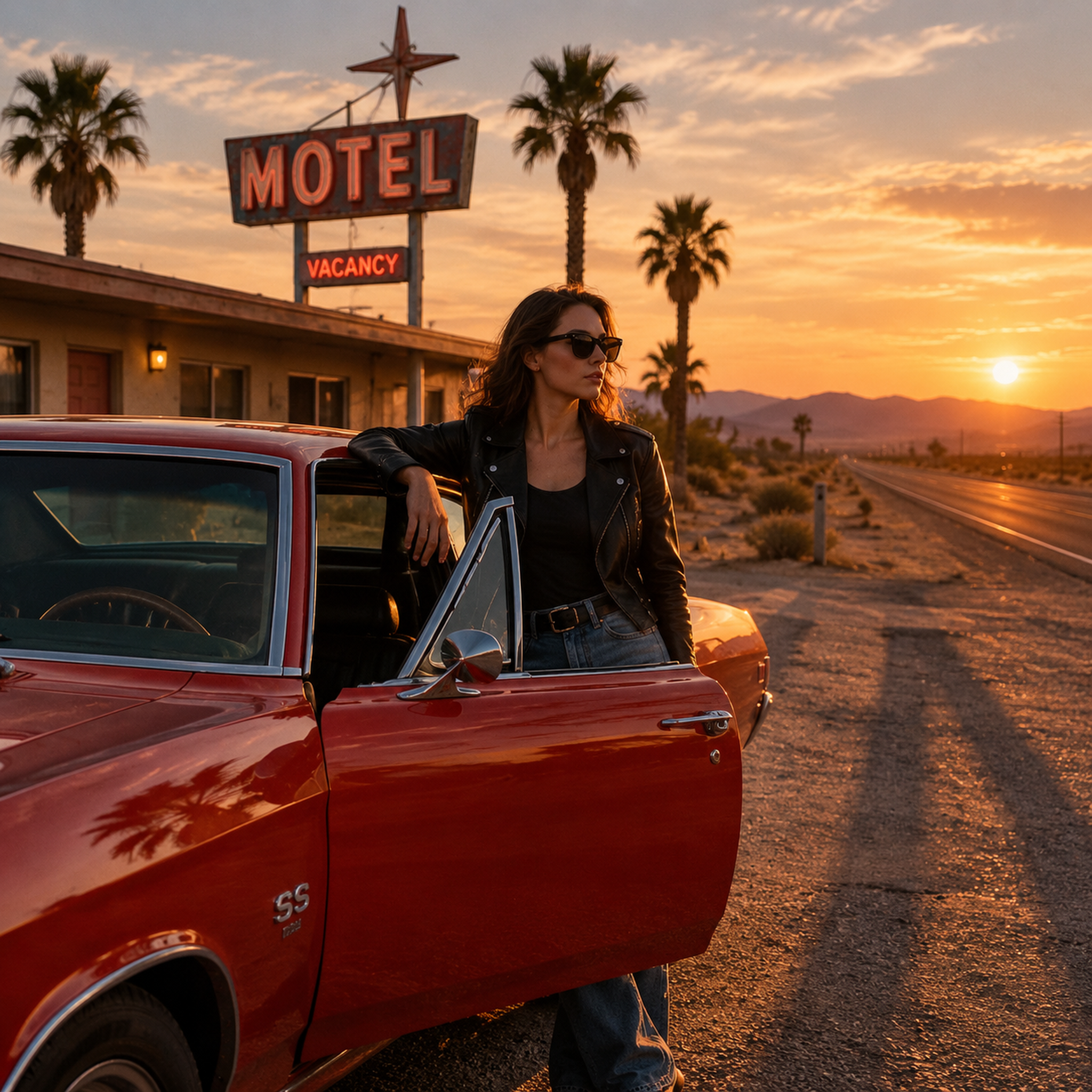
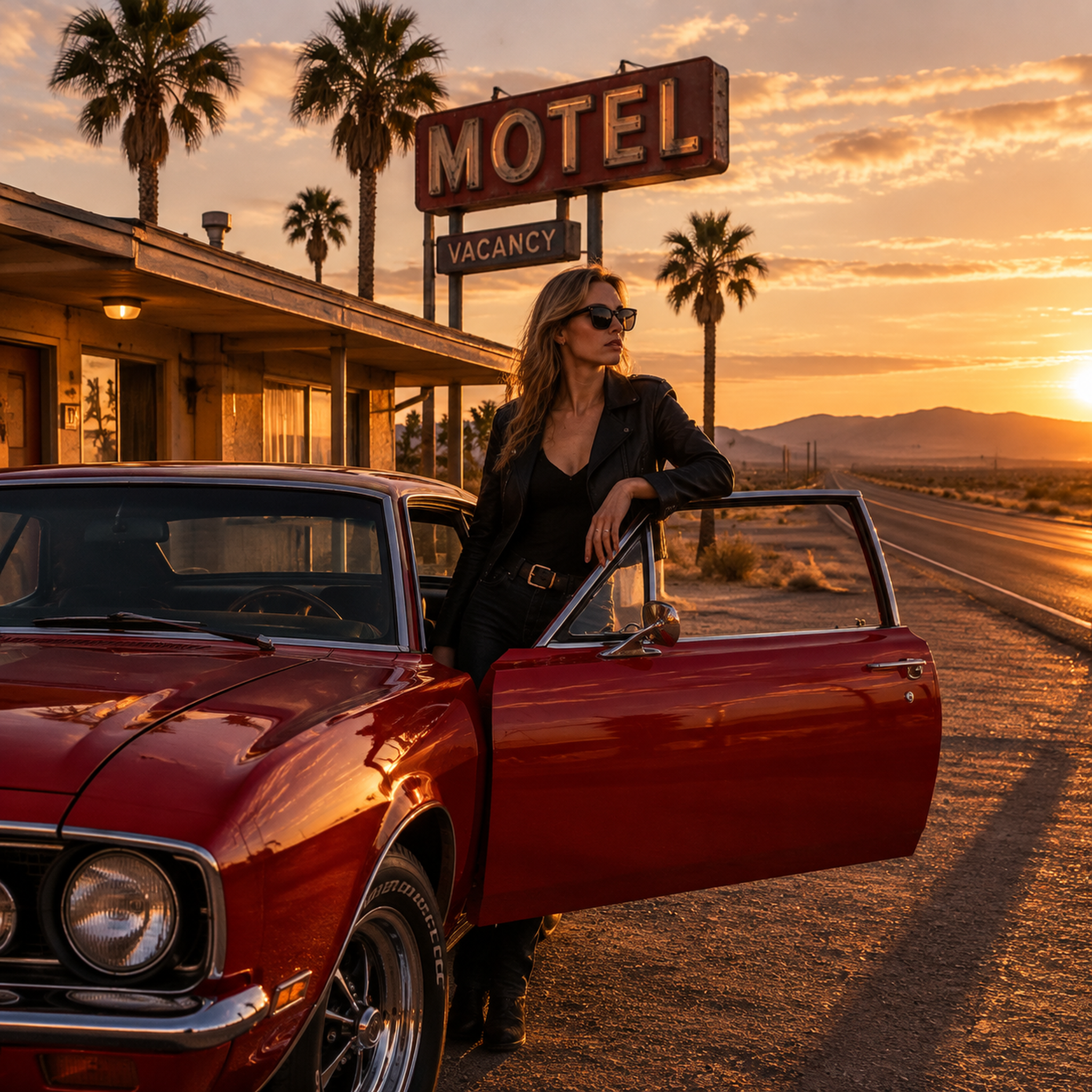
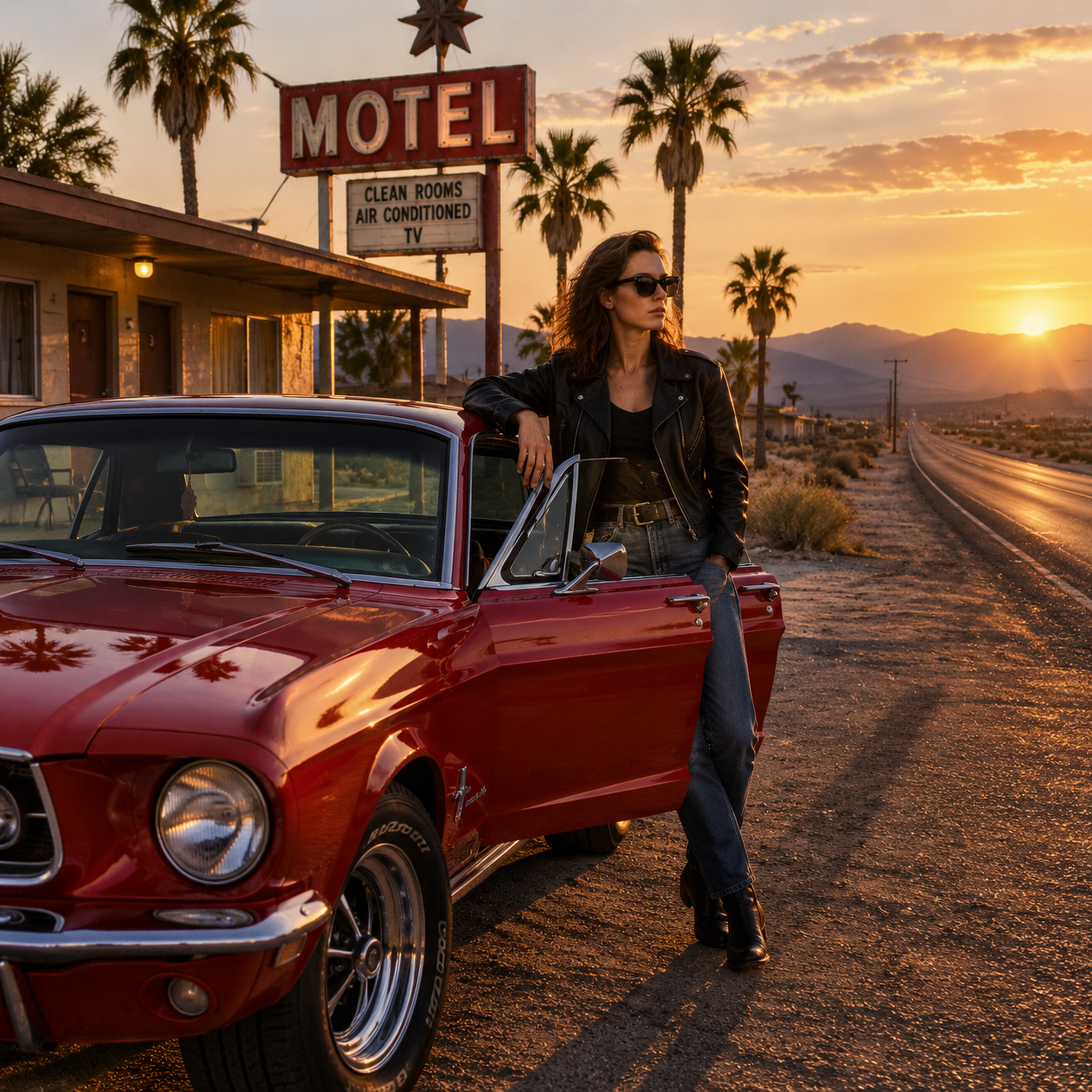
“A red retro car is parked near a small roadside motel in the middle of the desert. A woman in a black leather jacket and sunglasses stands next to the car, leaning against the open door. In the background, a motel sign, several palm trees, and a road stretching into the distance are visible. Late evening, soft golden sunset light creates long shadows. Photorealistic cinematic style, the atmosphere of a 1990s American road movie, high detalization.”
Results
GPT Image 2
GPT Image 2.5 Flare
GPT Image 2.5 Sunburst
💥 Step-by-Step Guide to Using GPT Image 2. “Working with References”
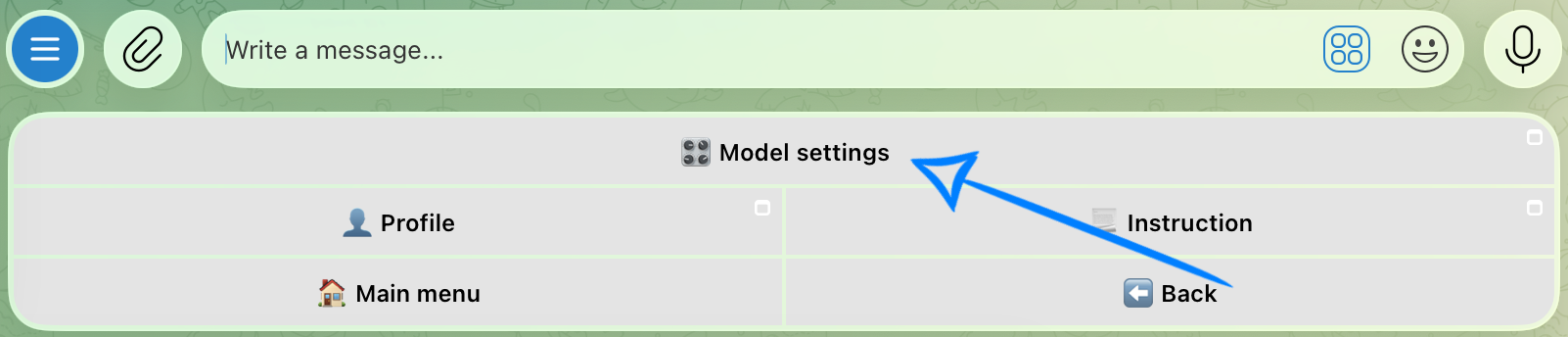
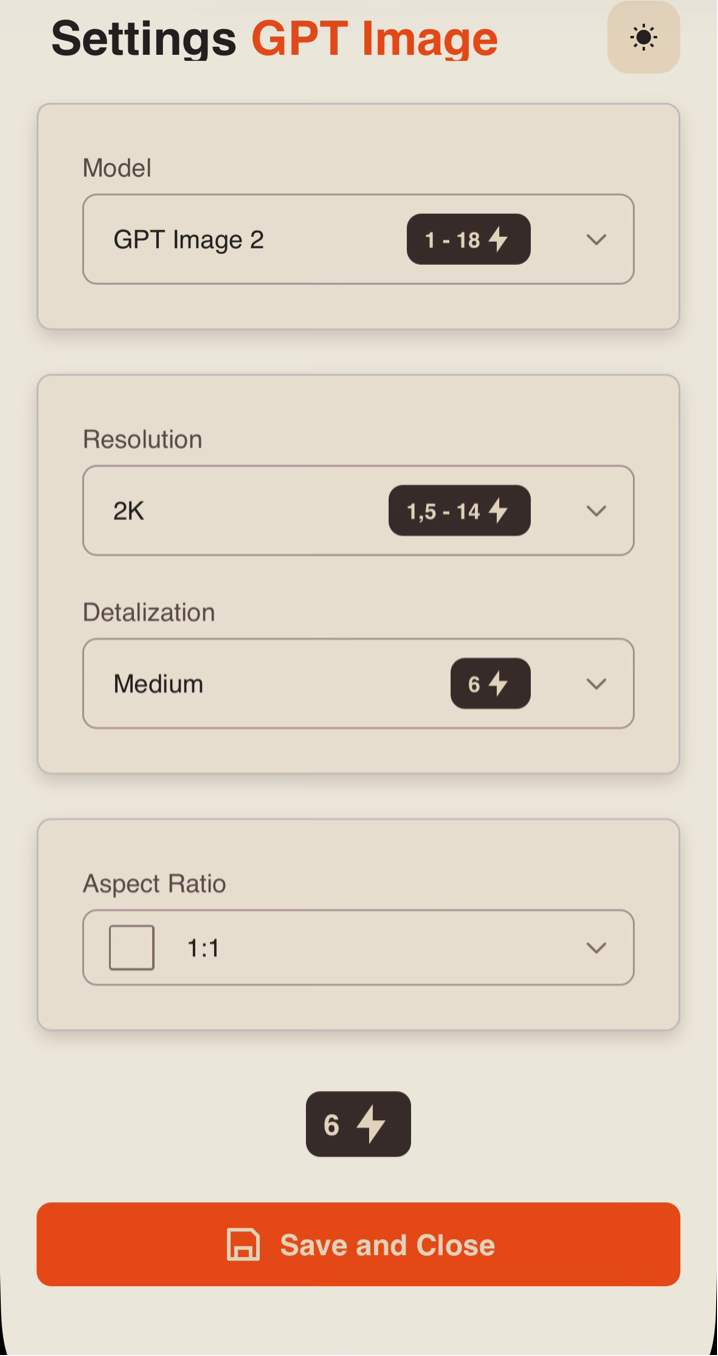
First, when using the “Text to Image” feature, you need to open “Model Settings”. There, you can configure the parameters for the future image.
Model settings
Model
You are provided with three models to choose from:
GPT Image 2 - a visual model for generating and editing images with improved understanding of complex compositions, object placement, and text. Suitable for creating advertising materials, infographics, and other content with complex visual structures.
GPT Image 2.5 Flare - a fast version of the model designed for generating and editing large volumes of images. It offers increased processing speed and can preserve original image elements more accurately when making changes. Suitable for social media content and rapid prototyping.
GPT Image 2.5 Sunburst - a version of the model designed for tasks where maximum quality and precise editing control are the priority. It better preserves characters, objects, composition, and other elements during complex and sequential edits. Suitable for advertising materials, product images, and detailed creative work.
Resolution
The “Resolution” parameter determines the output resolution of the final image. Higher values produce images at a higher resolution, making them better suited for larger formats and further visual editing.
You can choose one of three quality options:
- 1K - basic resolution. Suitable for quick generations, drafts, and small images.
- 2K - higher resolution. Suitable for most finished visuals and content.
- 4K - maximum available resolution. Recommended for images that need to be used in large formats or require further editing.
Detalization
The “Detalization” parameter determines how thoroughly the model will render small elements in the image.
The higher the detail level, the more attention the model pays to textures, materials, small objects, clothing details, hair, backgrounds, and other visual elements.
The GPT Image 2 model has the following detalization options:
- Low - minimal rendering of fine details.
- Medium - standard level of detail for most generations.
- High - more thorough rendering of objects and textures.
The GPT Image 2.5 models have the following detalization options:
- Low - minimal rendering of fine details.
- Medium - standard level of detail for most generations.
- High - more thorough rendering of objects and textures.
- Very High - enhanced detail for small elements and complex scenes.
- Maximum - the most thorough rendering of the image and its individual elements.
Aspect Ratio
When working with any model, you have 10 aspect ratio options to choose from:
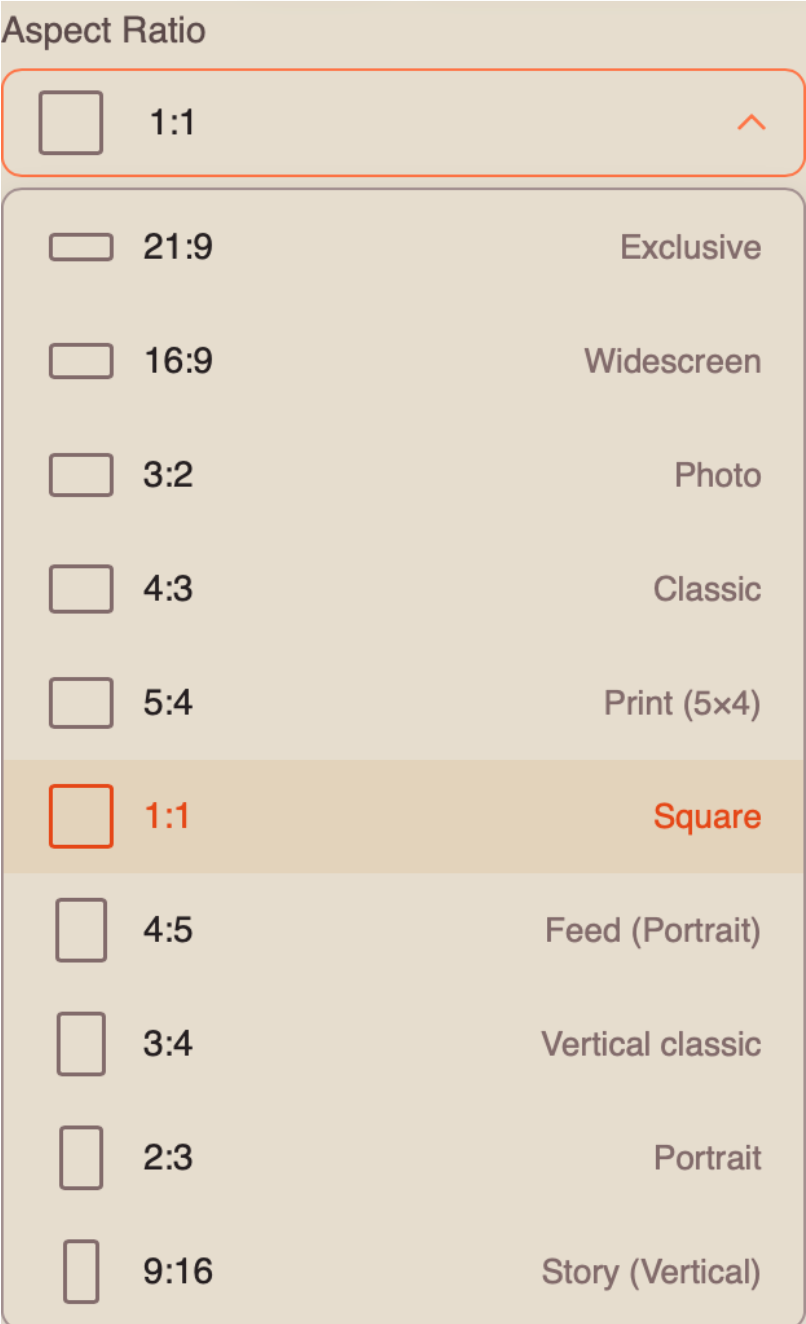
Image Upload
Once you have made sure that all parameters in the “Model Settings” section are set correctly, upload from 1 to 16 images and create a text prompt describing the desired result.
Technical requirements for images:
- Maximum number of images in GPT Image 2: 10.
- Maximum number of images in GPT Image 2.5 Flare and GPT Image 2.5 Sunburst: 16.
- Maximum size of a single file: 10 MB.
- Supported formats: PNG, JPG.
- Required aspect ratio: from 5:2 to 2:5.
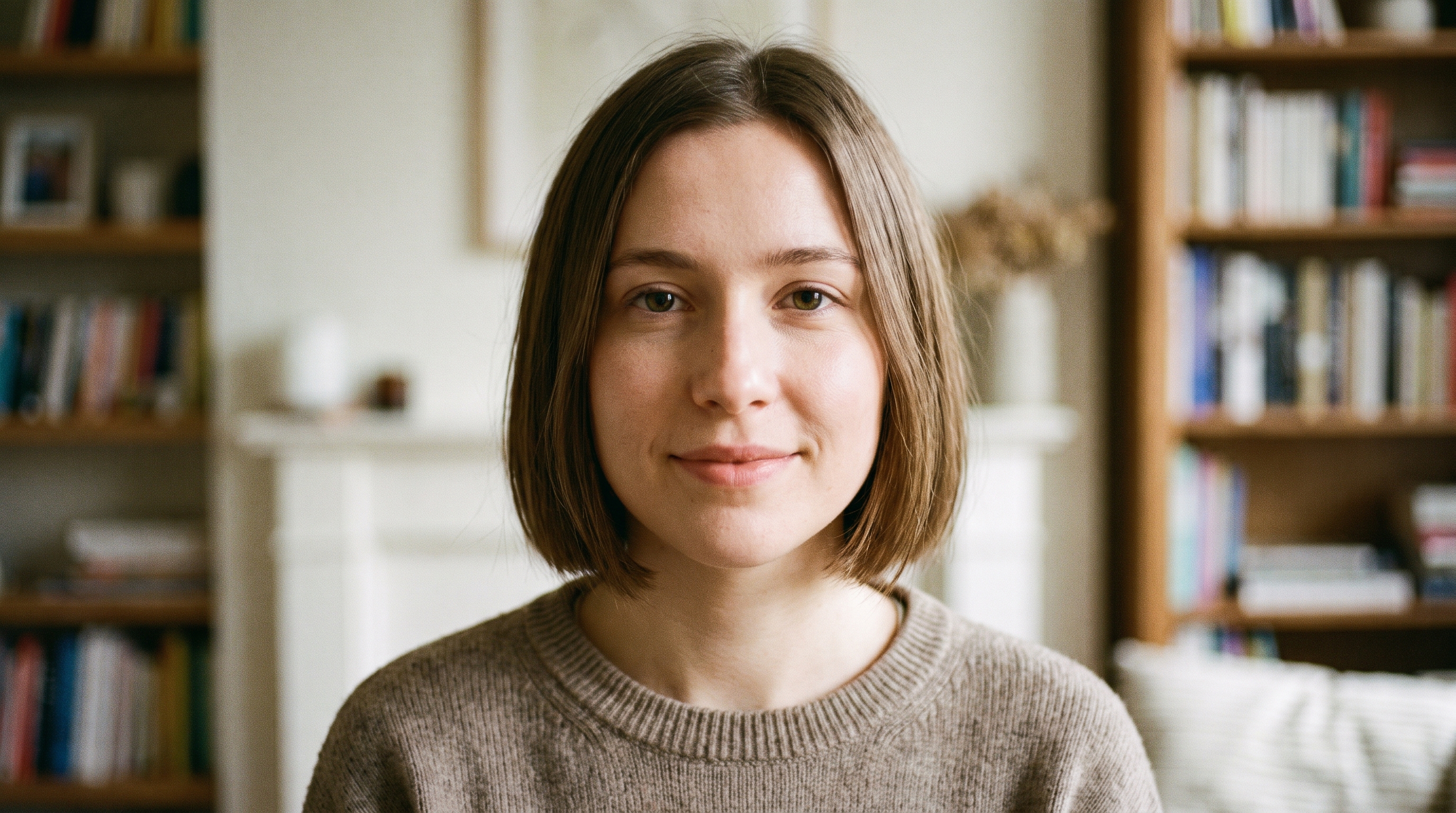
For example:
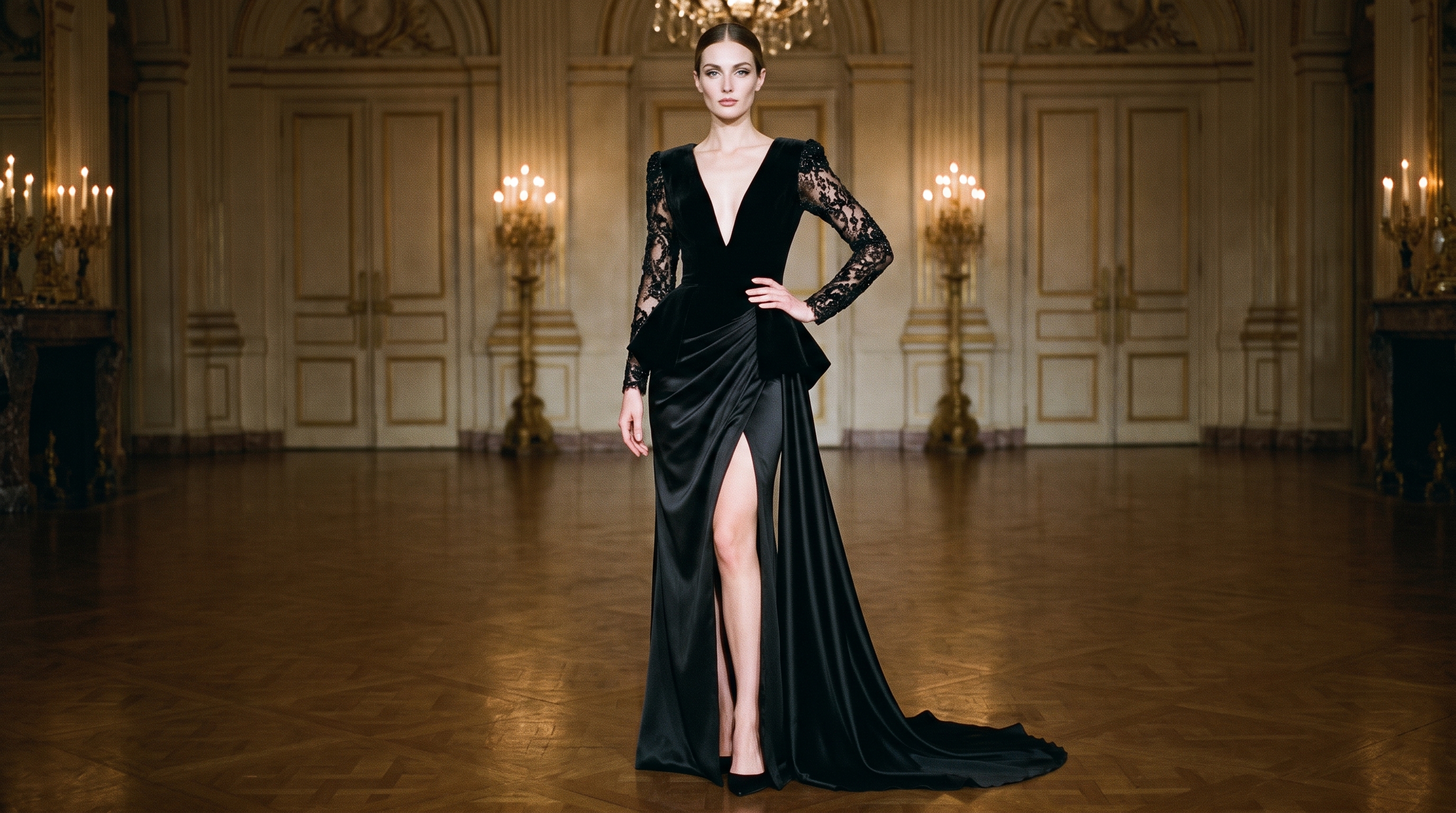
Creating a text prompt
When uploading one or more reference images, it is important to create a text prompt that clearly specifies which elements should be preserved, changed, or added. This will help the model better understand the task and produce the desired result based on the provided images.
Elements to preserve
When adding a reference image, specify exactly what needs to be preserved. This may include:
- image style;
- object or character;
- composition;
- character’s pose or facial expression;
- color palette;
- lighting;
- overall mood or atmosphere.
Elements to change or add
Describe exactly what needs to be changed or added based on the reference:
- object or character - who or what needs to be added or changed;
- details and environment - where the scene takes place and what elements should be present;
- lighting and mood - warm, cool, soft, dramatic, etc.;
- artistic style - realistic, watercolor, cartoon, digital art, and others.
Additional recommendations
- Avoid negative phrasing, such as “do not add a background”. Instead, describe the desired result: “a blurred minimalist background”.
- When necessary, use English names for artistic techniques, movements, and genres, as this can help define the desired visual style more precisely.
- Try not to upload visually conflicting reference images, as this may affect the final result.
For example:
“Create a photorealistic image of a woman, preserving the appearance, facial features, and hairstyle of the woman from the first reference image.
Dress her in the black evening gown from the second reference image, preserving the dress design, deep V-neckline, long lace sleeves, voluminous details at the waist, and long satin skirt with a slit.
Place the woman on the open terrace of a modern hotel overlooking the city at night. The woman is standing near a glass railing and looking at the camera. Soft warm lighting emphasizes her face and the texture of the dress, with blurred city lights visible in the background. Photorealistic cinematic style, elegant evening atmosphere.”
Results
GPT Image 2
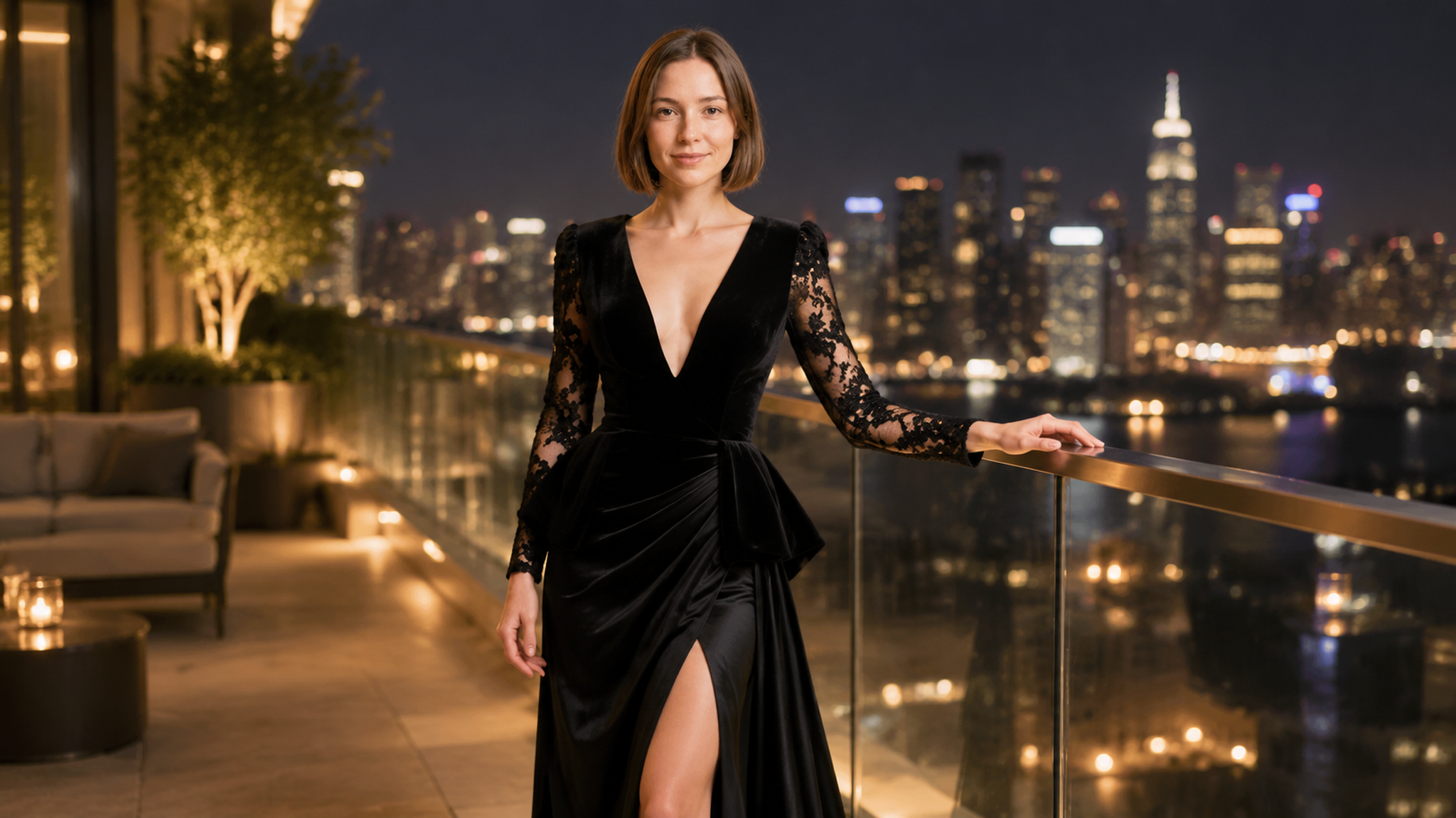
GPT Image 2.5 Flare
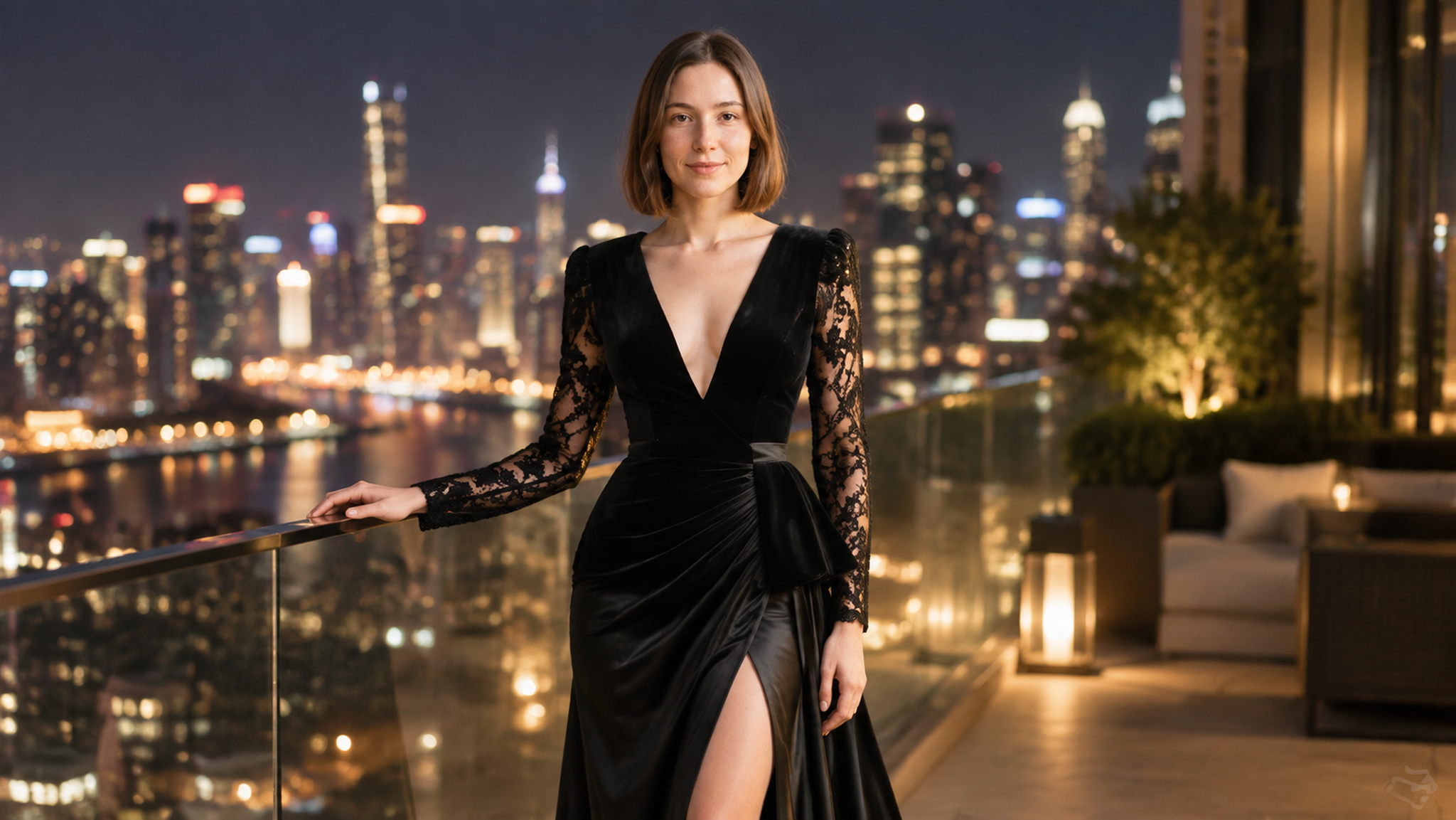
GPT Image 2.5 Sunburst
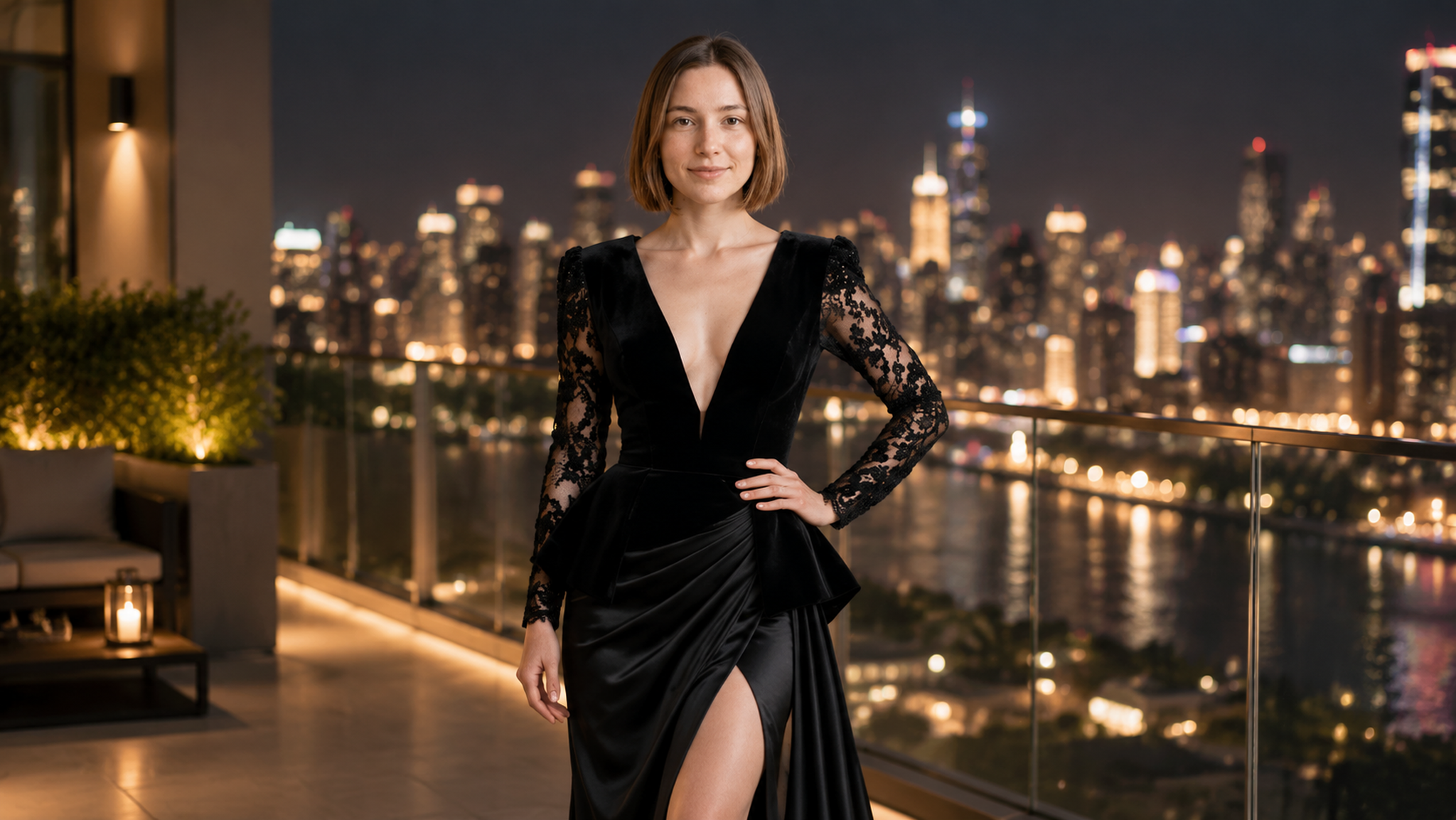
Additional Features of GPT Image 2
Background Removal
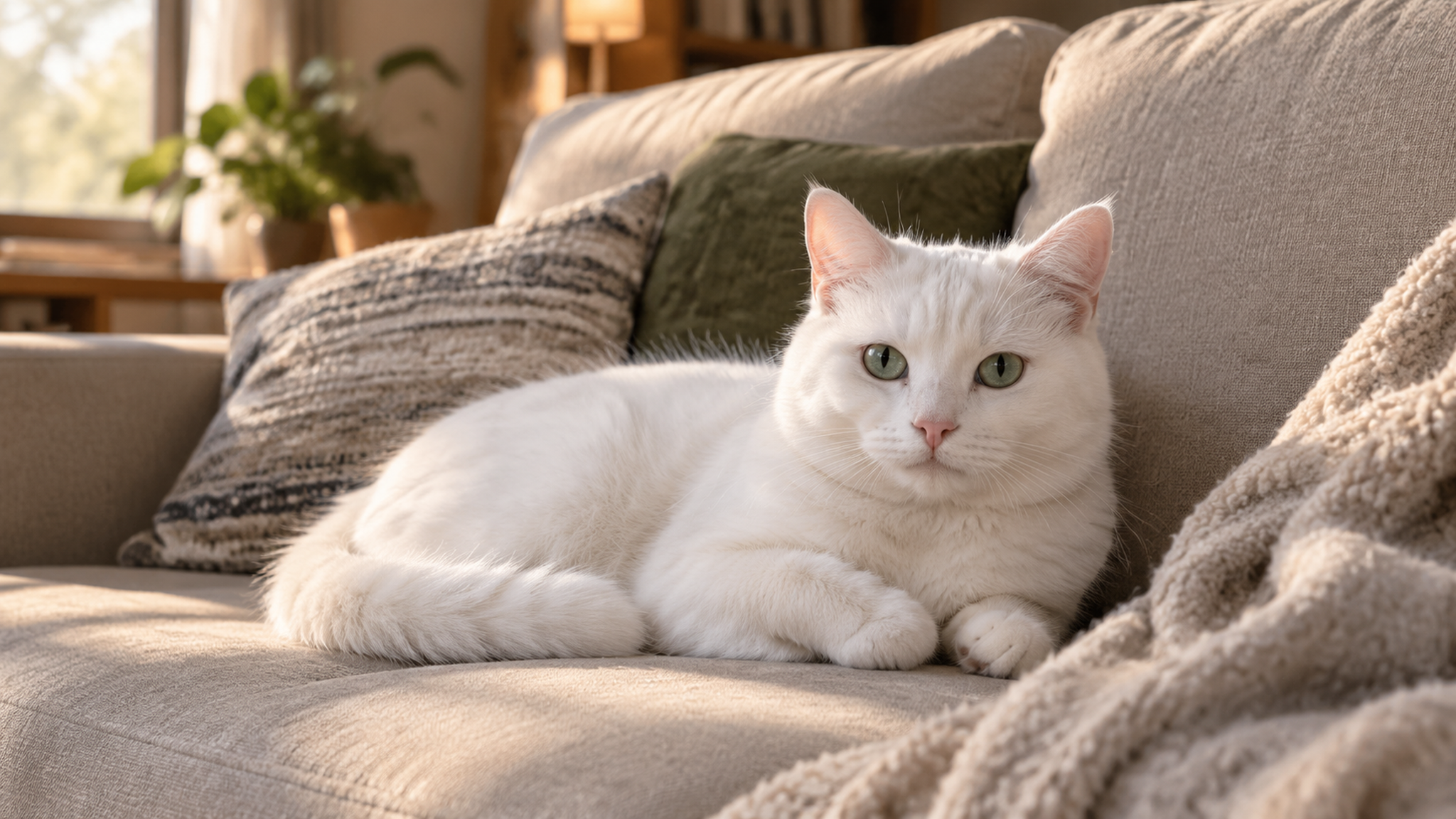
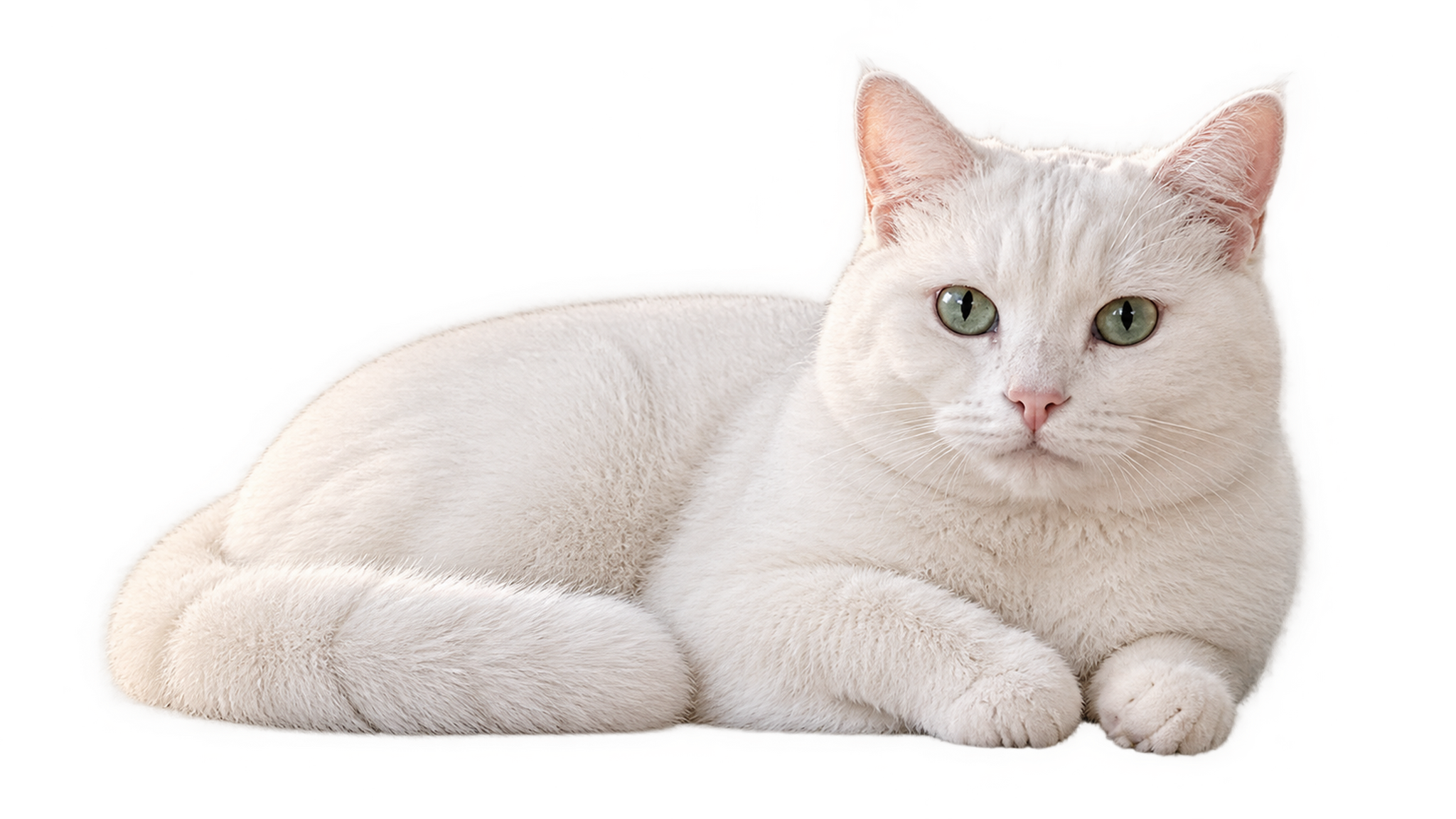
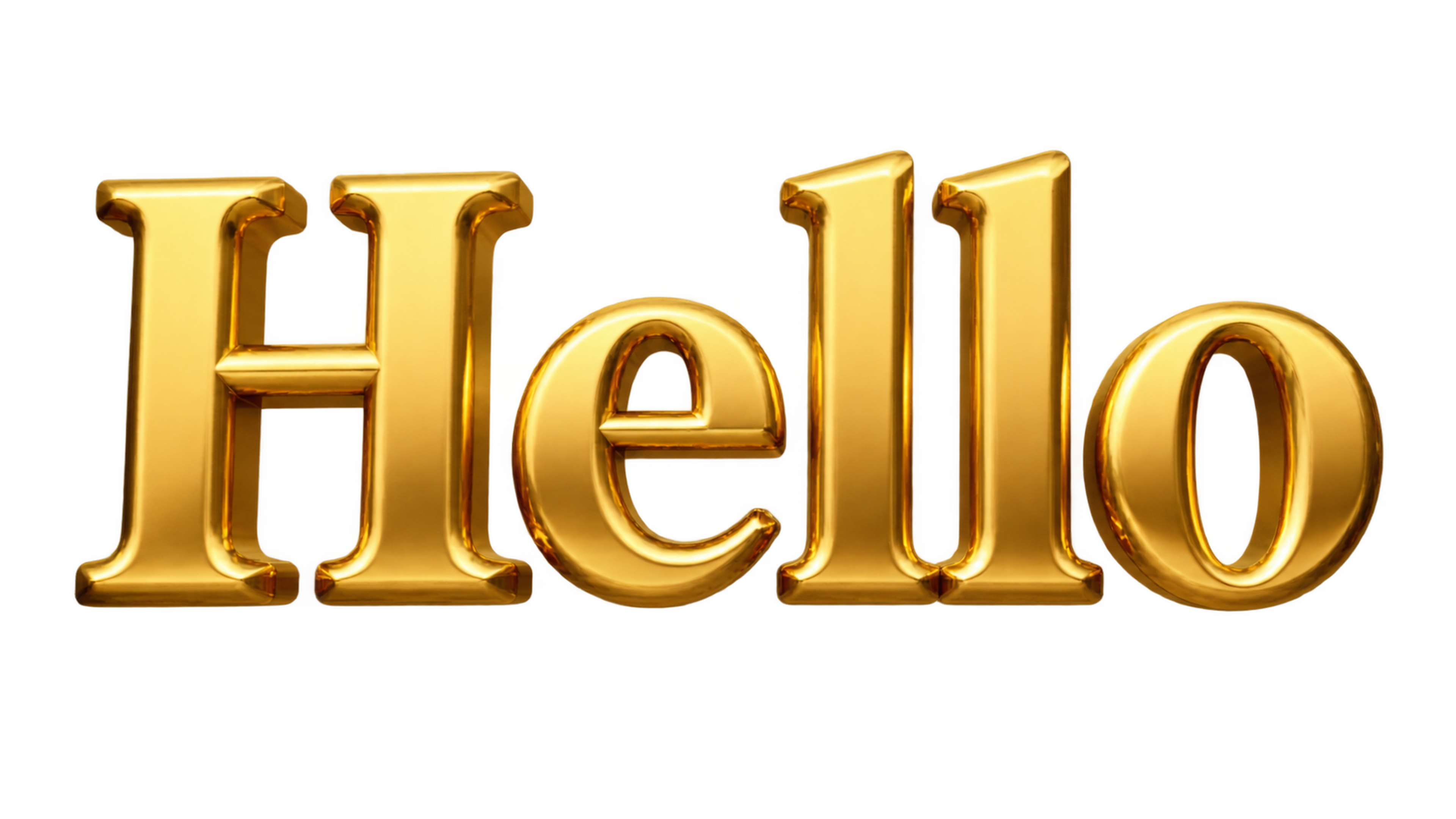
The GPT Image 2.5 Sunburst model lets you remove background from an image, as well as create new images with a transparent background.
To do this, specify this requirement in the text prompt.
To remove the background from an existing image, attach the image and enter a prompt, for example: “Remove the background, keeping the main object on a transparent background.”
Reference
Result
To create an image without a background, simply specify it in your prompt, for example: “Create the text ‘Hello’ in three-dimensional gold letters on a transparent background.”
Result
We sincerely hope that this guide will help you better understand and effectively use GPT Image. We have tried to make this process as simple and intuitive as possible.
Remember: every mistake is a step toward success. If something doesn’t work out the first time, don’t get discouraged. Experiment, learn, and you will definitely achieve the desired results! 💛
SYNTX AI: Syntx AI
SYNTX Support: Syntx Support
YouTube channel “SYNTX”: Syntx YouTube
SYNTX.AI Academy: SYNTX Academy