
Ideogram - is a tool designed for creating and editing images based on text prompts. It allows you to generate realistic photographs, illustrations, logos, posters, and other visual materials. One of the tool’s key features is its ability to accurately render text within images, making it particularly useful for graphic design and creating advertising materials.
❗️To learn which prompts Ideogram may reject, read here - ❌ Filters
- 🎛 Navigation:
- 💥 Step-by-step guide to using Ideogram. “Text to Image”.
- 💥 Step-by-Step Guide to Using Ideogram. “Working with a Reference Image”.
🎛 Navigation:
🏠 Main Menu > 🎨 Images > 𝐓 Ideogram
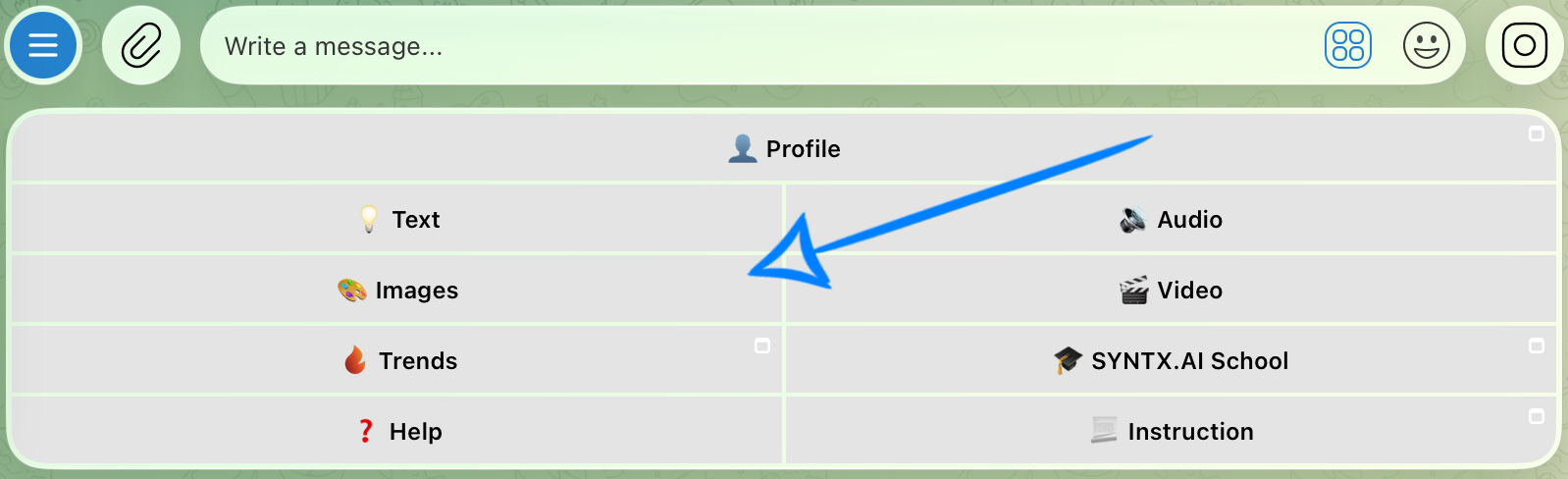
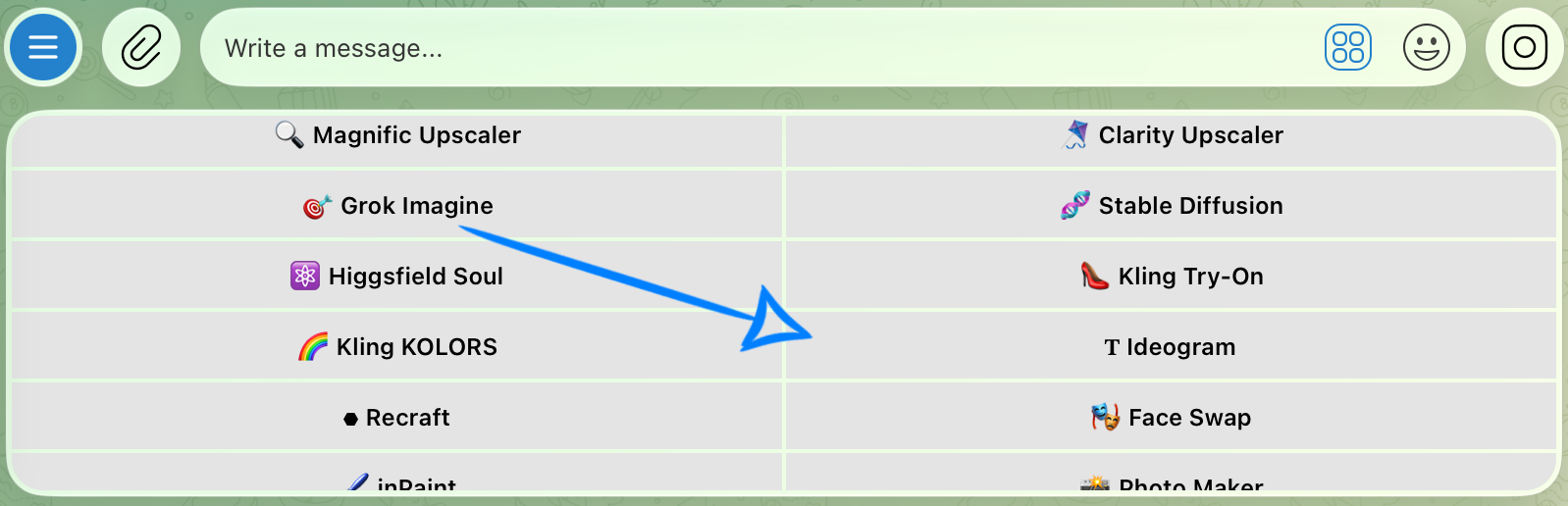
💥 Step-by-step guide to using Ideogram. “Text to Image”.
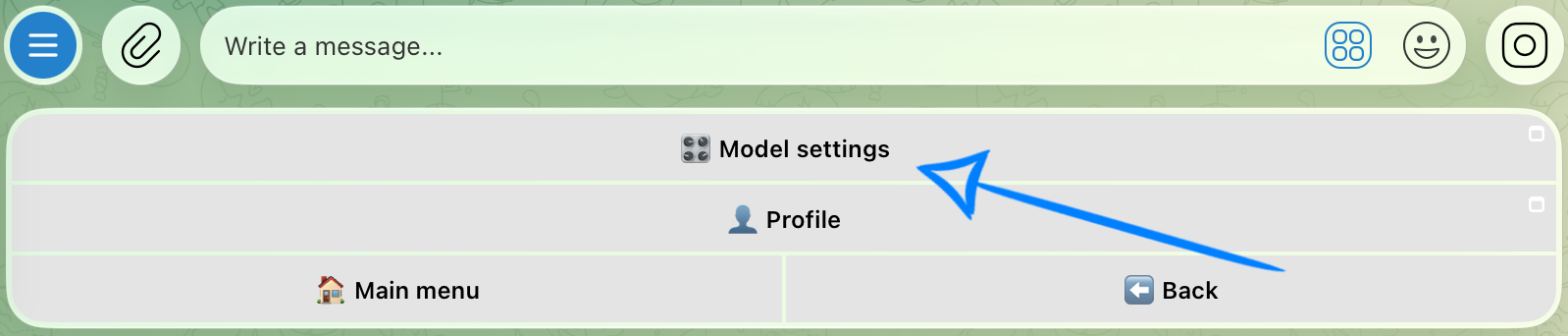
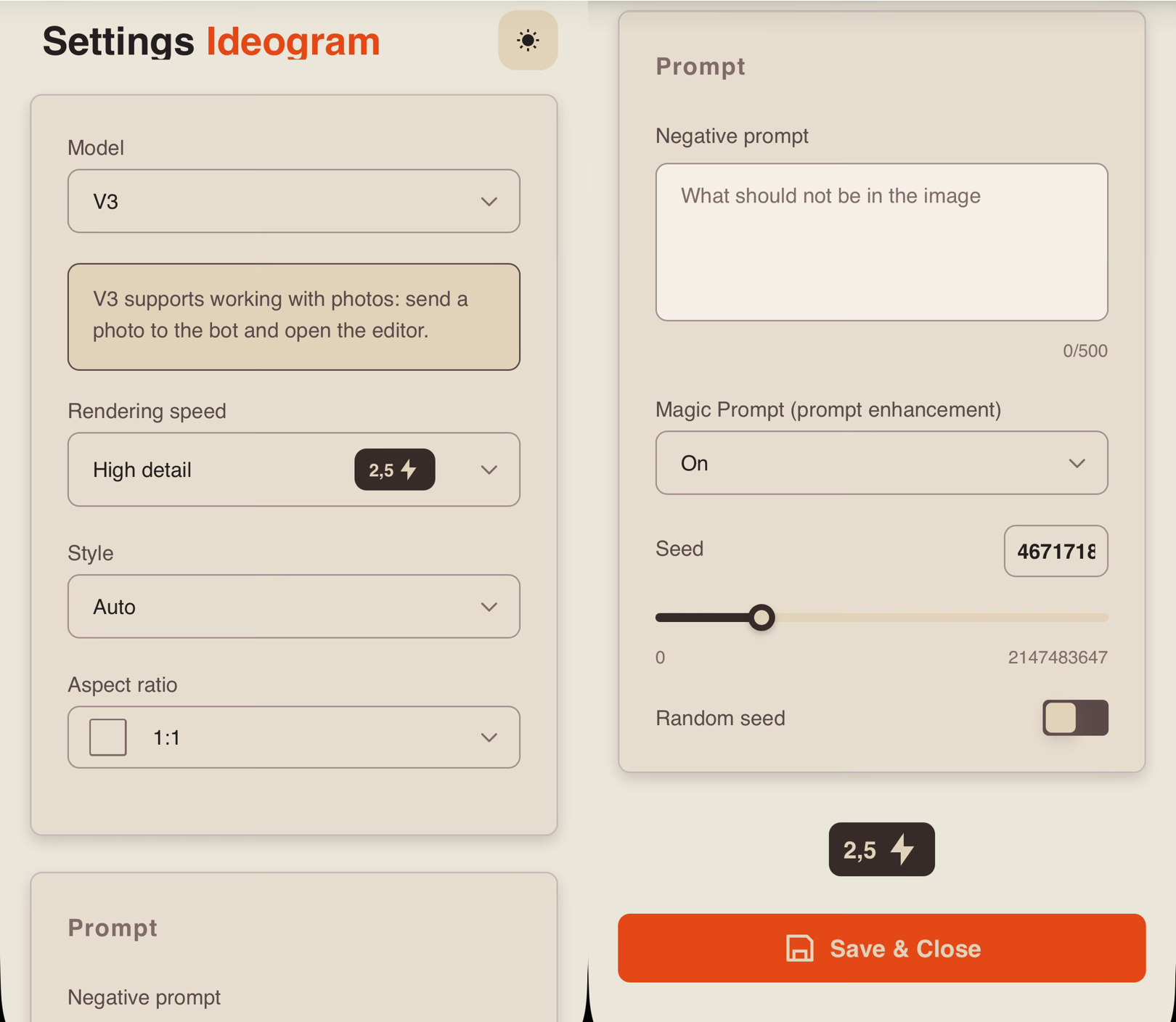
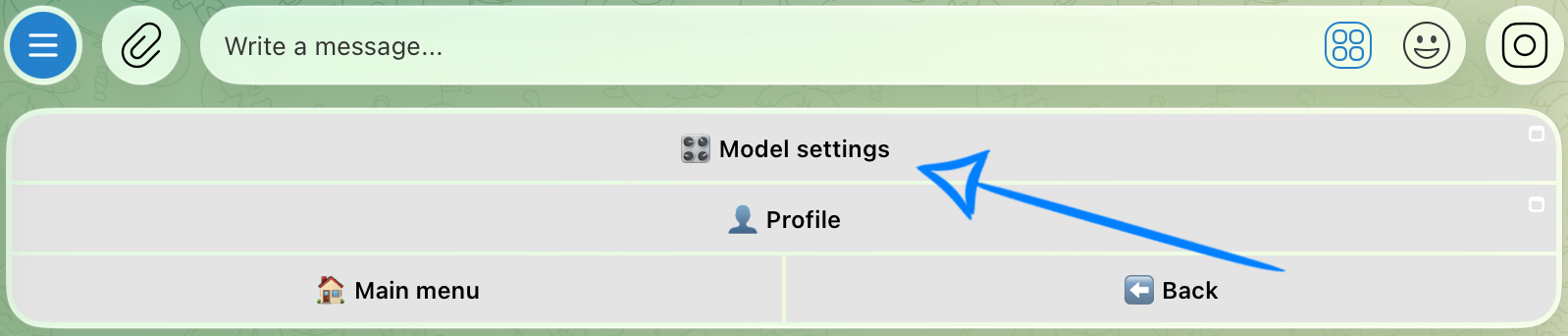
First, when using the “Text to Image” feature, you need to open “Model Settings”. There, you can adjust the parameters for your future image.
Model Settings
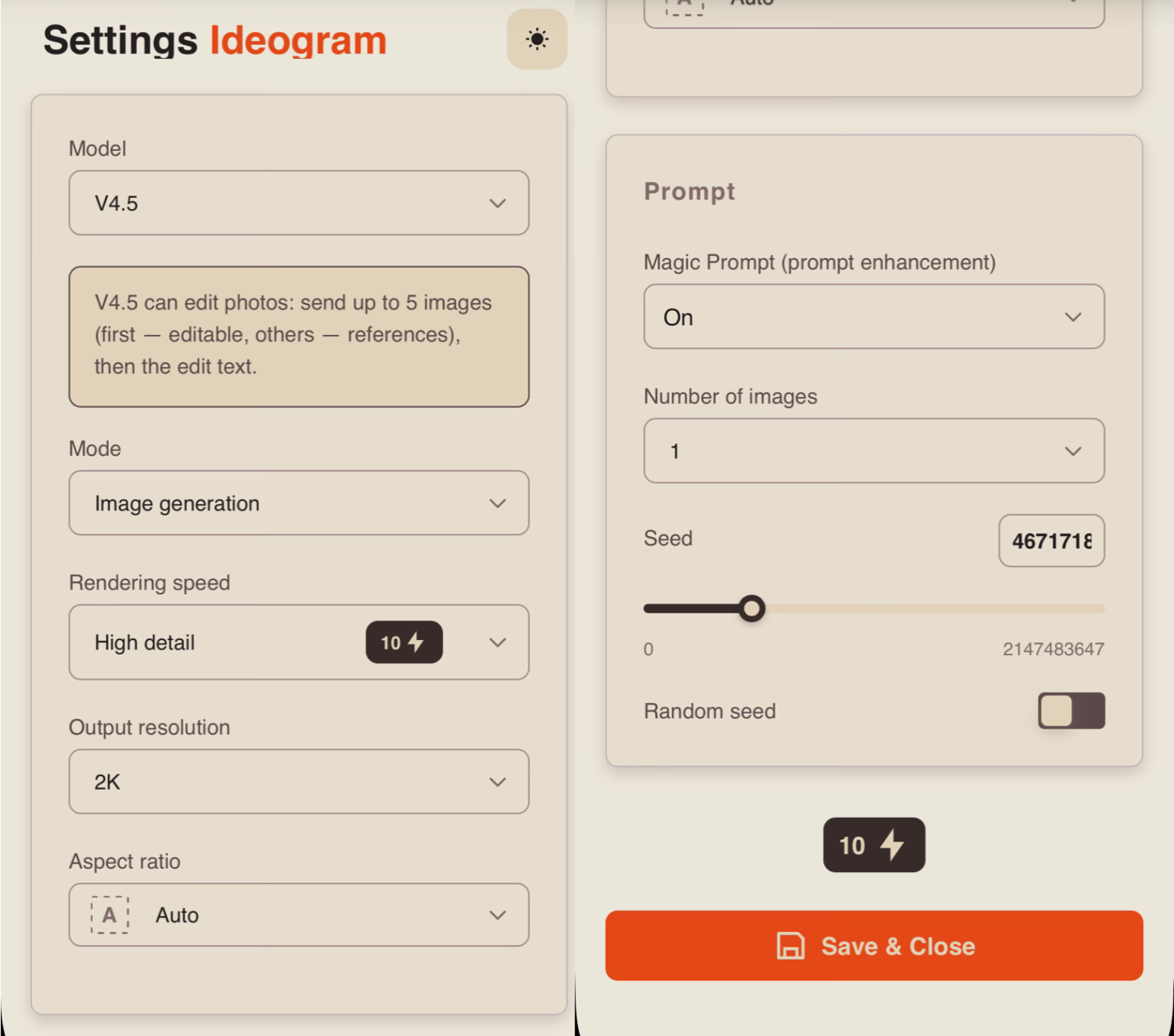
Working with the V4.5 Model
Ideogram V4.5 - a model for creating high-quality images with exceptional detail, realistic textures, and accurate rendering of fine elements. It stands out for its precise handling of text, colors, and composition. It is particularly suitable for creating advertising materials, product photography, complex design projects, and editing images while preserving their original details.
Mode
To create an image from a text prompt, you need to select the “Image Generation” mode.
Generation Speed
This parameter allows you to select the image generation speed.
- Instant generation - creates an image at maximum speed. Suitable for quickly testing ideas and text prompts.
- Fast generation - accelerated image creation with moderate detail.
- Balance of speed and quality - an optimal combination of generation speed and image quality.
- High detail - a mode that prioritizes quality and fine details. Generation may take longer.
Output Resolution
You can choose between two resolution options:
- 1K - basic resolution. Suitable for quick generations, previews, and small images.
- 2K - higher resolution. Suitable for most finished visuals and content.
Aspect Ratio
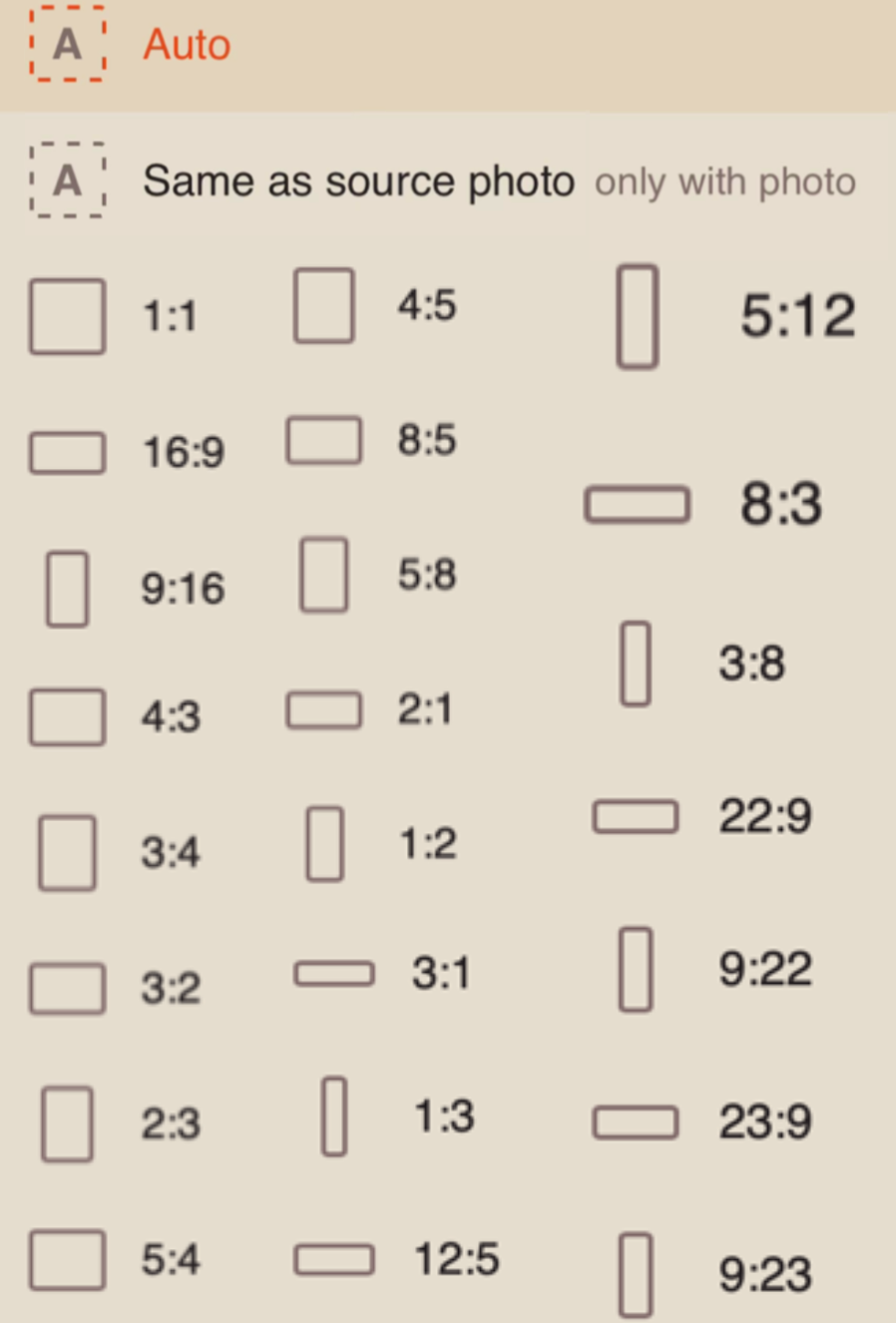
When working with the V4.5 model, you have 25 aspect ratio options to choose from:
Magic Prompt (Prompt Enhancement)
Magic Prompt is an automatic text prompt enhancement feature. It automatically expands your text prompt to help the model better interpret your preferences.
- Auto - the model independently determines whether the text prompt needs improvement. If necessary, the prompt will be automatically expanded and refined.
- On - the prompt enhancement feature is enabled. You only need to describe your desired result in simple words, without having to write a detailed prompt yourself. Magic Prompt will automatically add details to your description that may help achieve a higher-quality result.
- Off - automatic prompt enhancement is disabled. To achieve the desired result, it is recommended to specify all important details yourself.
Number of Images
When working with the V4.5 model, you can choose to generate from 1 to 8 images.
❣️Please note that increasing the number of simultaneous generations also increases the number of tokens deducted.
Seed
The Seed setting allows you to obtain identical or stylistically similar results when running generations repeatedly. If you like an image and want to create a similar one while changing or adding specific details, the Seed setting will be particularly useful.
In the description of an image you like, you can copy its Seed value and use it to reproduce the result with the desired changes. To do this, leave the “Random Seed” toggle turned off and paste the copied Seed into the field.
Random Seed
If you do not need to work with the Seed parameter, turn on the “Random Seed” toggle.
Working with the V4 Model
Ideogram V4 - a model for creating detailed images with precise placement of objects and text. It stands out for its high-quality text rendering, including small lettering and complex typographic compositions. Suitable for creating posters, logos, advertising banners, packaging, and other design materials.
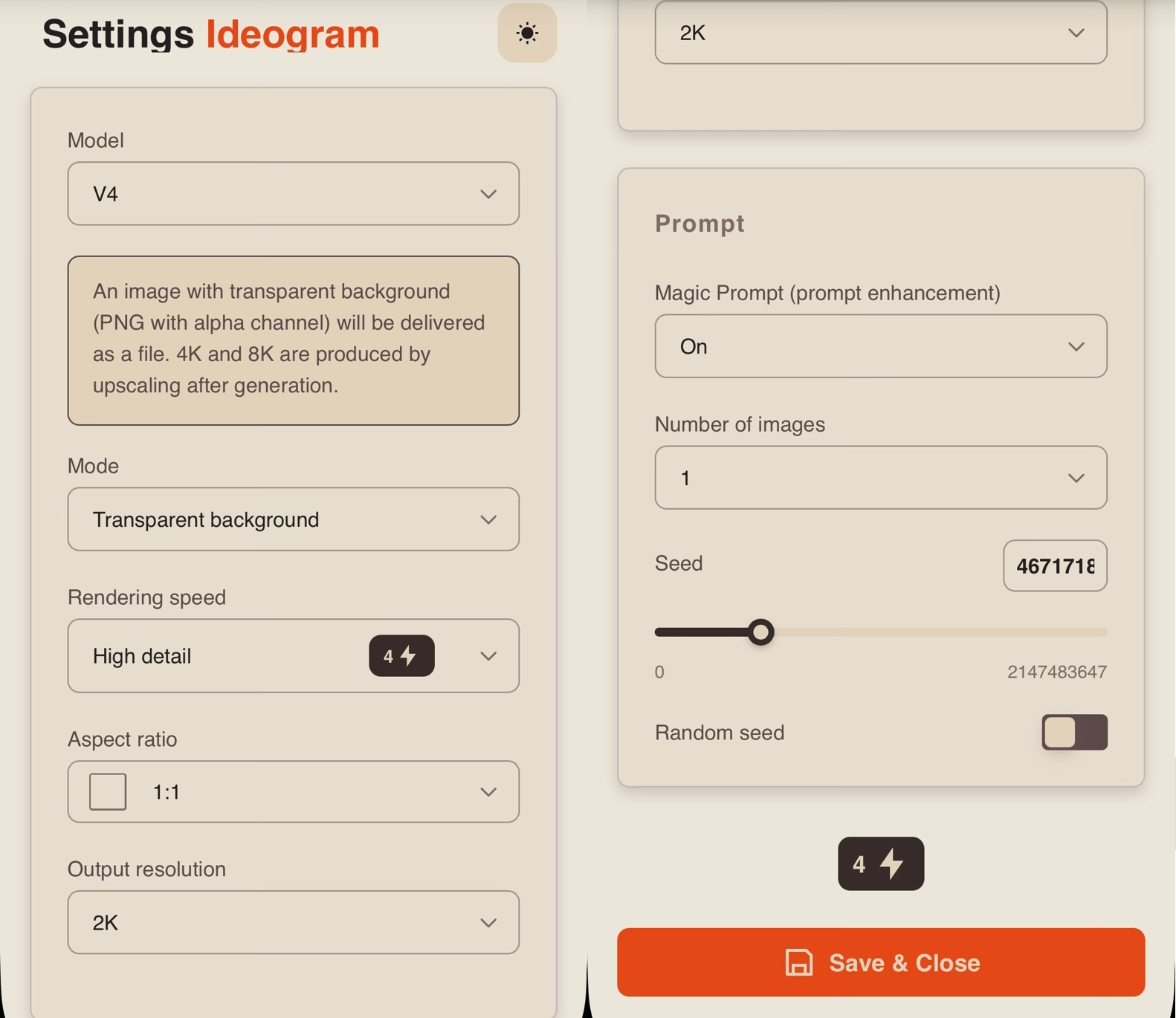
Mode
To create a standard image from a text prompt, you need to select the “Image Generation” mode.
If you want to create an image without a background, select the “Transparent Background” mode. In this case, the result will be provided in PNG format with a transparent background.
Generation Speed
This parameter allows you to select the image generation speed.
- Fast generation - accelerated image creation with moderate detail.
- Balance of speed and quality - an optimal combination of generation speed and image quality.
- High detail - a mode that prioritizes quality and fine details. Generation may take longer.
Output Resolution
You can choose between two resolution options:
- 1K - basic resolution. Suitable for quick generations, previews, and small images.
- 2K - higher resolution. Suitable for most finished visuals and content.
When working in the “Transparent Background” mode, two additional resolution options become available:
- 4K - high image resolution, providing good detail and clarity of fine elements.
- 8K - ultra-high image resolution, allowing you to achieve an even sharper and more detailed result.
Aspect Ratio
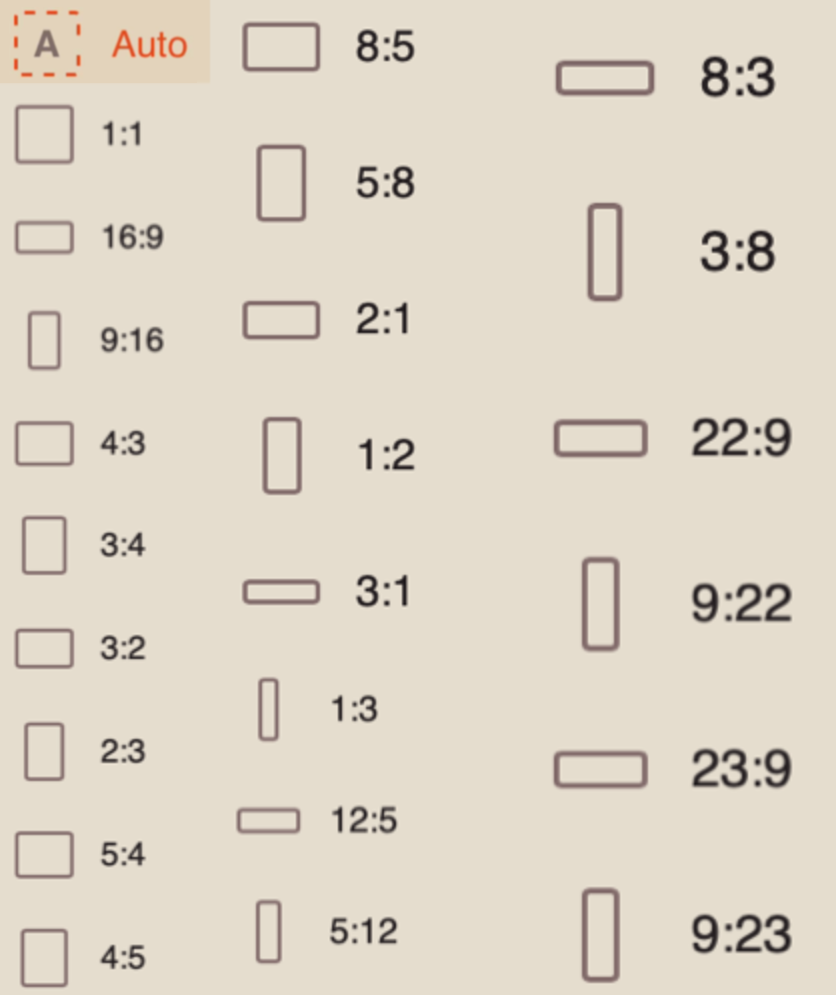
When working in the “Image Generation” mode, you have 24 aspect ratio options to choose from:
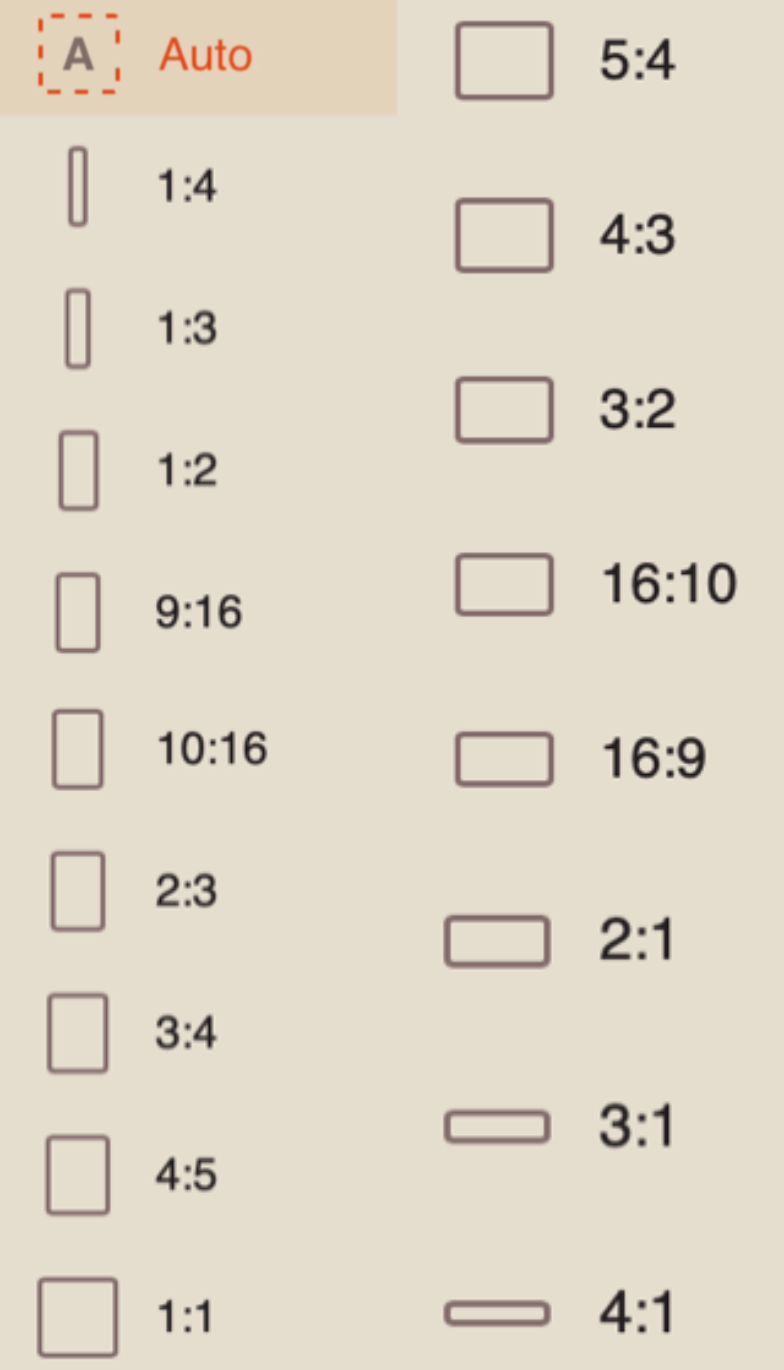
When working in the “Transparent Background” mode, you have 18 aspect ratio options to choose from:
Magic Prompt (Prompt Enhancement)
Magic Prompt is an automatic text prompt enhancement feature. It automatically expands your text prompt to help the model better interpret your preferences.
- Auto - the model independently determines whether the text prompt needs improvement. If necessary, the prompt will be automatically expanded and refined.
- On - the prompt enhancement feature is enabled. You only need to describe your desired result in simple words, without having to write a detailed prompt yourself. Magic Prompt will automatically add details to your description that may help achieve a higher-quality result.
- Off - automatic prompt enhancement is disabled. To achieve the desired result, it is recommended to specify all important details yourself.
Number of Images
When working with the V4 model, you can choose to generate from 1 to 8 images.
❣️Please note that increasing the number of simultaneous generations also increases the number of tokens deducted.
Seed
The Seed setting allows you to obtain identical or stylistically similar results when running generations repeatedly. If you like an image and want to create a similar one while changing or adding specific details, the Seed setting will be particularly useful.
In the description of an image you like, you can copy its Seed value and use it to reproduce the result with the desired changes. To do this, leave the “Random Seed” toggle turned off and paste the copied Seed into the field.
Random Seed
If you do not need to work with the Seed parameter, turn on the “Random Seed” toggle.
Working with the V3 Model
Ideogram V3 - a model for creating photorealistic images with high detail and natural rendering of lighting, colors, and textures. It handles text generation well and supports maintaining consistent character appearances. Suitable for portraits, advertising images, and artistic scenes.
Style
When working with the V3 model, you have 4 styles to choose from:
Auto - the model automatically selects the most suitable style based on the text prompt.
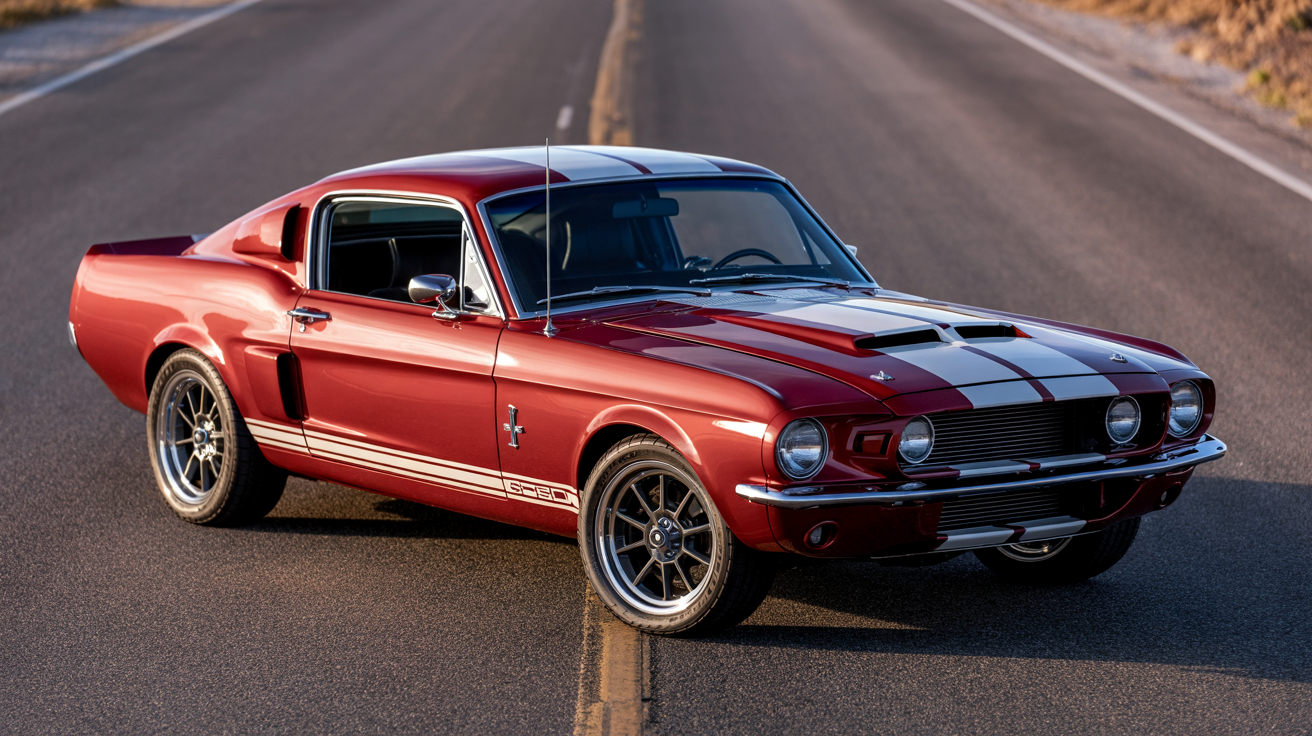
General - a universal style suitable for creating images on various topics.
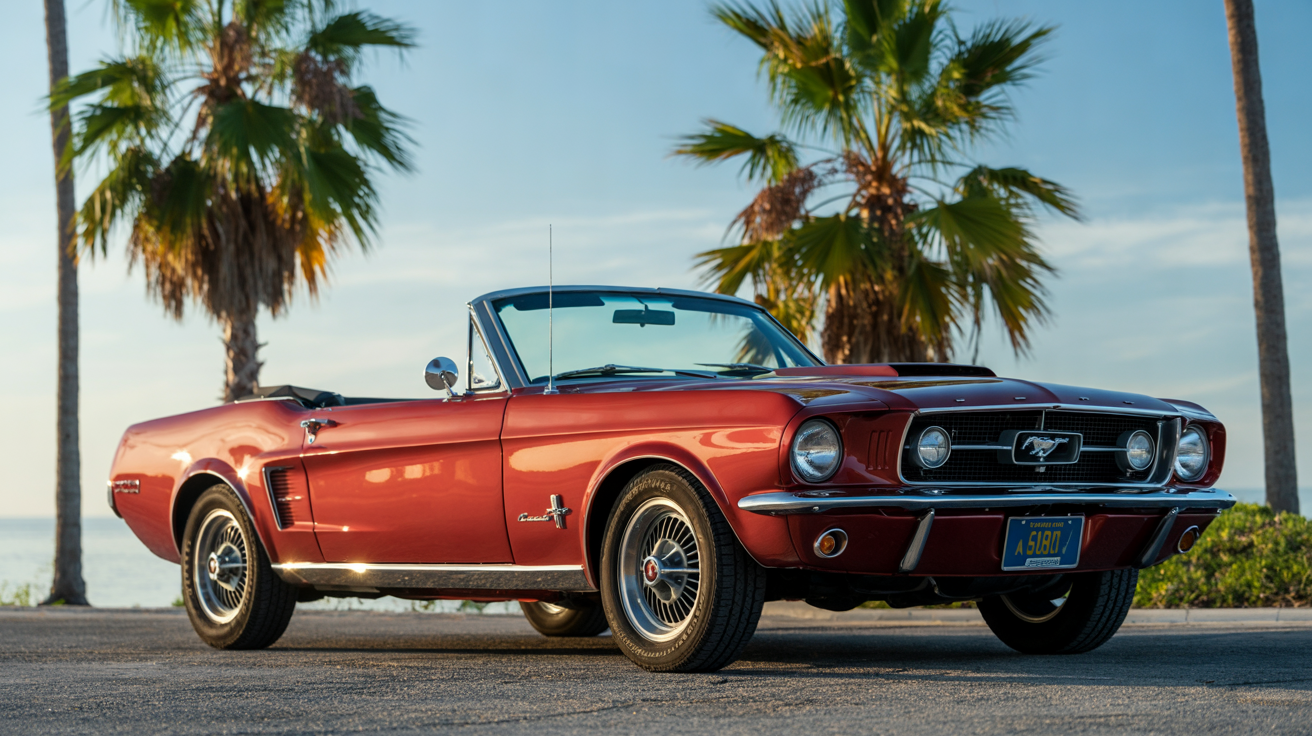
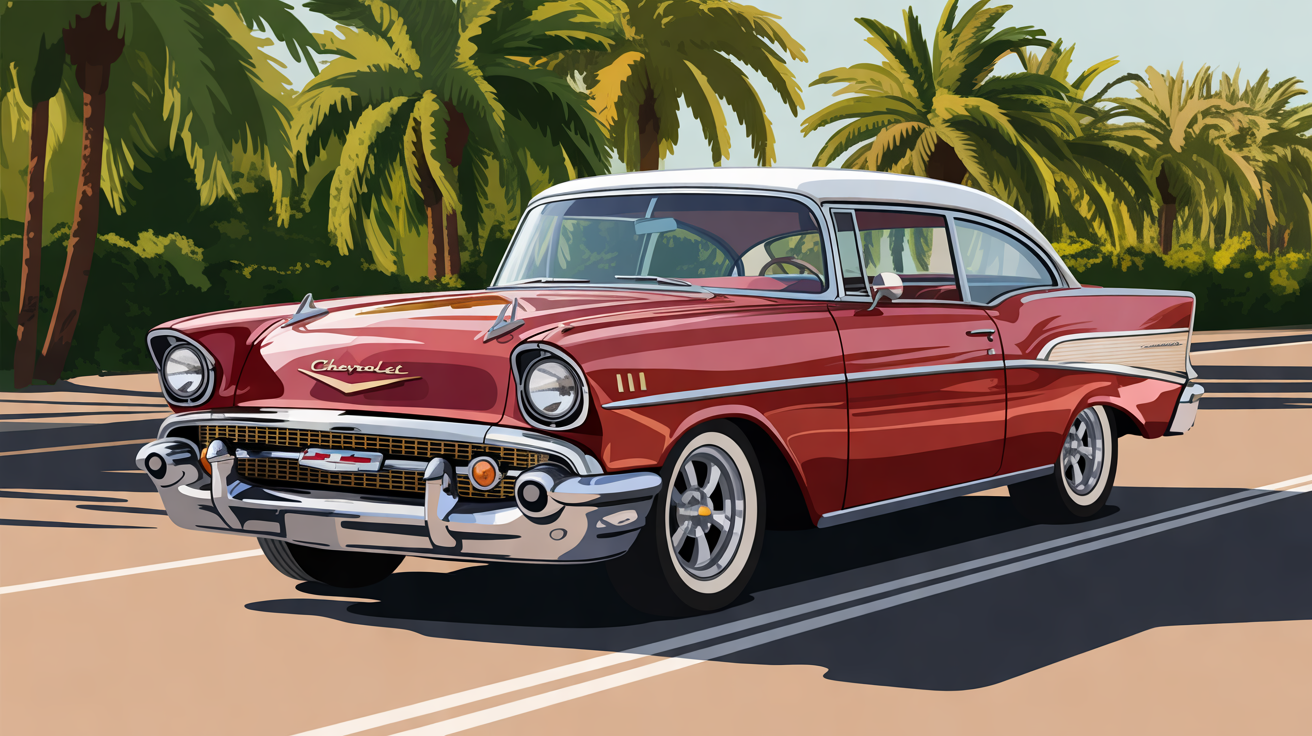
Realistic - a realistic style focused on creating images that closely resemble real photographs.
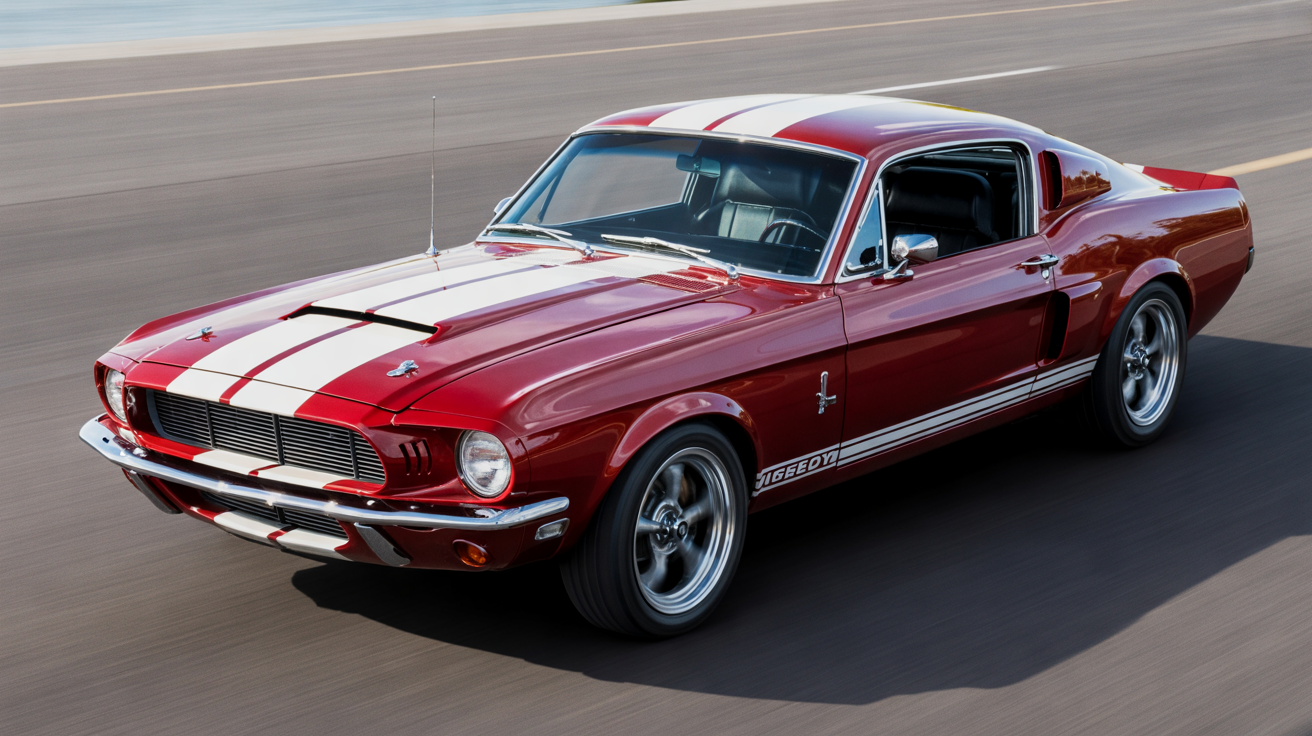
Design - a style for creating graphic elements, illustrations, posters, and other design materials.
Aspect Ratio
When working with the V3 model, you have 14 aspect ratio options to choose from:
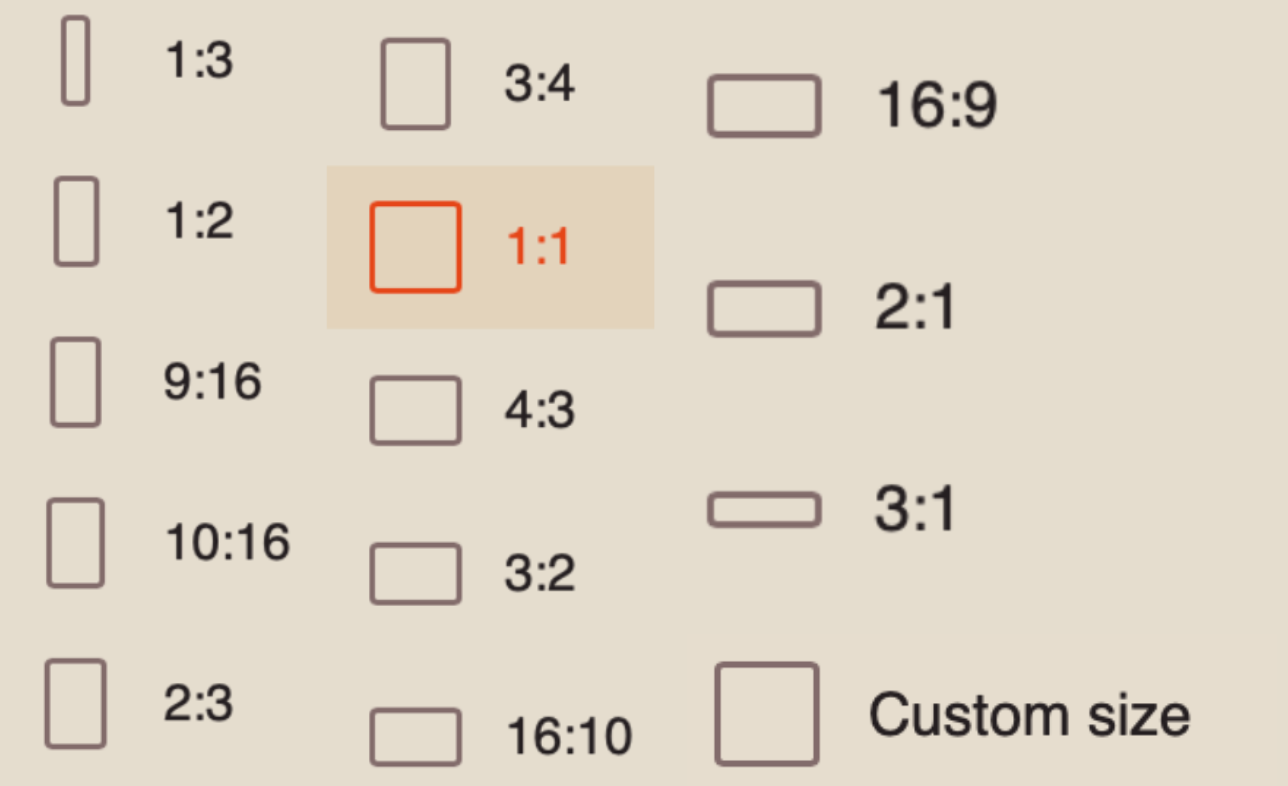
Custom Size - when selecting this aspect ratio option, an additional “Resolution” setting becomes available, allowing you to manually choose the dimensions of the generated image in pixels.
Negative Prompt
This setting allows you to specify elements that should not appear in the image, such as blurriness, a black background, effects, distortions, or a cartoon style. Filling in this field is optional.
Magic Prompt (Prompt Enhancement)
Magic Prompt is an automatic text prompt enhancement feature. It automatically expands your text prompt to help the model better interpret your preferences.
- Auto - the model independently determines whether the text prompt needs improvement. If necessary, the prompt will be automatically expanded and refined.
- On - the prompt enhancement feature is enabled. You only need to describe your desired result in simple words, without having to write a detailed prompt yourself. Magic Prompt will automatically add details to your description that may help achieve a higher-quality result.
- Off - automatic prompt enhancement is disabled. To achieve the desired result, it is recommended to specify all important details yourself.
Seed
The Seed setting allows you to obtain identical or stylistically similar results when running generations repeatedly. If you like an image and want to create a similar one while changing or adding specific details, the Seed setting will be particularly useful.
In the description of an image you like, you can copy its Seed value and use it to reproduce the result with the desired changes. To do this, leave the “Random Seed” toggle turned off and paste the copied Seed into the field.
Random Seed
If you do not need to work with the Seed parameter, turn on the “Random Seed” toggle.
Working with the V2 Model
Ideogram V2 - a model for creating realistic images, illustrations, and graphic designs. It stands out for its high-quality handling of text, composition, and color palettes. Suitable for creating logos, posters, advertising materials, and artistic images.
Style
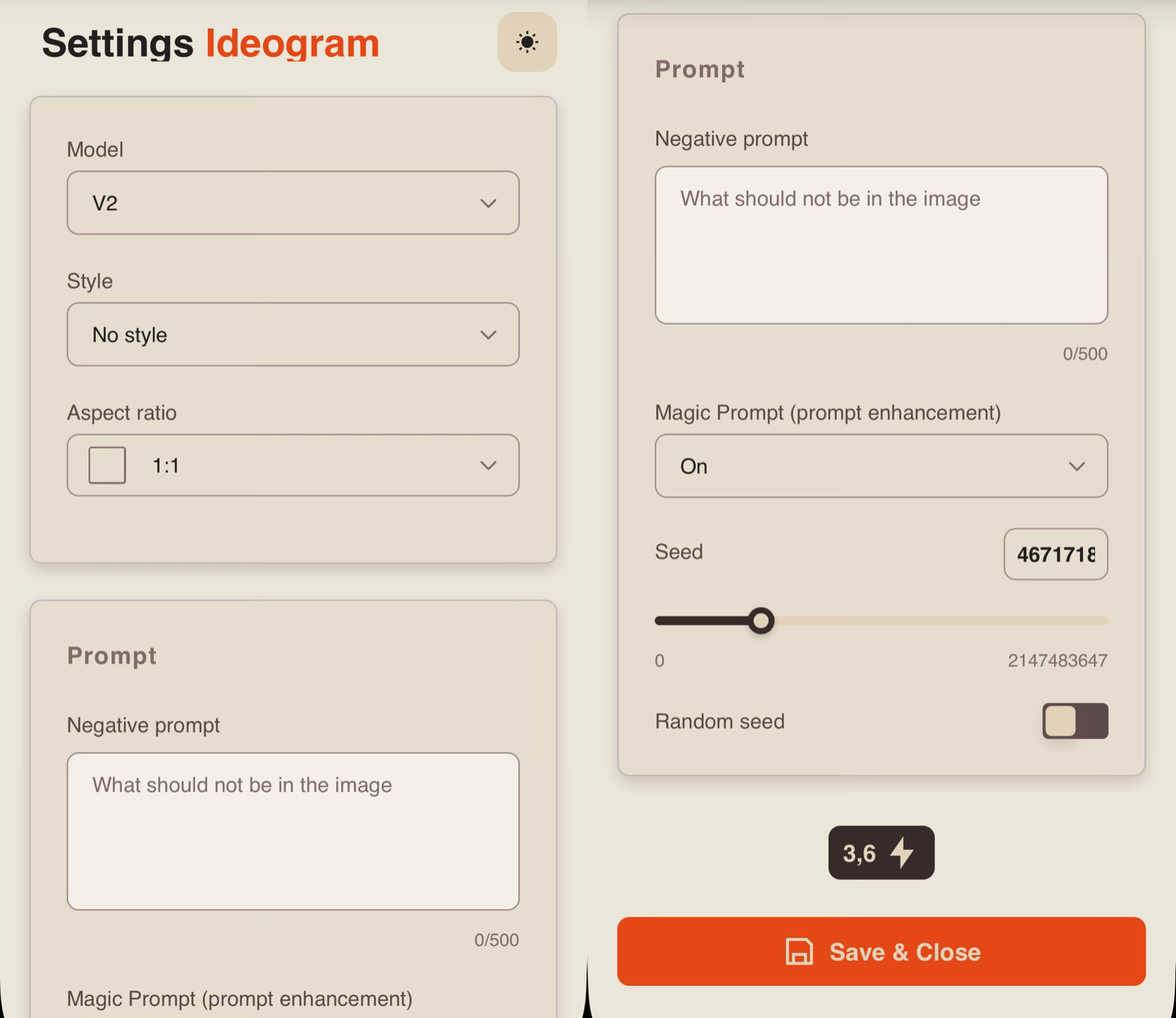
When working with the V2 model, you have 6 styles to choose from:
No Style - the image is created without applying any additional style, based on the text prompt.
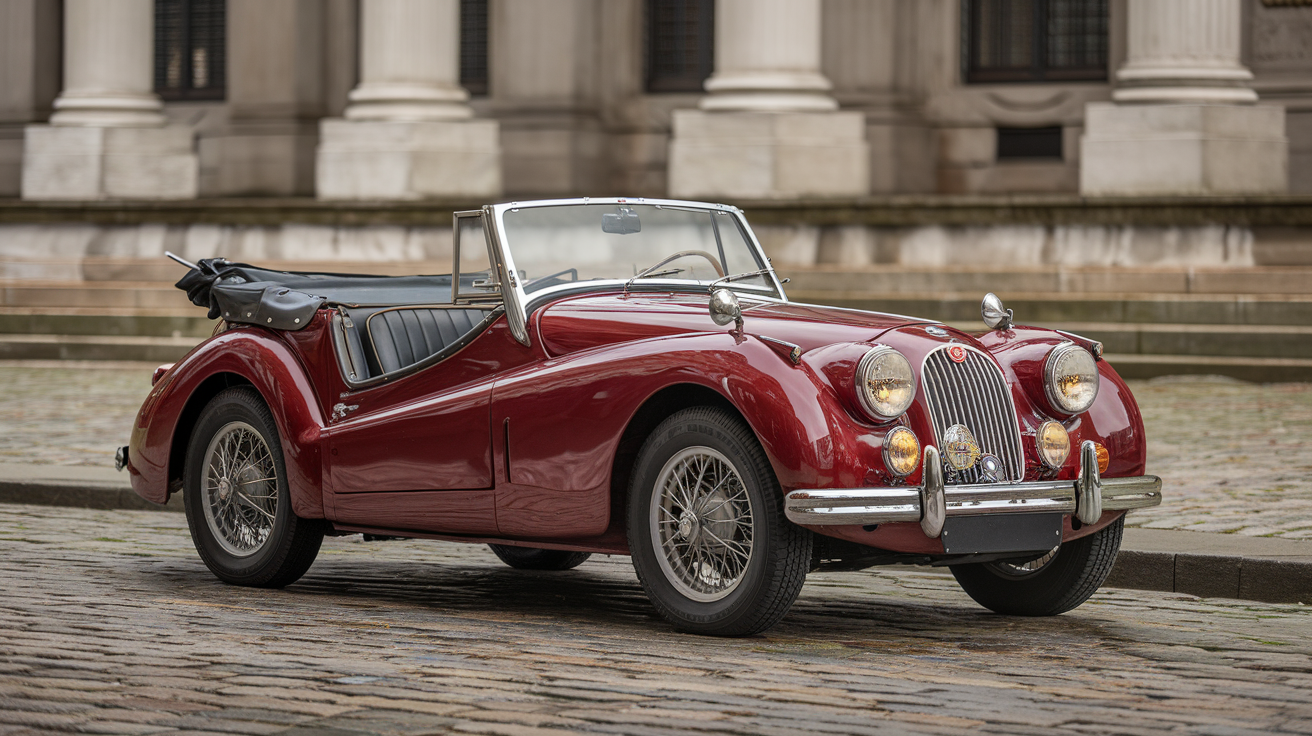
General - a universal style suitable for creating images on various topics.
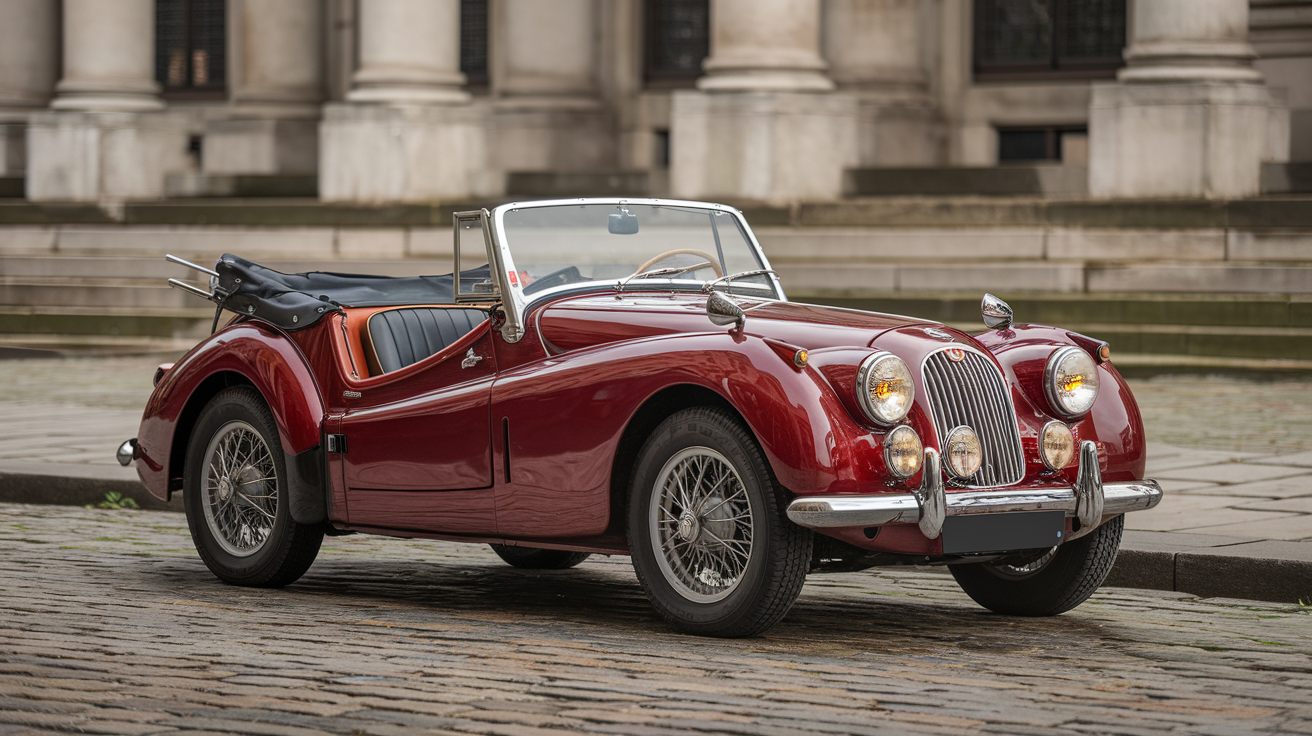
Realistic - a realistic style focused on creating images that closely resemble real photographs.
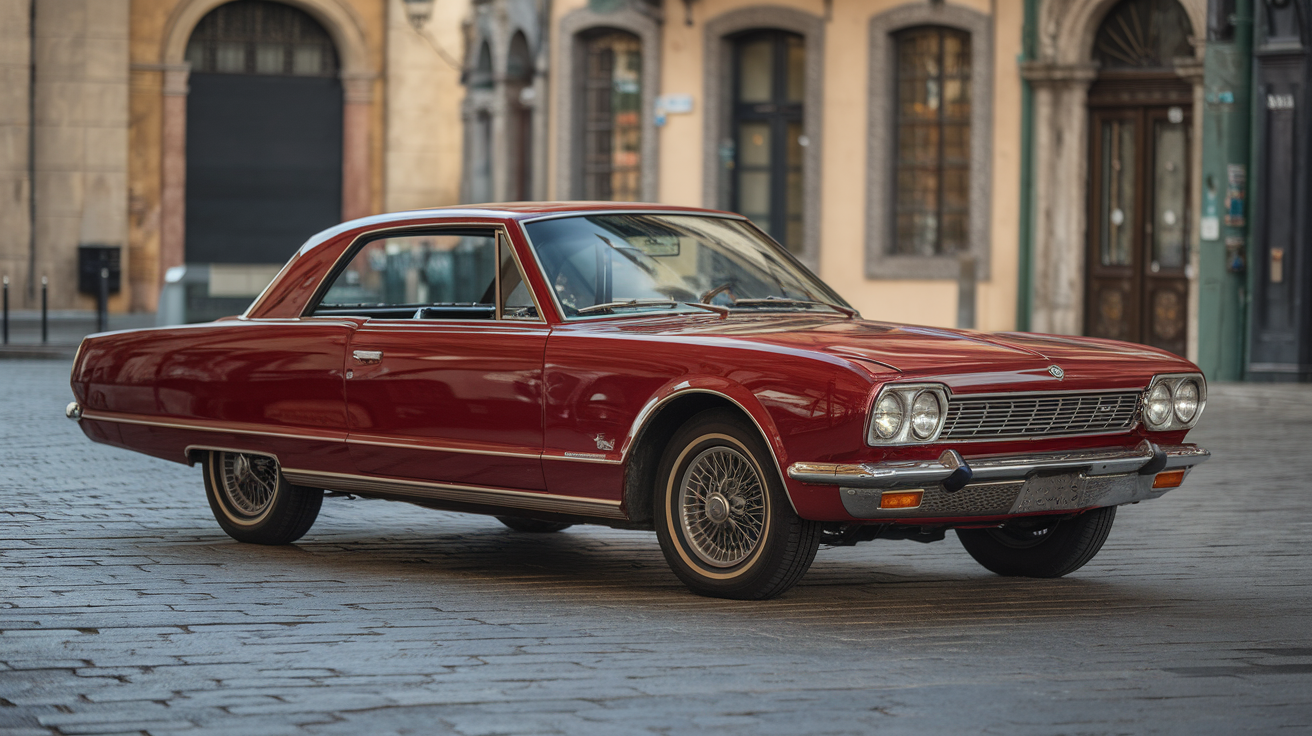
Design - a style for creating graphic elements, illustrations, posters, and other design materials.
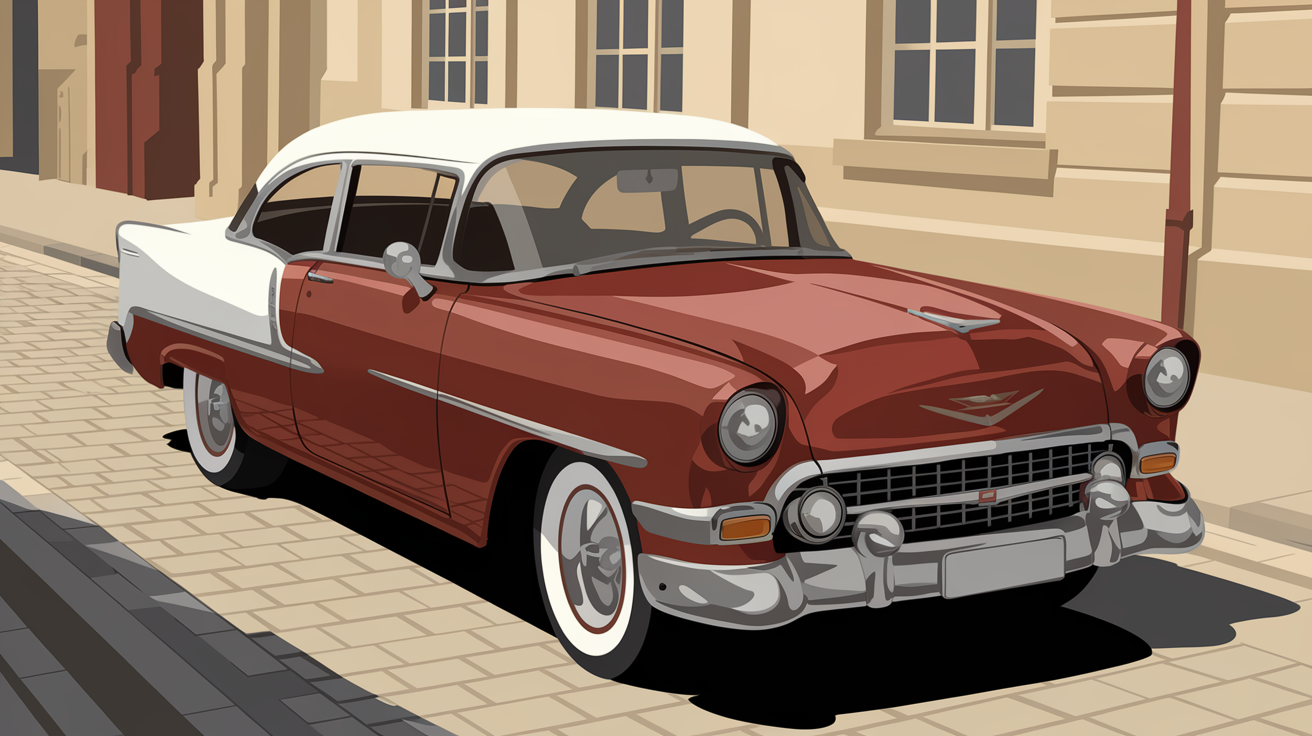
3D Render - a style for creating three-dimensional images with volumetric objects, realistic lighting, and textures.
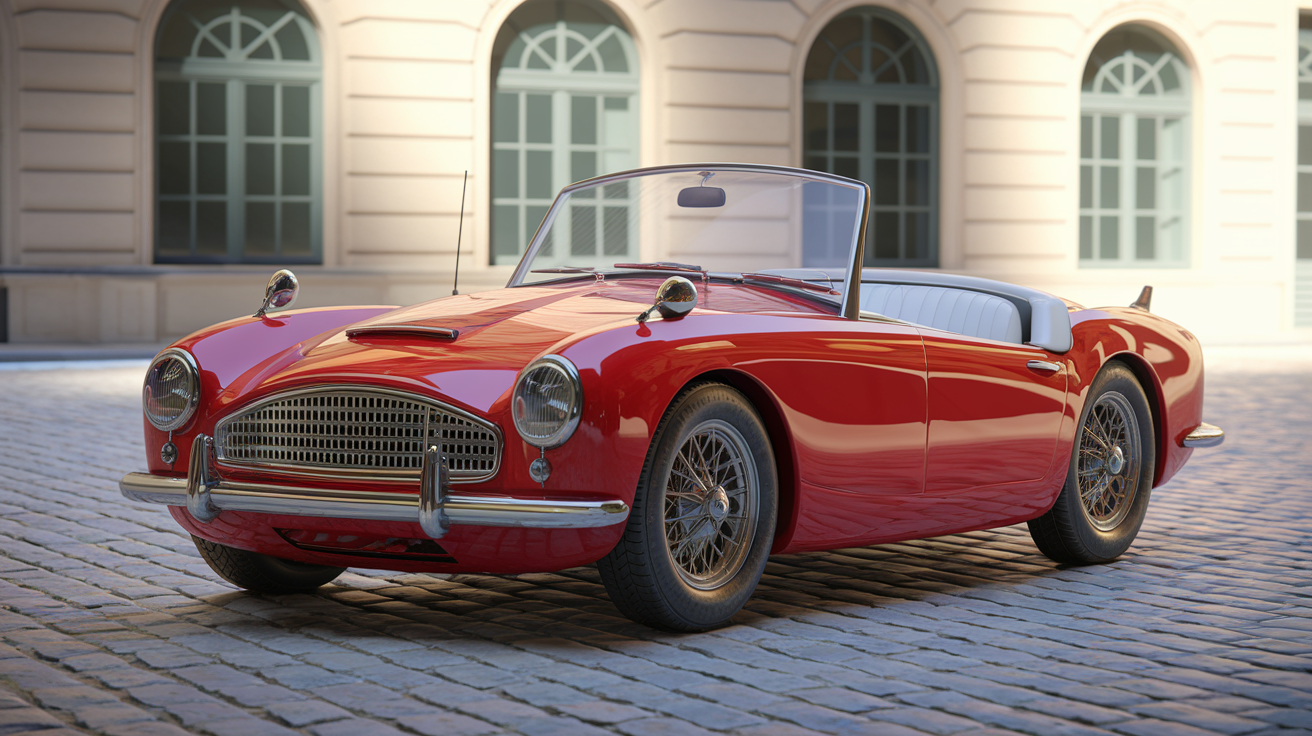
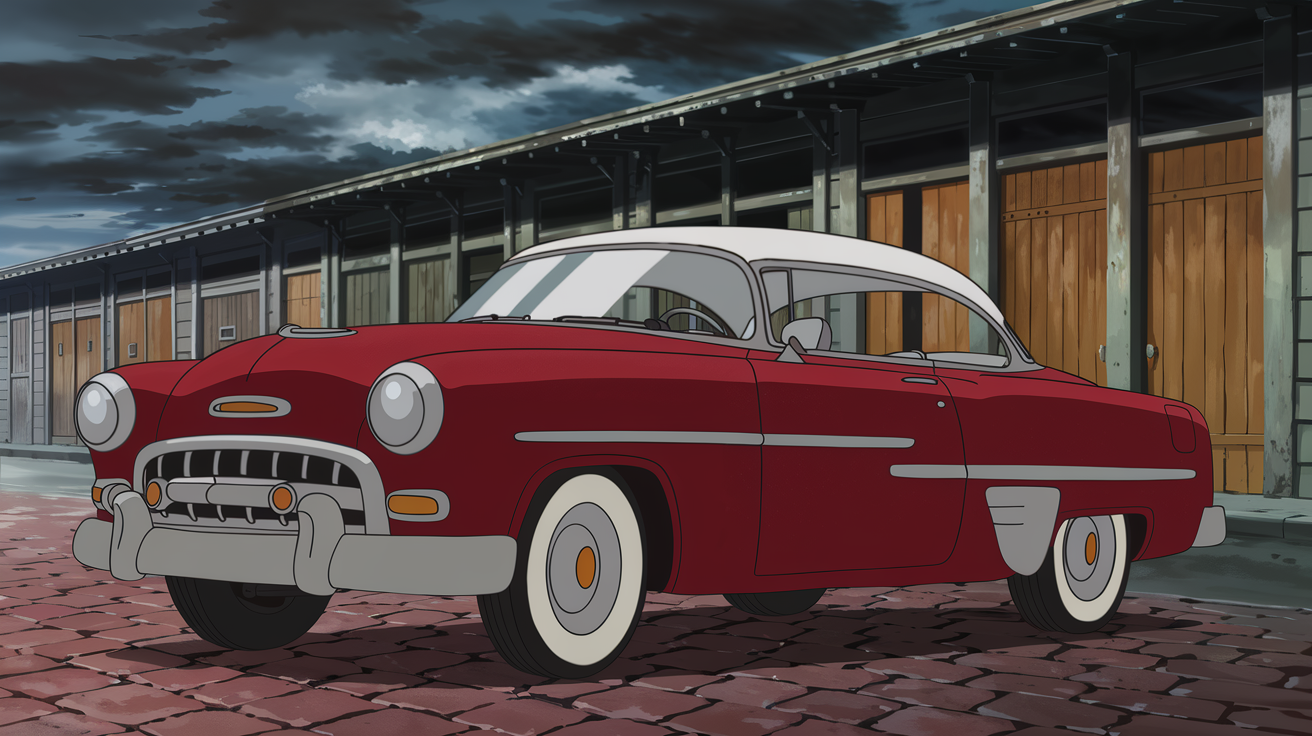
Anime - a style for creating images in the aesthetic of Japanese animation, with distinctive character and environment designs.
Aspect Ratio
When working with the V2 model, you have 12 aspect ratio options to choose from:
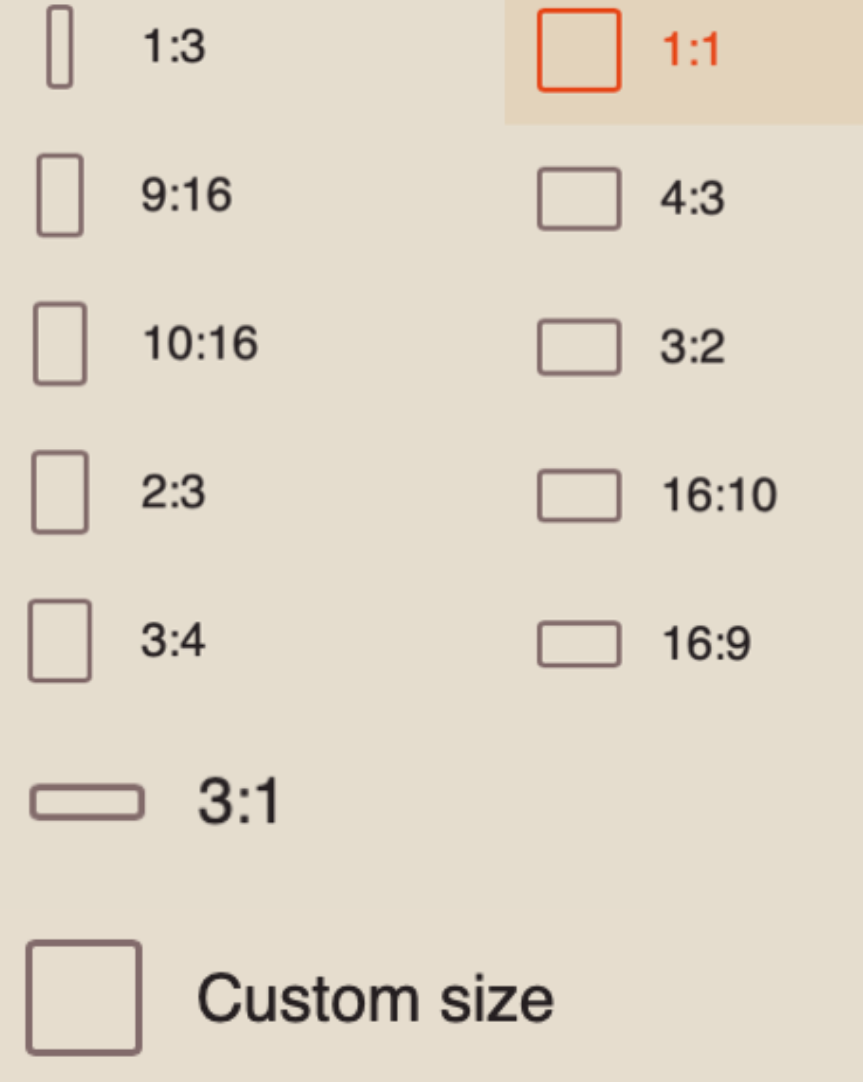
Custom Size - when selecting this aspect ratio option, an additional “Resolution” setting becomes available, allowing you to manually choose the dimensions of the generated image in pixels.
Negative Prompt
This setting allows you to specify elements that should not appear in the image, such as blurriness, a black background, effects, distortions, or a cartoon style. Filling in this field is optional.
Magic Prompt (Prompt Enhancement)
Magic Prompt is an automatic text prompt enhancement feature. It automatically expands your text prompt to help the model better interpret your preferences.
- Auto - the model independently determines whether the text prompt needs improvement. If necessary, the prompt will be automatically expanded and refined.
- On - the prompt enhancement feature is enabled. You only need to describe your desired result in simple words, without having to write a detailed prompt yourself. Magic Prompt will automatically add details to your description that may help achieve a higher-quality result.
- Off - automatic prompt enhancement is disabled. To achieve the desired result, it is recommended to specify all important details yourself.
Seed
The Seed setting allows you to obtain identical or stylistically similar results when running generations repeatedly. If you like an image and want to create a similar one while changing or adding specific details, the Seed setting will be particularly useful.
In the description of an image you like, you can copy its Seed value and use it to reproduce the result with the desired changes. To do this, leave the “Random Seed” toggle turned off and paste the copied Seed into the field.
Random Seed
If you do not need to work with the Seed parameter, turn on the “Random Seed” toggle.
Working with the V2 Turbo Model
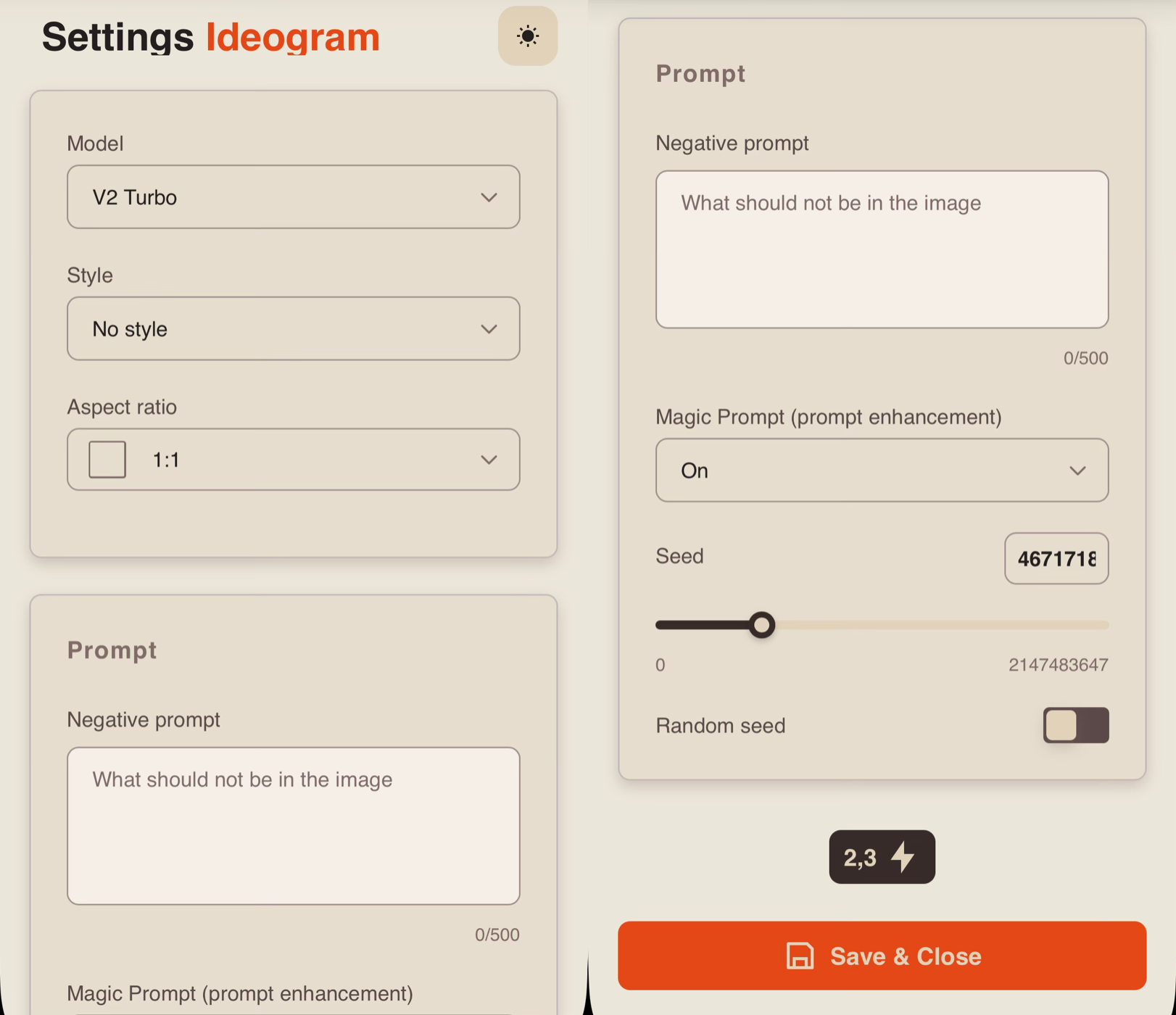
Ideogram V2 Turbo - a model for fast image generation with good detail and high-quality rendering of key elements. Suitable for creating illustrations, visual concepts, and testing different ideas when getting results quickly is important.
Style
When working with the V2 Turbo model, you have 6 styles to choose from:
No Style - the image is created without applying any additional style, based on the text prompt.
General - a universal style suitable for creating images on various topics.
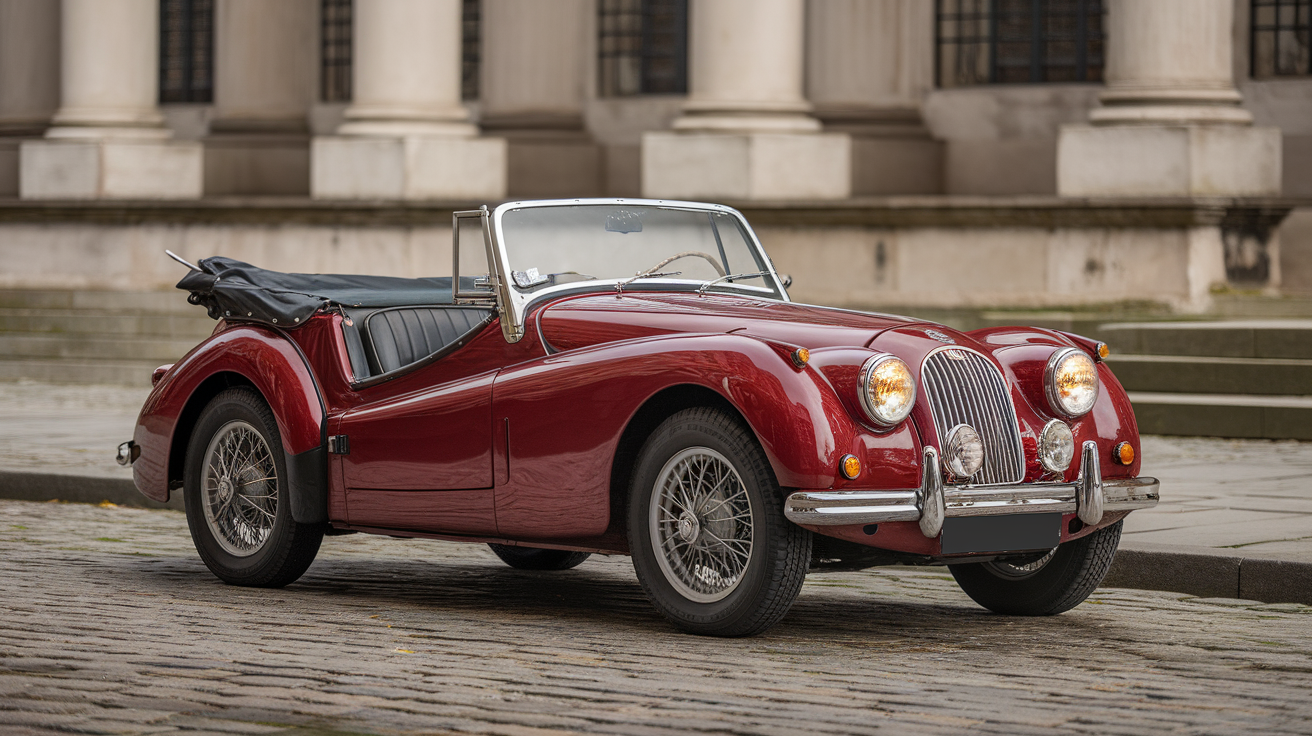
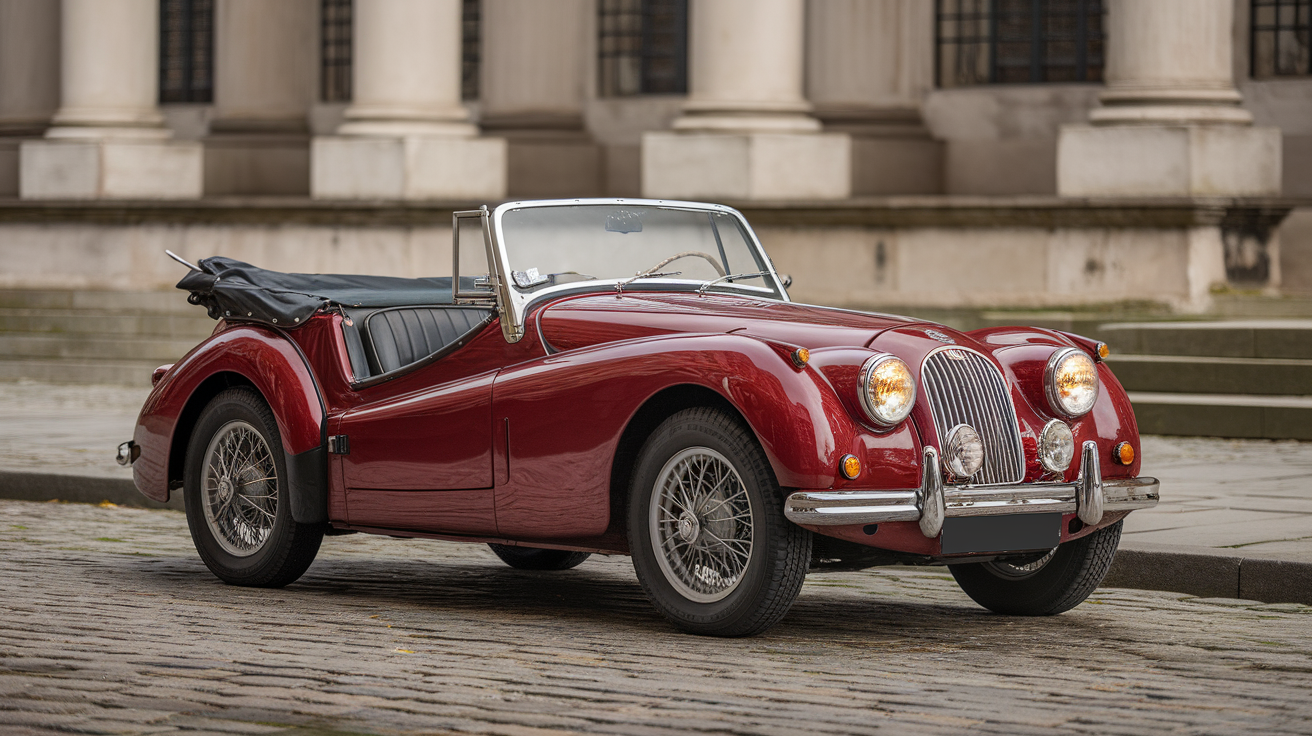
Realistic - a realistic style focused on creating images that closely resemble real photographs.
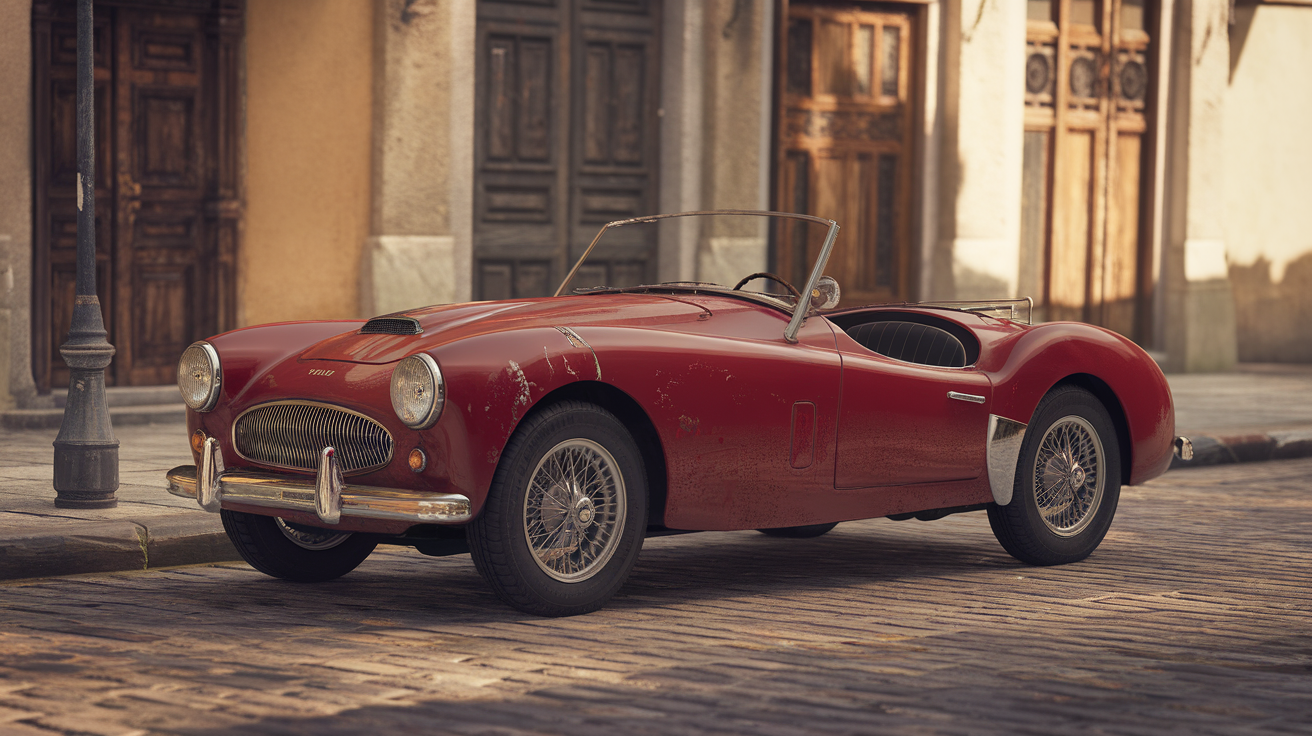
Design - a style for creating graphic elements, illustrations, posters, and other design materials.
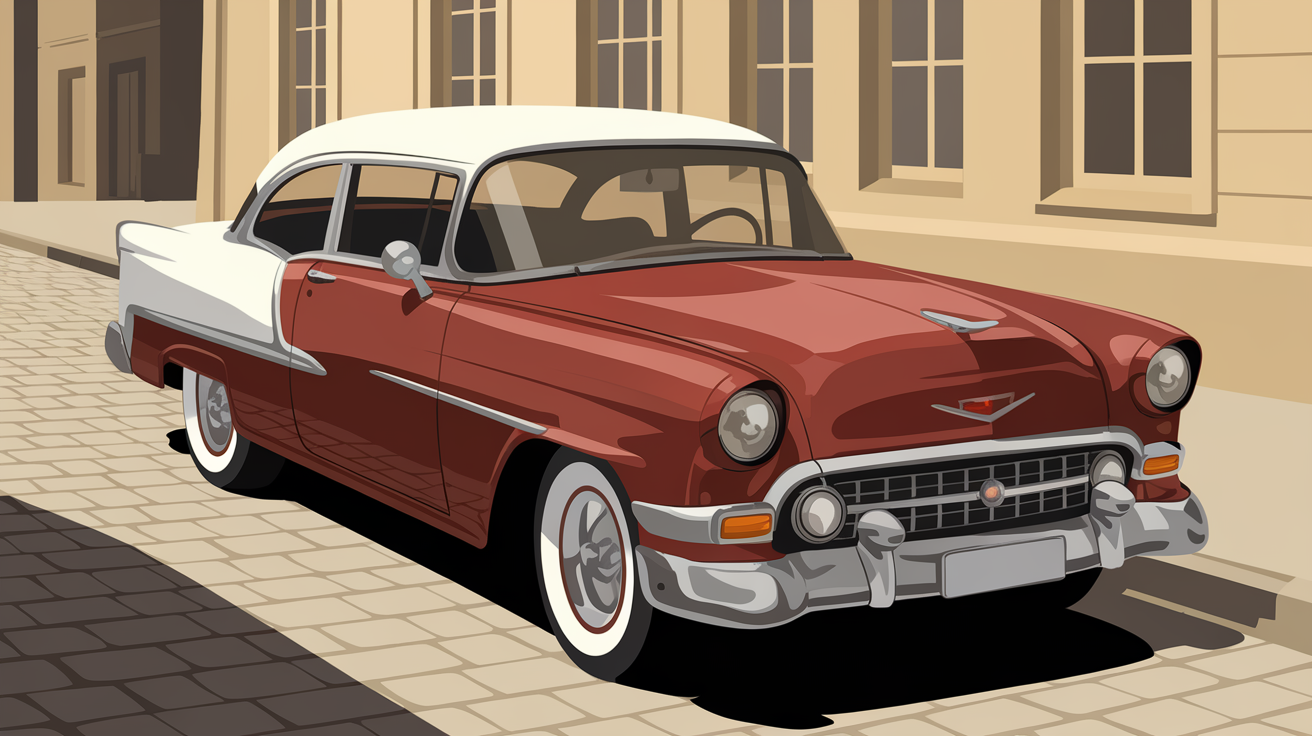
3D Render - a style for creating three-dimensional images with volumetric objects, realistic lighting, and textures.
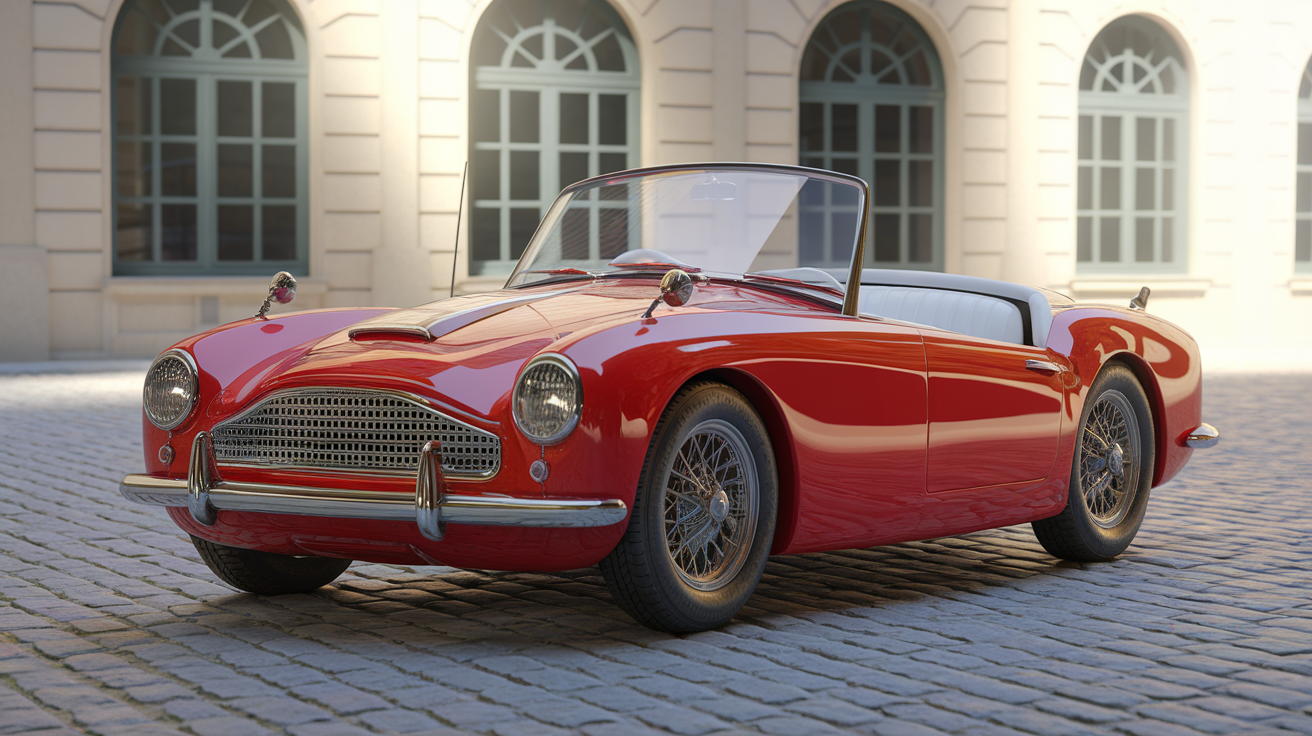
Anime - a style for creating images in the aesthetic of Japanese animation, with distinctive character and environment designs.
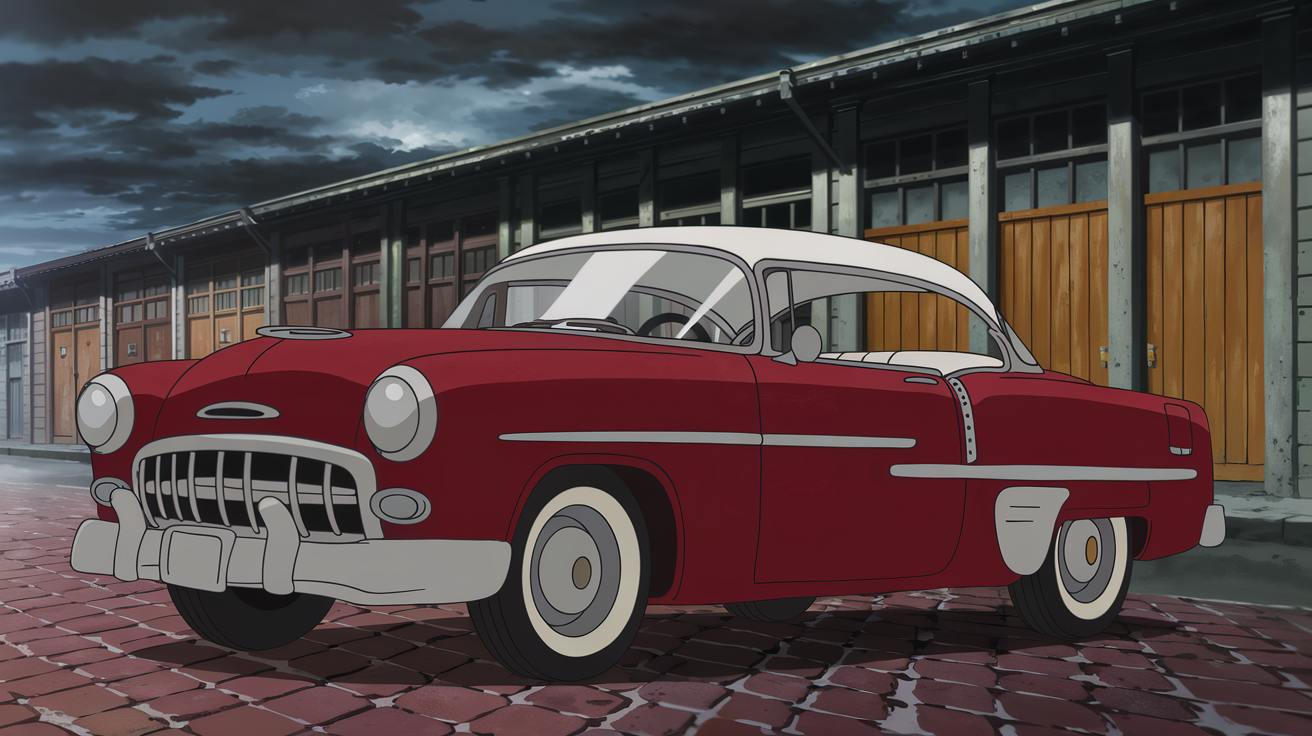
Aspect Ratio
When working with the V2 model, you have 12 aspect ratio options to choose from:
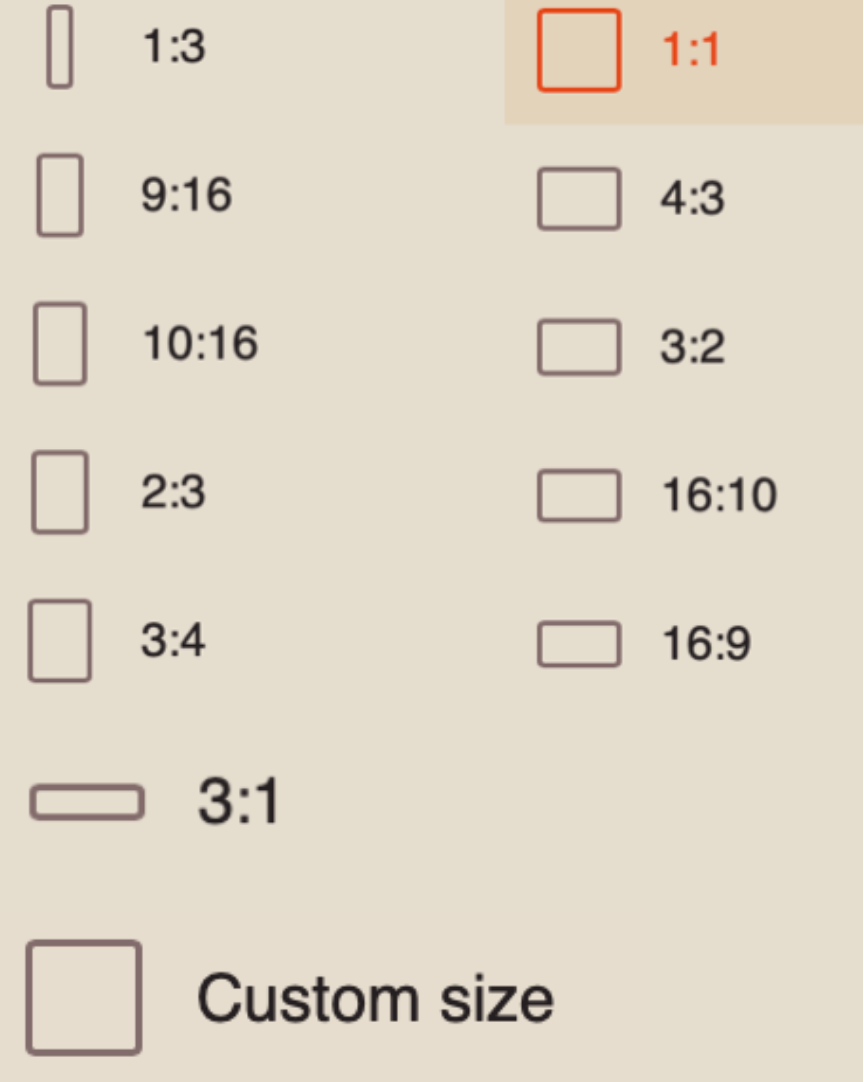
Custom Size - when selecting this aspect ratio option, an additional “Resolution” setting becomes available, allowing you to manually choose the dimensions of the generated image in pixels.
Negative Prompt
This setting allows you to specify elements that should not appear in the image, such as blurriness, a black background, effects, distortions, or a cartoon style. Filling in this field is optional.
Magic Prompt (Prompt Enhancement)
Magic Prompt is an automatic text prompt enhancement feature. It automatically expands your text prompt to help the model better interpret your preferences.
- Auto - the model independently determines whether the text prompt needs improvement. If necessary, the prompt will be automatically expanded and refined.
- On - the prompt enhancement feature is enabled. You only need to describe your desired result in simple words, without having to write a detailed prompt yourself. Magic Prompt will automatically add details to your description that may help achieve a higher-quality result.
- Off - automatic prompt enhancement is disabled. To achieve the desired result, it is recommended to specify all important details yourself.
Seed
The Seed setting allows you to obtain identical or stylistically similar results when running generations repeatedly. If you like an image and want to create a similar one while changing or adding specific details, the Seed setting will be particularly useful.
In the description of an image you like, you can copy its Seed value and use it to reproduce the result with the desired changes. To do this, leave the “Random Seed” toggle turned off and paste the copied Seed into the field.
Random Seed
If you do not need to work with the Seed parameter, turn on the “Random Seed” toggle.
To achieve a high-quality result, it is recommended to write a detailed text prompt that specifies the main objects, their characteristics, and the desired image style.
A well-structured text prompt should include:
- Main Subject and Details - describe exactly what should be depicted: a character, an object, or a logo. Specify the appearance, colors, materials, and other important characteristics.
- Environment and Composition - specify the background, placement of objects, and additional elements in the image.
- Lighting and Atmosphere - if necessary, describe the lighting, color palette, and overall mood of the image.
- Style - specify the desired visual style: realism, minimalism, anime, 3D, cinematic, etc.
- Text in the Image - if the image should contain text, specify the exact wording in quotation marks, along with its placement, color, and design.
Example Prompt:
❌ Incorrect: Draw a beautiful logo for my store.
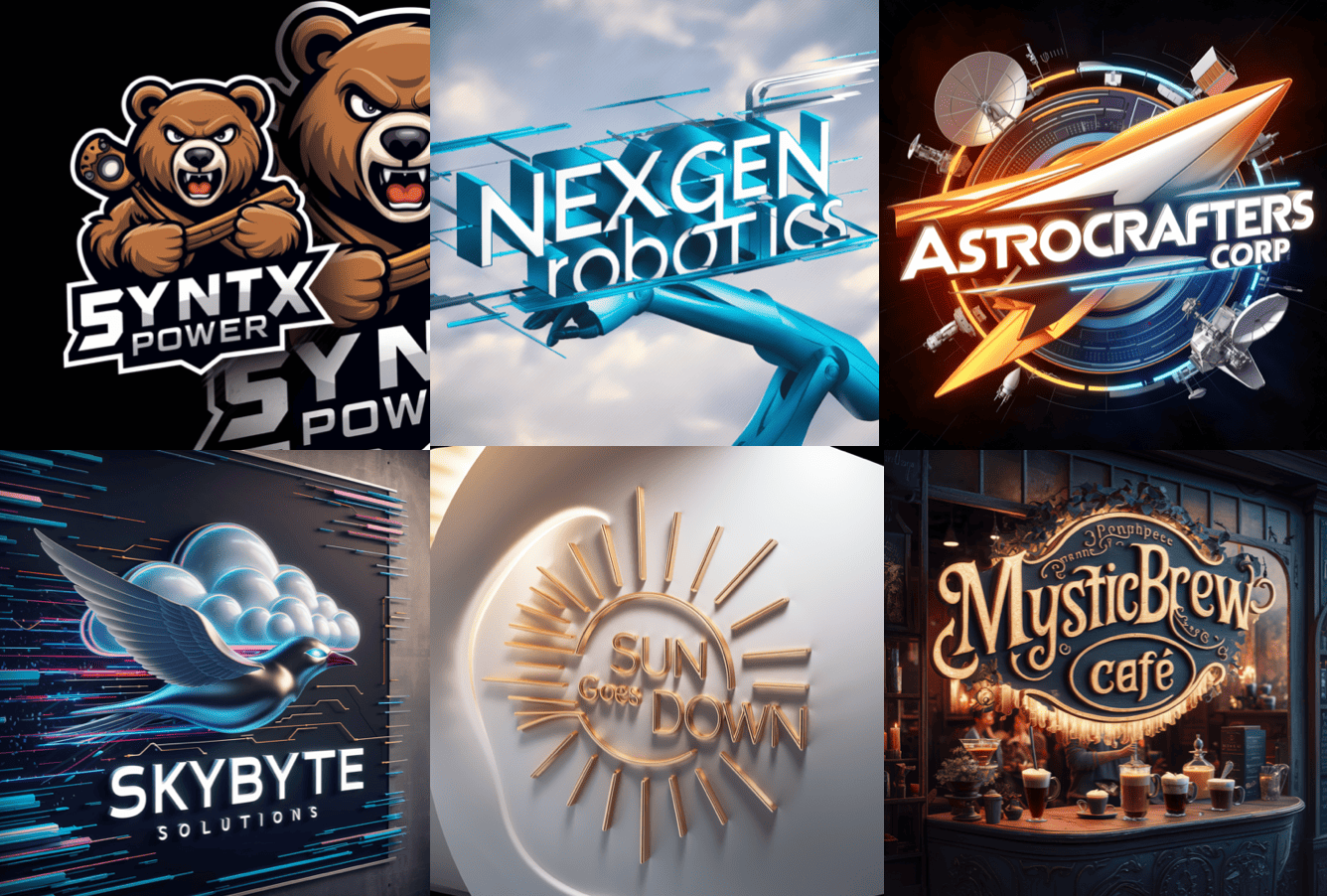
✅ Correct: A minimalist logo for a premium brand. In the center is a golden diamond with a small crown above it. Below the diamond is the text “SYNTX PREMIUM” in an elegant gold font. Black background, thin gold outlines, symmetrical composition, luxury style.
Result
💥 Step-by-Step Guide to Using Ideogram. “Working with a Reference Image”.
First, when using the “Working with a Reference Image” feature, you need to upload the image correctly.
Uploading Images
Technical requirements for images:
- Maximum number of images in v4.5: 5.
- Maximum number of images in v4: 1.
- Maximum number of images in v3: 1.
- Maximum size of a single file: 10 MB.
- Supported formats: PNG, JPG.
- Aspect ratio from 5:2 to 2:5.
For example:
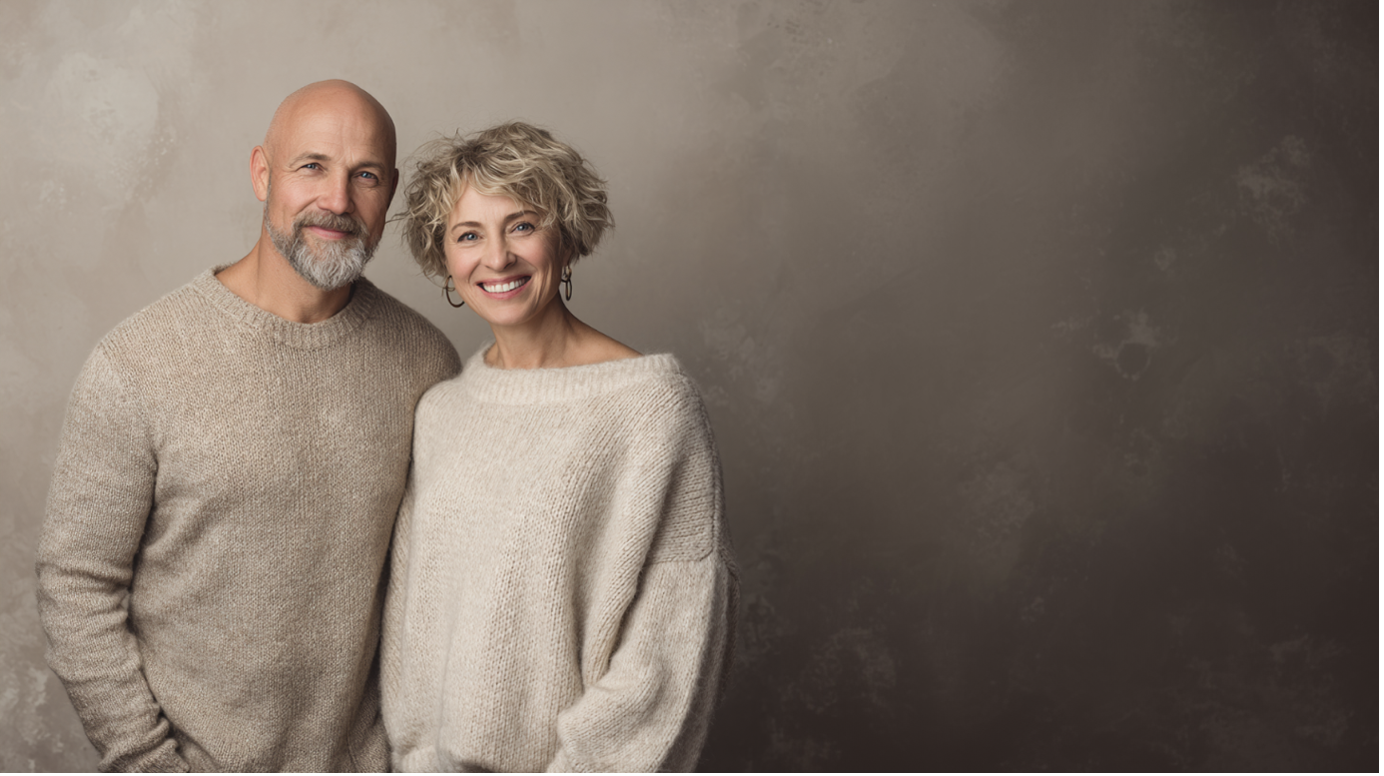
After uploading the reference image, you need to open “Model Settings”. There, you can adjust the parameters of the generated image.
Model Settings
Working with the V4.5 Model
Ideogram V4.5 - a model for creating high-quality images with exceptional detail, realistic textures, and accurate rendering of fine elements. It stands out for its precise handling of text, colors, and composition. It is particularly suitable for creating advertising materials, product photography, complex design projects, and editing images while preserving their original details.
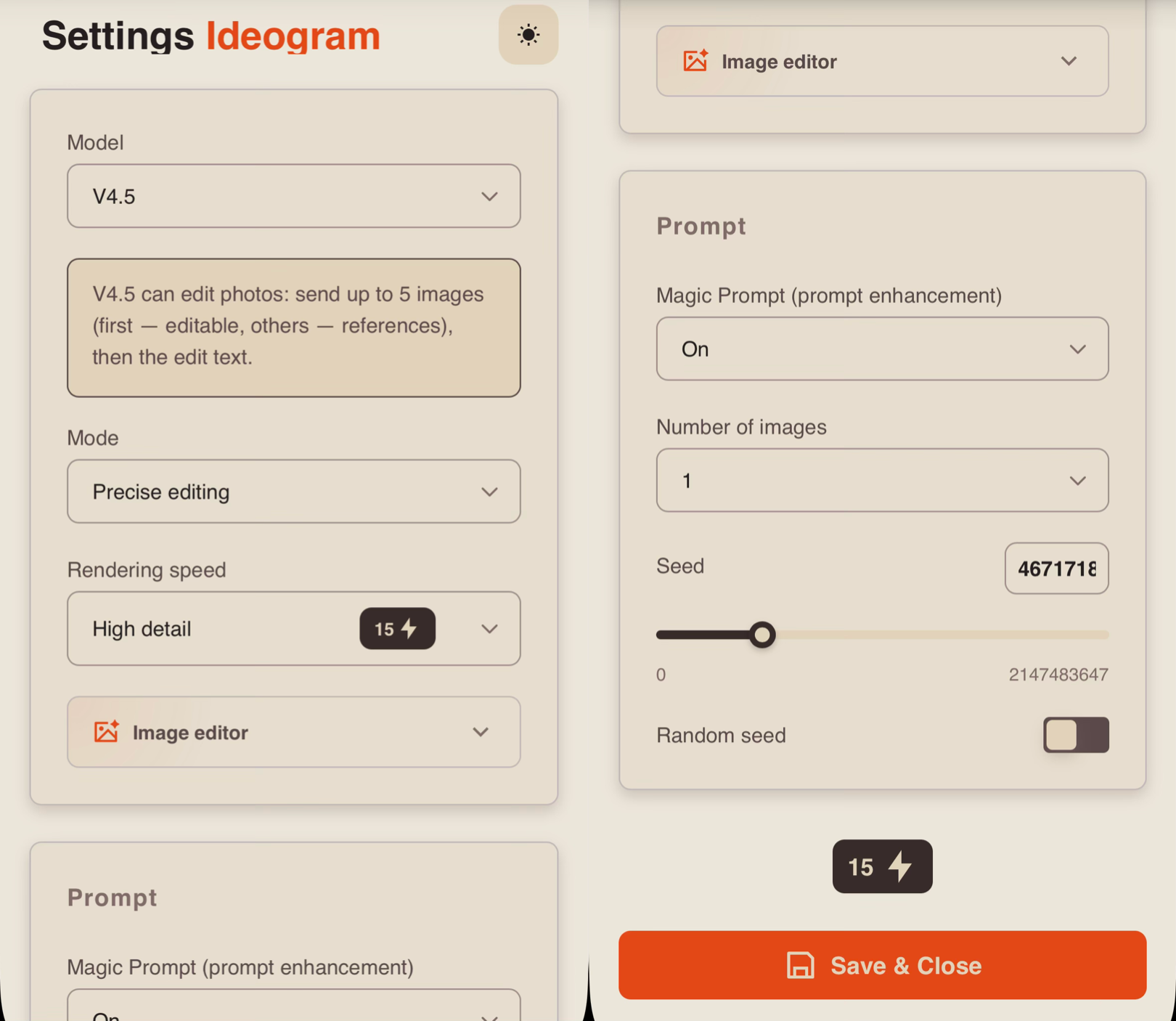
Mode
To create an image using a reference, you need to select the “Precise editing” mode.
Generation Speed
This parameter allows you to select the image generation speed.
- Instant generation - creates an image at maximum speed. Suitable for quickly testing ideas and text prompts.
- Fast generation - accelerated image creation with moderate detail.
- Balance of speed and quality - an optimal combination of generation speed and image quality.
- High detail - a mode that prioritizes quality and fine details. Generation may take longer.
Image Editor
This tool allows you to select a specific area of an image for further editing.
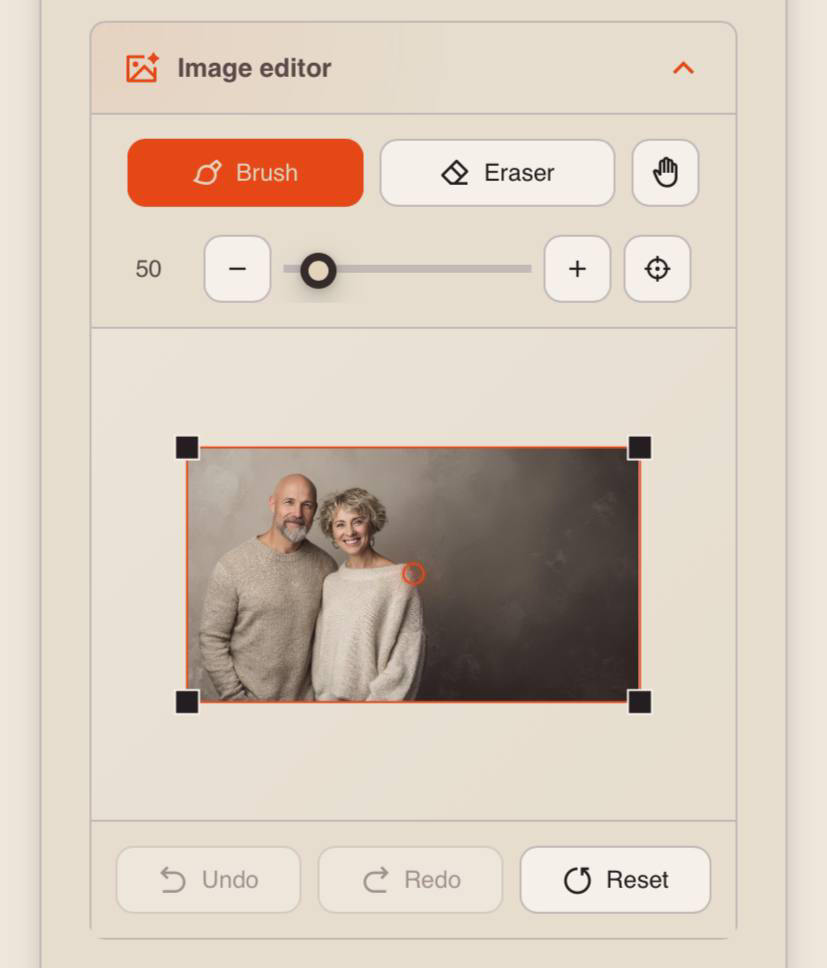
To select the desired area, use the following tools:
- Brush - allows you to paint over the area of the image that needs to be changed.
- Eraser - allows you to remove unwanted parts of the selection.
- Brush Size - can be adjusted using the slider or the “+” and “−” buttons.
- Hand - allows you to move around the image without changing the selected area.
- Brush Stabilization (Crosshair) - this feature allows you to lock the brush in the center of the image, providing more precise and controlled selection of the desired areas. When activated, the brush remains stationary, while moving the image allows you to select the area that needs editing.
Additional Features:
- Undo - undo the last action.
- Redo - restore the last undone action.
- Reset - clear all selections.
- Zoom - allows you to zoom in and out of the image for more precise selection.
Magic Prompt (Prompt Enhancement)
Magic Prompt is an automatic text prompt enhancement feature. It automatically expands your text prompt to help the model better interpret your preferences.
- Auto - the model independently determines whether the text prompt needs improvement. If necessary, the prompt will be automatically expanded and refined.
- On - the prompt enhancement feature is enabled. You only need to describe your desired result in simple words, without having to write a detailed prompt yourself. Magic Prompt will automatically add details to your description that may help achieve a higher-quality result.
- Off - automatic prompt enhancement is disabled. To achieve the desired result, it is recommended to specify all important details yourself.
Number of Images
When working with the V4.5 model, you can choose to generate from 1 to 8 images.
❣️Please note that increasing the number of simultaneous generations also increases the number of tokens deducted.
Seed
The Seed setting allows you to obtain identical or stylistically similar results when running generations repeatedly. If you like an image and want to create a similar one while changing or adding specific details, the Seed setting will be particularly useful.
In the description of an image you like, you can copy its Seed value and use it to reproduce the result with the desired changes. To do this, leave the “Random Seed” toggle turned off and paste the copied Seed into the field.
Random Seed
If you do not need to work with the Seed parameter, turn on the “Random Seed” toggle.
Working with the V4 Model
Ideogram V4 - a model for creating detailed images with precise placement of objects and text. It stands out for its high-quality text rendering, including small lettering and complex typographic compositions. Suitable for creating posters, logos, advertising banners, packaging, and other design materials.
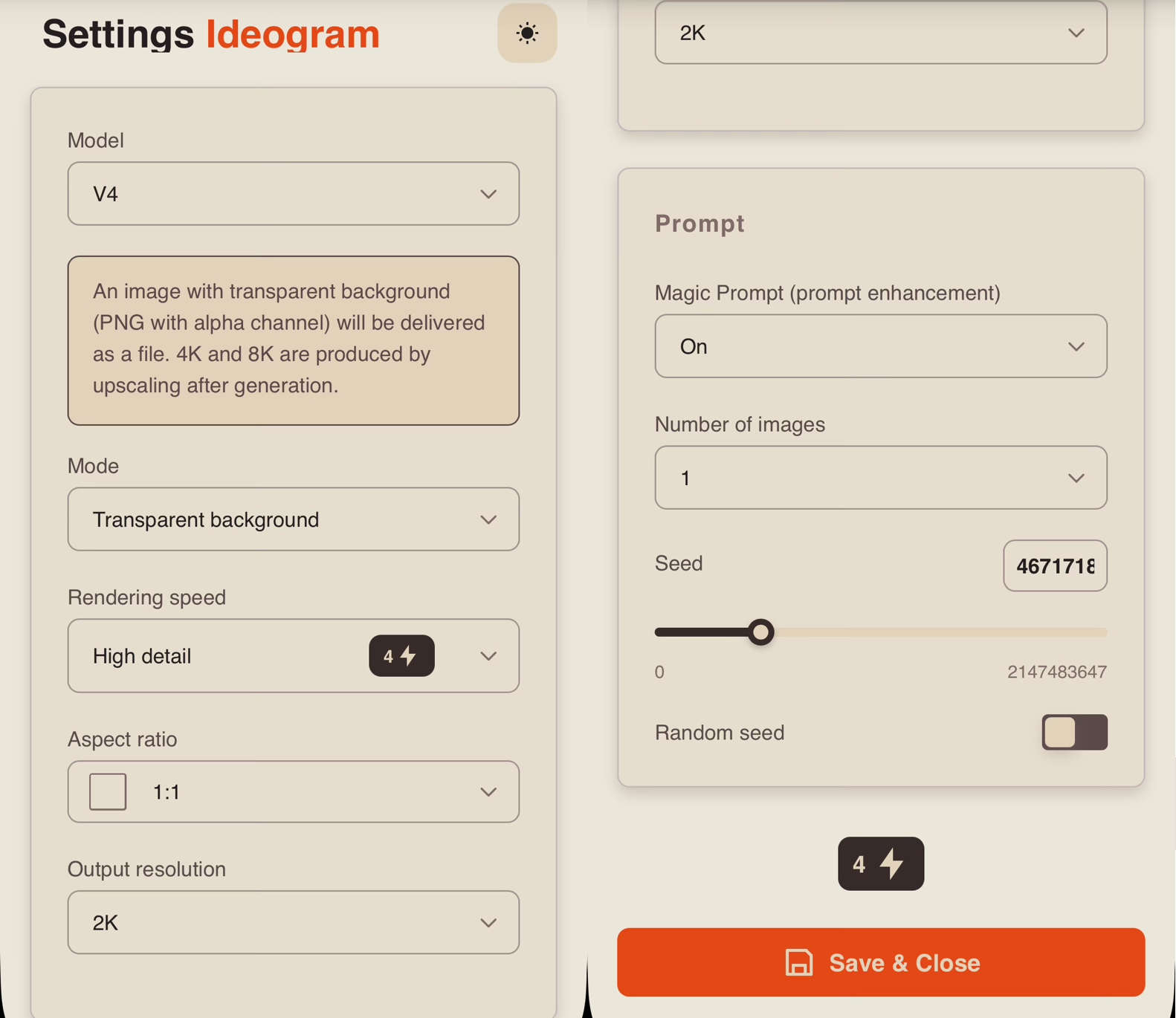
Mode
To create a standard image using a reference, you need to select the “Image Generation” mode.
If you want to create an image without a background, select the “Transparent Background” mode. In this case, the result will be provided in PNG format with a transparent background.
Generation Speed
This parameter allows you to select the image generation speed.
- Fast generation - accelerated image creation with moderate detail.
- Balance of speed and quality - an optimal combination of generation speed and image quality.
- High detail - a mode that prioritizes quality and fine details. Generation may take longer.
Output Resolution
You can choose between two resolution options:
- 1K - basic resolution. Suitable for quick generations, previews, and small images.
- 2K - higher resolution. Suitable for most finished visuals and content.
When working in the “Transparent Background” mode, two additional resolution options become available:
- 4K - high image resolution, providing good detail and clarity of fine elements.
- 8K - ultra-high image resolution, allowing you to achieve an even sharper and more detailed result.
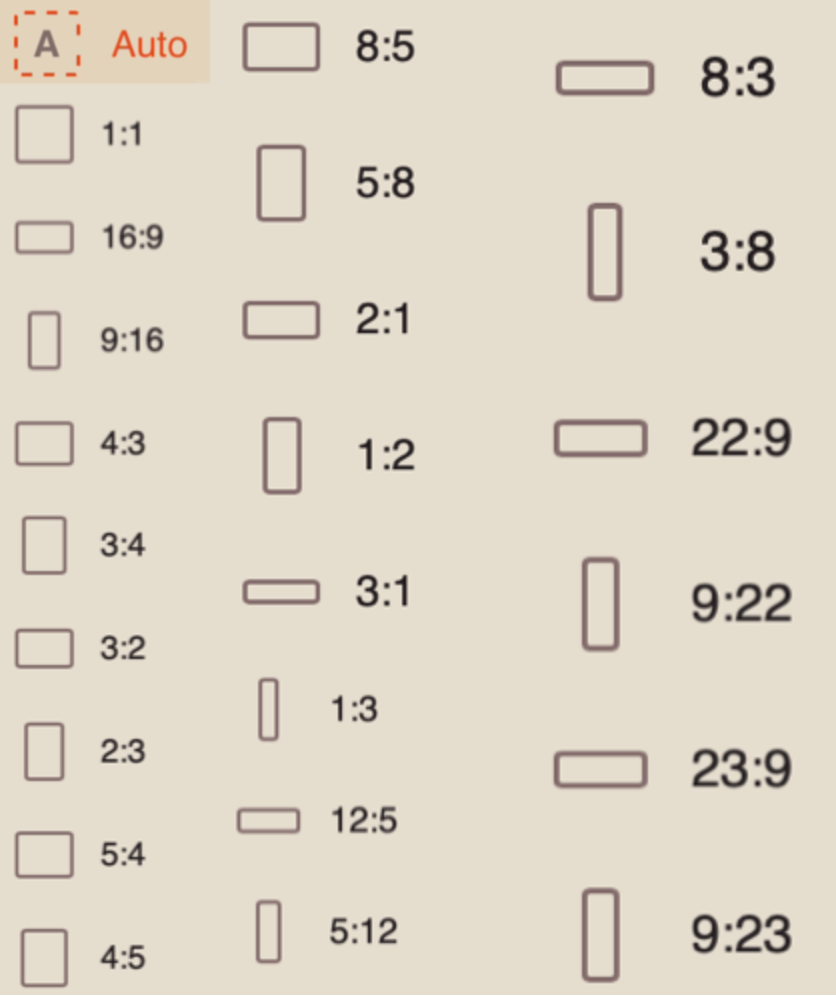
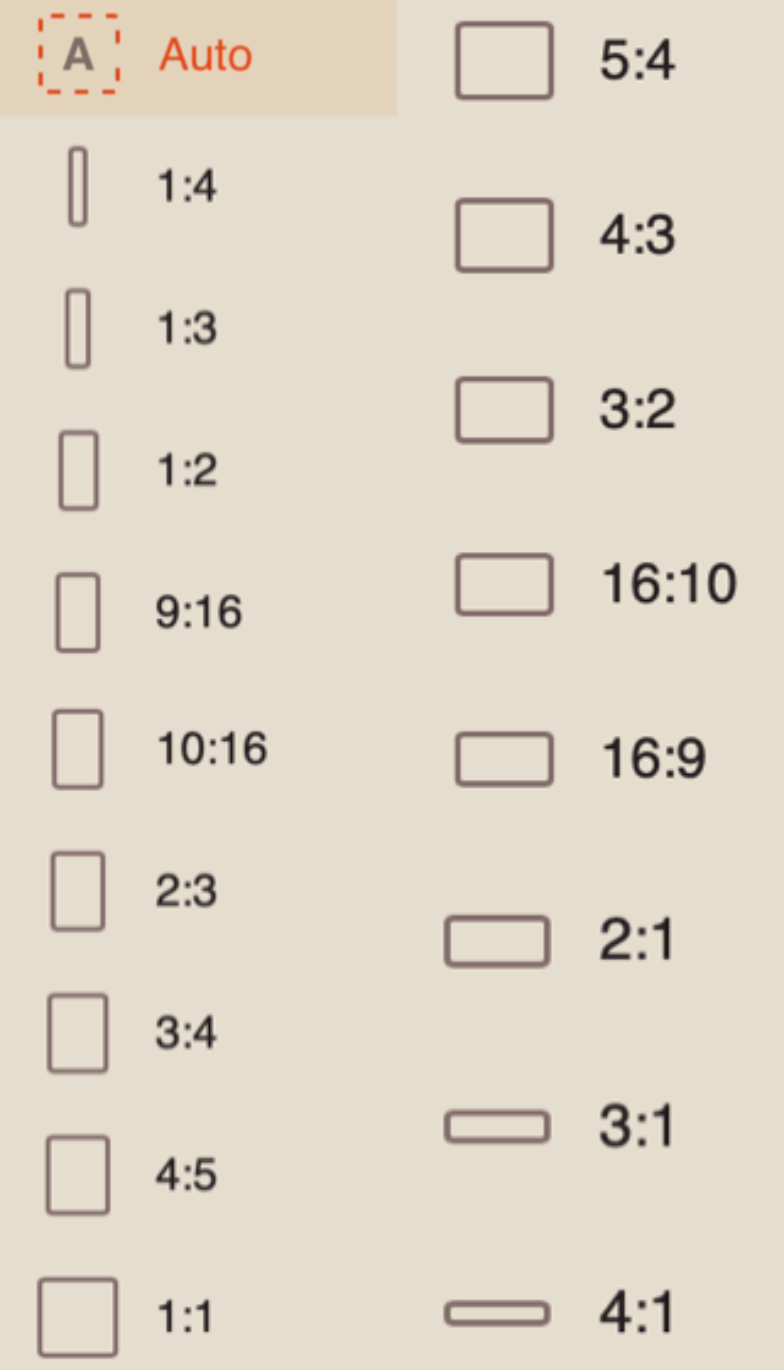
Aspect Ratio
When working in the “Image Generation” mode, you have 24 aspect ratio options to choose from:
When working in the “Transparent Background” mode, you have 18 aspect ratio options to choose from:
Magic Prompt (Prompt Enhancement)
Magic Prompt is an automatic text prompt enhancement feature. It automatically expands your text prompt to help the model better interpret your preferences.
- Auto - the model independently determines whether the text prompt needs improvement. If necessary, the prompt will be automatically expanded and refined.
- On - the prompt enhancement feature is enabled. You only need to describe your desired result in simple words, without having to write a detailed prompt yourself. Magic Prompt will automatically add details to your description that may help achieve a higher-quality result.
- Off - automatic prompt enhancement is disabled. To achieve the desired result, it is recommended to specify all important details yourself.
Number of Images
When working with the V4 model, you can choose to generate from 1 to 8 images.
❣️Please note that increasing the number of simultaneous generations also increases the number of tokens deducted.
Seed
The Seed setting allows you to obtain identical or stylistically similar results when running generations repeatedly. If you like an image and want to create a similar one while changing or adding specific details, the Seed setting will be particularly useful.
In the description of an image you like, you can copy its Seed value and use it to reproduce the result with the desired changes. To do this, leave the “Random Seed” toggle turned off and paste the copied Seed into the field.
Random Seed
If you do not need to work with the Seed parameter, turn on the “Random Seed” toggle.
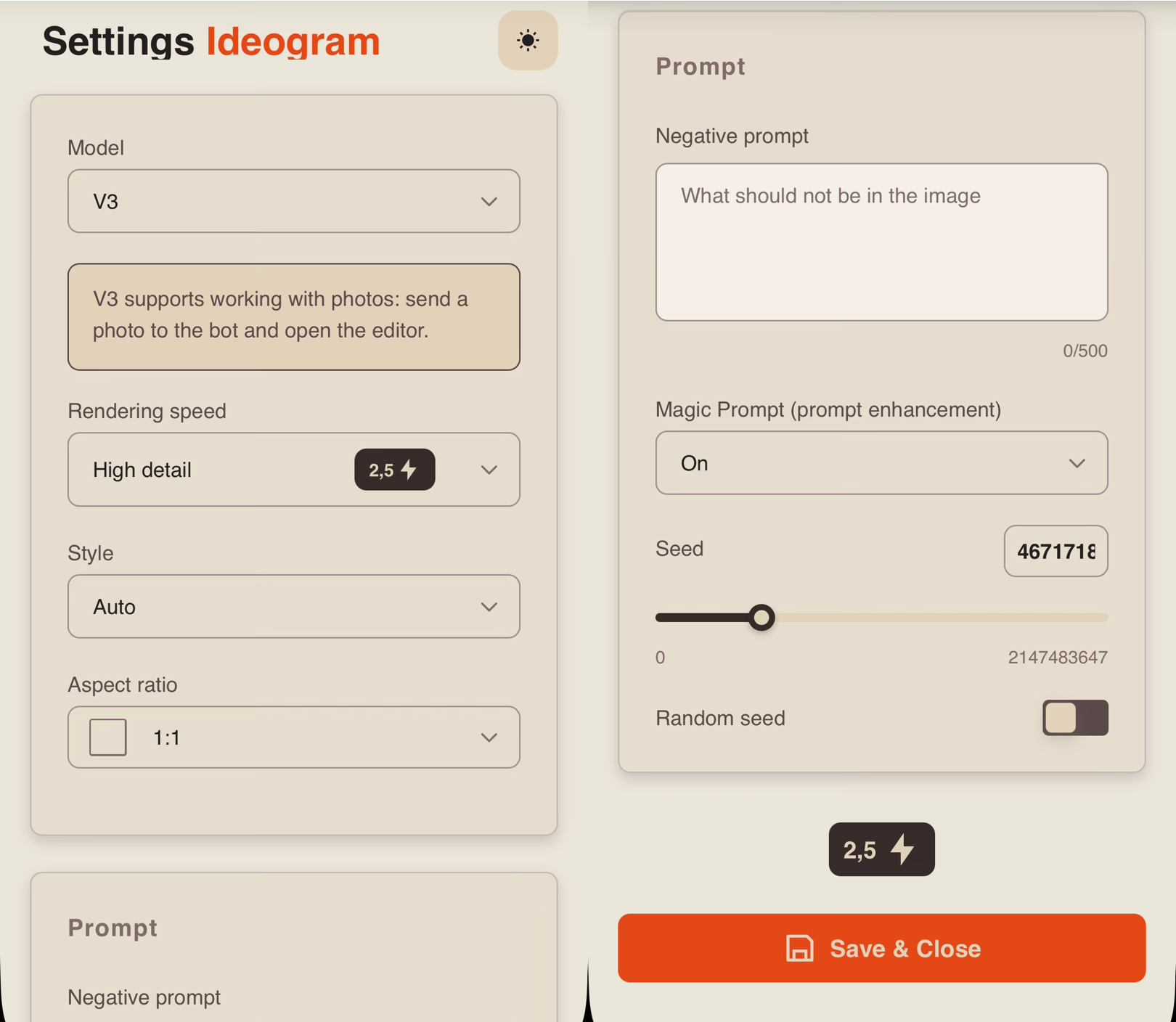
Working with the V3 Model
Ideogram V3 - a model for creating photorealistic images with high detail and natural rendering of lighting, colors, and textures. It handles text generation well and supports maintaining consistent character appearances. Suitable for portraits, advertising images, and artistic scenes.
Style
When working with the V3 model, you have 4 styles to choose from:
Auto - the model automatically selects the most suitable style based on the text prompt.
General - a universal style suitable for creating images on various topics.
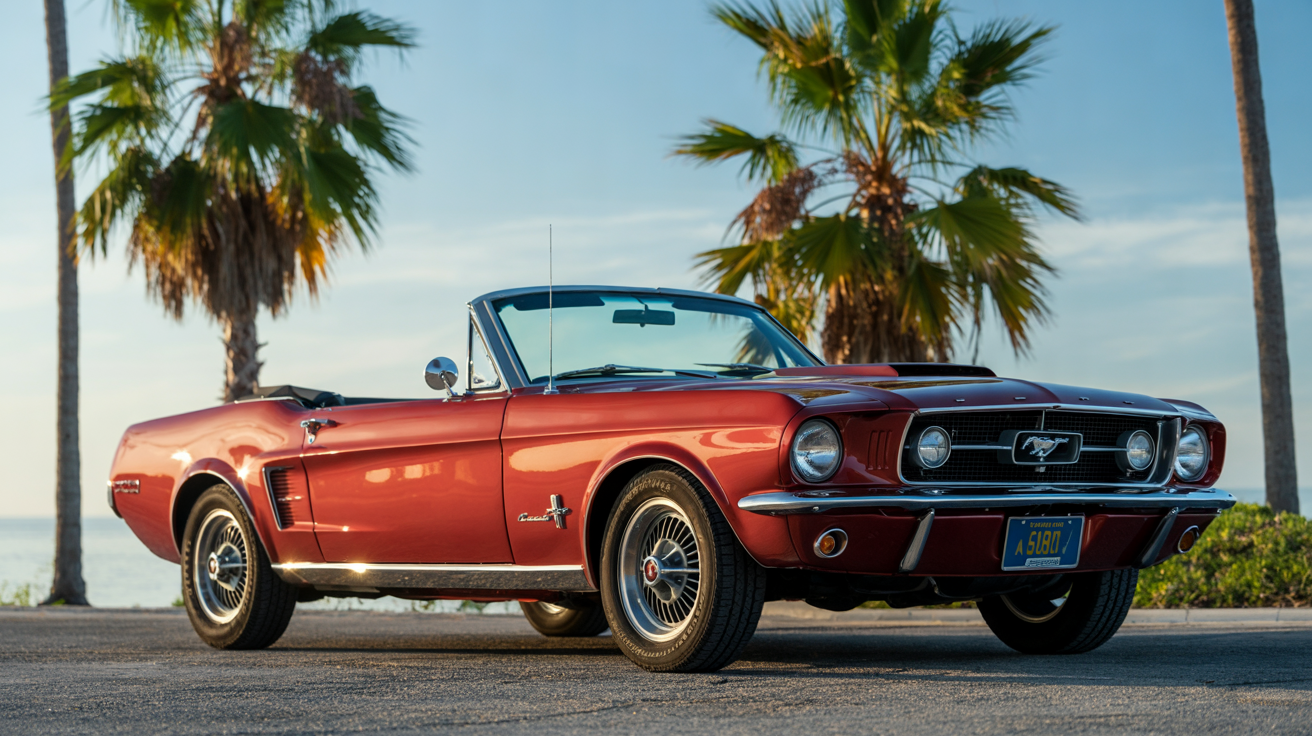
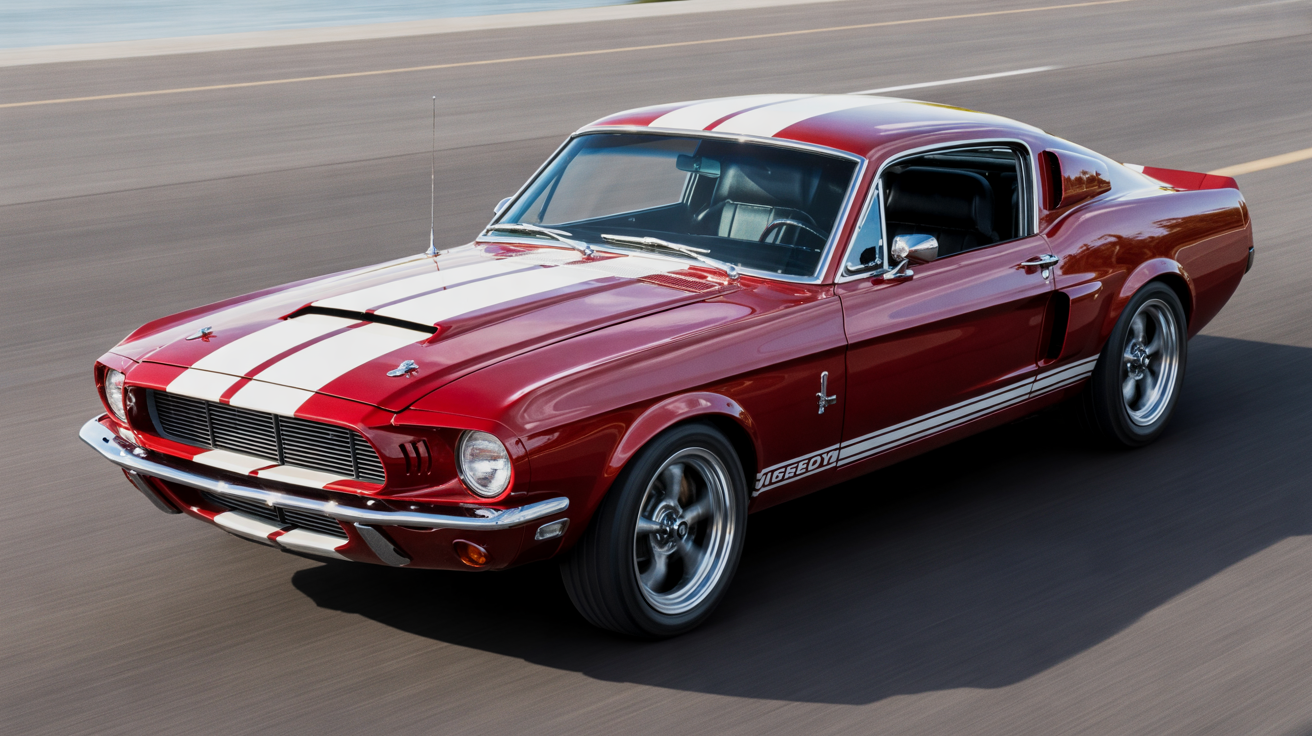
Realistic - a realistic style focused on creating images that closely resemble real photographs.
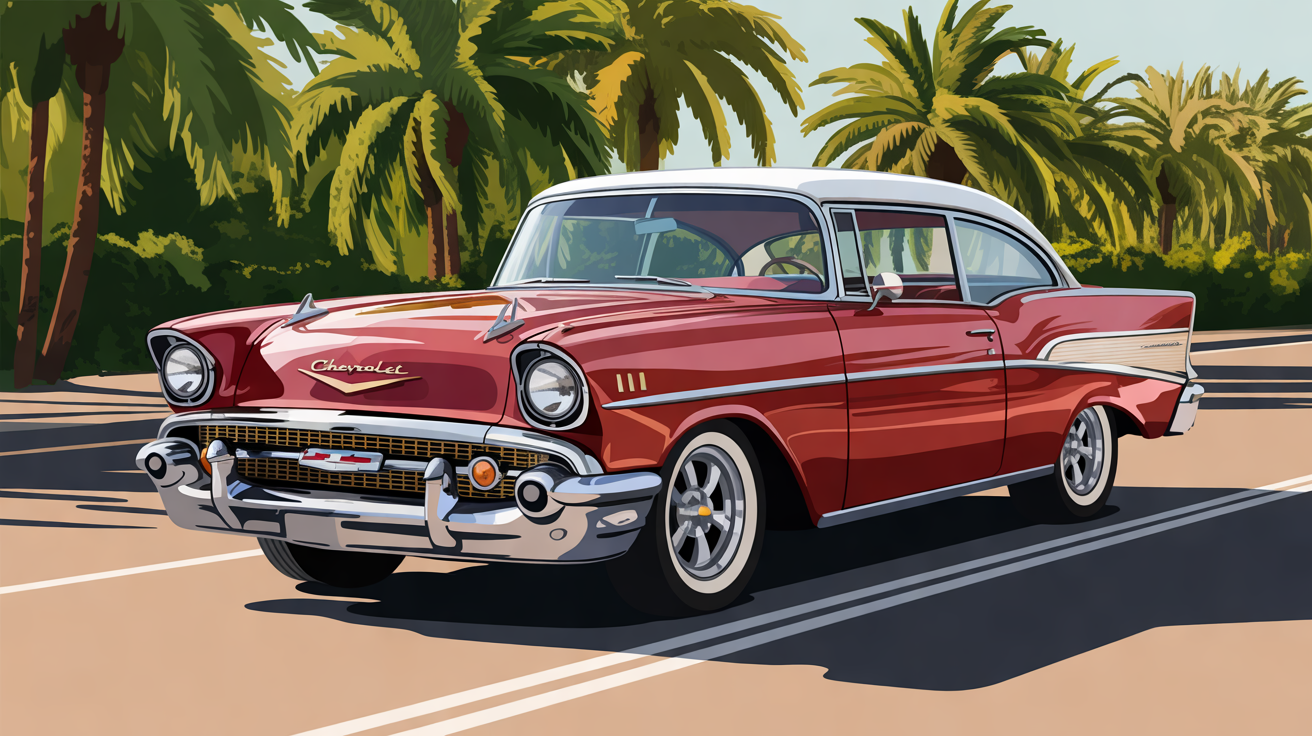
Design - a style for creating graphic elements, illustrations, posters, and other design materials.
Aspect Ratio
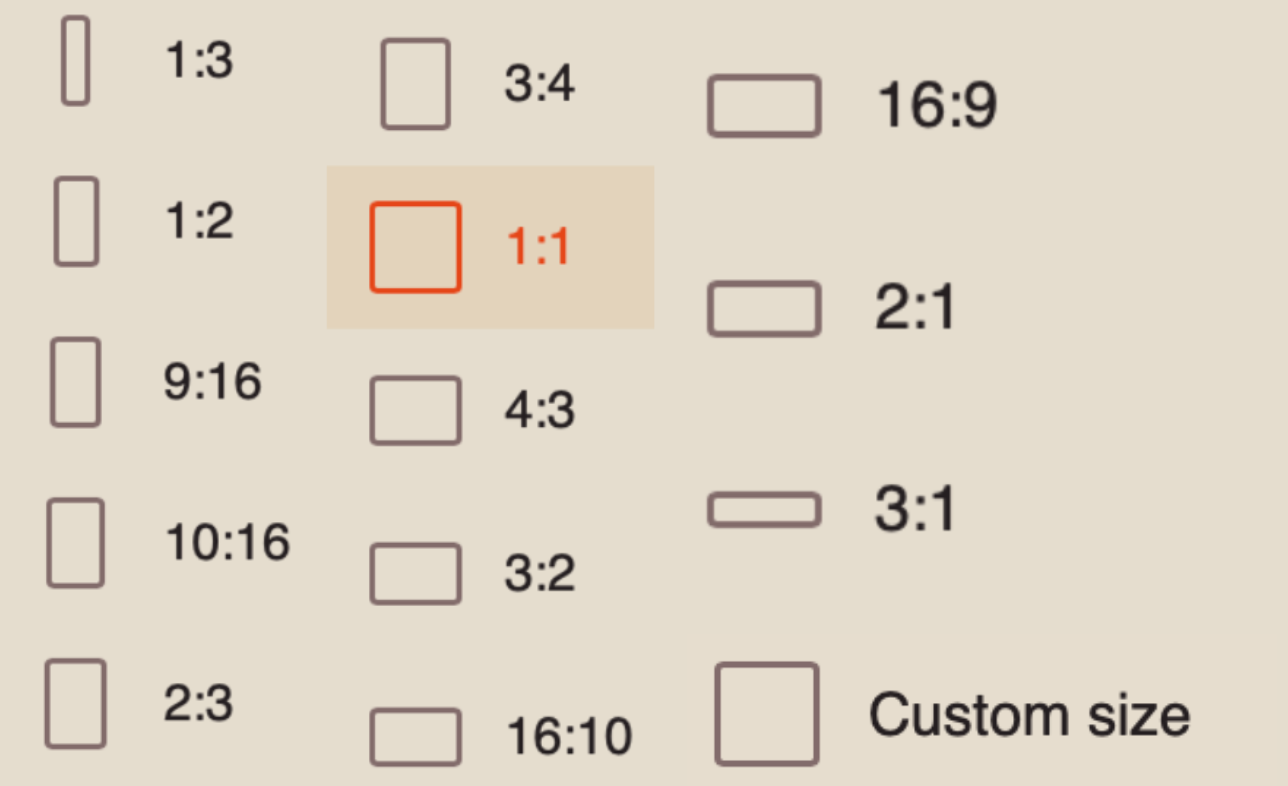
When working with the V3 model, you have 14 aspect ratio options to choose from:
Custom Size - when selecting this aspect ratio option, an additional “Resolution” setting becomes available, allowing you to manually choose the dimensions of the generated image in pixels.
Negative Prompt
This setting allows you to specify elements that should not appear in the image, such as blurriness, a black background, effects, distortions, or a cartoon style. Filling in this field is optional.
Magic Prompt (Prompt Enhancement)
Magic Prompt is an automatic text prompt enhancement feature. It automatically expands your text prompt to help the model better interpret your preferences.
- Auto - the model independently determines whether the text prompt needs improvement. If necessary, the prompt will be automatically expanded and refined.
- On - the prompt enhancement feature is enabled. You only need to describe your desired result in simple words, without having to write a detailed prompt yourself. Magic Prompt will automatically add details to your description that may help achieve a higher-quality result.
- Off - automatic prompt enhancement is disabled. To achieve the desired result, it is recommended to specify all important details yourself.
Seed
The Seed setting allows you to obtain identical or stylistically similar results when running generations repeatedly. If you like an image and want to create a similar one while changing or adding specific details, the Seed setting will be particularly useful.
In the description of an image you like, you can copy its Seed value and use it to reproduce the result with the desired changes. To do this, leave the “Random Seed” toggle turned off and paste the copied Seed into the field.
Random Seed
If you do not need to work with the Seed parameter, turn on the “Random Seed” toggle.
Writing a text prompt
When generating an image using a reference, you need to describe the result you want to achieve based on the uploaded image.
It is recommended to include the following in your text prompt:
- Main Changes - describe what needs to be changed, added, or removed from the original image.
- Preserving Details - specify which elements should remain unchanged: the character’s appearance, clothing, pose, background, or composition.
- Environment and Composition - if necessary, describe the new placement of objects, background, and additional elements.
- Style and Atmosphere - specify the desired style, lighting, color palette, and mood of the image.
Example Prompt:
❌ Incorrect: Replace the background with a beautiful one.
✅ Correct: Replace the photo background with a picturesque seaside beach featuring white sand, palm trees, and turquoise water. The ocean and a clear blue sky are visible in the background. Add soft sunlight and natural shadows. Keep the people’s appearances, clothing, poses, and facial expressions unchanged. Photorealistic style.
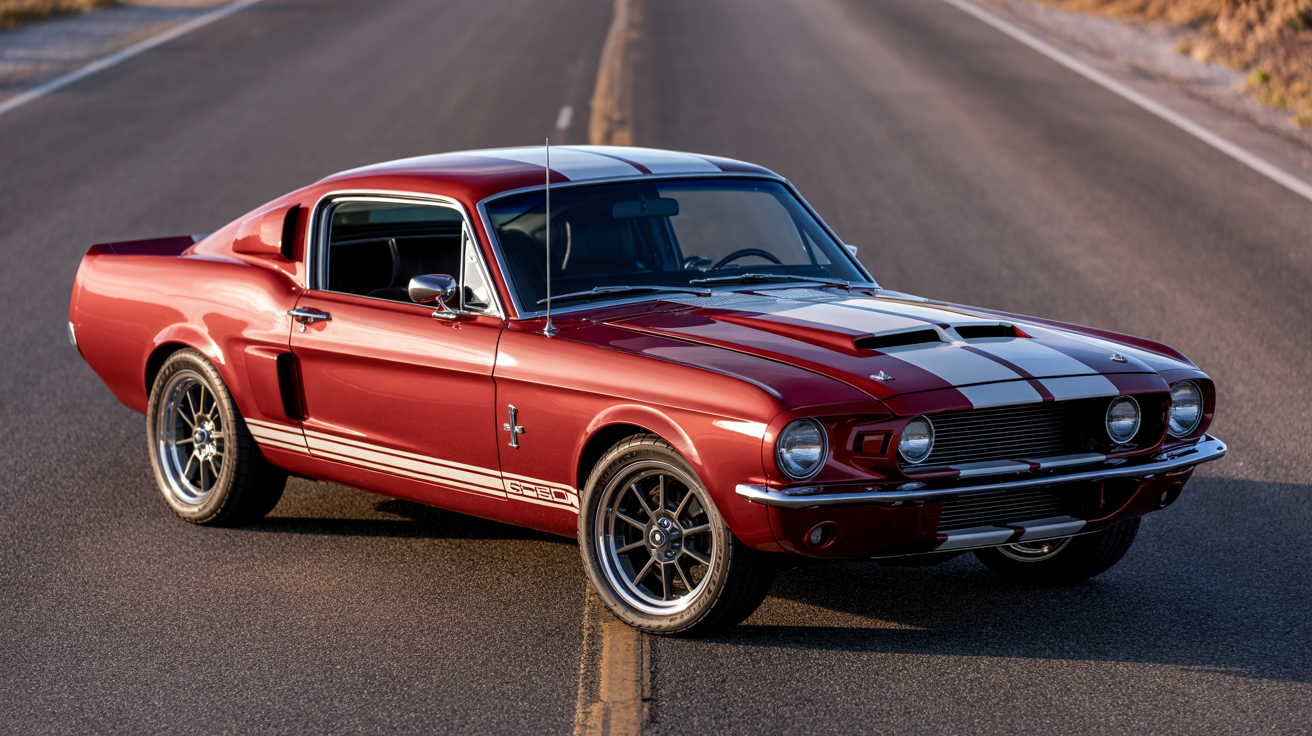
Result

Thank you for taking the time to read this guide on using Ideogram. We hope that the knowledge you have gained will help you unlock the full potential of the tool, experiment with different styles, and create truly unique images. May every idea you have come to life, and may your creativity know no bounds. 💛