Google’s widely discussed models such as Gemini Flash 2.5 (Nano Banana), Gemini 3 Pro (Nano Banana Pro), and Gemini 3 Flash understand context exceptionally well and can precisely edit objects in your images while preserving image quality.
- 🎛 Navigation
- 💥 Generation from a Text Prompt — Nano Banana
- 💥 Reference-Based Generation in Nano Banana
- 💥 Working with the Remix Feature in Nano Banana
🎛 Navigation
🏠 Main Menu > 🎨 Design with AI > 🍌 Nano Banana PRO
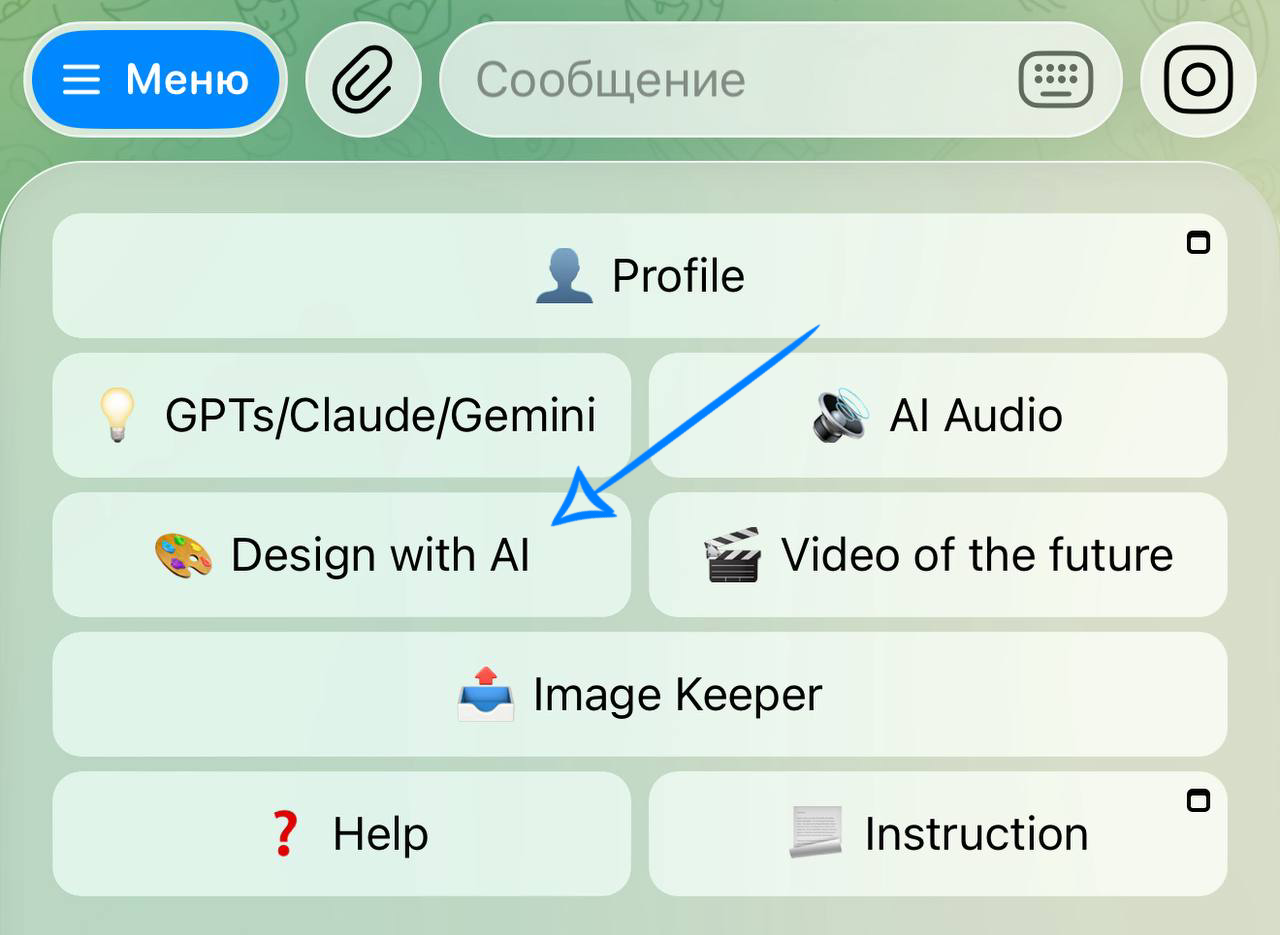
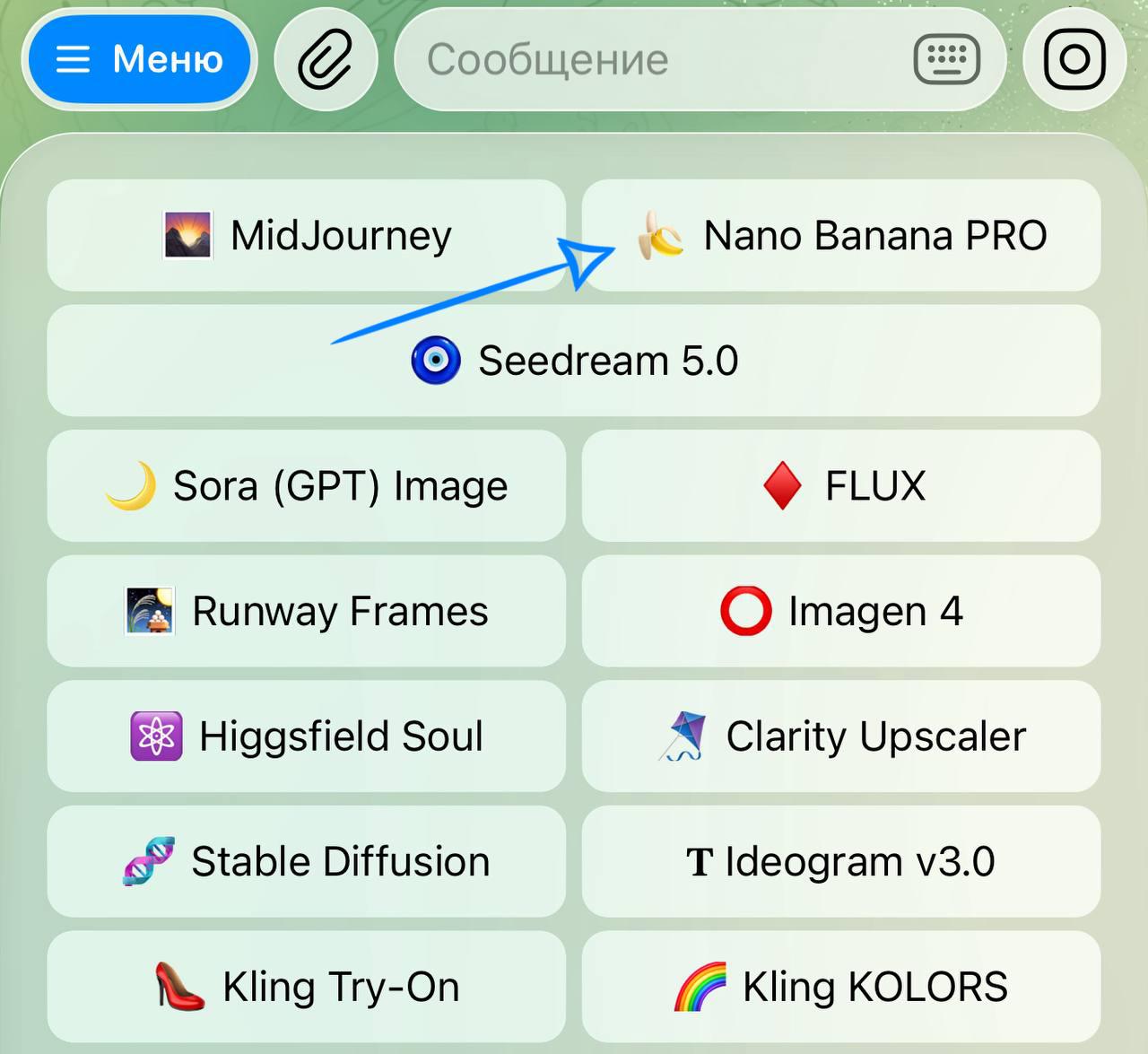
💥 Generation from a Text Prompt — Nano Banana
Model Settings
Model
You are provided with 3 models to choose from:
Banana - a base visual model from Google for generating and editing images from a text prompt. It supports uploading up to 4 images and combining them, changing the background, details, and style. The workflow is based on separate generations, where each prompt produces a new result.
Banana Pro - an advanced version of the model with improved quality and stability. It supports uploading up to 4 images and combining them, as well as changing the background, details, and style. It is well suited for image series thanks to better character consistency, provides more realistic depth and lighting, and produces clean, readable text and logos. This is the optimal choice for commercial and multi-frame projects.
Banana 2 - an updated version of Google’s visual model for generating and editing images from text prompts. It supports uploading up to 4 images and combining them, as well as modifying the background, details, and style. It can generate images from descriptions, edit uploaded photos, and perform complex scene changes based on text instructions. Compared to previous versions, it offers faster generation speed and better understanding of complex instructions.
Quality
❣️ The quality selection is only available when using the Nano Banana Pro and Banana 2 models.
You can choose the generation quality. Three options are available:
1K - basic quality. Suitable for quick generations, ideas, and sketches.
2K - enhanced quality. Provides clearer details and more accurate rendering of elements.
4K - maximum quality. Maximum level of detail, high sharpness, and precise rendering of small elements.
Aspect Ratio
You can choose the aspect ratio for the generation. You may select the “Original” ratio or one of the 10 available formats.
❣️ Original - when using the Nano Banana and Nano Banana 2 models, the generation is created in a 1:1 format. When using the Nano Banana Pro model, the generation is created in a 16:9 format.
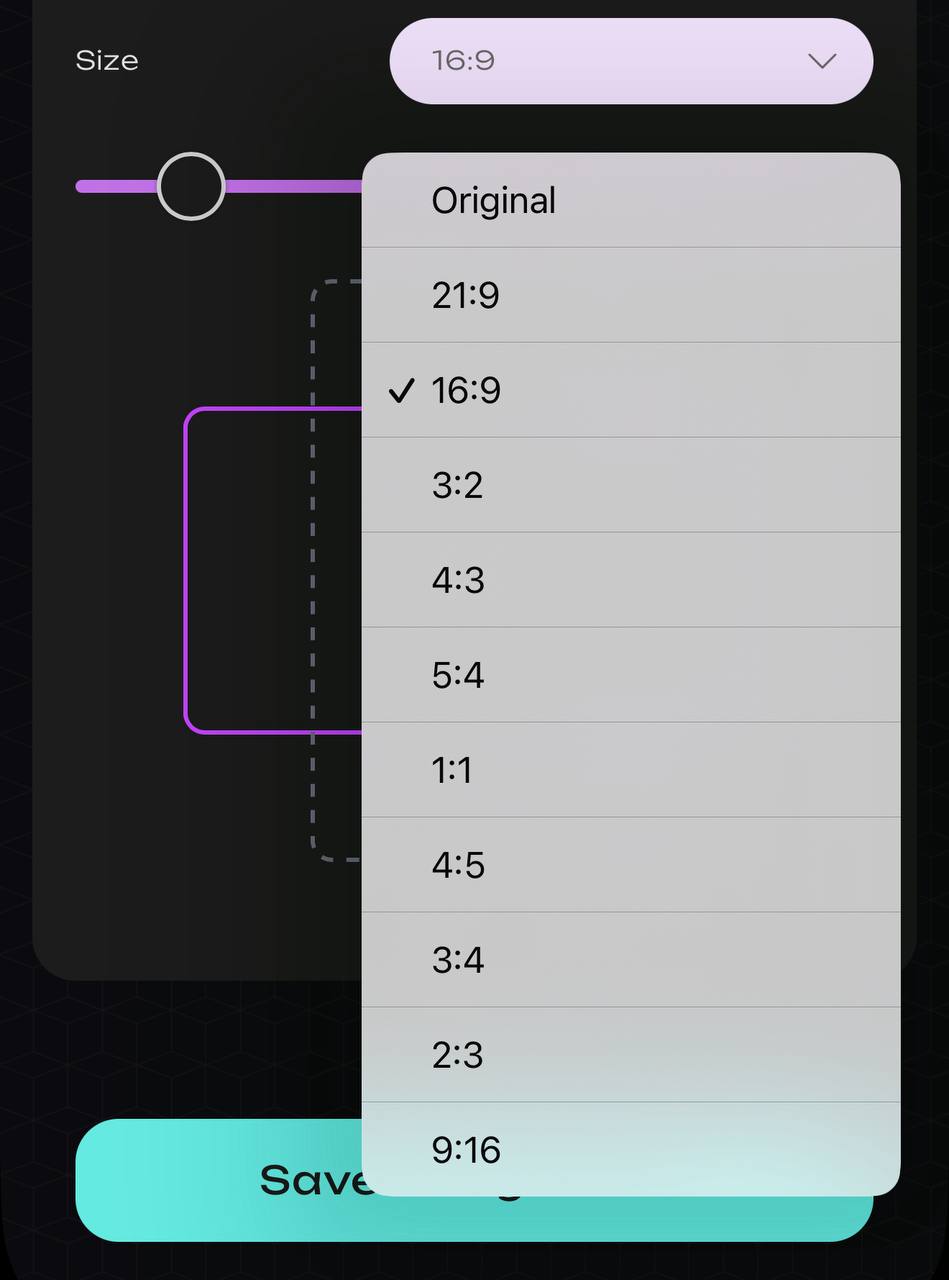
After setting all the parameters, click the “Save and go back” button. Next, you need to start creating a text prompt.
Text Prompt Structure
You can generate an image based solely on a text prompt.
To get the expected result, it is important to formulate the prompt correctly. The more precise and detailed your description of the desired image is, the closer the result will be to your expectations.
- Object
This is the main element of the image - the subject that will receive the most attention. It can be a person, animal, object, creature, building, or even an abstract concept.
Do not limit yourself to simply “a girl” or “a car” - specify what exactly it is: the age, style, and origin of the subject.
- Action or pose
This describes what the subject is doing or its position in the frame. This part makes the image feel more dynamic and conveys motion and context.
- Background and Environment
This defines the environment where the subject is located. It can be a place, landscape, architecture, time of day, or weather conditions. The background influences the overall composition and atmosphere.
If you want the simplest possible background, it is still important to describe it. For example: On a clean white background.
Important
- Very short prompts often produce vague results.
- Very long and overloaded prompts may be partially ignored.
- The optimal prompt length is 2–3 sentences.
- Each generation, even with the same prompt, may produce slightly different results while maintaining the same general idea.
Example
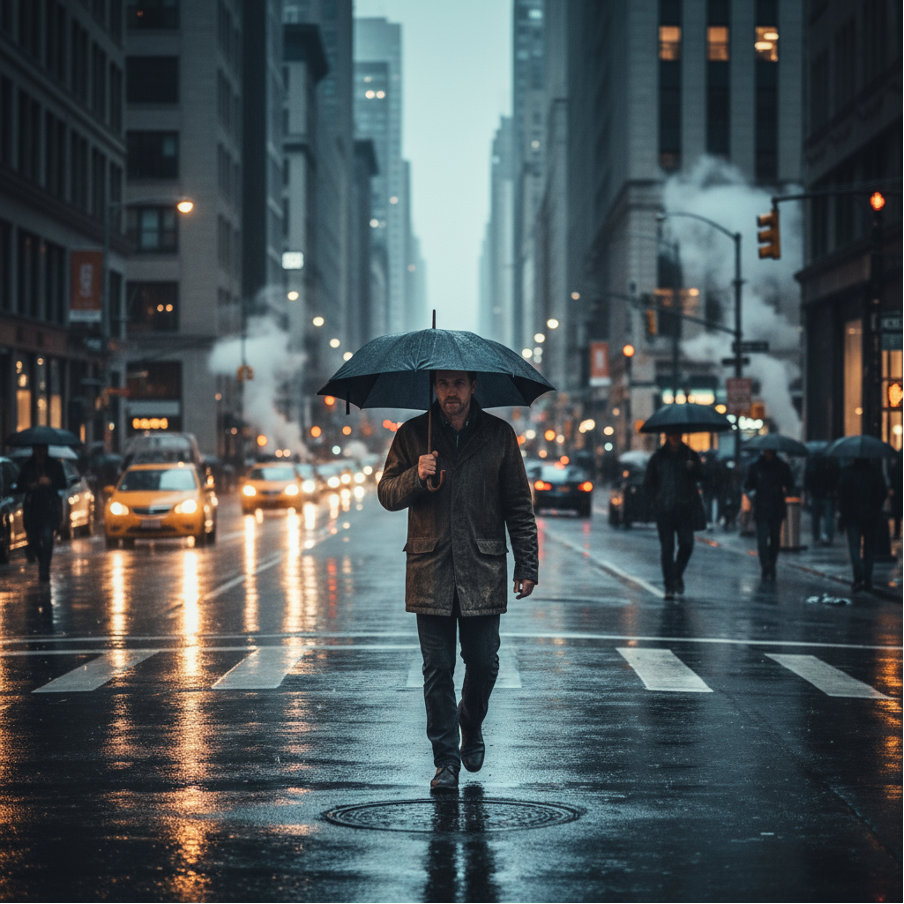
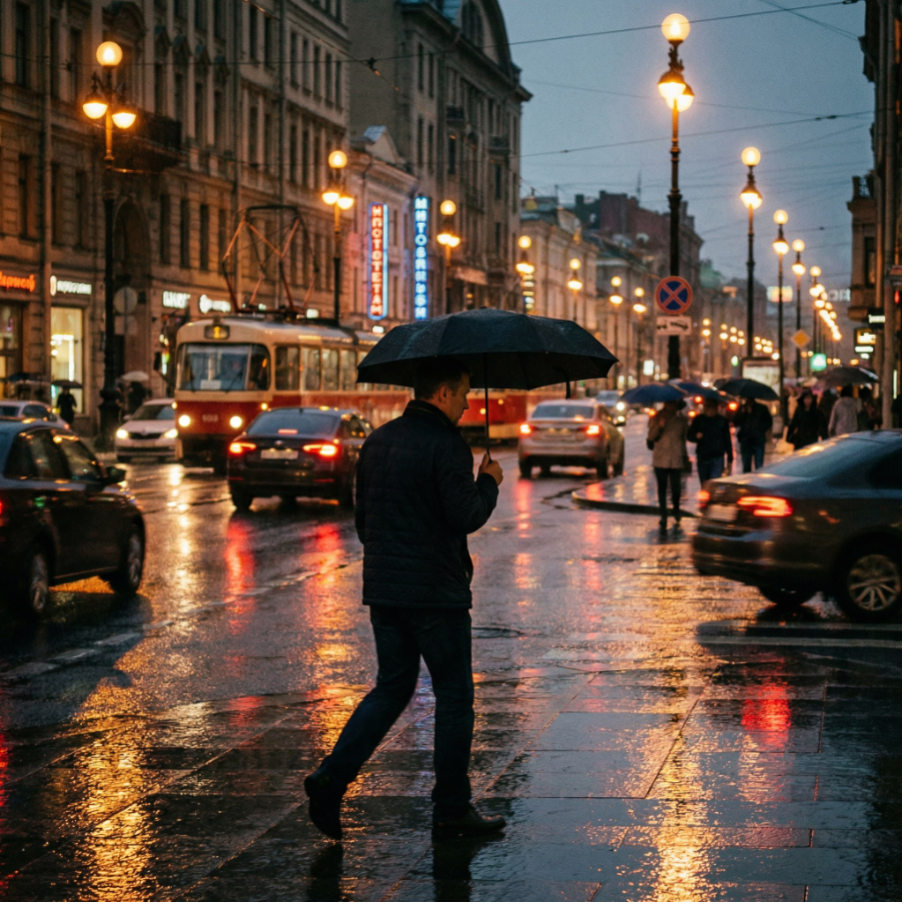
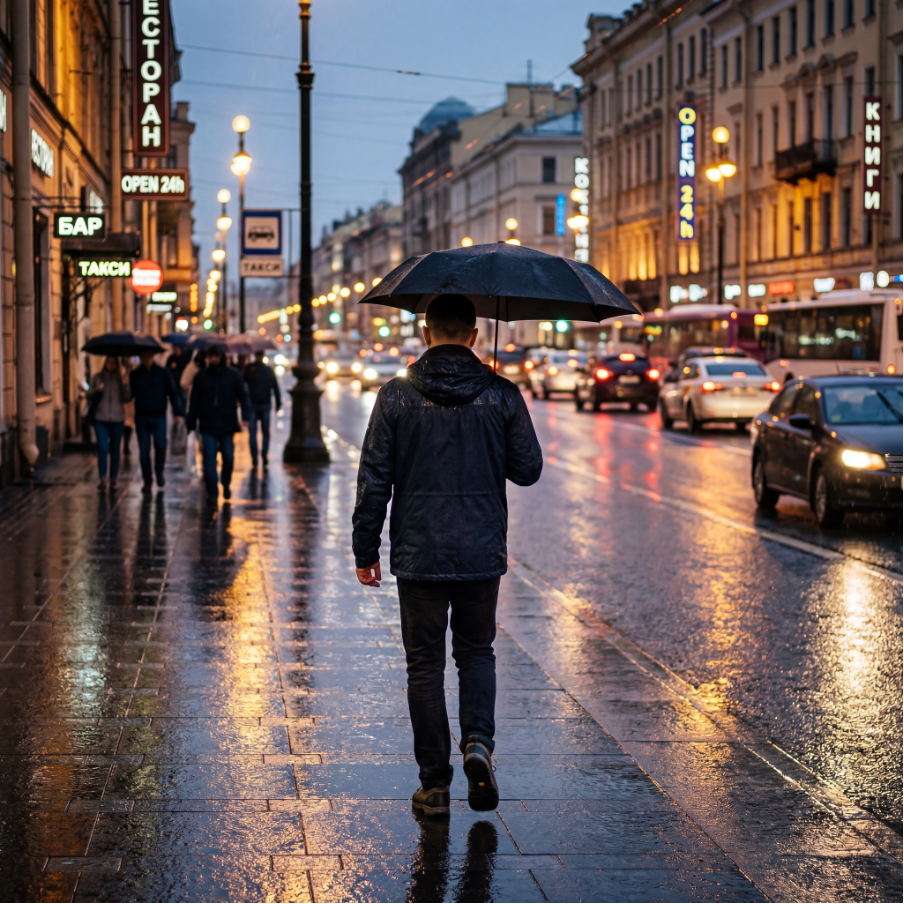
Prompt - A man in a dark jacket walks through an evening city. Streetlights reflect on the wet asphalt. He is holding an umbrella, with movement and lights around him. Realistic style with a slightly cinematic mood.
Nano Banana
Nano Banana Pro
Nano Banana 2
💥 Reference-Based Generation in Nano Banana
This tool allows you to upload reference images that will be used as the basis for generation. Based on them, the neural network will create an updated and improved version, preserving important elements of the original and enhancing them according to your text prompt.
Model Settings
Model
You are provided with 3 models to choose from:
Banana - a base visual model from Google for generating and editing images from a text prompt. It supports uploading up to 4 images and combining them, changing the background, details, and style. The workflow is based on separate generations, where each prompt produces a new result.
Banana Pro - an advanced version of the model with improved quality and stability. It supports uploading up to 4 images and combining them, as well as changing the background, details, and style. It is well suited for image series thanks to better character consistency, provides more realistic depth and lighting, and produces clean, readable text and logos. This is the optimal choice for commercial and multi-frame projects.
Banana 2 - an updated version of Google’s visual model for generating and editing images from text prompts. It supports uploading up to 4 images and combining them, as well as modifying the background, details, and style. It can generate images from descriptions, edit uploaded photos, and perform complex scene changes based on text instructions. Compared to previous versions, it offers faster generation speed and better understanding of complex instructions.
Quality
❣️ The quality selection is only available when using the Nano Banana Pro and Banana 2 models.
You can choose the generation quality. Three options are available:
1K - basic quality. Suitable for quick generations, ideas, and sketches.
2K - enhanced quality. Provides clearer details and more accurate rendering of elements.
4K - maximum quality. Maximum level of detail, high sharpness, and precise rendering of small elements.
Aspect Ratio
You can choose the aspect ratio for the generation. You may select the “Original” ratio or one of the 10 available formats.
❣️ “Original” - the generation is created based on the size of the uploaded image.
-
If the model settings are set to “Original aspect ratio”, when uploading reference images with different aspect ratios in the Nano Banana model, the aspect ratio of the last uploaded image will automatically be used as the base for generation.
-
If the model settings are set to “Original aspect ratio”, when uploading reference images with different aspect ratios in the Nano Banana Pro and Nano Banana 2 models, the aspect ratio of the first uploaded image will automatically be used as the base for generation.
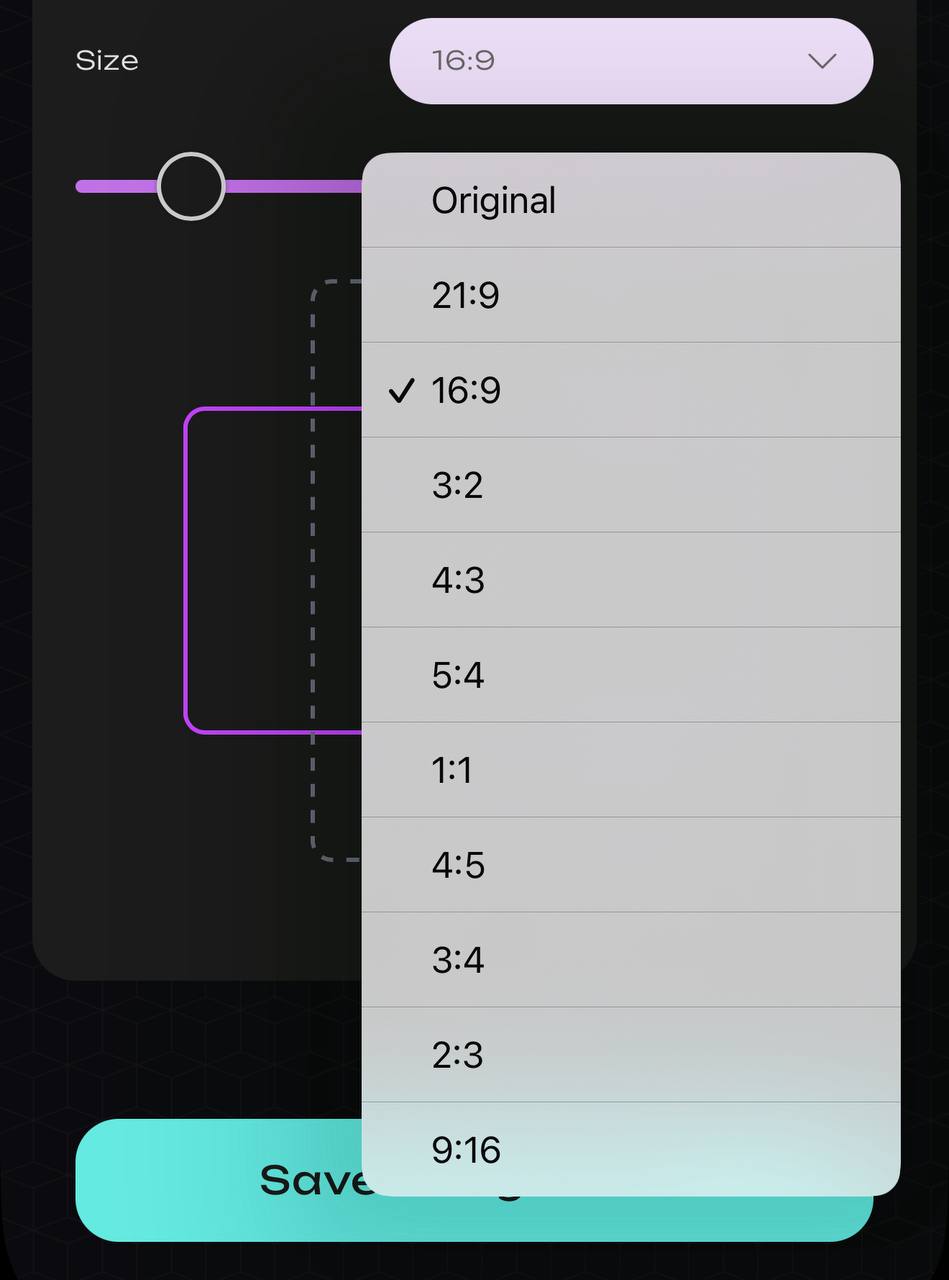
After setting all the parameters, click the “Save and Go back” button. Next, you need to start creating a text prompt.
Uploading a Reference
Upload from 1 to 4 images and enter a text prompt so the system can generate the desired result.
- Maximum file size of the uploaded image - 5 MB
- Supported file formats - JPG, PNG
- Required aspect ratio - from 5:2 to 2:5
- Maximum number of uploaded images - 4
- Minimum number of uploaded images - 1
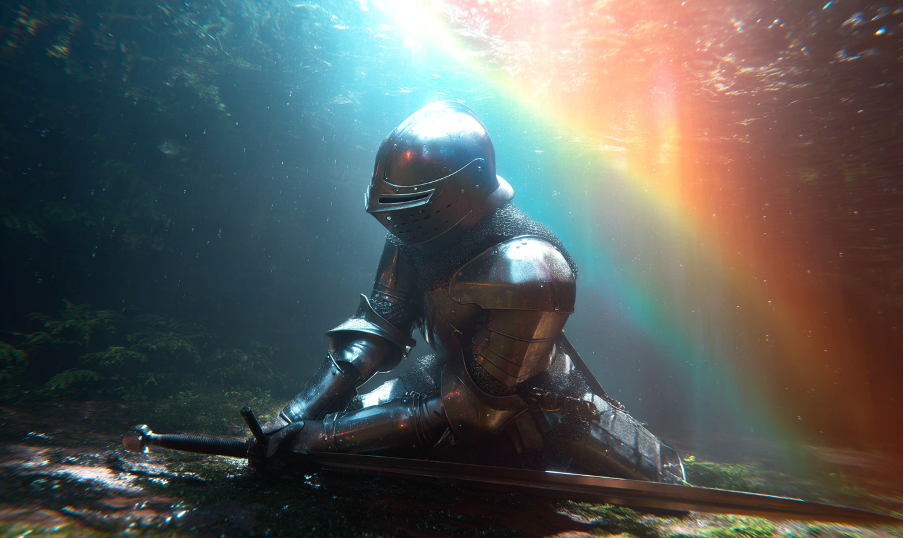
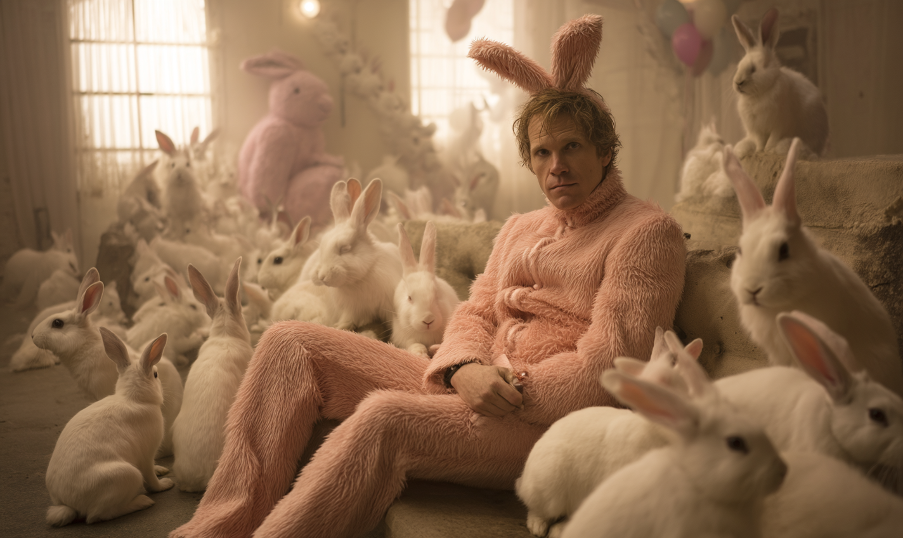
Text Prompt
How to write a text prompt in Nano Banana with references:
- Specify what exactly should be taken from each image
- “Background and lighting - from image 1”
- “Character pose and position - from image 2”
- “Color palette - similar to both images”
- “Keep the clothing style from the second reference”
Example:
“Take the background and lighting from image 1, and the pose and dress style from image 2.”
- Formulate the main prompt
Describe what exactly should be generated based on the references:
- Object or scene: who or what should appear in the image
- Details and environment: where it is and how it looks
- Lighting and mood: warm, cold, soft, dramatic, etc.
- Image style: realism, watercolor, cartoon, digital art, etc.
- Additional recommendations
- Avoid negative wording (for example, “do not add a background”); instead specify what the background should be: “background - blurred, minimalistic.”
- If needed, specify the scene genre, for example: “cinematic style.”
- If high stylistic accuracy is required, it is recommended to use English keywords, especially when describing artistic techniques or genres.
- It is recommended to avoid uploading visually contradictory reference images.
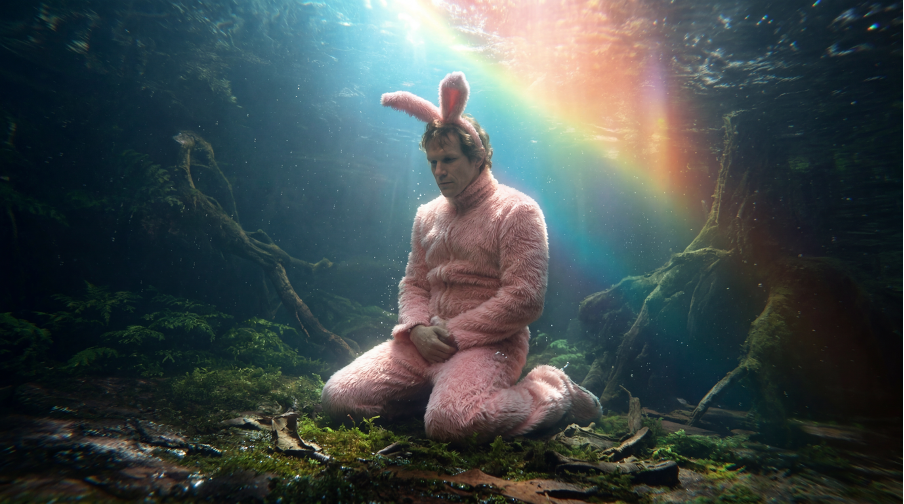
Example:
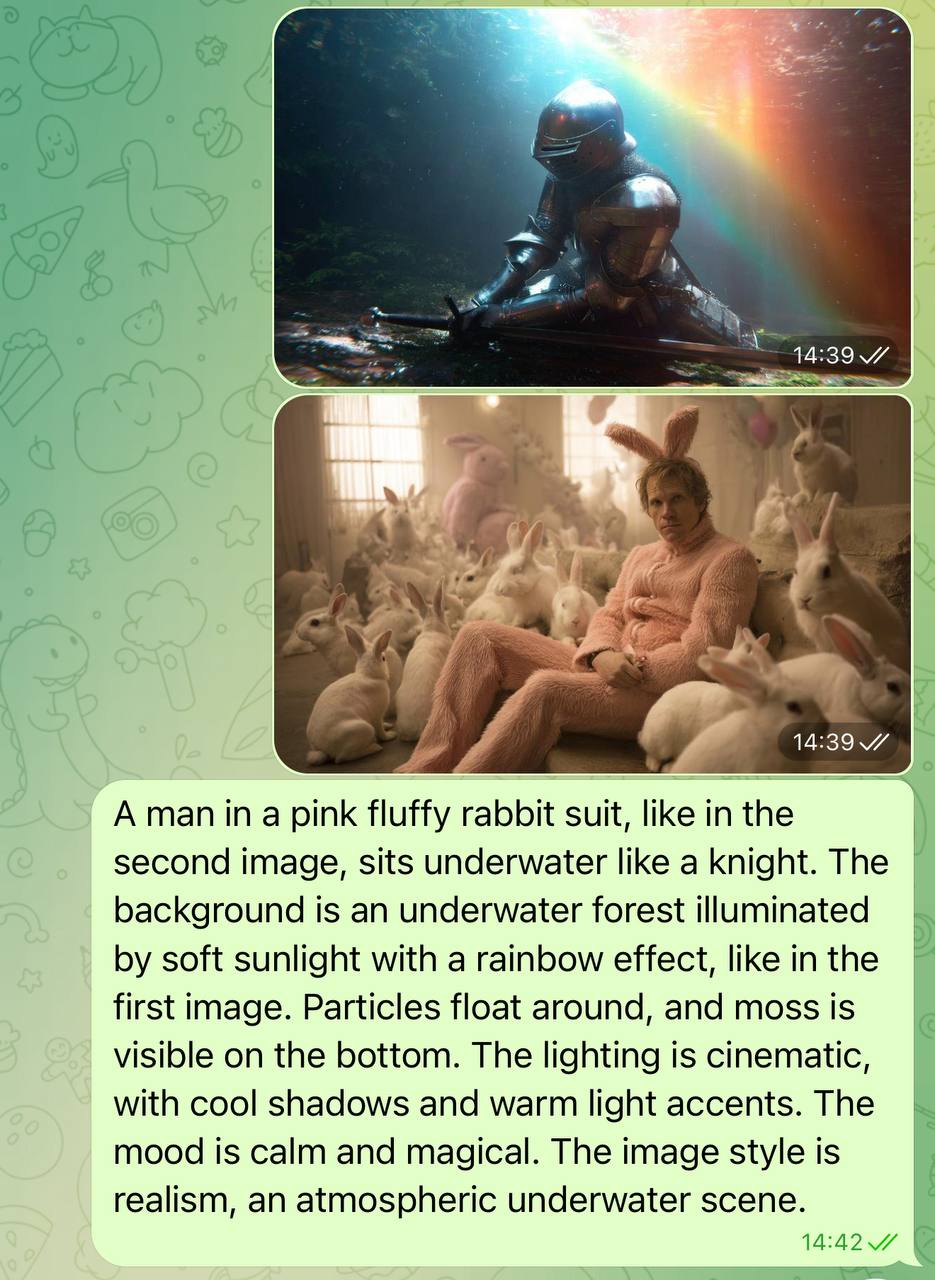
Result
After uploading the images and submitting the appropriate text prompt, you will receive a high-quality processed result.
Nano Banana
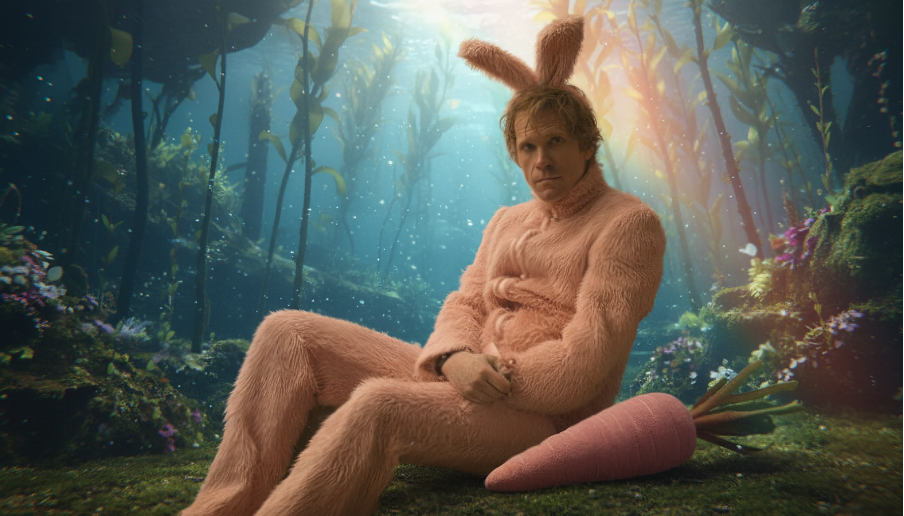
Nano Banana Pro
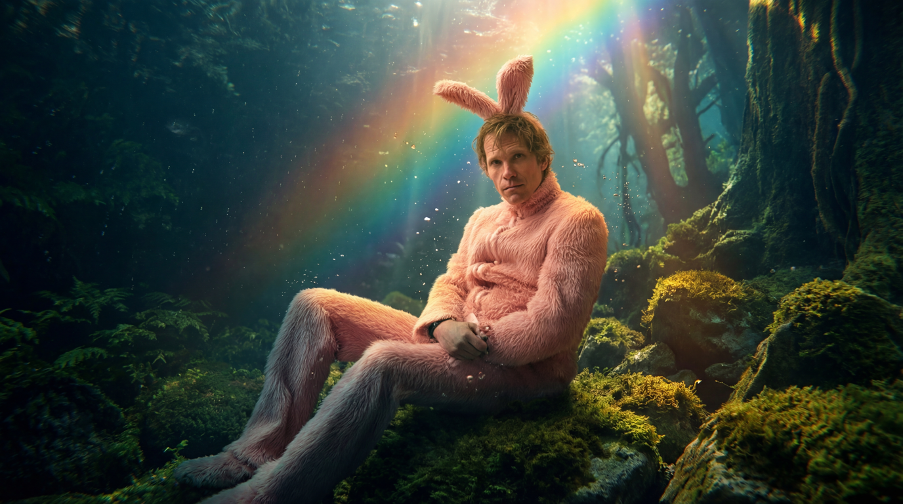
Nano Banana 2
Important
-
It is important to avoid negative phrasing such as “no light”, “do not add a background”, or “do not draw a helmet”.
-
Using the same prompt may produce different results each time it is generated.
💥 Working with the Remix Feature in Nano Banana
After generating an image, you can continue working with it and make the necessary adjustments using the Remix feature.
To continue working with the generated image, click the Remix button.
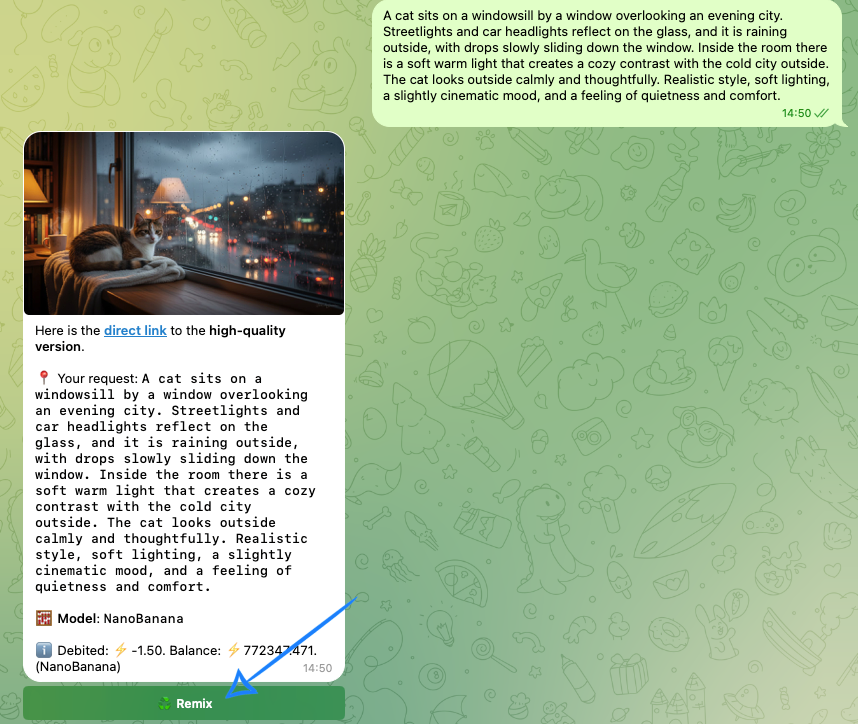
Next, you will have the option to enter a text prompt for editing or upload up to 3 additional images to work with references.
Remix with a Text Prompt
It is important to create a text prompt that clearly defines which elements should be preserved, changed, or added. This will help achieve the most accurate visual result based on the provided material.
Describe what exactly should be generated based on the already generated image:
- object or scene - who or what should be added;
- details and environment - where the action takes place and how it looks;
- lighting and mood - warm, cold, soft, dramatic, etc.;
- artistic style - realism, watercolor, cartoon, digital art, and others.
For example:
“Replace the cat with a black cat.”
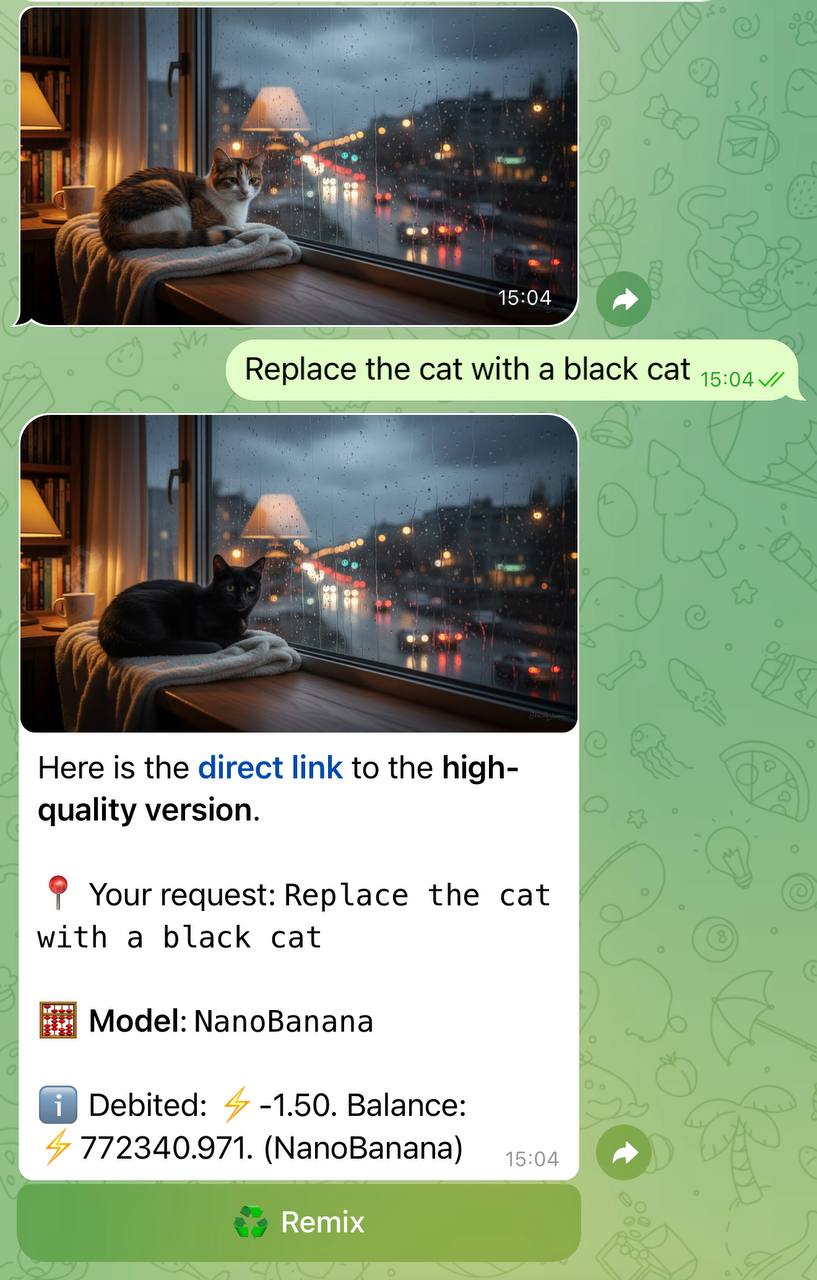
After editing the image, you can continue working with the Remix feature based on the new generation using the same principle.
Remix with Reference Upload
If you want to modify the generation using existing images, click the Remix button, upload up to 3 images, and enter a text prompt.
Image Upload
Upload from 1 to 4 images and enter a text prompt so the system can generate the desired result.
- Maximum file size of the uploaded image - 5 MB
- Supported file formats - JPG, PNG
- Required aspect ratio - from 5:2 to 2:5
- Maximum number of uploaded images - 4
- Minimum number of uploaded images - 1
For example:
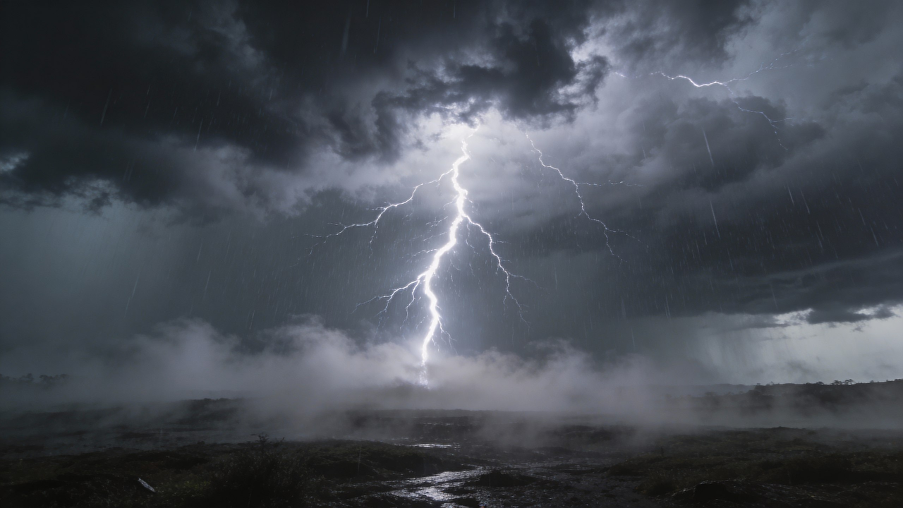
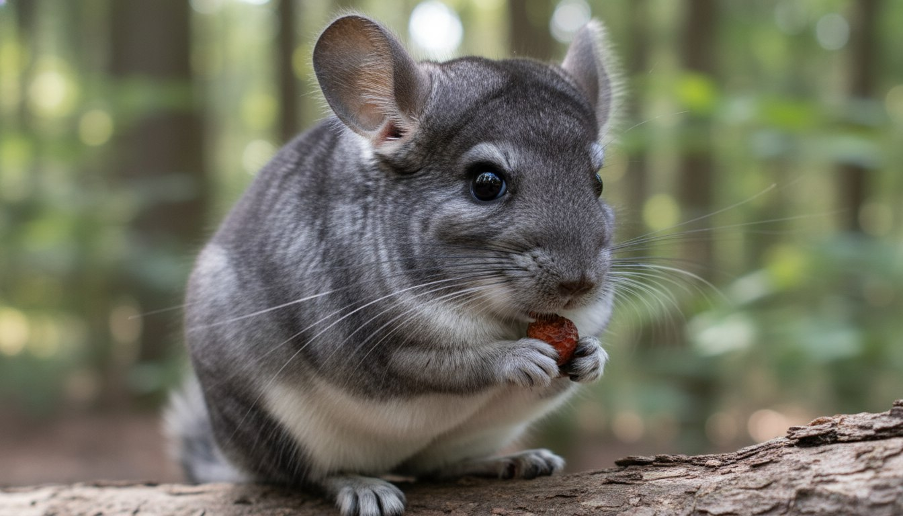
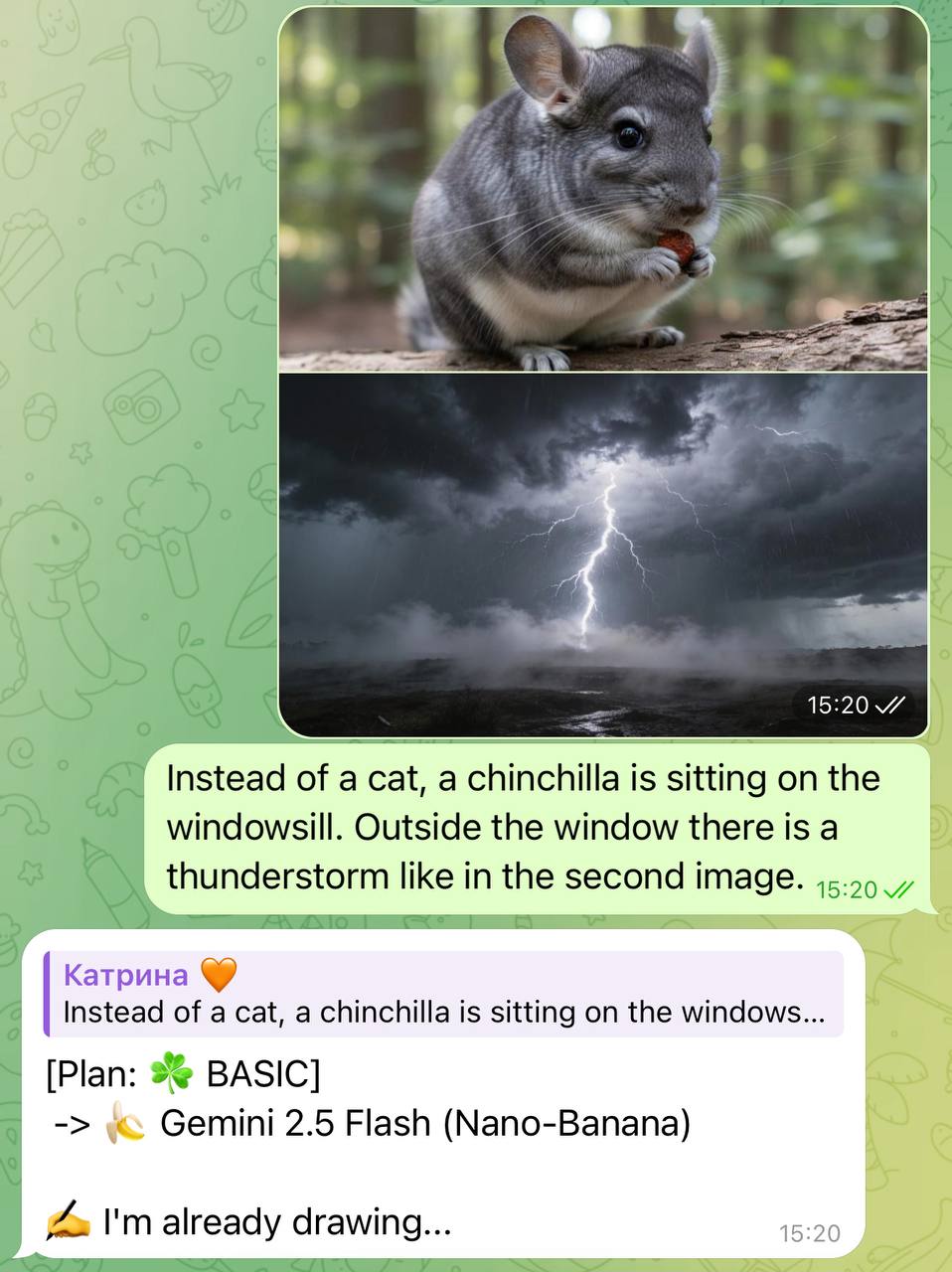
Result:
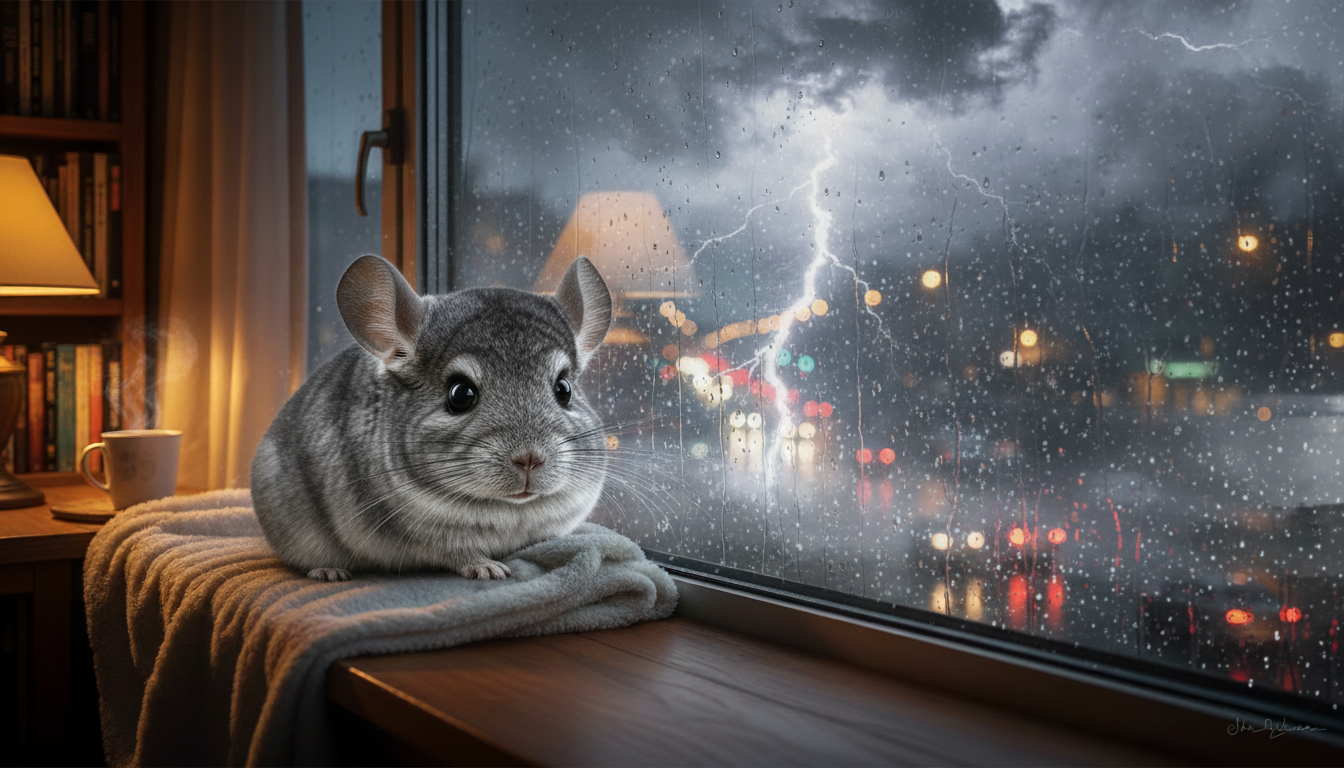
After editing the image, you can continue working with the Remix feature based on the new generation using the same principle.
We sincerely hope that this guide will help you better understand and easily use the Nano Banana Pro tool. We have tried to make the process as clear, intuitive, and inspiring as possible. Remember: every mistake is not a failure, but a valuable step on the path to mastery. Do not be afraid to try, explore, and experiment. Over time, you will definitely achieve impressive results 💛
SYNTX AI: Syntx AI
SYNTX Support: Syntx Support
YouTube channel “SYNTX”: Syntx YouTube
SYNTX.AI Academy: SYNTX Academy